
Metadata Mapping
Starting in OpenMetadata 2.0.3, Mode metadata is mapped as follows:
Query data models have an empty column list because Mode’s query response does not provide result-column metadata. When the SQL can be parsed and the source tables resolved, lineage connects those tables to the query data model and then to the report dashboard. If data model ingestion is disabled or a query data model is filtered out, lineage connects the tables directly to the dashboard.
The API token must have access to the spaces, reports, queries, charts, and data sources you want to ingest.
Requirements
OpenMetadata relies on Mode’s API, which is exclusive to members of the Mode Business Workspace. This means that only resources that belong to a Mode Business Workspace can be accessed via the API. Filter Query Param (filterQueryParam) controls the filter argument sent to Mode’s spaces API when discovering reports. Supported values are all and custom; leaving it empty uses all.
Metadata Ingestion
To ingest metadata from Mode, you need to create a service connection. The service connects Mode with OpenMetadata. Once you create a service, OpenMetadata automatically starts ingesting metadata.Step 1: Add New Service
-
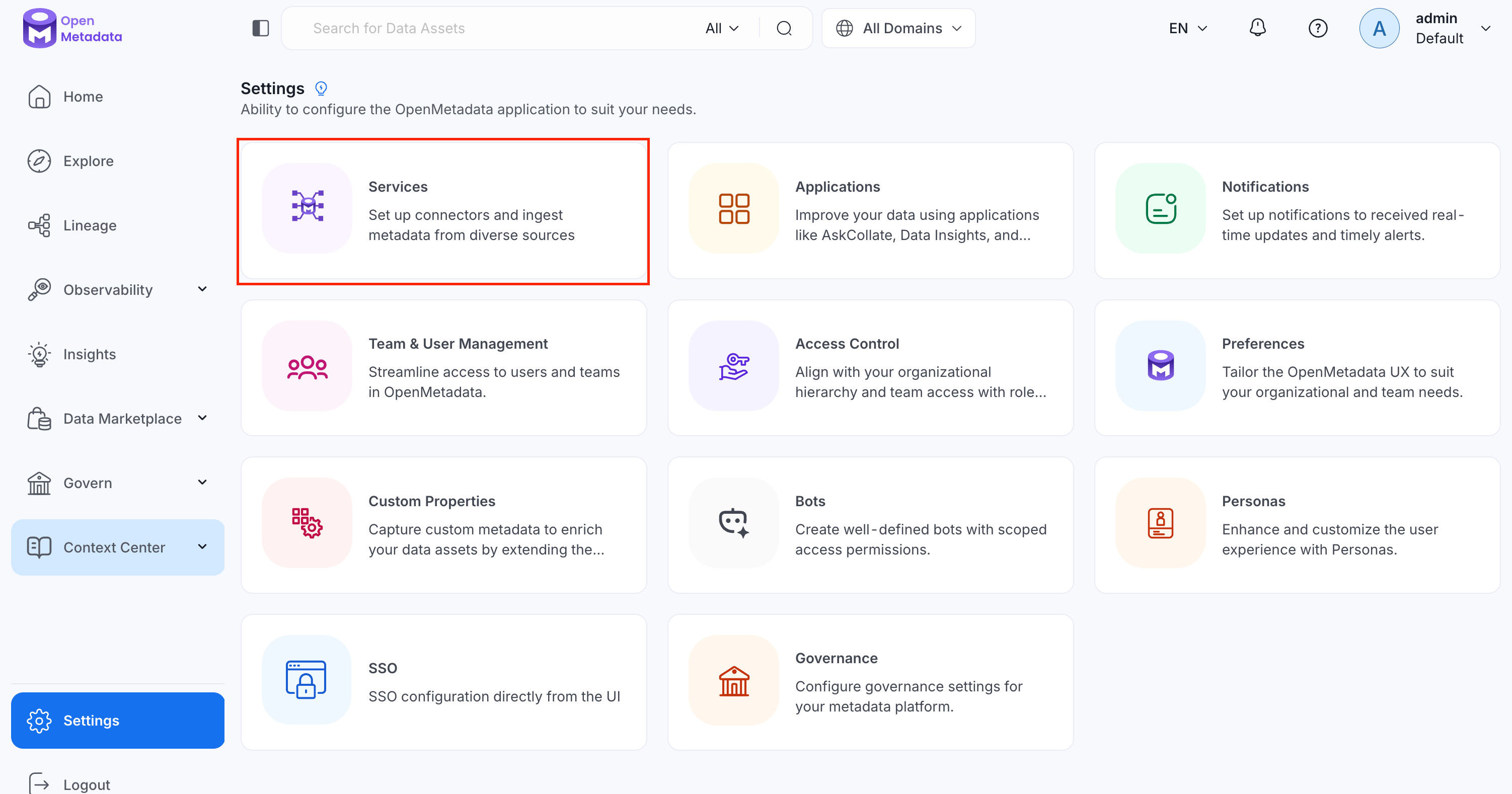
Navigate to Settings > Services.
-
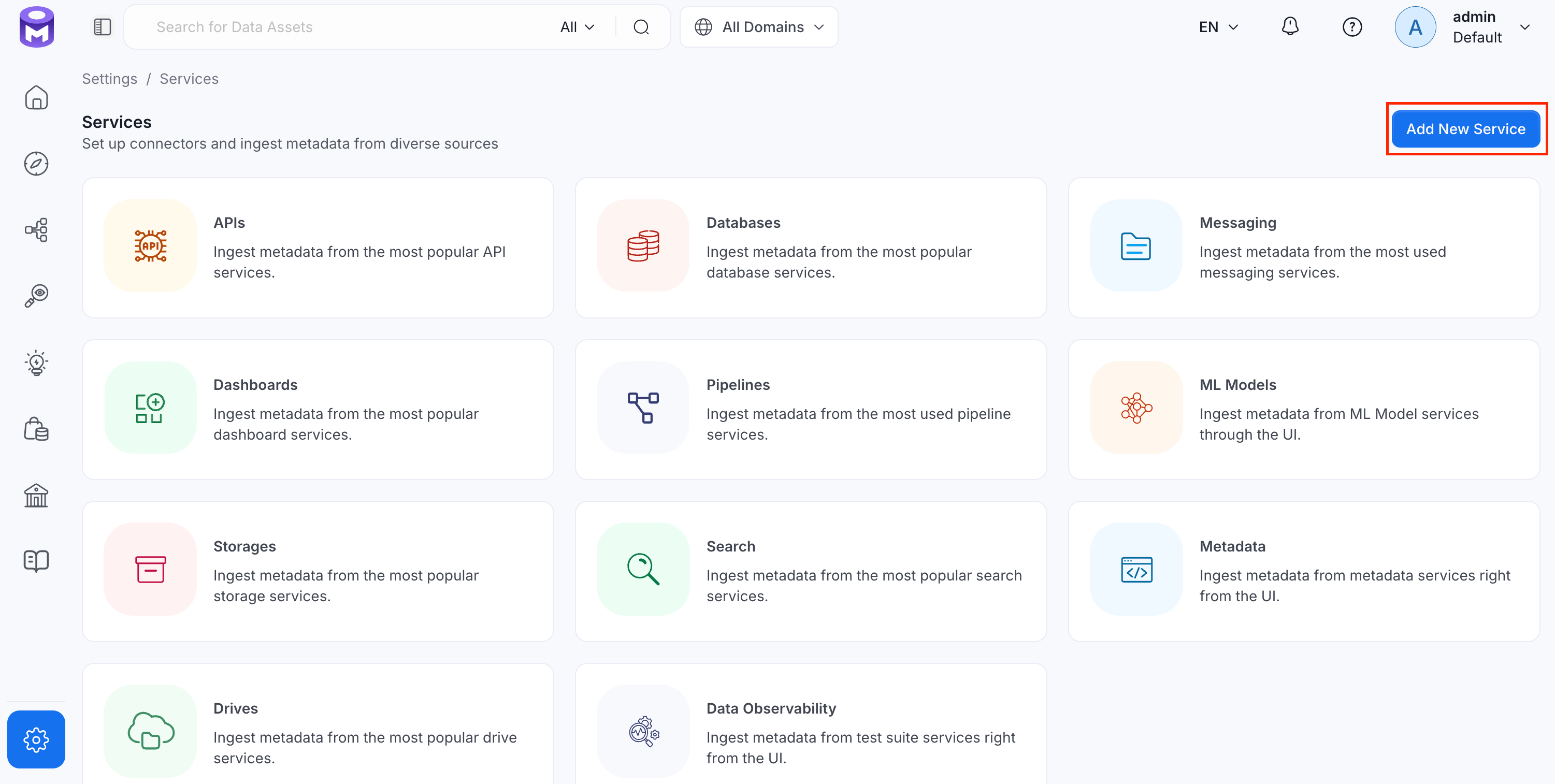
Click Add New Service.
Step 2: Select a Service and Connector
From the service type dropdown, select Dashboard Services, then click the Mode connector tile.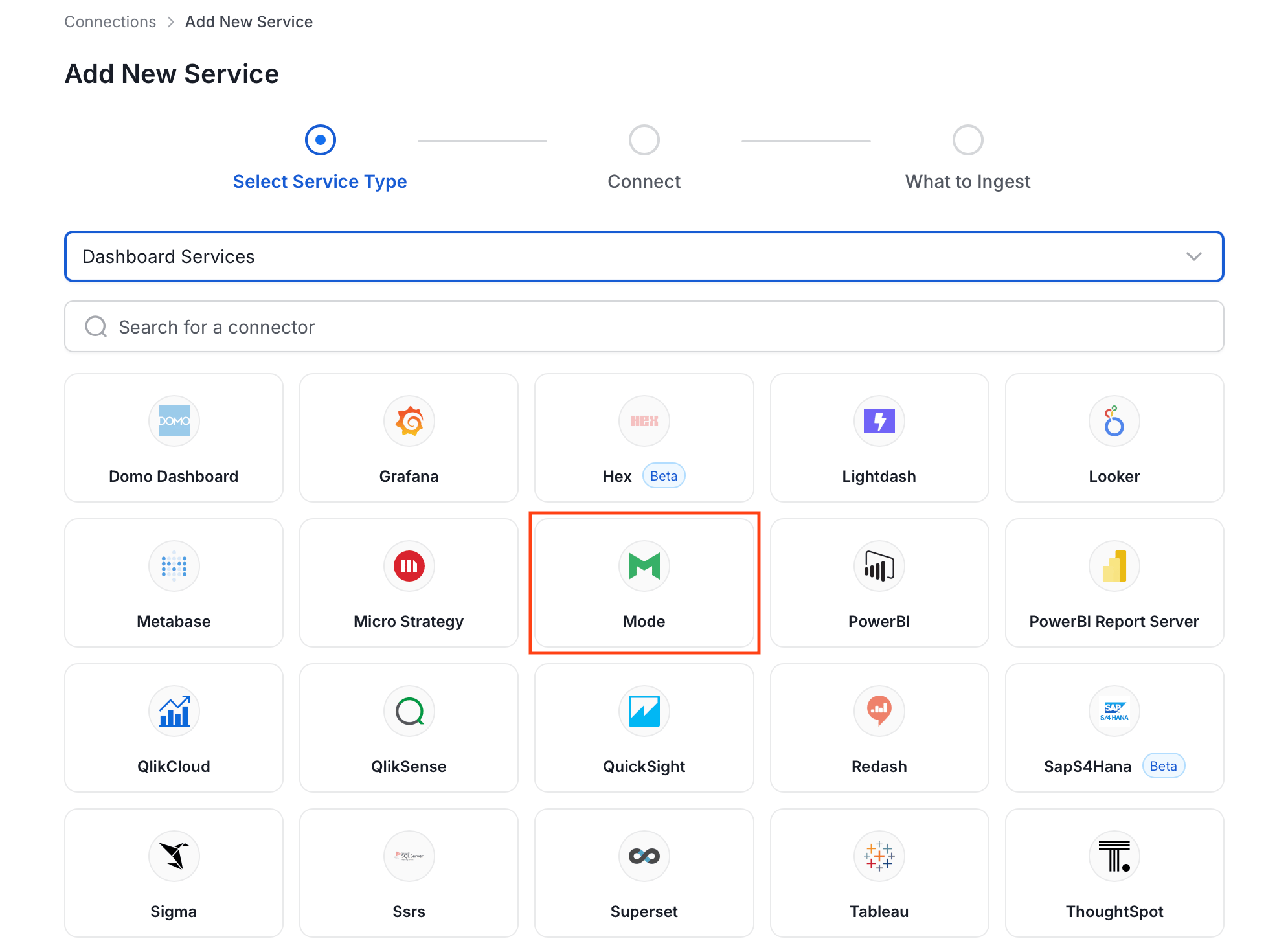
Step 3: Add Service Name and Description
- Enter a unique, descriptive Service Name. OpenMetadata identifies services by their service name. Enter a name that distinguishes this deployment from other Mode services you are ingesting metadata from.
- Optional: Enter a Description for the service.
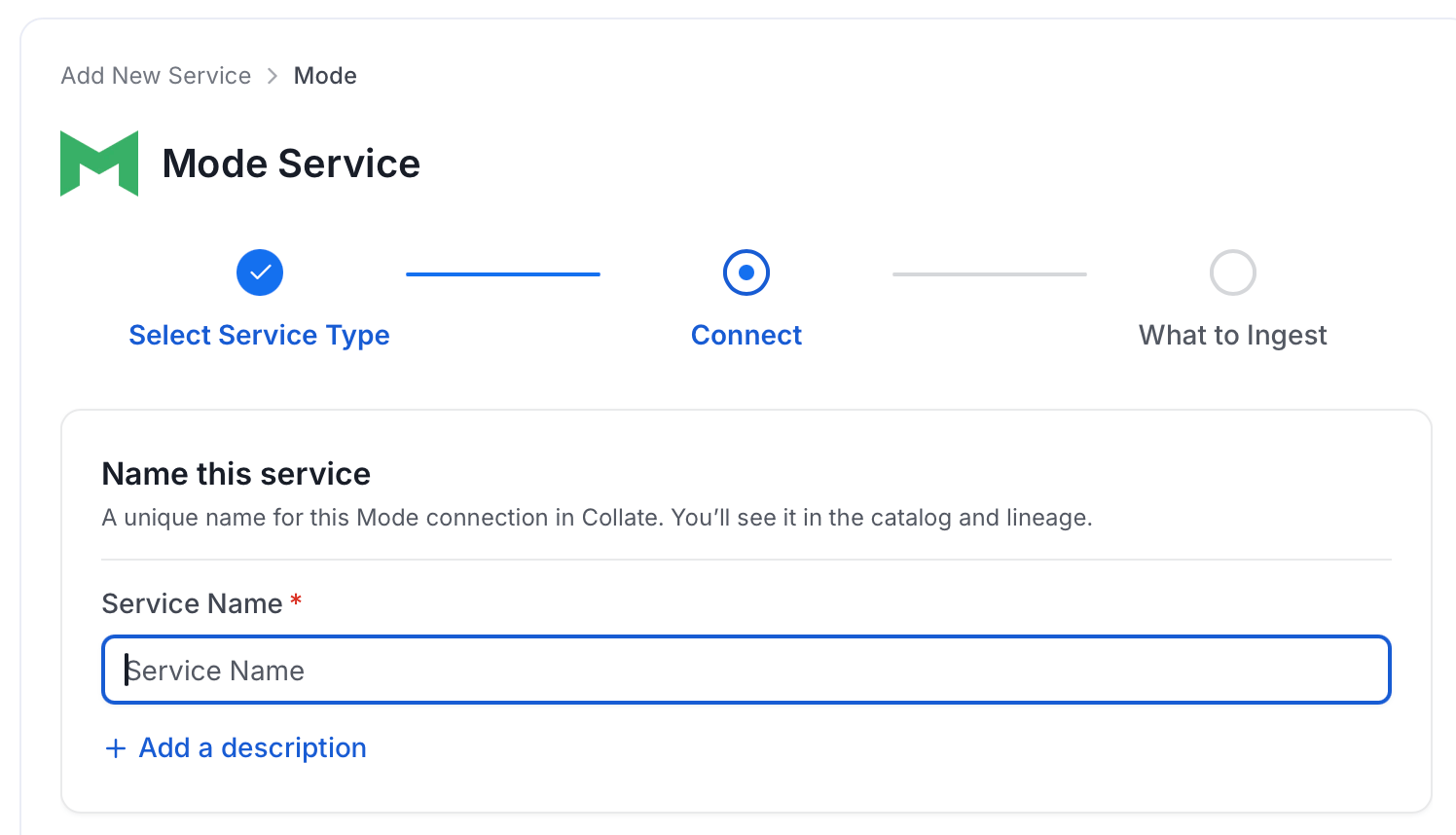
Note: The service name cannot be changed after it is set.
Step 4: Configure Connection Options
Specify your source credentials and verify the connection.Enter Connection Details
Enter the connection details for Mode. The right-hand panel in the UI displays inline help for each field.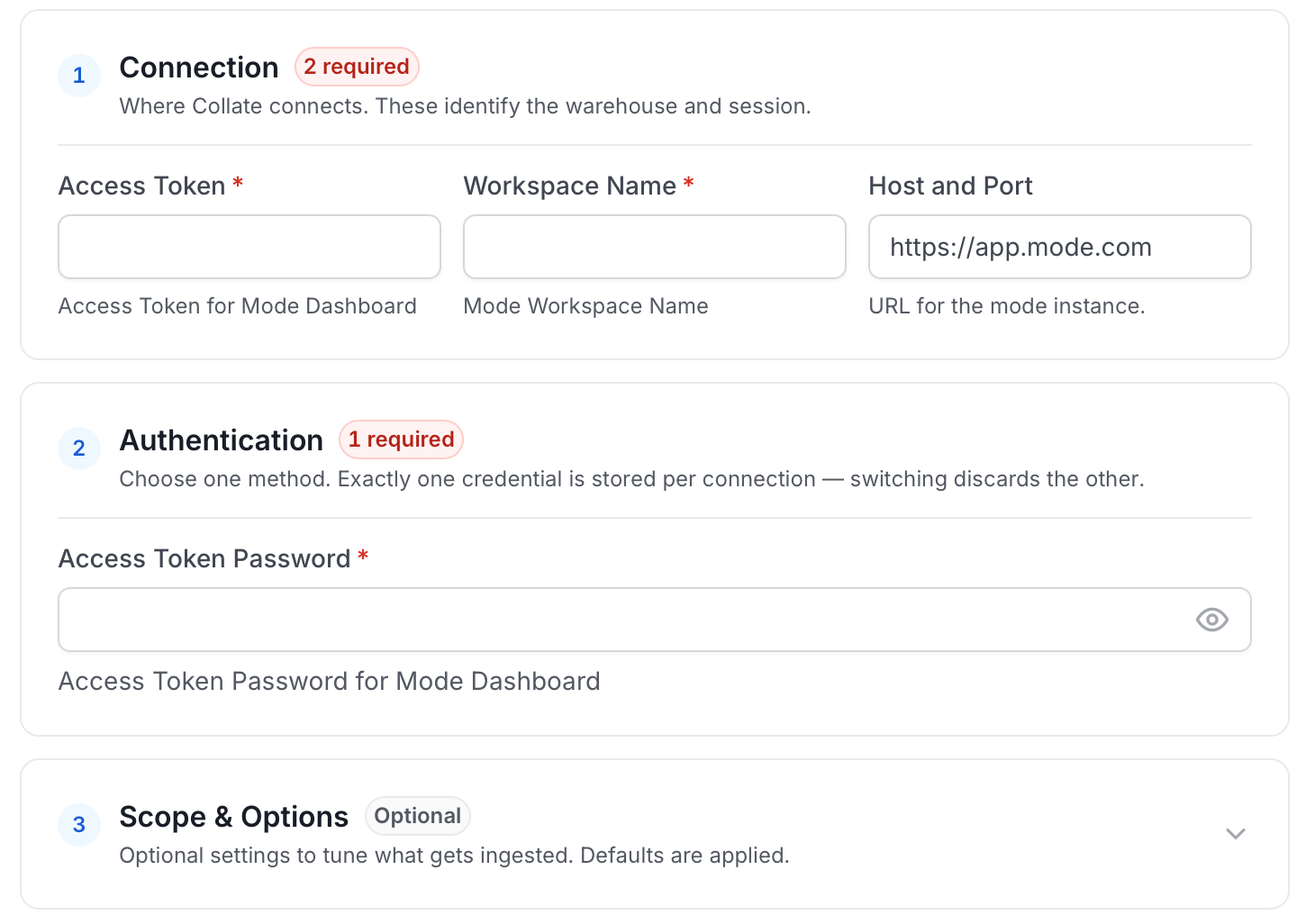
-
hostPort: Host and port for the Mode dashboard. The hostPort parameter specifies the host and port of the Mode server. This should be specified as a string in the format
https://app.mode.com. -
accessToken: Access Token for Mode Dashboard. Get the Access Token by following the steps below:
- Navigate to your Mode homepage.
- Click on your name in the upper left corner and click My Account.
- Click on API Tokens on the left side.
- To generate a new API token and password, enter a token name and click Create Token.
- Copy the generated access token and password.
- accessTokenPassword: Access Token Password for Mode Dashboard. Copy the access token password from the step above where a new token is generated. For detailed information, see the Mode API reference.
- workspaceName: Mode Workspace Name. Name of the Mode workspace from which OpenMetadata fetches metadata.
Test Connection
Once the credentials have been added, click on Test Connection and Save the changes.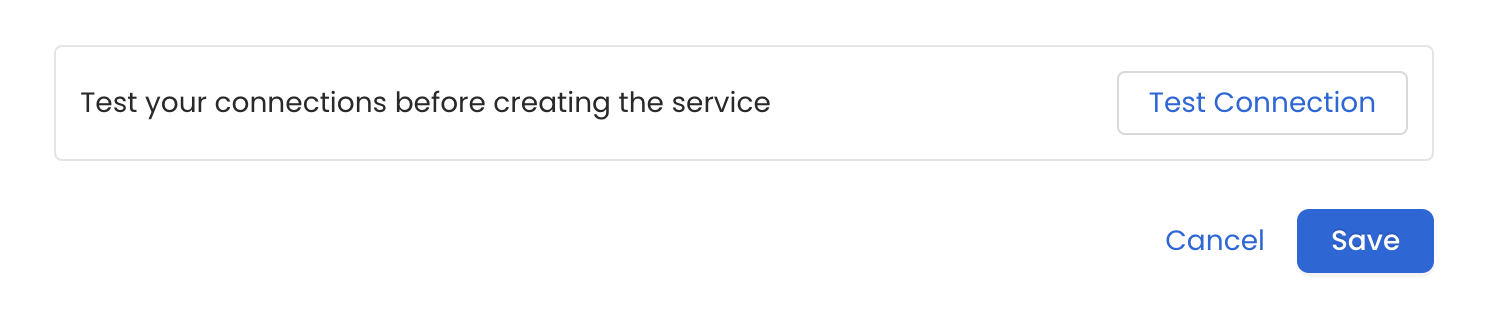
Step 5: Configure Ingestion Options
In the What to Ingest step, use filter patterns to control which assets OpenMetadata ingests from your dashboard service. Filter patterns use regular expressions applied to asset names.How Filter Patterns Work
- Include: Add one or more comma-separated regular expressions. OpenMetadata ingests only assets whose names match at least one expression. Leave blank to include all assets.
- Exclude: Add one or more comma-separated regular expressions. OpenMetadata skips any asset whose name matches an expression. Leave blank to exclude nothing.
- contains: matches any name containing the value. For example,
salesmatchesmy_sales_dataandsales_2024. - starts with: matches names beginning with the value. For example,
prod_matchesprod_dbandprod_schema. - ends with: matches names ending with the value. For example,
_rawmatchesevents_rawandlogs_raw. - is exactly: matches the exact name only. For example,
analyticsmatches onlyanalytics. - matches regex: matches names using a regular expression. For example,
^prod_.*_v\d+$matchesprod_events_v1.
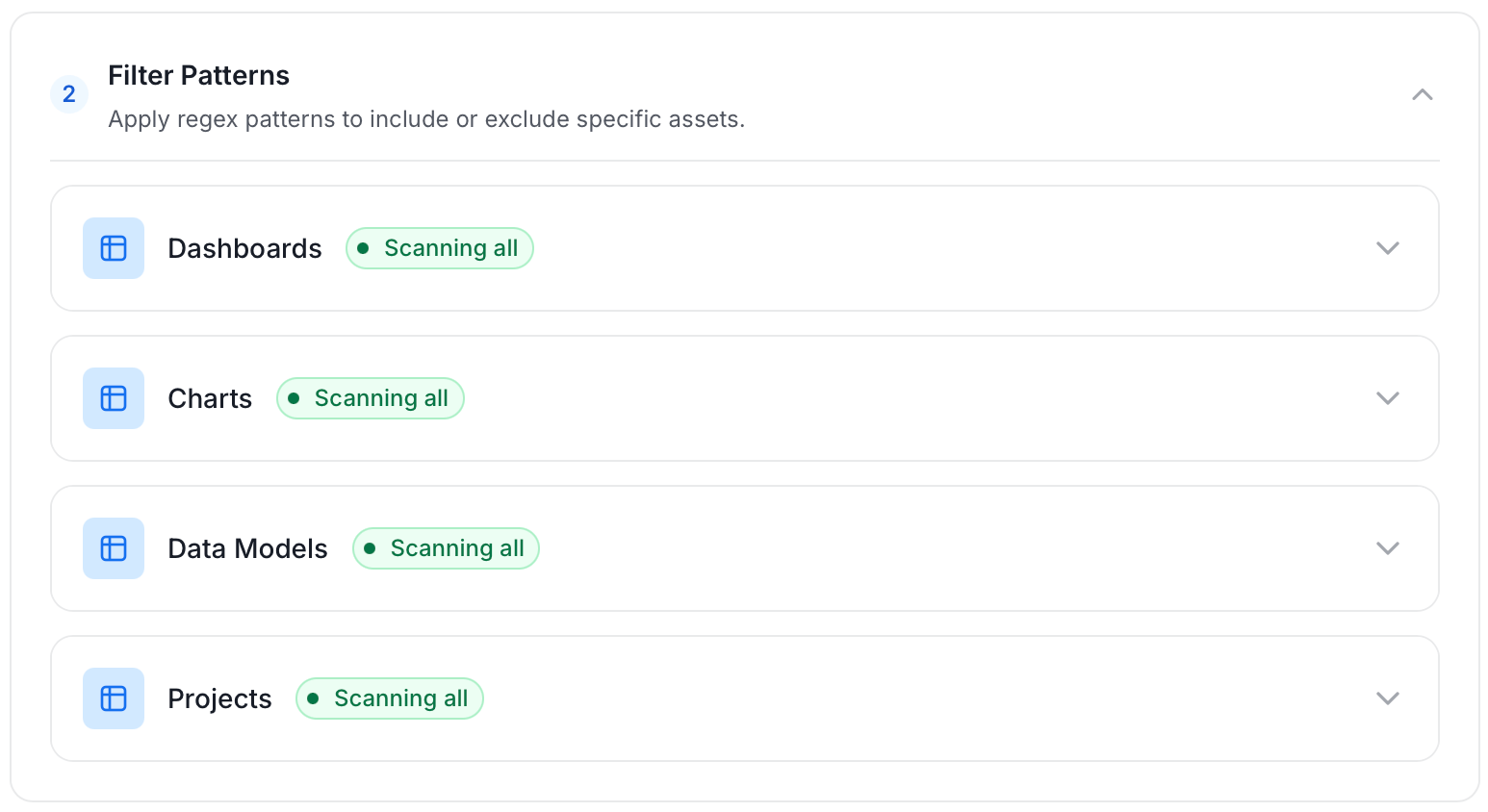
- Dashboard: Controls which dashboards OpenMetadata ingests from the source.
- Chart: Controls which charts within the ingested dashboards are included.
- Data Model: Controls which data models are included in metadata ingestion.
- Scan Mode: You can choose between the following scan modes:
- Scan all: Ingests every asset of that type the connector can access. This is the default.
- Only specific: Enables include rules so only assets matching at least one rule are ingested.
- Always exclude: Add permanent exclusion rules (shown in red). Assets matching these rules are never ingested, regardless of include rules.
- Preview: Shows a real-time summary of what will be in scope based on your current rules.
- Include rules (available only in Only specific mode): Click + Add to define a rule. Added rules appear as chips; an asset is included if it matches any rule.
Step 6: Create & Deploy
Click Create & Deploy to deploy the agent and start the first metadata ingestion run. OpenMetadata saves the service configuration and immediately begins pulling metadata from the source. To monitor ingestion progress or view the service you just added, go to Settings > Services and select your service.Configure Metadata Agent and Schedule Ingestion
The Metadata Agent extracts dashboards, charts, data models, and other structural metadata from your source and keeps your OpenMetadata catalog in sync. It powers discovery, lineage, and governance across your data assets. When you click Create & Deploy, OpenMetadata automatically deploys a Metadata Agent for this service and triggers the first ingestion run. View its status and run history from the Agents tab on the service detail page. To configure the additional Metadata Agent and schedule ingestion, follow these steps:-
Navigate to Settings > Services and select the service type.
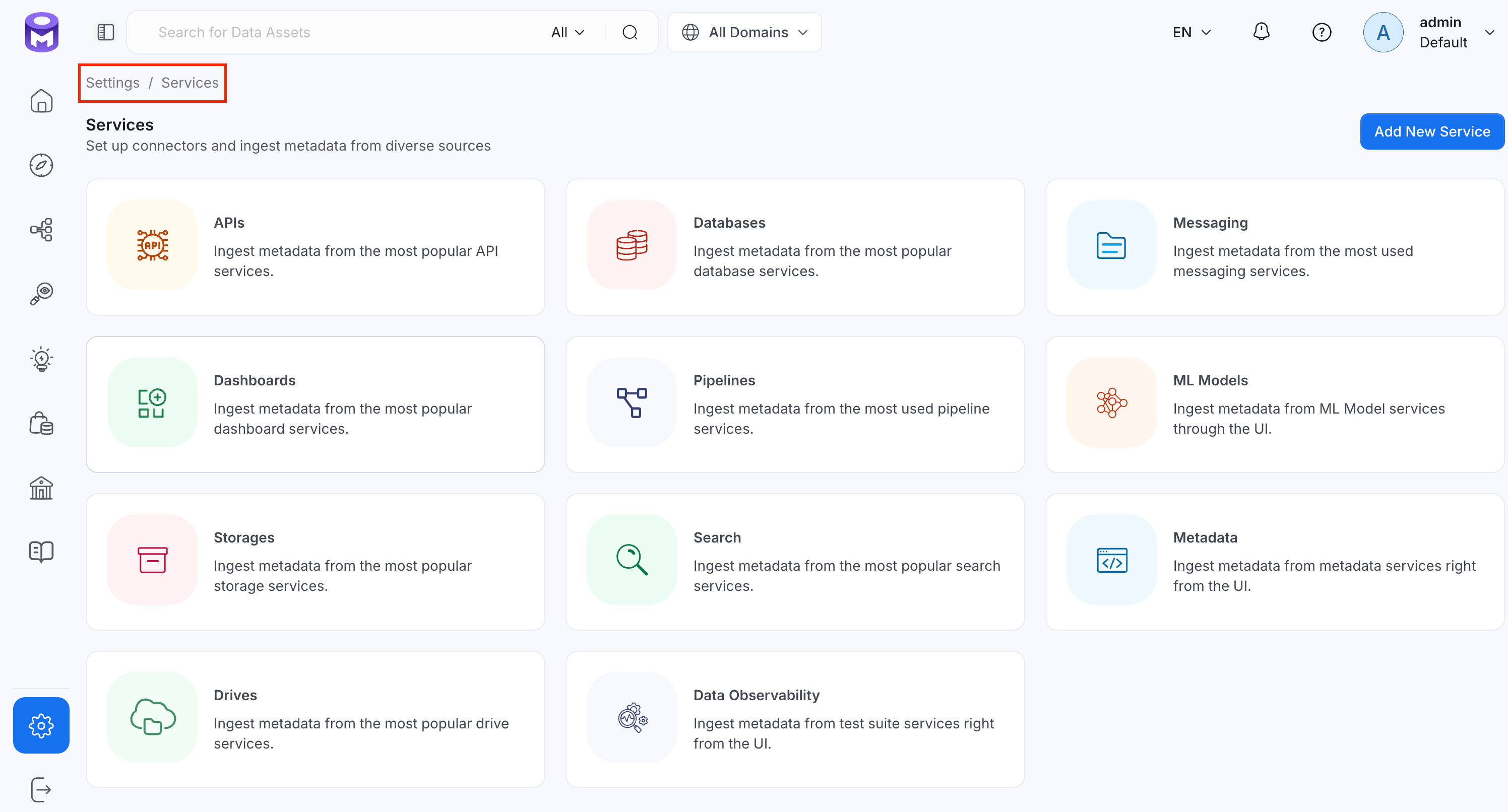
- Click the service you have added.
-
Select the Agents tab and click Add Agent > Metadata.
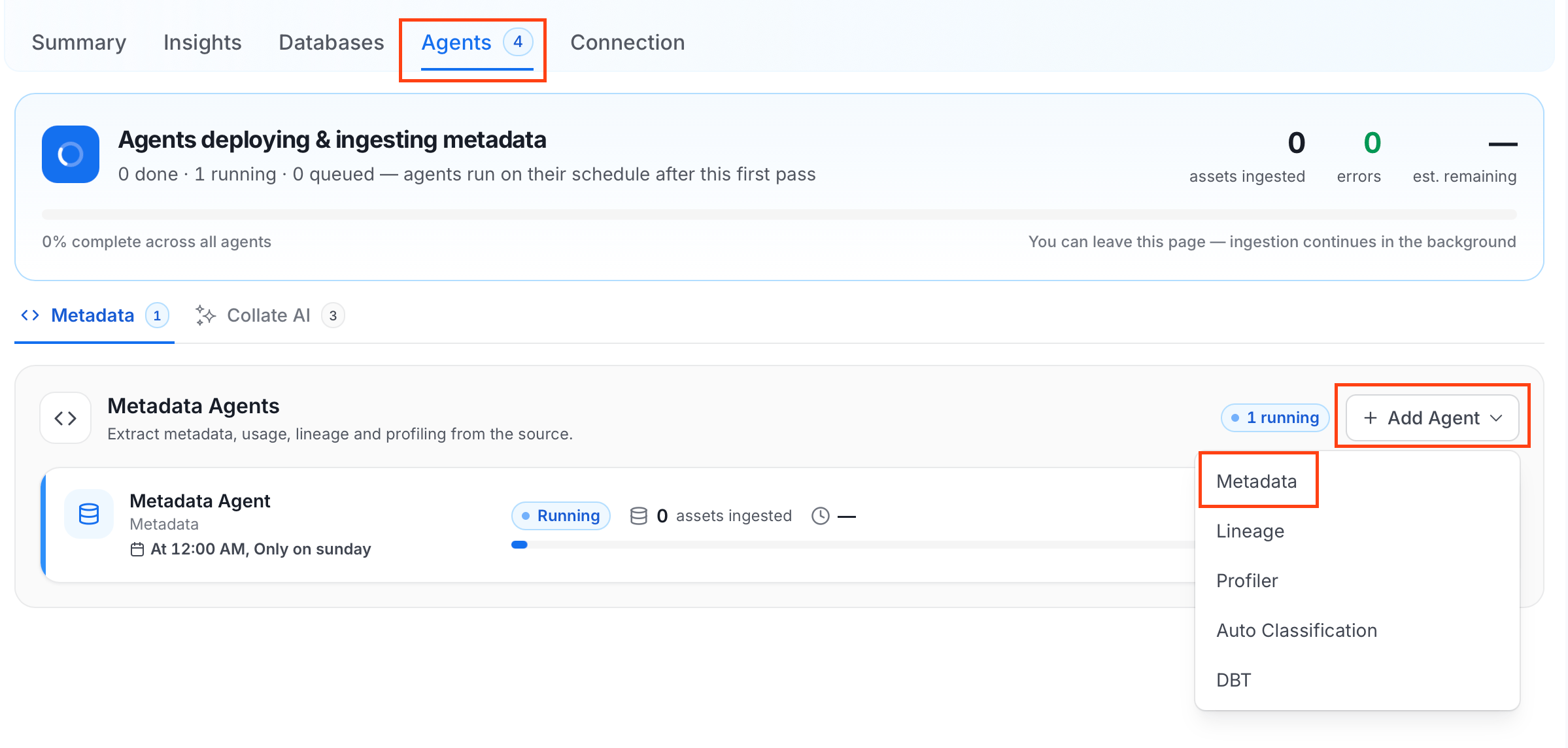
-
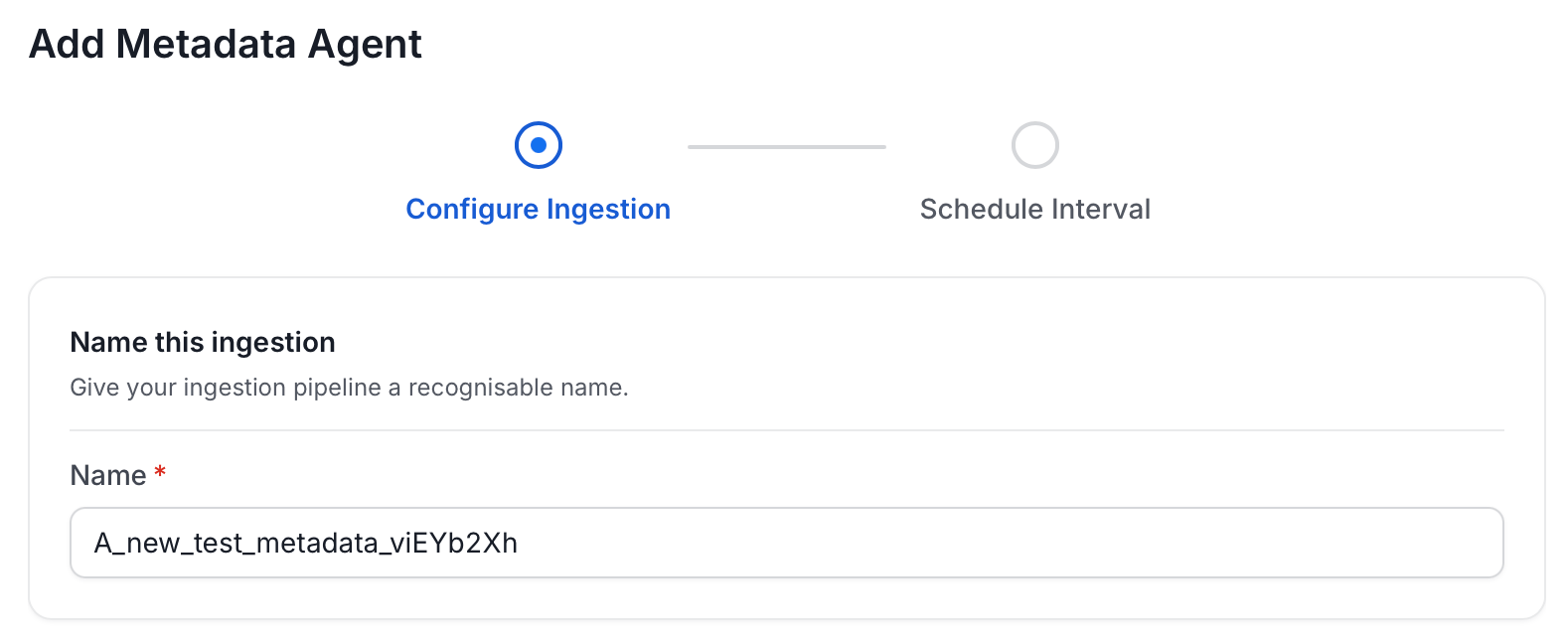
On the Configure Ingestion page, do the following and click Next.
-
Name this Ingestion: Enter a unique recognizable name for this ingestion pipeline.
-
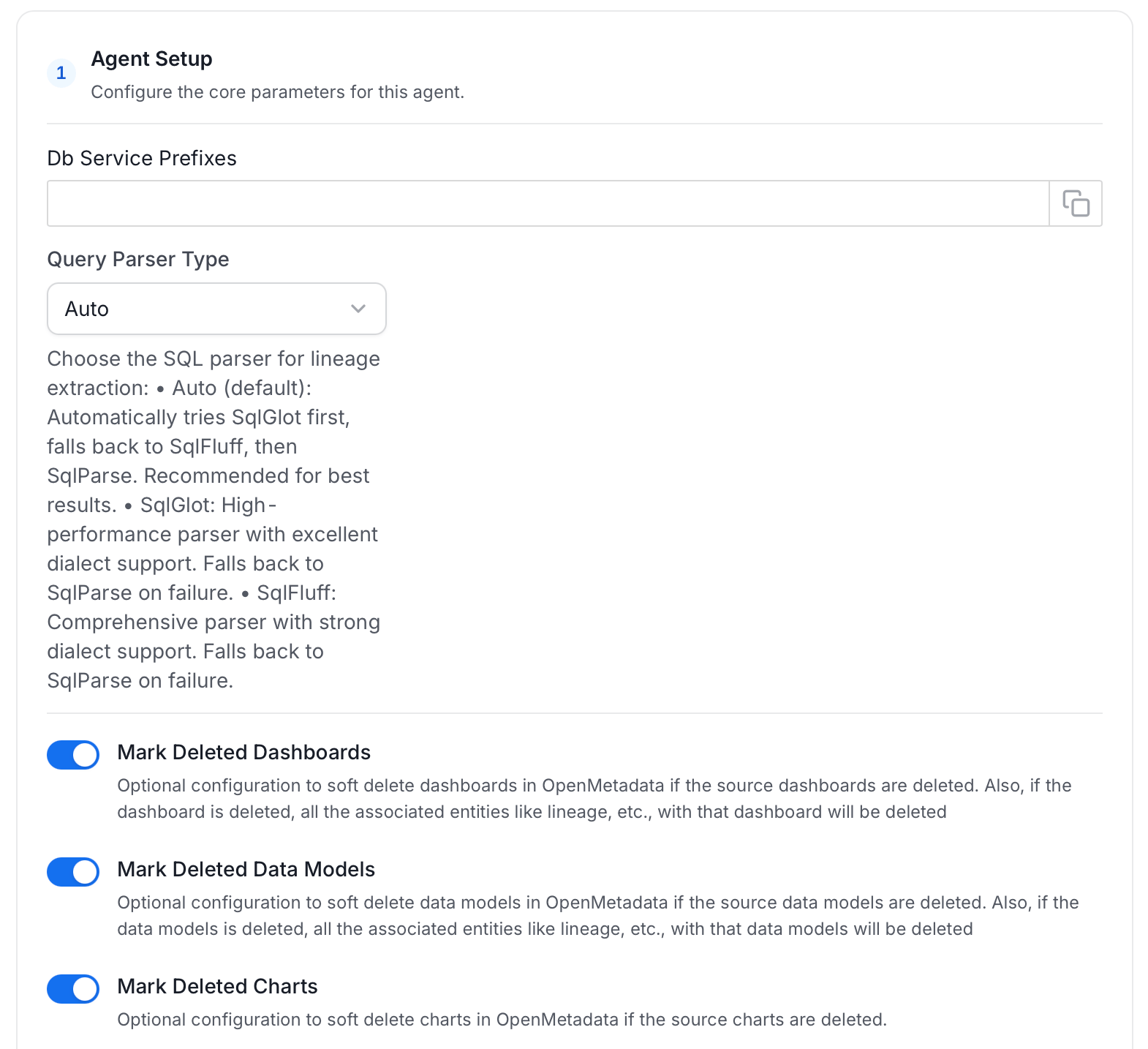
Agent Setup: Configure ingestion parameters. The following fields are available:
-
Filter Patterns: Apply include or exclude rules to scope which dashboards, charts, data models, and projects this agent ingests. These follow the same filter options described in Step 5: Configure Ingestion Options.
-
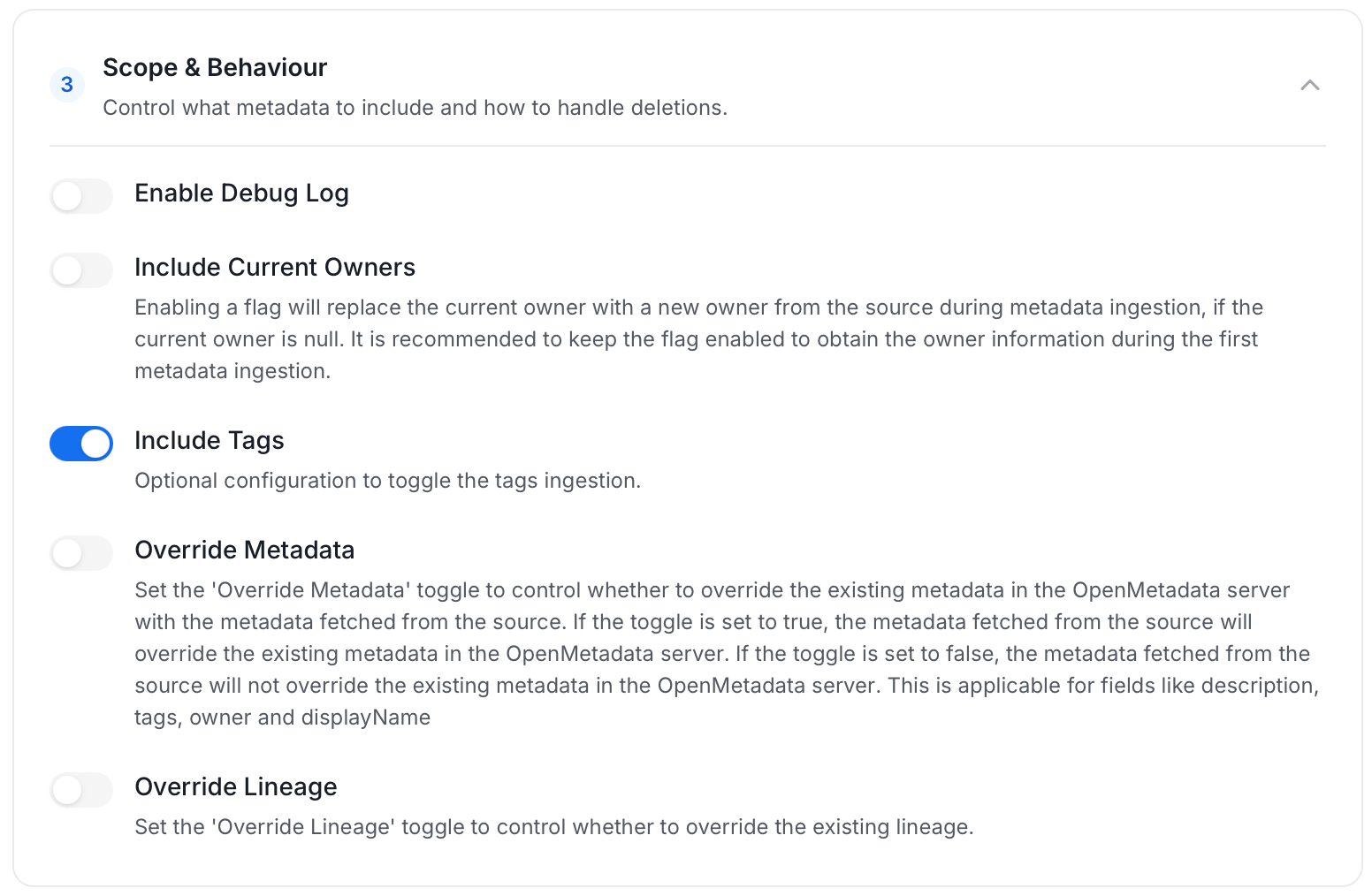
Scope & Behaviour: Control what metadata to include and how to handle deletions. Toggle each option on or off based on your needs:
-
Name this Ingestion: Enter a unique recognizable name for this ingestion pipeline.
-
On the Schedule Interval page, set when the agent runs:
- Schedule: Choose a preset interval (Hourly, Daily, Weekly, Monthly) or enter a custom cron expression.
- On-Demand: No automatic schedule; trigger the agent manually when needed.
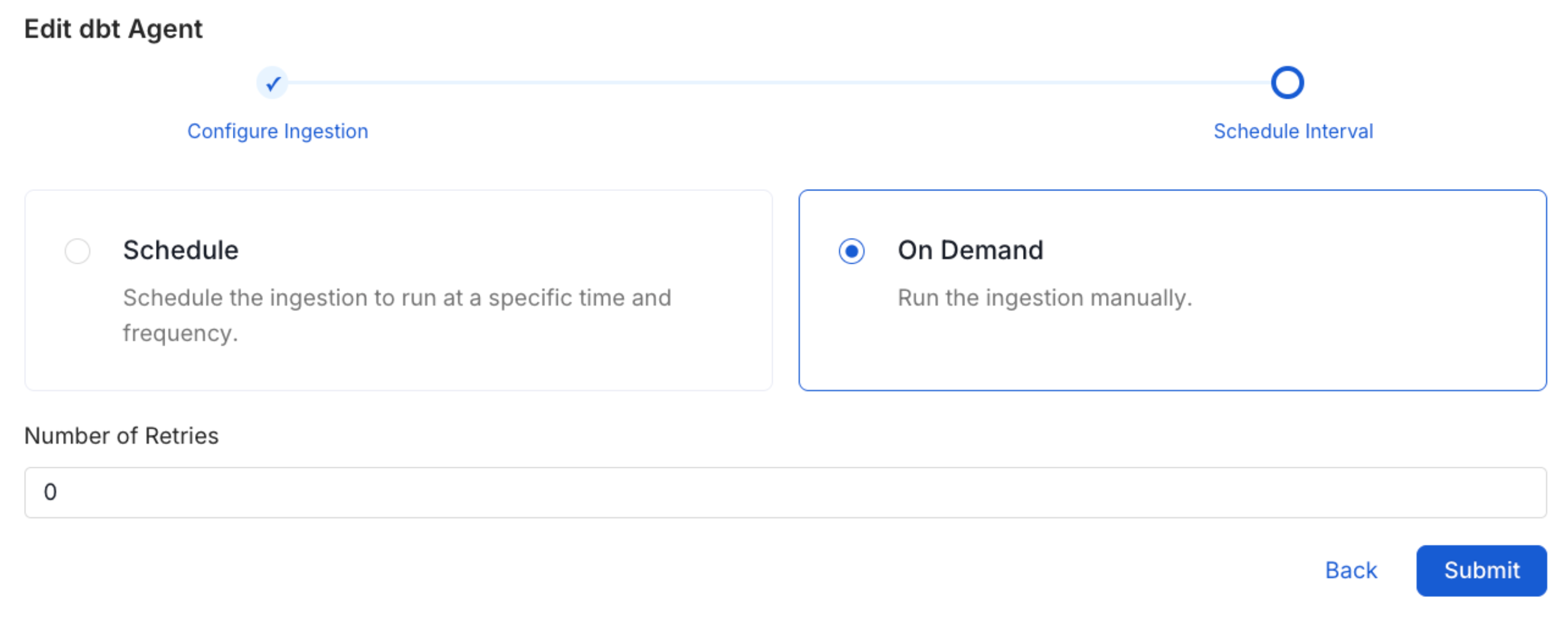
- Click Add to deploy the agent.
Lineage
Lineage in OpenMetadata shows you which database tables power each dashboard. When lineage is set up, you can trace any dashboard back to the exact source tables in your database. There is no separate lineage agent or lineage pipeline—lineage is collected as part of the same metadata ingestion workflow. Configuring the Db Service Prefixes field (covered below) is optional but recommended — it restricts table matching to specific database services. If left blank, OpenMetadata attempts to match source tables across all ingested database services.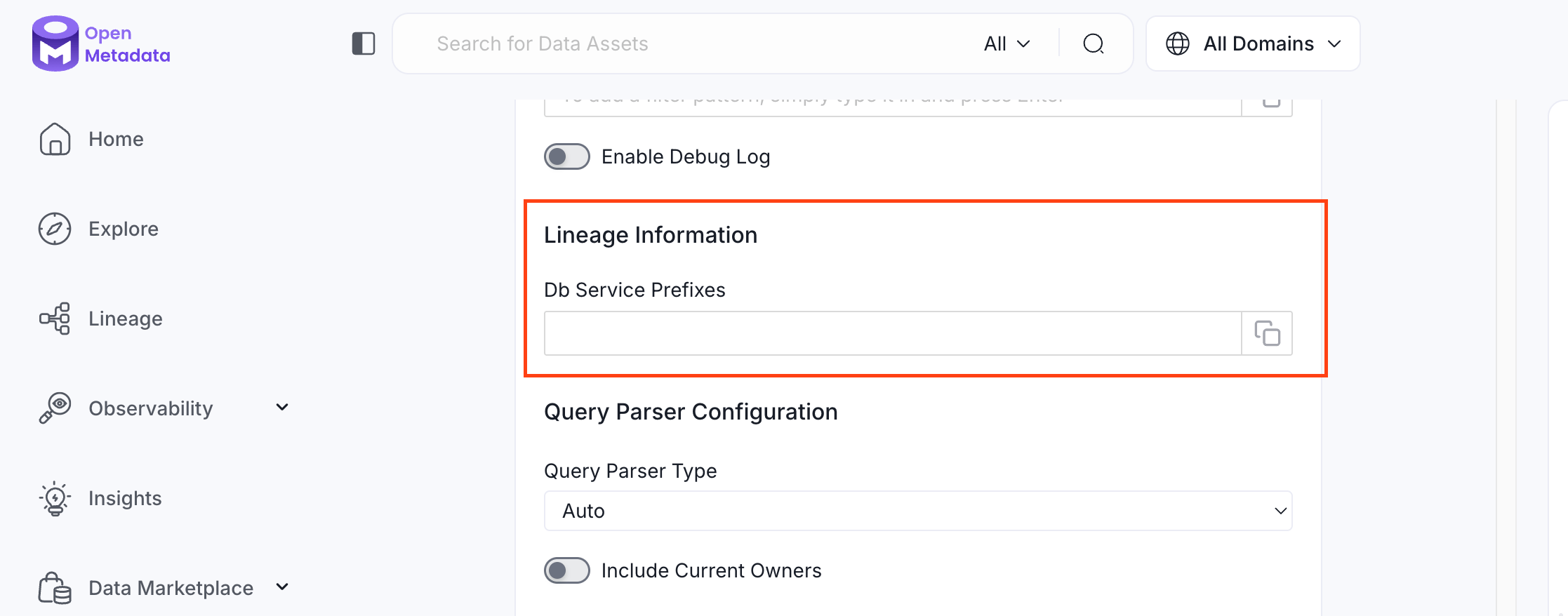
How to Set Up Lineage
- Go to Settings > Services > Dashboards.
- Click the dashboard service you’ve added.
- Go to the Agents tab, then select Add Agent > Add Metadata Agent. If a metadata agent already exists, select the three-dot context menu (⋮) next to it and select Edit.
- In the Configure Ingestion step, scroll down to the Lineage Information section.
- Optionally enter one or more database service names in the Db Service Prefixes field to restrict table matching to specific services. If left blank, OpenMetadata searches across all ingested database services.
Related
Usage Workflow
Learn more about how to configure the Usage Workflow to ingest Query information from the UI.
Lineage Workflow
Learn more about how to configure the Lineage from the UI.
Profiler Workflow
Learn more about how to configure the Data Profiler from the UI.
Data Quality Workflow
Learn more about how to configure the Data Quality tests from the UI.
dbt Integration
Learn more about how to ingest dbt models’ definitions and their lineage.