> ## Documentation Index
> Fetch the complete documentation index at: https://docs.open-metadata.org/llms.txt
> Use this file to discover all available pages before exploring further.
# Python SDK for Lineage
> Learn to implement data lineage tracking with OpenMetadata's Python SDK. Complete guide with code examples, API usage, and best practices for data flow ...
# Python SDK for Lineage
In this guide, we will use the Python SDK to create and fetch Lineage information.
For simplicity, we are going to create lineage between Tables. However, this would work with ANY entity.
You can find the Lineage Entity defined [here](https://github.com/open-metadata/OpenMetadata/blob/main/openmetadata-spec/src/main/resources/json/schema/type/entityLineage.json),
as well as the Entity defining the payload to add a new lineage: [AddLineage](https://github.com/open-metadata/OpenMetadata/blob/main/openmetadata-spec/src/main/resources/json/schema/api/lineage/addLineage.json).
Note that in OpenMetadata, the Lineage information is just a possible relationship between Entities. Other types
of relationships for example could be:
* Contains (a Database contains Schemas, which at the same time contain Tables),
* or Ownership of any asset.
The point being, any Entity existent in OpenMetadata can be related to any other via Lineage.
In the following sections we will:
* Create a Database Service, a Database, a Schema and two Tables,
* Add Lineage between both Tables,
* Get the Lineage information back.
A **prerequisite** for this section is to have previously gone through the following [docs](/v1.12.x/api-reference/sdk/python).
## Creating the Entities
To prepare the necessary ingredients, execute the following steps.
All functions that we are going to use related to Lineage can be found [here](https://github.com/open-metadata/OpenMetadata/blob/main/ingestion/src/metadata/sdk/api/lineage.py).
### 1. Preparing the Client
```python theme={null}
from metadata.sdk import configure
configure(
host="http://localhost:8585/api",
jwt_token="",
)
```
### 2. Creating the Database Service
We are mocking a MySQL instance. Note how we need to pass the right configuration class `MysqlConnection`, as a
parameter for the generic `DatabaseConnection` type.
```python theme={null}
from metadata.sdk import DatabaseServices
from metadata.generated.schema.api.services.createDatabaseService import (
CreateDatabaseServiceRequest,
)
from metadata.generated.schema.entity.services.connections.database.common.basicAuth import (
BasicAuth,
)
from metadata.generated.schema.entity.services.connections.database.mysqlConnection import (
MysqlConnection,
)
from metadata.generated.schema.entity.services.databaseService import (
DatabaseConnection,
DatabaseServiceType,
)
db_service = CreateDatabaseServiceRequest(
name="test-service-db-lineage",
serviceType=DatabaseServiceType.Mysql,
connection=DatabaseConnection(
config=MysqlConnection(
username="username",
authType=BasicAuth(password="password"),
hostPort="http://localhost:1234",
)
),
)
db_service_entity = DatabaseServices.create(db_service)
```
### 3. Creating the Database
Any Entity that is created and linked to another Entity, has to hold the `fullyQualifiedName` to the Entity it
relates to. In this case, a Database is bound to a specific service.
```python theme={null}
from metadata.sdk import Databases
from metadata.generated.schema.api.data.createDatabase import CreateDatabaseRequest
create_db = CreateDatabaseRequest(
name="test-db",
service=db_service_entity.fullyQualifiedName,
)
create_db_entity = Databases.create(create_db)
```
### 4. Creating the Schema
The same happens with the Schemas. They are related to a Database.
```python theme={null}
from metadata.sdk import DatabaseSchemas
from metadata.generated.schema.api.data.createDatabaseSchema import (
CreateDatabaseSchemaRequest,
)
create_schema = CreateDatabaseSchemaRequest(
name="test-schema", database=create_db_entity.fullyQualifiedName
)
create_schema_entity = DatabaseSchemas.create(create_schema)
```
### 5. Creating the Tables
And finally, Tables are contained in a specific Schema, so we use the `fullyQualifiedName` here as well.
We are doing a simple example with a single column.
```python theme={null}
from metadata.sdk import Tables
from metadata.generated.schema.api.data.createTable import CreateTableRequest
from metadata.generated.schema.entity.data.table import Column, DataType
table_a = CreateTableRequest(
name="tableA",
databaseSchema=create_schema_entity.fullyQualifiedName,
columns=[Column(name="id", dataType=DataType.BIGINT)],
)
table_b = CreateTableRequest(
name="tableB",
databaseSchema=create_schema_entity.fullyQualifiedName,
columns=[Column(name="id", dataType=DataType.BIGINT)],
)
table_a_entity = Tables.create(table_a)
table_b_entity = Tables.create(table_b)
```
### 6. Adding Lineage
With everything prepared, we can now create the lineage between both entities.
```python theme={null}
from metadata.sdk.api import Lineage
created_lineage = Lineage.add_lineage(
from_entity_id=str(table_a_entity.id.root),
from_entity_type="table",
to_entity_id=str(table_b_entity.id.root),
to_entity_type="table",
description="test lineage",
)
```
The Python client will already return us a JSON object with the Lineage information about the `fromEntity` node
we added:
```json theme={null}
{
"entity": {
"id": "e7bee99b-5c5e-43ec-805c-8beba04804f5",
"type": "table",
"name": "tableA",
"fullyQualifiedName": "test-service-db-lineage.test-db.test-schema.tableA",
"deleted": false,
"href": "http://localhost:8585/api/v1/tables/e7bee99b-5c5e-43ec-805c-8beba04804f5"
},
"nodes": [
{
"id": "800caa0f-a149-48d2-a0ce-6ca84501767e",
"type": "table",
"name": "tableB",
"fullyQualifiedName": "test-service-db-lineage.test-db.test-schema.tableB",
"deleted": false,
"href": "http://localhost:8585/api/v1/tables/800caa0f-a149-48d2-a0ce-6ca84501767e"
}
],
"upstreamEdges": [],
"downstreamEdges": [
{
"fromEntity": "e7bee99b-5c5e-43ec-805c-8beba04804f5",
"toEntity": "800caa0f-a149-48d2-a0ce-6ca84501767e"
}
]
}
```
If the node were to have other edges already, they would be showing up here.
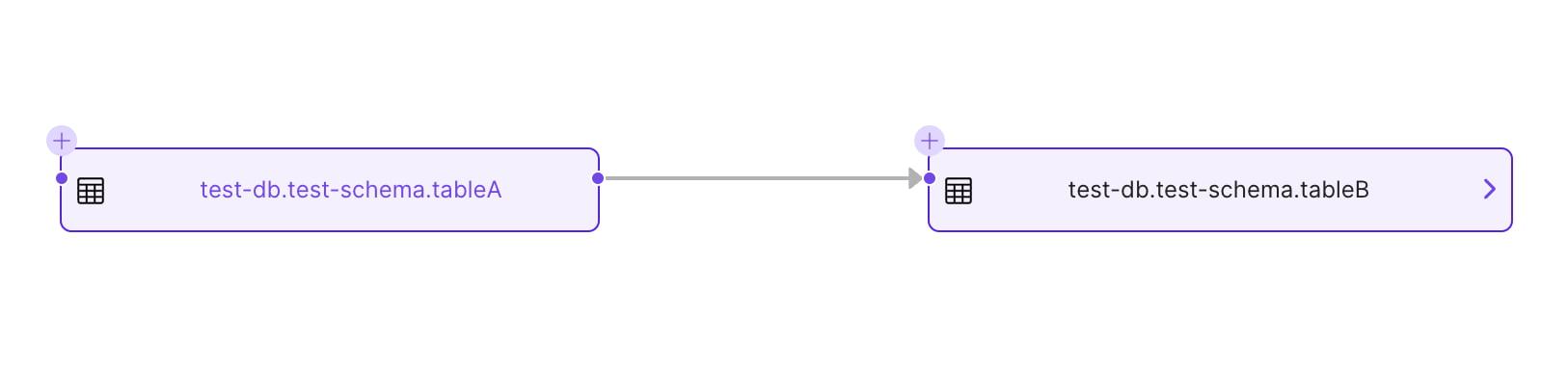
If we validate the Lineage from the UI, we will see:
 ### 7. Fetching Lineage
Finally, let's fetch the lineage from the other node involved:
```python theme={null}
from metadata.sdk.api import Lineage
lineage = Lineage.get_lineage(
"test-service-db-lineage.test-db.test-schema.tableB",
upstream_depth=1,
downstream_depth=1,
)
```
Which will give us the symmetric results from above
```json theme={null}
{
"entity": {
"id": "800caa0f-a149-48d2-a0ce-6ca84501767e",
"type": "table",
"name": "tableB",
"fullyQualifiedName": "test-service-db-lineage.test-db.test-schema.tableB",
"deleted": false,
"href": "http://localhost:8585/api/v1/tables/800caa0f-a149-48d2-a0ce-6ca84501767e"
},
"nodes": [
{
"id": "e7bee99b-5c5e-43ec-805c-8beba04804f5",
"type": "table",
"name": "tableA",
"fullyQualifiedName": "test-service-db-lineage.test-db.test-schema.tableA",
"deleted": false,
"href": "http://localhost:8585/api/v1/tables/e7bee99b-5c5e-43ec-805c-8beba04804f5"
}
],
"upstreamEdges": [
{
"fromEntity": "e7bee99b-5c5e-43ec-805c-8beba04804f5",
"toEntity": "800caa0f-a149-48d2-a0ce-6ca84501767e"
}
],
"downstreamEdges": []
}
```
You can also get lineage by entity type and ID using `Lineage.get_entity_lineage(entity_type="table", entity_id="entity-id", upstream_depth=1, downstream_depth=1)`.
## Lineage Details
Note how when adding lineage information we give to the API an [AddLineage](https://github.com/open-metadata/OpenMetadata/blob/main/openmetadata-spec/src/main/resources/json/schema/api/lineage/addLineage.json)
Request. This is composed of an Entity Edge, whose definition you can find [here](https://github.com/open-metadata/OpenMetadata/blob/main/openmetadata-spec/src/main/resources/json/schema/type/entityLineage.json#L75).
In a nutshell, an Entity Edge has:
1. The Entity Reference as the lineage origin,
2. The Entity Reference as the lineage destination,
3. Optionally, Lineage Details.
In the Lineage Details property we can pass further information specific about Table to Table lineage:
* `sqlQuery` specifying the transformation,
* An array of `columnsLineage` as an object with an array of source and destination columns, as well as their own specific transformation function,
* Optionally, the Entity Reference of a Pipeline powering the transformation from Table A to Table B.
The simple `Lineage.add_lineage(...)` helper covers direct edges. For advanced payloads, construct an `AddLineageRequest`
and submit it with `Lineage.add_lineage_request(...)`.
Let's see how to do that and play with the possible combinations.
First, import the required classes and create a new table:
```python theme={null}
from metadata.sdk import Tables
from metadata.generated.schema.api.lineage.addLineage import AddLineageRequest
from metadata.generated.schema.type.entityReference import EntityReference
from metadata.generated.schema.type.entityLineage import (
ColumnLineage,
EntitiesEdge,
LineageDetails,
)
# Prepare a new table
table_c = CreateTableRequest(
name="tableC",
databaseSchema=create_schema_entity.fullyQualifiedName,
columns=[Column(name="id", dataType=DataType.BIGINT)],
)
table_c_entity = Tables.create(table_c)
```
## Column Level Lineage
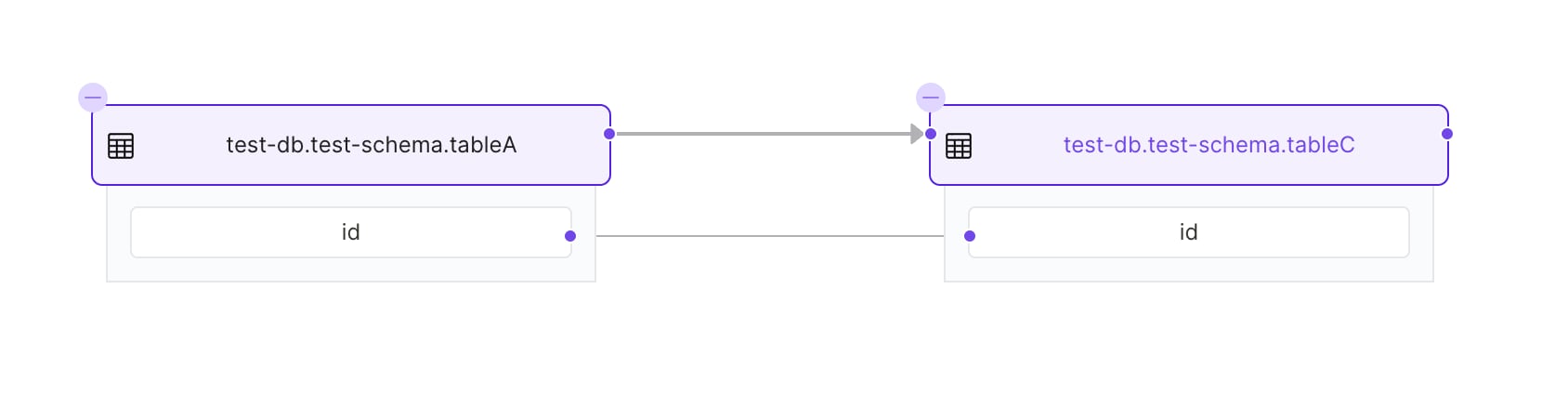
We can start by linking our columns together. For that we are going to create:
1. A `ColumnLineage` object, linking our Table A column ID -> Table C column ID. Note that this can be a list!
2. A `LineageDetails` object, passing the column lineage and the SQL query that powers the transformation.
```python theme={null}
from metadata.sdk.api import Lineage
column_lineage = ColumnLineage(
fromColumns=["test-service-db-lineage.test-db.test-schema.tableA.id"],
toColumn="test-service-db-lineage.test-db.test-schema.tableC.id"
)
lineage_details = LineageDetails(
sqlQuery="SELECT * FROM AWESOME",
columnsLineage=[column_lineage],
)
add_lineage_request = AddLineageRequest(
edge=EntitiesEdge(
fromEntity=EntityReference(id=str(table_a_entity.id.root), type="table"),
toEntity=EntityReference(id=str(table_c_entity.id.root), type="table"),
lineageDetails=lineage_details,
),
)
created_lineage = Lineage.add_lineage_request(add_lineage_request)
```
This information will now be reflected in the UI as well:
### 7. Fetching Lineage
Finally, let's fetch the lineage from the other node involved:
```python theme={null}
from metadata.sdk.api import Lineage
lineage = Lineage.get_lineage(
"test-service-db-lineage.test-db.test-schema.tableB",
upstream_depth=1,
downstream_depth=1,
)
```
Which will give us the symmetric results from above
```json theme={null}
{
"entity": {
"id": "800caa0f-a149-48d2-a0ce-6ca84501767e",
"type": "table",
"name": "tableB",
"fullyQualifiedName": "test-service-db-lineage.test-db.test-schema.tableB",
"deleted": false,
"href": "http://localhost:8585/api/v1/tables/800caa0f-a149-48d2-a0ce-6ca84501767e"
},
"nodes": [
{
"id": "e7bee99b-5c5e-43ec-805c-8beba04804f5",
"type": "table",
"name": "tableA",
"fullyQualifiedName": "test-service-db-lineage.test-db.test-schema.tableA",
"deleted": false,
"href": "http://localhost:8585/api/v1/tables/e7bee99b-5c5e-43ec-805c-8beba04804f5"
}
],
"upstreamEdges": [
{
"fromEntity": "e7bee99b-5c5e-43ec-805c-8beba04804f5",
"toEntity": "800caa0f-a149-48d2-a0ce-6ca84501767e"
}
],
"downstreamEdges": []
}
```
You can also get lineage by entity type and ID using `Lineage.get_entity_lineage(entity_type="table", entity_id="entity-id", upstream_depth=1, downstream_depth=1)`.
## Lineage Details
Note how when adding lineage information we give to the API an [AddLineage](https://github.com/open-metadata/OpenMetadata/blob/main/openmetadata-spec/src/main/resources/json/schema/api/lineage/addLineage.json)
Request. This is composed of an Entity Edge, whose definition you can find [here](https://github.com/open-metadata/OpenMetadata/blob/main/openmetadata-spec/src/main/resources/json/schema/type/entityLineage.json#L75).
In a nutshell, an Entity Edge has:
1. The Entity Reference as the lineage origin,
2. The Entity Reference as the lineage destination,
3. Optionally, Lineage Details.
In the Lineage Details property we can pass further information specific about Table to Table lineage:
* `sqlQuery` specifying the transformation,
* An array of `columnsLineage` as an object with an array of source and destination columns, as well as their own specific transformation function,
* Optionally, the Entity Reference of a Pipeline powering the transformation from Table A to Table B.
The simple `Lineage.add_lineage(...)` helper covers direct edges. For advanced payloads, construct an `AddLineageRequest`
and submit it with `Lineage.add_lineage_request(...)`.
Let's see how to do that and play with the possible combinations.
First, import the required classes and create a new table:
```python theme={null}
from metadata.sdk import Tables
from metadata.generated.schema.api.lineage.addLineage import AddLineageRequest
from metadata.generated.schema.type.entityReference import EntityReference
from metadata.generated.schema.type.entityLineage import (
ColumnLineage,
EntitiesEdge,
LineageDetails,
)
# Prepare a new table
table_c = CreateTableRequest(
name="tableC",
databaseSchema=create_schema_entity.fullyQualifiedName,
columns=[Column(name="id", dataType=DataType.BIGINT)],
)
table_c_entity = Tables.create(table_c)
```
## Column Level Lineage
We can start by linking our columns together. For that we are going to create:
1. A `ColumnLineage` object, linking our Table A column ID -> Table C column ID. Note that this can be a list!
2. A `LineageDetails` object, passing the column lineage and the SQL query that powers the transformation.
```python theme={null}
from metadata.sdk.api import Lineage
column_lineage = ColumnLineage(
fromColumns=["test-service-db-lineage.test-db.test-schema.tableA.id"],
toColumn="test-service-db-lineage.test-db.test-schema.tableC.id"
)
lineage_details = LineageDetails(
sqlQuery="SELECT * FROM AWESOME",
columnsLineage=[column_lineage],
)
add_lineage_request = AddLineageRequest(
edge=EntitiesEdge(
fromEntity=EntityReference(id=str(table_a_entity.id.root), type="table"),
toEntity=EntityReference(id=str(table_c_entity.id.root), type="table"),
lineageDetails=lineage_details,
),
)
created_lineage = Lineage.add_lineage_request(add_lineage_request)
```
This information will now be reflected in the UI as well:
 ### Adding a Pipeline Reference
We can as well pass the reference to the pipeline used to create the lineage (e.g., the ETL feeding the tables).
To prepare this example, we need to start by creating the Pipeline Entity. Again, we'll need first
to prepare the Pipeline Service. The SDK does not currently expose a `PipelineServices` facade, so
this example uses `metadata.sdk.client()` for the service creation only:
```python theme={null}
from metadata.sdk import Pipelines, client
from metadata.generated.schema.api.data.createPipeline import CreatePipelineRequest
from metadata.generated.schema.api.services.createPipelineService import (
CreatePipelineServiceRequest,
)
from metadata.generated.schema.entity.services.connections.pipeline.airflowConnection import (
AirflowConnection,
)
from metadata.generated.schema.entity.services.connections.pipeline.backendConnection import (
BackendConnection,
)
from metadata.generated.schema.entity.services.pipelineService import (
PipelineConnection,
PipelineServiceType,
)
pipeline_service = CreatePipelineServiceRequest(
name="test-service-pipeline",
serviceType=PipelineServiceType.Airflow,
connection=PipelineConnection(
config=AirflowConnection(
hostPort="http://localhost:8080",
connection=BackendConnection(),
),
),
)
pipeline_service_entity = client().ometa.create_or_update(pipeline_service)
create_pipeline = CreatePipelineRequest(
name="test",
service=pipeline_service_entity.fullyQualifiedName,
)
pipeline_entity = Pipelines.create(create_pipeline)
```
With these ingredients ready, we can then follow the code above and add there a `pipeline` argument
as an Entity Reference:
```python theme={null}
lineage_details = LineageDetails(
sqlQuery="SELECT * FROM AWESOME",
columnsLineage=[column_lineage],
pipeline=EntityReference(id=str(pipeline_entity.id.root), type="pipeline"),
)
```
The UI currently supports showing the column lineage information. Data about the SQL queries and the Pipeline Entities
will be surfaced soon. Thanks!
## Automated SQL lineage
SQL-based lineage parsing is not part of `metadata.sdk.api.Lineage` today. If you need lineage generated from raw SQL,
use the lineage ingestion workflow or CLI. The older `add_lineage_by_query` helper belongs to the legacy
`metadata.ingestion.ometa` client surface, not the current `metadata.sdk` API.
## Automated SQL lineage via CLI
To create the automated sql lineage via CLI, you need to make sure that you have installed the openmetadata-ingestion package in your local environment using command `pip install openmetadata-ingestion`.
Once that is done you will have to prepare a yaml file as follows.
```yaml theme={null}
serviceName: local_mysql
query: insert into target_table(id) as select id from source_table
# filePath: test.sql
# parseTimeout: 360 # timeout in seconds
workflowConfig:
# loggerLevel: DEBUG # DEBUG, INFO, WARN or ERROR
openMetadataServerConfig:
hostPort:
authProvider:
```
* **serviceName**: Name of the database service which contains the table involved in query.
* **query**: You can specify the raw sql query within the yaml file itself.
* **filePath**: In case the query is too big then you can also save query in a file and pass the path to the file in this field.
* **parseTimeout**: Timeout for the lineage parsing process.
* **workflowConfig**: The main property here is the openMetadataServerConfig, where you can define the host and security provider of your OpenMetadata installation.
Once the yaml file is prepare you can run the command
```
metadata lineage -c path/to/your_config_yaml.yaml
```
### Adding a Pipeline Reference
We can as well pass the reference to the pipeline used to create the lineage (e.g., the ETL feeding the tables).
To prepare this example, we need to start by creating the Pipeline Entity. Again, we'll need first
to prepare the Pipeline Service. The SDK does not currently expose a `PipelineServices` facade, so
this example uses `metadata.sdk.client()` for the service creation only:
```python theme={null}
from metadata.sdk import Pipelines, client
from metadata.generated.schema.api.data.createPipeline import CreatePipelineRequest
from metadata.generated.schema.api.services.createPipelineService import (
CreatePipelineServiceRequest,
)
from metadata.generated.schema.entity.services.connections.pipeline.airflowConnection import (
AirflowConnection,
)
from metadata.generated.schema.entity.services.connections.pipeline.backendConnection import (
BackendConnection,
)
from metadata.generated.schema.entity.services.pipelineService import (
PipelineConnection,
PipelineServiceType,
)
pipeline_service = CreatePipelineServiceRequest(
name="test-service-pipeline",
serviceType=PipelineServiceType.Airflow,
connection=PipelineConnection(
config=AirflowConnection(
hostPort="http://localhost:8080",
connection=BackendConnection(),
),
),
)
pipeline_service_entity = client().ometa.create_or_update(pipeline_service)
create_pipeline = CreatePipelineRequest(
name="test",
service=pipeline_service_entity.fullyQualifiedName,
)
pipeline_entity = Pipelines.create(create_pipeline)
```
With these ingredients ready, we can then follow the code above and add there a `pipeline` argument
as an Entity Reference:
```python theme={null}
lineage_details = LineageDetails(
sqlQuery="SELECT * FROM AWESOME",
columnsLineage=[column_lineage],
pipeline=EntityReference(id=str(pipeline_entity.id.root), type="pipeline"),
)
```
The UI currently supports showing the column lineage information. Data about the SQL queries and the Pipeline Entities
will be surfaced soon. Thanks!
## Automated SQL lineage
SQL-based lineage parsing is not part of `metadata.sdk.api.Lineage` today. If you need lineage generated from raw SQL,
use the lineage ingestion workflow or CLI. The older `add_lineage_by_query` helper belongs to the legacy
`metadata.ingestion.ometa` client surface, not the current `metadata.sdk` API.
## Automated SQL lineage via CLI
To create the automated sql lineage via CLI, you need to make sure that you have installed the openmetadata-ingestion package in your local environment using command `pip install openmetadata-ingestion`.
Once that is done you will have to prepare a yaml file as follows.
```yaml theme={null}
serviceName: local_mysql
query: insert into target_table(id) as select id from source_table
# filePath: test.sql
# parseTimeout: 360 # timeout in seconds
workflowConfig:
# loggerLevel: DEBUG # DEBUG, INFO, WARN or ERROR
openMetadataServerConfig:
hostPort:
authProvider:
```
* **serviceName**: Name of the database service which contains the table involved in query.
* **query**: You can specify the raw sql query within the yaml file itself.
* **filePath**: In case the query is too big then you can also save query in a file and pass the path to the file in this field.
* **parseTimeout**: Timeout for the lineage parsing process.
* **workflowConfig**: The main property here is the openMetadataServerConfig, where you can define the host and security provider of your OpenMetadata installation.
Once the yaml file is prepare you can run the command
```
metadata lineage -c path/to/your_config_yaml.yaml
```