> ## Documentation Index
> Fetch the complete documentation index at: https://docs.open-metadata.org/llms.txt
> Use this file to discover all available pages before exploring further.
# BigQuery | OpenMetadata Connector Setup & Integration Guide
> Connect BigQuery to OpenMetadata seamlessly with our comprehensive database connector guide. Setup instructions, configuration tips, and metadata extrac...
export const MetadataIngestionUi = ({connector, selectServicePath, addNewServicePath, serviceConnectionPath}) => {
return <>
To ingest metadata from your sources, you need to create a service connection.
The service connects your source system with OpenMetadata. Once you create
a service, you can use it to configure your ingestion workflows.
To create a service connection and ingest your metadata, follow the steps below:
-
On the left navigation bar, click Settings.
-
On the next page, click Services, and then select the service.
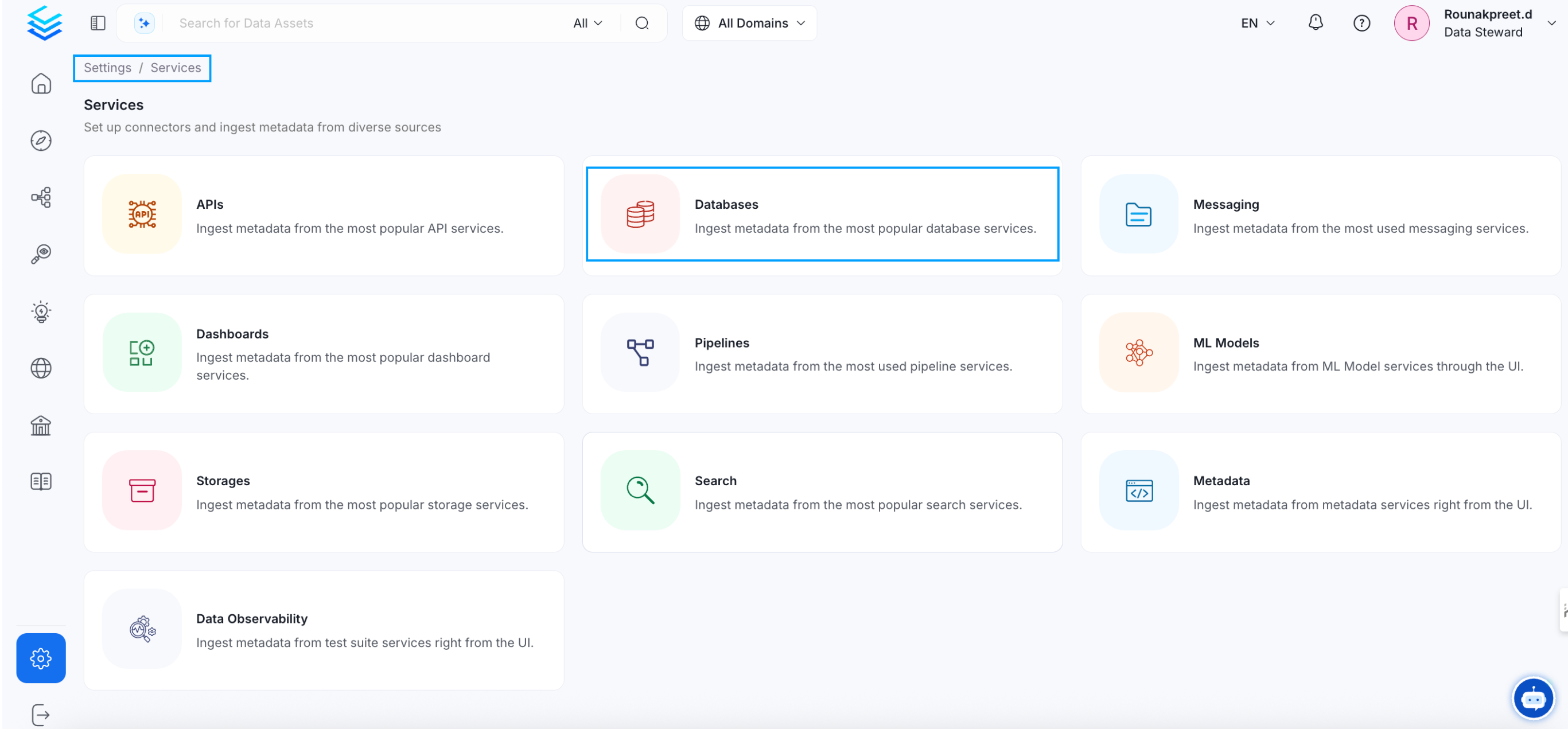
To add a new service connection, click Add New Service.
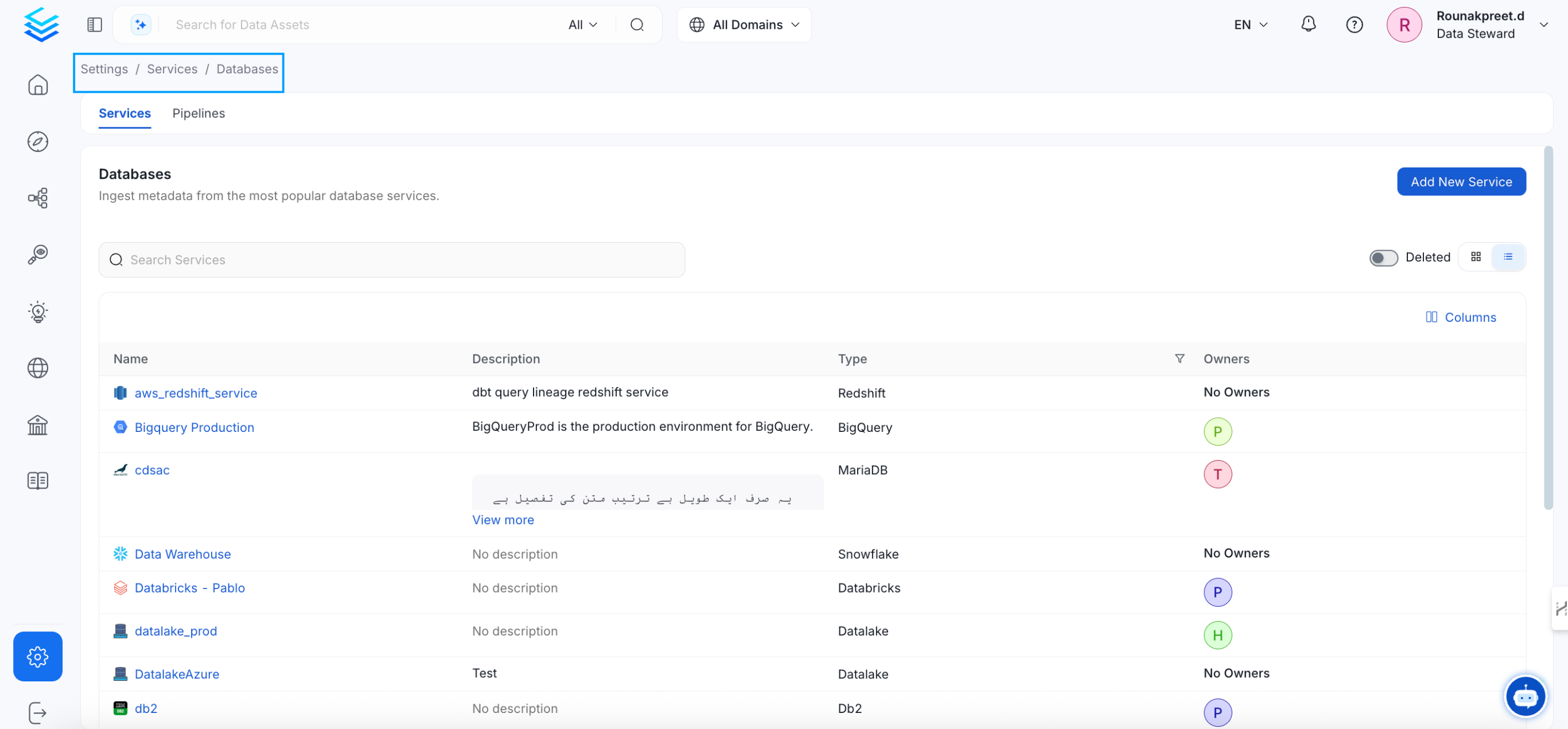 Select {connector} as the service type and click Next.
{selectServicePath &&
Select {connector} as the service type and click Next.
{selectServicePath &&  }
Enter a unique Service Name and Description.
}
Enter a unique Service Name and Description.
- Service Name: OpenMetadata identifies services by their service name. Enter a name that distinguishes this deployment from other services, including other {connector} services you are ingesting metadata from.
The service name cannot be changed after it is set.
{addNewServicePath &&  }
Set up the connection settings required for {connector} to set up the service and start ingesting metadata from your sources. The right-hand panel displays help documentation for the selected connection type in the product UI.
{serviceConnectionPath &&
}
Set up the connection settings required for {connector} to set up the service and start ingesting metadata from your sources. The right-hand panel displays help documentation for the selected connection type in the product UI.
{serviceConnectionPath &&  }
;
};
export const ConnectorDetailsHeader = ({name, icon, stage, availableFeatures, unavailableFeatures = [], availableFeaturesCollate = []}) => {
const showSubHeading = availableFeatures?.length > 0 || unavailableFeatures?.length > 0 || availableFeaturesCollate?.length > 0;
const totalAvailableFeatures = [...availableFeatures || [], ...availableFeaturesCollate || []];
return
}
;
};
export const ConnectorDetailsHeader = ({name, icon, stage, availableFeatures, unavailableFeatures = [], availableFeaturesCollate = []}) => {
const showSubHeading = availableFeatures?.length > 0 || unavailableFeatures?.length > 0 || availableFeaturesCollate?.length > 0;
const totalAvailableFeatures = [...availableFeatures || [], ...availableFeaturesCollate || []];
return
{icon &&
}
{name}
{stage}
{showSubHeading &&
Feature List
{totalAvailableFeatures.map(feature =>
✓ {feature}
)}
{unavailableFeatures.map(feature =>
✕ {feature}
)}
}
;
};
In this section, we provide guides and references to use the BigQuery connector.
**Supported Authentication Types:**
* **GCP Credentials Values** — Direct service account key values (type, project ID, private key, client email, etc.)
* **GCP Credentials Path** — Path to a local service account key JSON file
* **GCP External Account** — Workload Identity Federation for non-GCP environments
* **GCP Application Default Credentials (ADC)** — Automatic credential discovery in GCP environments or via `gcloud auth application-default login`
Configure and schedule BigQuery metadata and profiler workflows from the OpenMetadata UI:
* [Requirements](#requirements)
* [Metadata Ingestion](#metadata-ingestion)
* [Incremental Extraction](/v1.12.x/connectors/ingestion/workflows/metadata/incremental-extraction/bigquery)
* [Query Usage](/v1.12.x/connectors/ingestion/workflows/usage)
* [Data Profiler](/v1.12.x/how-to-guides/data-quality-observability/profiler/profiler-workflow)
* [Data Quality](/v1.12.x/how-to-guides/data-quality-observability/quality/configure)
* [Lineage](/v1.12.x/connectors/ingestion/lineage)
* [dbt Integration](/v1.12.x/connectors/database/dbt)
* [Troubleshooting](/v1.12.x/connectors/database/bigquery/troubleshooting)
## How to Run the Connector Externally
To run the Ingestion via the UI you'll need to use the OpenMetadata Ingestion Container, which comes shipped with
custom Airflow plugins to handle the workflow deployment.
If, instead, you want to manage your workflows externally on your preferred orchestrator, you can check
the following docs to run the Ingestion Framework **anywhere**.
Get more information about running the Ingestion Framework Externally
## Requirements
You need to create an service account in order to ingest metadata from bigquery refer [this](/v1.12.x/connectors/database/bigquery/create-credentials) guide on how to create service account.
Check out this documentation on how to create a custom role and assign it to the service account.
## Partitioned Tables
When profiling **partitioned tables** in BigQuery, OpenMetadata applies a **default partition query duration of 1 day** for time-based partitions. This conservative setting prevents excessive data scans but may result in no **Sample Data** or **Column Profile Metrics** if no data falls within the default window.
## Resolution
You can adjust this behavior directly from the UI:
1. **Navigate to the table's detail page.**
2. **Edit the profiler configuration.**
3. **Update the `partitionQueryDuration`** under **Partition Config** to a wider window (e.g., 30 days) as needed.
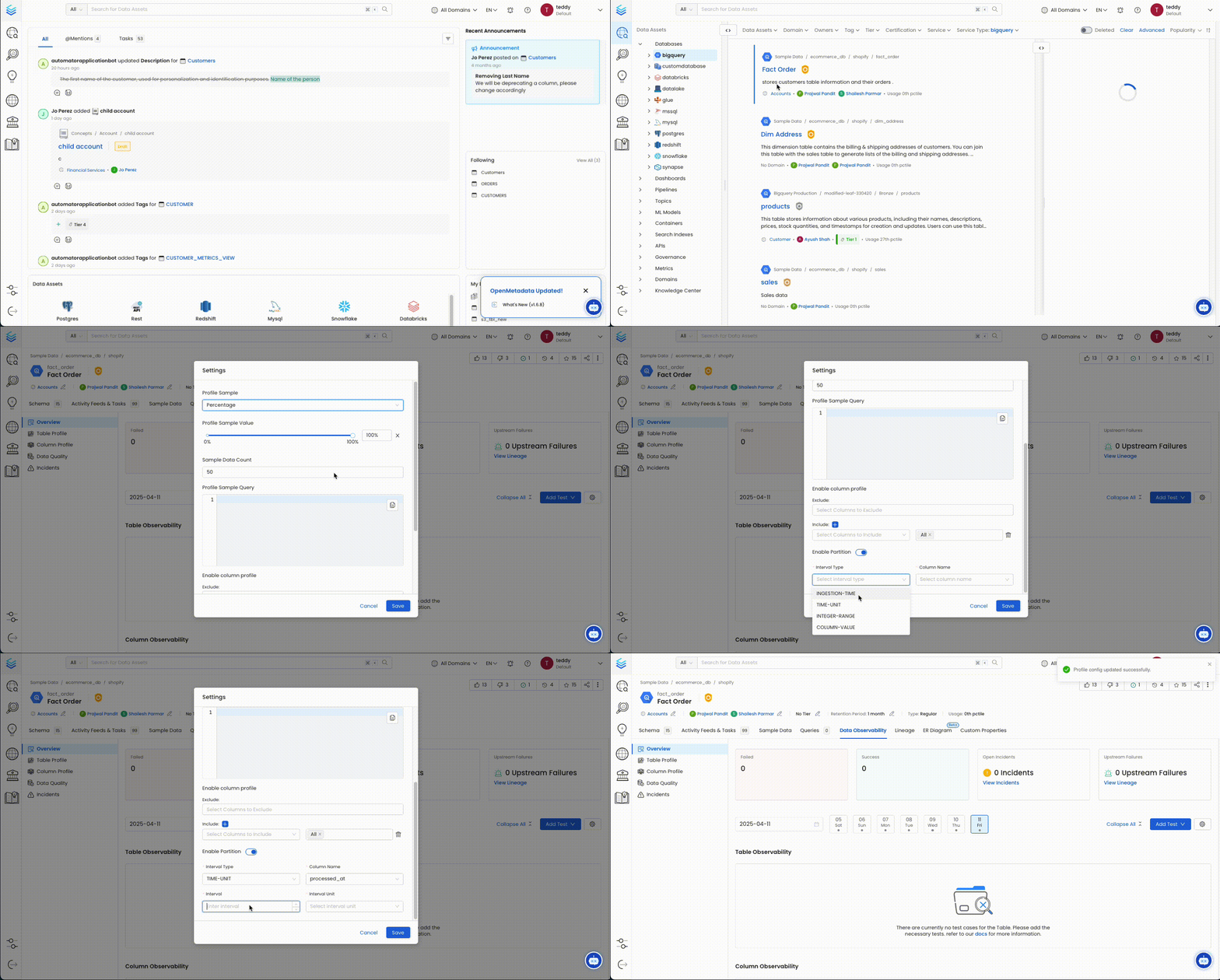 This change allows OpenMetadata to access a broader data range during profiling and sample data collection, resolving the issue for partitioned tables.
### Data Catalog API Permissions
* Go to [https://console.cloud.google.com/apis/library/datacatalog.googleapis.com](https://console.cloud.google.com/apis/library/datacatalog.googleapis.com)
* Select the `GCP Project ID` that you want to enable the `Data Catalog API` on.
* Click on `Enable API` which will enable the data catalog api on the respective project.
Access to the Google Data Catalog API is optional and only required if you want to retrieve policy tags from BigQuery. The BigQuery connector does not require this permission for general metadata ingestion.
### GCP Permissions
To execute metadata extraction and usage workflow successfully the user or the service account should have enough access to fetch required data. Following table describes the minimum required permissions
| # | GCP Permission | Required For |
| :- | :---------------------------- | :-------------------------------- |
| 1 | bigquery.datasets.get | Metadata Ingestion |
| 2 | bigquery.tables.get | Metadata Ingestion |
| 3 | bigquery.tables.getData | Metadata Ingestion |
| 4 | bigquery.tables.list | Metadata Ingestion |
| 5 | resourcemanager.projects.get | Metadata Ingestion |
| 6 | bigquery.jobs.create | Metadata Ingestion |
| 7 | bigquery.jobs.listAll | Metadata Ingestion |
| 8 | bigquery.routines.get | Stored Procedure |
| 9 | bigquery.routines.list | Stored Procedure |
| 10 | datacatalog.taxonomies.get | Fetch Policy Tags |
| 11 | datacatalog.taxonomies.list | Fetch Policy Tags |
| 12 | bigquery.readsessions.create | Bigquery Usage & Lineage Workflow |
| 13 | bigquery.readsessions.getData | Bigquery Usage & Lineage Workflow |
| 14 | logging.operations.list | Incremental Metadata Ingestion |
If the user has `External Tables`, please attach relevant permissions needed for external tables, along with the above list of permissions.
If you are using BigQuery and have sharded tables, you might want to consider using partitioned tables instead. Partitioned tables allow you to efficiently query data by date or other criteria, without having to manage multiple tables. Partitioned tables also have lower storage and query costs than sharded tables.
You can learn more about the benefits of partitioned tables [here](https://cloud.google.com/bigquery/docs/partitioned-tables#dt_partition_shard).
If you want to convert your existing sharded tables to partitioned tables, you can follow the steps in this [guide](https://cloud.google.com/bigquery/docs/creating-partitioned-tables#convert-date-sharded-tables).
This will help you simplify your data management and optimize your performance in BigQuery.
## Metadata Ingestion
# Connection Options
**Host and Port**: BigQuery APIs URL. By default, the API URL is `bigquery.googleapis.com` you can modify this if you have custom implementation of BigQuery.
**GCP Credentials**:
You can authenticate with your bigquery instance using either `GCP Credentials Path` where you can specify the file path of the service account key or you can pass the values directly by choosing the `GCP Credentials Values` from the service account key file.
You can check out [this](https://cloud.google.com/iam/docs/keys-create-delete#iam-service-account-keys-create-console) documentation on how to create the service account keys and download it.
**GCP Credentials Values**: Passing the raw credential values provided by BigQuery. This requires us to provide the following information, all provided by BigQuery:
* **Credentials type**: Credentials Type is the type of the account, for a service account the value of this field is `service_account`. To fetch this key, look for the value associated with the `type` key in the service account key file.
* **Billing Project ID (Optional)**: The GCP project that should be charged for the BigQuery jobs OpenMetadata runs. Use this when the project that pays for metadata, usage, or lineage queries is different from the project ID or IDs you ingest from.
* **Project ID**: The BigQuery project ID or IDs that OpenMetadata should scan for datasets, tables, and other metadata. For service account credentials, this usually comes from the `project_id` value in the key file. You can also pass multiple project IDs to ingest metadata from different BigQuery projects into one service.
* **Private Key ID**: This is a unique identifier for the private key associated with the service account. To fetch this key, look for the value associated with the `private_key_id` key in the service account file.
* **Private Key**: This is the private key associated with the service account that is used to authenticate and authorize access to BigQuery. To fetch this key, look for the value associated with the `private_key` key in the service account file.
* **Client Email**: This is the email address associated with the service account. To fetch this key, look for the value associated with the `client_email` key in the service account key file.
* **Client ID**: This is a unique identifier for the service account. To fetch this key, look for the value associated with the `client_id` key in the service account key file.
* **Auth URI**: This is the URI for the authorization server. To fetch this key, look for the value associated with the `auth_uri` key in the service account key file. The default value to Auth URI is [https://accounts.google.com/o/oauth2/auth](https://accounts.google.com/o/oauth2/auth).
* **Token URI**: The Google Cloud Token URI is a specific endpoint used to obtain an OAuth 2.0 access token from the Google Cloud IAM service. This token allows you to authenticate and access various Google Cloud resources and APIs that require authorization. To fetch this key, look for the value associated with the `token_uri` key in the service account credentials file. Default Value to Token URI is [https://oauth2.googleapis.com/token](https://oauth2.googleapis.com/token).
* **Authentication Provider X509 Certificate URL**: This is the URL of the certificate that verifies the authenticity of the authorization server. To fetch this key, look for the value associated with the `auth_provider_x509_cert_url` key in the service account key file. The Default value for Auth Provider X509Cert URL is [https://www.googleapis.com/oauth2/v1/certs](https://www.googleapis.com/oauth2/v1/certs)
* **Client X509Cert URL**: This is the URL of the certificate that verifies the authenticity of the service account. To fetch this key, look for the value associated with the `client_x509_cert_url` key in the service account key file.
`Project ID` tells OpenMetadata where to read metadata from. `Billing Project ID` tells BigQuery which project should pay for the queries.
* Same-project setup: if your data lives in `analytics-prod` and that same project should pay for the queries, use `analytics-prod` as the `Project ID` and either leave `Billing Project ID` empty or set it to `analytics-prod`.
* Cross-project billing setup: if your data lives in `marketing-prod` and `finance-prod`, but all query costs should be charged to `central-billing`, use `marketing-prod` and `finance-prod` as `Project ID` values and set `Billing Project ID` to `central-billing`.
**GCP Credentials Path**: Passing a local file path that contains the credentials.
**Taxonomy Project ID (Optional)**: Bigquery uses taxonomies to create hierarchical groups of policy tags. To apply access controls to BigQuery columns, tag the columns with policy tags. Learn more about how yo can create policy tags and set up column-level access control [here](https://cloud.google.com/bigquery/docs/column-level-security)
If you have attached policy tags to the columns of table available in Bigquery, then OpenMetadata will fetch those tags and attach it to the respective columns.
In this field you need to specify the id of project in which the taxonomy was created.
**Taxonomy Location (Optional)**: Bigquery uses taxonomies to create hierarchical groups of policy tags. To apply access controls to BigQuery columns, tag the columns with policy tags. Learn more about how yo can create policy tags and set up column-level access control [here](https://cloud.google.com/bigquery/docs/column-level-security)
If you have attached policy tags to the columns of table available in Bigquery, then OpenMetadata will fetch those tags and attach it to the respective columns.
In this field you need to specify the location/region in which the taxonomy was created.
**Usage Location (Optional)**:
Location used to query `INFORMATION_SCHEMA.JOBS_BY_PROJECT` to fetch usage data. You can pass multi-regions, such as `us` or `eu`, or your specific region such as `us-east1`. Australia and Asia multi-regions are not yet supported.
**Cost Per TiB (Optional)**:
The cost (in USD) per tebibyte (TiB) of data processed during BigQuery usage analysis. This value is used to estimate query costs when analyzing usage metrics from `INFORMATION_SCHEMA.JOBS_BY_PROJECT`.
This setting does **not** affect actual billing—it is only used for internal reporting and visualization of estimated costs.
The default value, if not set, may assume the standard on-demand BigQuery pricing (e.g., \$5.00 per TiB), but you should adjust it according to your organization's negotiated rates or flat-rate pricing model.
**Application Default Credentials (ADC) Authentication**
If you want to use [ADC authentication](https://cloud.google.com/docs/authentication#adc) for BigQuery, configure the GCP credentials with type `gcp_adc`:
```yaml theme={null}
credentials:
gcpConfig:
type: gcp_adc
projectId: ["your-project-id"] # Optional: specify project(s) for data access
```
**Using ADC with Billing Project ID**: When using ADC authentication, you can still specify a **Billing Project ID** to control which project pays for the BigQuery queries OpenMetadata runs. This is particularly useful when:
* Your service account has access to multiple projects
* You want to bill queries to a specific project different from the one containing your data
* You're running queries that span multiple projects
**ADC Setup**: ADC authentication works automatically when running in Google Cloud environments (GKE, Compute Engine, Cloud Run) or when you've configured it locally using `gcloud auth application-default login`.
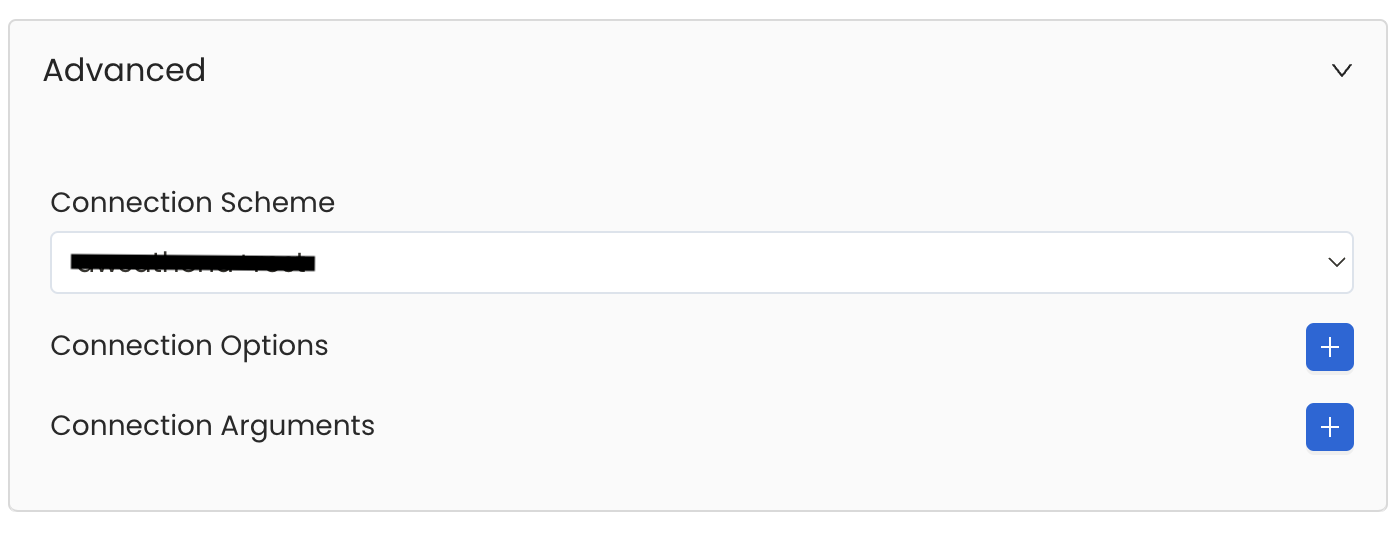
Database Services have an Advanced Configuration section, where you can pass extra arguments to the connector
and, if needed, change the connection Scheme.
This would only be required to handle advanced connectivity scenarios or customizations.
* **Connection Options (Optional)**: Enter the details for any additional connection options that can be sent to database during the connection. These details must be added as Key-Value pairs.
* **Connection Arguments (Optional)**: Enter the details for any additional connection arguments such as security or protocol configs that can be sent during the connection. These details must be added as Key-Value pairs.
This change allows OpenMetadata to access a broader data range during profiling and sample data collection, resolving the issue for partitioned tables.
### Data Catalog API Permissions
* Go to [https://console.cloud.google.com/apis/library/datacatalog.googleapis.com](https://console.cloud.google.com/apis/library/datacatalog.googleapis.com)
* Select the `GCP Project ID` that you want to enable the `Data Catalog API` on.
* Click on `Enable API` which will enable the data catalog api on the respective project.
Access to the Google Data Catalog API is optional and only required if you want to retrieve policy tags from BigQuery. The BigQuery connector does not require this permission for general metadata ingestion.
### GCP Permissions
To execute metadata extraction and usage workflow successfully the user or the service account should have enough access to fetch required data. Following table describes the minimum required permissions
| # | GCP Permission | Required For |
| :- | :---------------------------- | :-------------------------------- |
| 1 | bigquery.datasets.get | Metadata Ingestion |
| 2 | bigquery.tables.get | Metadata Ingestion |
| 3 | bigquery.tables.getData | Metadata Ingestion |
| 4 | bigquery.tables.list | Metadata Ingestion |
| 5 | resourcemanager.projects.get | Metadata Ingestion |
| 6 | bigquery.jobs.create | Metadata Ingestion |
| 7 | bigquery.jobs.listAll | Metadata Ingestion |
| 8 | bigquery.routines.get | Stored Procedure |
| 9 | bigquery.routines.list | Stored Procedure |
| 10 | datacatalog.taxonomies.get | Fetch Policy Tags |
| 11 | datacatalog.taxonomies.list | Fetch Policy Tags |
| 12 | bigquery.readsessions.create | Bigquery Usage & Lineage Workflow |
| 13 | bigquery.readsessions.getData | Bigquery Usage & Lineage Workflow |
| 14 | logging.operations.list | Incremental Metadata Ingestion |
If the user has `External Tables`, please attach relevant permissions needed for external tables, along with the above list of permissions.
If you are using BigQuery and have sharded tables, you might want to consider using partitioned tables instead. Partitioned tables allow you to efficiently query data by date or other criteria, without having to manage multiple tables. Partitioned tables also have lower storage and query costs than sharded tables.
You can learn more about the benefits of partitioned tables [here](https://cloud.google.com/bigquery/docs/partitioned-tables#dt_partition_shard).
If you want to convert your existing sharded tables to partitioned tables, you can follow the steps in this [guide](https://cloud.google.com/bigquery/docs/creating-partitioned-tables#convert-date-sharded-tables).
This will help you simplify your data management and optimize your performance in BigQuery.
## Metadata Ingestion
# Connection Options
**Host and Port**: BigQuery APIs URL. By default, the API URL is `bigquery.googleapis.com` you can modify this if you have custom implementation of BigQuery.
**GCP Credentials**:
You can authenticate with your bigquery instance using either `GCP Credentials Path` where you can specify the file path of the service account key or you can pass the values directly by choosing the `GCP Credentials Values` from the service account key file.
You can check out [this](https://cloud.google.com/iam/docs/keys-create-delete#iam-service-account-keys-create-console) documentation on how to create the service account keys and download it.
**GCP Credentials Values**: Passing the raw credential values provided by BigQuery. This requires us to provide the following information, all provided by BigQuery:
* **Credentials type**: Credentials Type is the type of the account, for a service account the value of this field is `service_account`. To fetch this key, look for the value associated with the `type` key in the service account key file.
* **Billing Project ID (Optional)**: The GCP project that should be charged for the BigQuery jobs OpenMetadata runs. Use this when the project that pays for metadata, usage, or lineage queries is different from the project ID or IDs you ingest from.
* **Project ID**: The BigQuery project ID or IDs that OpenMetadata should scan for datasets, tables, and other metadata. For service account credentials, this usually comes from the `project_id` value in the key file. You can also pass multiple project IDs to ingest metadata from different BigQuery projects into one service.
* **Private Key ID**: This is a unique identifier for the private key associated with the service account. To fetch this key, look for the value associated with the `private_key_id` key in the service account file.
* **Private Key**: This is the private key associated with the service account that is used to authenticate and authorize access to BigQuery. To fetch this key, look for the value associated with the `private_key` key in the service account file.
* **Client Email**: This is the email address associated with the service account. To fetch this key, look for the value associated with the `client_email` key in the service account key file.
* **Client ID**: This is a unique identifier for the service account. To fetch this key, look for the value associated with the `client_id` key in the service account key file.
* **Auth URI**: This is the URI for the authorization server. To fetch this key, look for the value associated with the `auth_uri` key in the service account key file. The default value to Auth URI is [https://accounts.google.com/o/oauth2/auth](https://accounts.google.com/o/oauth2/auth).
* **Token URI**: The Google Cloud Token URI is a specific endpoint used to obtain an OAuth 2.0 access token from the Google Cloud IAM service. This token allows you to authenticate and access various Google Cloud resources and APIs that require authorization. To fetch this key, look for the value associated with the `token_uri` key in the service account credentials file. Default Value to Token URI is [https://oauth2.googleapis.com/token](https://oauth2.googleapis.com/token).
* **Authentication Provider X509 Certificate URL**: This is the URL of the certificate that verifies the authenticity of the authorization server. To fetch this key, look for the value associated with the `auth_provider_x509_cert_url` key in the service account key file. The Default value for Auth Provider X509Cert URL is [https://www.googleapis.com/oauth2/v1/certs](https://www.googleapis.com/oauth2/v1/certs)
* **Client X509Cert URL**: This is the URL of the certificate that verifies the authenticity of the service account. To fetch this key, look for the value associated with the `client_x509_cert_url` key in the service account key file.
`Project ID` tells OpenMetadata where to read metadata from. `Billing Project ID` tells BigQuery which project should pay for the queries.
* Same-project setup: if your data lives in `analytics-prod` and that same project should pay for the queries, use `analytics-prod` as the `Project ID` and either leave `Billing Project ID` empty or set it to `analytics-prod`.
* Cross-project billing setup: if your data lives in `marketing-prod` and `finance-prod`, but all query costs should be charged to `central-billing`, use `marketing-prod` and `finance-prod` as `Project ID` values and set `Billing Project ID` to `central-billing`.
**GCP Credentials Path**: Passing a local file path that contains the credentials.
**Taxonomy Project ID (Optional)**: Bigquery uses taxonomies to create hierarchical groups of policy tags. To apply access controls to BigQuery columns, tag the columns with policy tags. Learn more about how yo can create policy tags and set up column-level access control [here](https://cloud.google.com/bigquery/docs/column-level-security)
If you have attached policy tags to the columns of table available in Bigquery, then OpenMetadata will fetch those tags and attach it to the respective columns.
In this field you need to specify the id of project in which the taxonomy was created.
**Taxonomy Location (Optional)**: Bigquery uses taxonomies to create hierarchical groups of policy tags. To apply access controls to BigQuery columns, tag the columns with policy tags. Learn more about how yo can create policy tags and set up column-level access control [here](https://cloud.google.com/bigquery/docs/column-level-security)
If you have attached policy tags to the columns of table available in Bigquery, then OpenMetadata will fetch those tags and attach it to the respective columns.
In this field you need to specify the location/region in which the taxonomy was created.
**Usage Location (Optional)**:
Location used to query `INFORMATION_SCHEMA.JOBS_BY_PROJECT` to fetch usage data. You can pass multi-regions, such as `us` or `eu`, or your specific region such as `us-east1`. Australia and Asia multi-regions are not yet supported.
**Cost Per TiB (Optional)**:
The cost (in USD) per tebibyte (TiB) of data processed during BigQuery usage analysis. This value is used to estimate query costs when analyzing usage metrics from `INFORMATION_SCHEMA.JOBS_BY_PROJECT`.
This setting does **not** affect actual billing—it is only used for internal reporting and visualization of estimated costs.
The default value, if not set, may assume the standard on-demand BigQuery pricing (e.g., \$5.00 per TiB), but you should adjust it according to your organization's negotiated rates or flat-rate pricing model.
**Application Default Credentials (ADC) Authentication**
If you want to use [ADC authentication](https://cloud.google.com/docs/authentication#adc) for BigQuery, configure the GCP credentials with type `gcp_adc`:
```yaml theme={null}
credentials:
gcpConfig:
type: gcp_adc
projectId: ["your-project-id"] # Optional: specify project(s) for data access
```
**Using ADC with Billing Project ID**: When using ADC authentication, you can still specify a **Billing Project ID** to control which project pays for the BigQuery queries OpenMetadata runs. This is particularly useful when:
* Your service account has access to multiple projects
* You want to bill queries to a specific project different from the one containing your data
* You're running queries that span multiple projects
**ADC Setup**: ADC authentication works automatically when running in Google Cloud environments (GKE, Compute Engine, Cloud Run) or when you've configured it locally using `gcloud auth application-default login`.
Database Services have an Advanced Configuration section, where you can pass extra arguments to the connector
and, if needed, change the connection Scheme.
This would only be required to handle advanced connectivity scenarios or customizations.
* **Connection Options (Optional)**: Enter the details for any additional connection options that can be sent to database during the connection. These details must be added as Key-Value pairs.
* **Connection Arguments (Optional)**: Enter the details for any additional connection arguments such as security or protocol configs that can be sent during the connection. These details must be added as Key-Value pairs.
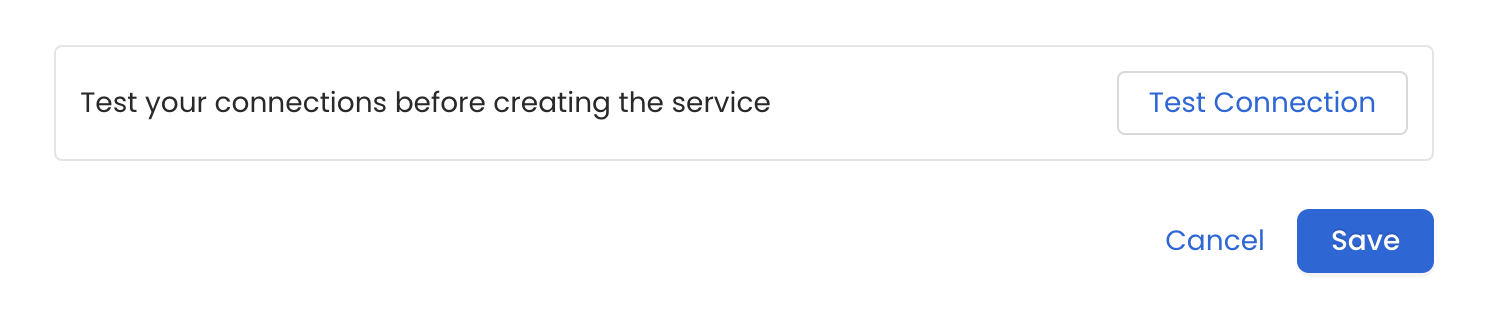
 Once the credentials have been added, click on *Test Connection* and *Save* the changes.
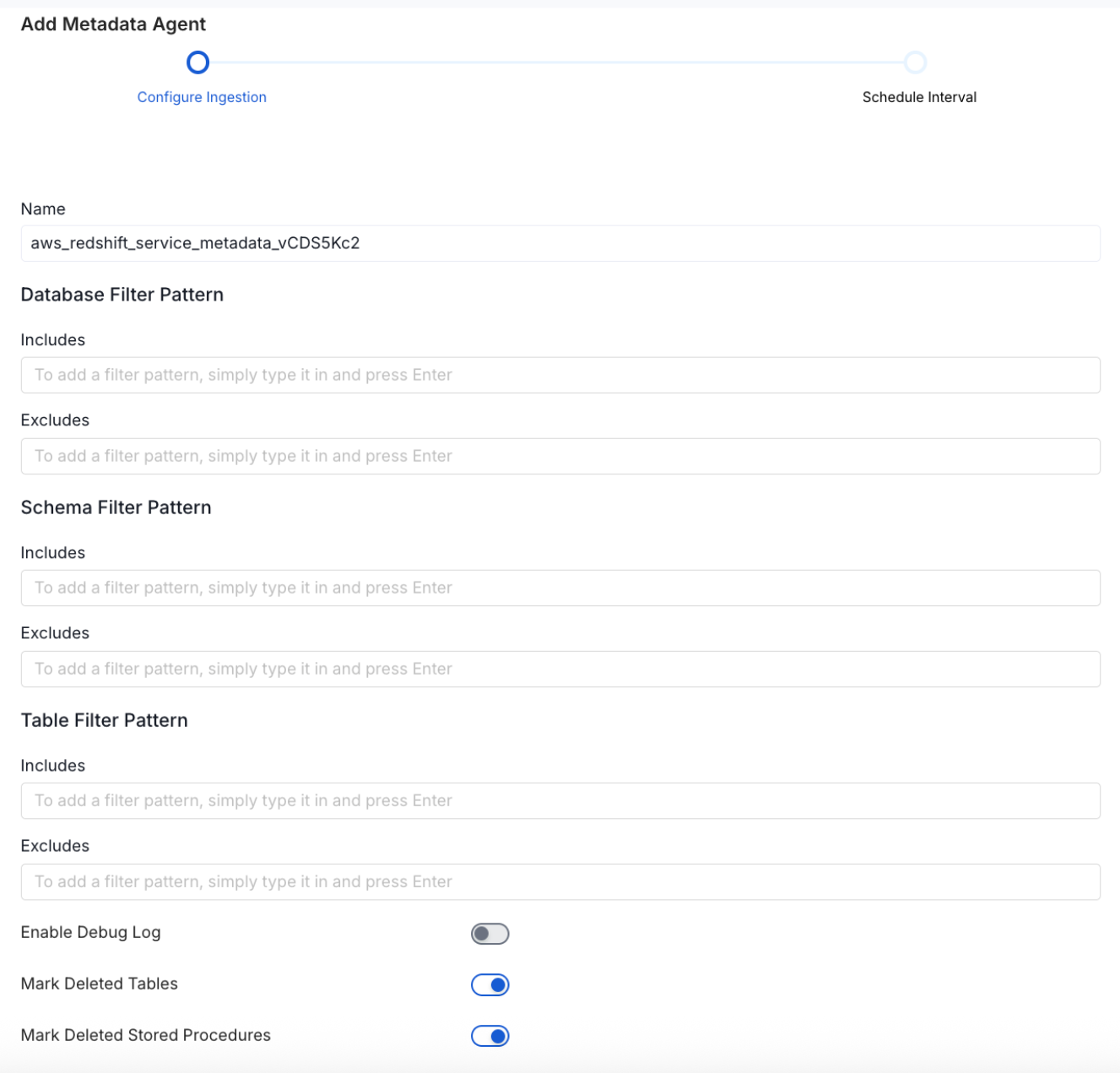
 In this step we will configure the metadata ingestion pipeline,
Please follow the instructions below
In this step we will configure the metadata ingestion pipeline,
Please follow the instructions below
 #### Metadata Ingestion Options
If the owner's name is openmetadata, you need to enter `openmetadata@domain.com` in the name section of add team/user form, click [here](/connectors/database/dbt/ingest-dbt-owner#following-steps-shows-adding-a-user-to-openmetadata) for more info.
* **Name**: This field refers to the name of ingestion pipeline, you can customize the name or use the generated name.
* **Database Filter Pattern (Optional)**: Use to database filter patterns to control whether or not to include database as part of metadata ingestion.
* **Include**: Explicitly include databases by adding a list of comma-separated regular expressions to the Include field. OpenMetadata will include all databases with names matching one or more of the supplied regular expressions. All other databases will be excluded.
* **Exclude**: Explicitly exclude databases by adding a list of comma-separated regular expressions to the Exclude field. OpenMetadata will exclude all databases with names matching one or more of the supplied regular expressions. All other databases will be included.
* **Schema Filter Pattern (Optional)**: Use to schema filter patterns to control whether to include schemas as part of metadata ingestion.
* **Include**: Explicitly include schemas by adding a list of comma-separated regular expressions to the Include field. OpenMetadata will include all schemas with names matching one or more of the supplied regular expressions. All other schemas will be excluded.
* **Exclude**: Explicitly exclude schemas by adding a list of comma-separated regular expressions to the Exclude field. OpenMetadata will exclude all schemas with names matching one or more of the supplied regular expressions. All other schemas will be included.
* **Table Filter Pattern (Optional)**: Use to table filter patterns to control whether to include tables as part of metadata ingestion.
* **Include**: Explicitly include tables by adding a list of comma-separated regular expressions to the Include field. OpenMetadata will include all tables with names matching one or more of the supplied regular expressions. All other tables will be excluded.
* **Exclude**: Explicitly exclude tables by adding a list of comma-separated regular expressions to the Exclude field. OpenMetadata will exclude all tables with names matching one or more of the supplied regular expressions. All other tables will be included.
* **Enable Debug Log (toggle)**: Set the Enable Debug Log toggle to set the default log level to debug.
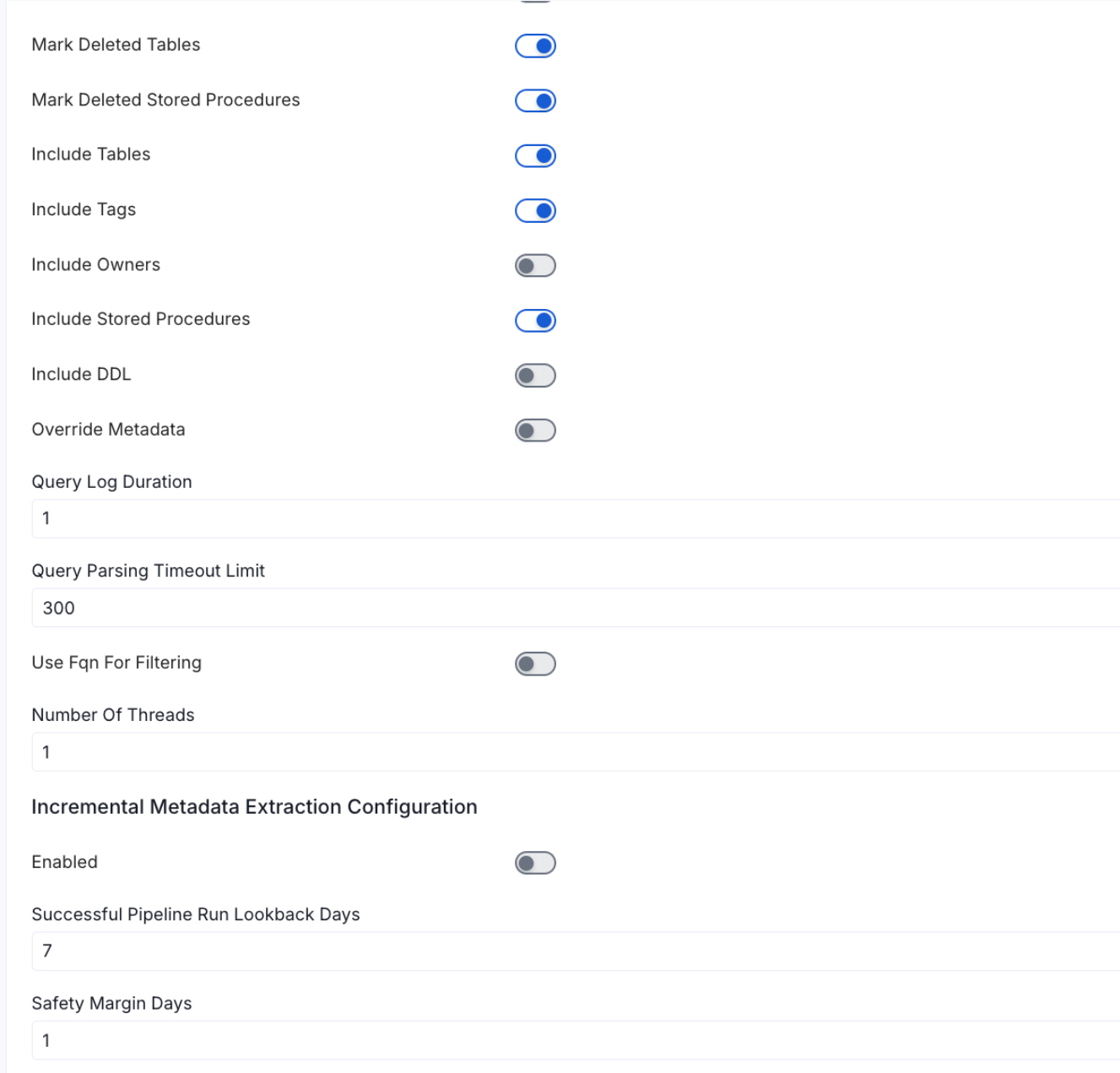
* **Mark Deleted Tables (toggle)**: Set the Mark Deleted Tables toggle to flag tables as soft-deleted if they are not present anymore in the source system.
* **Mark Deleted Tables from Filter Only (toggle)**: Set the Mark Deleted Tables from Filter Only toggle to flag tables as soft-deleted if they are not present anymore within the filtered schema or database only. This flag is useful when you have more than one ingestion pipelines. For example if you have a schema
* **includeTables (toggle)**: Optional configuration to turn off fetching metadata for tables.
* **includeViews (toggle)**: Set the Include views toggle to control whether to include views as part of metadata ingestion.
* **includeTags (toggle)**: Set the 'Include Tags' toggle to control whether to include tags as part of metadata ingestion.
* **includeOwners (toggle)**: Set the 'Include Owners' toggle to control whether to include owners to the ingested entity if the owner email matches with a user stored in the OM server as part of metadata ingestion. If the ingested entity already exists and has an owner, the owner will not be overwritten.
* **includeStoredProcedures (toggle)**: Optional configuration to toggle the Stored Procedures ingestion.
* **includeDDL (toggle)**: Optional configuration to toggle the DDL Statements ingestion.
* **queryLogDuration (Optional)**: Configuration to tune how far we want to look back in query logs to process Stored Procedures results.
* **queryParsingTimeoutLimit (Optional)**: Configuration to set the timeout for parsing the query in seconds.
* **useFqnForFiltering (toggle)**: Regex will be applied on fully qualified name (e.g service\_name.db\_name.schema\_name.table\_name) instead of raw name (e.g. table\_name).
* **Incremental (Beta)**: Use Incremental Metadata Extraction after the first execution. This is done by getting the changed tables instead of all of them. **Only Available for BigQuery, Redshift and Snowflake**
* **Enabled**: If `True`, enables Metadata Extraction to be Incremental.
* **lookback Days**: Number of days to search back for a successful pipeline run. The timestamp of the last found successful pipeline run will be used as a base to search for updated entities.
* **Safety Margin Days**: Number of days to add to the last successful pipeline run timestamp to search for updated entities.
* **Threads (Beta)**: Use a Multithread approach for Metadata Extraction. You can define here the number of threads you would like to run concurrently.
Note that the right-hand side panel in the OpenMetadata UI will also share useful documentation when configuring the ingestion.
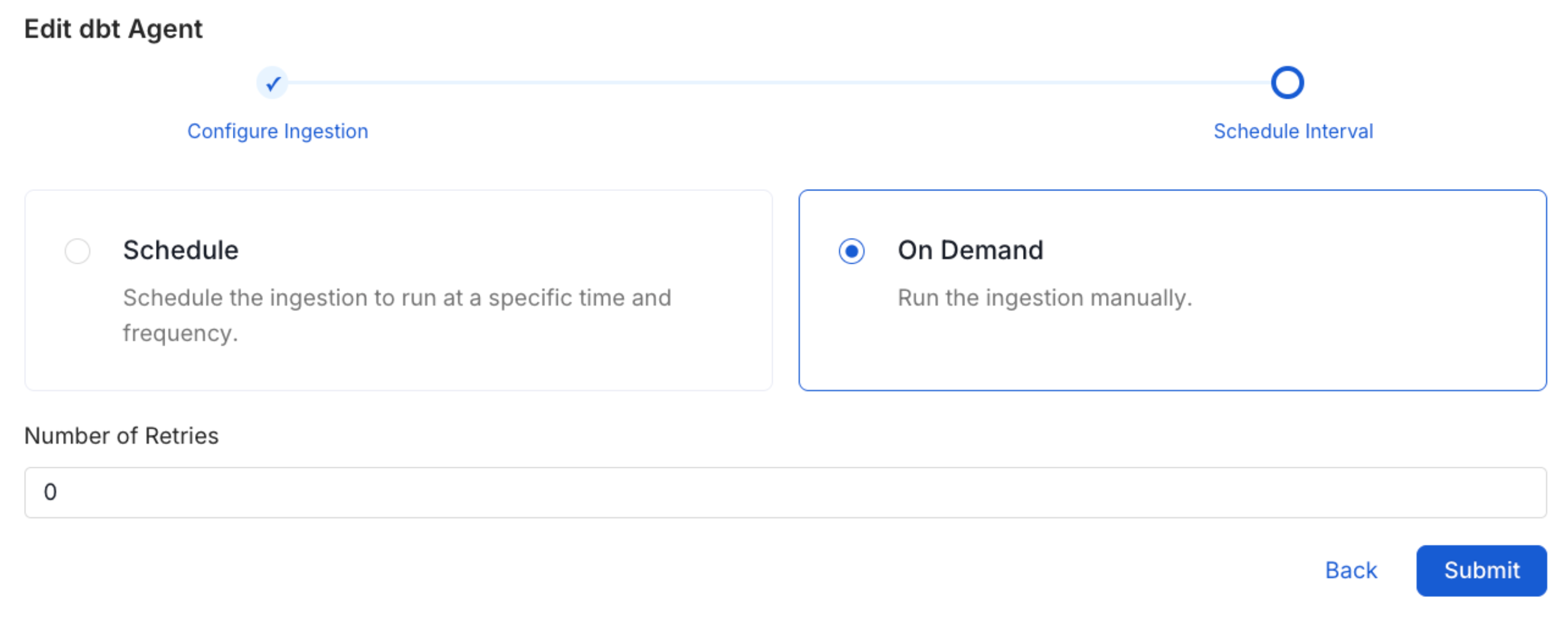
Scheduling can be set up at an hourly, daily, weekly, or manual cadence. The
timezone is in UTC. Select a Start Date to schedule for ingestion. It is
optional to add an End Date.
Review your configuration settings. If they match what you intended,
click Deploy to create the service and schedule metadata ingestion.
If something doesn't look right, click the Back button to return to the
appropriate step and change the settings as needed.
After configuring the workflow, you can click on Deploy to create the
pipeline.
#### Metadata Ingestion Options
If the owner's name is openmetadata, you need to enter `openmetadata@domain.com` in the name section of add team/user form, click [here](/connectors/database/dbt/ingest-dbt-owner#following-steps-shows-adding-a-user-to-openmetadata) for more info.
* **Name**: This field refers to the name of ingestion pipeline, you can customize the name or use the generated name.
* **Database Filter Pattern (Optional)**: Use to database filter patterns to control whether or not to include database as part of metadata ingestion.
* **Include**: Explicitly include databases by adding a list of comma-separated regular expressions to the Include field. OpenMetadata will include all databases with names matching one or more of the supplied regular expressions. All other databases will be excluded.
* **Exclude**: Explicitly exclude databases by adding a list of comma-separated regular expressions to the Exclude field. OpenMetadata will exclude all databases with names matching one or more of the supplied regular expressions. All other databases will be included.
* **Schema Filter Pattern (Optional)**: Use to schema filter patterns to control whether to include schemas as part of metadata ingestion.
* **Include**: Explicitly include schemas by adding a list of comma-separated regular expressions to the Include field. OpenMetadata will include all schemas with names matching one or more of the supplied regular expressions. All other schemas will be excluded.
* **Exclude**: Explicitly exclude schemas by adding a list of comma-separated regular expressions to the Exclude field. OpenMetadata will exclude all schemas with names matching one or more of the supplied regular expressions. All other schemas will be included.
* **Table Filter Pattern (Optional)**: Use to table filter patterns to control whether to include tables as part of metadata ingestion.
* **Include**: Explicitly include tables by adding a list of comma-separated regular expressions to the Include field. OpenMetadata will include all tables with names matching one or more of the supplied regular expressions. All other tables will be excluded.
* **Exclude**: Explicitly exclude tables by adding a list of comma-separated regular expressions to the Exclude field. OpenMetadata will exclude all tables with names matching one or more of the supplied regular expressions. All other tables will be included.
* **Enable Debug Log (toggle)**: Set the Enable Debug Log toggle to set the default log level to debug.
* **Mark Deleted Tables (toggle)**: Set the Mark Deleted Tables toggle to flag tables as soft-deleted if they are not present anymore in the source system.
* **Mark Deleted Tables from Filter Only (toggle)**: Set the Mark Deleted Tables from Filter Only toggle to flag tables as soft-deleted if they are not present anymore within the filtered schema or database only. This flag is useful when you have more than one ingestion pipelines. For example if you have a schema
* **includeTables (toggle)**: Optional configuration to turn off fetching metadata for tables.
* **includeViews (toggle)**: Set the Include views toggle to control whether to include views as part of metadata ingestion.
* **includeTags (toggle)**: Set the 'Include Tags' toggle to control whether to include tags as part of metadata ingestion.
* **includeOwners (toggle)**: Set the 'Include Owners' toggle to control whether to include owners to the ingested entity if the owner email matches with a user stored in the OM server as part of metadata ingestion. If the ingested entity already exists and has an owner, the owner will not be overwritten.
* **includeStoredProcedures (toggle)**: Optional configuration to toggle the Stored Procedures ingestion.
* **includeDDL (toggle)**: Optional configuration to toggle the DDL Statements ingestion.
* **queryLogDuration (Optional)**: Configuration to tune how far we want to look back in query logs to process Stored Procedures results.
* **queryParsingTimeoutLimit (Optional)**: Configuration to set the timeout for parsing the query in seconds.
* **useFqnForFiltering (toggle)**: Regex will be applied on fully qualified name (e.g service\_name.db\_name.schema\_name.table\_name) instead of raw name (e.g. table\_name).
* **Incremental (Beta)**: Use Incremental Metadata Extraction after the first execution. This is done by getting the changed tables instead of all of them. **Only Available for BigQuery, Redshift and Snowflake**
* **Enabled**: If `True`, enables Metadata Extraction to be Incremental.
* **lookback Days**: Number of days to search back for a successful pipeline run. The timestamp of the last found successful pipeline run will be used as a base to search for updated entities.
* **Safety Margin Days**: Number of days to add to the last successful pipeline run timestamp to search for updated entities.
* **Threads (Beta)**: Use a Multithread approach for Metadata Extraction. You can define here the number of threads you would like to run concurrently.
Note that the right-hand side panel in the OpenMetadata UI will also share useful documentation when configuring the ingestion.
Scheduling can be set up at an hourly, daily, weekly, or manual cadence. The
timezone is in UTC. Select a Start Date to schedule for ingestion. It is
optional to add an End Date.
Review your configuration settings. If they match what you intended,
click Deploy to create the service and schedule metadata ingestion.
If something doesn't look right, click the Back button to return to the
appropriate step and change the settings as needed.
After configuring the workflow, you can click on Deploy to create the
pipeline.
 Once the workflow has been successfully deployed, you can view the
Ingestion Pipeline running from the Service Page.
Once the workflow has been successfully deployed, you can view the
Ingestion Pipeline running from the Service Page.
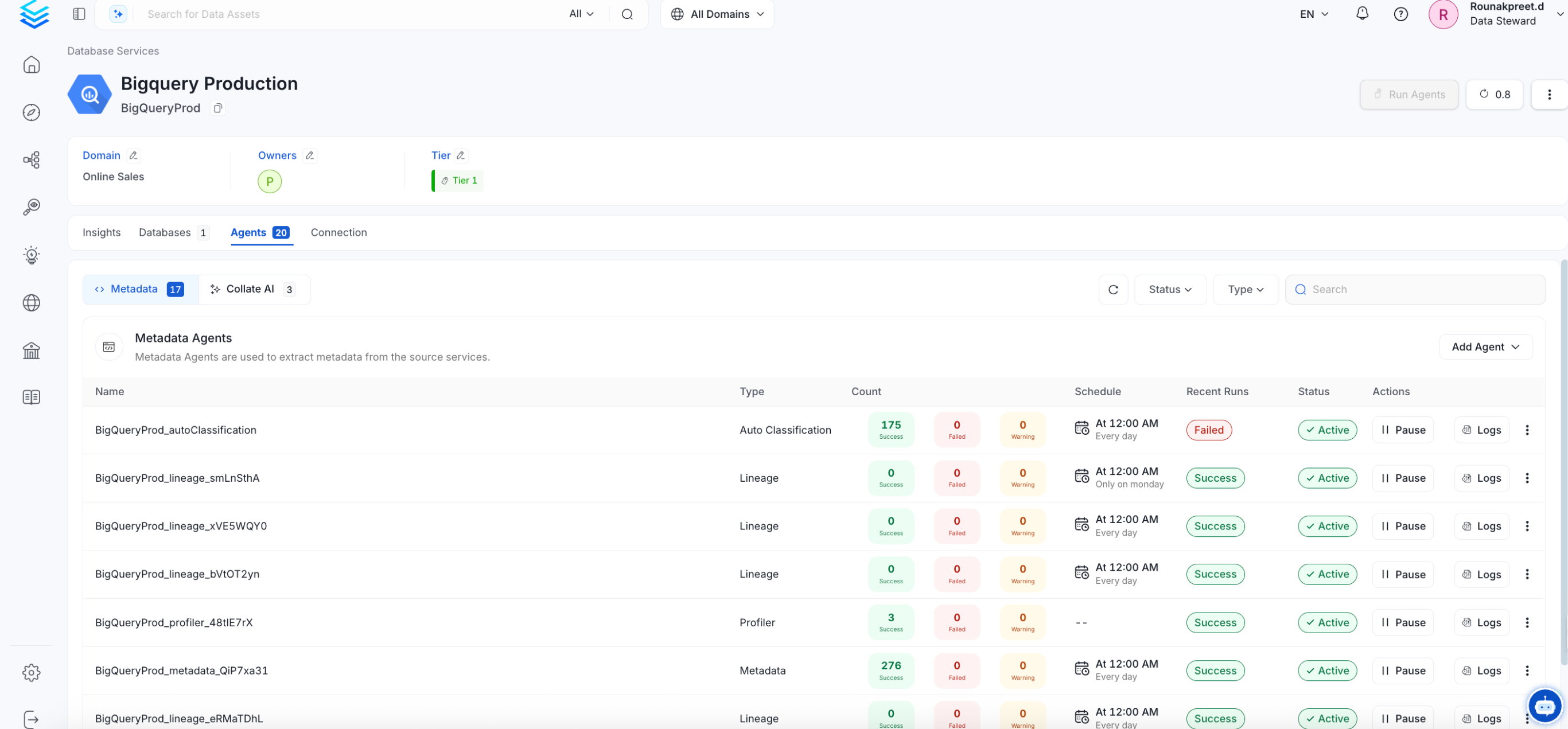 If AutoPilot is enabled, workflows like usage tracking, data lineage, and similar tasks will be handled automatically. Users don’t need to set up or manage them - AutoPilot takes care of everything in the system.
### Cross Project Lineage
We support cross-project lineage, but the data must be ingested within a single service. This means you need to perform lineage ingestion for just one service while including multiple projects.
## Related
Learn more about how to configure the Usage Workflow to ingest Query information from the UI.
Learn more about how to configure the Lineage from the UI.
Learn more about how to configure the Data Profiler from the UI.
Learn more about how to configure the Data Quality tests from the UI.
Learn more about how to ingest dbt models' definitions and their lineage.
If AutoPilot is enabled, workflows like usage tracking, data lineage, and similar tasks will be handled automatically. Users don’t need to set up or manage them - AutoPilot takes care of everything in the system.
### Cross Project Lineage
We support cross-project lineage, but the data must be ingested within a single service. This means you need to perform lineage ingestion for just one service while including multiple projects.
## Related
Learn more about how to configure the Usage Workflow to ingest Query information from the UI.
Learn more about how to configure the Lineage from the UI.
Learn more about how to configure the Data Profiler from the UI.
Learn more about how to configure the Data Quality tests from the UI.
Learn more about how to ingest dbt models' definitions and their lineage.