> ## Documentation Index
> Fetch the complete documentation index at: https://docs.open-metadata.org/llms.txt
> Use this file to discover all available pages before exploring further.
# BigQuery Connector | Set Up Credentials in OpenMetadata
> Learn how to create and configure BigQuery credentials for OpenMetadata Database Connector. Step-by-step guide with authentication setup and best practices.
# Create Credentials for BigQuery Ingestion
This documentation provides a step-by-step guide on how to create a custom role in Google Cloud Platform (GCP) with the necessary permissions to ingest BigQuery in OpenMetadata. It covers the process of navigating to the Roles section in the GCP console, creating a role, adding permissions, and creating a service account with credentials. By following these instructions, you will be able to set up the required role and credentials to access and ingest BigQuery metadata in OpenMetadata. Let's get started!
## 1. Create custom role in GCP
### Step 1: Navigate to Roles
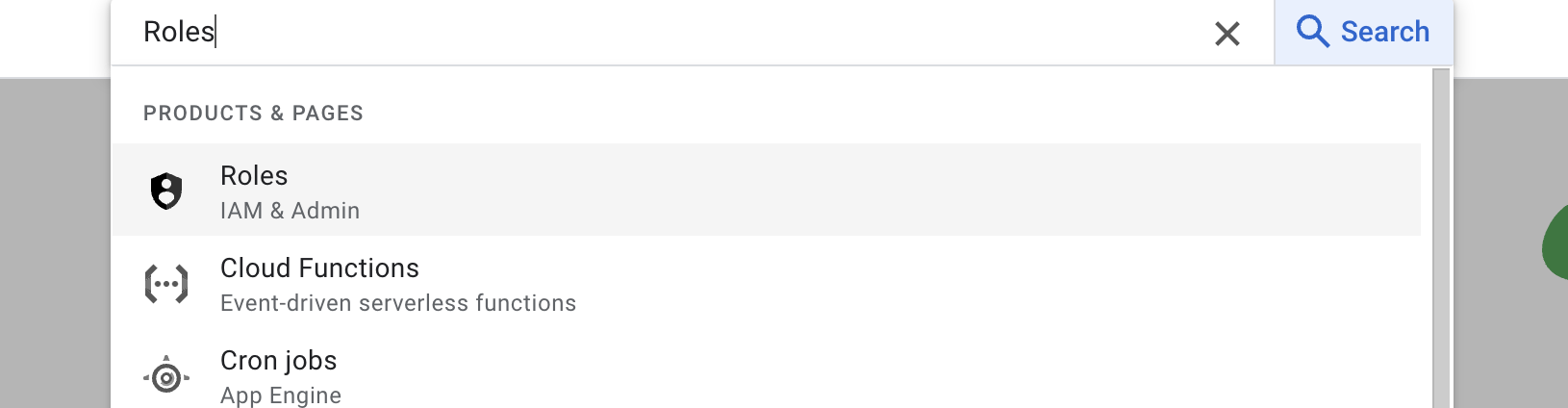
Search for `Roles` in your GCP console and select the first result under `IAM & Roles` section.
 ### Step 2: Create Role & Add Permissions
Below the search bar you should see a `Create Role` button click on that & navigate to create role page.
### Step 2: Create Role & Add Permissions
Below the search bar you should see a `Create Role` button click on that & navigate to create role page.
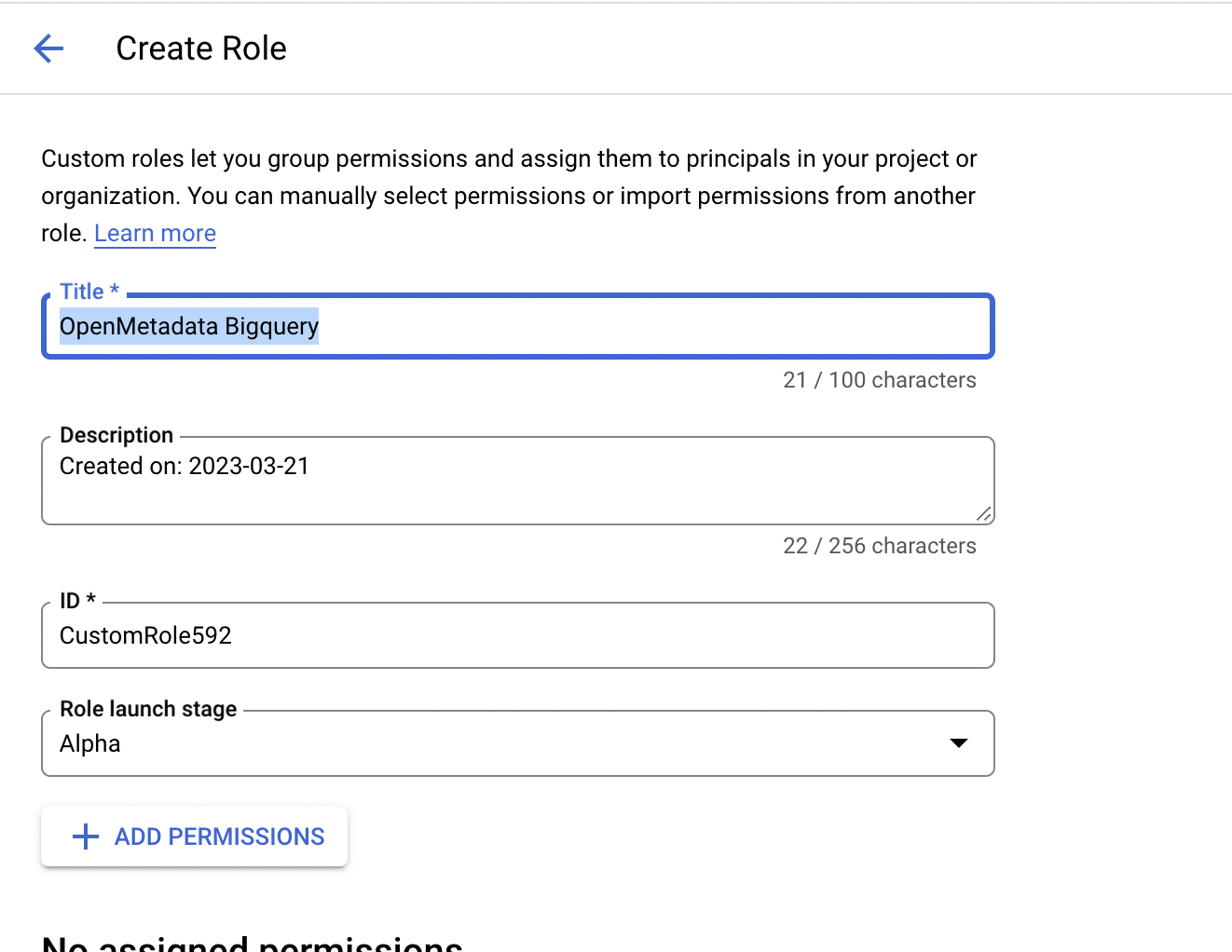
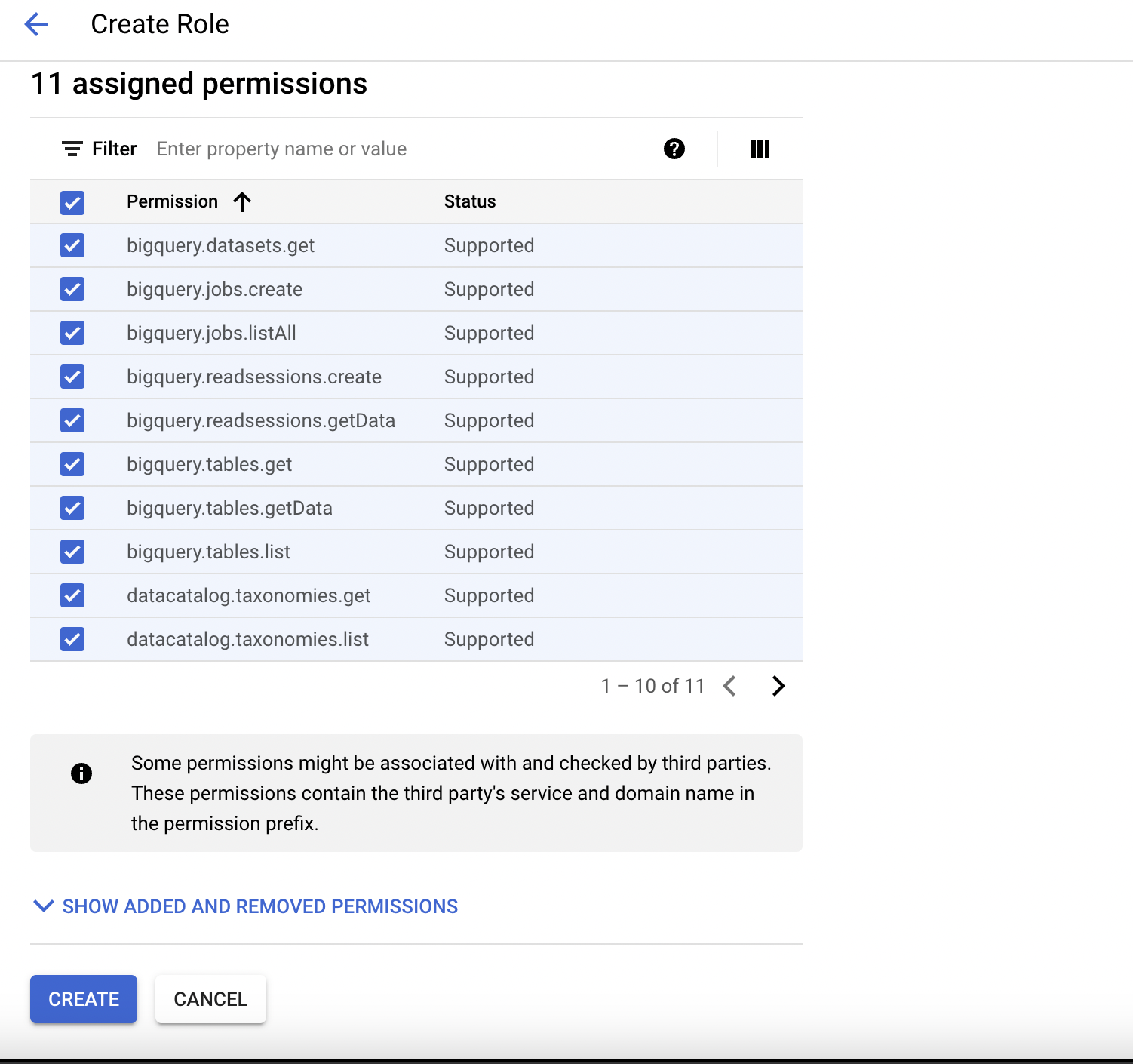
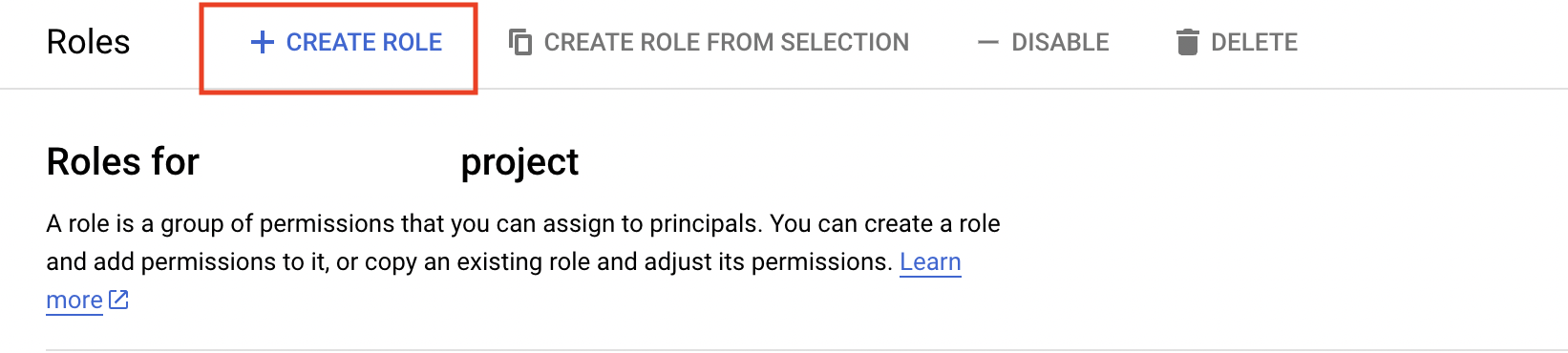 Once You are on the create role page, you can edit the description & title of the role and finally you can click on `add permissions` to grant permissions to role.
 You can search for the required permissions in the filter box and add them accordingly. To ingest metadata from BigQuery you need to grant the following permissions to the user.
| # | GCP Permission | Required For |
| :- | :---------------------------- | :-------------------------------- |
| 1 | bigquery.datasets.get | Metadata Ingestion |
| 2 | bigquery.tables.get | Metadata Ingestion |
| 3 | bigquery.tables.getData | Metadata Ingestion |
| 4 | bigquery.tables.list | Metadata Ingestion |
| 5 | resourcemanager.projects.get | Metadata Ingestion |
| 6 | bigquery.jobs.create | Metadata Ingestion |
| 7 | bigquery.jobs.listAll | Metadata Ingestion |
| 8 | bigquery.routines.get | Stored Procedure |
| 9 | bigquery.routines.list | Stored Procedure |
| 10 | datacatalog.taxonomies.get | Fetch Policy Tags |
| 11 | datacatalog.taxonomies.list | Fetch Policy Tags |
| 12 | bigquery.readsessions.create | Bigquery Usage & Lineage Workflow |
| 13 | bigquery.readsessions.getData | Bigquery Usage & Lineage Workflow |
| 14 | logging.operations.list | Incremental Metadata Ingestion |
You can search for the required permissions in the filter box and add them accordingly. To ingest metadata from BigQuery you need to grant the following permissions to the user.
| # | GCP Permission | Required For |
| :- | :---------------------------- | :-------------------------------- |
| 1 | bigquery.datasets.get | Metadata Ingestion |
| 2 | bigquery.tables.get | Metadata Ingestion |
| 3 | bigquery.tables.getData | Metadata Ingestion |
| 4 | bigquery.tables.list | Metadata Ingestion |
| 5 | resourcemanager.projects.get | Metadata Ingestion |
| 6 | bigquery.jobs.create | Metadata Ingestion |
| 7 | bigquery.jobs.listAll | Metadata Ingestion |
| 8 | bigquery.routines.get | Stored Procedure |
| 9 | bigquery.routines.list | Stored Procedure |
| 10 | datacatalog.taxonomies.get | Fetch Policy Tags |
| 11 | datacatalog.taxonomies.list | Fetch Policy Tags |
| 12 | bigquery.readsessions.create | Bigquery Usage & Lineage Workflow |
| 13 | bigquery.readsessions.getData | Bigquery Usage & Lineage Workflow |
| 14 | logging.operations.list | Incremental Metadata Ingestion |
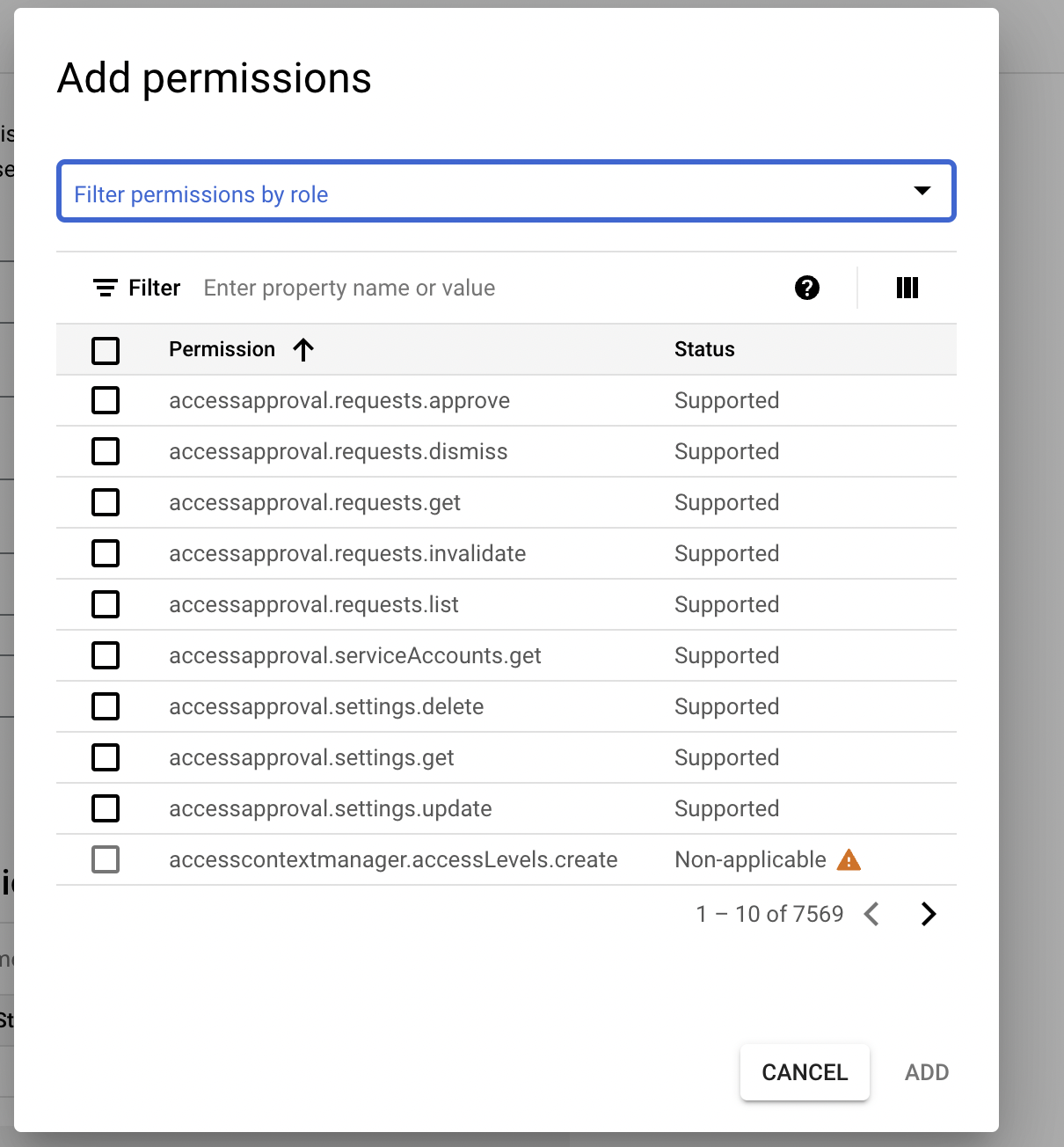 Once you have added all the required permissions, you can create the role by clicking on the create button.
 ## 2. Create Service Account
### Step 1: Navigate to Service Accounts
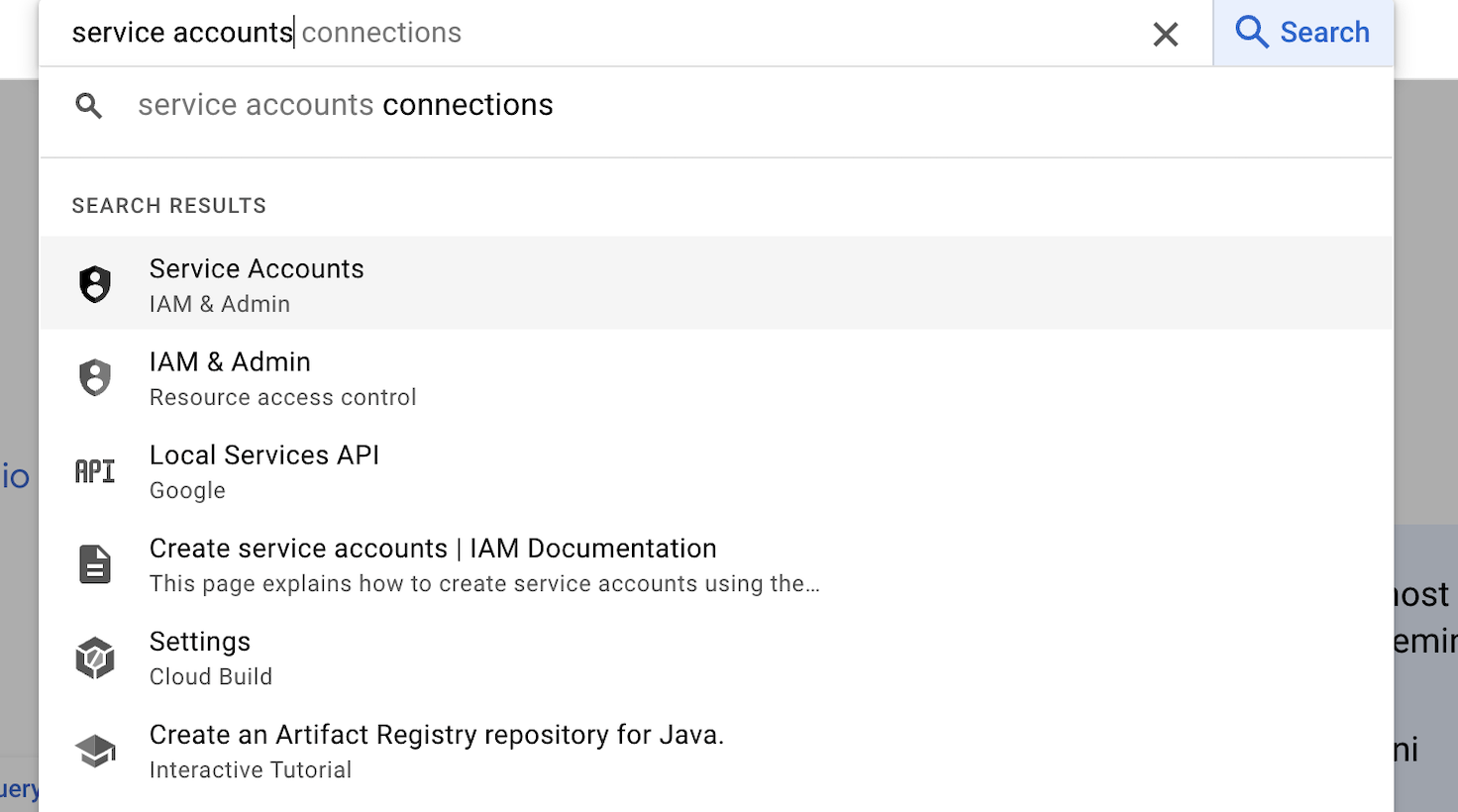
Login to your GCP console and navigate to service accounts page.
## 2. Create Service Account
### Step 1: Navigate to Service Accounts
Login to your GCP console and navigate to service accounts page.
 ### Step 2: Create Service Account & Grant Role
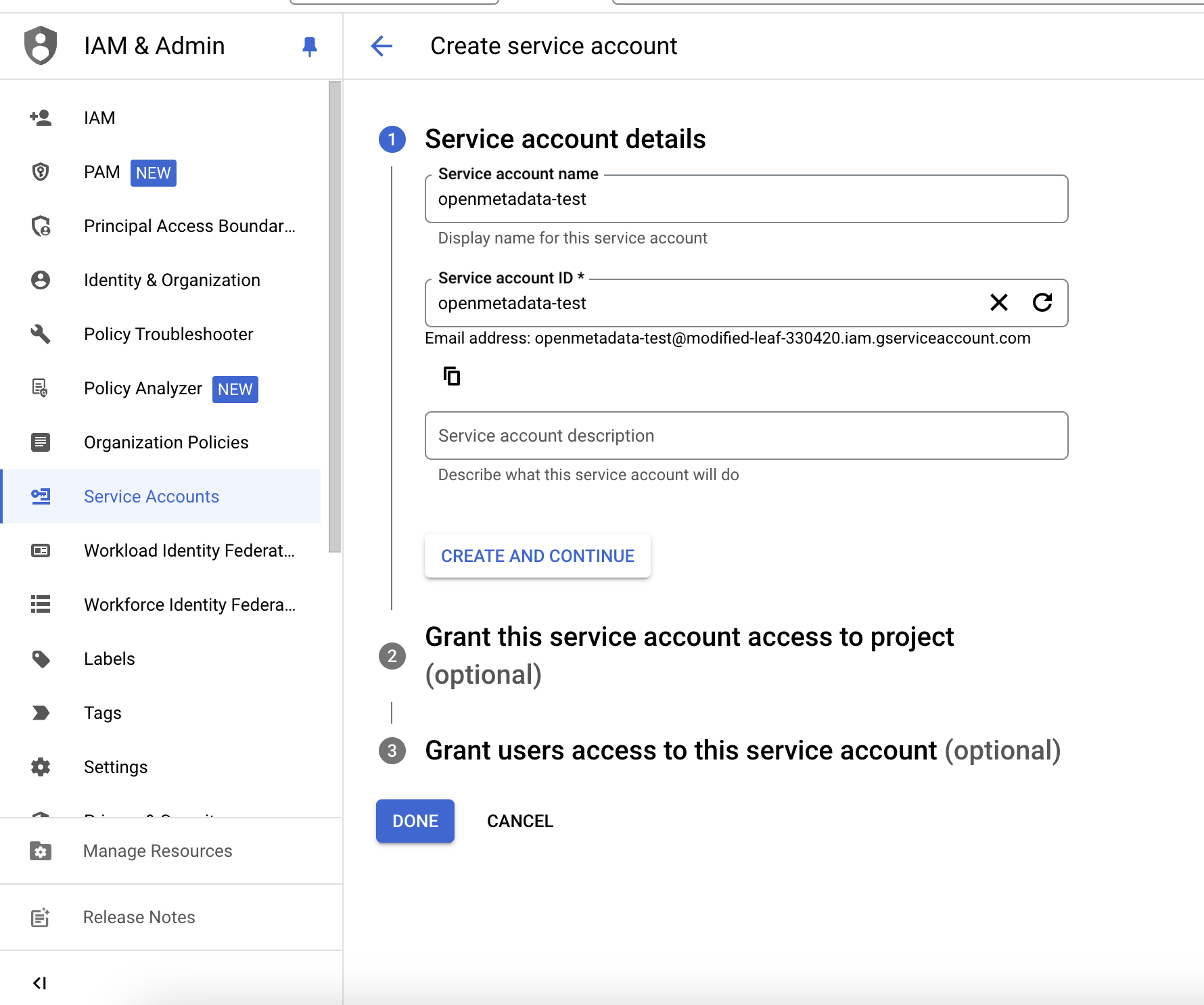
Once you are on service account page, click on `Create Service Account` button.
### Step 2: Create Service Account & Grant Role
Once you are on service account page, click on `Create Service Account` button.
 Fill the service account details
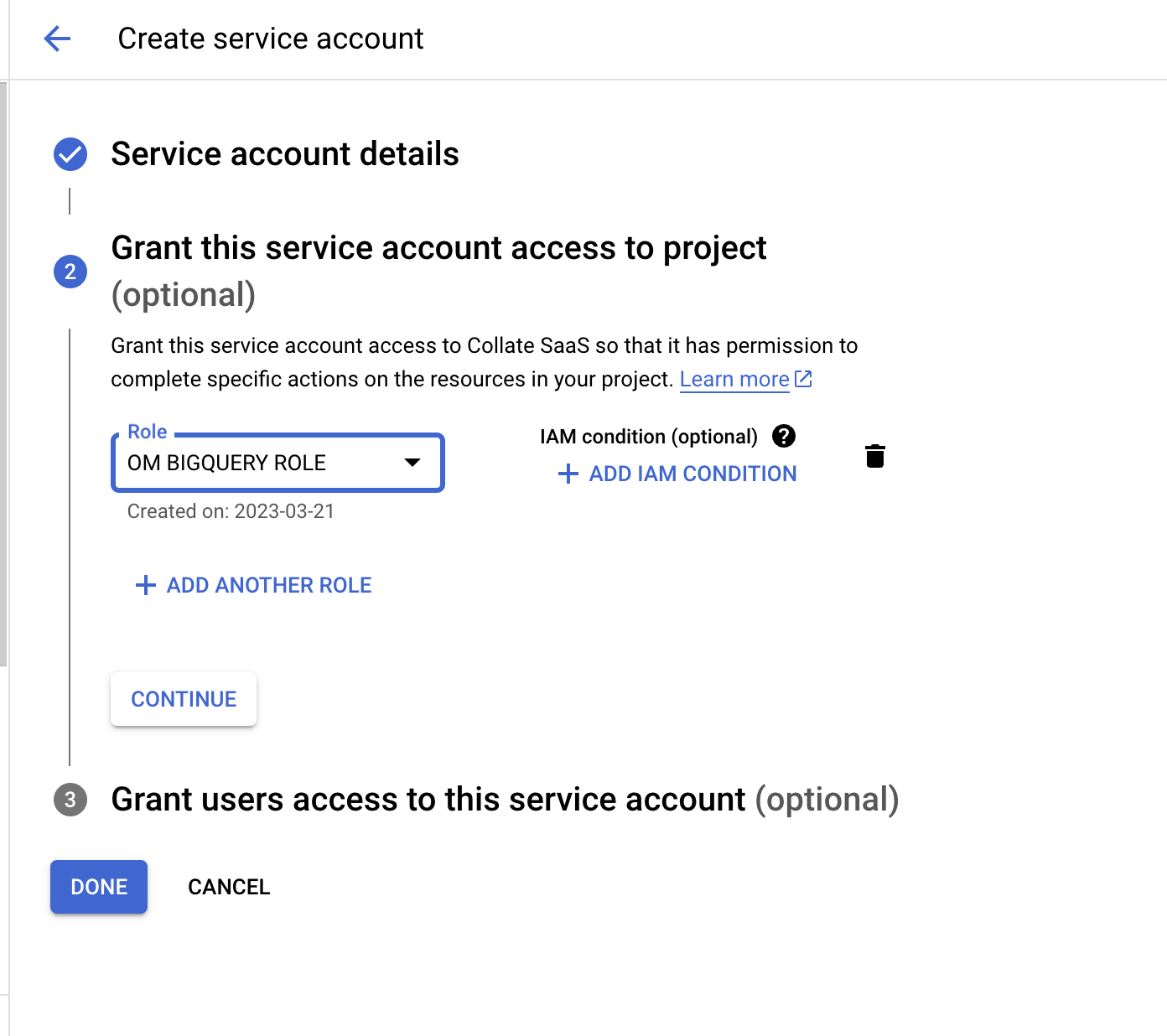
 Grant a role to service account which has all the required permission to ingest BigQuery metadata in OpenMetadata.
 ## 3. Create & Download Key Credentials
### Step 1: Navigate to Service Accounts
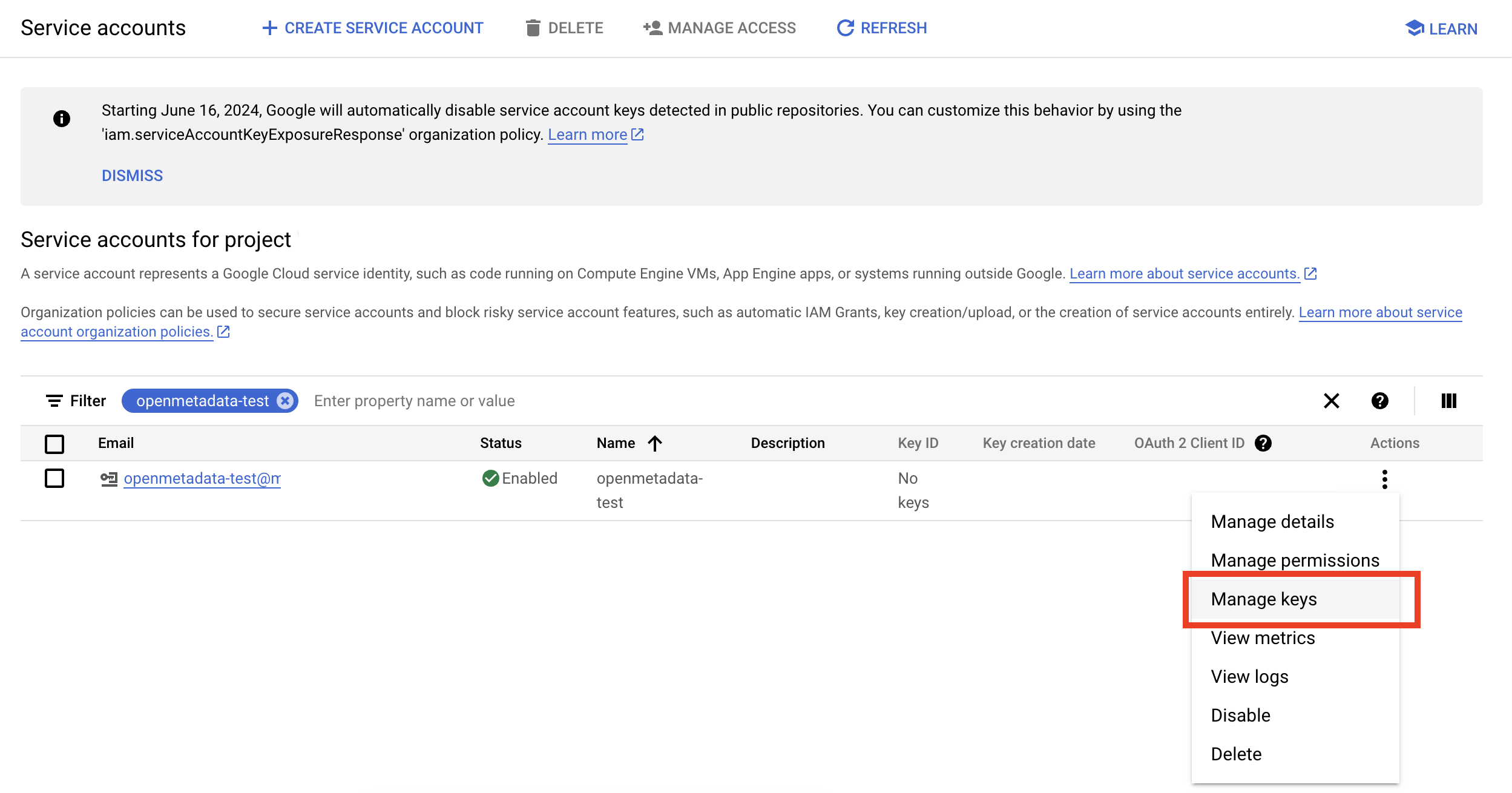
On service accounts page, look for the service account that you just created, click on the three dots menu and go to manage keys
## 3. Create & Download Key Credentials
### Step 1: Navigate to Service Accounts
On service accounts page, look for the service account that you just created, click on the three dots menu and go to manage keys
 ### Step 2: Download Key Credentials
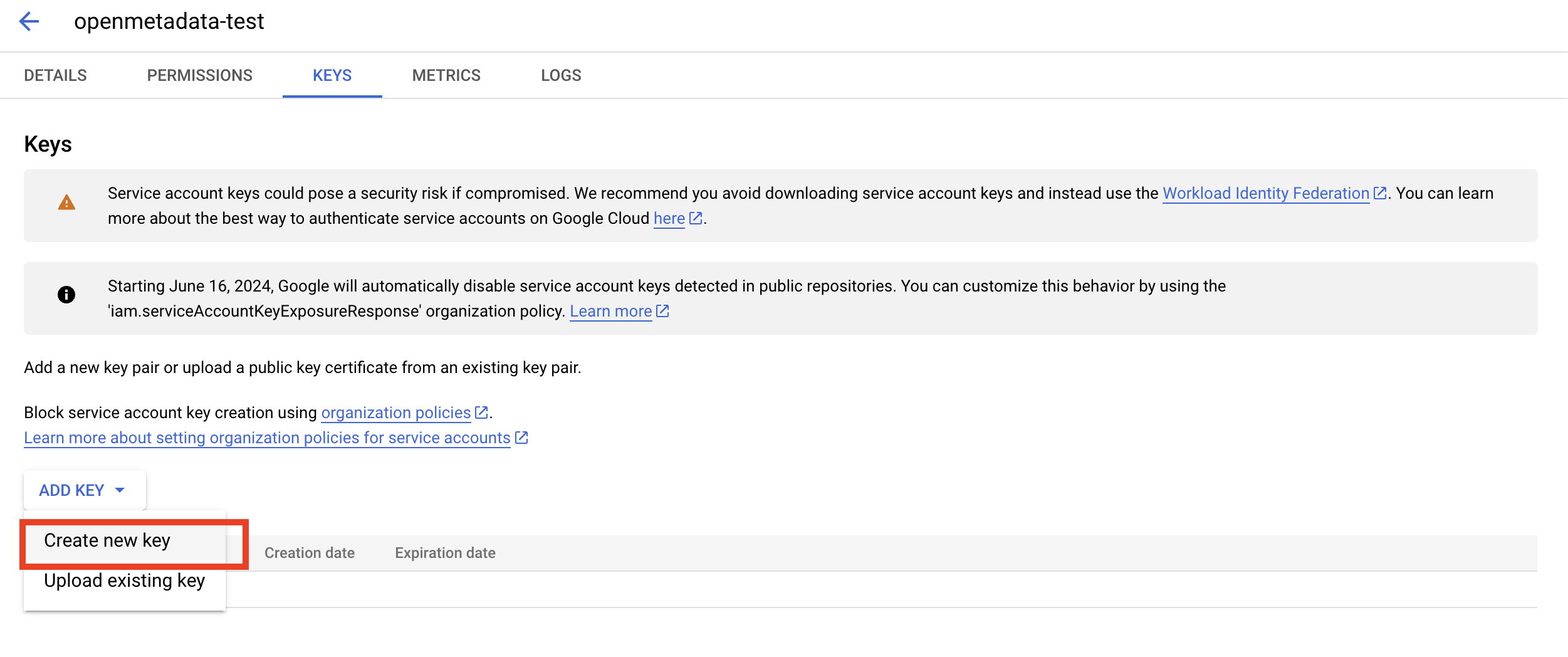
Click on Add Key > New Key > Select Json and download the key.
### Step 2: Download Key Credentials
Click on Add Key > New Key > Select Json and download the key.
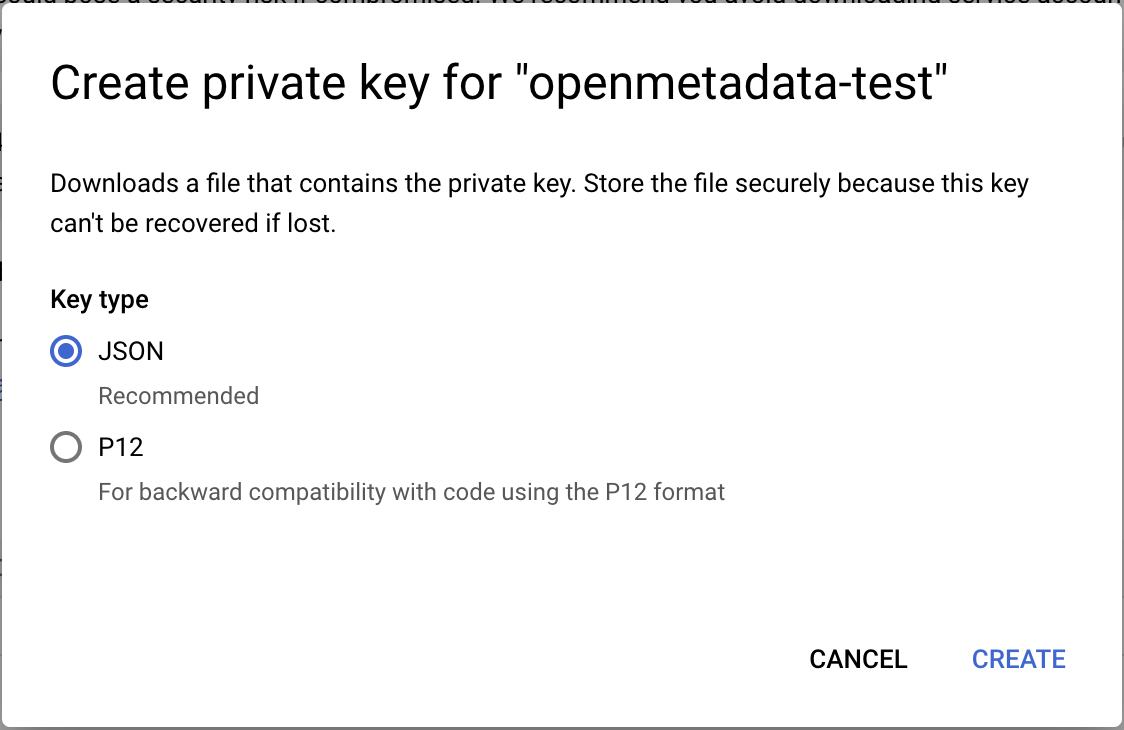 Open this downloaded key and you will get all the required credentials details to fetch metadata from Bigquery.