> ## Documentation Index
> Fetch the complete documentation index at: https://docs.open-metadata.org/llms.txt
> Use this file to discover all available pages before exploring further.
# BigTable Roles | Configure Access for OpenMetadata Connector
> Configure BigTable database roles and permissions in OpenMetadata connectors. Learn essential access control setup for seamless data cataloging and meta...
# Create custom role in GCP
This documentation will guide you on how to create a custom role in GCP with the necessary permissions to ingest BigTable in OpenMetadata.
## Step 1: Navigate to Roles
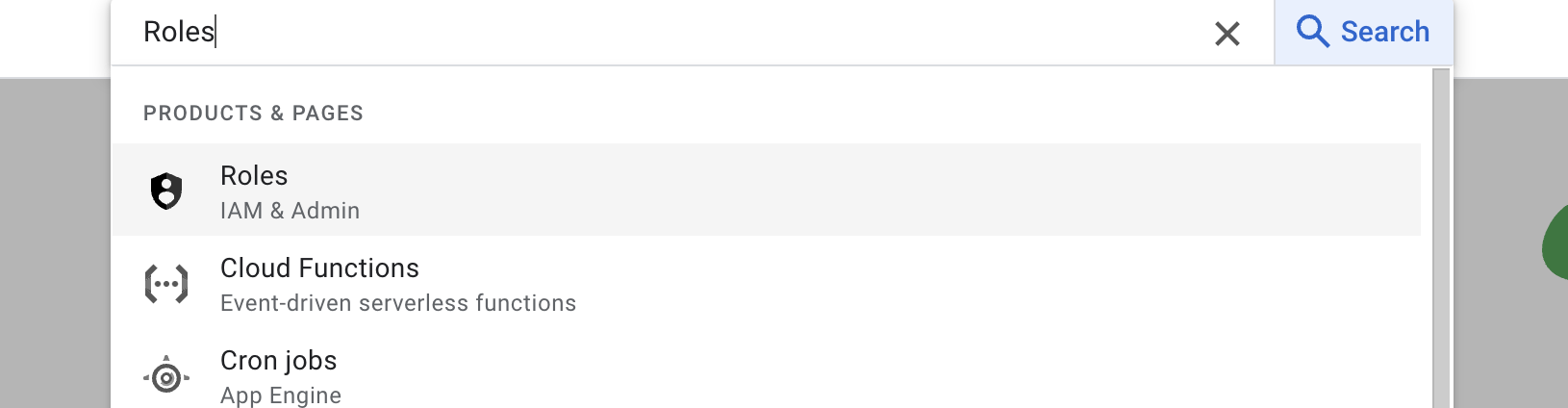
Search for `Roles` in your GCP console and select the first result under `IAM & Roles` section.
 ## Step 2: Create Role & Add Permissions
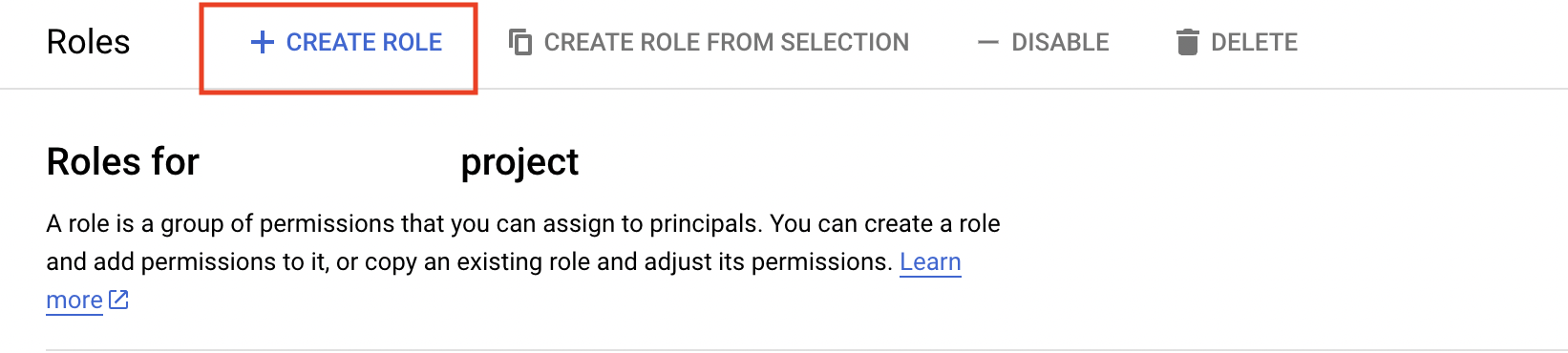
Below the search bar you should see a `Create Role` button click on that & navigate to create role page.
## Step 2: Create Role & Add Permissions
Below the search bar you should see a `Create Role` button click on that & navigate to create role page.
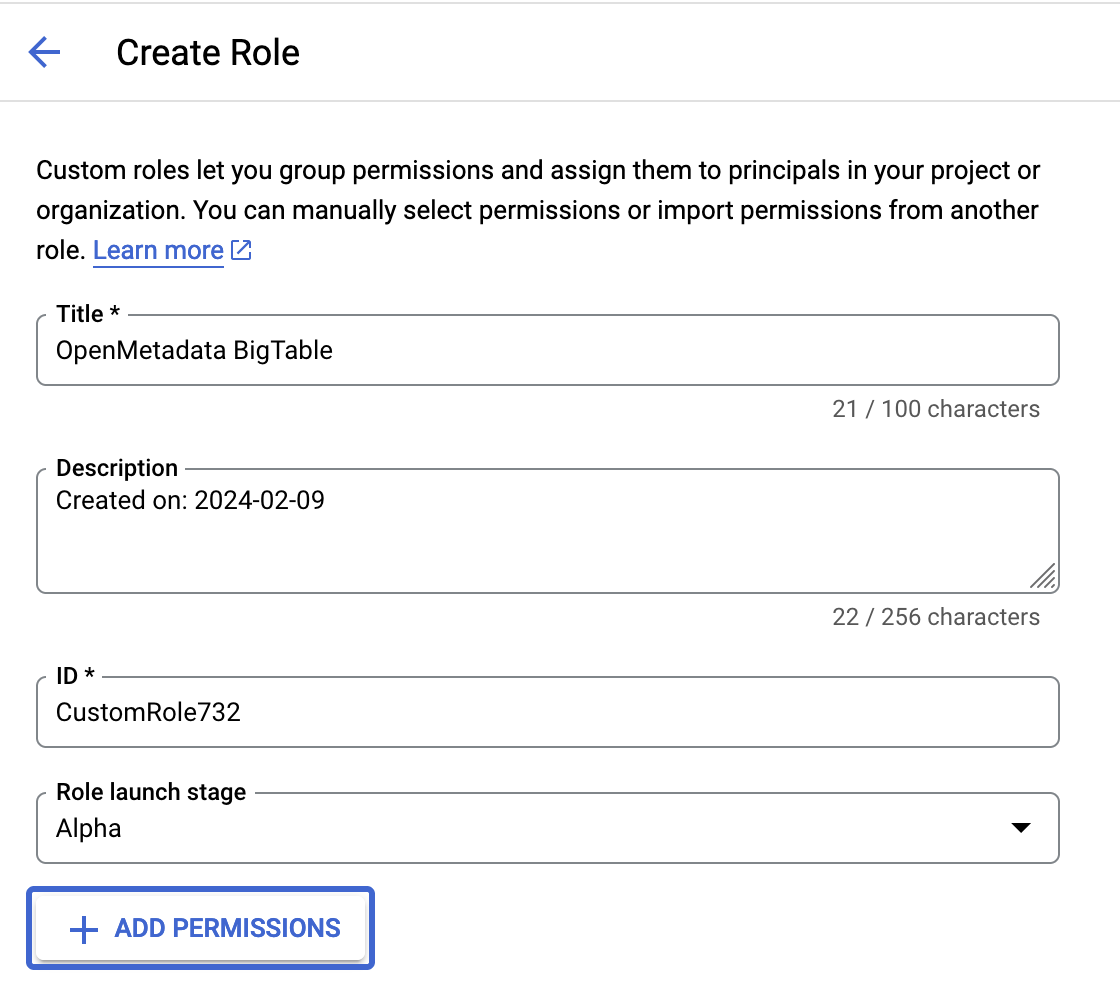
 Once You are on the create role page, you can edit the description & title of the role and finally you can click on add permissions to grant permissions to role.
 You can search for the required permissions in the filter box and add them accordingly. To ingest metadata from BigTable you need to grant the following permissions to the user.
| # | GCP Permission | Required For |
| :- | :----------------------- | :----------------- |
| 1 | bigtable.instances.get | Metadata Ingestion |
| 2 | bigtable.instances.list | Metadata Ingestion |
| 3 | bigtable.tables.get | Metadata Ingestion |
| 4 | bigtable.tables.list | Metadata Ingestion |
| 5 | bigtable.tables.readRows | Metadata Ingestion |
You can search for the required permissions in the filter box and add them accordingly. To ingest metadata from BigTable you need to grant the following permissions to the user.
| # | GCP Permission | Required For |
| :- | :----------------------- | :----------------- |
| 1 | bigtable.instances.get | Metadata Ingestion |
| 2 | bigtable.instances.list | Metadata Ingestion |
| 3 | bigtable.tables.get | Metadata Ingestion |
| 4 | bigtable.tables.list | Metadata Ingestion |
| 5 | bigtable.tables.readRows | Metadata Ingestion |
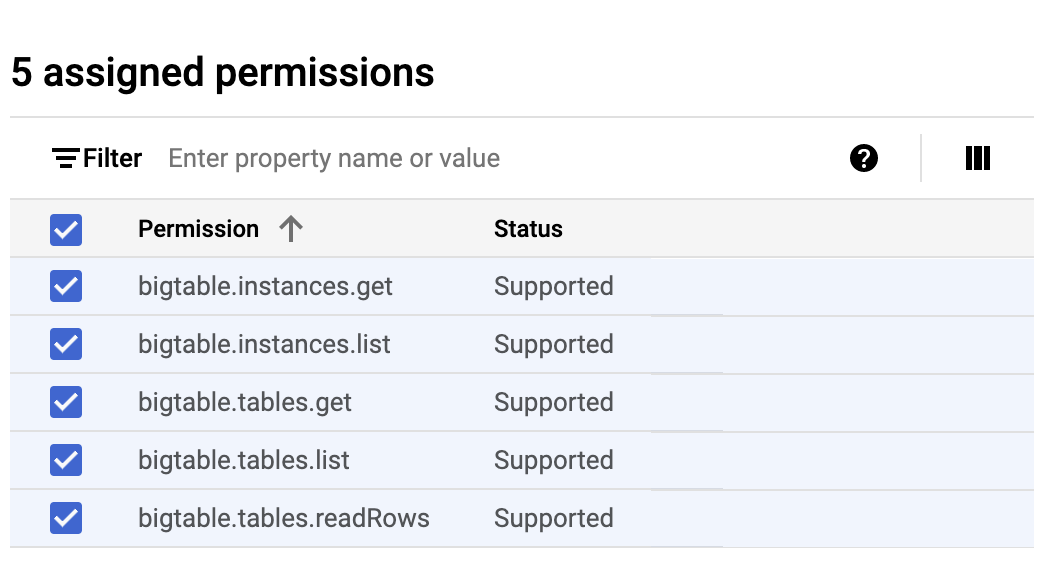 Once you have added all the required permissions, you can create the role by clicking on the create button.
## Step 3: Assign Role to Service Account
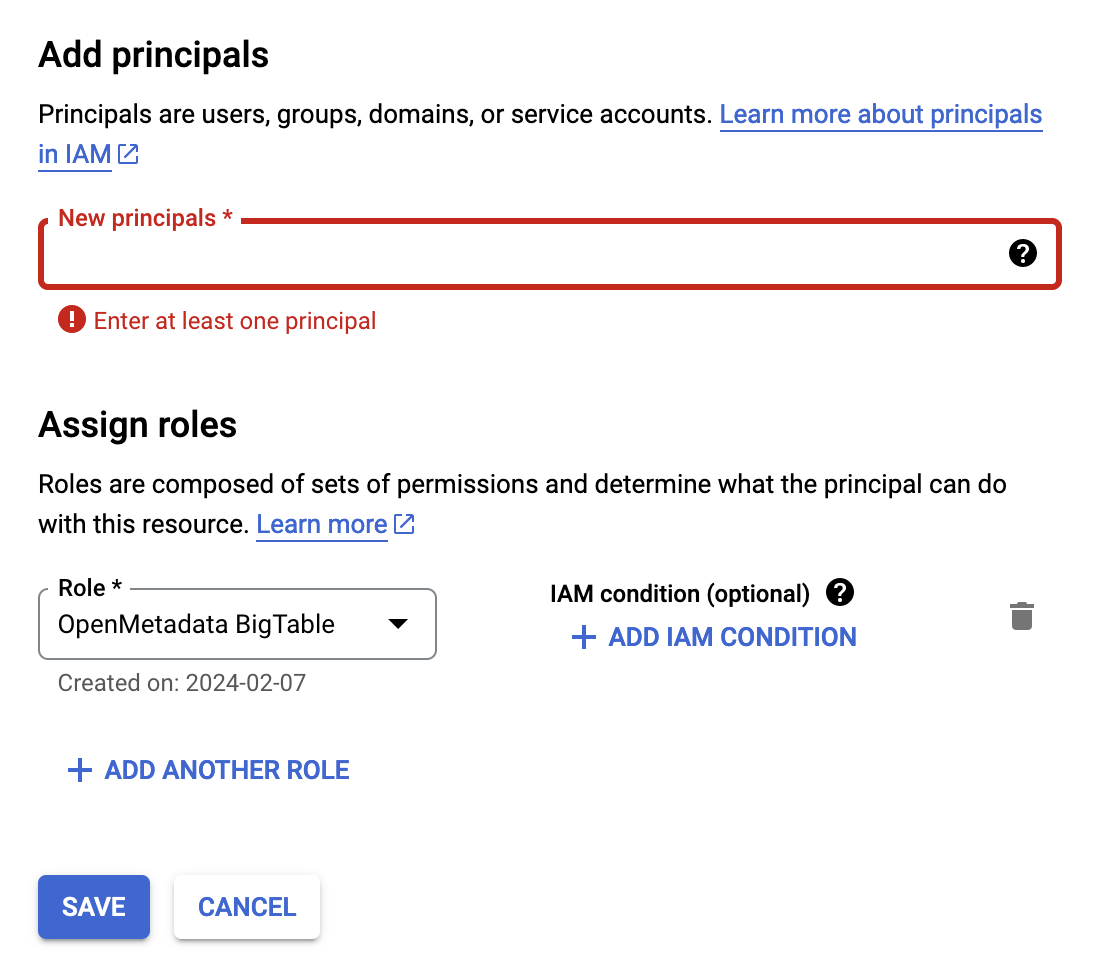
To assign the created role, you can navigate to `IAM` and click on `Grant Access` and you can search your service account in the `Add Principals` section & Assign the created role to the service account.
Once you have added all the required permissions, you can create the role by clicking on the create button.
## Step 3: Assign Role to Service Account
To assign the created role, you can navigate to `IAM` and click on `Grant Access` and you can search your service account in the `Add Principals` section & Assign the created role to the service account.