> ## Documentation Index
> Fetch the complete documentation index at: https://docs.open-metadata.org/llms.txt
> Use this file to discover all available pages before exploring further.
# Domo Database Connector Troubleshooting
> Debug Domo database ingestion errors like access token mismatches, schema fetch failures, or rate-limit violations.
## Troubleshooting
## Workflow Deployment Error
If there were any errors during the workflow deployment process, the
Ingestion Pipeline Entity will still be created, but no workflow will be
present in the Ingestion container.
* You can then Edit the Ingestion Pipeline and **Deploy** it again.
* From the Connection tab, you can also Edit the Service if needed.
## Connector Debug Troubleshooting
This section provides instructions to help resolve common issues encountered during connector setup and metadata ingestion in OpenMetadata. Below are some of the most frequently observed troubleshooting scenarios.
## How to Enable Debug Logging for Any Ingestion
To enable debug logging for any ingestion workflow in OpenMetadata:
1. **Navigate to Services**
Go to **Settings > Services > Service Type** (e.g., Database) in the OpenMetadata UI.
2. **Select a Service**
Choose the specific service for which you want to enable debug logging.
3. **Access Agents Tab**
Go to the **Agents tab** and click the three-dot menu on the right-hand side of the ingestion type, and select Edit.
4. **Enable Debug Logging**
In the configuration dialog, enable the **Debug Log** option and click **Next**.
5. **Schedule and Submit**
Configure the schedule if needed and click **Submit** to apply the changes.
## Permission Issues
If you encounter permission-related errors during connector setup or metadata ingestion, ensure that all the prerequisites and access configurations specified for each connector are properly implemented. Refer to the connector-specific documentation to verify the required permissions.
Learn how to resolve the most common problems people encounter in the Domo Database connector.
### How to find clientId?
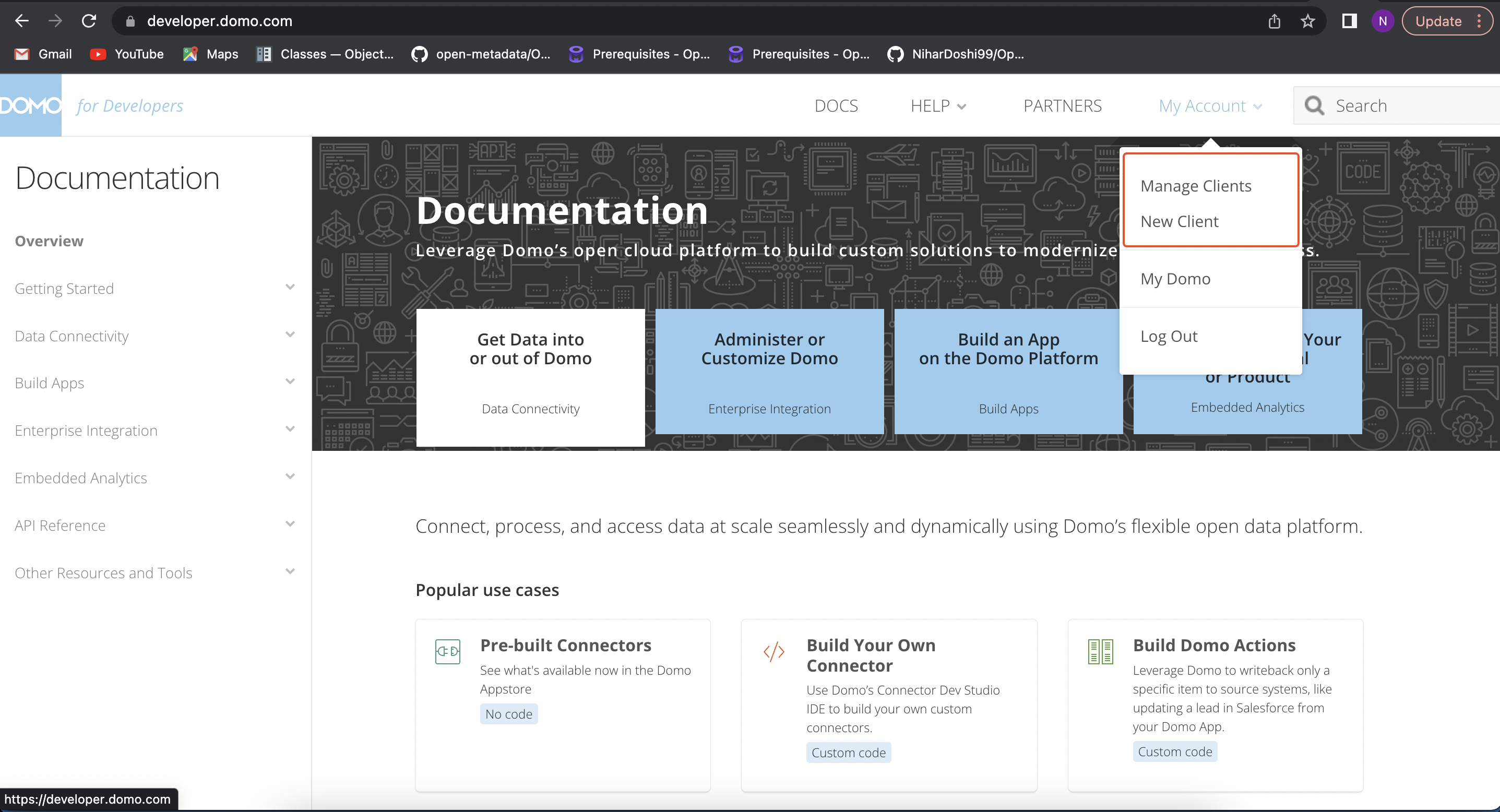
* You can find your `clientId` by [logging](https://developer.domo.com/) into your domo instance.
* After that click on `My Account`> `Manage Clients`(if created).
 ### Where to find accessToken?
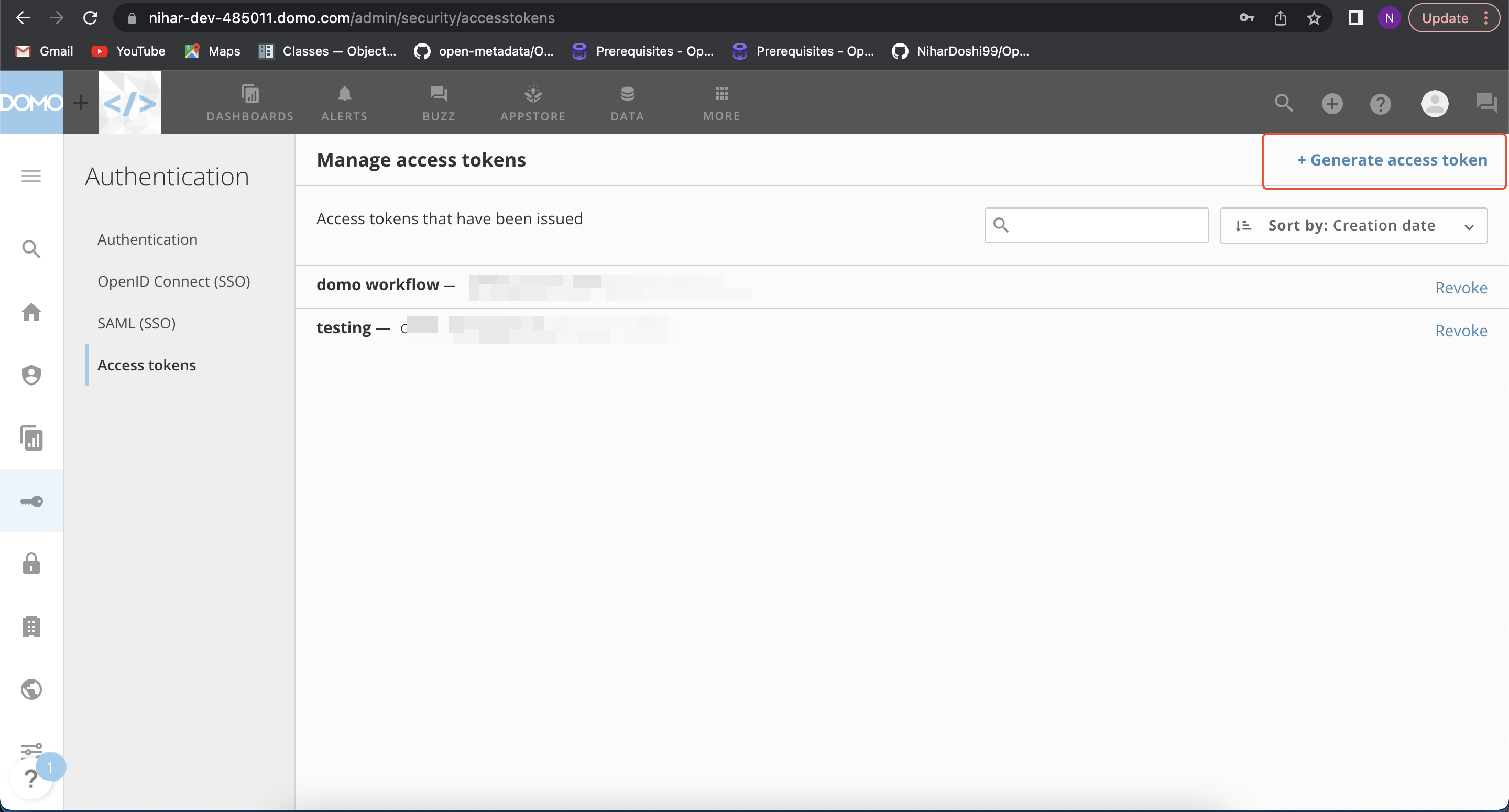
* You need to generate accessToken.
* [Login](https://www.domo.com/login) into your sandbox domain ex. `.domo.com`.
* Click on the `MORE` button on navbar, after that click on `Admin`.
* Under `Authentication` you will find `Access tokens`.
### Where to find accessToken?
* You need to generate accessToken.
* [Login](https://www.domo.com/login) into your sandbox domain ex. `.domo.com`.
* Click on the `MORE` button on navbar, after that click on `Admin`.
* Under `Authentication` you will find `Access tokens`.
 ### Where can I find my scopes?
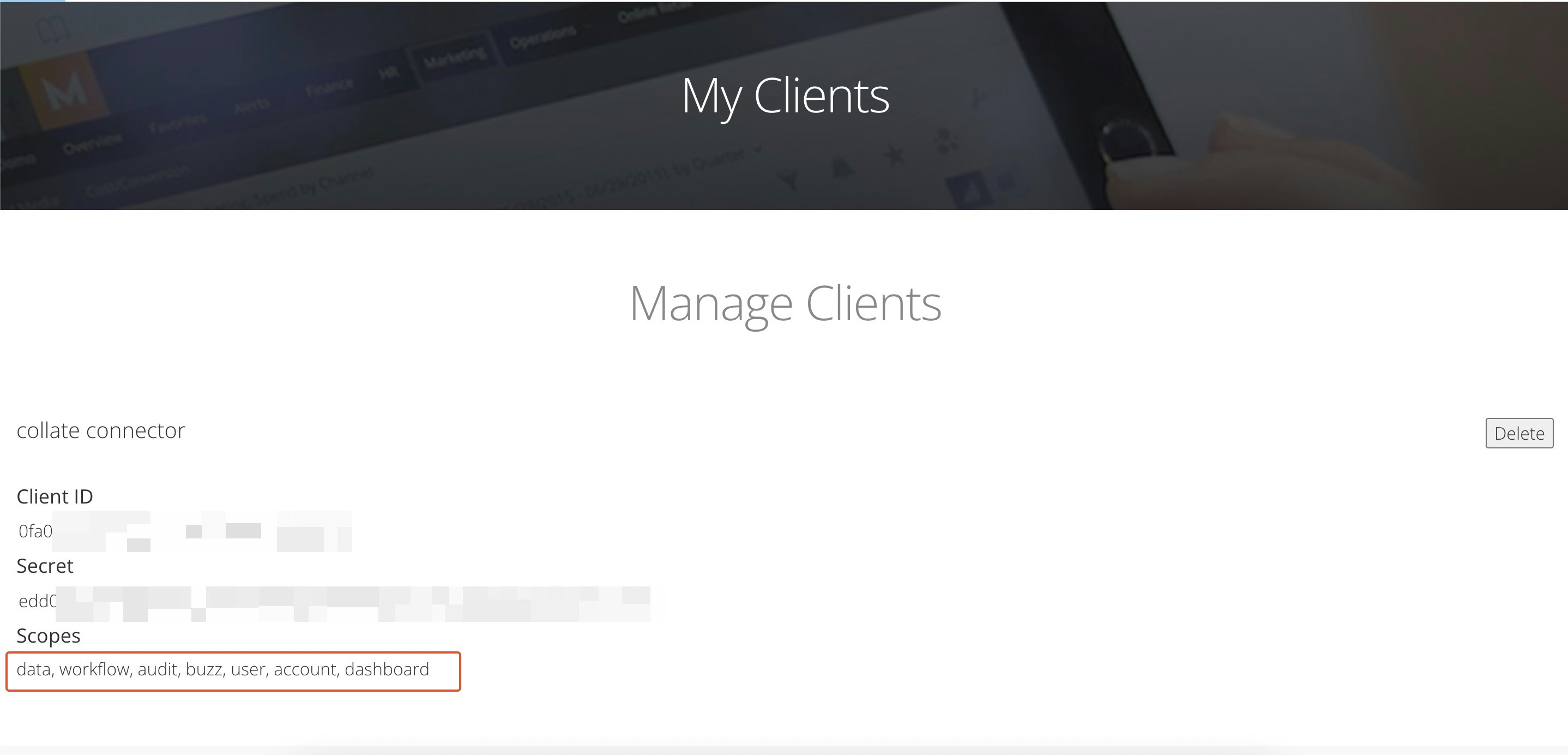
* Scopes can be find Under `Manage Clients` section in `My Account` (If client not found, click [here](#how-to-find-clientid))
### Where can I find my scopes?
* Scopes can be find Under `Manage Clients` section in `My Account` (If client not found, click [here](#how-to-find-clientid))