> ## Documentation Index
> Fetch the complete documentation index at: https://docs.open-metadata.org/llms.txt
> Use this file to discover all available pages before exploring further.
# Custom Drive Connector | Build & Extend OpenMetadata Easily
> Learn how to create a Custom Drive Connector to ingest metadata from file system-like services into OpenMetadata using the ingestion framework.
# Custom Drive Connector
Just like other services in OpenMetadata (Database, Pipelines, Dashboards, Messaging, etc.), it’s possible to create a **Custom Drive Connector** to bring metadata from a storage or file system-like service into OpenMetadata.
In this guide, we'll walk through how to implement your own Custom Drive Connector by extending the ingestion framework. The implementation pattern follows other service types closely, making the transition smooth for anyone familiar with the ecosystem.
This guide is based on a working example in the OpenMetadata Demos repository: [link](https://github.com/open-metadata/openmetadata-demo/tree/main/custom-connector).
Watch OpenMetadata's Webinar on Custom Connectors to get more context on how to build these integrations.
## Steps to Set Up a Custom Drive Connector
### Step 1 - Prepare Your Drive Connector
A Custom Drive Connector is a Python class that inherits from:
```python theme={null}
from metadata.ingestion.api.steps import Source
```
It must implement required methods such as:
* `prepare`
* `_iter`
* `test_connection` (optional but recommended so the UI can validate access)
```python theme={null}
custom_drive/
my_drive_connector.py
```
**Inside** `my_drive_connector.py`, **define your class:**
```python theme={null}
class MyDriveConnector(Source):
...
def _iter(self):
...
```
`_iter` is a generator that produces the `CreateEntityRequest` instances expected by the ingestion framework.
For more on the ingestion framework, refer to the [OpenMetadata Ingestion Workflow Docs](https://docs.open-metadata.org/latest/connectors/ingestion/workflows)
### Step 2 - Yield Drive Data as Entities
You need to yield `CreateEntityRequest` objects wrapped in an `Either` type. This pattern handles both successful entity creation and errors.
**Import necessary types:**
```python theme={null}
from metadata.ingestion.api.models import Either, StackTraceError
from metadata.generated.schema.api.data.createDirectory import CreateDirectoryRequest
from metadata.generated.schema.api.data.createFile import CreateFileRequest
from metadata.generated.schema.api.data.createSpreadsheet import CreateSpreadsheetRequest
from metadata.generated.schema.api.data.createWorksheet import CreateWorksheetRequest
```
**Example usage:**
```python theme={null}
for directory in self.drive_client.list_directories():
try:
yield Either(
right=CreateDirectoryRequest(
name=directory.name,
description=directory.description,
parent=directory.parent_fqn,
href=directory.href,
)
)
except Exception as exc:
yield Either(
left=StackTraceError(
name="Drive Directory Ingestion Error",
error=str(exc),
stack_trace=traceback.format_exc(),
)
)
for file_metadata in self.drive_client.list_files():
yield Either(
right=CreateFileRequest(
name=file_metadata.name,
description=file_metadata.description,
fileFormats=file_metadata.file_formats,
parent=file_metadata.parent_directory_fqn,
size=file_metadata.size,
)
)
```
Extend the same pattern with `CreateSpreadsheetRequest` and `CreateWorksheetRequest` if your Drive service exposes those concepts.
### Step 3 - Package Your Custom Drive Connector
To use the connector, package it as a Python module. A minimal `setup.py` may look like:
```python theme={null}
from setuptools import setup, find_packages
setup(
name="custom_drive_connector",
version="0.1",
packages=find_packages(),
install_requires=[],
)
```
**Build the package:**
```bash theme={null}
python setup.py sdist
```
### Step 4 - Update the Ingestion Image
To run your Custom Drive Connector inside Docker (e.g., with Airflow or directly from the UI), the ingestion image must include your module.
**Dockerfile example:**
```Dockerfile theme={null}
FROM openmetadata/ingestion:1.10.0
WORKDIR ingestion
USER airflow
COPY custom_drive custom_drive
COPY setup.py .
RUN pip install --no-deps .
```
This ensures that your code is baked into the ingestion container. Always align the ingestion image tag with the OpenMetadata version that is running your server/UI.
### Step 5 - Run OpenMetadata with Custom Image
If you're using Docker Compose, update your setup to use the new image.
```makefile theme={null}
run:
docker compose -f docker-compose.yml up --build
```
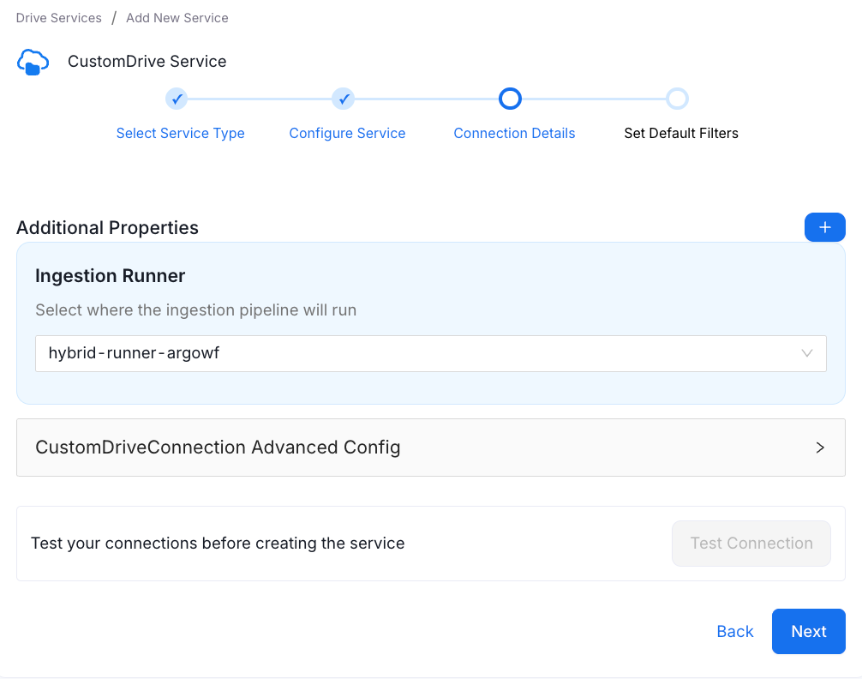
### Step 6 - Configure Custom Drive in OpenMetadata UI
* Navigate to Drive Services
* Click **Add New Service > Custom**
* Enter your Source Python Class as:
```python theme={null}
custom_drive.my_drive_connector.MyDriveConnector
```
Ensure the full module path is specified so OpenMetadata can import the connector.