> ## Documentation Index
> Fetch the complete documentation index at: https://docs.open-metadata.org/llms.txt
> Use this file to discover all available pages before exploring further.
# MLflow Connector | OpenMetadata ML Model Integration
> Connect MLflow to OpenMetadata seamlessly with our comprehensive connector guide. Learn setup, configuration, and ML model metadata integration in minutes.
export const MetadataIngestionUi = ({connector, selectServicePath, addNewServicePath, serviceConnectionPath}) => {
return <>
To ingest metadata from your sources, you need to create a service connection.
The service connects your source system with OpenMetadata. Once you create
a service, you can use it to configure your ingestion workflows.
To create a service connection and ingest your metadata, follow the steps below:
-
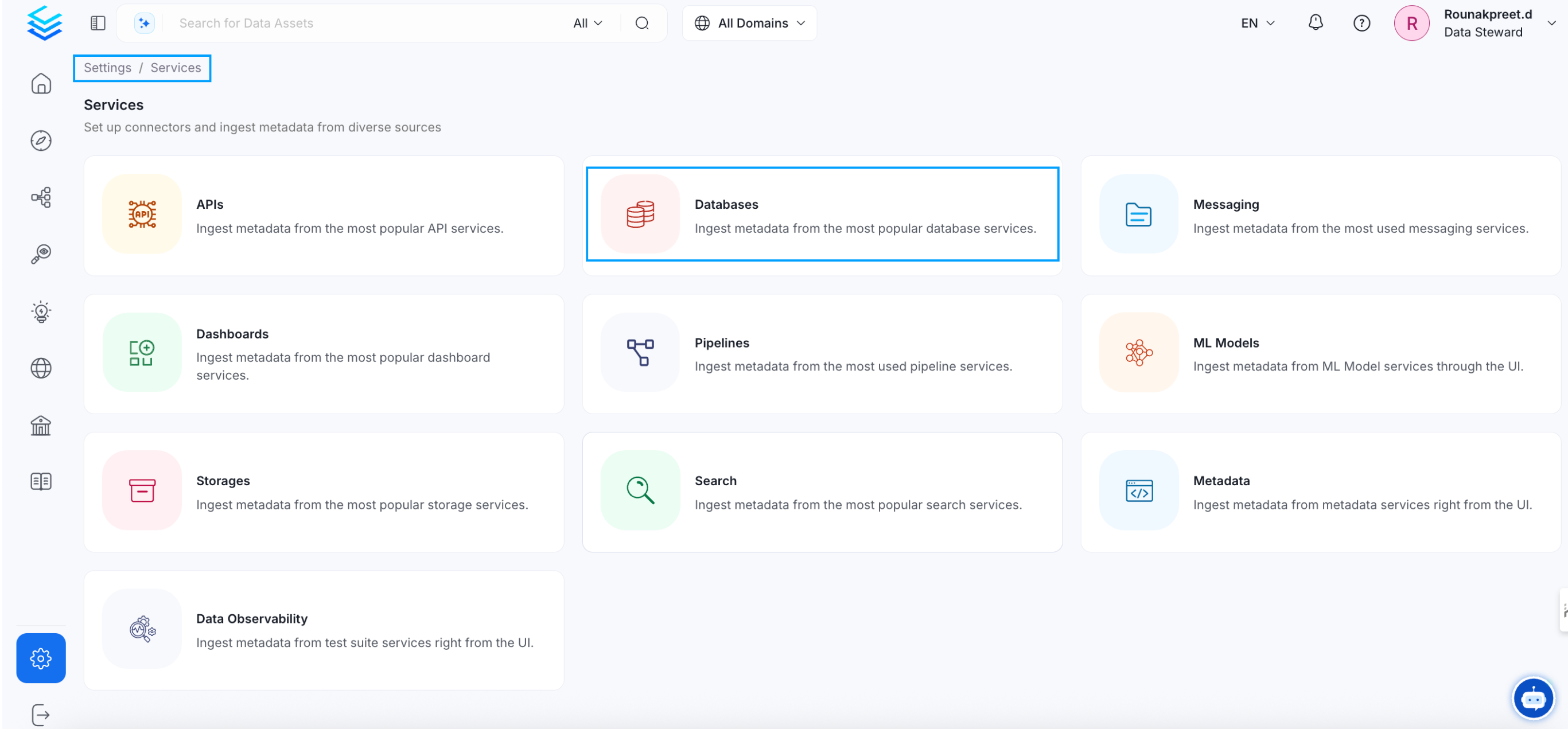
On the left navigation bar, click Settings.
-
On the next page, click Services, and then select the service.
To add a new service connection, click Add New Service.
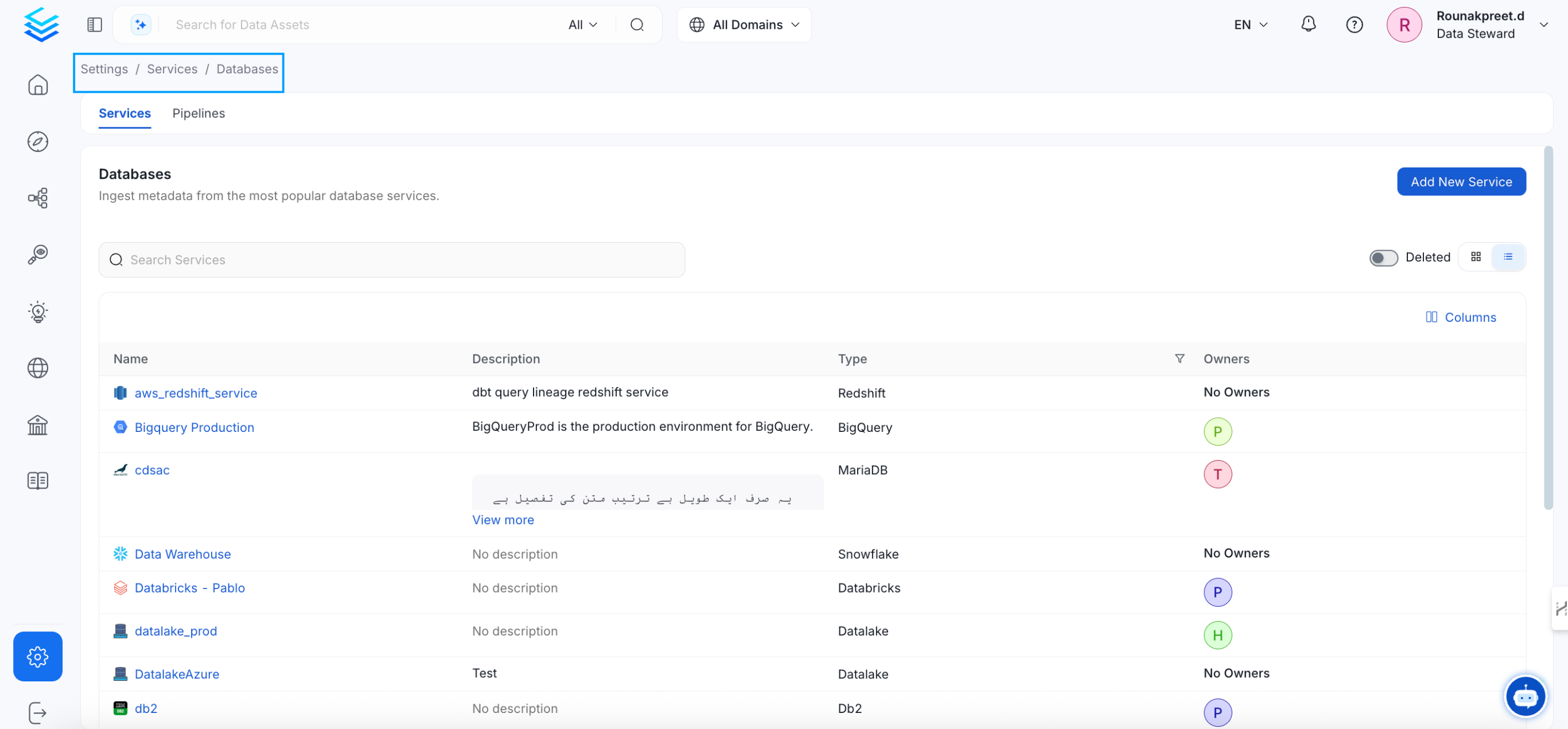 Select {connector} as the service type and click Next.
{selectServicePath &&
Select {connector} as the service type and click Next.
{selectServicePath &&  }
Enter a unique Service Name and Description.
}
Enter a unique Service Name and Description.
- Service Name: OpenMetadata identifies services by their service name. Enter a name that distinguishes this deployment from other services, including other {connector} services you are ingesting metadata from.
The service name cannot be changed after it is set.
{addNewServicePath &&  }
Set up the connection settings required for {connector} to set up the service and start ingesting metadata from your sources. The right-hand panel displays help documentation for the selected connection type in the product UI.
{serviceConnectionPath &&
}
Set up the connection settings required for {connector} to set up the service and start ingesting metadata from your sources. The right-hand panel displays help documentation for the selected connection type in the product UI.
{serviceConnectionPath &&  }
;
};
export const ConnectorDetailsHeader = ({name, icon, stage, availableFeatures, unavailableFeatures = [], availableFeaturesCollate = []}) => {
const showSubHeading = availableFeatures?.length > 0 || unavailableFeatures?.length > 0 || availableFeaturesCollate?.length > 0;
const totalAvailableFeatures = [...availableFeatures || [], ...availableFeaturesCollate || []];
return
}
;
};
export const ConnectorDetailsHeader = ({name, icon, stage, availableFeatures, unavailableFeatures = [], availableFeaturesCollate = []}) => {
const showSubHeading = availableFeatures?.length > 0 || unavailableFeatures?.length > 0 || availableFeaturesCollate?.length > 0;
const totalAvailableFeatures = [...availableFeatures || [], ...availableFeaturesCollate || []];
return
{icon &&
}
{name}
{stage}
{showSubHeading &&
Feature List
{totalAvailableFeatures.map(feature =>
✓ {feature}
)}
{unavailableFeatures.map(feature =>
✕ {feature}
)}
}
;
};
In this section, we provide guides and references to use the MLflow connector.
Configure and schedule MLflow metadata and profiler workflows from the OpenMetadata UI:
* [Requirements](#requirements)
* [Metadata Ingestion](#metadata-ingestion)
* [Troubleshooting](/v1.12.x/connectors/ml-model/mlflow/troubleshooting)
## Requirements
To extract metadata, OpenMetadata needs two elements:
* **Tracking URI**: Address of local or remote tracking server. More information on the MLflow documentation [here](https://www.mlflow.org/docs/latest/tracking.html#where-runs-are-recorded)
* **Registry URI**: Address of local or remote model registry server.
## Metadata Ingestion
# Connection Details
When using a **Hybrid Ingestion Runner**, any sensitive credential fields—such as passwords, API keys, or private keys—must reference secrets using the following format:
```
password: secret:/my/database/password
```
This applies **only to fields marked as secrets** in the connection form (these typically mask input and show a visibility toggle icon).
For a complete guide on managing secrets in hybrid setups, see the [Hybrid Ingestion Runner Secret Management Guide](https://docs.getcollate.io/getting-started/day-1/hybrid-saas/hybrid-ingestion-runner#3.-manage-secrets-securely).
* **trackingUri**: Mlflow Experiment tracking URI. E.g., [http://localhost:5000](http://localhost:5000)
* **registryUri**: Mlflow Model registry backend. E.g., mysql+pymysql://mlflow:password\@localhost:3307/experiments
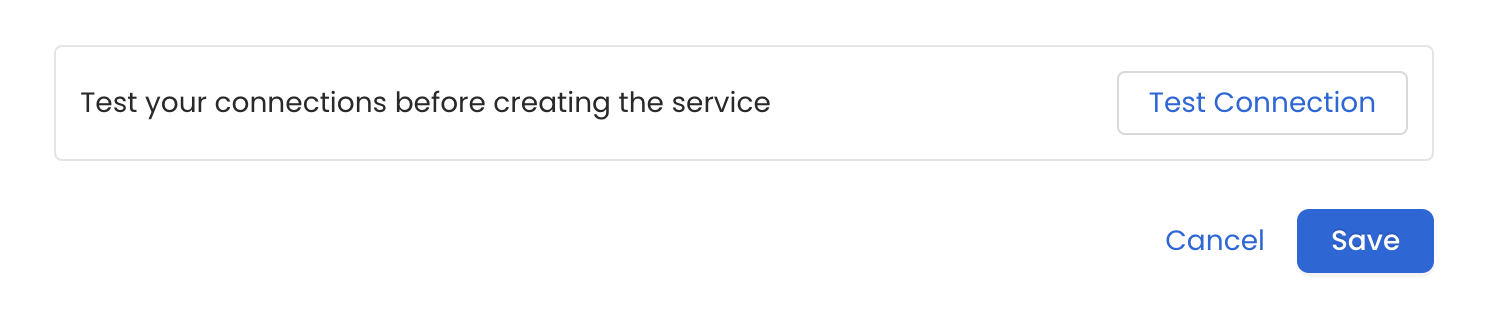
Once the credentials have been added, click on *Test Connection* and *Save* the changes.
 In this step we will configure the metadata ingestion pipeline,
Please follow the instructions below
In this step we will configure the metadata ingestion pipeline,
Please follow the instructions below
 #### Metadata Ingestion Options
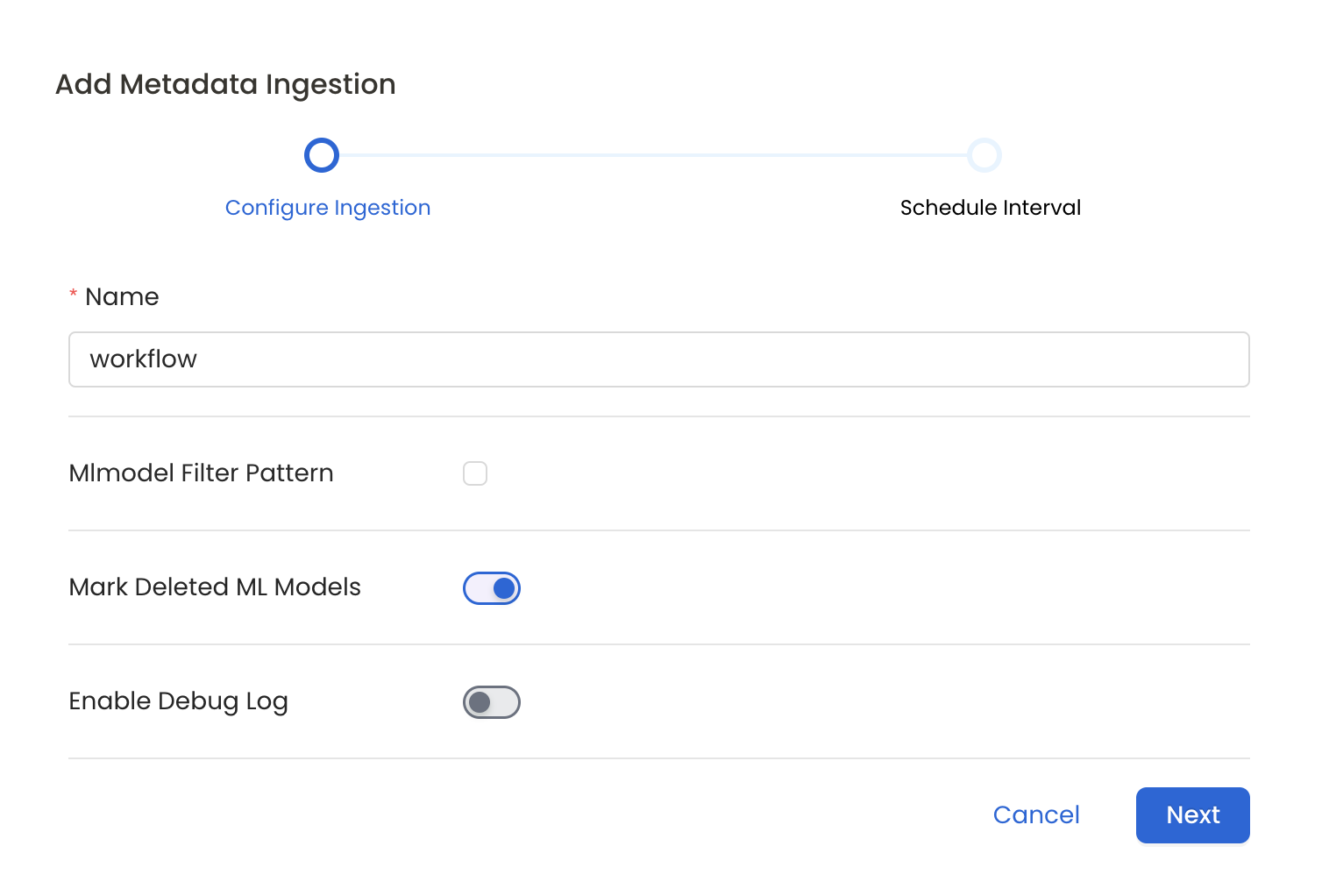
* **Name**: This field refers to the name of ingestion pipeline, you can customize the name or use the generated name.
* **Mark Deleted Ml Models (toggle):**: Set the Mark Deleted Ml Models toggle to flag ml models as soft-deleted if they are not present anymore in the source system.
* **ML Model Filter Pattern (Optional)**: To control whether to include an ML Model as part of metadata ingestion.
* **Include**: Explicitly include ML Models by adding a list of comma-separated regular expressions to the Include field. OpenMetadata will include all ML Models with names matching one or more of the supplied regular expressions. All other ML Models will be excluded.
* **Exclude**: Explicitly exclude ML Models by adding a list of comma-separated regular expressions to the Exclude field. OpenMetadata will exclude all ML Models with names matching one or more of the supplied regular expressions. All other ML Models will be included.
* **Enable Debug Log (toggle)**: Set the Enable Debug Log toggle to set the default log level to debug.
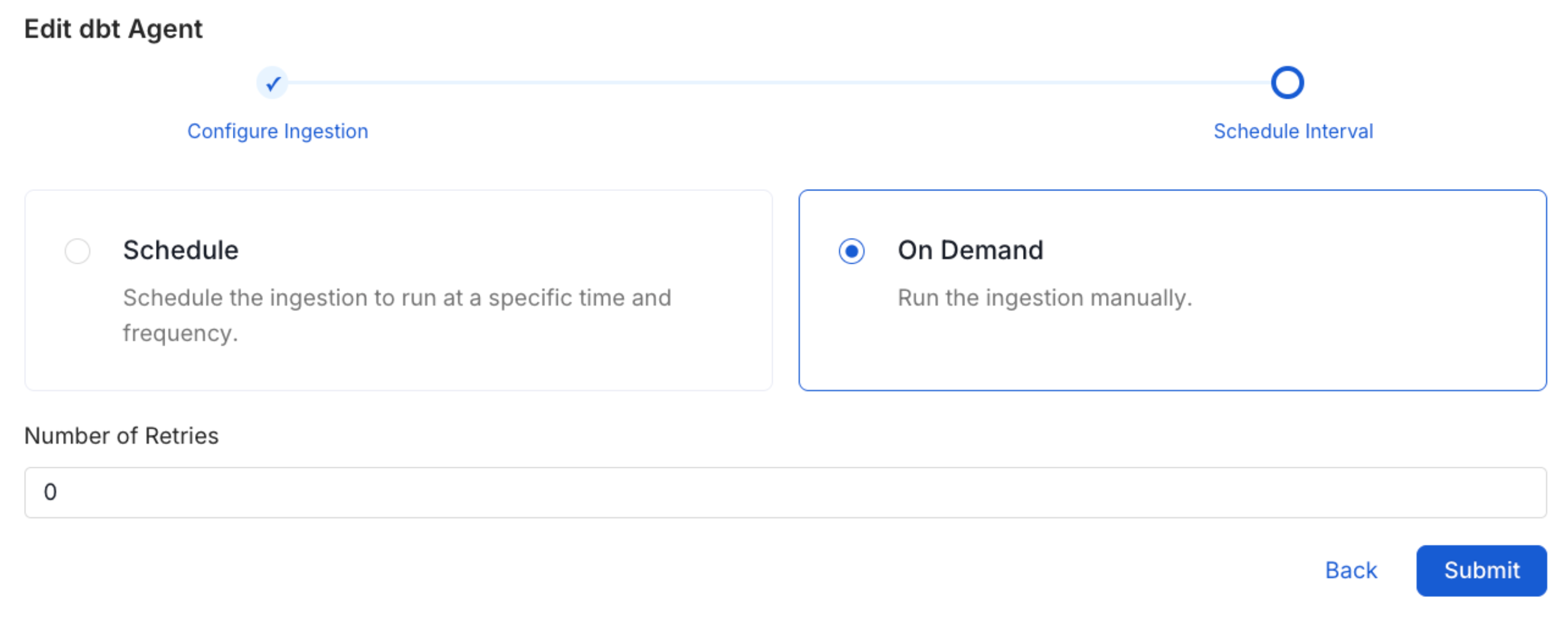
Scheduling can be set up at an hourly, daily, weekly, or manual cadence. The
timezone is in UTC. Select a Start Date to schedule for ingestion. It is
optional to add an End Date.
Review your configuration settings. If they match what you intended,
click Deploy to create the service and schedule metadata ingestion.
If something doesn't look right, click the Back button to return to the
appropriate step and change the settings as needed.
After configuring the workflow, you can click on Deploy to create the
pipeline.
#### Metadata Ingestion Options
* **Name**: This field refers to the name of ingestion pipeline, you can customize the name or use the generated name.
* **Mark Deleted Ml Models (toggle):**: Set the Mark Deleted Ml Models toggle to flag ml models as soft-deleted if they are not present anymore in the source system.
* **ML Model Filter Pattern (Optional)**: To control whether to include an ML Model as part of metadata ingestion.
* **Include**: Explicitly include ML Models by adding a list of comma-separated regular expressions to the Include field. OpenMetadata will include all ML Models with names matching one or more of the supplied regular expressions. All other ML Models will be excluded.
* **Exclude**: Explicitly exclude ML Models by adding a list of comma-separated regular expressions to the Exclude field. OpenMetadata will exclude all ML Models with names matching one or more of the supplied regular expressions. All other ML Models will be included.
* **Enable Debug Log (toggle)**: Set the Enable Debug Log toggle to set the default log level to debug.
Scheduling can be set up at an hourly, daily, weekly, or manual cadence. The
timezone is in UTC. Select a Start Date to schedule for ingestion. It is
optional to add an End Date.
Review your configuration settings. If they match what you intended,
click Deploy to create the service and schedule metadata ingestion.
If something doesn't look right, click the Back button to return to the
appropriate step and change the settings as needed.
After configuring the workflow, you can click on Deploy to create the
pipeline.
 Once the workflow has been successfully deployed, you can view the
Ingestion Pipeline running from the Service Page.
Once the workflow has been successfully deployed, you can view the
Ingestion Pipeline running from the Service Page.
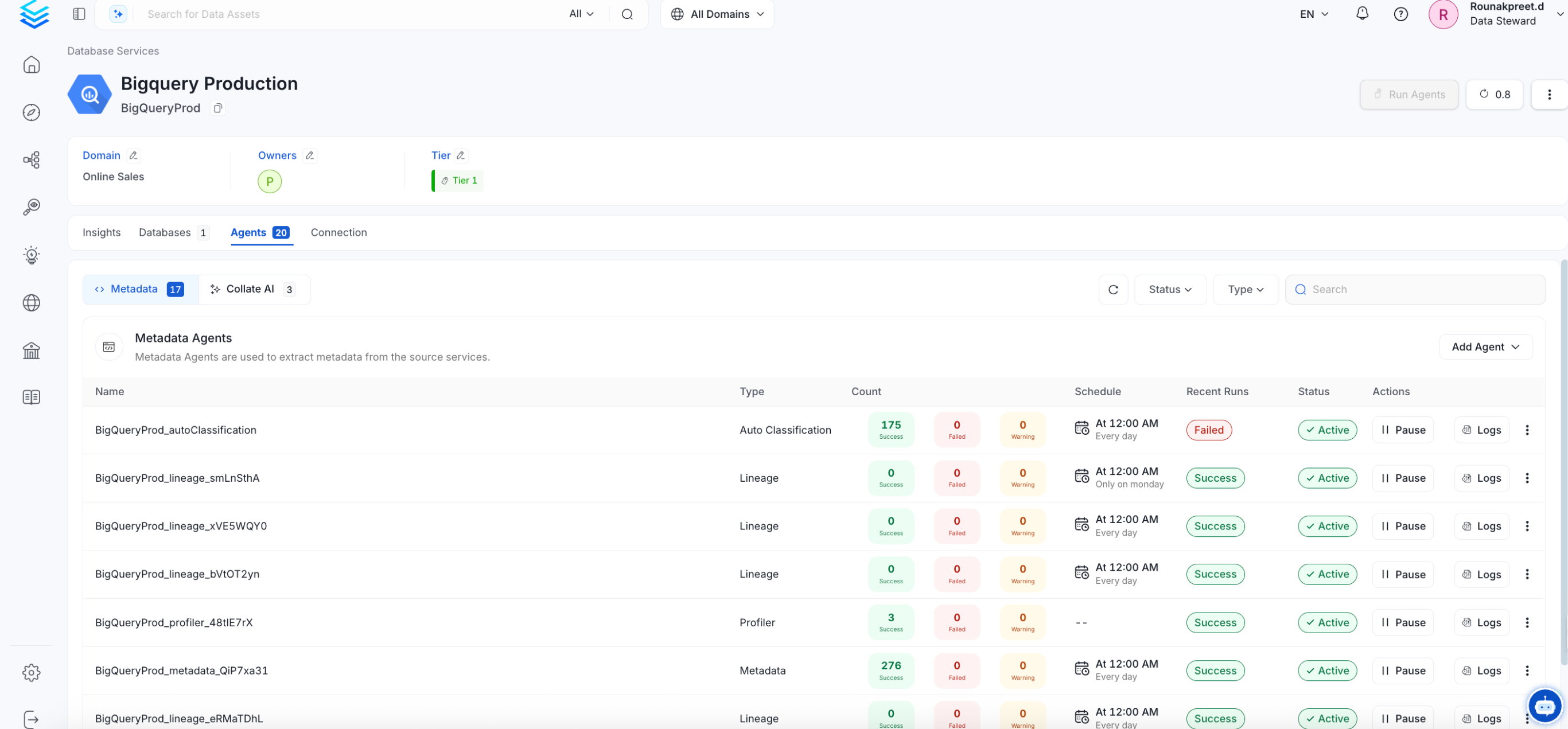 If AutoPilot is enabled, workflows like usage tracking, data lineage, and similar tasks will be handled automatically. Users don’t need to set up or manage them - AutoPilot takes care of everything in the system.