> ## Documentation Index
> Fetch the complete documentation index at: https://docs.open-metadata.org/llms.txt
> Use this file to discover all available pages before exploring further.
# Amazon Cognito SSO | OpenMetadata Authentication Setup
> Enable Amazon Cognito for managing user authentication, token issuance, and identity pools in distributed or serverless systems.
# Amazon Cognito SSO
Follow the sections in this guide to set up Amazon Cognito SSO.
Security requirements for your **production** environment:
* **DELETE** the admin default account shipped by OM in case you had [Basic Authentication](/v1.12.x/deployment/security/basic-auth)
enabled before configuring the authentication with Amazon Cognito SSO.
* **UPDATE** the Private / Public keys used for the [JWT Tokens](/v1.12.x/deployment/security/enable-jwt-tokens) in case it is
enabled.
## Create Server Credentials
### Step 1: Login to AWS Portal
* Login to [Amazon AWS Portal](https://aws.amazon.com/).
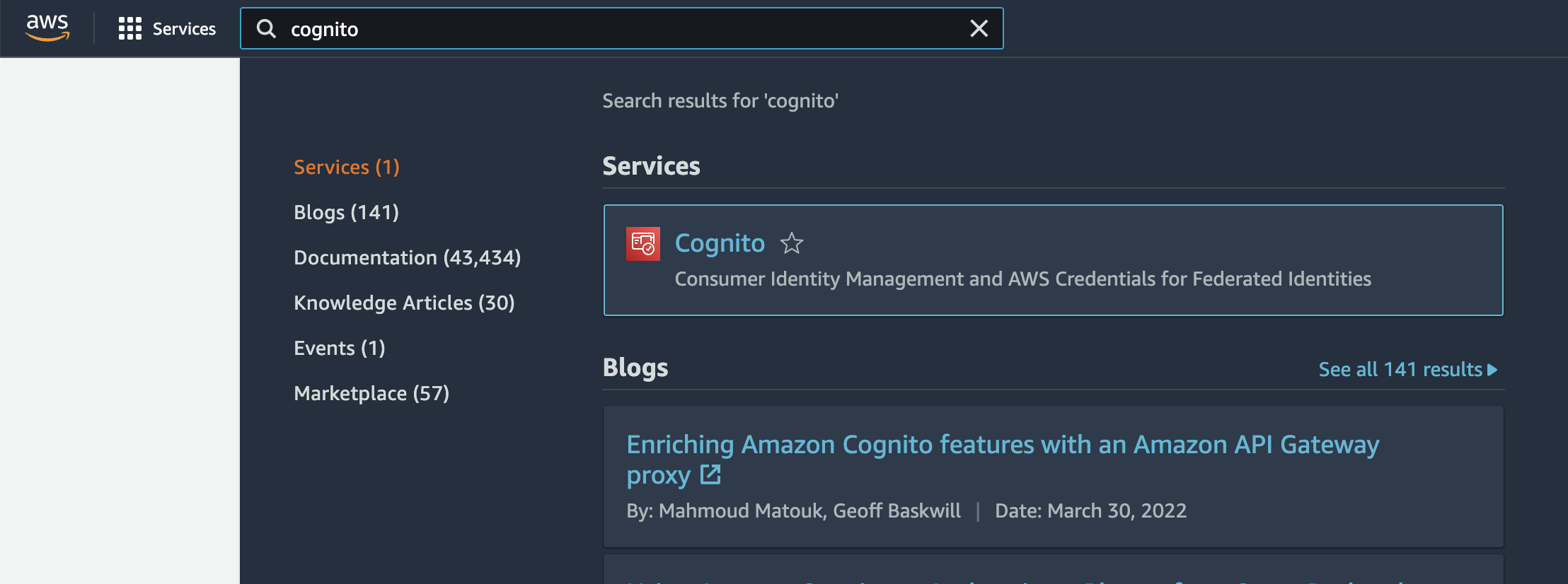
* Search for `Cognito` in the search box and select Cognito Service from the dropdown menu.
 ### Step 2: Setup User Pool
* Click on the "Create user pool" button if you do not have any user pools configured yet. Skip this step if you already have a user pool available.
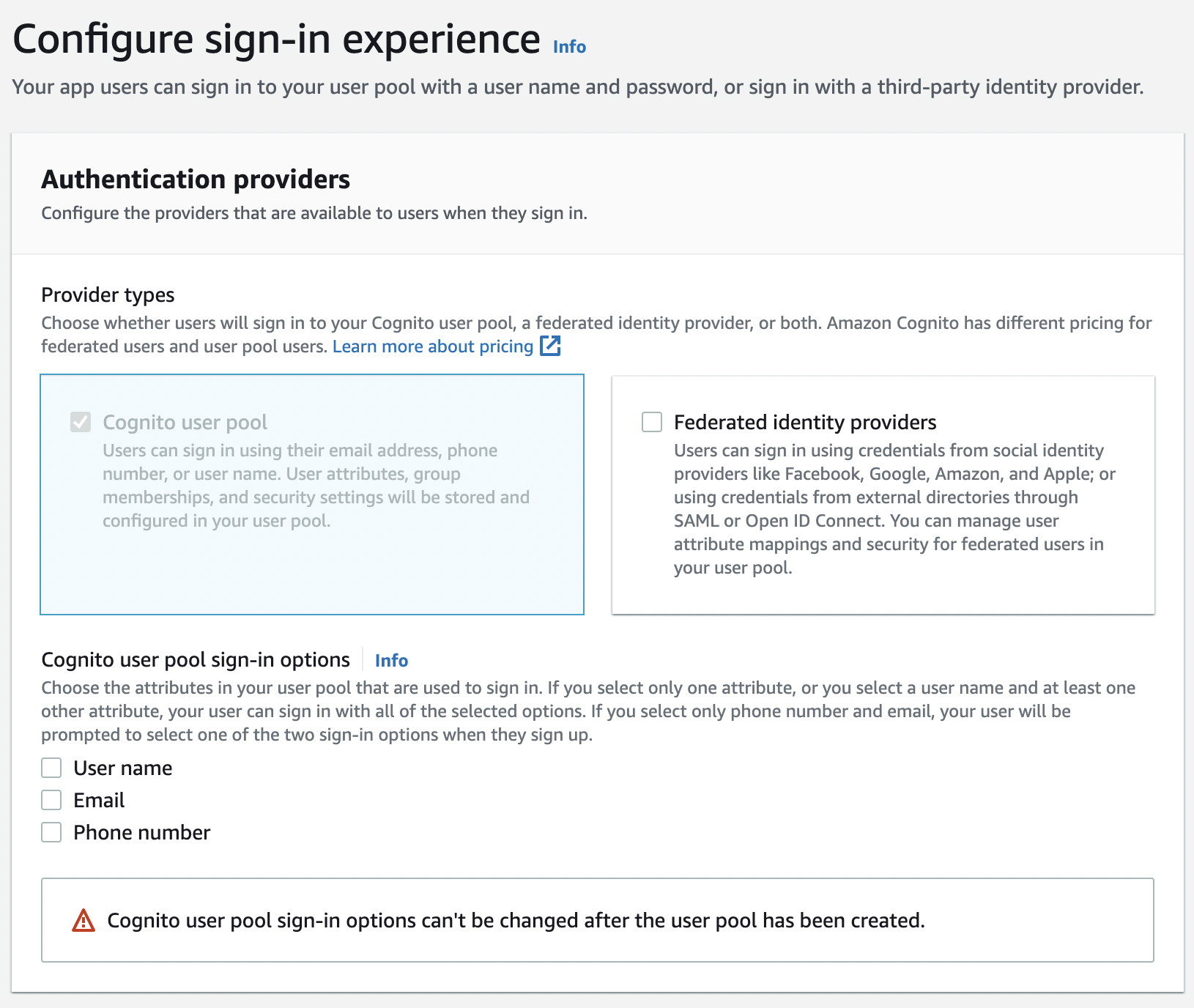
* Select the type of ID providers you want to configure for your users and click "Next"
### Step 2: Setup User Pool
* Click on the "Create user pool" button if you do not have any user pools configured yet. Skip this step if you already have a user pool available.
* Select the type of ID providers you want to configure for your users and click "Next"
 * Configure the security requirements in Step 2 as per your organizational needs and proceed to Step 3
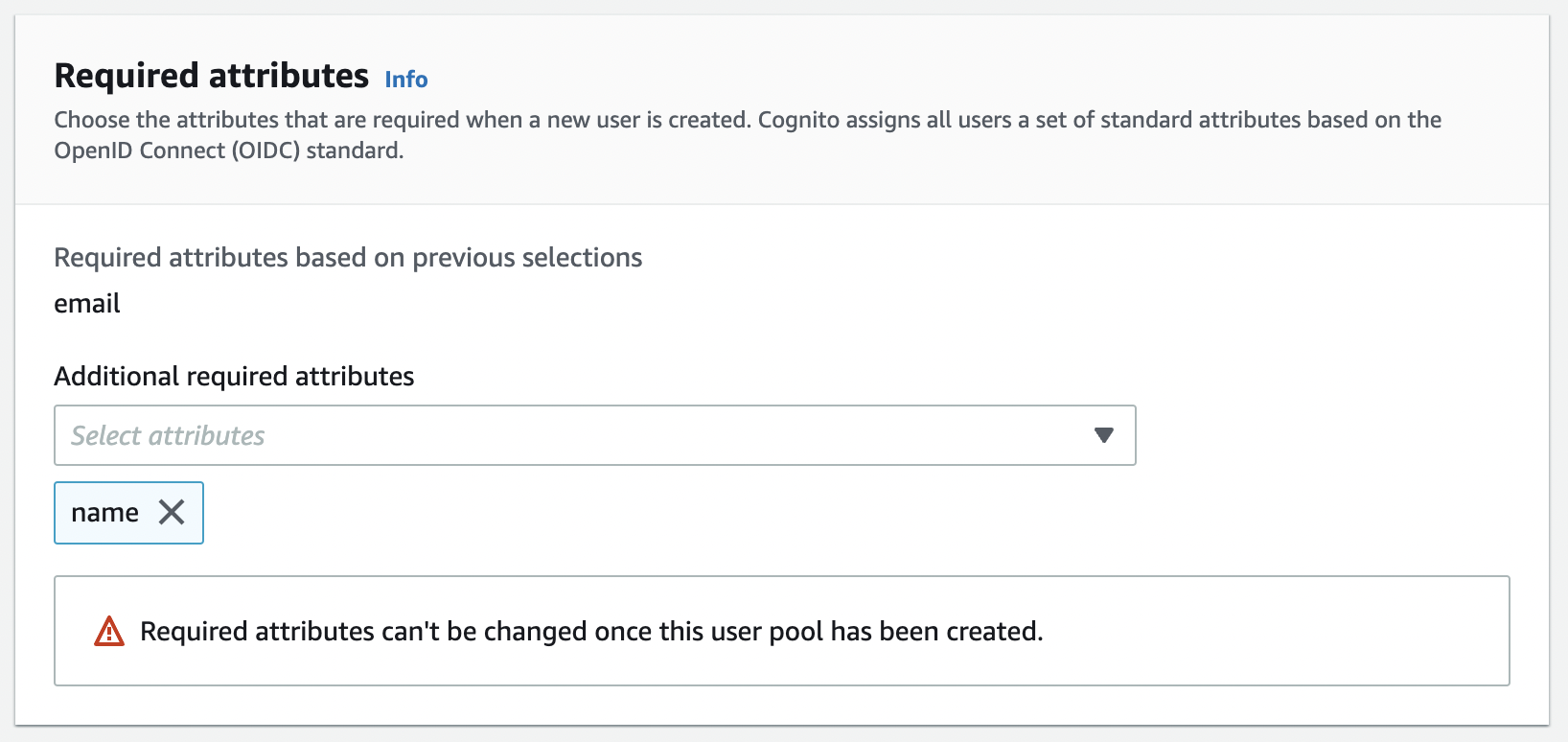
* Configure the Sign-up experience in Step 3. Make sure to add email as a required attribute before proceeding to step 4
* Configure the security requirements in Step 2 as per your organizational needs and proceed to Step 3
* Configure the Sign-up experience in Step 3. Make sure to add email as a required attribute before proceeding to step 4
 * Configure message delivery as per your organizational needs and proceed to Step 5
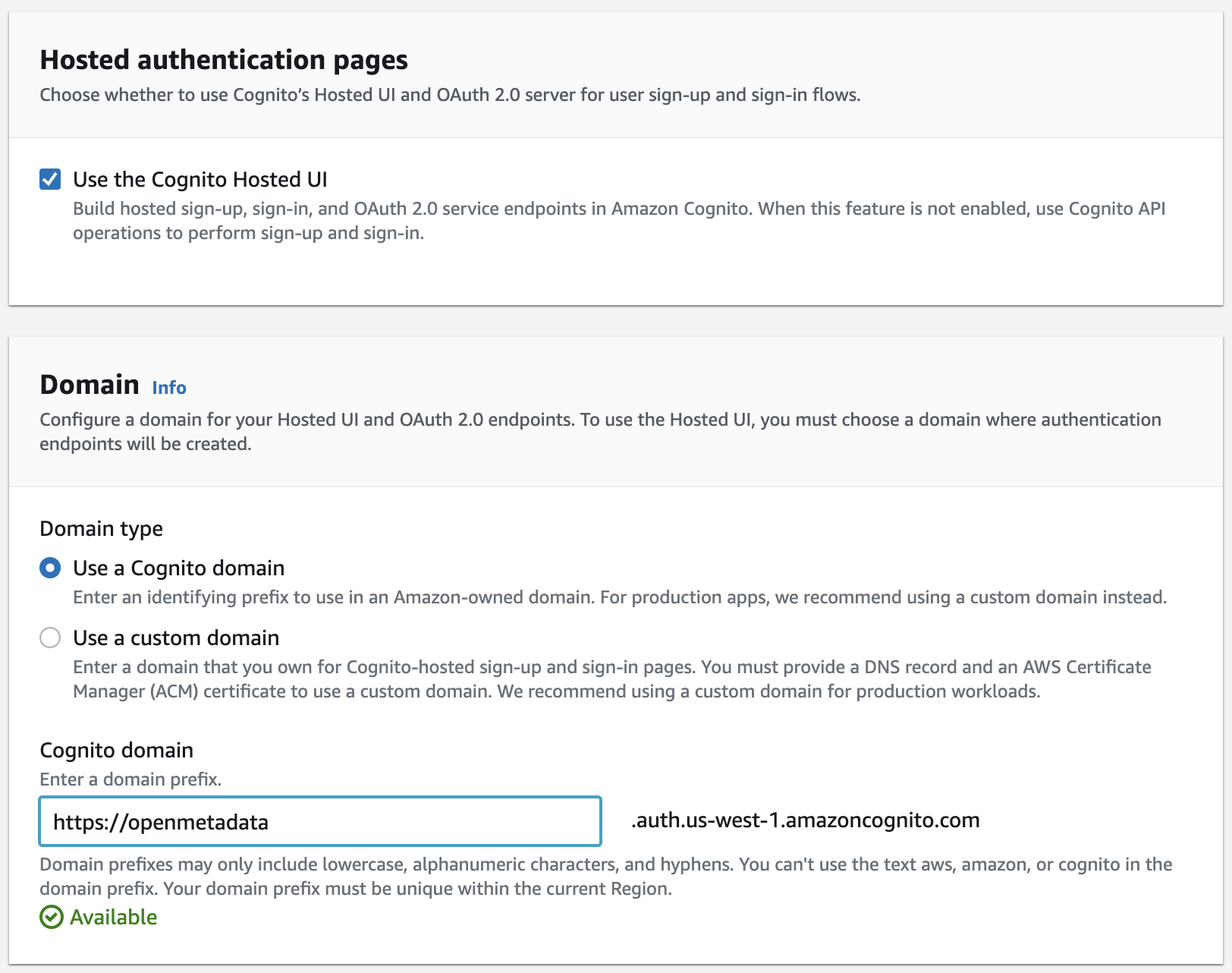
* In Step 5, add a name for the user pool and check the "Use the Cognito Hosted UI" option and provide a Cognito domain as shown in the screenshot below
* Configure message delivery as per your organizational needs and proceed to Step 5
* In Step 5, add a name for the user pool and check the "Use the Cognito Hosted UI" option and provide a Cognito domain as shown in the screenshot below
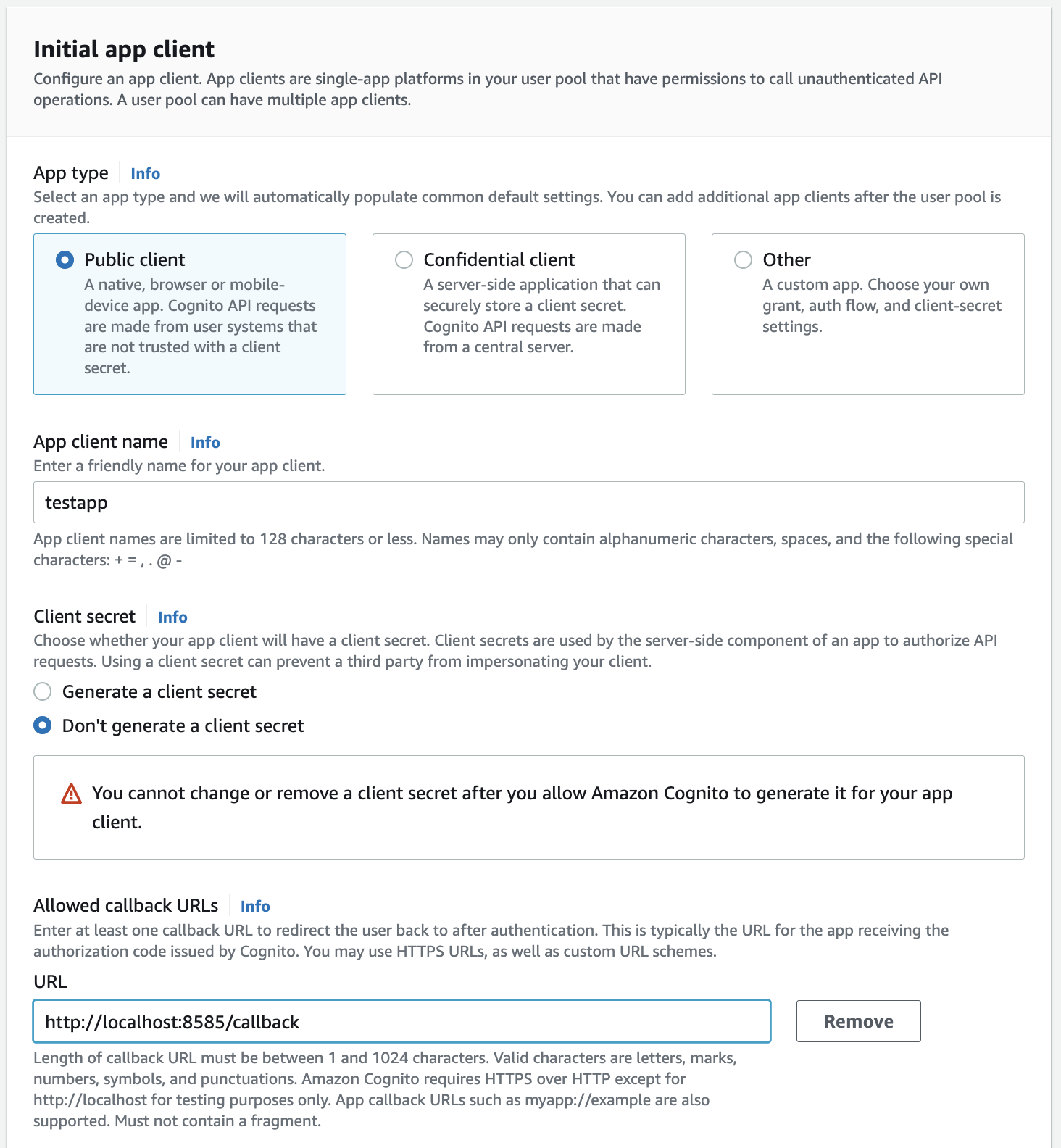
 * In the same step, select "Public client" for the Initial App client type and configure the Allowed callback URLs
with `http://localhost:8585/callback` as shown in the screenshot below. Note: For production deployments, the Allowed
callback URLs should be updated with the appropriate domain name.
* In the same step, select "Public client" for the Initial App client type and configure the Allowed callback URLs
with `http://localhost:8585/callback` as shown in the screenshot below. Note: For production deployments, the Allowed
callback URLs should be updated with the appropriate domain name.
 * The last step is to Review and create the User Pool.
### Step 3: Where to find the Credentials
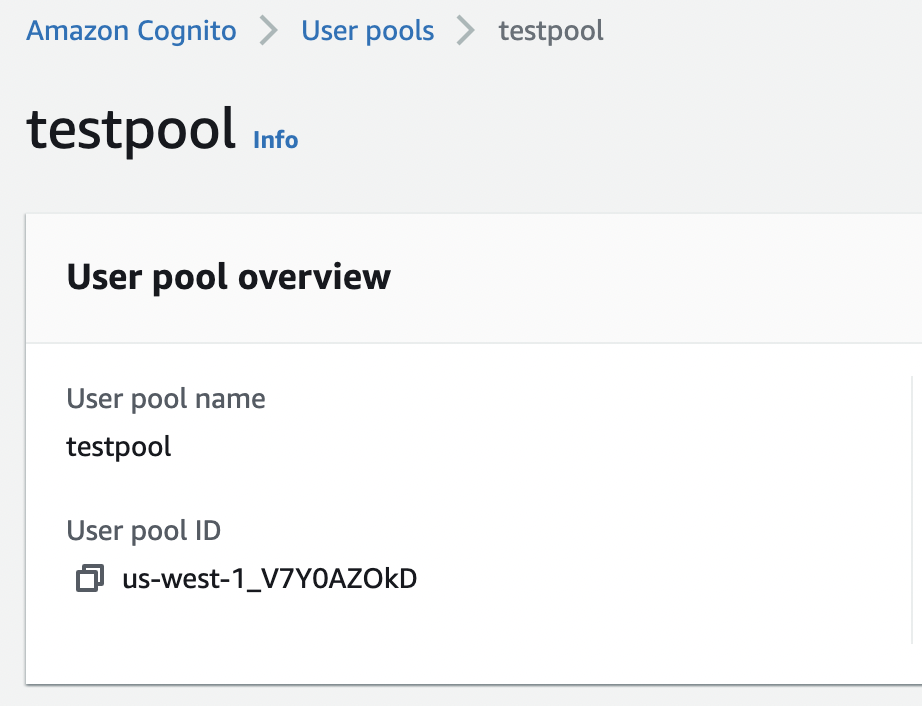
* The `User Pool ID` can be found in the User Pool summary page as seen in the screenshot below
* The last step is to Review and create the User Pool.
### Step 3: Where to find the Credentials
* The `User Pool ID` can be found in the User Pool summary page as seen in the screenshot below
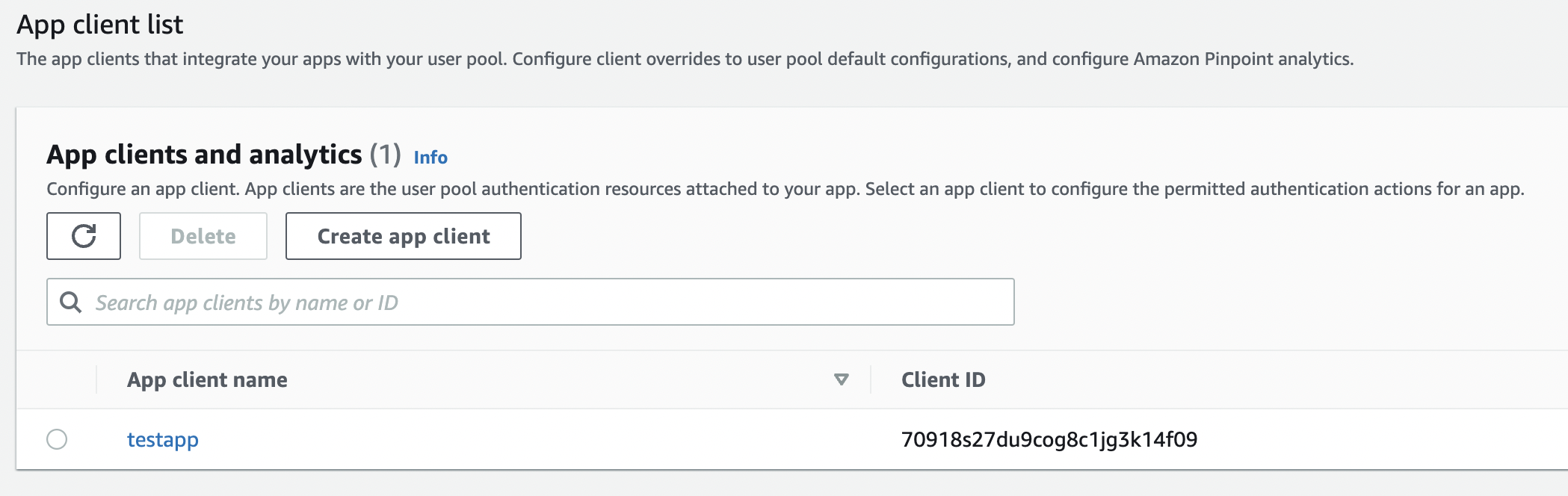
 * The App client ID can be found under the "App Integration" tab of the User Pool page. There will be a section that
lists all the App clients with client name and client ID as shown below
* The App client ID can be found under the "App Integration" tab of the User Pool page. There will be a section that
lists all the App clients with client name and client ID as shown below

 After the applying these steps, you can update the configuration of your deployment:
Configure Amazon Cognito SSO for Docker deployment.
Configure Amazon Cognito SSO for Kubernetes deployment.
Configure Amazon Cognito SSO for Bare Metal deployment.
## Configure Ingestion
Once your server security is set, it's time to review the ingestion configuration. Our bots support JWT tokens
to authenticate to the server when sending requests.
Find more information on [**Enabling JWT Tokens**](/deployment/security/enable-jwt-tokens) and [**JWT Troubleshooting**](/deployment/security/jwt-troubleshooting) to ensure seamless authentication.
After the applying these steps, you can update the configuration of your deployment:
Configure Amazon Cognito SSO for Docker deployment.
Configure Amazon Cognito SSO for Kubernetes deployment.
Configure Amazon Cognito SSO for Bare Metal deployment.
## Configure Ingestion
Once your server security is set, it's time to review the ingestion configuration. Our bots support JWT tokens
to authenticate to the server when sending requests.
Find more information on [**Enabling JWT Tokens**](/deployment/security/enable-jwt-tokens) and [**JWT Troubleshooting**](/deployment/security/jwt-troubleshooting) to ensure seamless authentication.