> ## Documentation Index
> Fetch the complete documentation index at: https://docs.open-metadata.org/llms.txt
> Use this file to discover all available pages before exploring further.
# Enable SSL at the OpenMetadata Server
> Configure SSL for the OpenMetadata server to enable HTTPS, protect authentication flows, and secure backend communications.
# Enable SSL at the OpenMetadata Server
The OpenMetadata Server is built using **Dropwizard** and **Jetty**. In this section, we will go through the steps
involved in setting up SSL for Jetty.
If you would like a simple way to set up SSL, please refer to the guide using [Nginx](/v1.12.x/deployment/security/enable-ssl/nginx).
However, this step can be treated as an additional layer of adding SSL to OpenMetadata. In cases where one would use
Nginx as a load balancer or AWS LB, you can set up SSL at the OpenMetadata server level such that traffic from the
load balancer to OpenMetadata is going through an encrypted channel.
## Create Self-Signed Certificate
A self-signed certificate should only be used for POC (demo) or `localhost` installation.
For production scenarios, please reach out to your DevOps team to issue an X509 certificate which you can import into a
Keystore. Run the below command to generate an X509 Certificate and import it into keystore:
```commandline theme={null}
keytool -keystore openmetadata.keystore.jks -alias localhost -keyalg RSA -keysize 2048 -sigalg SHA256withRSA -genkey -validity 365
```
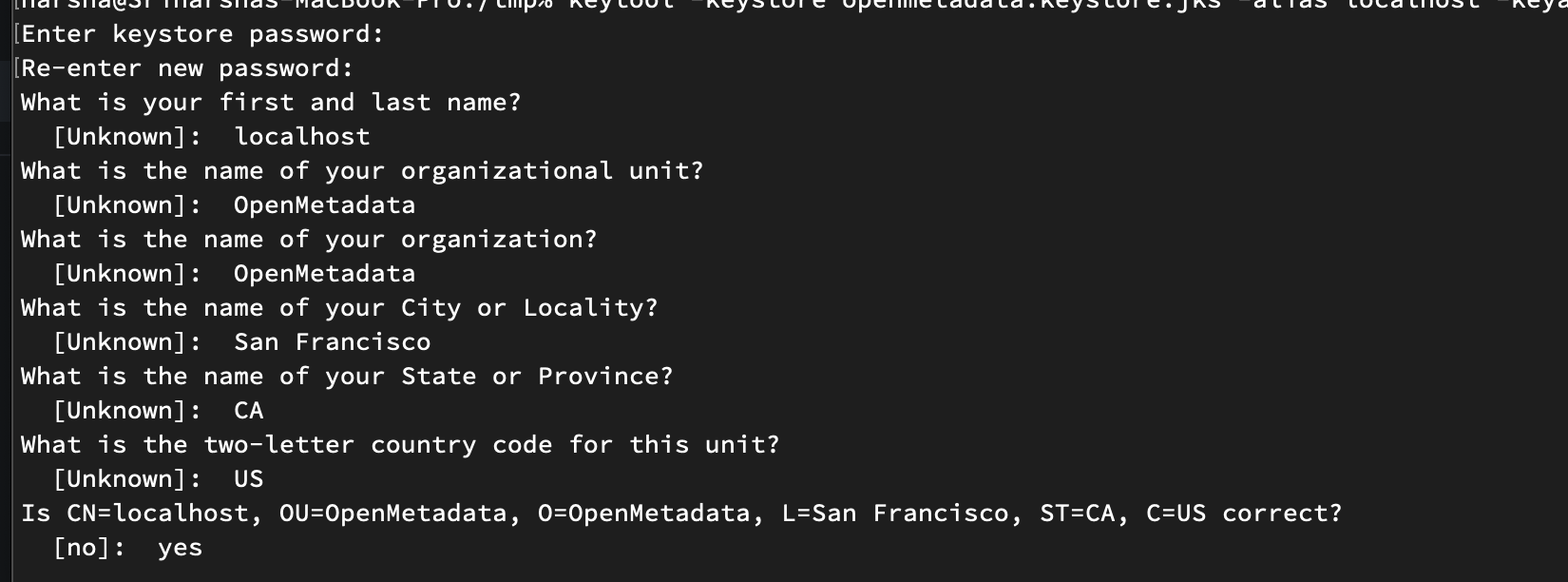 For this example, we are configuring the password to be `test12`. Copy the generated `openmetadata.keystore.jks` to
OpenMetadata installation path under the `conf` directory.
For this example, we are configuring the password to be `test12`. Copy the generated `openmetadata.keystore.jks` to
OpenMetadata installation path under the `conf` directory.
 ## Configure openmetadata.yaml
Add the below section to your `openmetadata.yaml` under the `conf` directory. Please add the password you set for the
Keystore generated above in the config below.
```yaml theme={null}
server:
rootPath: '/api/*'
applicationConnectors:
- type: https
port: ${SERVER_PORT:-8585}
keyStorePath: ./conf/openmetadata.keystore.jks
keyStorePassword: test12
keyStoreType: JKS
supportedProtocols: [TLSv1.2, TLSv1.5]
excludedProtocols: [SSL, SSLv2, SSLv2Hello, SSLv3]
```
## Access OpenMetadata server in the browser
These steps are not necessary if you used proper X509 certificated signed by trusted CA Authority.
Since we used self-signed certificates, browsers such as Chrome or Brave will not allow you to visit
[https://localhost:8585](https://localhost:8585). You'll get the following error page and there is no way to proceed.
## Configure openmetadata.yaml
Add the below section to your `openmetadata.yaml` under the `conf` directory. Please add the password you set for the
Keystore generated above in the config below.
```yaml theme={null}
server:
rootPath: '/api/*'
applicationConnectors:
- type: https
port: ${SERVER_PORT:-8585}
keyStorePath: ./conf/openmetadata.keystore.jks
keyStorePassword: test12
keyStoreType: JKS
supportedProtocols: [TLSv1.2, TLSv1.5]
excludedProtocols: [SSL, SSLv2, SSLv2Hello, SSLv3]
```
## Access OpenMetadata server in the browser
These steps are not necessary if you used proper X509 certificated signed by trusted CA Authority.
Since we used self-signed certificates, browsers such as Chrome or Brave will not allow you to visit
[https://localhost:8585](https://localhost:8585). You'll get the following error page and there is no way to proceed.
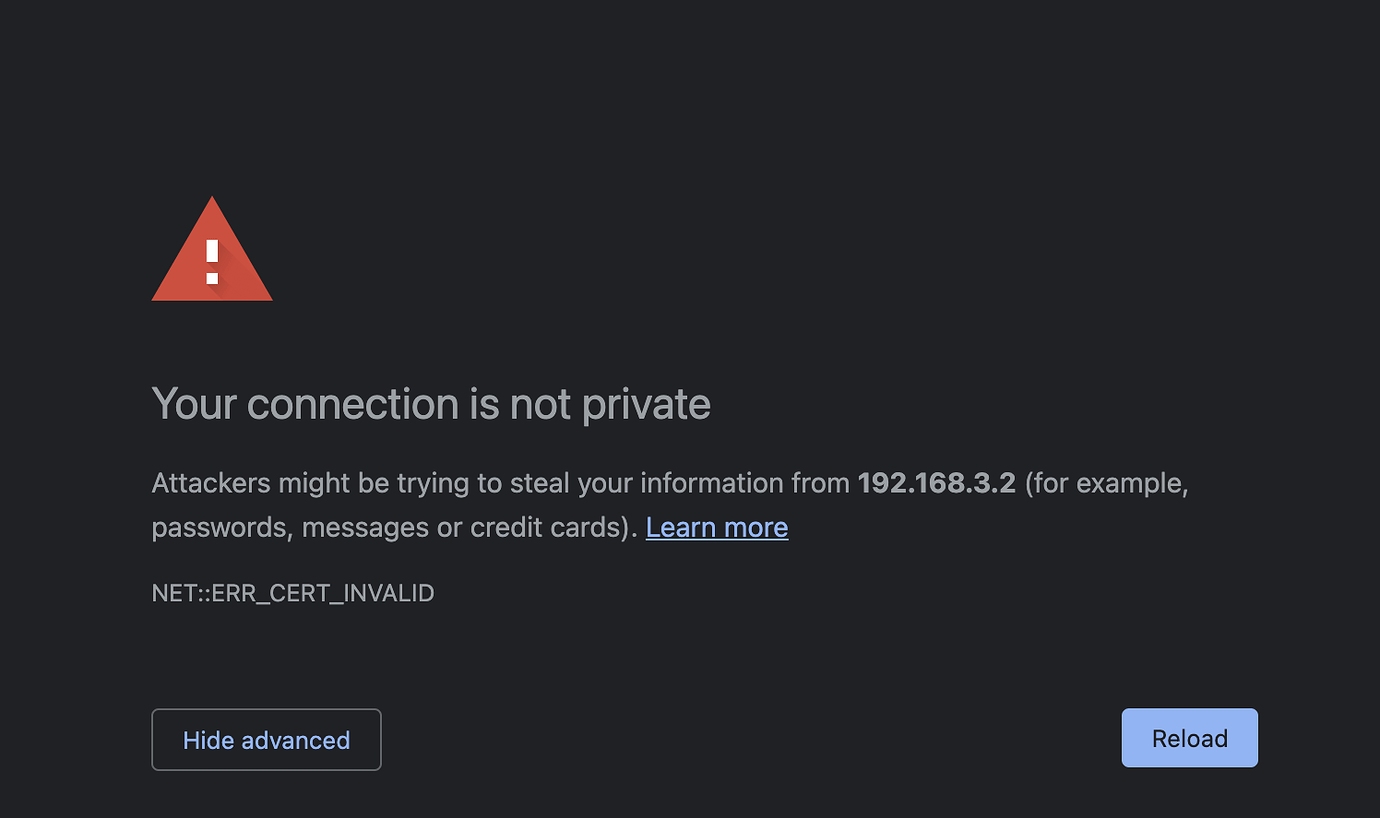 However, the Safari browser allows you to visit if you click advanced and click proceed. To work around this issue, on
OS X, you can import the certificate into the keychain and trust it so that browsers can trust and allow you to access
OpenMetadata.
### Export X509 certificate from Keystore
Run the below command to export the X509 cert.
```commandline theme={null}
keytool -export -alias localhost -keystore openmetadata.keystore.jks -rfc -file public.cert
```
### Import public cert into Keychain - OS X only
Open the KeyChain app in OS X, drag and drop the `public.cert` file generated in the previous command into the Keychain:
However, the Safari browser allows you to visit if you click advanced and click proceed. To work around this issue, on
OS X, you can import the certificate into the keychain and trust it so that browsers can trust and allow you to access
OpenMetadata.
### Export X509 certificate from Keystore
Run the below command to export the X509 cert.
```commandline theme={null}
keytool -export -alias localhost -keystore openmetadata.keystore.jks -rfc -file public.cert
```
### Import public cert into Keychain - OS X only
Open the KeyChain app in OS X, drag and drop the `public.cert` file generated in the previous command into the Keychain:
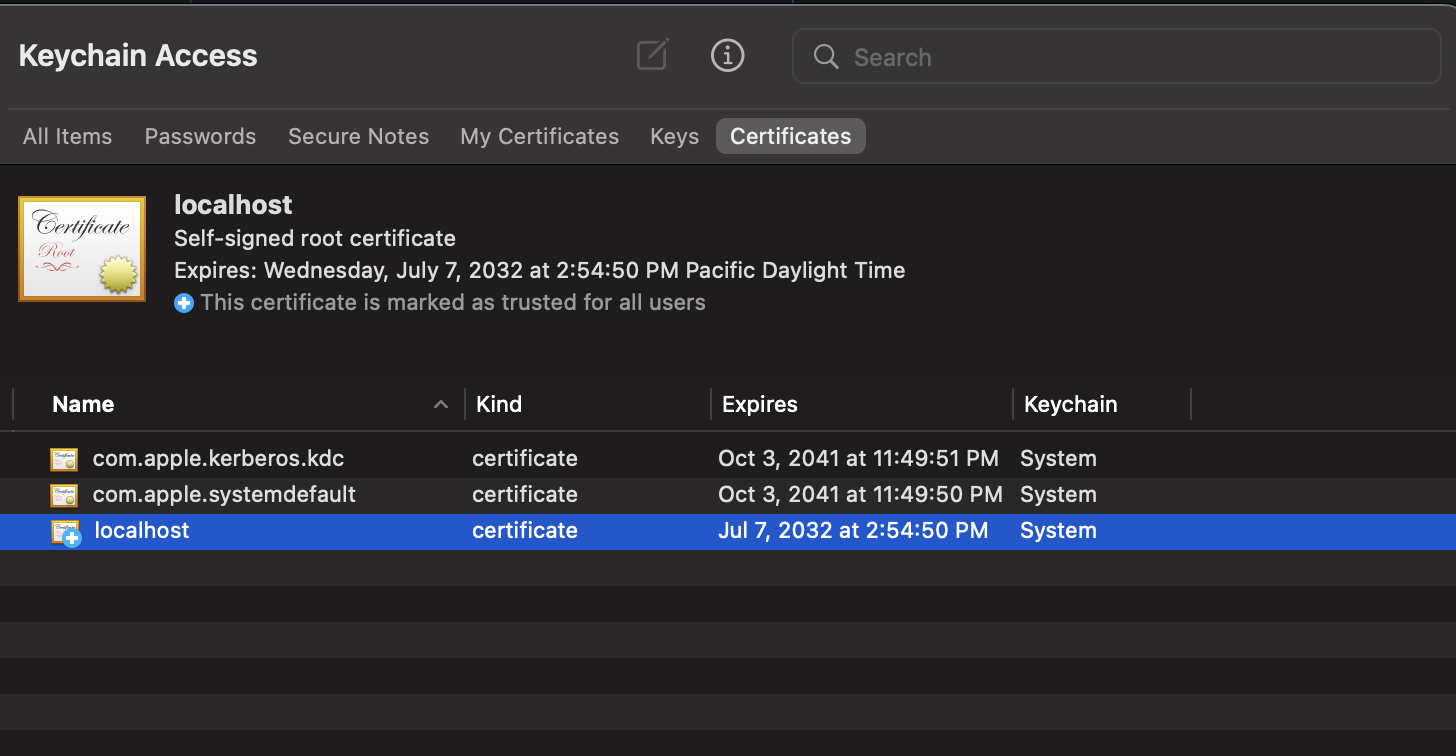 Double-click on `localhost`:
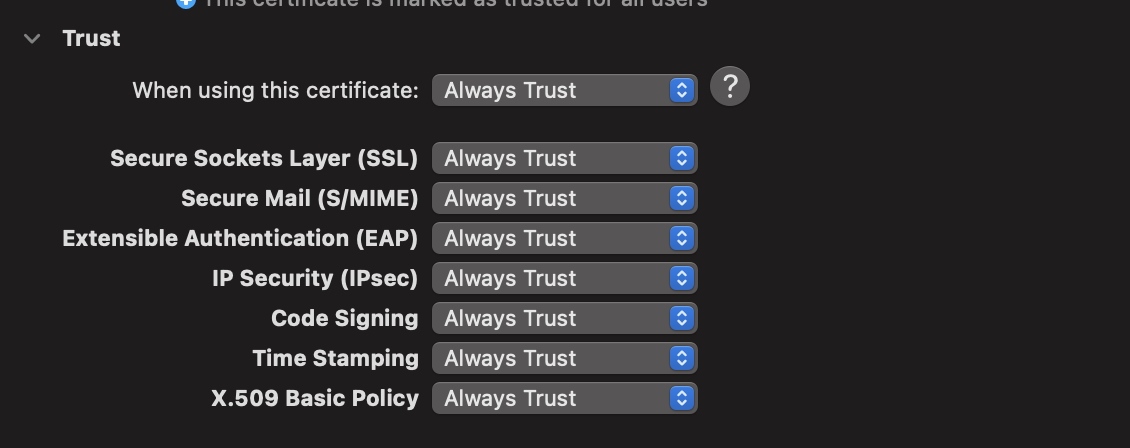
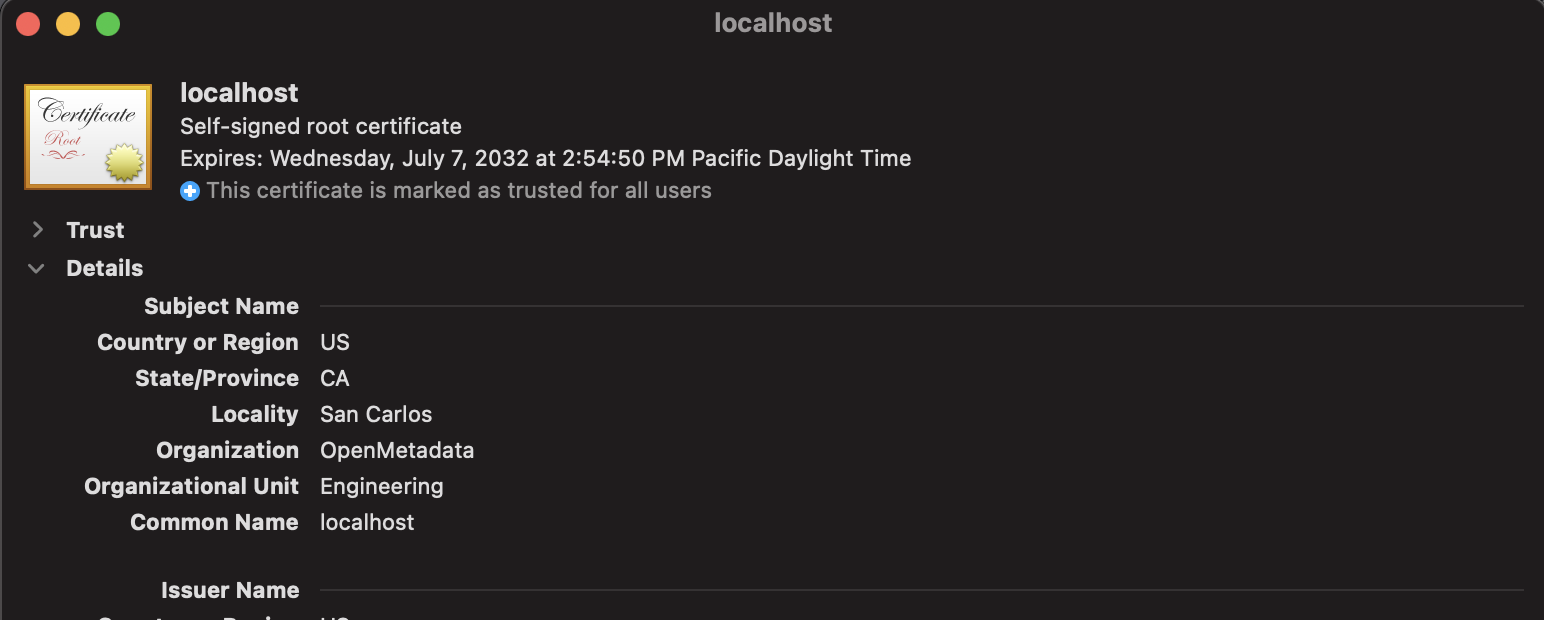 Click on `Trust` to open and set `Always Trust`:
 Once the above steps are finished, all the browsers will allow you to visit the OpenMetadata server using HTTPS.
However, you'll still a warning in the address bar. All of these steps are not necessary with an X509 certificate issued
by a trusted authority and one should always use that in production.
Once the above steps are finished, all the browsers will allow you to visit the OpenMetadata server using HTTPS.
However, you'll still a warning in the address bar. All of these steps are not necessary with an X509 certificate issued
by a trusted authority and one should always use that in production.