> ## Documentation Index
> Fetch the complete documentation index at: https://docs.open-metadata.org/llms.txt
> Use this file to discover all available pages before exploring further.
# OneLogin SSO | OpenMetadata Authentication Setup
> Configure OneLogin as your authentication source to manage user roles, sessions, and tokens across secure deployments.
# OneLogin SSO
Follow the sections in this guide to set up OneLogin SSO.
Security requirements for your **production** environment:
* **DELETE** the admin default account shipped by OM in case you had [Basic Authentication](/v1.12.x/deployment/security/basic-auth)
enabled before configuring the authentication with OneLogin SSO.
* **UPDATE** the Private / Public keys used for the [JWT Tokens](/v1.12.x/deployment/security/enable-jwt-tokens). The keys we provide
by default are aimed only for quickstart and testing purposes. They should NEVER be used in a production installation.
## Create Server Credentials
### Step 1: Configure a new Application
* Login to [OneLogin](https://www.onelogin.com/) as an administrator and click on Applications
 * Click on the `Add App` button and search for `openid connect`
* Select the `OpenId Connect (OIDC)` app
* Click on the `Add App` button and search for `openid connect`
* Select the `OpenId Connect (OIDC)` app
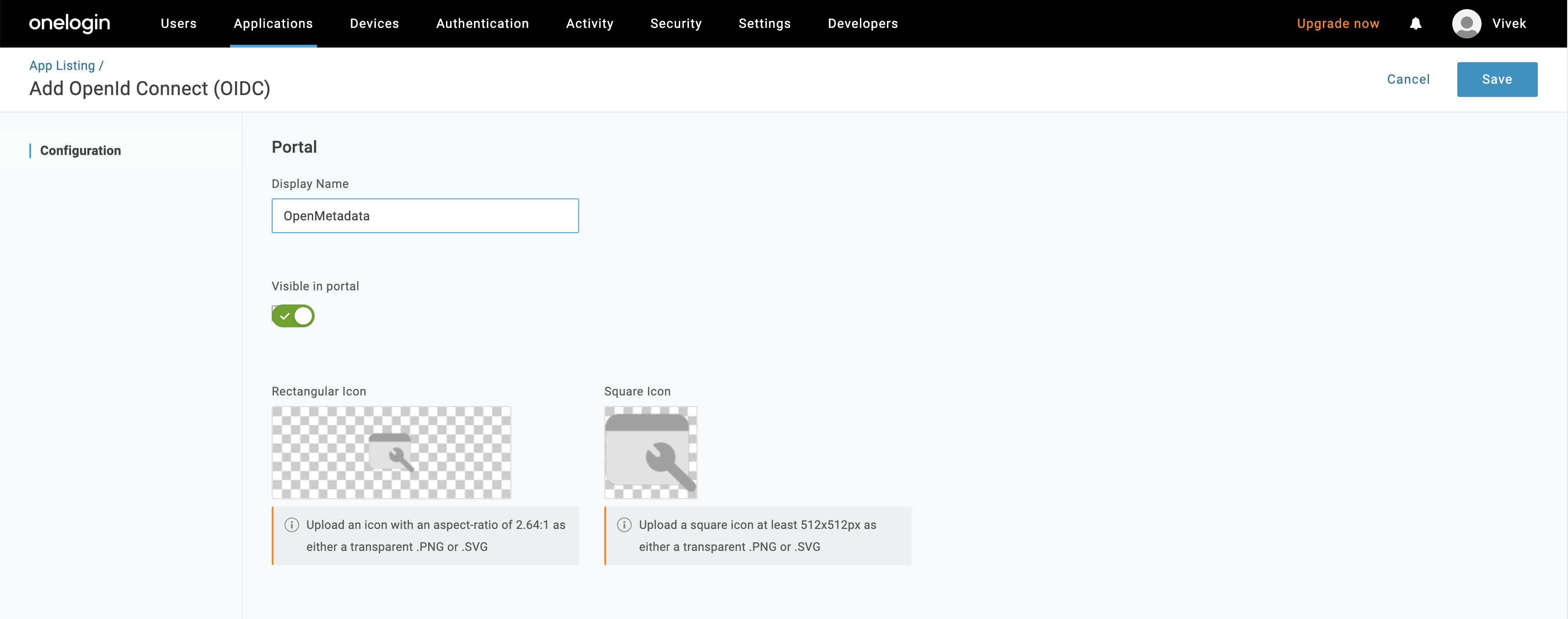
 * Change the Display Name of the app to `Open Metadata` and click `Save`
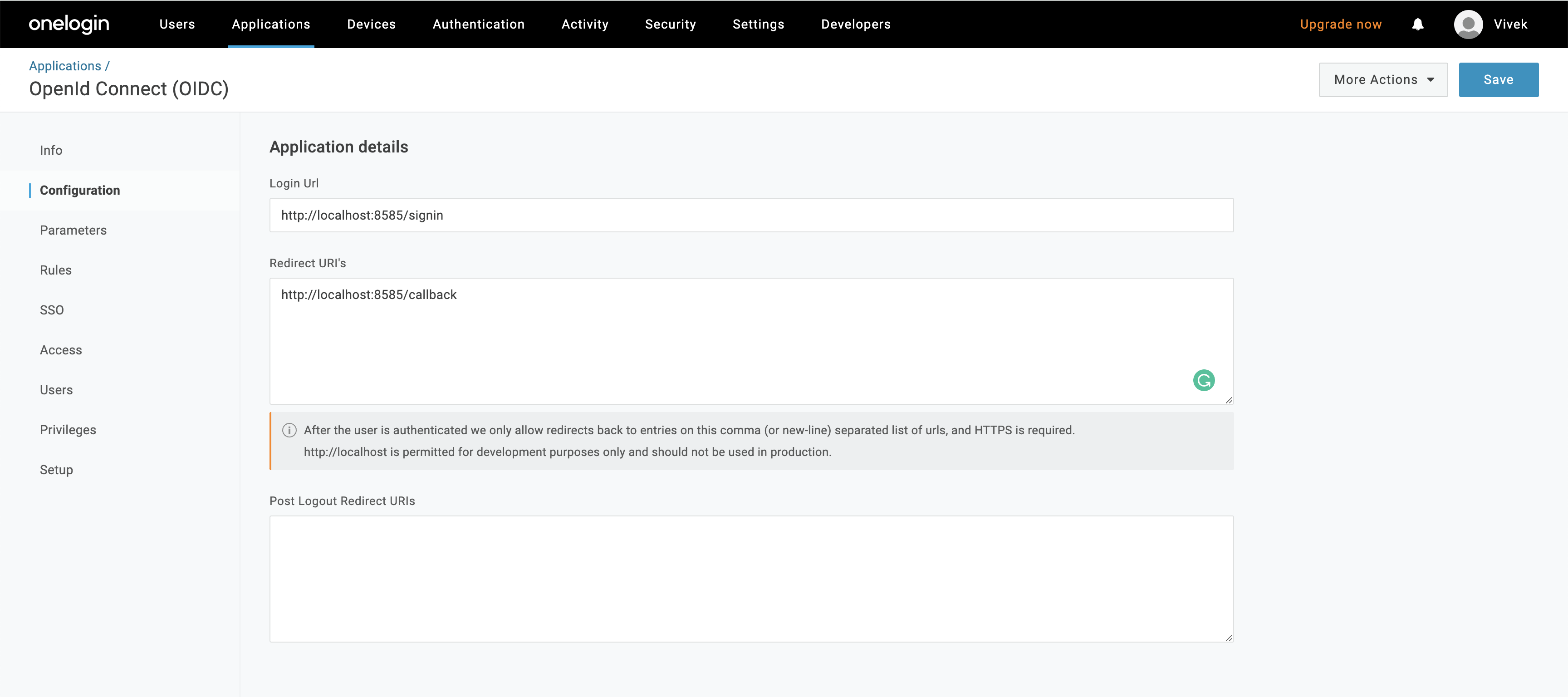
 * Configure the login Url (`http(s):///signin`) and redirect URI (`http(s):///callback`) as shown below
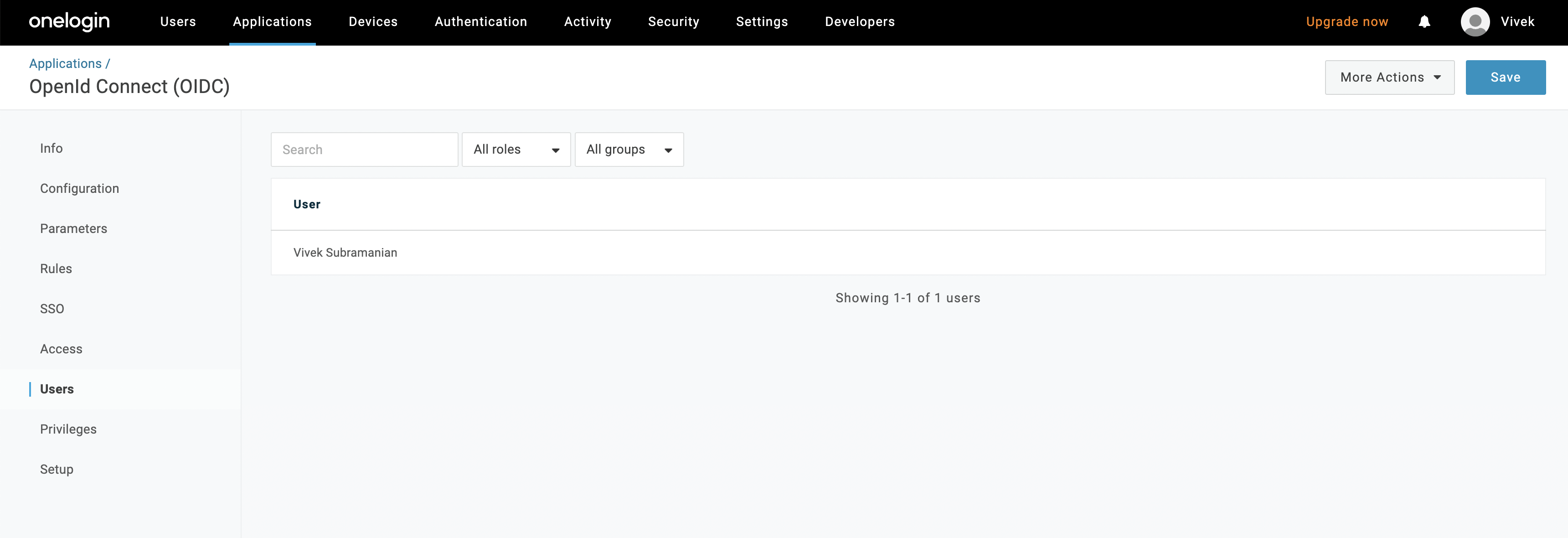
 * Configure the users in the organization that can access OpenMetadata app by clicking on the `Users`
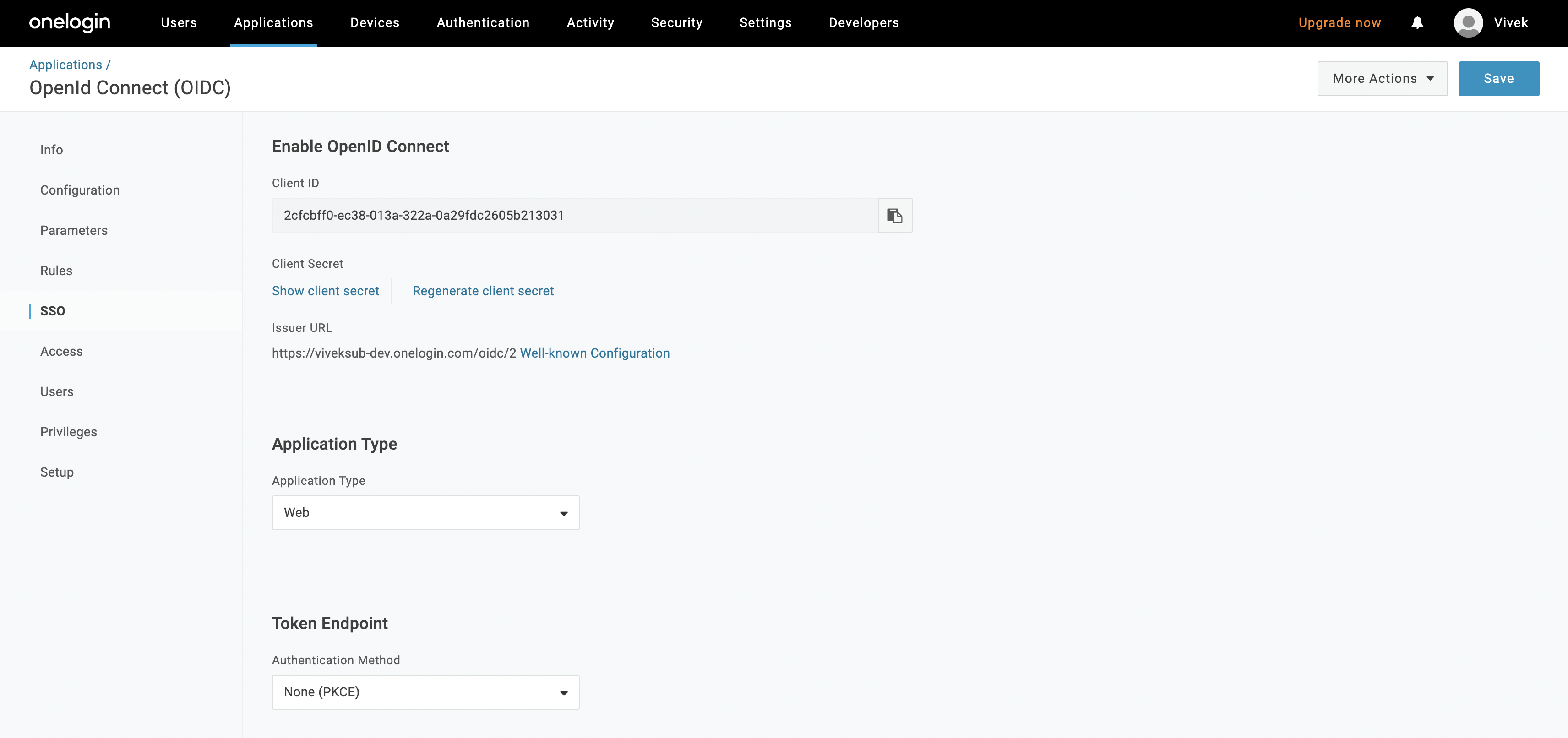
 * Click on "SSO" and select `None (PKCE)` for Token Endpoint.
 ### Step 2: Where to find the Credentials
* Go to "SSO" and copy the Client ID
### Step 2: Where to find the Credentials
* Go to "SSO" and copy the Client ID
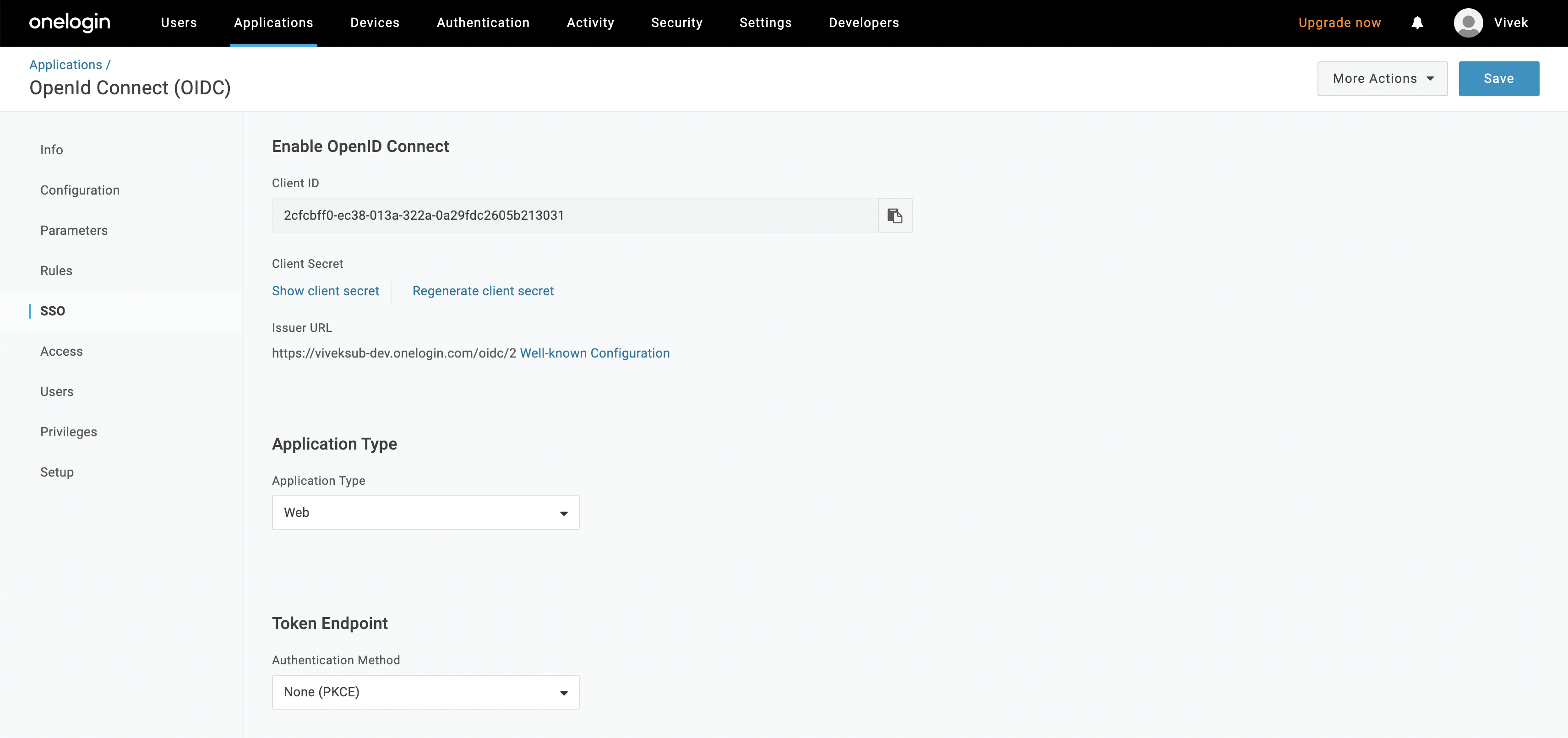 * Copy the Issuer URL
After the applying these steps, you can update the configuration of your deployment:
Configure OneLogin SSO for your Docker Deployment.
Configure OneLogin SSO for your Bare Metal Deployment.
Configure OneLogin SSO for your Kubernetes Deployment.
## Configure Ingestion
Once your server security is set, it's time to review the ingestion configuration. Our bots support JWT tokens
to authenticate to the server when sending requests.
Find more information on [**Enabling JWT Tokens**](/deployment/security/enable-jwt-tokens) and [**JWT Troubleshooting**](/deployment/security/jwt-troubleshooting) to ensure seamless authentication.
* Copy the Issuer URL
After the applying these steps, you can update the configuration of your deployment:
Configure OneLogin SSO for your Docker Deployment.
Configure OneLogin SSO for your Bare Metal Deployment.
Configure OneLogin SSO for your Kubernetes Deployment.
## Configure Ingestion
Once your server security is set, it's time to review the ingestion configuration. Our bots support JWT tokens
to authenticate to the server when sending requests.
Find more information on [**Enabling JWT Tokens**](/deployment/security/enable-jwt-tokens) and [**JWT Troubleshooting**](/deployment/security/jwt-troubleshooting) to ensure seamless authentication.