> ## Documentation Index
> Fetch the complete documentation index at: https://docs.open-metadata.org/llms.txt
> Use this file to discover all available pages before exploring further.
# OpenMetadata Server | Developer Guide & Setup
> Build and run metadata server locally with this guide, including environment setup and server configuration tips.
# OpenMetadata Server
Learn how to run the OpenMetadata server in development mode by using Docker and IntelliJ.
## Prerequisites
* For an easy installation of MySQL and ES, just install Docker on your local machine and run the following commands from the top-level directory
```shell theme={null}
docker compose -f docker/development/docker-compose.yml up mysql elasticsearch --build -d
```
* For an easy installation of PostgreSQL and ES, just install Docker on your local machine and run the following commands from the top-level directory
```shell theme={null}
docker compose -f docker/development/docker-compose-postgres.yml up postgresql opensearch --build -d
```
## Building
The following commands must be run from the top-level directory.
```shell theme={null}
mvn clean install
```
This will run all tests, which can take up to an hour. Use `-DskipTests` to skip unit tests if you're only interested in running the server.
## Create a distribution (packaging)
You can create a distribution as follows.
```shell theme={null}
$ mvn clean install
```
The binaries will be created at:
```shell theme={null}
openmetadata-dist/target/open-metadata-.pom
openmetadata-dist/target/open-metadata-.tar.gz
```
## Bootstrap Database
Extract the distribution tar.gz file created on the previous step and run the following command
```shell theme={null}
cd open-metadata-
sh bootstrap/openmetadata-ops.sh drop-create
```
Why Needed: The script simplifies the setup and execution of OpenMetadata by handling Java dependencies, configurations, and environment variables automatically.
**Note** To understand more about openmetadata-ops.sh file click [here](/v1.12.x/developers/contribute/build-code-and-run-tests/openmetadata-ops)
## Running the OpenMetadata server
You can run the OpenMetadata server directly
```shell theme={null}
cd open-metadata-
sh bin/openmetadata-server-start.sh conf/openmetadata.yaml
```
### Using IntelliJ IDEA
Add a new Run/Debug configuration like the below screenshot.
1. Click on Intellij - Run menu
2. Click on "Edit Configurations"
3. Click + sign and Select Application and make sure your config looks similar to the below image
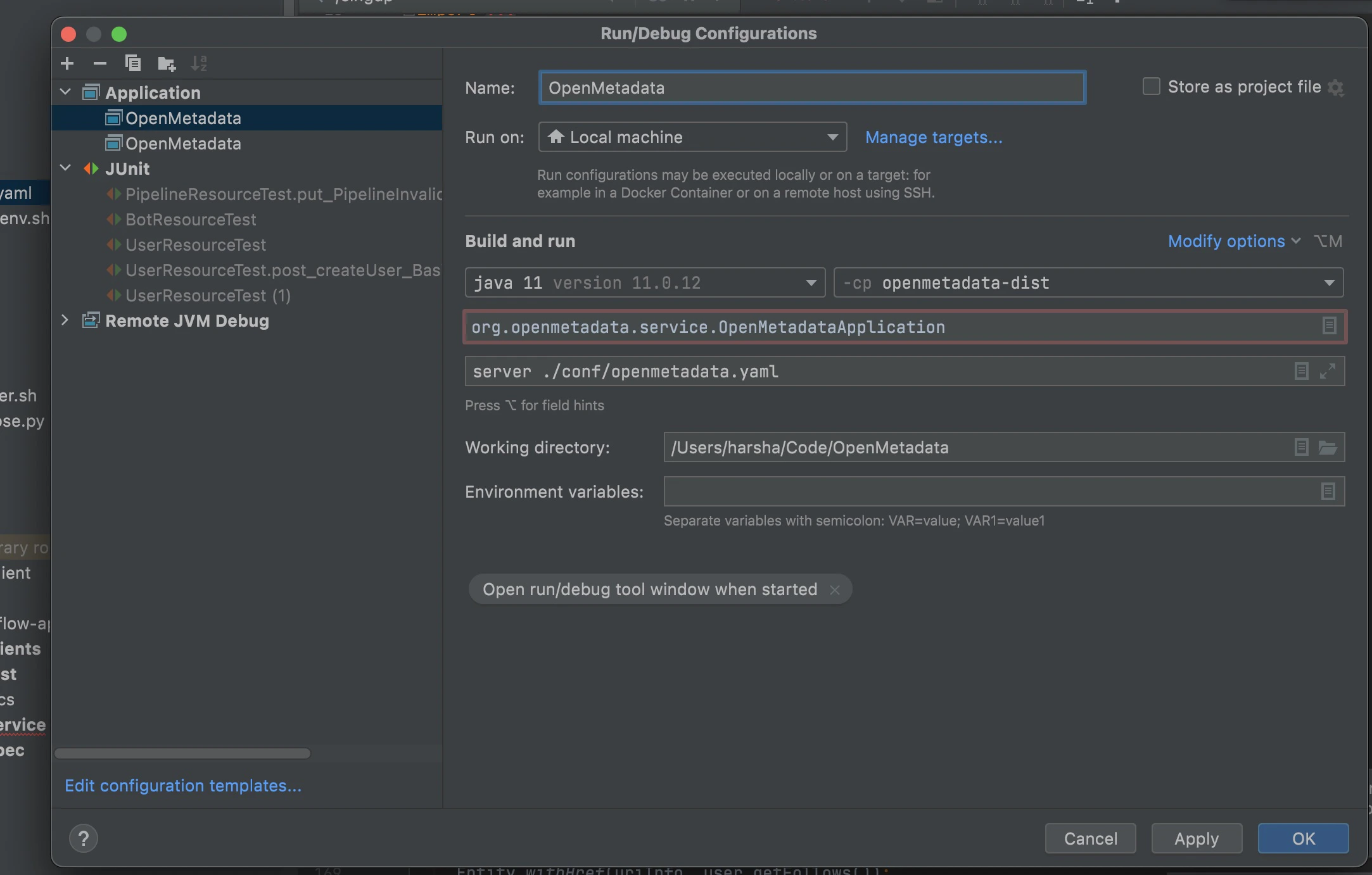 Note that if you want to test the connectors (Ingestion) while having the server running locally and the ingestion
running as a container, you will need to ensure that both components can properly talk to each other. To do so,
pass the following environment variable to IntelliJ when starting the server:
```bash theme={null}
SERVER_HOST_API_URL=http://host.docker.internal:8585/api
```
#### Add missing dependency
Right-click on openmetadata-service
Note that if you want to test the connectors (Ingestion) while having the server running locally and the ingestion
running as a container, you will need to ensure that both components can properly talk to each other. To do so,
pass the following environment variable to IntelliJ when starting the server:
```bash theme={null}
SERVER_HOST_API_URL=http://host.docker.internal:8585/api
```
#### Add missing dependency
Right-click on openmetadata-service
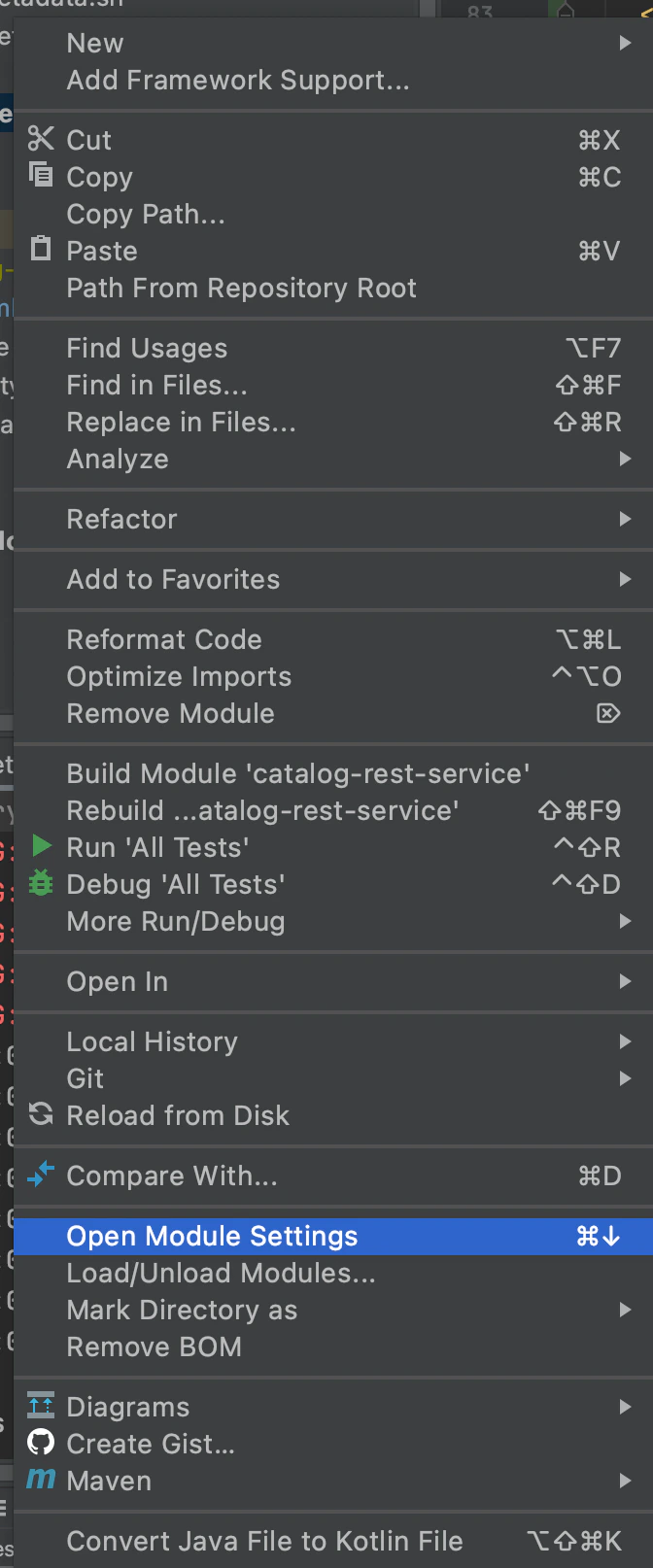
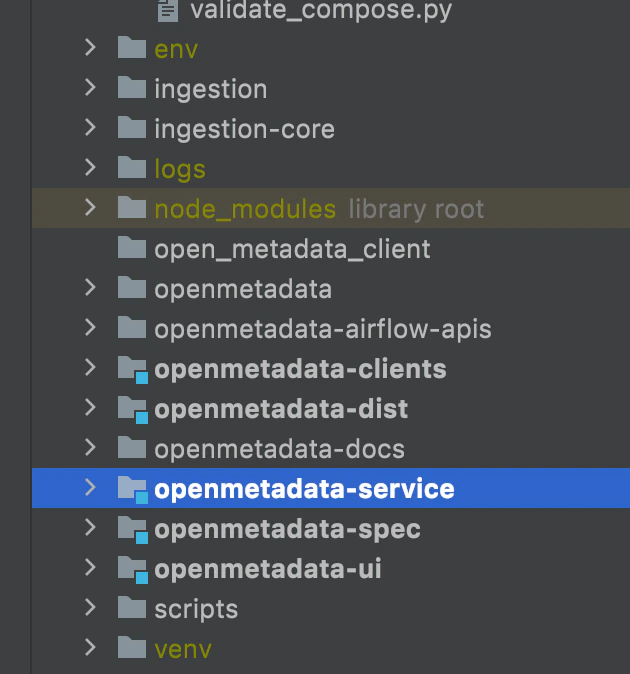 Click on "Open Module Settings"
 Go to "Dependencies"
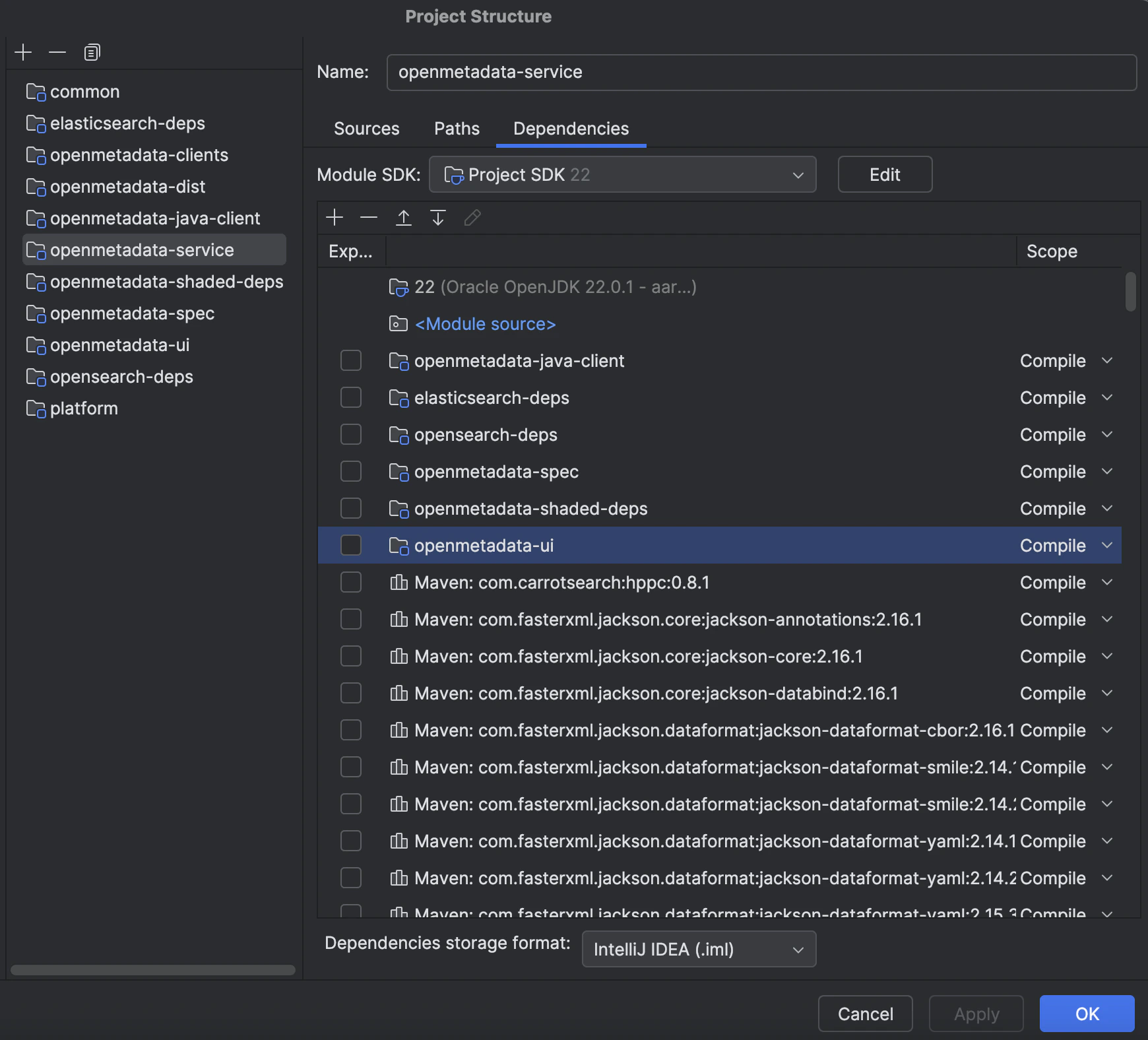 Click “+” at the bottom of the dialog box and click "Add"
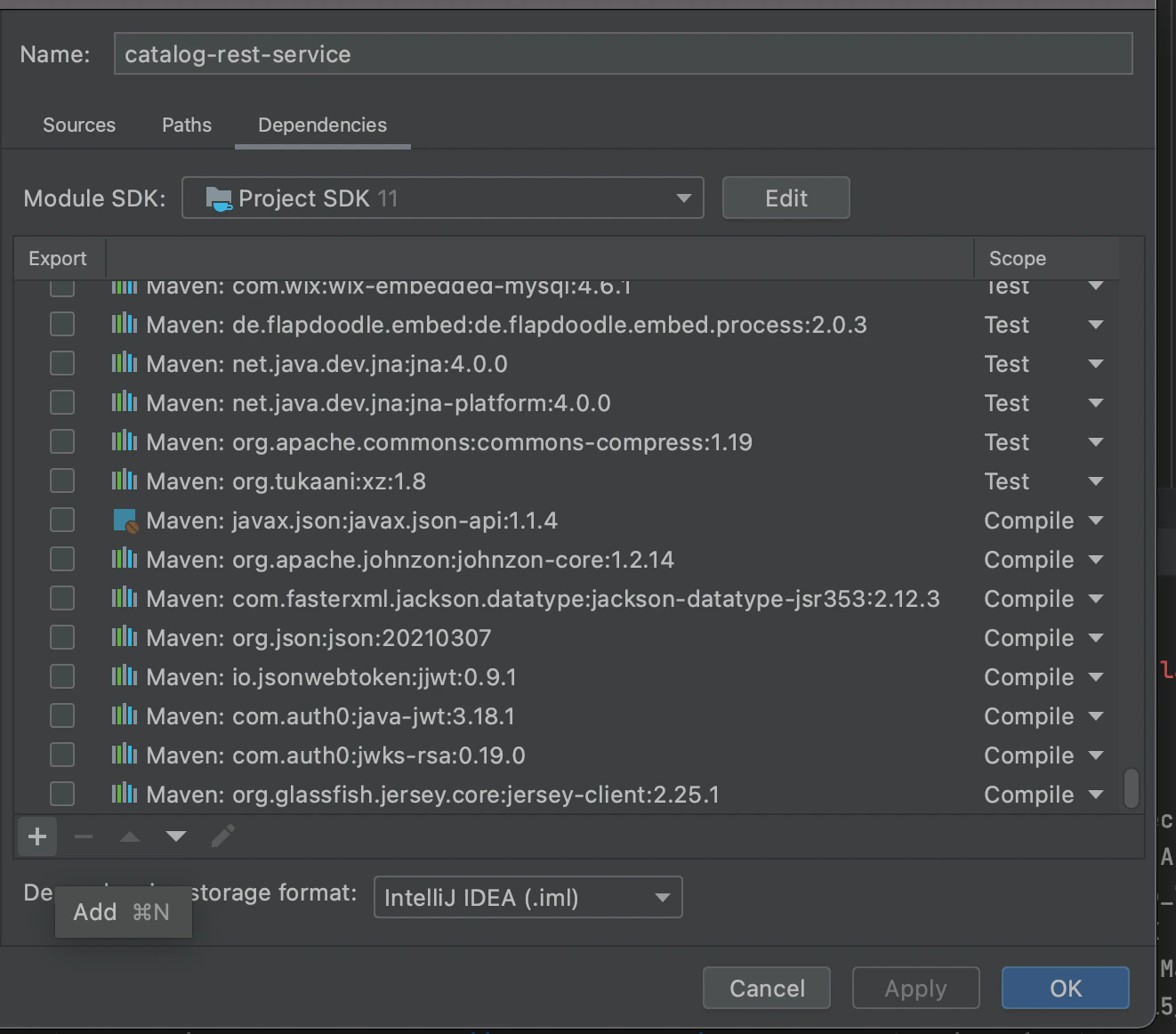 Click on Library
 In that list look for "jersey-client:2.25.1"
 Select it and click "OK".
We also need to set the folder ‘generated-resources’ in some module’s target folder as “source” folder. IntelliJ IDEA mark target folder as "excluded" by default, we could change it in the module setting. The openmetadata-spec and openmetadata-java-client modules have generated code, need to be changed.
Now run/debug the application.
## Load Sample Data into the database
With the OpenMetadata service up and running, run the following commands from the top-level directory
```shell theme={null}
python3 -m venv venv
source venv/bin/activate
make install_dev generate
cd ingestion
pip install -e '.[sample-data, elasticsearch]'
metadata ingest -c ./pipelines/sample_data.json
metadata usage -c ./pipelines/sample_usage.json
```
* You are now ready to explore the app by going to [http://localhost:8585](http://localhost:8585) \*If the web page doesn't work as intended, please take a look at the troubleshooting steps [here](/v1.12.x/developers/contribute/build-code-and-run-tests/openmetadata-server#troubleshooting)
## Troubleshooting
* If you see blank page at [http://localhost:8585](http://localhost:8585), please check the logs at logs/openmetadata.log. You might be encountering one of the following errors:
* `connection refused` or `unreachable` - please confirm that MySQL and ES are reachable outside of docker by running `docker ps` and checking that ports 3306 and 9200 are listening on 0.0.0.0
* If ElasticSearch in Docker on Mac is crashing, try changing Preferences -> Resources -> Memory to 4GB
* If ElasticSearch logs show `high disk watermark [90%] exceeded`, try changing Preferences -> Resources -> Disk Image Size to at least 16GB
* `Public Key Retrieval is not allowed` - verify that the JDBC connect URL in `conf/openmetadata.yaml` is configured with the parameter `allowPublicKeyRetrieval=true `
* Browser console shows javascript errors, try doing a [clean build](/v1.12.x/developers/contribute/build-code-and-run-tests/openmetadata-server#create-a-distribution-packaging). Some npm packages may not have been built properly.
## Coding Style
1. Configure IntelliJ to disable the \[wild-card imports]
([https://www.jetbrains.com/help/idea/creating-and-optimizing-imports.html#disable-wildcard-imports](https://www.jetbrains.com/help/idea/creating-and-optimizing-imports.html#disable-wildcard-imports))
Select it and click "OK".
We also need to set the folder ‘generated-resources’ in some module’s target folder as “source” folder. IntelliJ IDEA mark target folder as "excluded" by default, we could change it in the module setting. The openmetadata-spec and openmetadata-java-client modules have generated code, need to be changed.
Now run/debug the application.
## Load Sample Data into the database
With the OpenMetadata service up and running, run the following commands from the top-level directory
```shell theme={null}
python3 -m venv venv
source venv/bin/activate
make install_dev generate
cd ingestion
pip install -e '.[sample-data, elasticsearch]'
metadata ingest -c ./pipelines/sample_data.json
metadata usage -c ./pipelines/sample_usage.json
```
* You are now ready to explore the app by going to [http://localhost:8585](http://localhost:8585) \*If the web page doesn't work as intended, please take a look at the troubleshooting steps [here](/v1.12.x/developers/contribute/build-code-and-run-tests/openmetadata-server#troubleshooting)
## Troubleshooting
* If you see blank page at [http://localhost:8585](http://localhost:8585), please check the logs at logs/openmetadata.log. You might be encountering one of the following errors:
* `connection refused` or `unreachable` - please confirm that MySQL and ES are reachable outside of docker by running `docker ps` and checking that ports 3306 and 9200 are listening on 0.0.0.0
* If ElasticSearch in Docker on Mac is crashing, try changing Preferences -> Resources -> Memory to 4GB
* If ElasticSearch logs show `high disk watermark [90%] exceeded`, try changing Preferences -> Resources -> Disk Image Size to at least 16GB
* `Public Key Retrieval is not allowed` - verify that the JDBC connect URL in `conf/openmetadata.yaml` is configured with the parameter `allowPublicKeyRetrieval=true `
* Browser console shows javascript errors, try doing a [clean build](/v1.12.x/developers/contribute/build-code-and-run-tests/openmetadata-server#create-a-distribution-packaging). Some npm packages may not have been built properly.
## Coding Style
1. Configure IntelliJ to disable the \[wild-card imports]
([https://www.jetbrains.com/help/idea/creating-and-optimizing-imports.html#disable-wildcard-imports](https://www.jetbrains.com/help/idea/creating-and-optimizing-imports.html#disable-wildcard-imports))