> ## Documentation Index
> Fetch the complete documentation index at: https://docs.open-metadata.org/llms.txt
> Use this file to discover all available pages before exploring further.
# Using Advanced Search
> Use advanced search and filtering to discover data across sources, owners, and business domains with high precision.
# Using Advanced Search
Advanced search gives you precise control over data discovery by letting you build multi-condition queries through a visual query builder—no syntax knowledge needed.
Instead of scrolling through all assets or relying on keyword search, filter by ownership, classification, location, and structure at once, then combine conditions with AND/OR logic to match exactly the assets you're looking for.
## How to Use Advanced Search
To use the advanced search for building complex queries, perform the following steps:
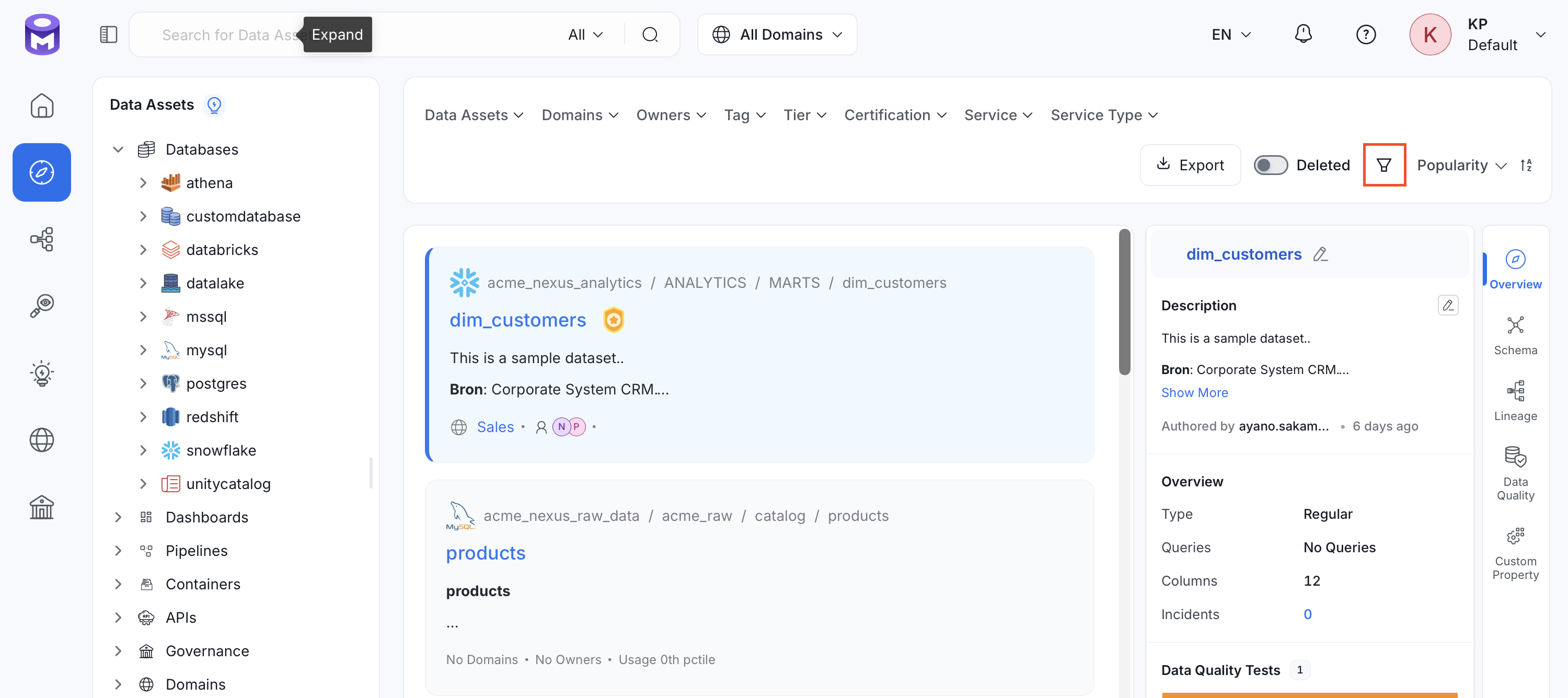
1. On the left navigation pane, select **Explore** and then click the **Advanced Search** icon.
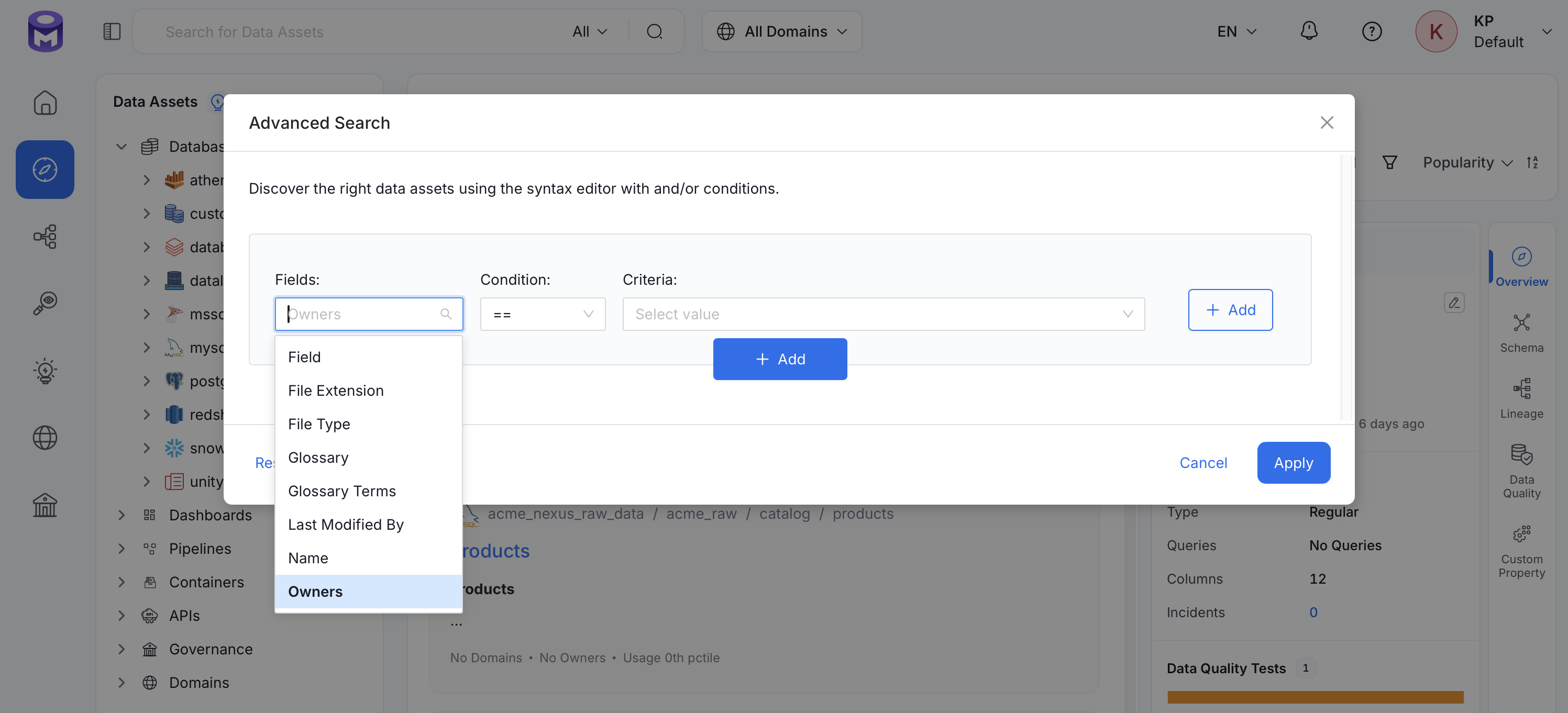
 2. In the query builder, do the following to add one or more conditions:
1. In the **Field** drop-down, select what to search by such as **Deleted**, **Owner**, **Tags**, **Tier**, **Service**, **Database**, **Database Schema**, and others.
2. Select an **Operator** for your query. This defines how search field matches. These are some common operators, but they vary based on the selected Field: **Equal to (==)**, **Not equal to (!=)**, **Any in**, **Not in**, **Contains**, and **Not contain**.
3. In the **Criteria** field, enter the value to match against.
2. In the query builder, do the following to add one or more conditions:
1. In the **Field** drop-down, select what to search by such as **Deleted**, **Owner**, **Tags**, **Tier**, **Service**, **Database**, **Database Schema**, and others.
2. Select an **Operator** for your query. This defines how search field matches. These are some common operators, but they vary based on the selected Field: **Equal to (==)**, **Not equal to (!=)**, **Any in**, **Not in**, **Contains**, and **Not contain**.
3. In the **Criteria** field, enter the value to match against.
 3. (Optional) Click **Add** to add multiple conditions and group the conditions together. Repeat step 2 for each condition.
* Select AND to match assets that meet all conditions, or OR to match assets that meet at least one.
4. Click **Apply**.
### Example
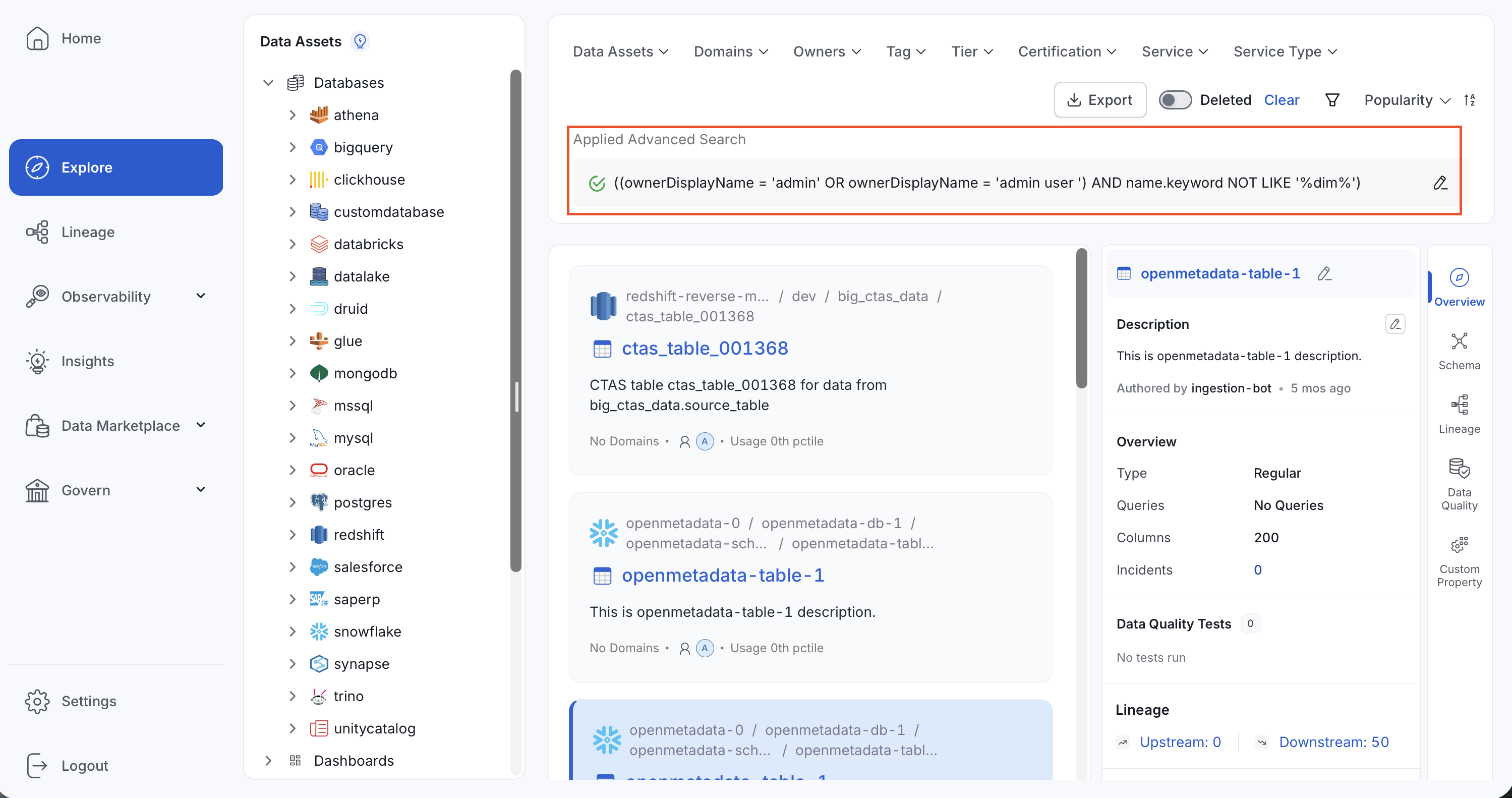
To find all database assets that don’t include “dim” in their name and are owned by either “admin” or “admin user”, follow these steps:
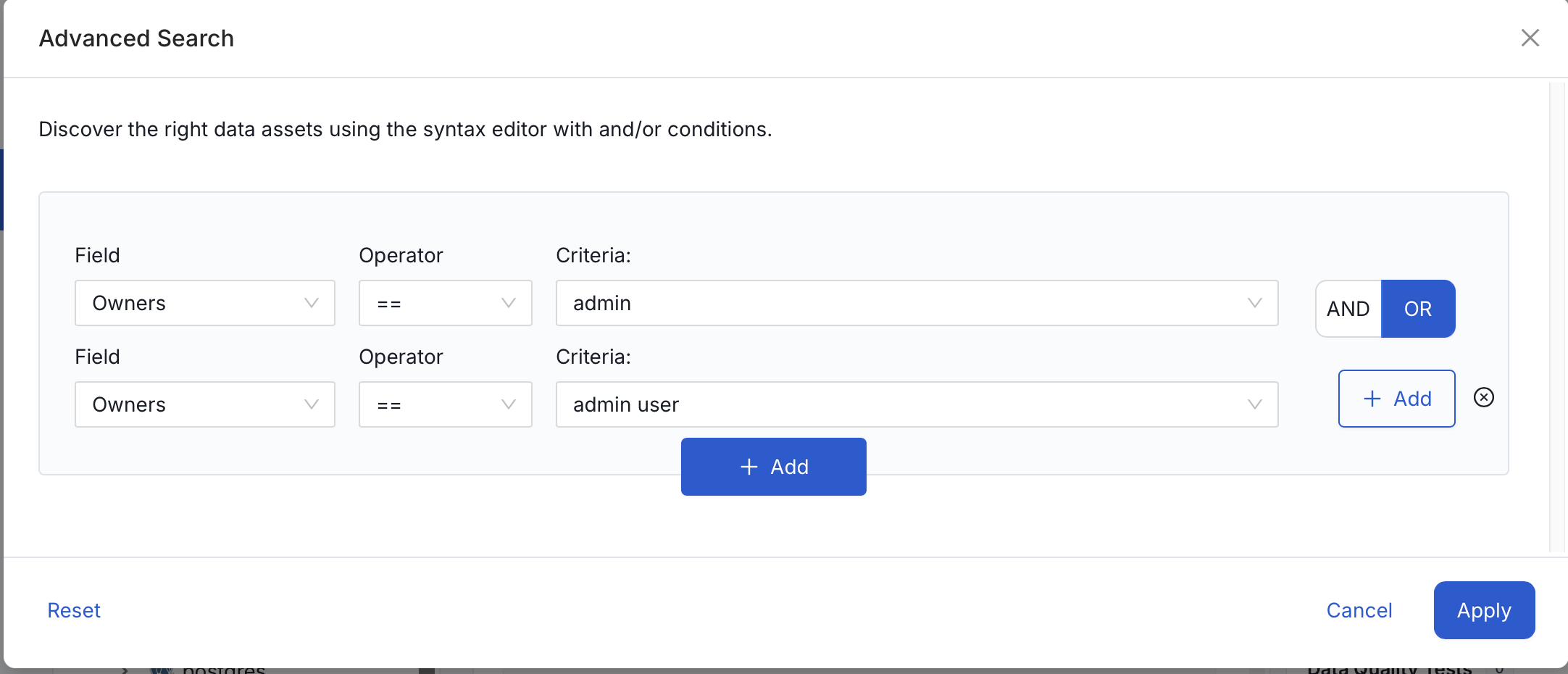
1. Click the **Advanced Search** icon and add the first condition group for the Owner filter:
* Set **Field** to `Owner`, **Operator** to `==`, and **Criteria** to `admin`.
* Click **Add** within the same group to add a second condition. Set **Field** to `Owner`, **Operator** to `==`, and **Criteria** to `admin user`.
* Set the group operator to **OR** so assets owned by either person are matched.
3. (Optional) Click **Add** to add multiple conditions and group the conditions together. Repeat step 2 for each condition.
* Select AND to match assets that meet all conditions, or OR to match assets that meet at least one.
4. Click **Apply**.
### Example
To find all database assets that don’t include “dim” in their name and are owned by either “admin” or “admin user”, follow these steps:
1. Click the **Advanced Search** icon and add the first condition group for the Owner filter:
* Set **Field** to `Owner`, **Operator** to `==`, and **Criteria** to `admin`.
* Click **Add** within the same group to add a second condition. Set **Field** to `Owner`, **Operator** to `==`, and **Criteria** to `admin user`.
* Set the group operator to **OR** so assets owned by either person are matched.
 2. Click **Add** below the first condition group to create a second condition group for the Name filter. Set **Field** to `Name`, **Operator** to `Not contains`, and **Criteria** to `dim`.
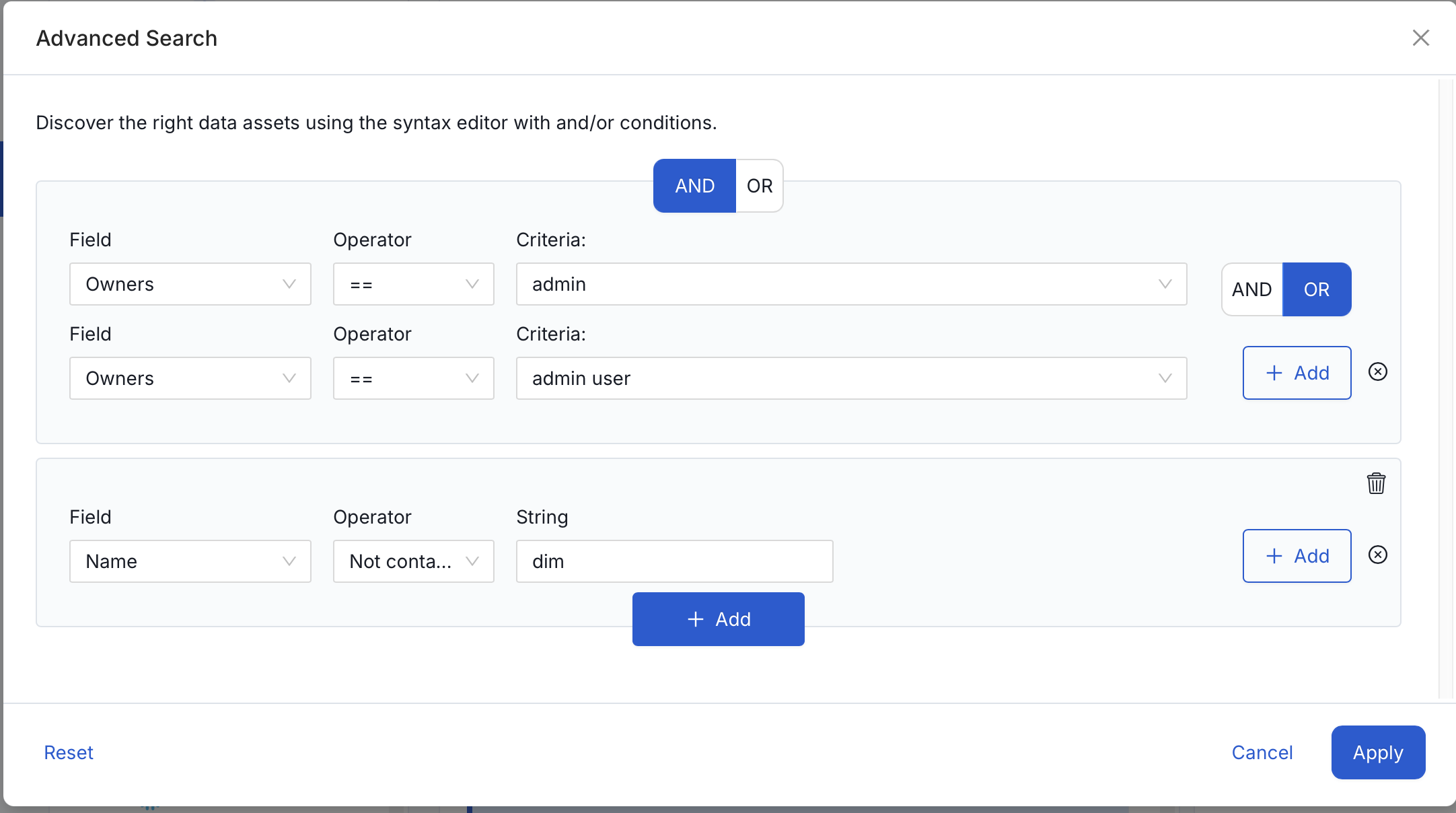 3. Set the group operator between the two groups to **AND** so both conditions must be fulfilled.
4. Select **Apply**.
**Result**: The results should match the following screen.
3. Set the group operator between the two groups to **AND** so both conditions must be fulfilled.
4. Select **Apply**.
**Result**: The results should match the following screen.
 **Custom Properties in Elasticsearch Search**
Elasticsearch doesn't support custom properties in these formats:
* **Time**
* **DateTime**
* Any date formats other than `yyyy-MM-dd`
Make sure custom properties use a supported format before using them as search criteria.
**Custom Properties in Elasticsearch Search**
Elasticsearch doesn't support custom properties in these formats:
* **Time**
* **DateTime**
* Any date formats other than `yyyy-MM-dd`
Make sure custom properties use a supported format before using them as search criteria.