> ## Documentation Index
> Fetch the complete documentation index at: https://docs.open-metadata.org/llms.txt
> Use this file to discover all available pages before exploring further.
# Bulk Export Data Assets via CSV in OpenMetadata
> Learn to bulk export database services, databases, schemas, and tables in OpenMetadata as CSV files using the UI or API.
# Export Data Asset
Exporting a Data Asset is simple. Below are the steps to bulk export various data assets, such as Database Services, Databases, Schemas, and Tables.
## How to Bulk Export a Database Service
1. Navigate to the Database Service you want to export by going to **Settings > Services > Database**.
2. For this example, we are exporting in the `Snowflake` service.
3. Click on the **⋮** icon and select **Export** to download the Database Service CSV file.
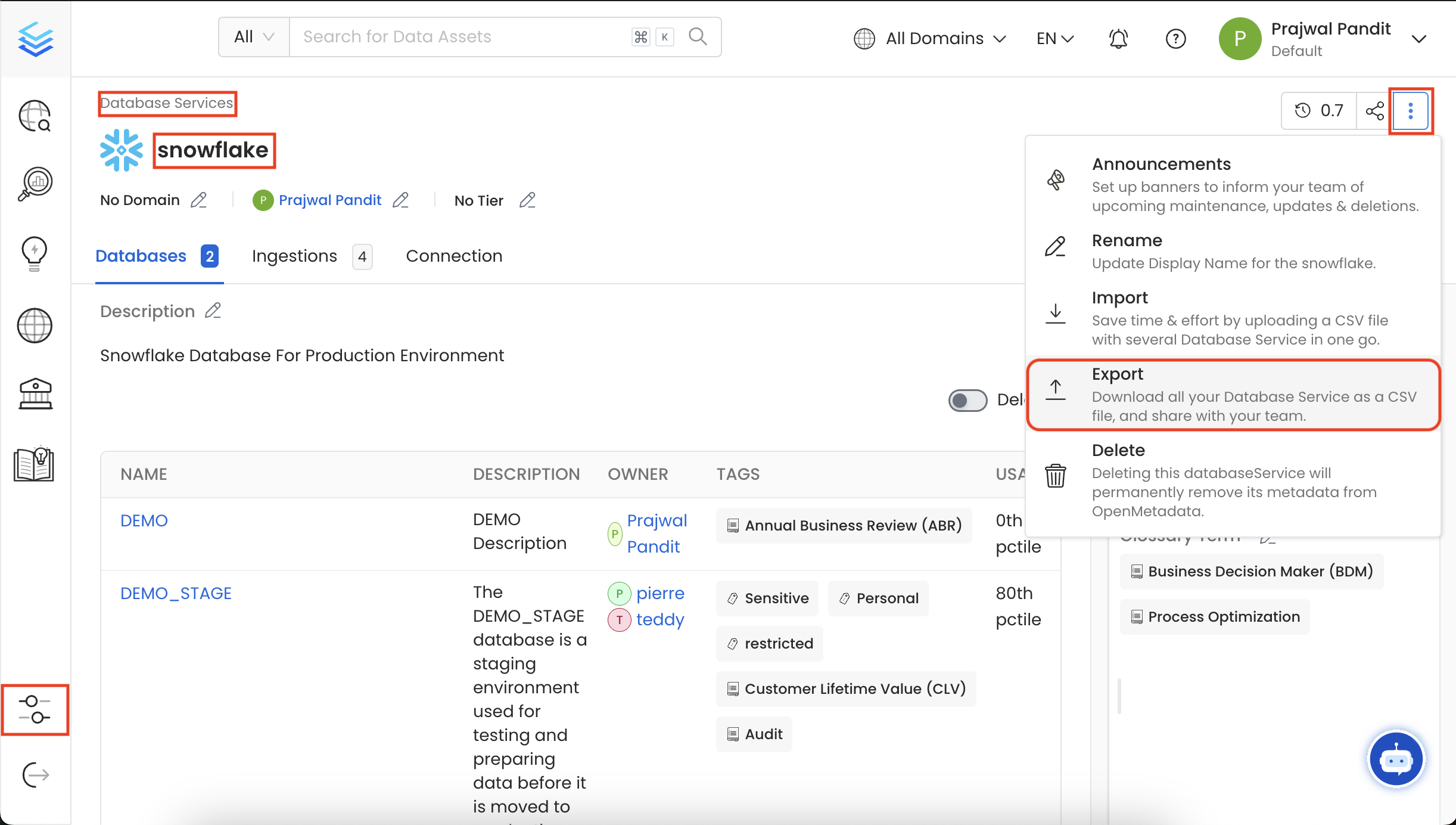 You can also export the Database Service using the API with the following endpoint:
`/api/v1/services/databaseServices/name/{name}/export`
Make sure to replace `{name}` with the Fully Qualified Name (FQN) of the Database Service.
## How to Bulk Export a Database
1. In this example, we are exporting in the `DEMO` database under **Snowflake**.
2. Click on the **⋮** icon and select **Export** to download the Database CSV file.
You can also export the Database Service using the API with the following endpoint:
`/api/v1/services/databaseServices/name/{name}/export`
Make sure to replace `{name}` with the Fully Qualified Name (FQN) of the Database Service.
## How to Bulk Export a Database
1. In this example, we are exporting in the `DEMO` database under **Snowflake**.
2. Click on the **⋮** icon and select **Export** to download the Database CSV file.
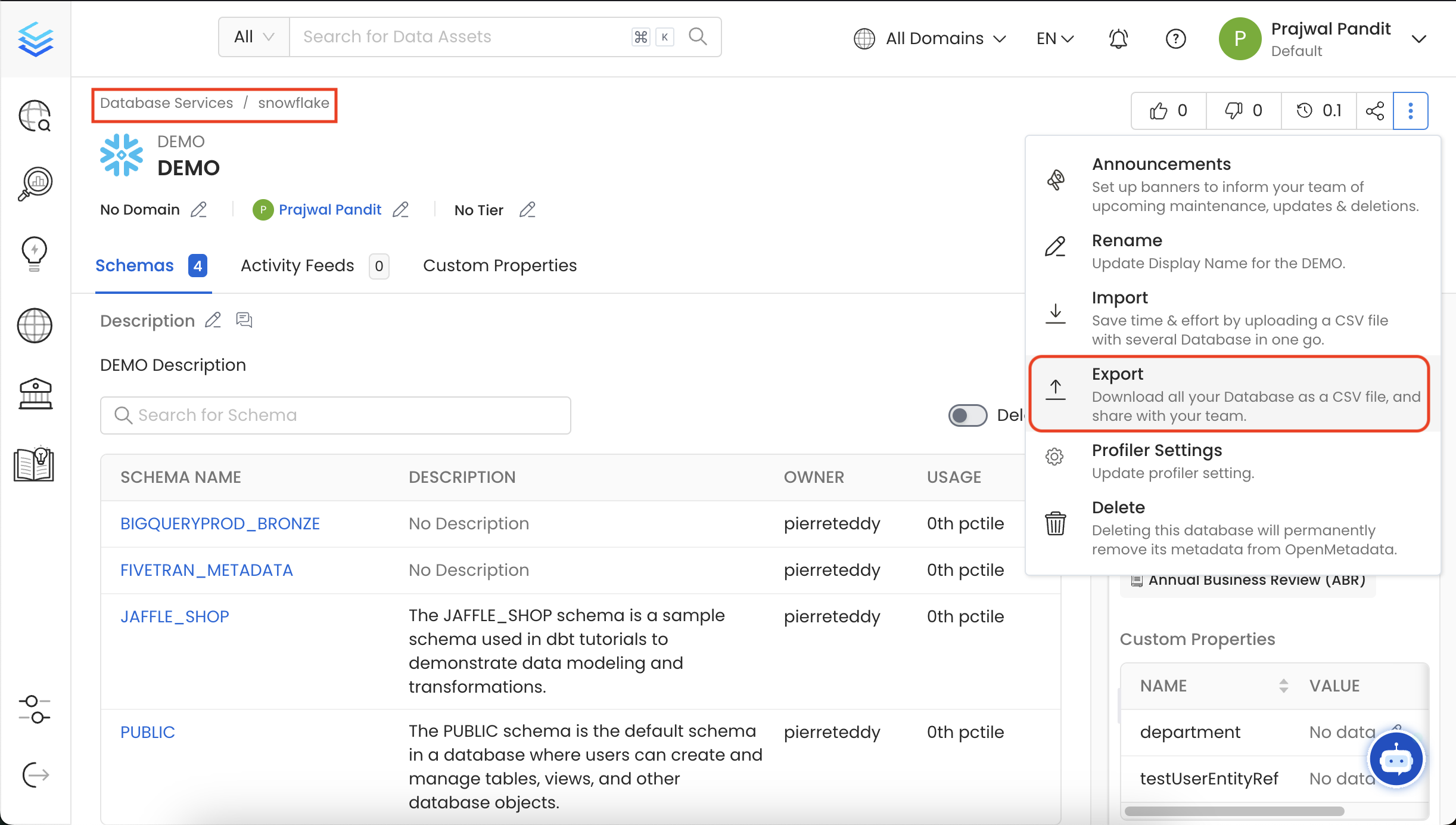 You can also export the Database using the API with the following endpoint:
`/api/v1/databases/name/{name}/export`
Make sure to replace `{name}` with the Fully Qualified Name (FQN) of the Database.
## How to Bulk Export a Database Schema
1. In this example, we are exporting in the `JAFFLE_SHOP` schema under **Snowflake > DEMO**.
2. Click on the **⋮** icon and select **Export** to download the Database Schema CSV file.
You can also export the Database using the API with the following endpoint:
`/api/v1/databases/name/{name}/export`
Make sure to replace `{name}` with the Fully Qualified Name (FQN) of the Database.
## How to Bulk Export a Database Schema
1. In this example, we are exporting in the `JAFFLE_SHOP` schema under **Snowflake > DEMO**.
2. Click on the **⋮** icon and select **Export** to download the Database Schema CSV file.
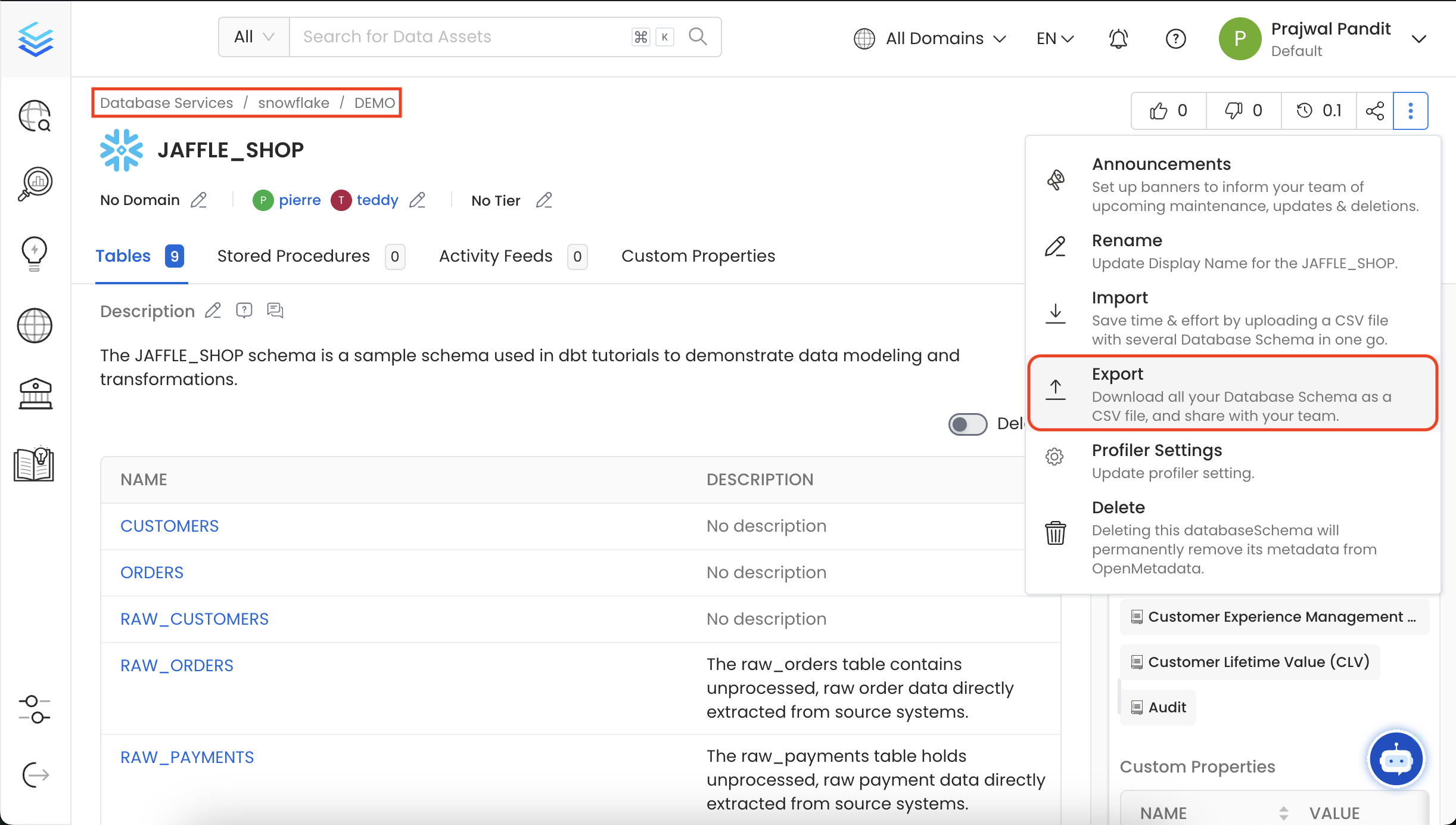 You can also export the Database Schema using the API with the following endpoint:
`/api/v1/databaseSchemas/name/{name}/export`
Make sure to replace `{name}` with the Fully Qualified Name (FQN) of the Database Schema.
## How to Bulk Export a Tables
1. In this example, we are exporting in the `CUSTOMERS` table under **Snowflake > DEMO > JAFFLE\_SHOP**.
2. Click on the **⋮** icon and select **Export** to download the Table CSV file.
You can also export the Database Schema using the API with the following endpoint:
`/api/v1/databaseSchemas/name/{name}/export`
Make sure to replace `{name}` with the Fully Qualified Name (FQN) of the Database Schema.
## How to Bulk Export a Tables
1. In this example, we are exporting in the `CUSTOMERS` table under **Snowflake > DEMO > JAFFLE\_SHOP**.
2. Click on the **⋮** icon and select **Export** to download the Table CSV file.
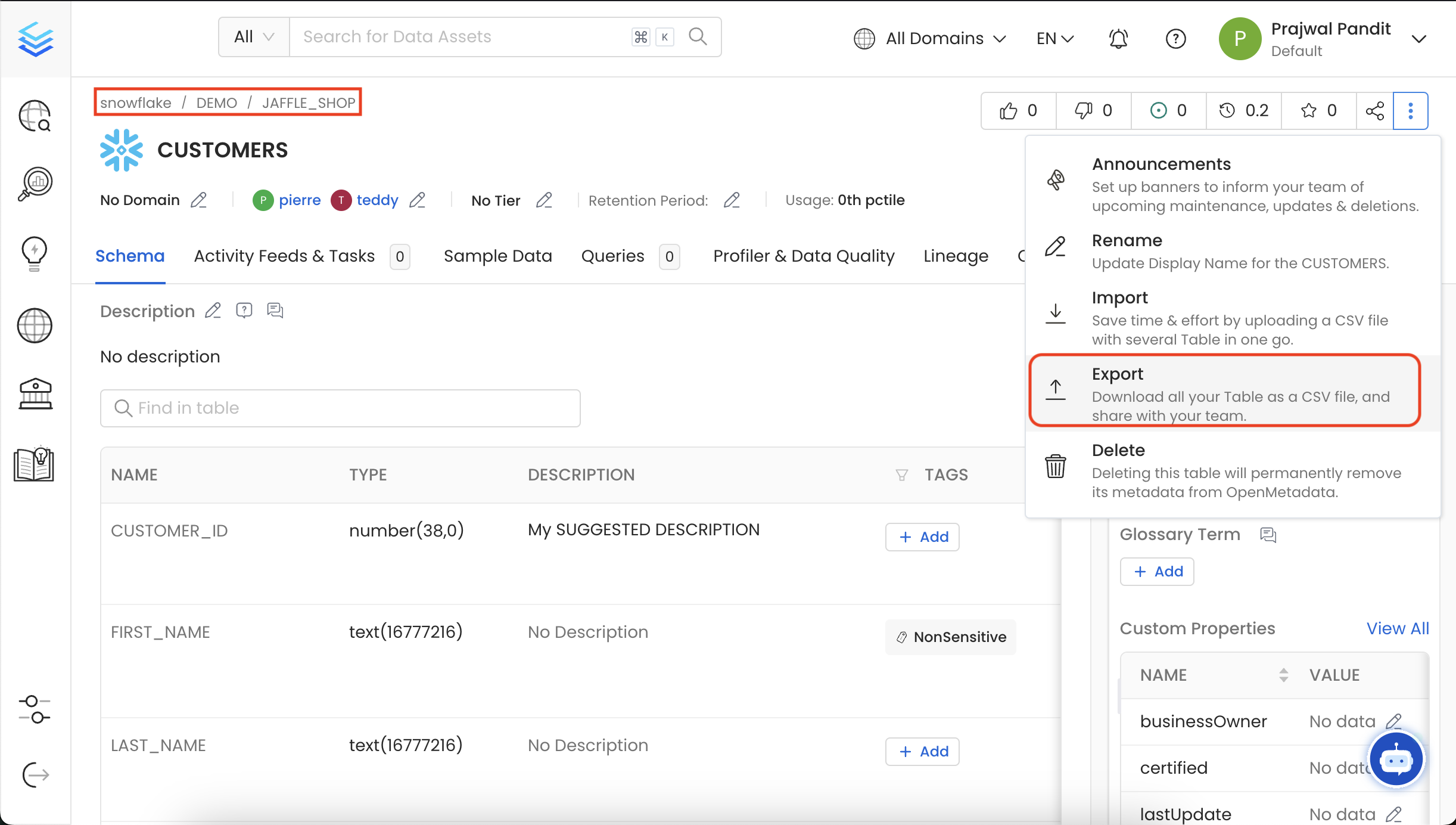 You can also export the Tables using the API with the following endpoint:
`/api/v1/tables/name/{name}/export`
Make sure to replace `{name}` with the Fully Qualified Name (FQN) of the Table.
Quickly import a data assets as a CSV file.
You can also export the Tables using the API with the following endpoint:
`/api/v1/tables/name/{name}/export`
Make sure to replace `{name}` with the Fully Qualified Name (FQN) of the Table.
Quickly import a data assets as a CSV file.