> ## Documentation Index
> Fetch the complete documentation index at: https://docs.open-metadata.org/llms.txt
> Use this file to discover all available pages before exploring further.
# Set Up Data Insights Ingestion | Official Documentation
> Monitor ingestion metrics, failures, and progress from scheduled and triggered ingestion workflows.
# Set Up Data Insights Ingestion
Admin users can set up a data insights ingestion pipeline right from the OpenMetadata UI.
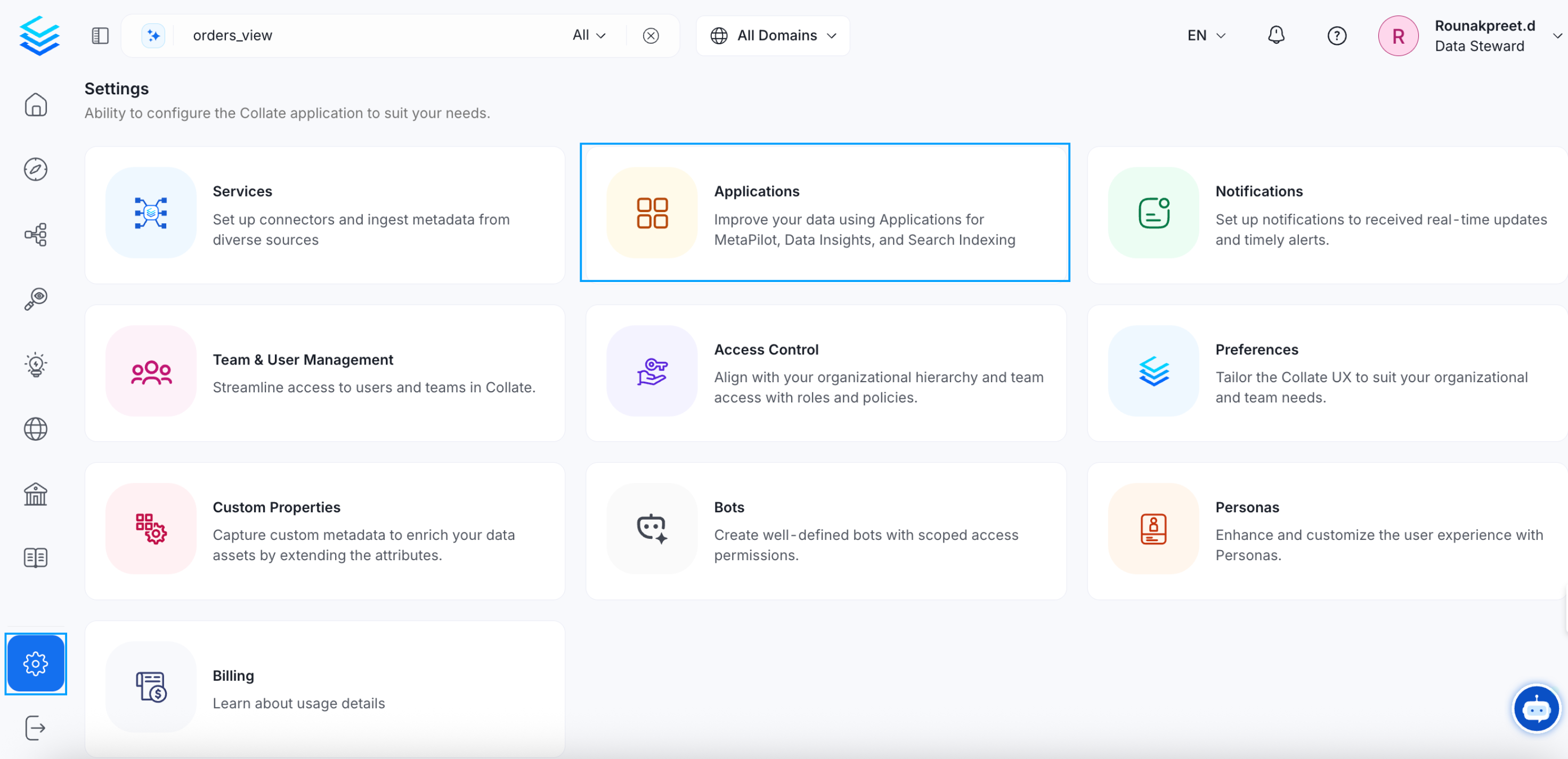
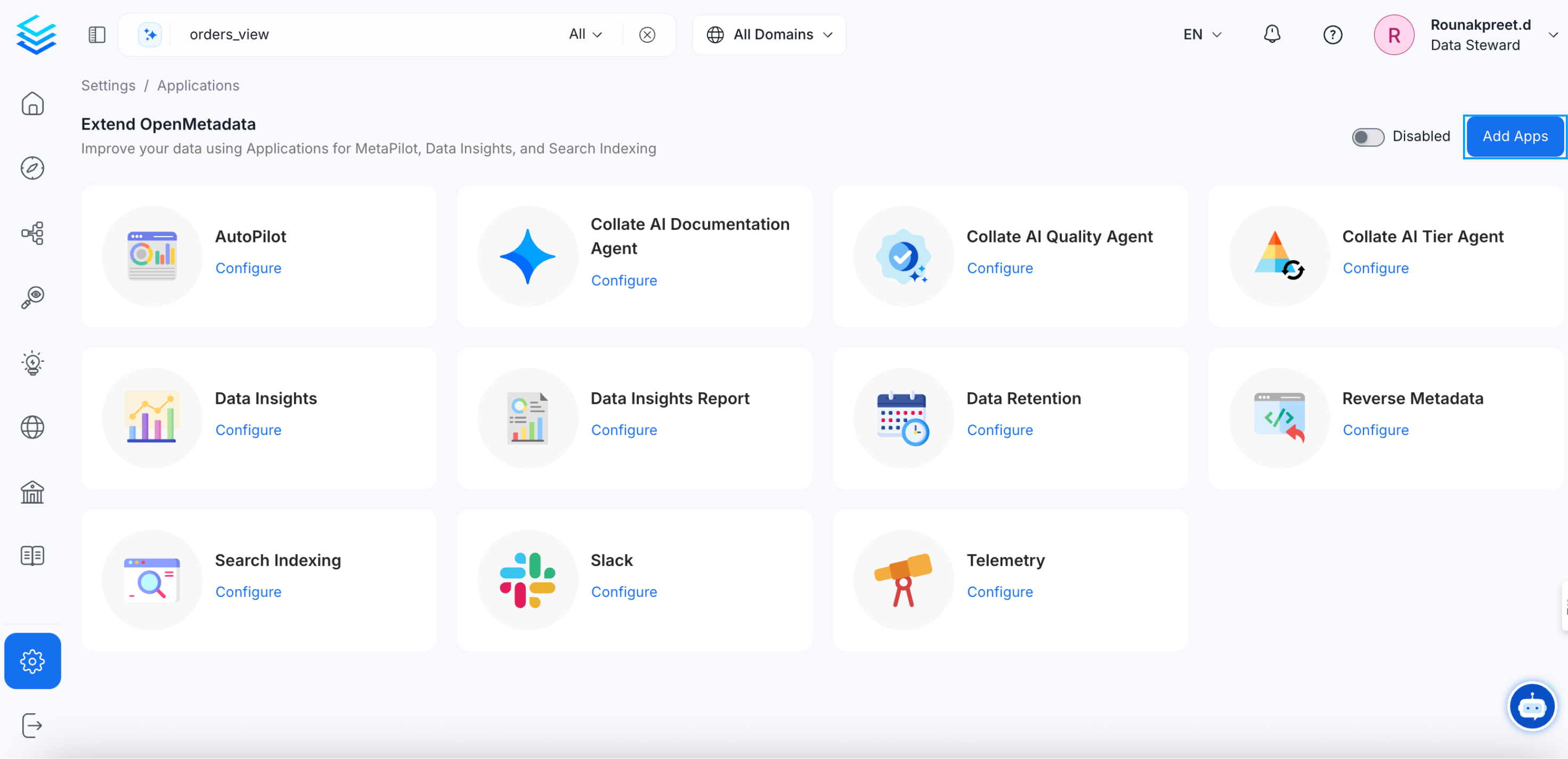
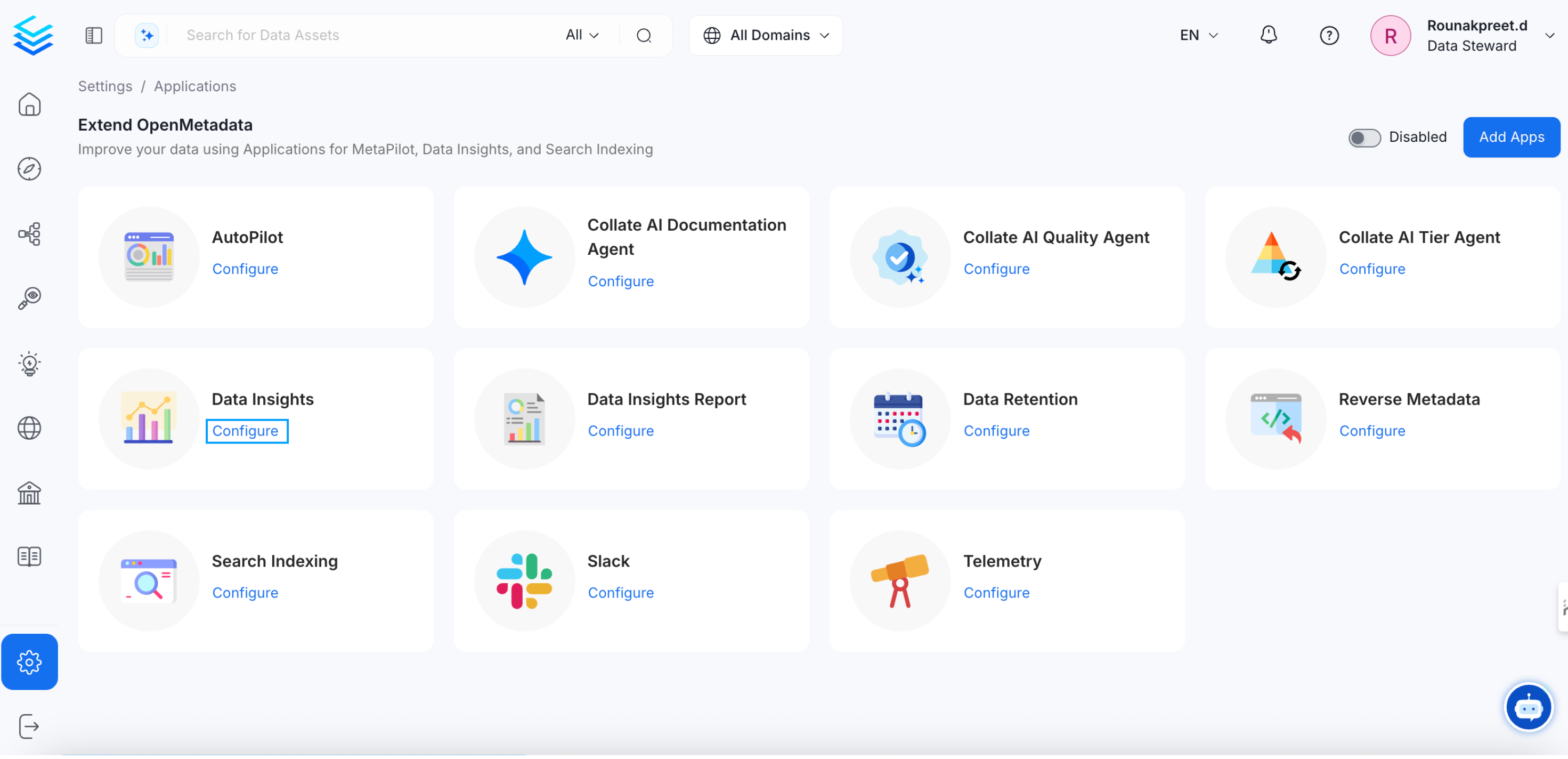
* Navigate to **Settings >> Applications**. If the data insights application does not show up, click on **Add Apps**
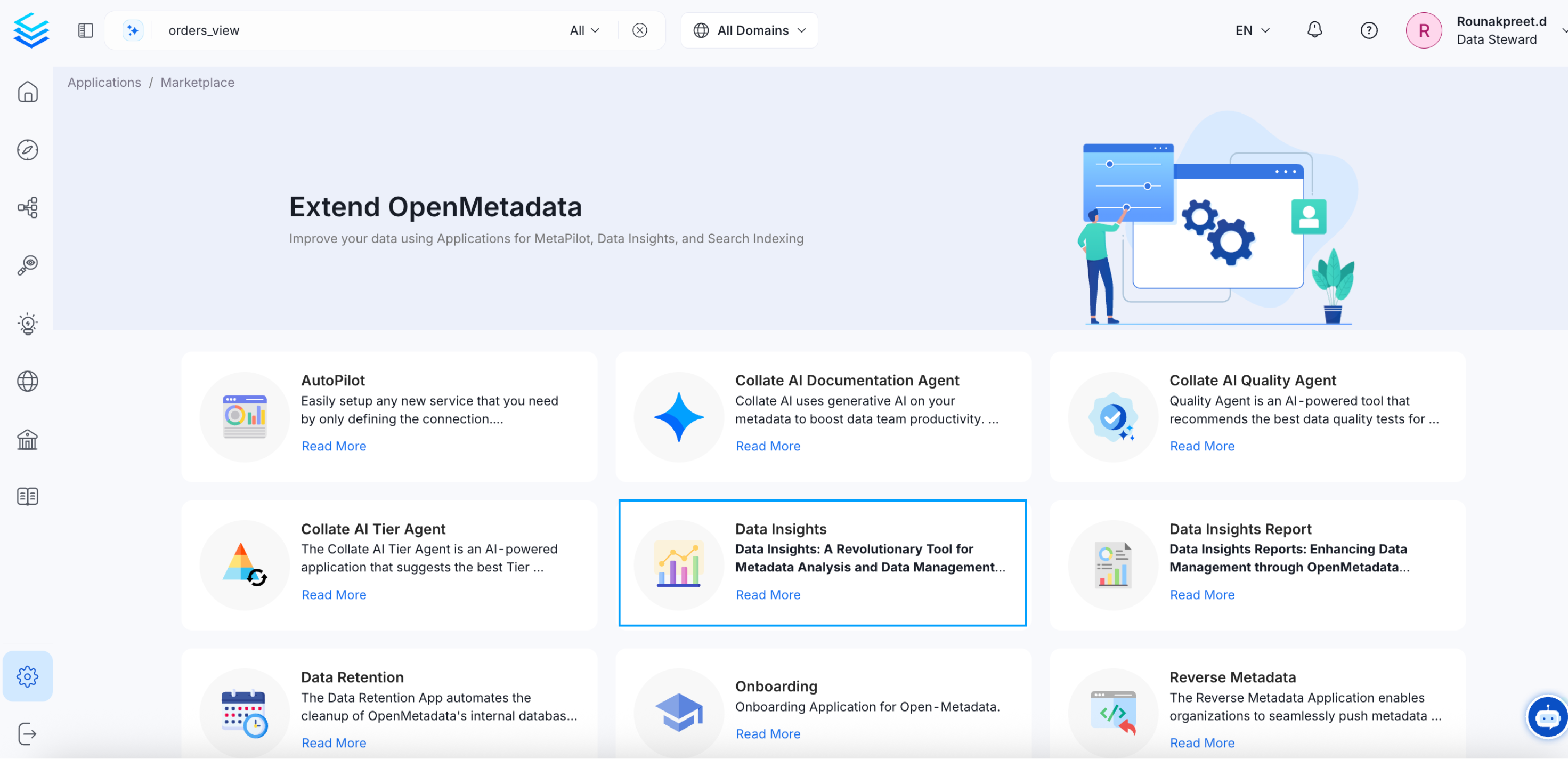
 * Click on read more for **Data Insights** application.
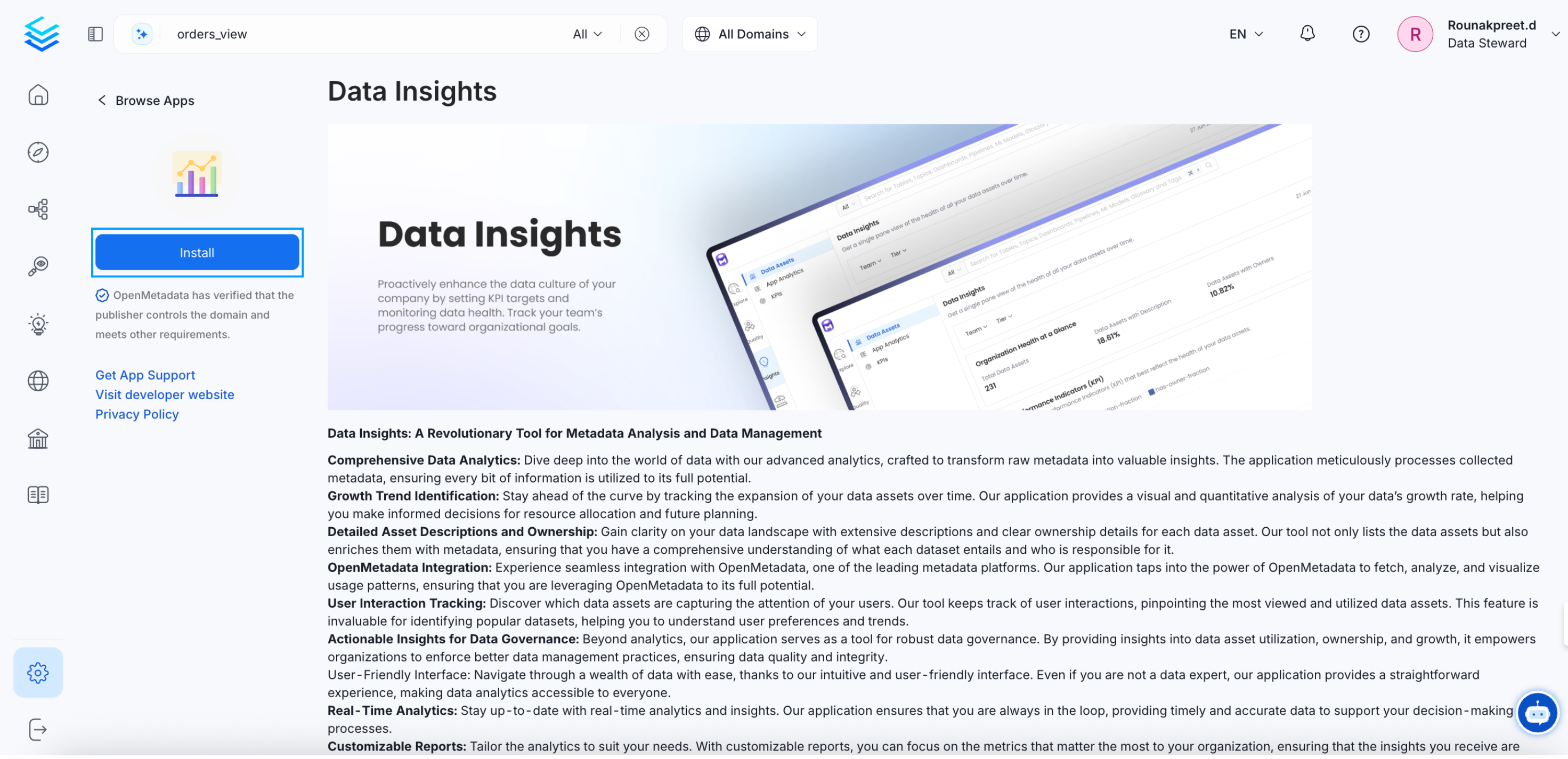
 * Install the Data Insights application.
 * Click on **Configure** to adjust the **batch size** and other settings according to your specific requirements. To authorize the Data Insights app, proceed by clicking on **Schedule**.
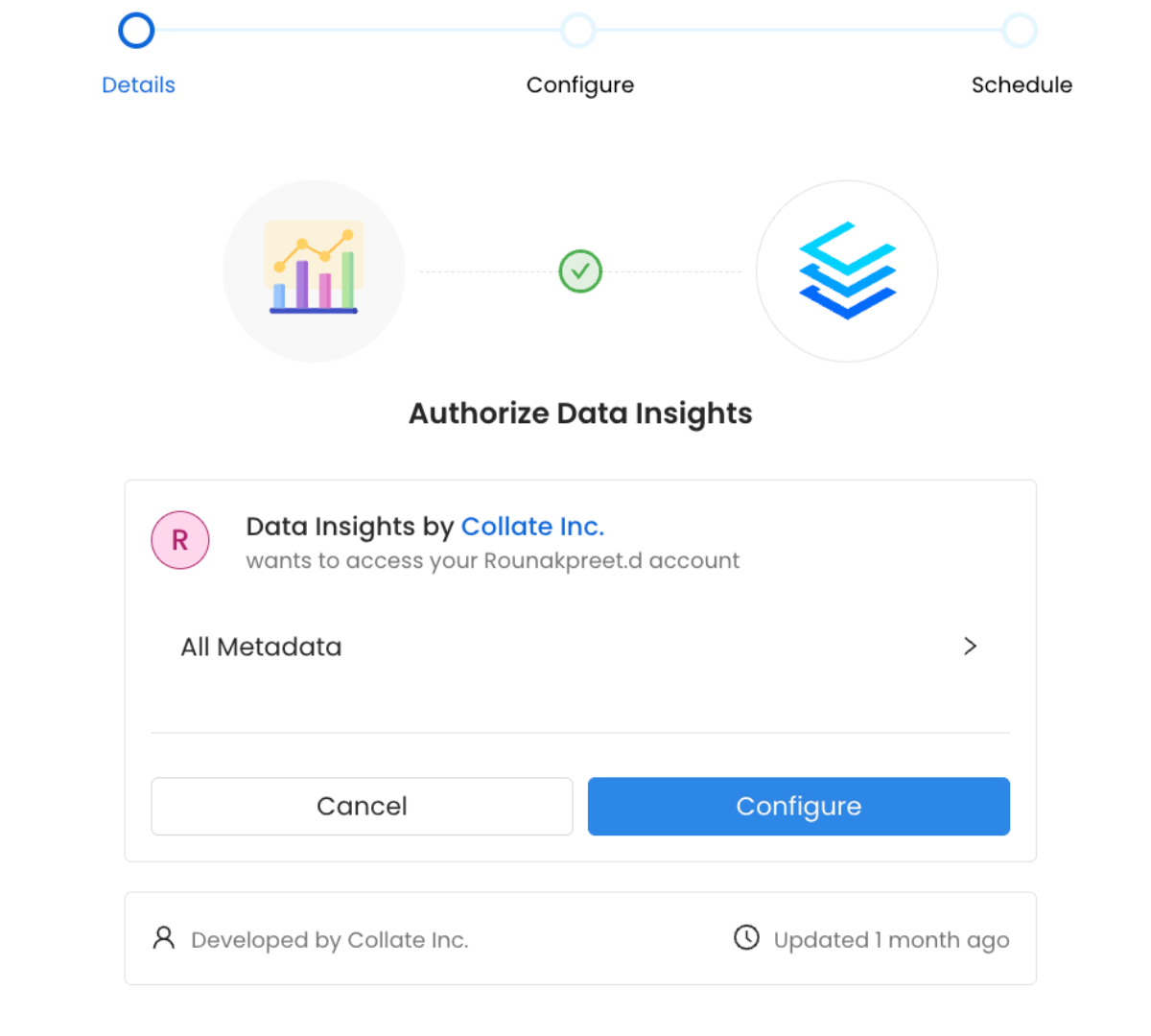
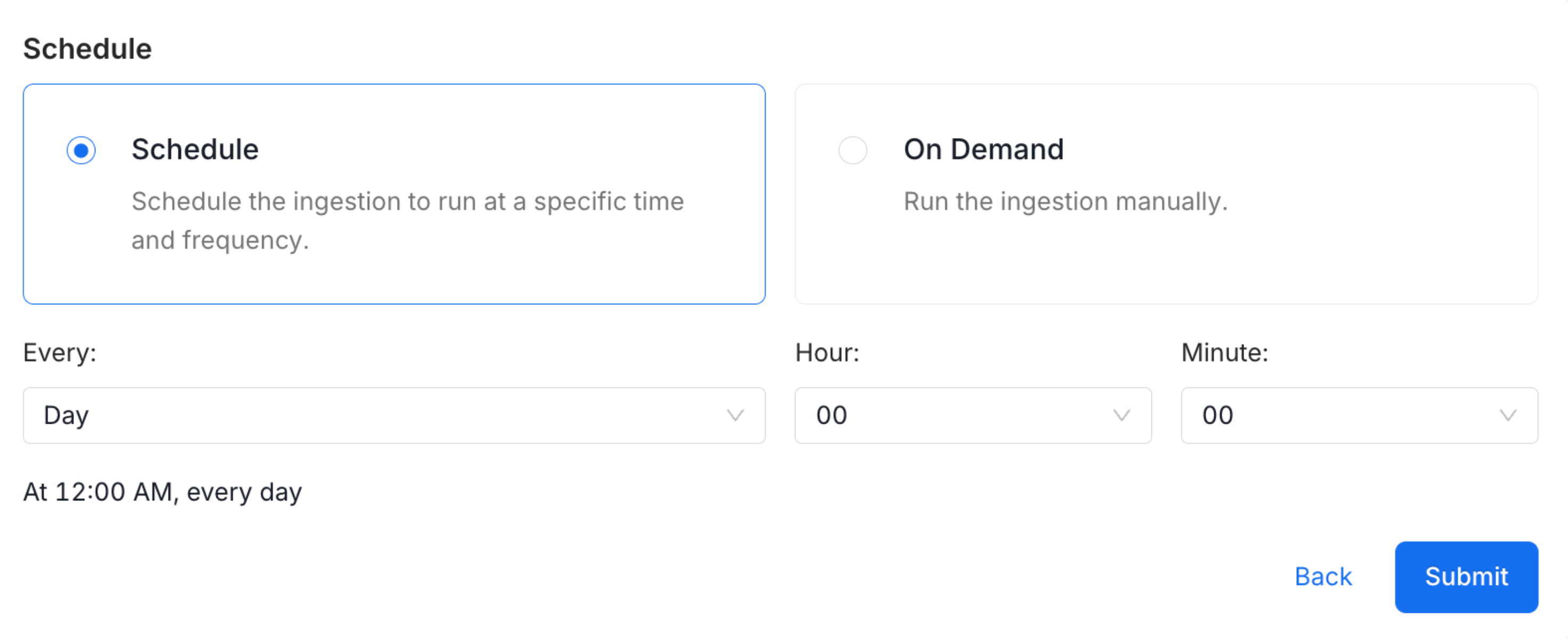
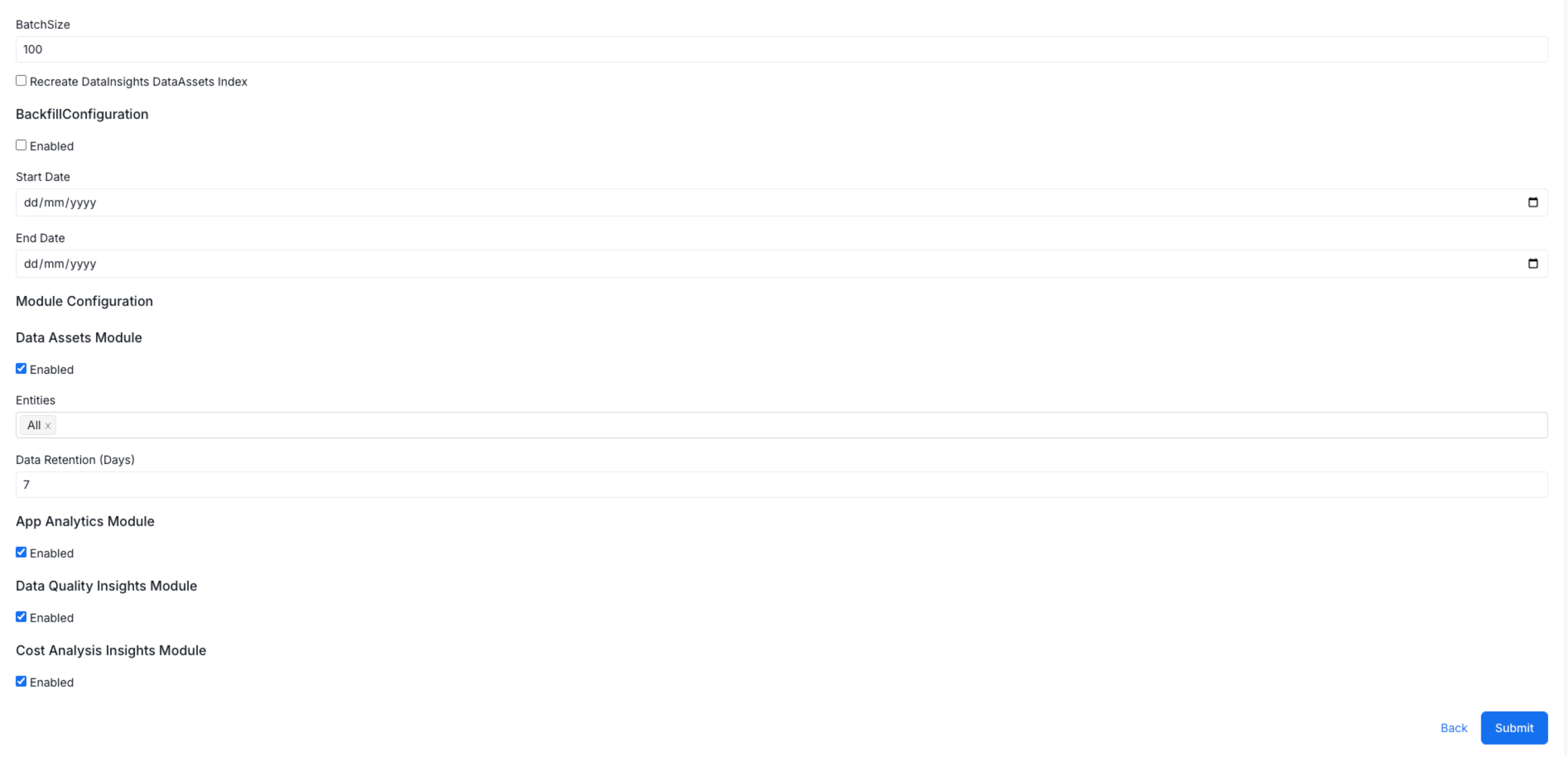 * Choose a schedule execution time for your workflow. The schedule time is displayed in UTC. We recommend running this workflow overnight or when activity on the platform is at its lowest to ensure accurate data. It is scheduled to run daily. Click on **Submit**.
 This will successfully install the Data Insights application. Click on **Configure** to view the details.
 * Click on **Run now** to setup the ingestion pipeline.
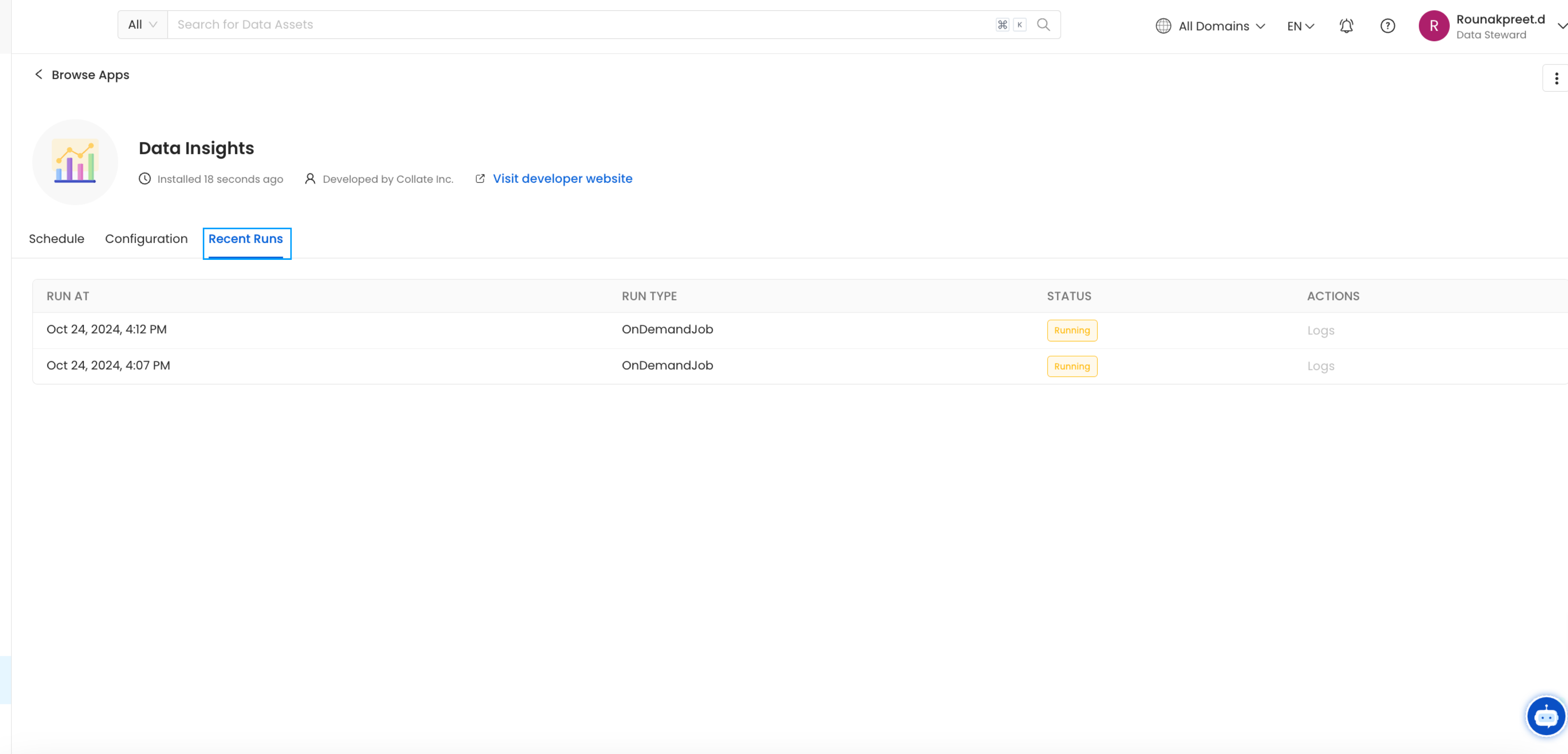
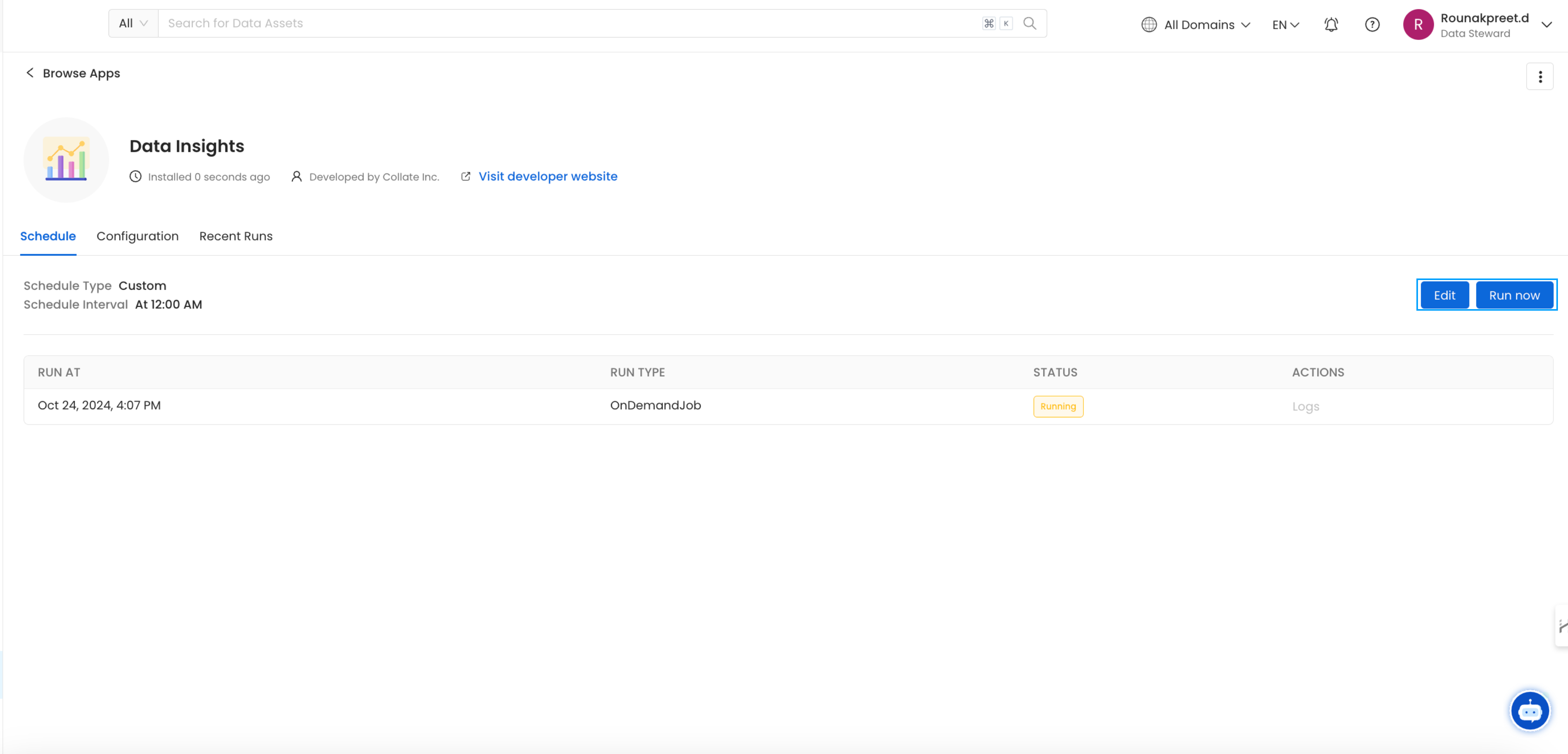 * You can also **Edit** the ingestion schedule. The ingestion pipeline can also be run on demand by again clicking on **Run now**. You can view the **Recent Runs** tab for details on when the ingestion was last run.
 Navigate to the Insights page. You should see your [Data Insights Reports](/v1.12.x/how-to-guides/data-insights/report). Note that if you have just deployed OpenMetadata, App Analytics data might not be present. App Analytics data is fetched from the previous day (UTC).
Define the KPIs and set goals for documentation, and ownership.
Navigate to the Insights page. You should see your [Data Insights Reports](/v1.12.x/how-to-guides/data-insights/report). Note that if you have just deployed OpenMetadata, App Analytics data might not be present. App Analytics data is fetched from the previous day (UTC).
Define the KPIs and set goals for documentation, and ownership.