> ## Documentation Index
> Fetch the complete documentation index at: https://docs.open-metadata.org/llms.txt
> Use this file to discover all available pages before exploring further.
# Data Observability Alerts | OpenMetadata
> Configure alerts for data quality failures, schema changes, and pipeline issues.
# Data Observability Alerts
Monitor the health of your data systems by setting up alerts for pipeline failures, data quality issues, and schema changes.
## Open the Alerts Page
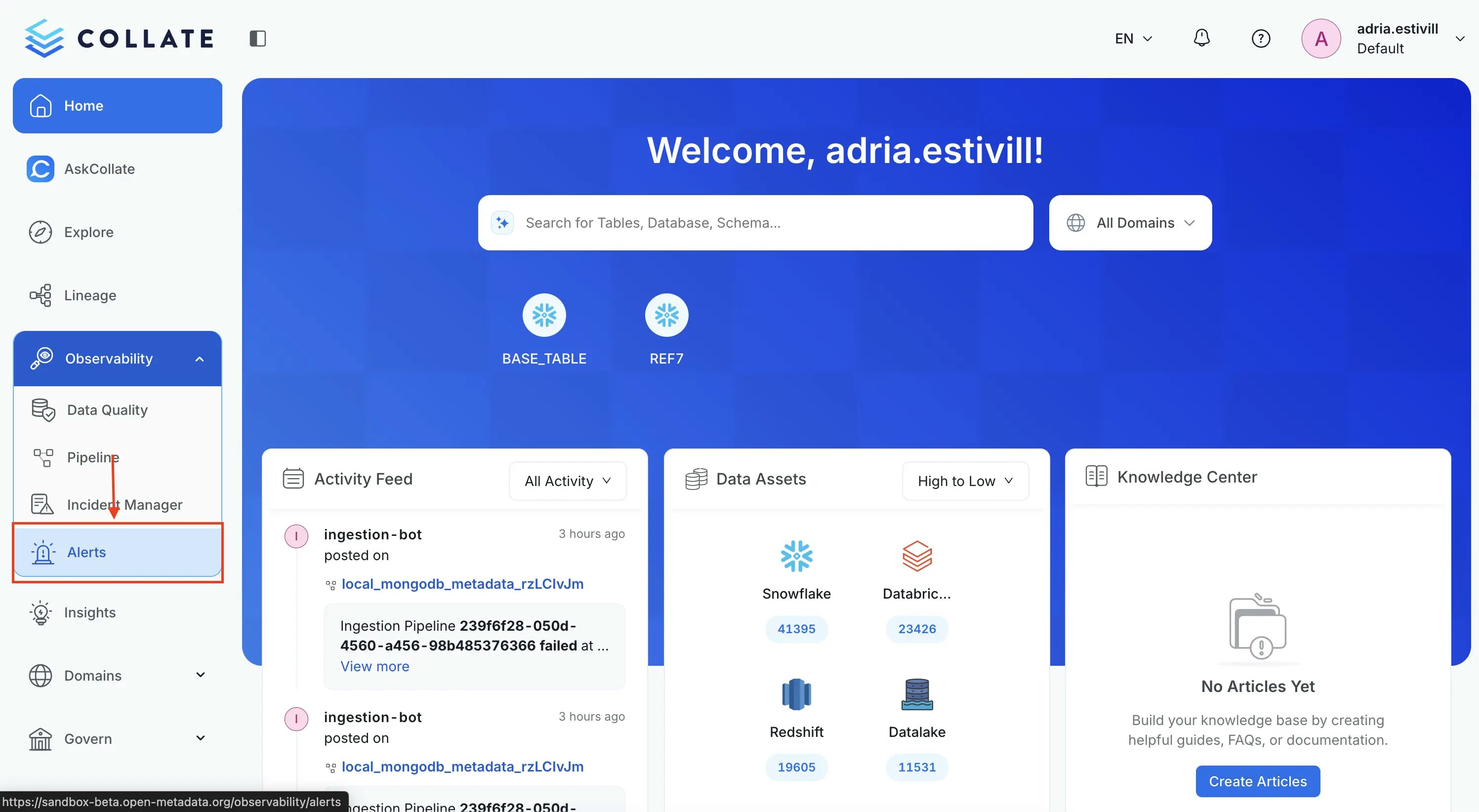
Navigate to the lateral menu **Observability > Alerts**.
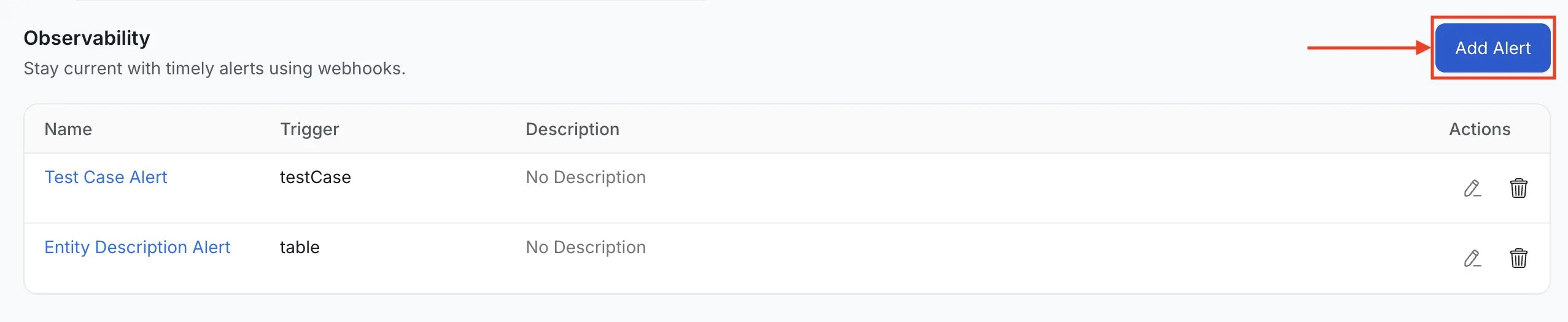
 Click the **Add Alert** button.
 ## Name the Alert and Add Context
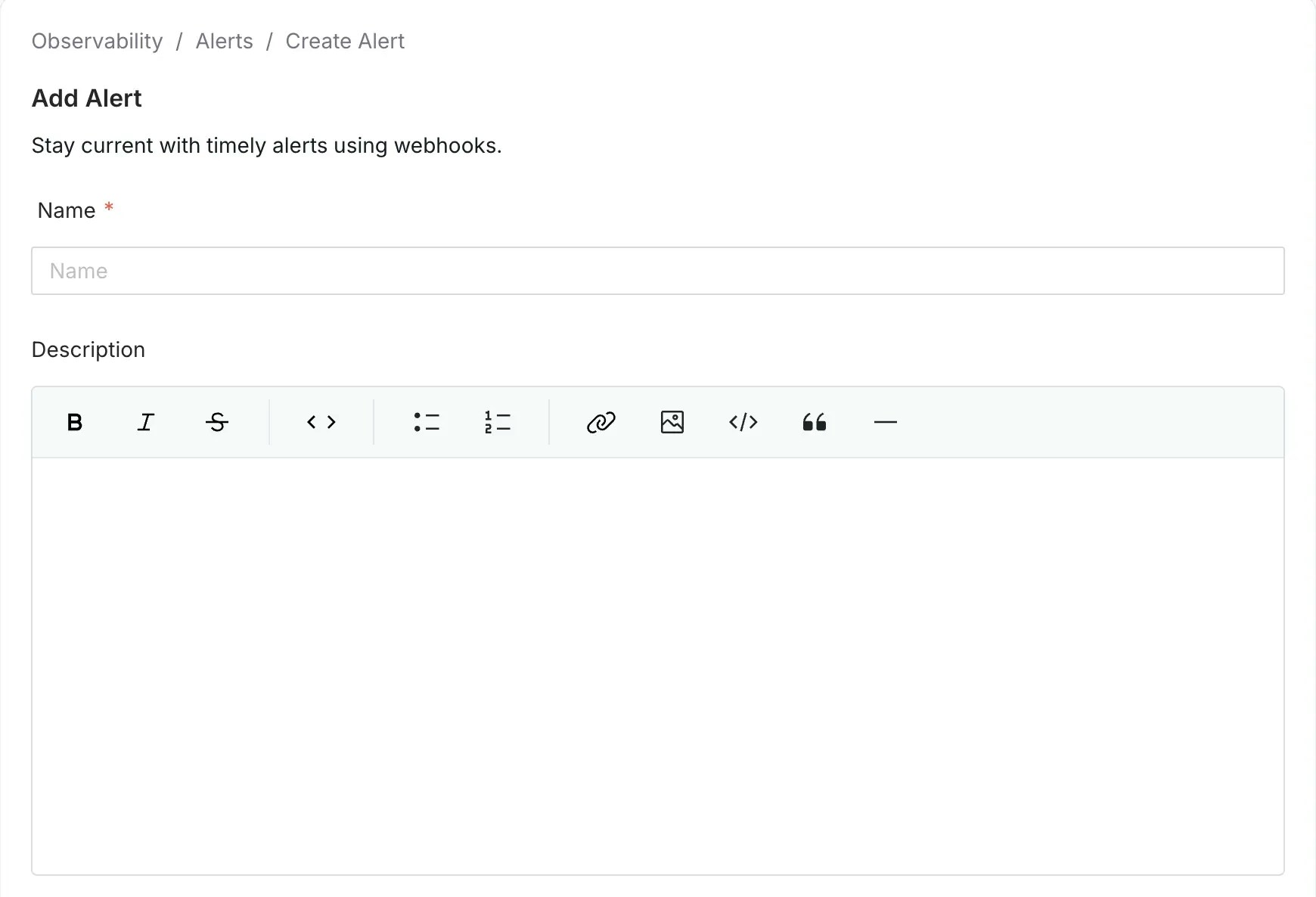
Provide a unique, descriptive **Name** for your alert. You can also add an optional **Description** to provide further context and clarity regarding the alert's intent.
## Name the Alert and Add Context
Provide a unique, descriptive **Name** for your alert. You can also add an optional **Description** to provide further context and clarity regarding the alert's intent.
 ## Select a Source
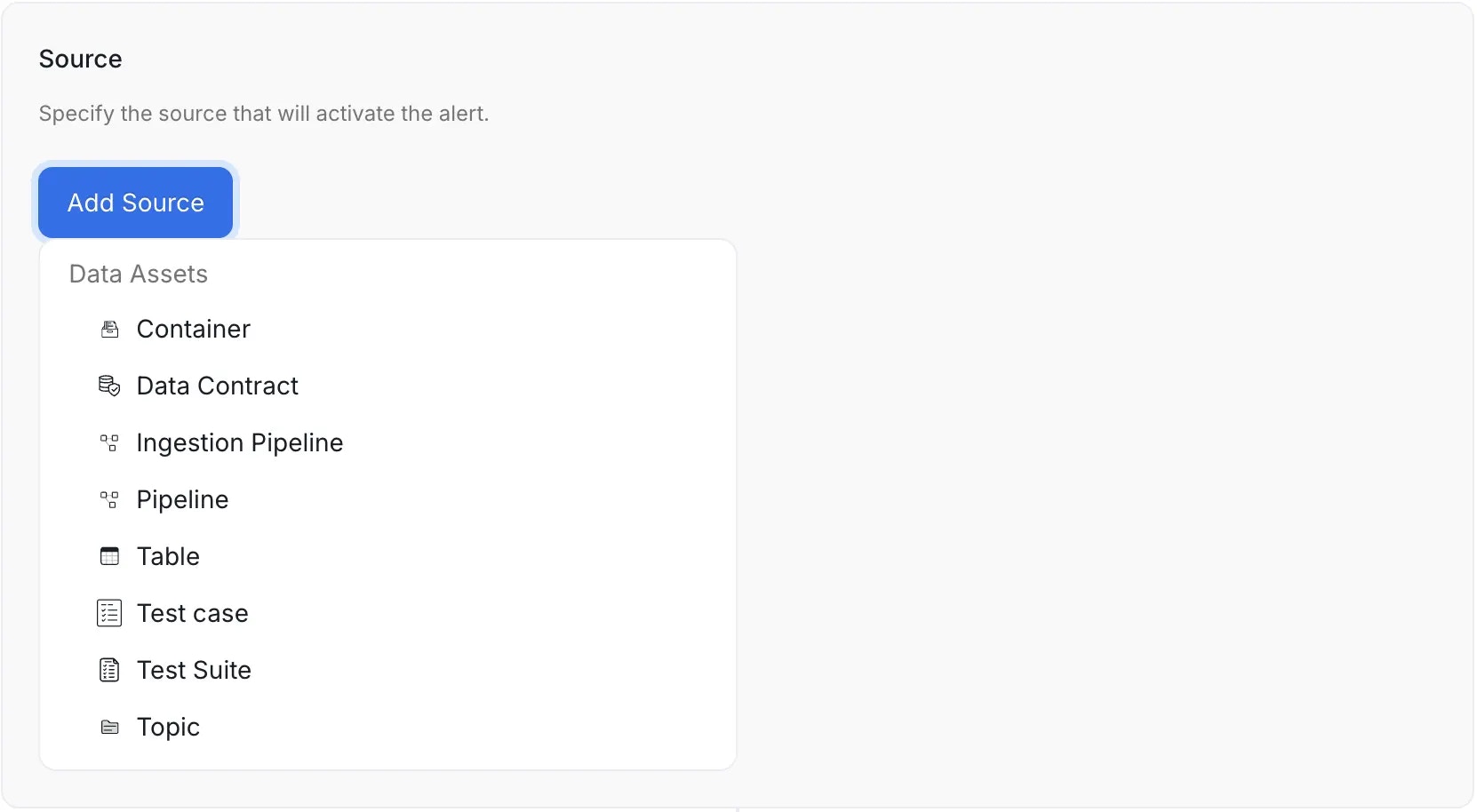
Choose the operational entity you want to monitor:
* **Container** - Monitors schema changes for the container asset
* **Ingestion Pipeline** - Monitors status changes to your OpenMetadata ingestion pipelines
* **Pipeline** - Monitors updates to pipeline assets that you have ingested
* **Table** - Monitors schema changes and table metrics changes
* **Test Case** - Triggers an alert for the specific test case selected
* **Test Suite** - Triggers an alert for any test case event linked to the test suite. This is a great way to group alerts and reduce notification fatigue
* **Topic** - Monitors schema changes for the topic asset
## Select a Source
Choose the operational entity you want to monitor:
* **Container** - Monitors schema changes for the container asset
* **Ingestion Pipeline** - Monitors status changes to your OpenMetadata ingestion pipelines
* **Pipeline** - Monitors updates to pipeline assets that you have ingested
* **Table** - Monitors schema changes and table metrics changes
* **Test Case** - Triggers an alert for the specific test case selected
* **Test Suite** - Triggers an alert for any test case event linked to the test suite. This is a great way to group alerts and reduce notification fatigue
* **Topic** - Monitors schema changes for the topic asset
 ## Configure Filters (Optional)
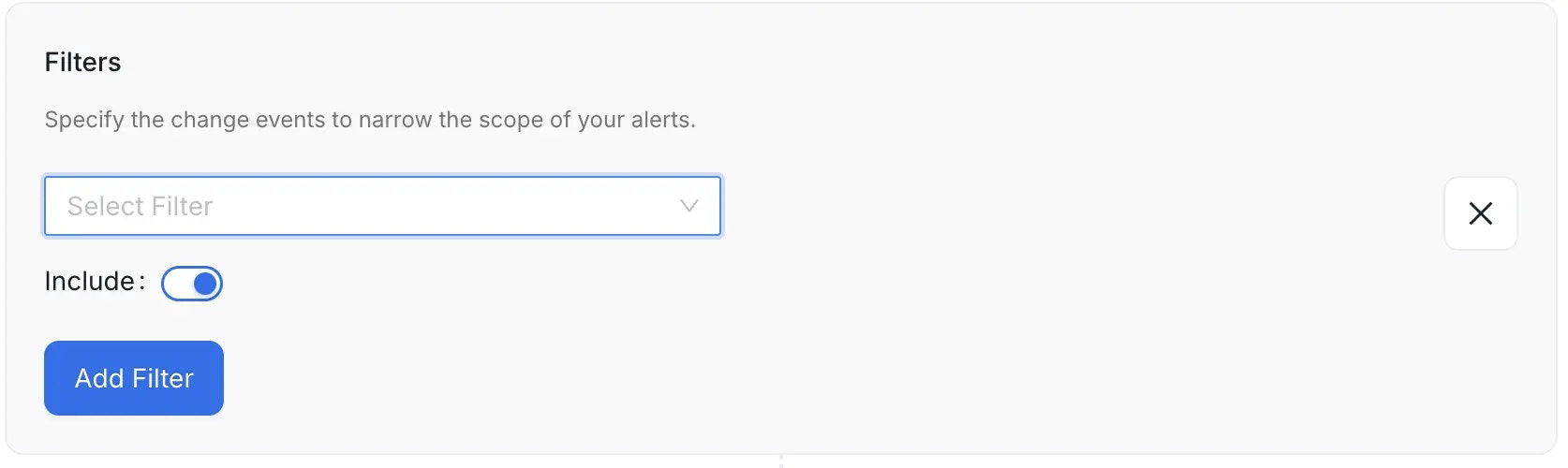
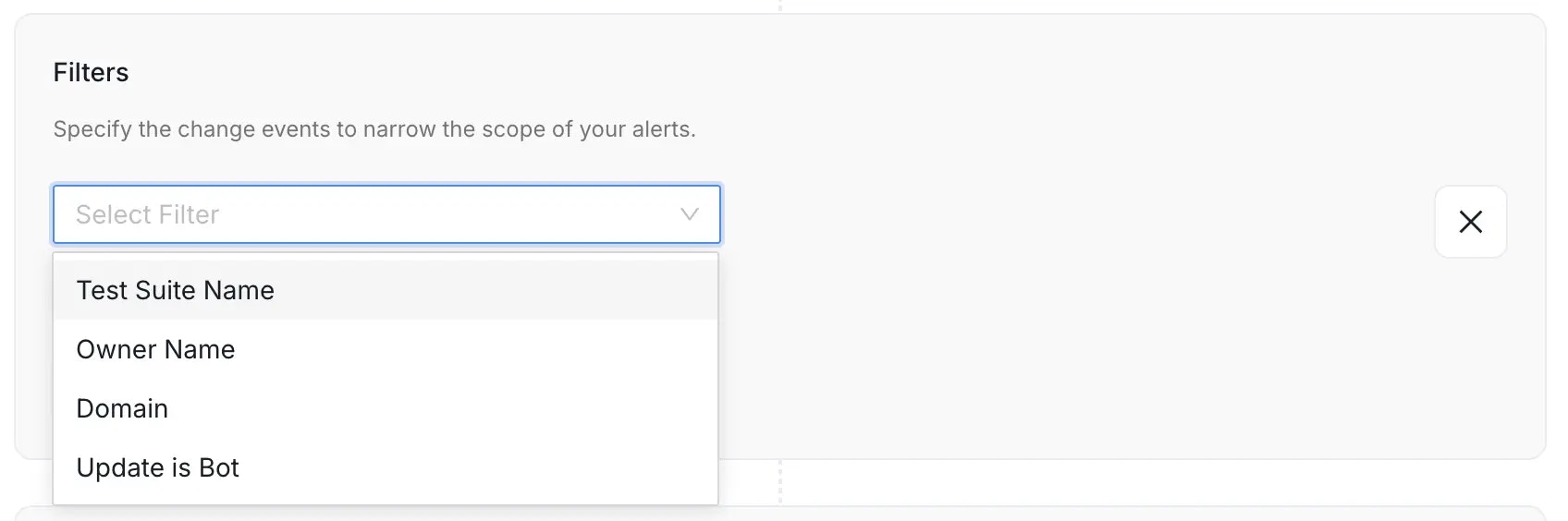
Filters allow you to refine the scope of the alert to focus only on relevant changes, significantly improving the signal-to-noise ratio. You can narrow down events based on a variety of criteria, including:
* **Entity Specific Name:** Filter by the defined specific name of the entity.
* **Owner Name:** Filter events based on the designated owner of the asset.
* **Domain:** Filter events based on the Data Domain the entity belongs to.
* **Filter By Updater Is Bot:** Filter to include or exclude changes made by automated ingestion or system processes.
Use the **Include** toggle to define the logic for the filter condition:
* **Include (Toggle ON):** If the event meets the filter condition, the alert is **sent**.
* **Exclude (Toggle OFF):** If the event meets the filter condition, the alert is **silenced** (not sent).
If you do not set any filter, the alert will apply to **all** relevant events over the selected source entity type, which may lead to excessive notifications.
## Configure Filters (Optional)
Filters allow you to refine the scope of the alert to focus only on relevant changes, significantly improving the signal-to-noise ratio. You can narrow down events based on a variety of criteria, including:
* **Entity Specific Name:** Filter by the defined specific name of the entity.
* **Owner Name:** Filter events based on the designated owner of the asset.
* **Domain:** Filter events based on the Data Domain the entity belongs to.
* **Filter By Updater Is Bot:** Filter to include or exclude changes made by automated ingestion or system processes.
Use the **Include** toggle to define the logic for the filter condition:
* **Include (Toggle ON):** If the event meets the filter condition, the alert is **sent**.
* **Exclude (Toggle OFF):** If the event meets the filter condition, the alert is **silenced** (not sent).
If you do not set any filter, the alert will apply to **all** relevant events over the selected source entity type, which may lead to excessive notifications.
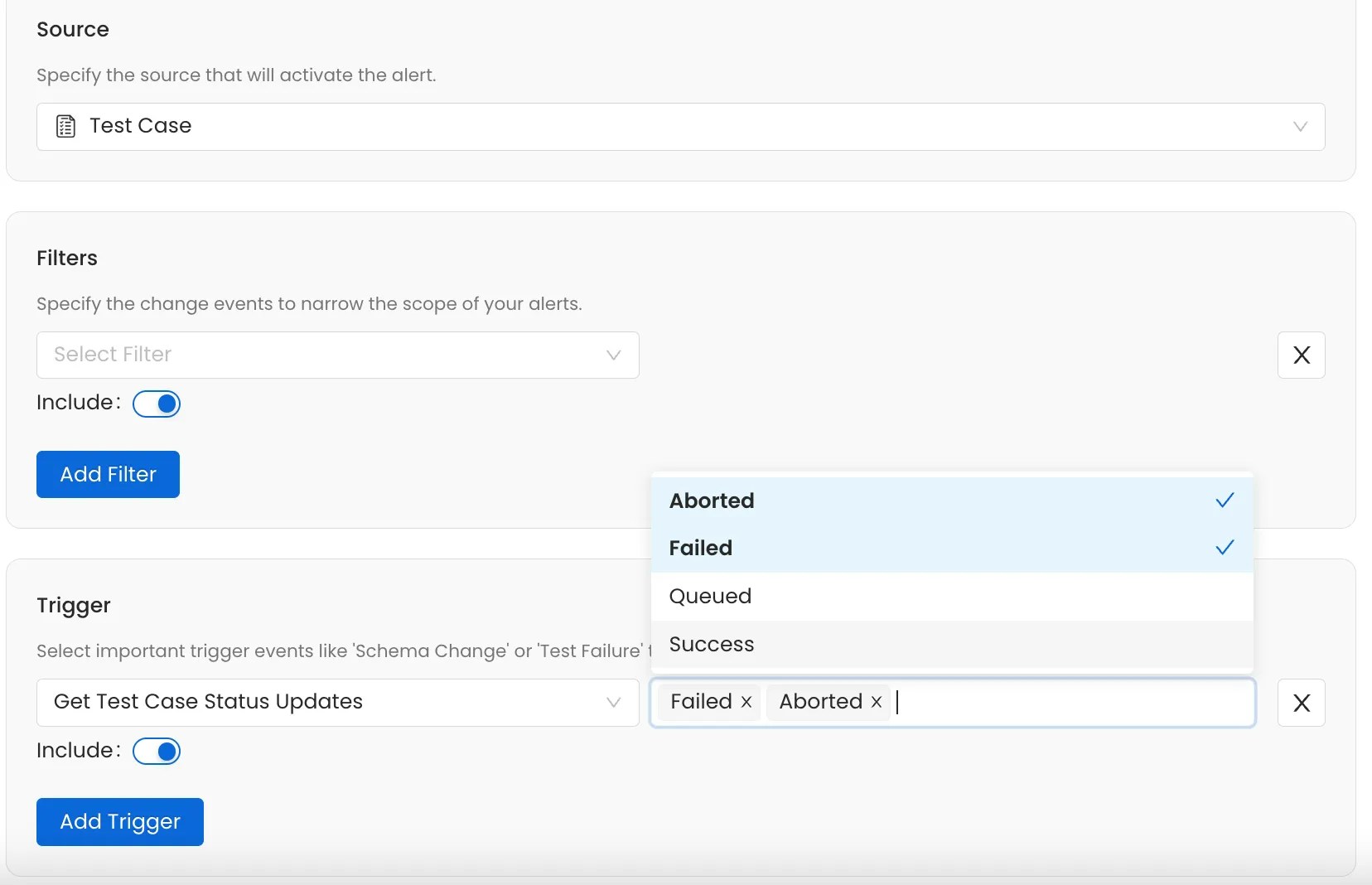
 ## Select Trigger Conditions (Optional)
Define the specific conditions that will trigger the alert:
* **Schema Changes** - Alert on added, deleted, or updated columns
* **Test Case Status** - Trigger when tests are `Failed`, `Aborted`, or `Queued`
* **Pipeline Status** - Alert when pipeline execution is `Failed` or `Pending`
* **Metric Updates** - Notify when table metrics are updated
You can select multiple trigger conditions to create comprehensive monitoring coverage.
## Select Trigger Conditions (Optional)
Define the specific conditions that will trigger the alert:
* **Schema Changes** - Alert on added, deleted, or updated columns
* **Test Case Status** - Trigger when tests are `Failed`, `Aborted`, or `Queued`
* **Pipeline Status** - Alert when pipeline execution is `Failed` or `Pending`
* **Metric Updates** - Notify when table metrics are updated
You can select multiple trigger conditions to create comprehensive monitoring coverage.
 Choose where to send your alerts. OpenMetadata supports both internal and external channels.
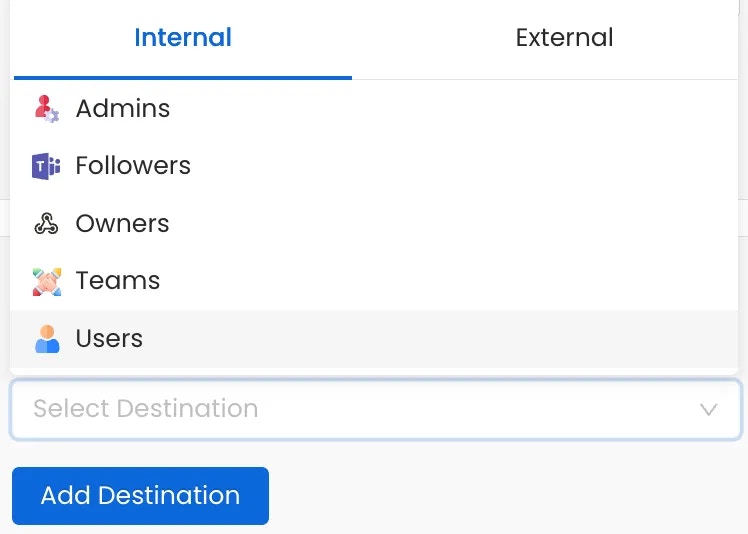
**Internal Destinations:**
* **Admins** - Notify all platform administrators
* **Followers** - Notify users following the asset
* **Owners** - Alert the asset owners
* **Teams or Specific Users** - Target specific teams or individuals
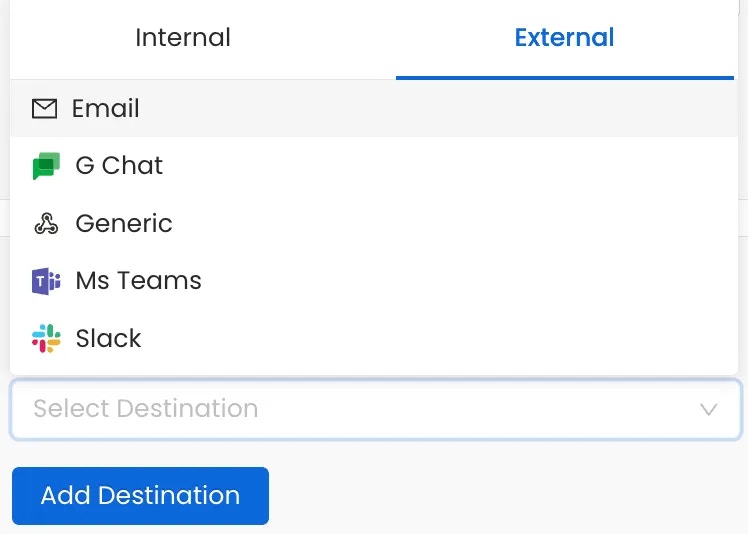
**External Destinations:**
* **Email**
* **Chat**: Slack, MS Teams, Google Chat
* **Automation**: Generic Webhooks
Choose where to send your alerts. OpenMetadata supports both internal and external channels.
**Internal Destinations:**
* **Admins** - Notify all platform administrators
* **Followers** - Notify users following the asset
* **Owners** - Alert the asset owners
* **Teams or Specific Users** - Target specific teams or individuals
**External Destinations:**
* **Email**
* **Chat**: Slack, MS Teams, Google Chat
* **Automation**: Generic Webhooks