> ## Documentation Index
> Fetch the complete documentation index at: https://docs.open-metadata.org/llms.txt
> Use this file to discover all available pages before exploring further.
# System & Governance Notifications | OpenMetadata
> Configure notifications for metadata changes, governance events, and collaboration activities.
# System & Governance Notifications
Stay informed about metadata changes, governance events, and collaboration activities across your data catalog.
## Create a new Alert
1. Navigate to **Settings** > **Notifications** > **System**.
2. Select **Add Notification**.
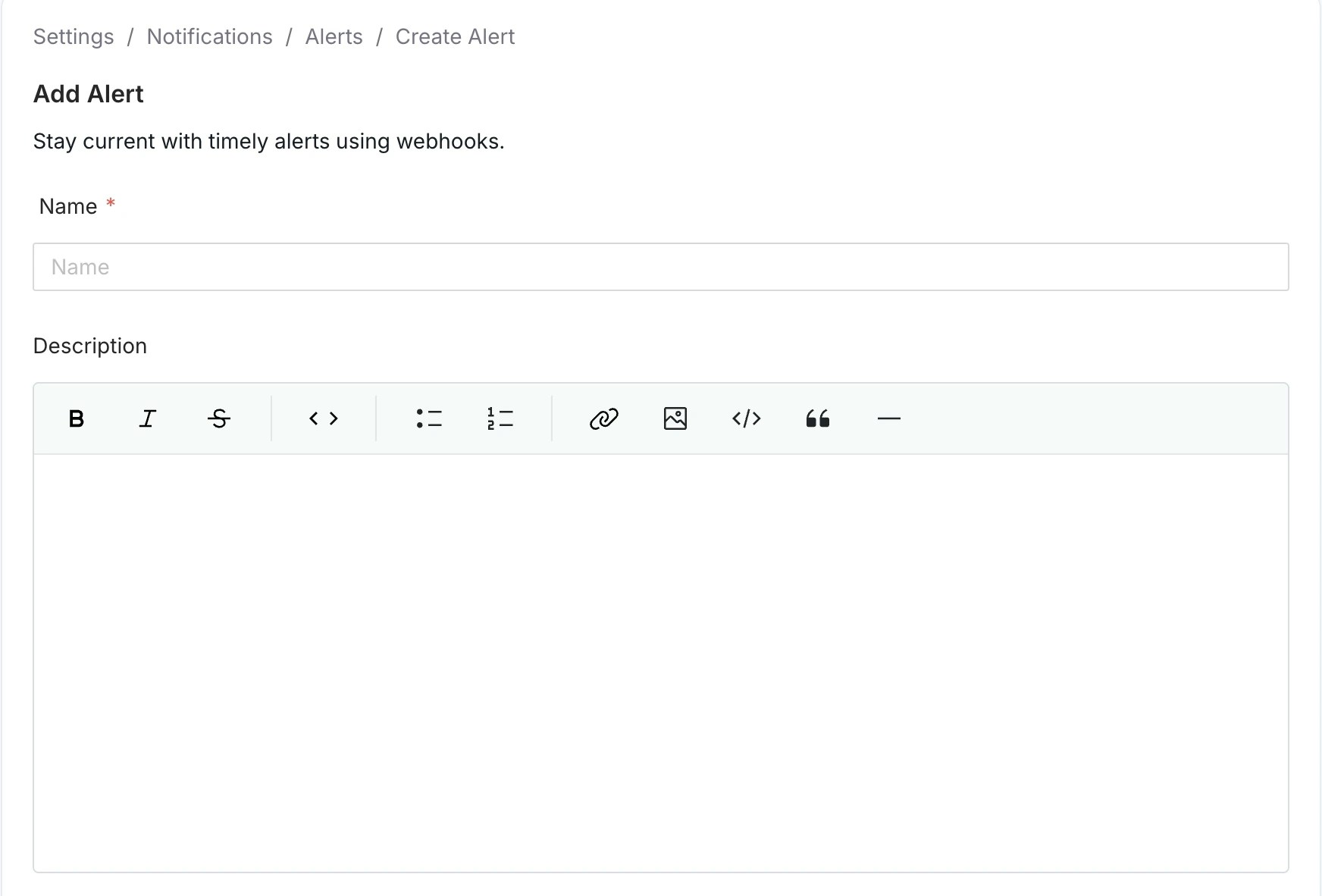
 3. Enter a unique alert **Name** and **Description** (optional) for quick identification.
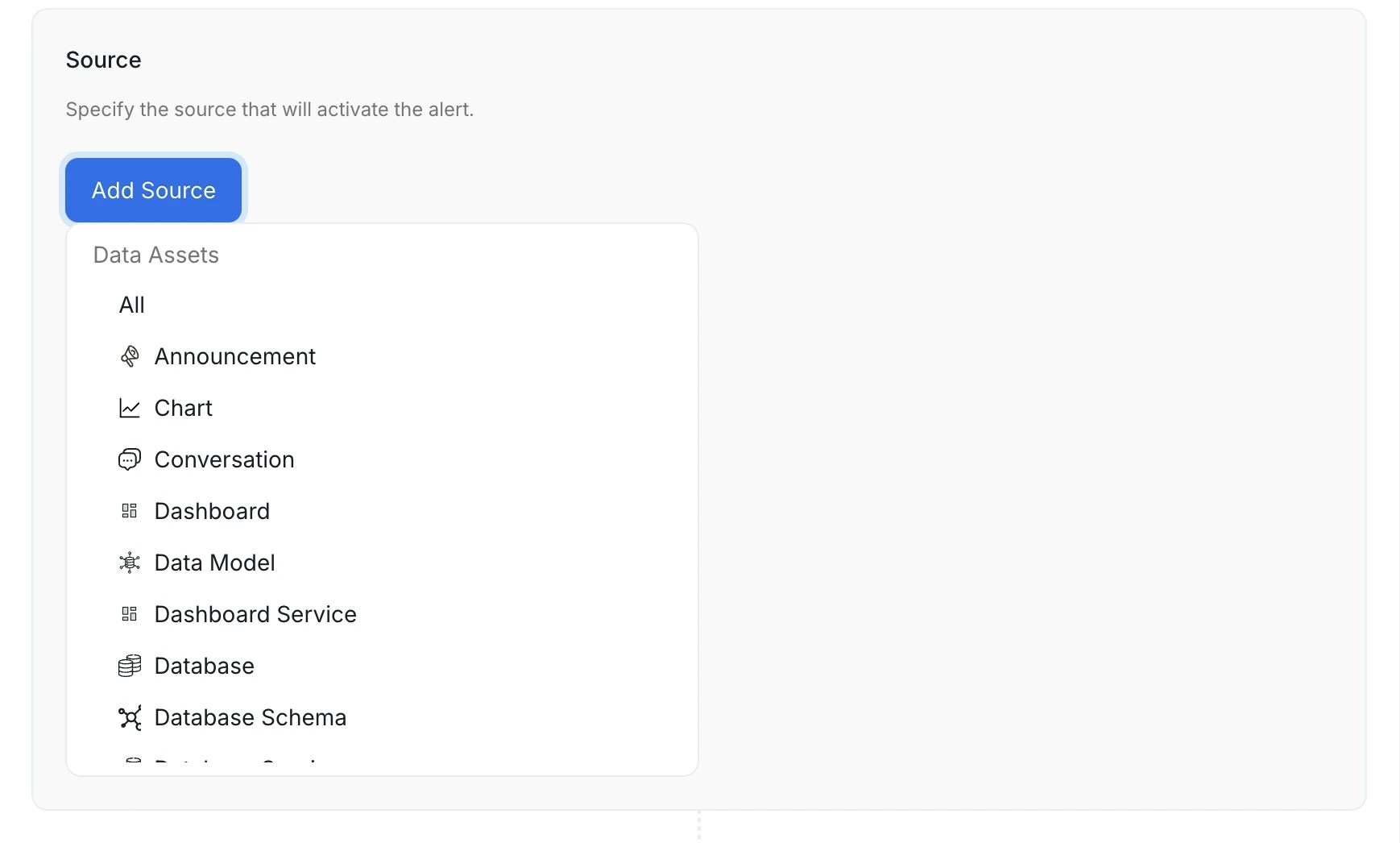
 4. Select an entity type to trigger this alert.
 **Available source entities**
The source you pick determines which entity type's events trigger the alert. Choose from data assets, service connections, governance entities, or collaboration threads.
**General**
| Source | What it covers |
| ------- | ------------------------------------------------------------------ |
| **All** | Every entity type — subscribes to events across the entire catalog |
**Data assets**
| Source | What it covers |
| ------------------------ | ---------------------------------------------- |
| **Table** | Database tables and views |
| **Dashboard** | BI dashboards (Tableau, Looker, PowerBI, etc.) |
| **Chart** | Individual charts within a BI dashboard |
| **Dashboard Data Model** | Underlying data models behind BI dashboards |
| **Pipeline** | Data pipeline assets (Airflow, dbt, etc.) |
| **Topic** | Messaging topics (Kafka, Pulsar) |
| **ML Model** | Machine learning model assets |
| **Database** | Database entities within a database service |
| **Database Schema** | Schemas within a database |
| **Data Product** | Data product entities |
**Service connections**
| Source | What it covers |
| ---------------------- | ---------------------------------------------------------------------------------------- |
| **Ingestion Pipeline** | OpenMetadata metadata ingestion pipelines — fires on success, failure, or config changes |
| **Database Service** | Database service connections (Snowflake, BigQuery, Postgres, etc.) |
| **Dashboard Service** | BI service connections |
| **Pipeline Service** | Pipeline service connections |
| **Messaging Service** | Messaging service connections |
| **Storage Service** | Object storage service connections |
| **ML Model Service** | ML model service connections |
| **Metadata Service** | Metadata service connections |
**Governance**
| Source | What it covers |
| ----------------- | -------------------------------------------- |
| **Glossary** | Business glossary entities |
| **Glossary Term** | Individual terms within a glossary |
| **Tag** | Classification tags |
| **Tag Category** | Tag classifications (for example, PII, Tier) |
| **Domain** | Business domain entities |
| **User** | OpenMetadata user accounts |
**Collaboration**
These three sources all relate to threads posted on data assets, but each covers a distinct thread type. Choosing the wrong one is a common source of misconfigured alerts.
| Source | Thread type | What it covers |
| ---------------- | -------------- | --------------------------------------------------------------------------------------------------------------- |
| **Conversation** | `Conversation` | Free-form comments posted on any data asset |
| **Task** | `Task` | Structured workflow tasks — **including incidents**, description requests, tag requests, and approval workflows |
| **Announcement** | `Announcement` | Time-bound announcements posted on data assets |
**Incident alerts require Task as the source, not Conversation.**
Incidents in OpenMetadata are Task threads, not Conversation threads. If you set Source = Conversation, the alert will never fire for incident comments, assignments, or status changes. Set Source = **Task** to receive notifications for incident activity.
The **Task** source covers all of the following task types:
| Task type | When it is created |
| ---------------------------------- | ------------------------------------------------------------------------ |
| `RequestTestCaseFailureResolution` | A data quality test fails and an incident is opened |
| `RequestDescription` | A user requests a description be written for an asset |
| `UpdateDescription` | A user requests an existing description be changed |
| `RequestTag` | A user requests a tag be applied to an asset |
| `UpdateTag` | A user requests an existing tag be changed |
| `RequestApproval` | A governance approval workflow is triggered |
| `RecognizerFeedbackApproval` | An automated classification suggestion requires user review and approval |
| `Generic` | A general-purpose task created manually |
The only filter available for **Task** and **Conversation** is **Mentioned User or Team** — narrow the alert to threads where a specific person or team is @-mentioned. You can't filter tasks by task type (for example, incidents only) in the alert UI.
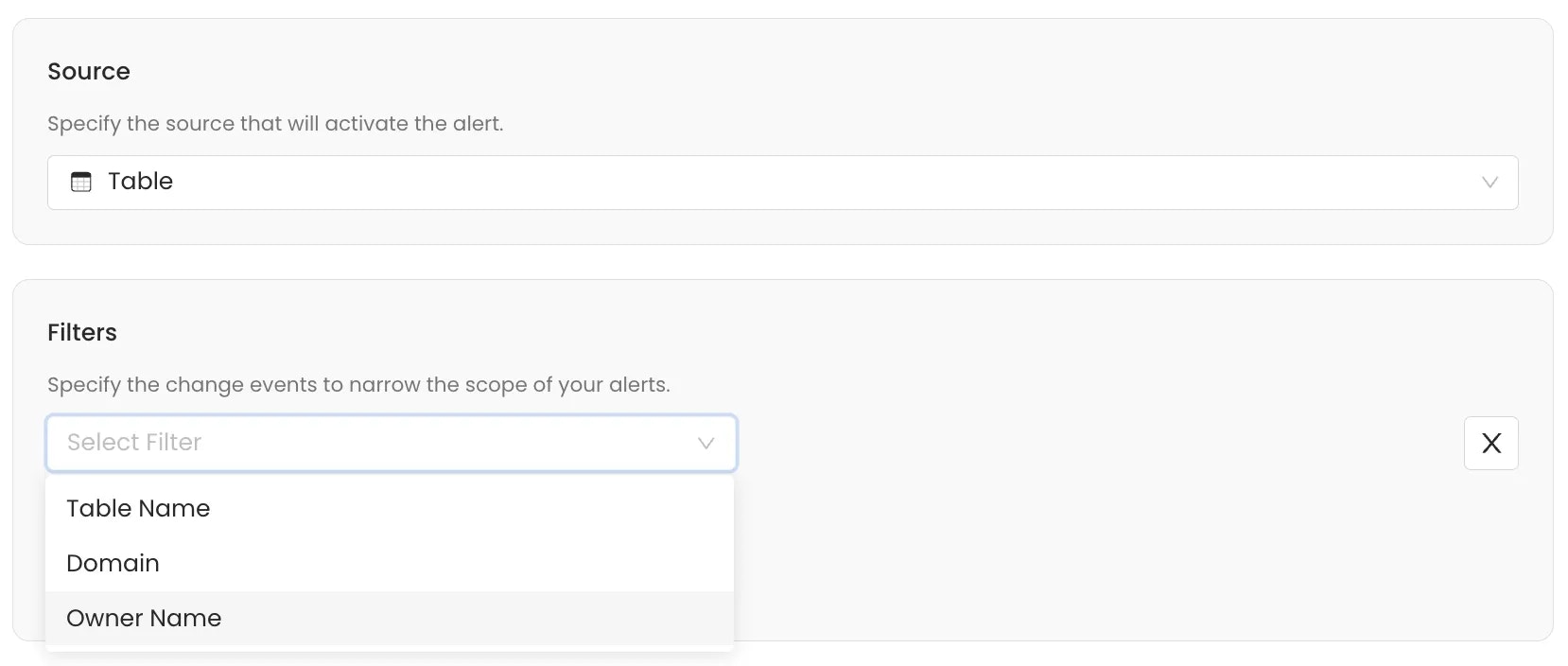
5. Add filters to narrow the alert scope so only specific events trigger a notification.
If you don't set any filter, the alert applies to all events over the selected source entity type.
Use filters to narrow the alert to relevant changes. The available criteria depend on the source entity selected. Filter events by:
* **Owner:** Filter events based on the designated owner of the asset.
* **Entity FQN:** Filter by the Fully Qualified Name of the entity.
* **Event Type:** Filter by the specific action that occurred (for example, Created, Updated, Deleted).
* **Updater Name:** Filter based on the user or service that executed the change.
* **Domain:** Filter events based on the Data Domain the entity belongs to.
* **Filter By Updater Is Bot:** Filter to include or exclude changes made by automated ingestion or system processes.
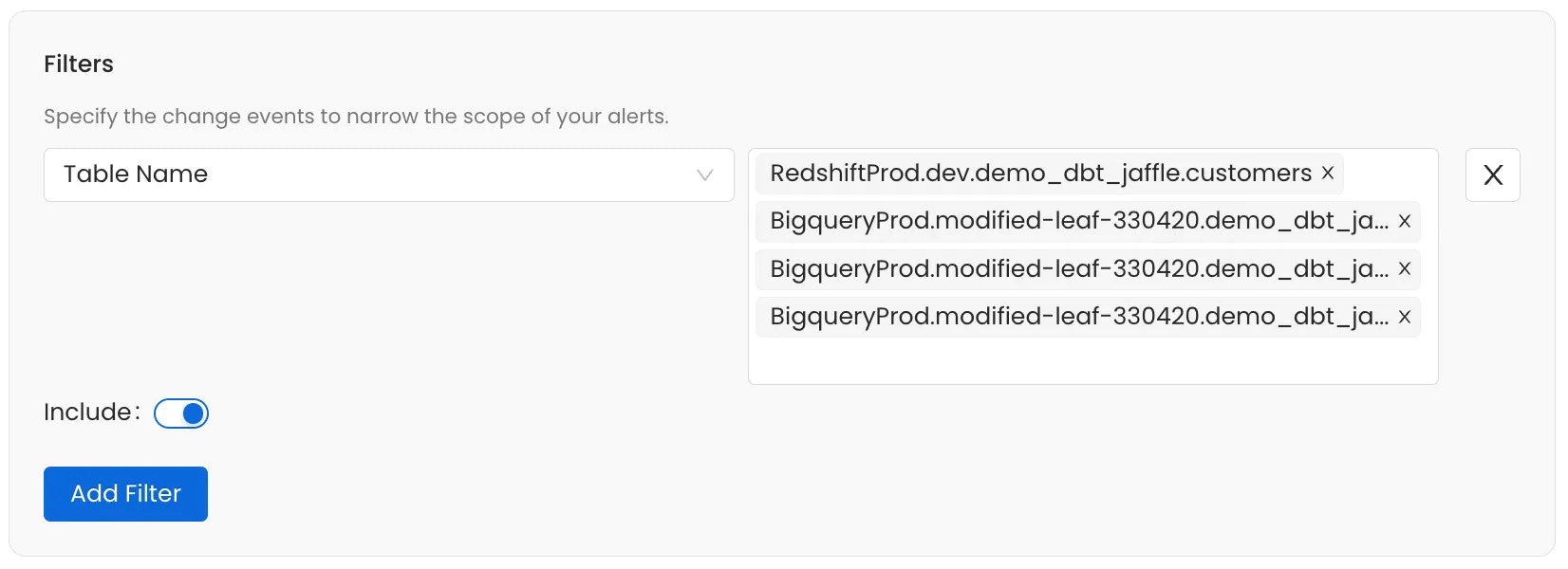
Use the **Include** toggle to define the logic for the filter condition:
* **Include (Toggle ON)**: If the event meets the filter condition, the alert is **sent**.
* **Exclude (Toggle OFF)**: If the event meets the filter condition, the alert is **silenced** (not sent).
Add multiple filters to a single alert subscription.
**Available source entities**
The source you pick determines which entity type's events trigger the alert. Choose from data assets, service connections, governance entities, or collaboration threads.
**General**
| Source | What it covers |
| ------- | ------------------------------------------------------------------ |
| **All** | Every entity type — subscribes to events across the entire catalog |
**Data assets**
| Source | What it covers |
| ------------------------ | ---------------------------------------------- |
| **Table** | Database tables and views |
| **Dashboard** | BI dashboards (Tableau, Looker, PowerBI, etc.) |
| **Chart** | Individual charts within a BI dashboard |
| **Dashboard Data Model** | Underlying data models behind BI dashboards |
| **Pipeline** | Data pipeline assets (Airflow, dbt, etc.) |
| **Topic** | Messaging topics (Kafka, Pulsar) |
| **ML Model** | Machine learning model assets |
| **Database** | Database entities within a database service |
| **Database Schema** | Schemas within a database |
| **Data Product** | Data product entities |
**Service connections**
| Source | What it covers |
| ---------------------- | ---------------------------------------------------------------------------------------- |
| **Ingestion Pipeline** | OpenMetadata metadata ingestion pipelines — fires on success, failure, or config changes |
| **Database Service** | Database service connections (Snowflake, BigQuery, Postgres, etc.) |
| **Dashboard Service** | BI service connections |
| **Pipeline Service** | Pipeline service connections |
| **Messaging Service** | Messaging service connections |
| **Storage Service** | Object storage service connections |
| **ML Model Service** | ML model service connections |
| **Metadata Service** | Metadata service connections |
**Governance**
| Source | What it covers |
| ----------------- | -------------------------------------------- |
| **Glossary** | Business glossary entities |
| **Glossary Term** | Individual terms within a glossary |
| **Tag** | Classification tags |
| **Tag Category** | Tag classifications (for example, PII, Tier) |
| **Domain** | Business domain entities |
| **User** | OpenMetadata user accounts |
**Collaboration**
These three sources all relate to threads posted on data assets, but each covers a distinct thread type. Choosing the wrong one is a common source of misconfigured alerts.
| Source | Thread type | What it covers |
| ---------------- | -------------- | --------------------------------------------------------------------------------------------------------------- |
| **Conversation** | `Conversation` | Free-form comments posted on any data asset |
| **Task** | `Task` | Structured workflow tasks — **including incidents**, description requests, tag requests, and approval workflows |
| **Announcement** | `Announcement` | Time-bound announcements posted on data assets |
**Incident alerts require Task as the source, not Conversation.**
Incidents in OpenMetadata are Task threads, not Conversation threads. If you set Source = Conversation, the alert will never fire for incident comments, assignments, or status changes. Set Source = **Task** to receive notifications for incident activity.
The **Task** source covers all of the following task types:
| Task type | When it is created |
| ---------------------------------- | ------------------------------------------------------------------------ |
| `RequestTestCaseFailureResolution` | A data quality test fails and an incident is opened |
| `RequestDescription` | A user requests a description be written for an asset |
| `UpdateDescription` | A user requests an existing description be changed |
| `RequestTag` | A user requests a tag be applied to an asset |
| `UpdateTag` | A user requests an existing tag be changed |
| `RequestApproval` | A governance approval workflow is triggered |
| `RecognizerFeedbackApproval` | An automated classification suggestion requires user review and approval |
| `Generic` | A general-purpose task created manually |
The only filter available for **Task** and **Conversation** is **Mentioned User or Team** — narrow the alert to threads where a specific person or team is @-mentioned. You can't filter tasks by task type (for example, incidents only) in the alert UI.
5. Add filters to narrow the alert scope so only specific events trigger a notification.
If you don't set any filter, the alert applies to all events over the selected source entity type.
Use filters to narrow the alert to relevant changes. The available criteria depend on the source entity selected. Filter events by:
* **Owner:** Filter events based on the designated owner of the asset.
* **Entity FQN:** Filter by the Fully Qualified Name of the entity.
* **Event Type:** Filter by the specific action that occurred (for example, Created, Updated, Deleted).
* **Updater Name:** Filter based on the user or service that executed the change.
* **Domain:** Filter events based on the Data Domain the entity belongs to.
* **Filter By Updater Is Bot:** Filter to include or exclude changes made by automated ingestion or system processes.
Use the **Include** toggle to define the logic for the filter condition:
* **Include (Toggle ON)**: If the event meets the filter condition, the alert is **sent**.
* **Exclude (Toggle OFF)**: If the event meets the filter condition, the alert is **silenced** (not sent).
Add multiple filters to a single alert subscription.
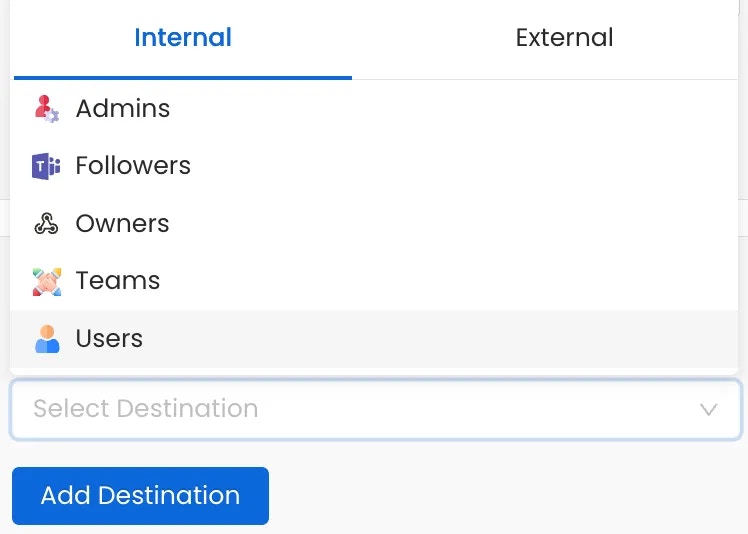
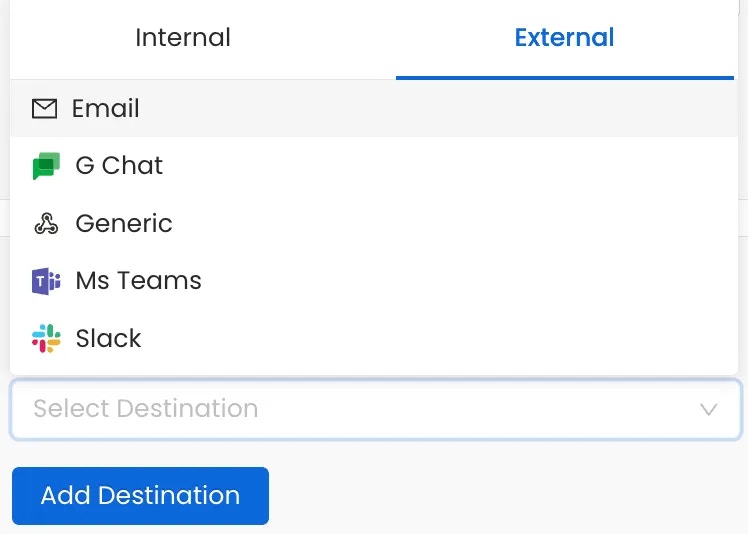
 6. Add destinations where you want to deliver alerts — internal OpenMetadata roles or external channels like Slack and email.
**Internal Destinations**:
* **Admins** - Notify all platform administrators
* **Followers** - Notify users following the asset
* **Owners** - Alert the asset owners
* **Teams or Specific Users** - Target specific teams or individuals
**External Destinations**:
* **Email**
* **Chat**: Slack, MS Teams, and Google Chat
* **Automation**: Generic Webhooks
6. Add destinations where you want to deliver alerts — internal OpenMetadata roles or external channels like Slack and email.
**Internal Destinations**:
* **Admins** - Notify all platform administrators
* **Followers** - Notify users following the asset
* **Owners** - Alert the asset owners
* **Teams or Specific Users** - Target specific teams or individuals
**External Destinations**:
* **Email**
* **Chat**: Slack, MS Teams, and Google Chat
* **Automation**: Generic Webhooks