> ## Documentation Index
> Fetch the complete documentation index at: https://docs.open-metadata.org/llms.txt
> Use this file to discover all available pages before exploring further.
# Adding Test Cases to an Entity
# Adding Test Cases to an Entity
Tests cases are actual test that will be ran and executed against your entity. This is where you will define the execution time and logic of these tests
**Note:** you will need to make sure you have the right permission in OpenMetadata to create a test.
## Step 1: Creating a Test Case
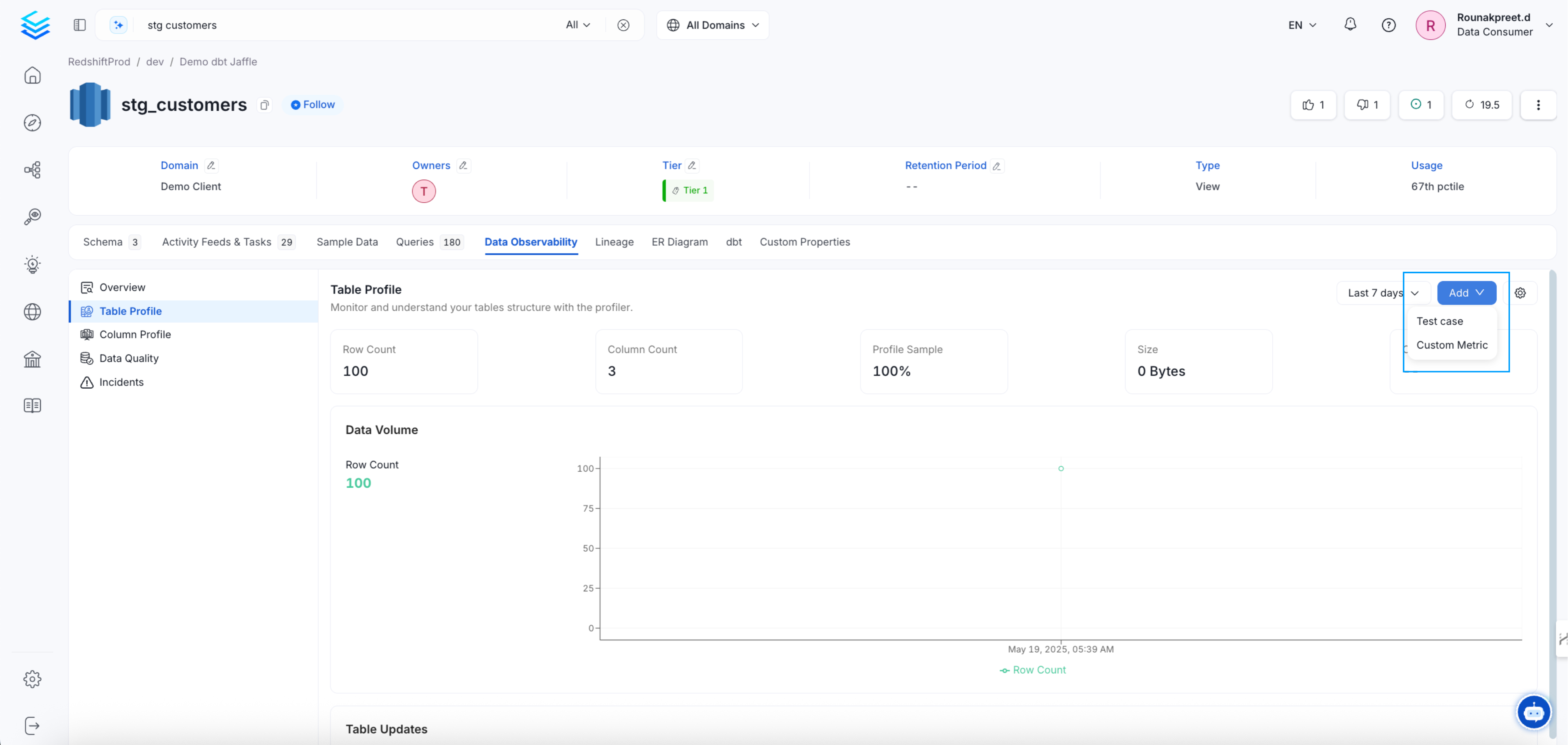
Navigate to the entity you want to add a test to (we currently support quality test only for database entity). Go to `Data Observability` tab. From there, click on the `Add Test` button in the upper right corner and select the type of test you want to implement
 ## Step 2: Select the Test Definition
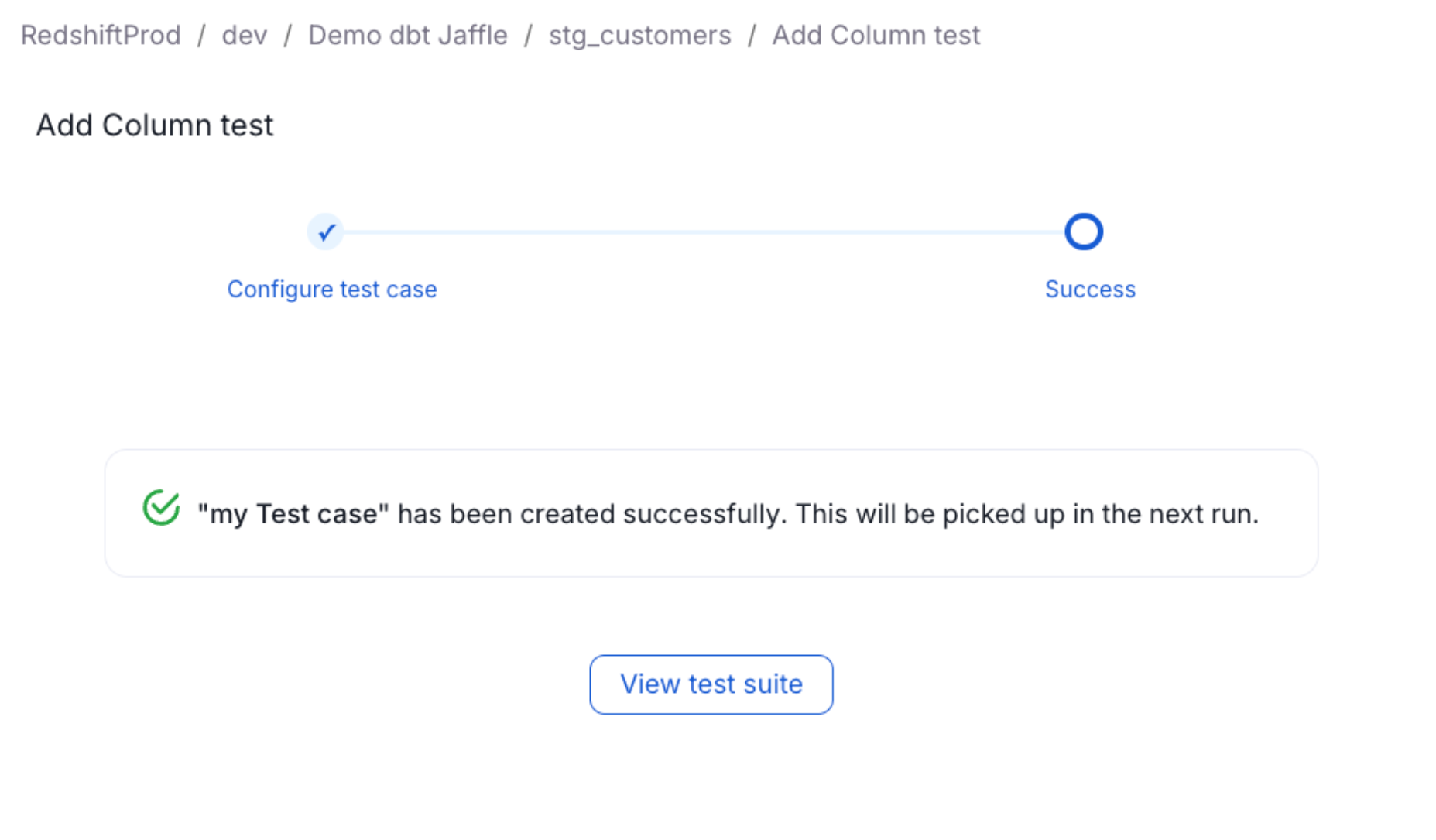
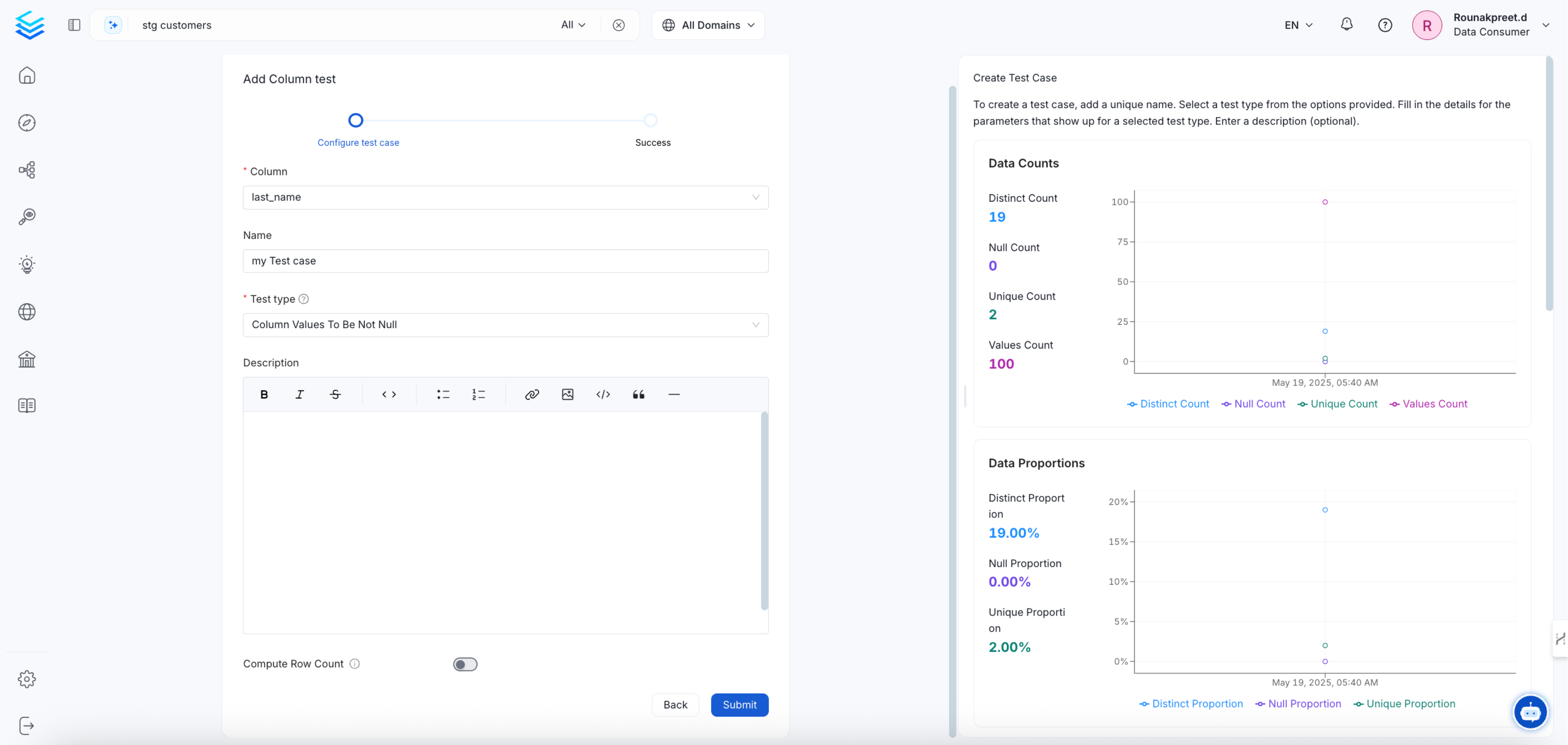
Select the type of test you want to run and set the parameters (if any) for your test case. If you have selected a `column` test, you will need to select which column you want to execute your test against. Give it a name and then submit it.
**Note:** if you have a profiler workflow running, you will be able to visualize some context around your column or table data.
## Step 2: Select the Test Definition
Select the type of test you want to run and set the parameters (if any) for your test case. If you have selected a `column` test, you will need to select which column you want to execute your test against. Give it a name and then submit it.
**Note:** if you have a profiler workflow running, you will be able to visualize some context around your column or table data.
 ## Step 3: Set an Execution Schedule (Optional)
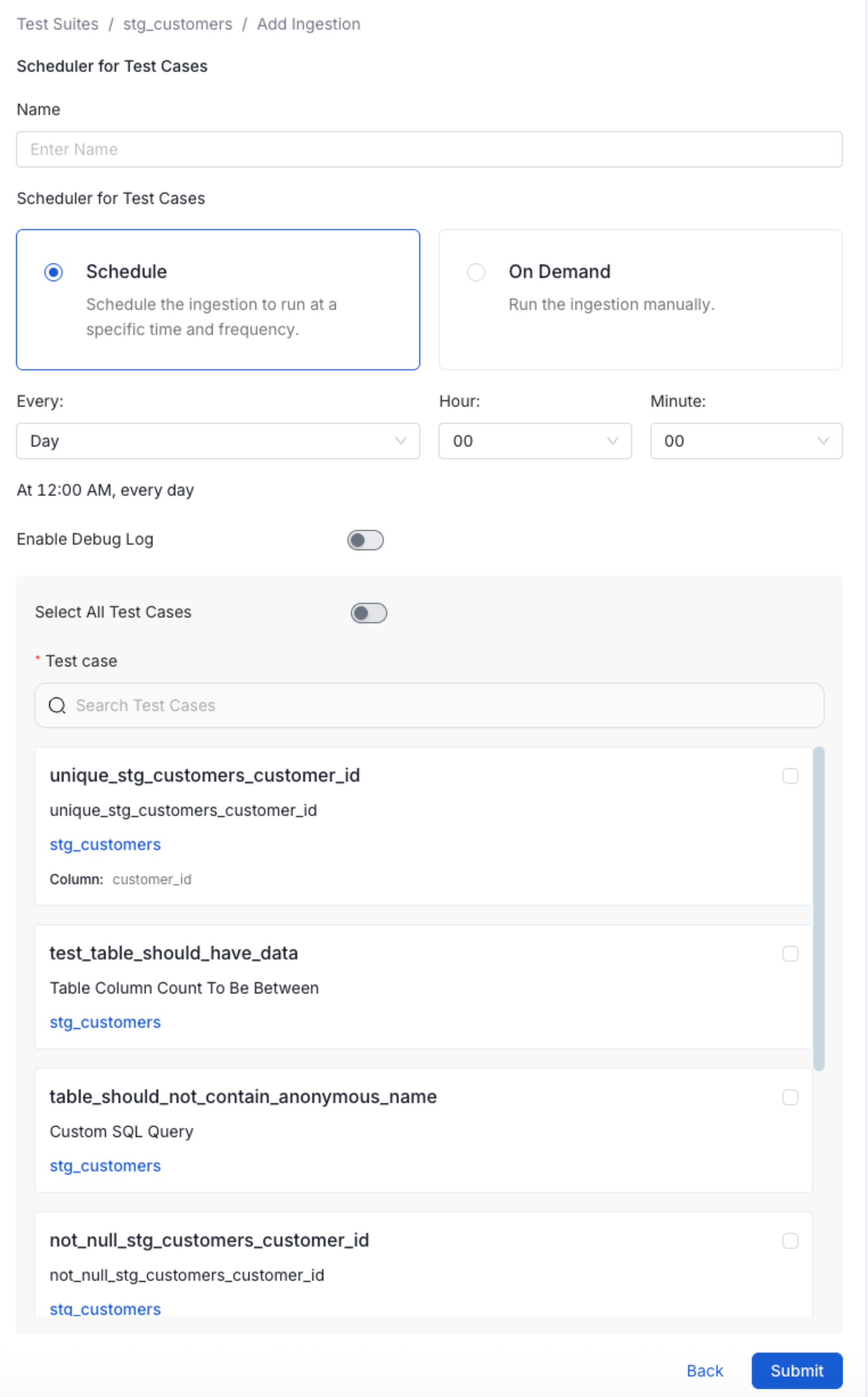
Starting in 1.6 it is possible to create multiple pipeline for your test cases. If you want to execute all of your test cases within the same pipeline you can simply toggle on the `Select All` on the ingestion configuration page. Otherwise you can select the specific test cases the pipeline will execute. The second options allows you to orchestrate pipelines at different times for different test cases.
## Step 3: Set an Execution Schedule (Optional)
Starting in 1.6 it is possible to create multiple pipeline for your test cases. If you want to execute all of your test cases within the same pipeline you can simply toggle on the `Select All` on the ingestion configuration page. Otherwise you can select the specific test cases the pipeline will execute. The second options allows you to orchestrate pipelines at different times for different test cases.