> ## Documentation Index
> Fetch the complete documentation index at: https://docs.open-metadata.org/llms.txt
> Use this file to discover all available pages before exploring further.
# How to Create a Custom Property for a Data Asset
> Customize data asset pages by configuring fields, tabs, and layouts to match your organization’s metadata strategy.
# How to Create a Custom Property for a Data Asset
OpenMetadata uses a schema-first approach, and that's why we support custom properties for all types of data assets. Organizations can extend the attributes as required to capture custom metadata. You can view the Custom Properties tab in the detailed view for all types of data assets.
Supported types:
* Date
* Date Time
* Duration
* Email
* Entity Reference
* Entity Reference List
* Enum
* Integer
* Markdown
* Number
* SQL Query
* String
* Table
* Time
* Time Interval
* Timestamp
To create a Custom Property in OpenMetadata:
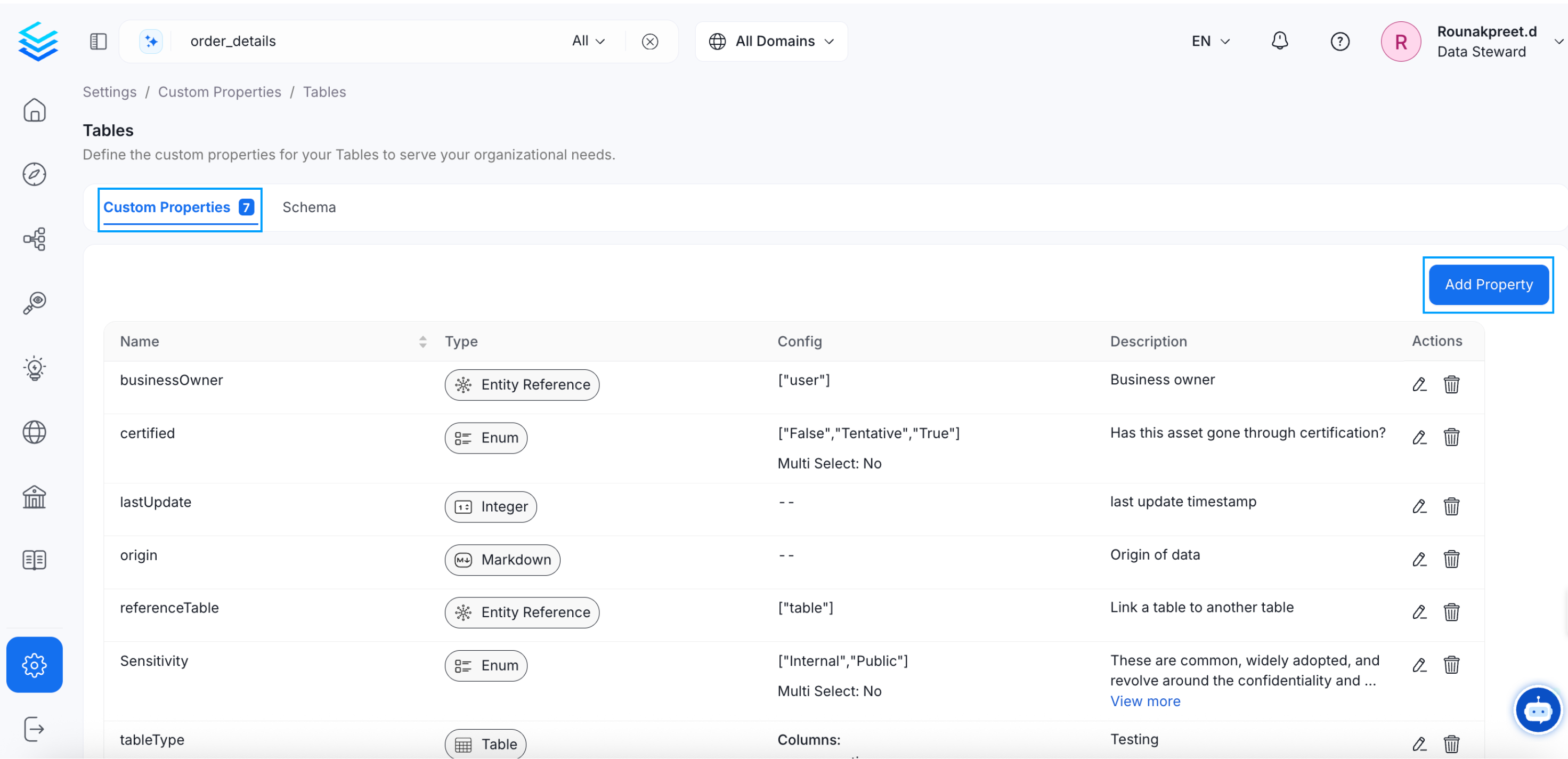
* Navigate to **Settings** >> **Custom Properties**
* Click on the type of data asset you would like to create a custom property for.
* Click on **Add Property**
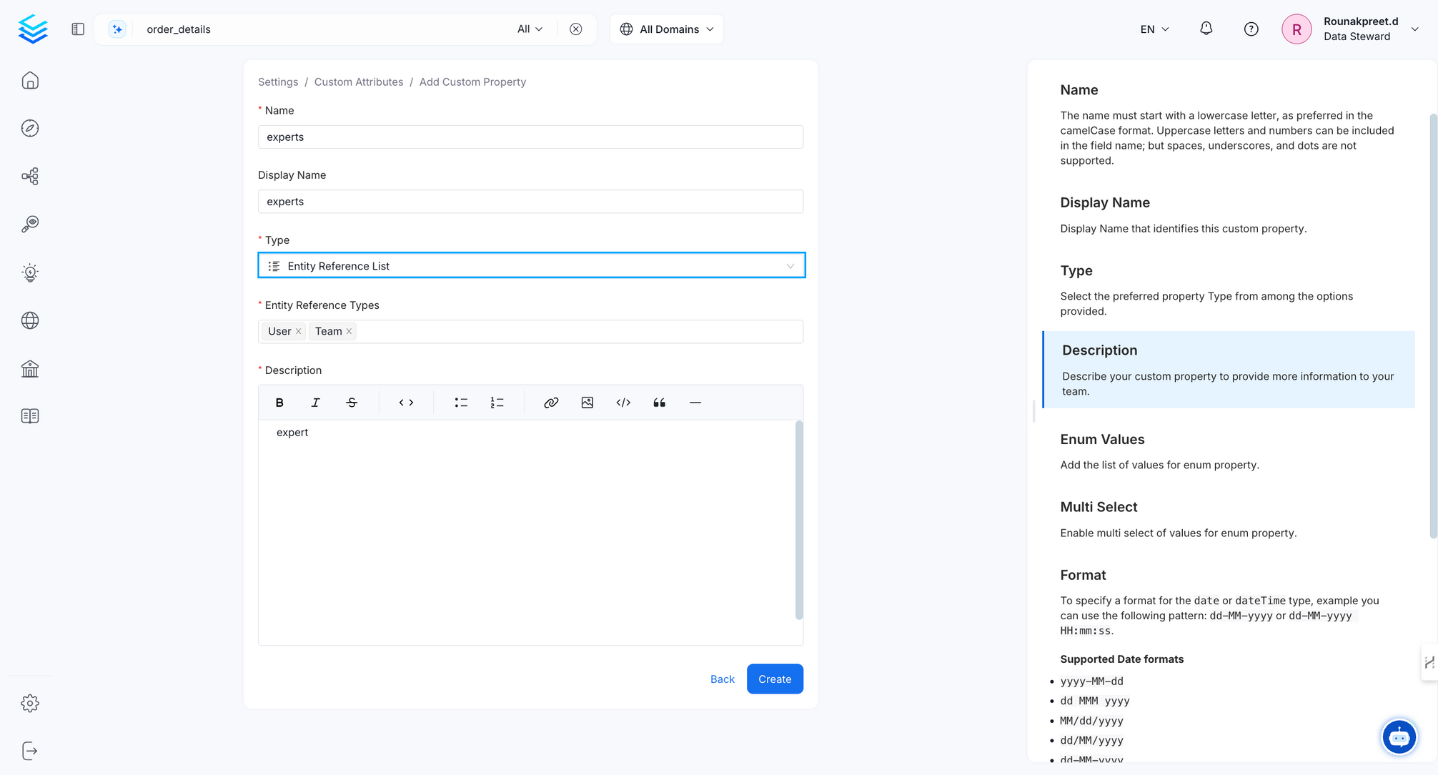
 * Enter the required details: `Name`, `Type`, and `Description`. You can lookup for the details of the information asked on the right side panel.
* **Name:** The name must start with a lowercase letter, as preferred in the camelCase format. Uppercase letters and numbers can be included in the field name; but spaces, underscores, and dots are not supported.
* **Type:** Type of custom property like `entityReference`, `email`, etc.
* **Description:** Describe your custom property to provide more information to your team.
* Click on **Create**.
* Enter the required details: `Name`, `Type`, and `Description`. You can lookup for the details of the information asked on the right side panel.
* **Name:** The name must start with a lowercase letter, as preferred in the camelCase format. Uppercase letters and numbers can be included in the field name; but spaces, underscores, and dots are not supported.
* **Type:** Type of custom property like `entityReference`, `email`, etc.
* **Description:** Describe your custom property to provide more information to your team.
* Click on **Create**.
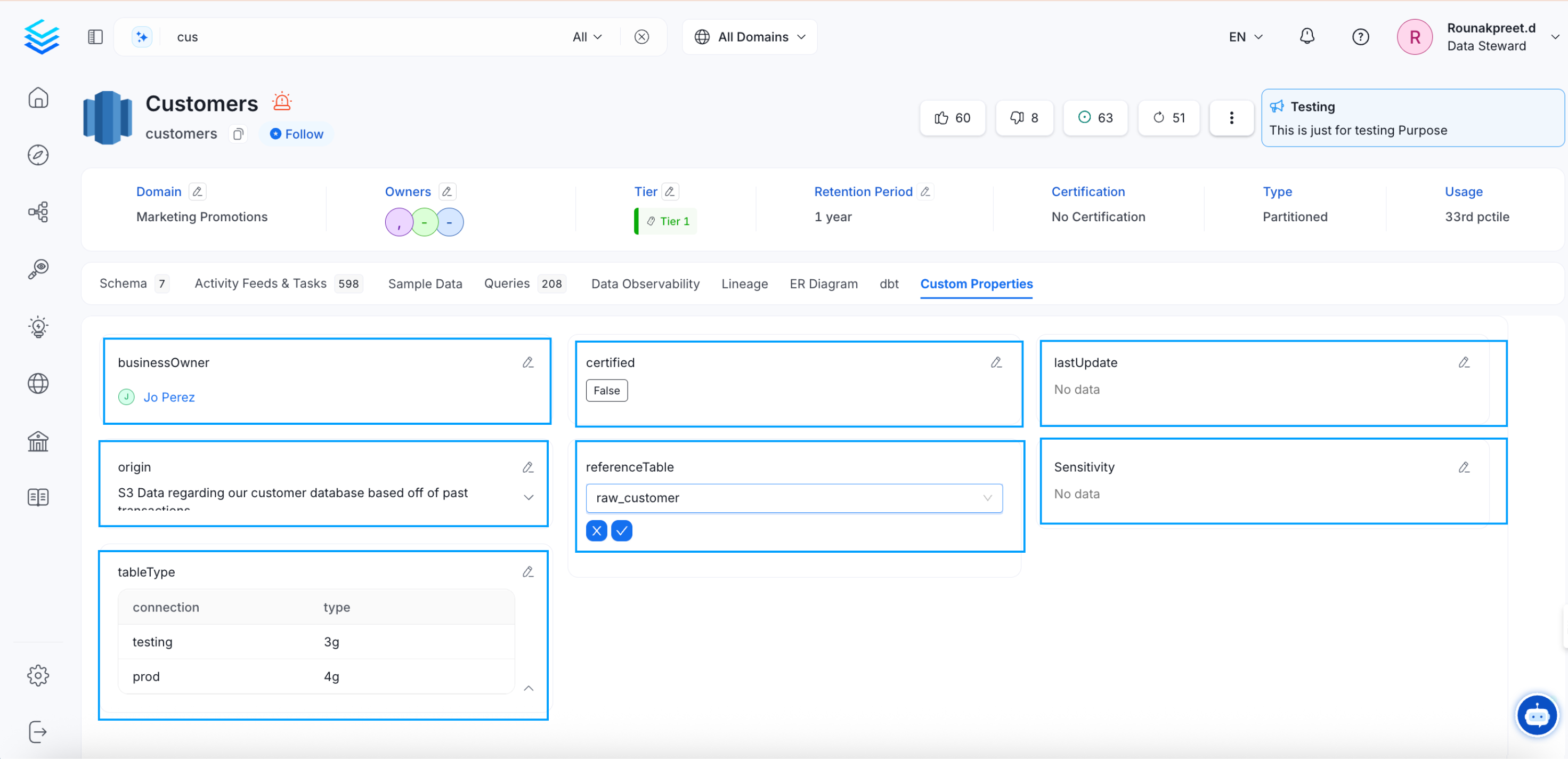
 Once the custom property has been created for a type of data asset, you can add the values for the custom property from the Custom Property tab in the detailed view of the data assets.
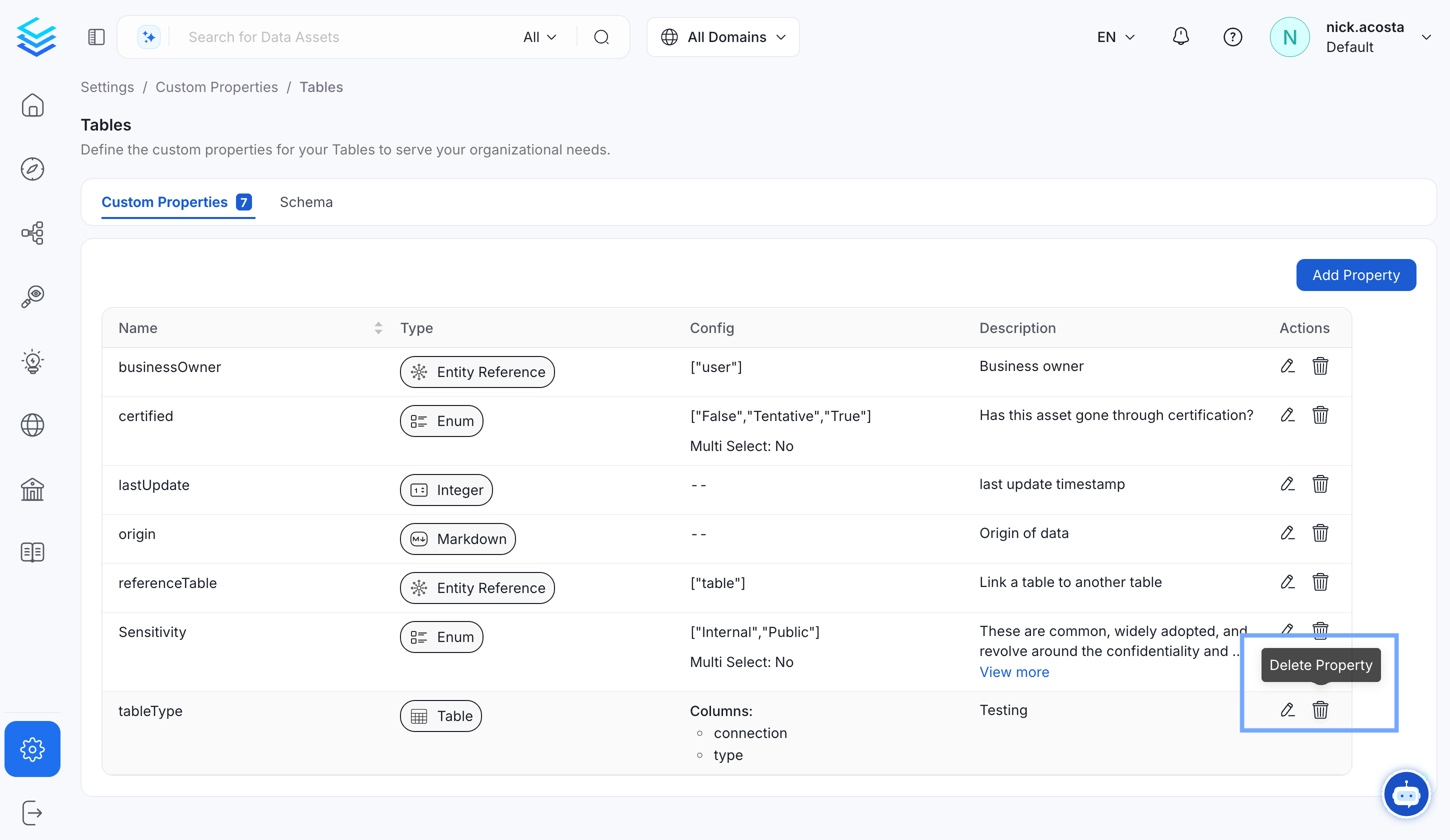
 To delete a Custom Property for a particular asset, such as tables, navigate to **Settings >> Custom Properties >> Tables** and
click on **Delete Property**
To delete a Custom Property for a particular asset, such as tables, navigate to **Settings >> Custom Properties >> Tables** and
click on **Delete Property**
 Learn more about the announcements in OpenMetadata