> ## Documentation Index
> Fetch the complete documentation index at: https://docs.open-metadata.org/llms.txt
> Use this file to discover all available pages before exploring further.
# Getting Started with Goose Desktop
> Learn how to connect Goose Desktop with MCP Server, create tokens, and enable secure AI-powered access to your data platform.
# Getting Started with Goose Desktop
Configure OpenMetadata's MCP Server to interact with block's AI agent [Goose](https://github.com/block/goose).
## Prerequisites
For this guide, you will need:
* [nvm](https://github.com/nvm-sh/nvm) and npx/node version 22
* OpenMetadata v1.8.0 or later- You can upgrade your version of OpenMetadata with [this guide](https://docs.open-metadata.org/latest/deployment/upgrade)
* [Goose Desktop](https://block.github.io/goose/docs/quickstart/)
* OpenMetadata [MCP Application and Personal Access Token](https://docs.open-metadata.org/v1.12.x/how-to-guides/mcp#installing-mcp-server)
## Adding your OpenMetadata MCP Server to Goose Desktop
This how-to guide uses Goose Desktop for macOS. Make sure that you already have an [LLM Provider configured](https://block.github.io/goose/docs/quickstart/#configure-provider) before prompting.
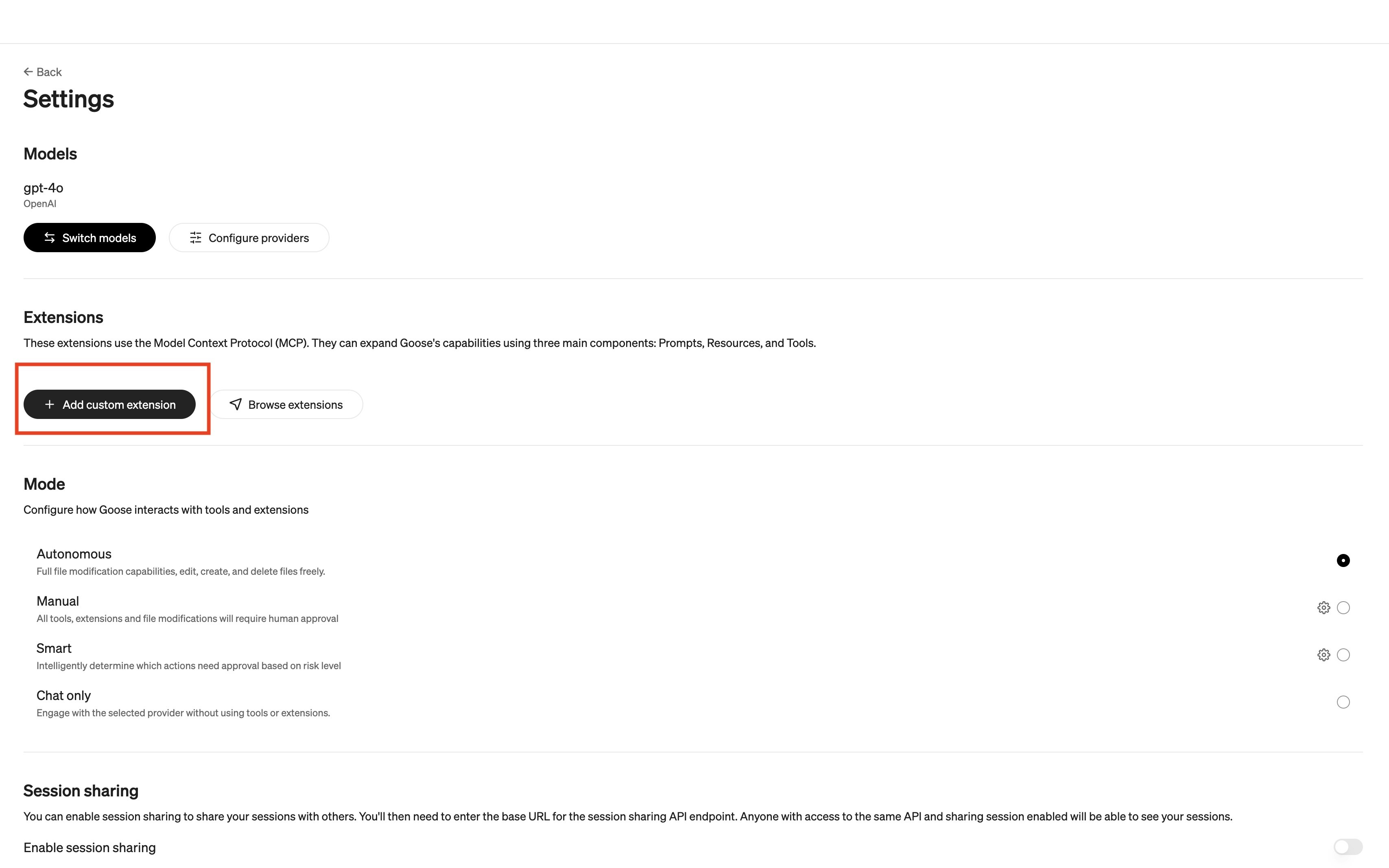
* Navigate to Goose Desktop's Settings, then under *Extensions*, select *+Add custom extension*.
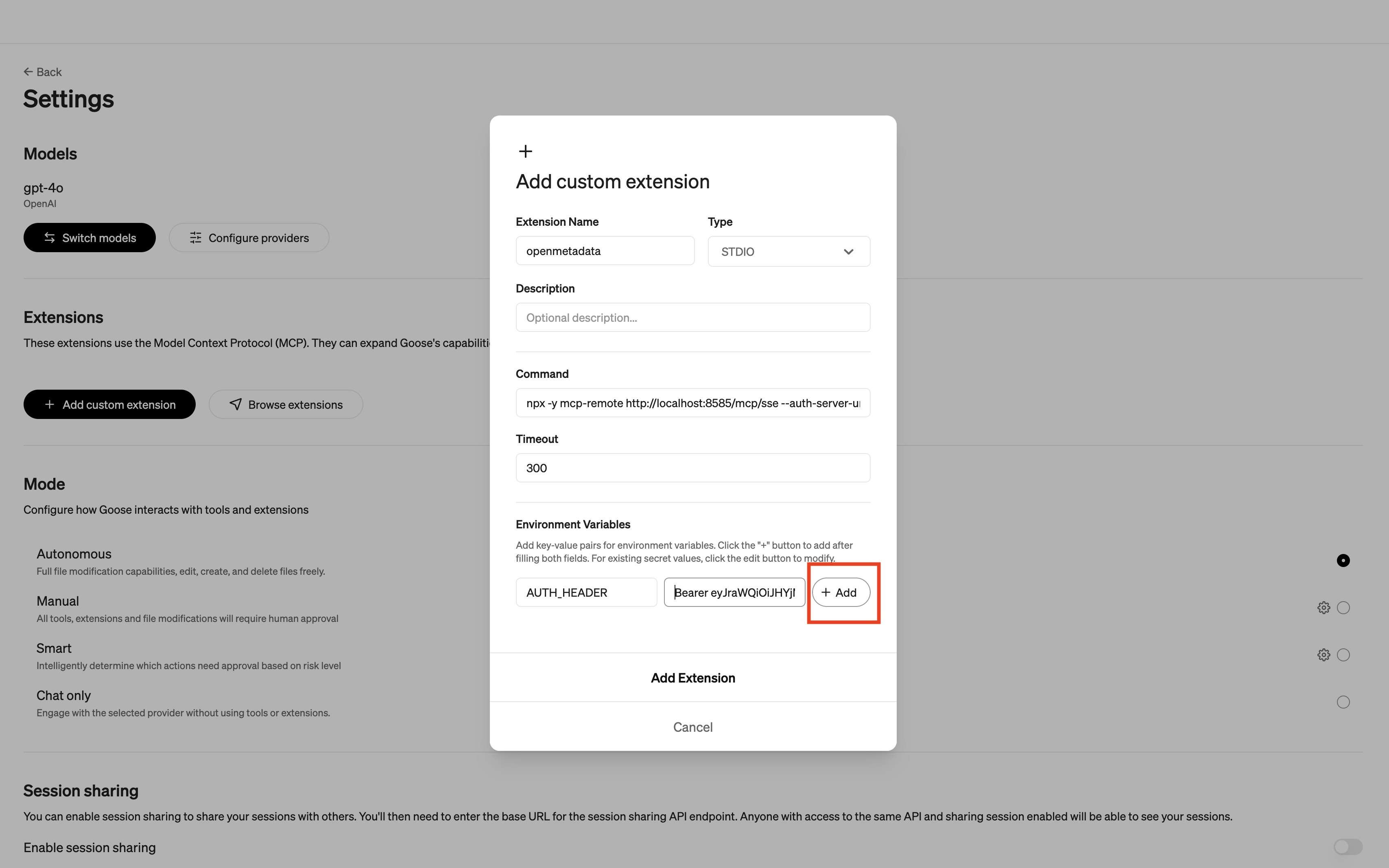
 * The custom extension should have the following information:
* *Extension Name* `OpenMetadata`
* *Command* paste the following command:
```
npx -y mcp-remote /mcp --auth-server-url=/mcp --client-id=OpenMetadata --verbose --clean --header Authorization:${AUTH_HEADER}
```
* If you are running [it locally](https://docs.open-metadata.org/latest/quick-start/local-docker-deployment), your command will look like this:
```
npx -y mcp-remote http://localhost:8585/mcp --auth-server-url=http://localhost:8585/mcp --client-id=OpenMetadata --verbose --clean --header Authorization:${AUTH_HEADER}
```
* Add 1 *Environment Variable*
* *Variable name* is `AUTH_HEADER`
* *Value* is `Bearer <YOUR_OpenMetadata_PAT>`
* The custom extension should have the following information:
* *Extension Name* `OpenMetadata`
* *Command* paste the following command:
```
npx -y mcp-remote /mcp --auth-server-url=/mcp --client-id=OpenMetadata --verbose --clean --header Authorization:${AUTH_HEADER}
```
* If you are running [it locally](https://docs.open-metadata.org/latest/quick-start/local-docker-deployment), your command will look like this:
```
npx -y mcp-remote http://localhost:8585/mcp --auth-server-url=http://localhost:8585/mcp --client-id=OpenMetadata --verbose --clean --header Authorization:${AUTH_HEADER}
```
* Add 1 *Environment Variable*
* *Variable name* is `AUTH_HEADER`
* *Value* is `Bearer <YOUR_OpenMetadata_PAT>`
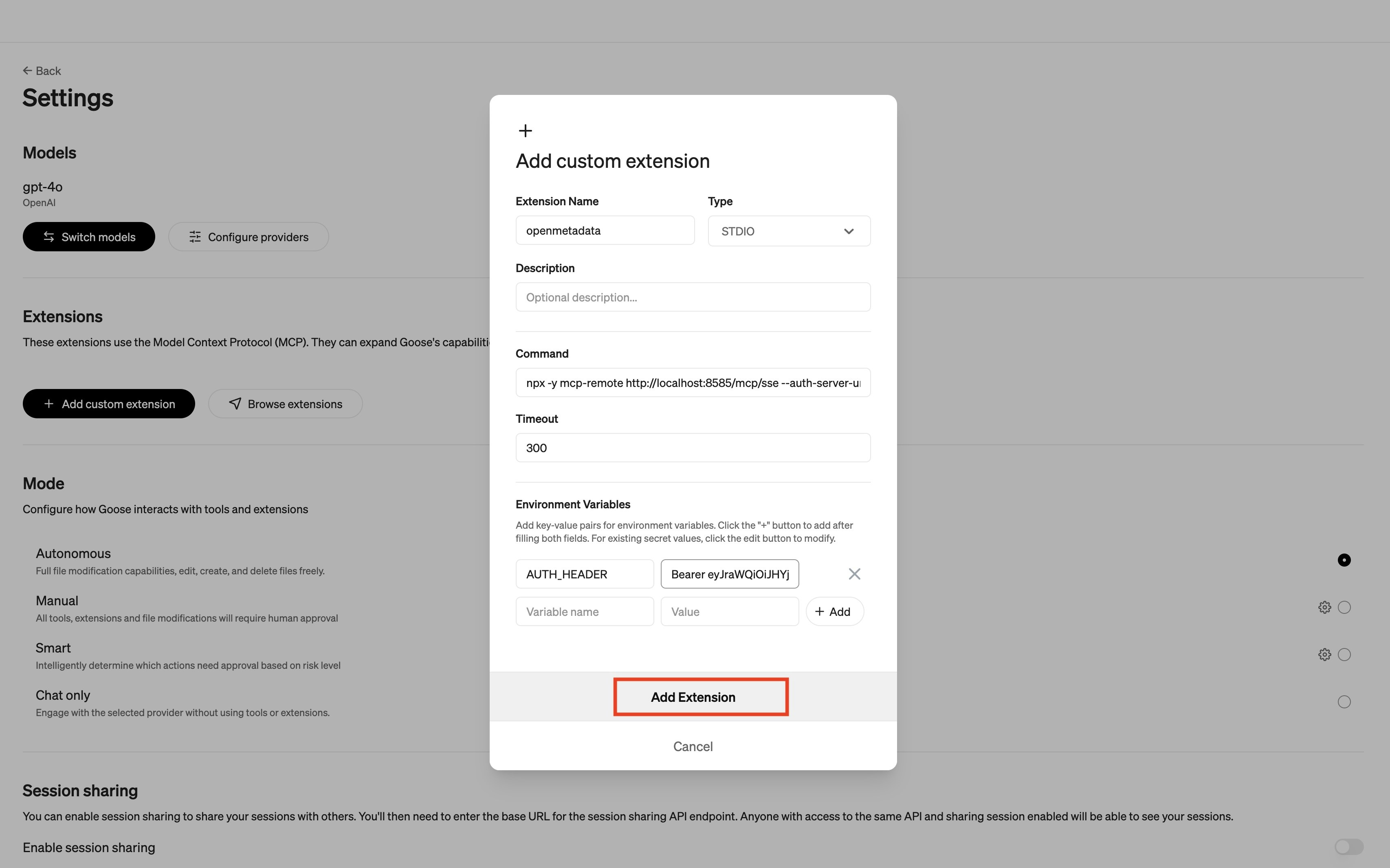
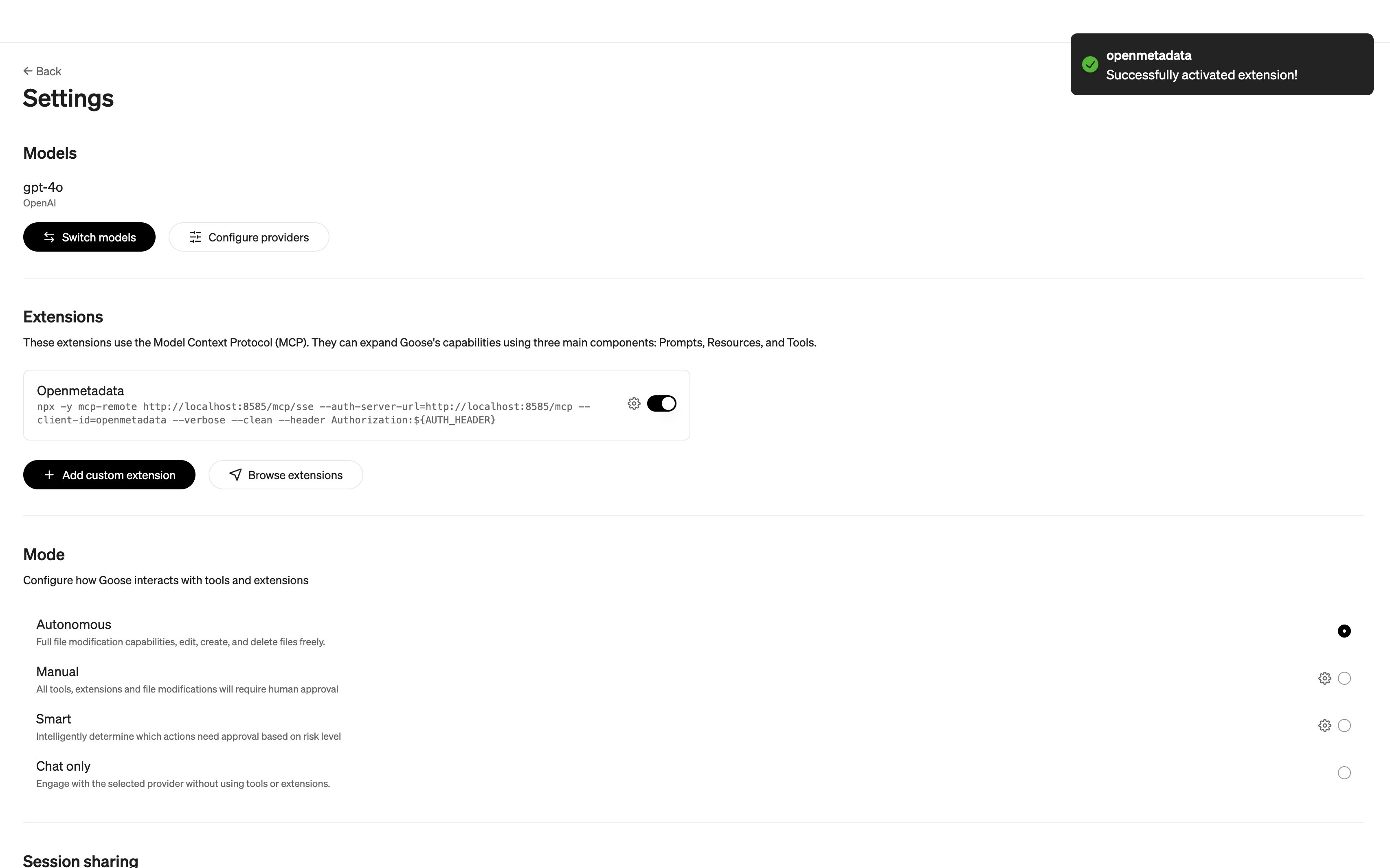
 * Select *Add Extension*
 ## Prompt to read from OpenMetadata
This part of the guide assumes that you have assets in OpenMetadata. You can add data assets into OpenMetadata [here](https://docs.open-metadata.org/latest/connectors).
Select a model from Goose and paste the following prompt to have it read from OpenMetadata:
```
What tables do you have access to in OpenMetadata?
```
For more sample use cases with MCP please check out [our blog](https://collatedata.medium.com/mcp-sample-uses-in-openmetadata-b7846864f63b)!
### Reach out on Slack!
With MCP, we are finding new ways to use OpenMetadata all the time! Now that you have Claude and OpenMetadata configured to work together, think you've got a great new use case? Show us what you've got in [Slack](https://slack.open-metadata.org/)!
## Prompt to read from OpenMetadata
This part of the guide assumes that you have assets in OpenMetadata. You can add data assets into OpenMetadata [here](https://docs.open-metadata.org/latest/connectors).
Select a model from Goose and paste the following prompt to have it read from OpenMetadata:
```
What tables do you have access to in OpenMetadata?
```
For more sample use cases with MCP please check out [our blog](https://collatedata.medium.com/mcp-sample-uses-in-openmetadata-b7846864f63b)!
### Reach out on Slack!
With MCP, we are finding new ways to use OpenMetadata all the time! Now that you have Claude and OpenMetadata configured to work together, think you've got a great new use case? Show us what you've got in [Slack](https://slack.open-metadata.org/)!