> ## Documentation Index
> Fetch the complete documentation index at: https://docs.open-metadata.org/llms.txt
> Use this file to discover all available pages before exploring further.
# Try OpenMetadata in Docker
> Get OpenMetadata running locally in minutes with Docker. Step-by-step setup guide, configuration tips, and troubleshooting for your metadata platform.
# Local Docker Deployment
This installation doc will help you start a OpenMetadata standalone instance on your local machine.
If you'd rather see the steps in a guided tutorial, we've got you covered! Otherwise, feel free to read the
content below 👇
## Requirements (OSX, Linux and Windows)
Please ensure your host system meets the requirements listed below. Then continue to the Procedure for installing
OpenMetadata.
### OSX and Linux
#### Docker (version 20.10.0 or greater)
[Docker](https://docs.docker.com/get-started/overview/) is an open-source platform for developing, shipping, and running applications. It enables you to separate your applications from your infrastructure, so you can deliver software quickly using OS-level virtualization. It helps
deliver software in packages called Containers.
To check the version of Docker you have, use the following command.
```commandline theme={null}
docker --version
```
If you need to install Docker, please visit [Get Docker](https://docs.docker.com/get-docker/).
You must allocate at least `6 GiB` of memory and `4 vCPUs` to Docker in order to run OpenMetadata. To change the memory allocation for Docker, please visit `Preferences -> Resources -> Advanced` in your Docker Desktop.
#### Docker Compose (version v2.1.1 or greater)
The Docker `compose` package enables you to define and run multi-container Docker applications. The compose command
integrates compose functions into the Docker platform, making them available from the Docker command-line interface (
CLI). The Python packages you will install in the procedure below use compose to deploy OpenMetadata.
* **MacOS X**: Docker on MacOS X ships with compose already available in the Docker CLI.
* **Linux**: To install compose on Linux systems, please visit the Docker CLI command documentation and follow the
instructions.
To verify that the docker compose command is installed and accessible on your system, run the following command.
```commandline theme={null}
docker compose version
```
Upon running this command you should see output similar to the following.
```commandline theme={null}
Docker Compose version v2.1.1
```
#### Install Docker Compose Version 2.0.0 on Linux
Follow the instructions [here](https://docs.docker.com/compose/cli-command/#install-on-linux) to install docker compose version 2.0.0
1. Run the following command to download the current stable release of Docker Compose
```
DOCKER_CONFIG=${DOCKER_CONFIG:-$HOME/.docker}
mkdir -p $DOCKER_CONFIG/cli-plugins
curl -SL https://github.com/docker/compose/releases/download/v2.2.3/docker-compose-linux-x86_64 -o $DOCKER_CONFIG/cli-plugins/docker-compose
```
This command installs Compose V2 for the active user under \$HOME directory. To install Docker Compose for all users
on your system, replace` ~/.docker/cli-plugins` with `/usr/local/lib/docker/cli-plugins`.
2. Apply executable permissions to the binary
```
chmod +x $DOCKER_CONFIG/cli-plugins/docker-compose
```
3. Test your installation
```
docker compose version
> Docker Compose version v2.2.3
```
### Windows
#### WSL2, Ubuntu 20.04, and Docker for Windows
* Install [WSL2](https://ubuntu.com/wsl)
* Install [Ubuntu 20.04](https://www.microsoft.com/en-us/p/ubuntu-2004-lts/9n6svws3rx71)
* Install [Docker for Windows](https://www.docker.com/products/docker-desktop)
* Once installed, please follow the steps [here](https://docs.docker.com/desktop/windows/wsl/) and complete all the pre-requisites for a seamless installation and deployment.
* After completion of the pre-requisites, please install `python3-pip` and `python3-venv` on your Ubuntu system.
* Command: `apt install python3-pip python3-venv` (Ensure that you have the privilege to install packages, if not, please use Super User.)
### Procedure
#### 1. Create a directory for OpenMetadata
Create a new directory for OpenMetadata and navigate into that directory.
```bash theme={null}
mkdir openmetadata-docker && cd openmetadata-docker
```
#### 2. Download Docker Compose File from GitHub Releases
Download the docker-compose.yml file from the release page [here](https://github.com/open-metadata/OpenMetadata/releases/latest).
The latest version is at the top of the page
* Deploying with MySQL: Download `docker-compose.yml` file from the above link.
* Deploying with PostgreSQL: Download `docker-compose-postgres.yml` file from the above link.
You can use the curl or wget command as well to fetch the docker compose files from your terminal -
```commandline theme={null}
curl -sL -o docker-compose.yml https://github.com/open-metadata/OpenMetadata/releases/download/1.12.6-release/docker-compose.yml
curl -sL -o docker-compose-postgres.yml https://github.com/open-metadata/OpenMetadata/releases/download/1.12.6-release/docker-compose-postgres.yml
```
```commandline theme={null}
wget https://github.com/open-metadata/OpenMetadata/releases/download/1.12.6-release/docker-compose.yml
wget https://github.com/open-metadata/OpenMetadata/releases/download/1.12.6-release/docker-compose-postgres.yml
```
#### 3. Start the Docker Compose Services
Run the below command to deploy the OpenMetadata
For OpenMetadata with MySQL Database -
```commandline theme={null}
docker compose -f docker-compose.yml up --detach
```
For OpenMetadata with PostgreSQL Database -
```commandline theme={null}
docker compose -f docker-compose-postgres.yml up --detach
```
These commands will pull the docker images of Openmetadata for MySQL / PostgreSQL, OpenMetadata-Server, OpenMetadata-Ingestion and Elasticsearch.
Upon running this command you should see output similar to the following.
```commandline theme={null}
+] Running 7/8
⠿ Network metadata_app_net Created 0.2s
⠿ Volume "metadata_ingestion-volume-dag-airflow" Created 0.0s
⠿ Volume "metadata_ingestion-volume-dags" Created 0.0s
⠿ Volume "metadata_ingestion-volume-tmp" Created 0.0s
⠿ Container openmetadata_elasticsearch Started 5.9s
⠿ Container openmetadata_mysql Started 38.3s
⠿ Container openmetadata_server Started 124.8s
⠿ Container openmetadata_ingestion Started 0.3s
```
You can validate that all containers are up by running with command `docker ps`.
```commandline theme={null}
❯ docker ps
CONTAINER ID IMAGE COMMAND CREATED STATUS PORTS NAMES
470cc8149826 openmetadata/server:1.12.6 "./openmetadata-star…" 45 seconds ago Up 43 seconds 3306/tcp, 9200/tcp, 9300/tcp, 0.0.0.0:8585-8586->8585-8586/tcp openmetadata_server
63578aacbff5 openmetadata/ingestion:1.12.6 "./ingestion_depende…" 45 seconds ago Up 43 seconds 0.0.0.0:8080->8080/tcp openmetadata_ingestion
9f5ee8334f4b docker.elastic.co/elasticsearch/elasticsearch:7.16.3 "/tini -- /usr/local…" 45 seconds ago Up 44 seconds 0.0.0.0:9200->9200/tcp, 0.0.0.0:9300->9300/tcp openmetadata_elasticsearch
08947ab3424b openmetadata/db:1.12.6 "/entrypoint.sh mysq…" 45 seconds ago Up 44 seconds (healthy) 3306/tcp, 33060-33061/tcp openmetadata_mysql
```
In a few seconds, you should be able to access the OpenMetadata UI at [http://localhost:8585](http://localhost:8585)
By default, we ship Docker Compose with [host and docker named volume mapping](https://docs.docker.com/storage/) for MySQL, PostgreSQL, ElasticSearch and Ingestion Services with quickstart docker compose services. This will be available under `docker-volume` directory on host machine in the same path as docker compose files.
### Log in to OpenMetadata
OpenMetadata provides a default admin account to login.
You can access OpenMetadata at [http://localhost:8585](http://localhost:8585). Use the following credentials to log in to OpenMetadata.
* Username: `admin@open-metadata.org`
* Password: `admin`
Once you log in, you can goto Settings -> Users to add another user and make them admin as well.
### Log in to Airflow
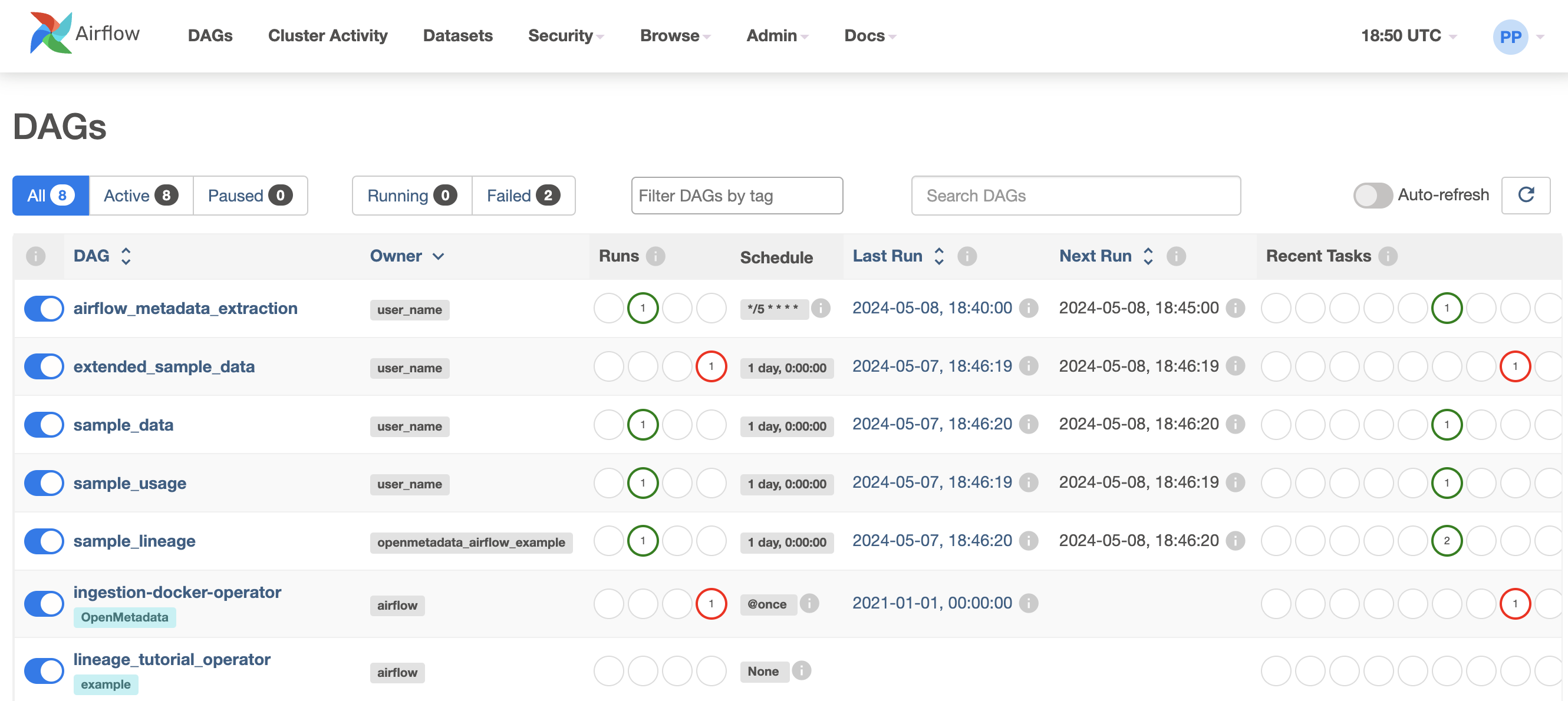
OpenMetadata ships with an Airflow container to run the ingestion workflows that have been deployed
via the UI.
In the Airflow, you will also see some sample DAGs that will ingest sample data and serve as an example.
You can access Airflow at [http://localhost:8080](http://localhost:8080). Use the following credentials to log in to Airflow.
* Username: `admin`
* Password: `admin`
#### Customizing Airflow Admin Credentials:
When using Docker Compose, you can change the default Airflow admin credentials by setting the following environment variables:
* Username: `AIRFLOW_ADMIN_USER`
* Password: `AIRFLOW_ADMIN_PASSWORD`
### Airflow DAGs Showcased in Deployment
You can explore the examples of Airflow DAGs used with OpenMetadata. Refer [here](https://github.com/open-metadata/OpenMetadata/tree/main/ingestion/examples/airflow/dags) for more information.
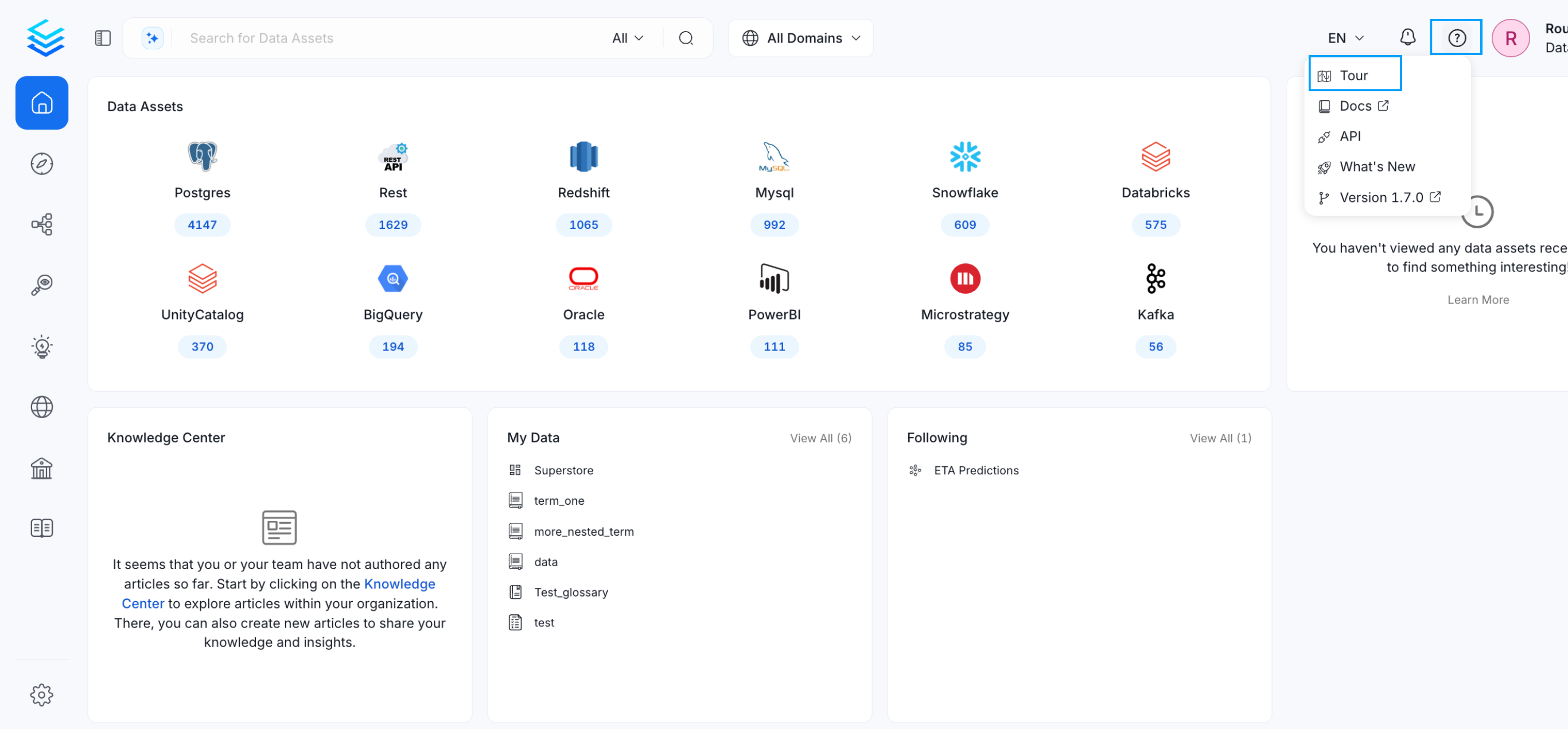
### Go on a tour and start discovering the power of metadata & collaboration
### Start and Stop
From the same directory mentioned in [step 1](#1.-create-a-directory-for-openmetadata), use the following commands to start and stop the Docker Compose services.
To stop the services
```
docker compose stop
```
To start the services
```
docker compose start
```
Start and stop are used to completely halt or restart the running services. When services are stopped, their containers are shut down but remain available for restarting without rebuilding.
Importantly, any data stored in Docker volumes remains unaffected during this process. The volumes stay intact and accessible, preserving your application's state and making it easy to restart the services without losing data. This makes it a reliable option for temporary shutdowns while maintaining continuity.
### Cleanup
To stop the Docker Compose services, run the following command from the same directory mentioned in [step 1](#1.-create-a-directory-for-openmetadata).
Stop the services
```
docker compose down
```
If you want to clean up the associated named volumes as well, use the following command
```
docker compose down --volumes
```
Named volumes are used to persist data created by containers, ensuring that the data remains even after the containers are stopped or removed. These volumes are managed by Docker and stored independently from the containers.
Using the `--volumes` flag with the `docker compose down` command will delete these volumes, permanently removing all stored data.
## Troubleshooting
### Compose is not a docker command
If you are getting an error such as `"compose" is not a docker command`, you might need to revisit the
installation steps above to make sure that Docker Compose is properly added to your system.
### Network openmetadata\_app\_net Error
You might see something like:
```
The docker command executed was `/usr/local/bin/docker compose --file /var/folders/bl/rm5dhdf127ngm4rr40hvhbq40000gn/T/docker-compose.yml --project-name openmetadata up --detach`.
It returned with code 1
The content of stdout can be found above the stacktrace (it wasn't captured).
The content of stderr is 'Network openmetadata_app_net Creating
Network openmetadata_app_net Error
failed to create network openmetadata_app_net: Error response from daemon: Pool overlaps with other one on this address space
```
A common solution is to run `docker network prune`:
```
WARNING! This will remove all custom networks not used by at least one container.
```
So be careful if you want to keep up some (unused) networks from your laptop.
### Connect Host Services from Docker Container
You can connect Docker containers to communicate with Host Operating System Services. Navigate to the [official docker documentation](https://docs.docker.com/desktop/networking/#i-want-to-connect-from-a-container-to-a-service-on-the-host) which will help achieve the same.
## Security
Please follow our [Enable Security Guide](/v1.12.x/deployment/docker/security) to configure security for your OpenMetadata
installation.
## Next Steps
1. Refer the [How-to Guides](/v1.12.x/how-to-guides) for an overview of all the features in OpenMetadata.
2. Visit the [Connectors](/v1.12.x/connectors) documentation to see what services you can integrate with
OpenMetadata.
3. Visit the [API](https://docs.open-metadata.org/api-reference) documentation and explore the rich set of OpenMetadata APIs.
### Volume Permissions: Operation not permitted
If you are running on Windows (WSL2) and see permissions errors when starting the databases (either MySQL or Postgres), e.g.,
```
openmetadata_postgresql | chmod: changing permissions of '/var/lib/postgresql/data': Operation not permitted
```
You can try to update the `/etc/wsl.conf` file from the WSL2 machine to add:
```
[automount]
options = "metadata,case=force"
```
 ### Go on a tour and start discovering the power of metadata & collaboration
 ### Start and Stop
From the same directory mentioned in [step 1](#1.-create-a-directory-for-openmetadata), use the following commands to start and stop the Docker Compose services.
To stop the services
```
docker compose stop
```
To start the services
```
docker compose start
```
### Start and Stop
From the same directory mentioned in [step 1](#1.-create-a-directory-for-openmetadata), use the following commands to start and stop the Docker Compose services.
To stop the services
```
docker compose stop
```
To start the services
```
docker compose start
```