> ## Documentation Index
> Fetch the complete documentation index at: https://docs.open-metadata.org/llms.txt
> Use this file to discover all available pages before exploring further.
# Couchbase Connector | OpenMetadata NoSQL Integration Guide
> Connect Couchbase to OpenMetadata effortlessly. Complete setup guide, configuration steps, and metadata extraction for your NoSQL database connector.

# Couchbase
PROD
In this section, we provide guides and references to use the Couchbase connector.
Configure and schedule Couchbase metadata workflows from the OpenMetadata UI:
* [Metadata Ingestion](#metadata-ingestion)
* [Troubleshooting](https://docs.open-metadata.org/v1.13.x/connectors/database/couchbase/troubleshooting.md)
## Metadata Ingestion
To ingest metadata from your sources, you need to create a service connection.
The service connects your source system with OpenMetadata. Once you create
a service, you can use it to configure your ingestion workflows.
To create a service connection and ingest your metadata, follow the steps below:
**1. Select the Service**
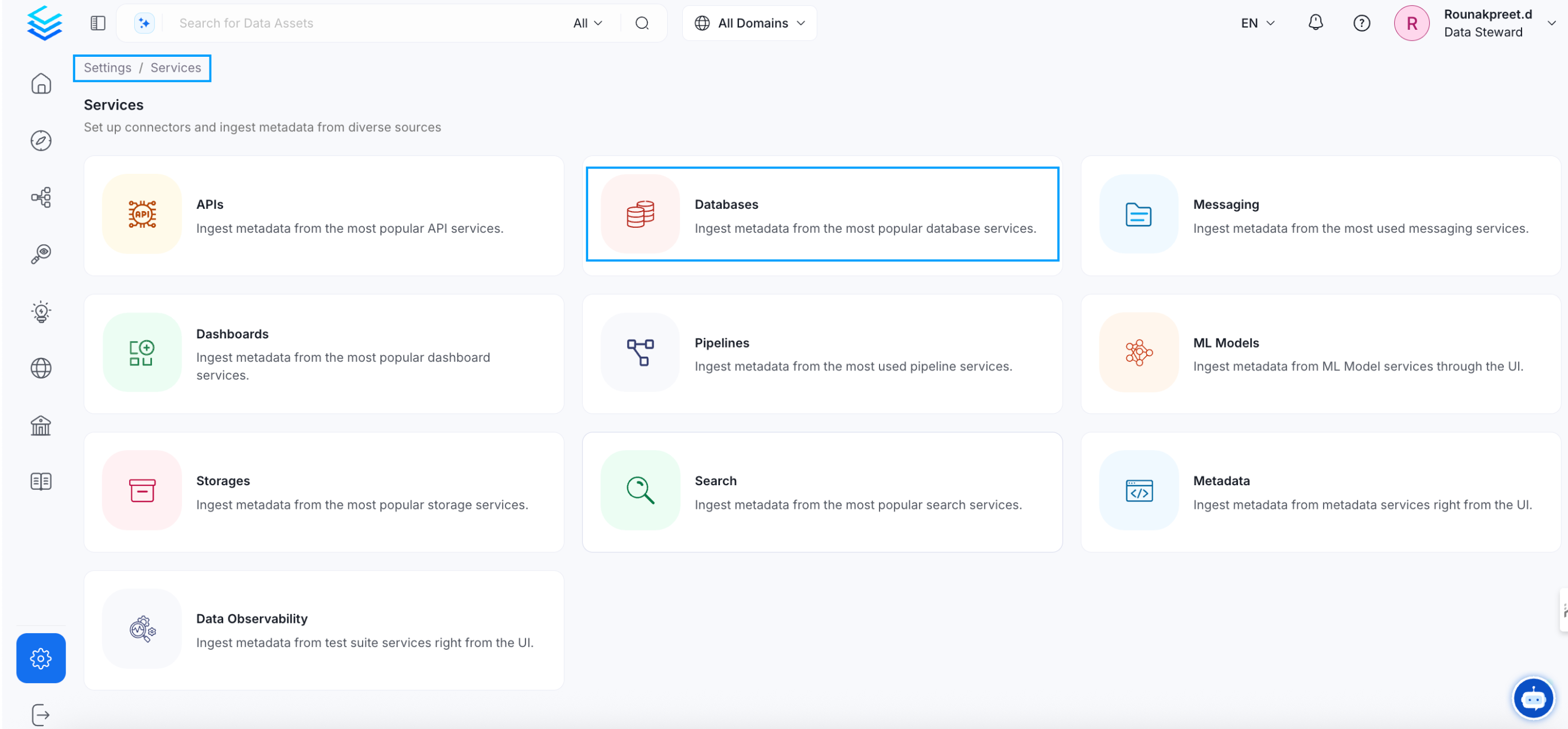
- On the left navigation bar, click **Settings**.
- On the next page, click **Services**, and then select the service.
**2. Create a New Service**
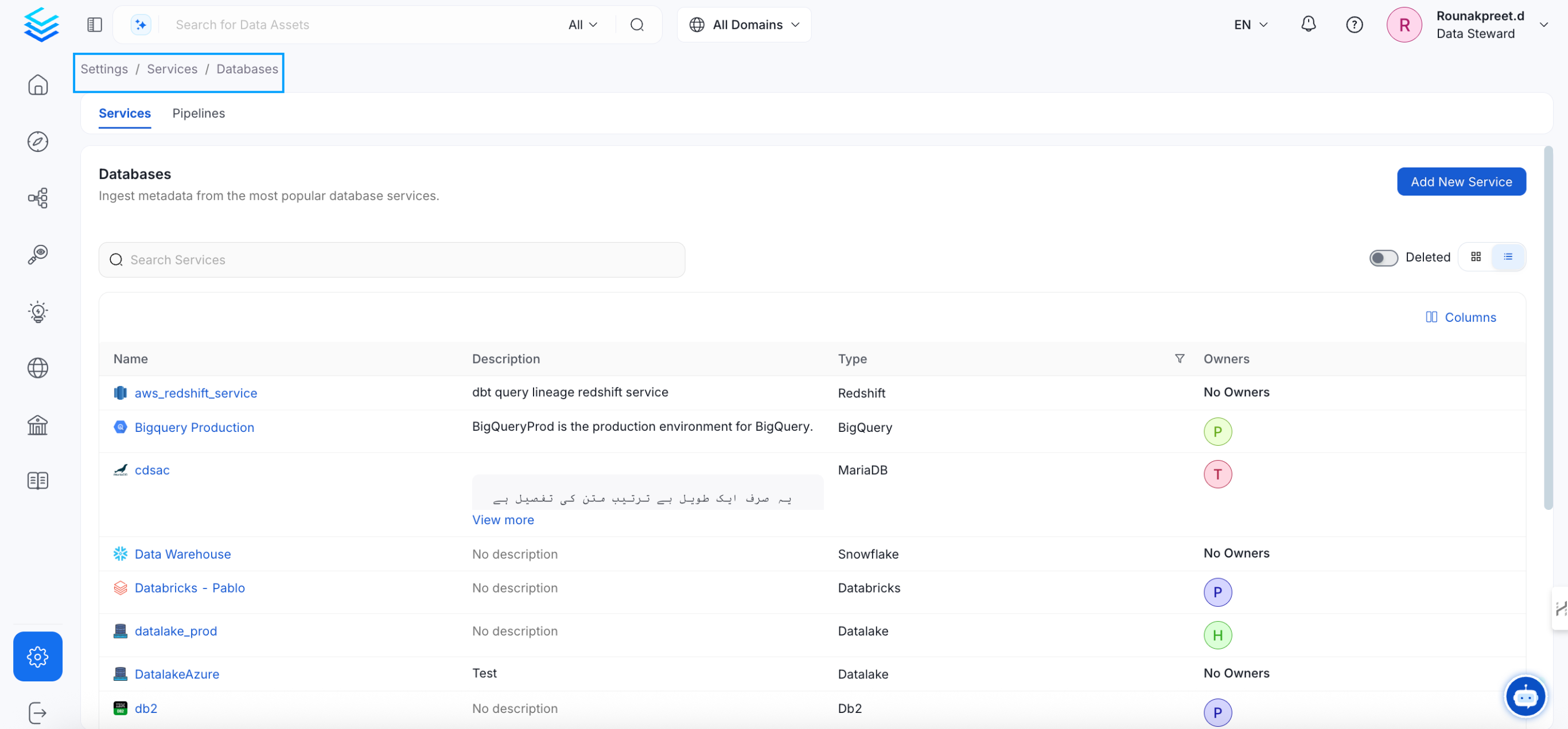
To add a new service connection, click **Add New Service**.
**3. Select the Connector**
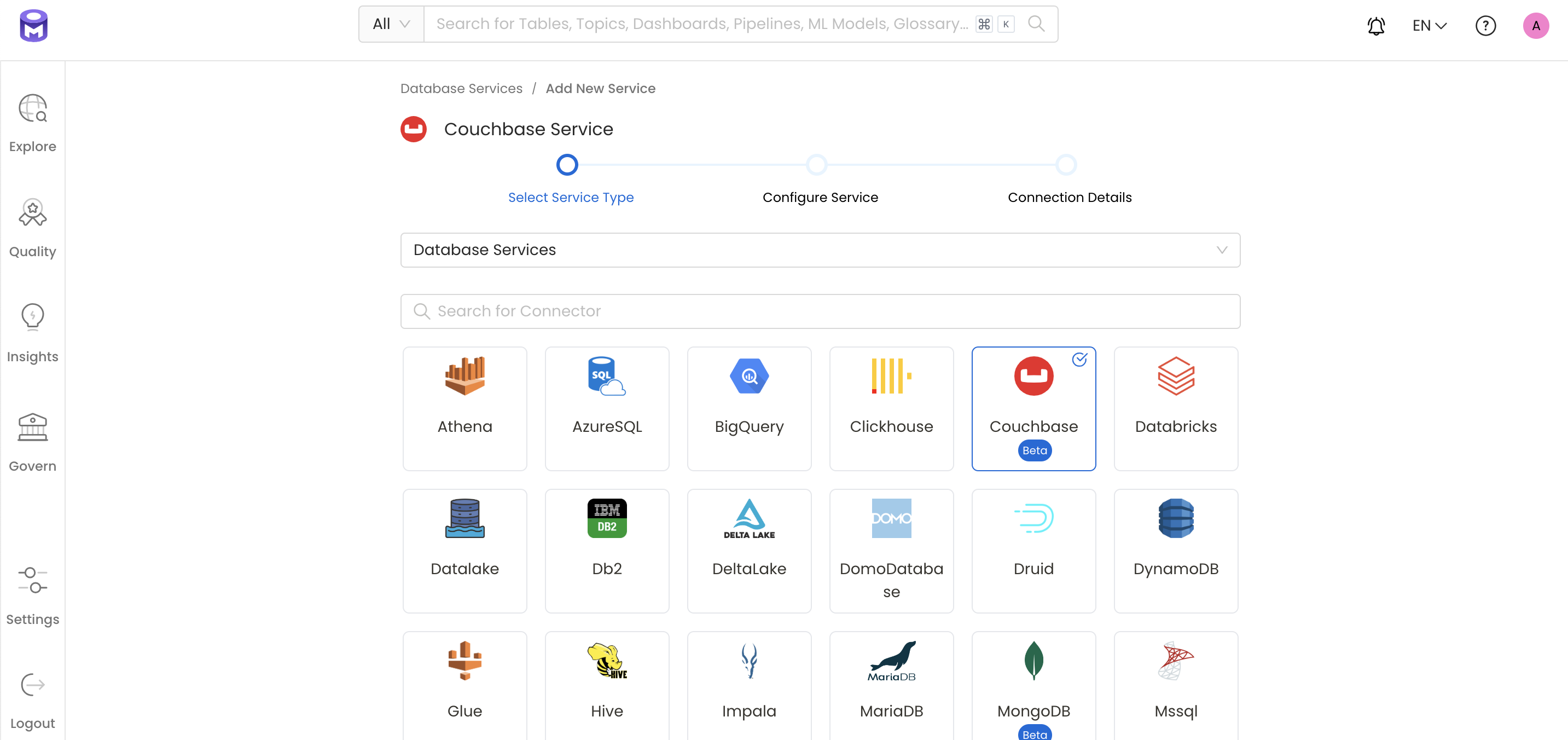
Select **Couchbase** as the service type and click **Next**.
**4. Name and Describe the Service**
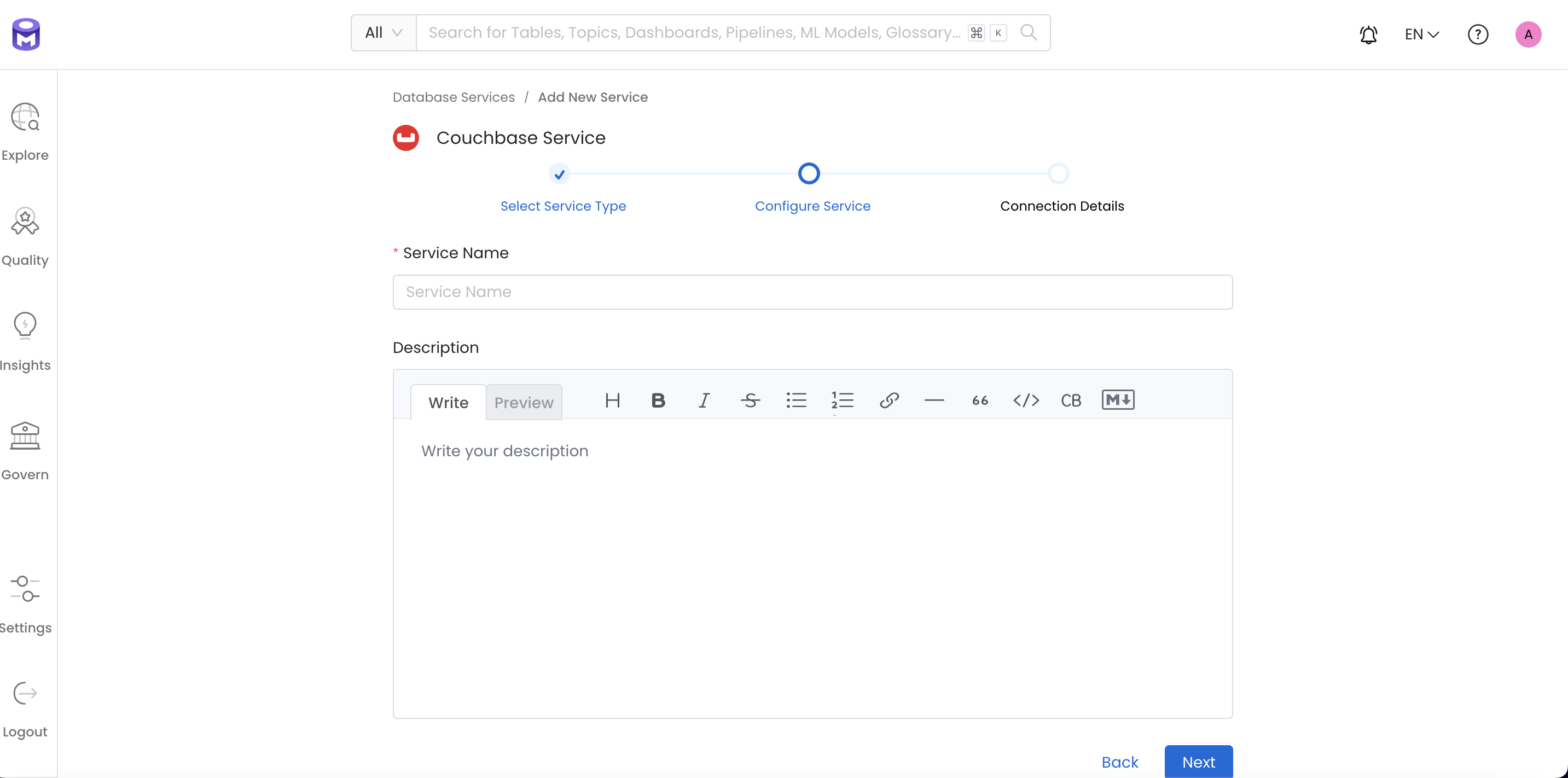
Enter a unique **Service Name** and **Description**.
- **Service Name**: OpenMetadata identifies services by their service name. Enter a name that distinguishes this deployment from other services, including other Couchbase services you are ingesting metadata from.
> [!NOTE]
>
> The service name cannot be changed after it is set.
**5. Configure the Service Connection**
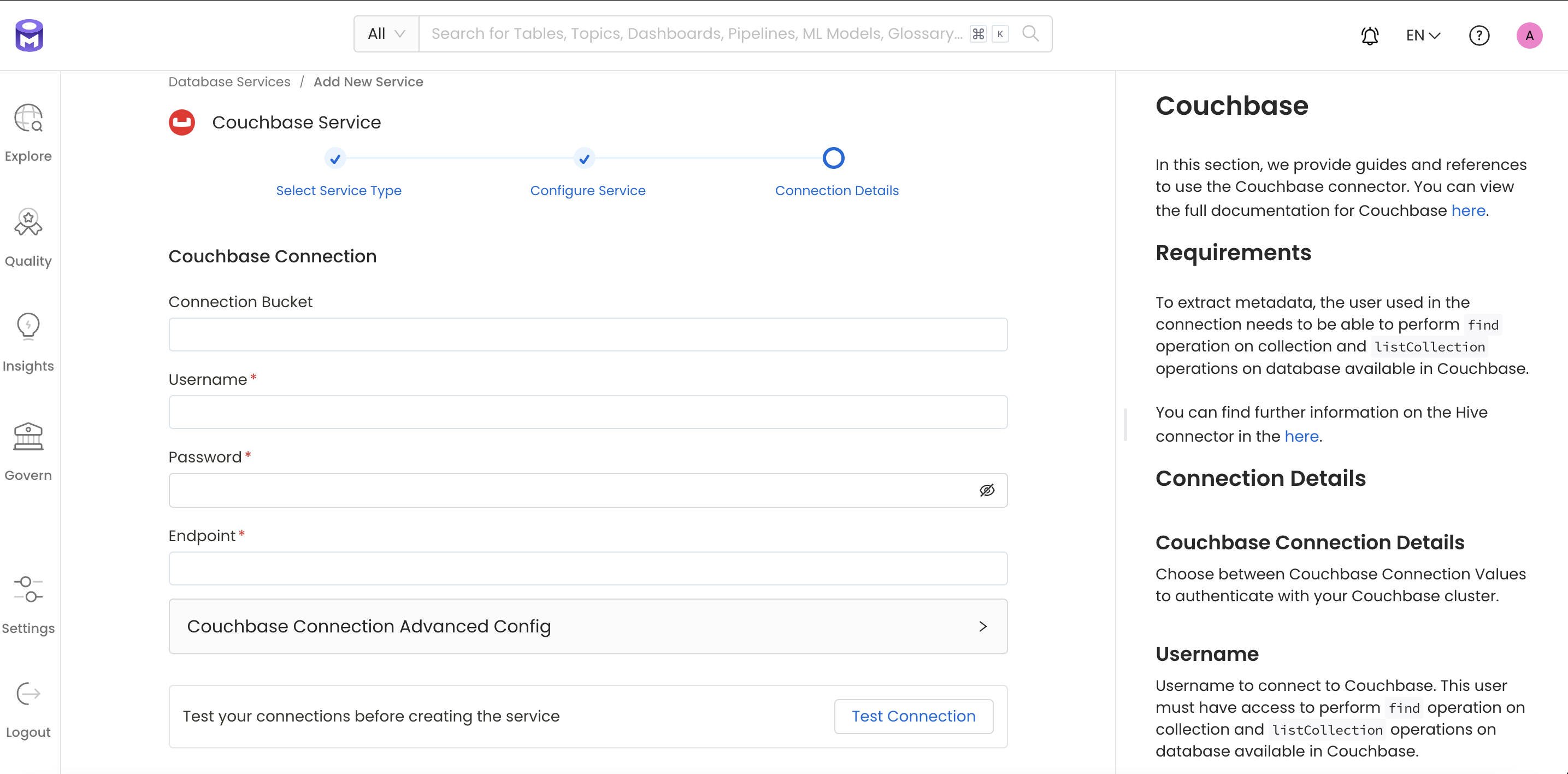
Set up the connection settings required for Couchbase to set up the service and start ingesting metadata from your sources. The right-hand panel displays help documentation for the selected connection type in the product UI.
# Connection Details
**1. Connection Details**
> [!TIP]
>
> When using a **Hybrid Ingestion Runner**, any sensitive credential fields—such as passwords, API keys, or private keys—must reference secrets using the following format:
>
> ```
> password: secret:/my/database/password
> ```
>
> This applies **only to fields marked as secrets** in the connection form (these typically mask input and show a visibility toggle icon).
> For a complete guide on managing secrets in hybrid setups, see the [Hybrid Ingestion Runner Secret Management Guide](https://docs.getcollate.io/getting-started/day-1/hybrid-saas/hybrid-ingestion-runner#3.-manage-secrets-securely).
* **Username**: Username to connect to Couchbase.
* **Password**: Password to connect to Couchbase.
* **Hostport**: If couchbase is hosted on cloud then the hostport parameter specifies the connection string and if you are using couchbase server then the hostport parameter specifies hostname of the Couchbase. This should be specified as a string in the format `hostname` or `xyz.cloud.couchbase.com`. E.g., `localhost`.
* **bucketName**: Optional name to give to the bucket in OpenMetadata. If left blank, If left blank, we will ingest all the bucket names.
**2. Advanced Configuration**
Database Services have an Advanced Configuration section, where you can pass extra arguments to the connector
and, if needed, change the connection Scheme.
This would only be required to handle advanced connectivity scenarios or customizations.
* **Connection Options (Optional)**: Enter the details for any additional connection options that can be sent to database during the connection. These details must be added as Key-Value pairs.
* **Connection Arguments (Optional)**: Enter the details for any additional connection arguments such as security or protocol configs that can be sent during the connection. These details must be added as Key-Value pairs.

**3. Test the Connection**
Once the credentials have been added, click on *Test Connection* and *Save* the changes.

**4. Configure Metadata Ingestion**
In this step we will configure the metadata ingestion pipeline,
Please follow the instructions below


#### Metadata Ingestion Options
> [!TIP]
>
> If the owner's name is openmetadata, you need to enter `openmetadata@domain.com` in the name section of add team/user form, click [here](https://docs.open-metadata.org/connectors/database/dbt/ingest-dbt-owner.md#following-steps-shows-adding-a-user-to-openmetadata) for more info.
* **Name**: This field refers to the name of ingestion pipeline, you can customize the name or use the generated name.
* **Database Filter Pattern (Optional)**: Use to database filter patterns to control whether or not to include database as part of metadata ingestion.
* **Include**: Explicitly include databases by adding a list of comma-separated regular expressions to the Include field. OpenMetadata will include all databases with names matching one or more of the supplied regular expressions. All other databases will be excluded.
* **Exclude**: Explicitly exclude databases by adding a list of comma-separated regular expressions to the Exclude field. OpenMetadata will exclude all databases with names matching one or more of the supplied regular expressions. All other databases will be included.
* **Schema Filter Pattern (Optional)**: Use to schema filter patterns to control whether to include schemas as part of metadata ingestion.
* **Include**: Explicitly include schemas by adding a list of comma-separated regular expressions to the Include field. OpenMetadata will include all schemas with names matching one or more of the supplied regular expressions. All other schemas will be excluded.
* **Exclude**: Explicitly exclude schemas by adding a list of comma-separated regular expressions to the Exclude field. OpenMetadata will exclude all schemas with names matching one or more of the supplied regular expressions. All other schemas will be included.
* **Table Filter Pattern (Optional)**: Use to table filter patterns to control whether to include tables as part of metadata ingestion.
* **Include**: Explicitly include tables by adding a list of comma-separated regular expressions to the Include field. OpenMetadata will include all tables with names matching one or more of the supplied regular expressions. All other tables will be excluded.
* **Exclude**: Explicitly exclude tables by adding a list of comma-separated regular expressions to the Exclude field. OpenMetadata will exclude all tables with names matching one or more of the supplied regular expressions. All other tables will be included.
* **Enable Debug Log (toggle)**: Set the Enable Debug Log toggle to set the default log level to debug.
* **Mark Deleted Tables (toggle)**: Set the Mark Deleted Tables toggle to flag tables as soft-deleted if they are not present anymore in the source system.
* **Mark Deleted Tables from Filter Only (toggle)**: Set the Mark Deleted Tables from Filter Only toggle to flag tables as soft-deleted if they are not present anymore within the filtered schema or database only. This flag is useful when you have more than one ingestion pipelines. For example if you have a schema
* **includeTables (toggle)**: Optional configuration to turn off fetching metadata for tables.
* **Include Views (toggle)**: Ingest metadata for views in addition to tables. Turn off to skip views entirely. Since view lineage is derived from parsing each view's SQL definition, turning this off also stops view-based lineage from being generated for this service. On by default.
* **includeTags (toggle)**: Set the 'Include Tags' toggle to control whether to include tags as part of metadata ingestion.
* **includeOwners (toggle)**: Set the 'Include Owners' toggle to control whether to include owners to the ingested entity if the owner email matches with a user stored in the OM server as part of metadata ingestion. If the ingested entity already exists and has an owner, the owner will not be overwritten.
* **Hierarchical Owner Configuration**: A dedicated section for assigning owners to databases, schemas, and tables during ingestion, with per-entity mappings and inheritance. For more information about how resolution works, see [Hierarchical Owner Configuration](https://docs.open-metadata.org/v1.13.x/connectors/ingestion/workflows/metadata/hierarchical-owner-configuration.md).
* **Default**: Fallback owner (a user or team name, or an email) applied when nothing more specific matches at any level.
* **Service**: Present in the form, but has no effect. Hierarchical Owner Configuration doesn't resolve an owner at the service level.
* **Database**: Choose **Option 1** for a single owner applied to every database, or **Option 2** to map specific database names to owner(s).
* **DatabaseSchema**: Choose **Option 1** for a single owner applied to every schema, or **Option 2** to map specific schema names or fully qualified names to owner(s).
* **Table**: Choose **Option 1** for a single owner applied to every table, or **Option 2** to map specific table names or fully qualified names to owner(s).
* **Enable Inheritance (toggle)**: When enabled (default), a schema or table without its own match inherits the resolved owner from its parent.
* **includeStoredProcedures (toggle)**: Optional configuration to toggle the Stored Procedures ingestion.
* **includeDDL (toggle)**: Optional configuration to toggle the DDL Statements ingestion.
* **queryLogDuration (Optional)**: Configuration to tune how far we want to look back in query logs to process Stored Procedures results.
* **queryParsingTimeoutLimit (Optional)**: Configuration to set the timeout for parsing the query in seconds.
* **Extract JSON Schema (toggle)**: Sample values in JSON columns to infer and ingest their schema, so the individual fields inside a JSON column are visible in OpenMetadata rather than just "JSON". Requires `SELECT` permission on the sampled tables. If that permission is missing, the JSON column is still ingested, just without a detailed schema. Off by default.
* **JSON Schema Sample Size (Optional)**: Only used when Extract JSON Schema is on. Number of rows sampled per JSON column to infer its schema. Defaults to 10.
* **useFqnForFiltering (toggle)**: Regex will be applied on fully qualified name (e.g service\_name.db\_name.schema\_name.table\_name) instead of raw name (e.g. table\_name).
* **Incremental (Beta)**: Use Incremental Metadata Extraction after the first execution. This is done by getting the changed tables instead of all of them. **Only Available for BigQuery, Redshift and Snowflake**
* **Enabled**: If `True`, enables Metadata Extraction to be Incremental.
* **lookback Days**: Number of days to search back for a successful pipeline run. The timestamp of the last found successful pipeline run will be used as a base to search for updated entities.
* **Safety Margin Days**: Number of days to add to the last successful pipeline run timestamp to search for updated entities.
* **Threads (Beta)**: Use a Multithread approach for Metadata Extraction. You can define here the number of threads you would like to run concurrently.
Note that the right-hand side panel in the OpenMetadata UI will also share useful documentation when configuring the ingestion.
**5. Schedule the Ingestion and Deploy**
Scheduling can be set up at an hourly, daily, weekly, or manual cadence. The
timezone is in UTC. Select a Start Date to schedule for ingestion. It is
optional to add an End Date.
Review your configuration settings. If they match what you intended,
click Deploy to create the service and schedule metadata ingestion.
If something doesn't look right, click the Back button to return to the
appropriate step and change the settings as needed.
After configuring the workflow, you can click on Deploy to create the
pipeline.

**6. View the Ingestion Pipeline**
Once the workflow has been successfully deployed, you can view the
Ingestion Pipeline running from the Service Page.

> [!TIP]
>
> If AutoPilot is enabled, workflows like usage tracking, data lineage, and similar tasks will be handled automatically. Users don’t need to set up or manage them - AutoPilot takes care of everything in the system.
## Related
> [card] [Usage Workflow](https://docs.open-metadata.org/v1.13.x/connectors/ingestion/workflows/usage.md)
>
> Learn more about how to configure the Usage Workflow to ingest Query information from the UI.
> [card] [Lineage Workflow](https://docs.open-metadata.org/v1.13.x/connectors/ingestion/workflows/lineage.md)
>
> Learn more about how to configure the Lineage from the UI.
> [card] [Profiler Workflow](https://docs.open-metadata.org/v1.13.x/how-to-guides/data-quality-observability/profiler/profiler-workflow.md)
>
> Learn more about how to configure the Data Profiler from the UI.
> [card] [Data Quality Workflow](https://docs.open-metadata.org/v1.13.x/how-to-guides/data-quality-observability/quality/configure.md)
>
> Learn more about how to configure the Data Quality tests from the UI.
> [card] [dbt Integration](https://docs.open-metadata.org/v1.13.x/connectors/database/dbt.md)
>
> Learn more about how to ingest dbt models' definitions and their lineage.
This documentation is built and hosted on [Mintlify](https://mintlify.com), a developer documentation platform.