> ## Documentation Index
> Fetch the complete documentation index at: https://docs.open-metadata.org/llms.txt
> Use this file to discover all available pages before exploring further.
# Auth0 SSO for Docker | OpenMetadata Deployment Guide
> Enable implicit authentication for Azure apps using client-side tokens to streamline secure user access without needing redirection or backend calls.
# Implicit Flow
### Step 1: App Registrations
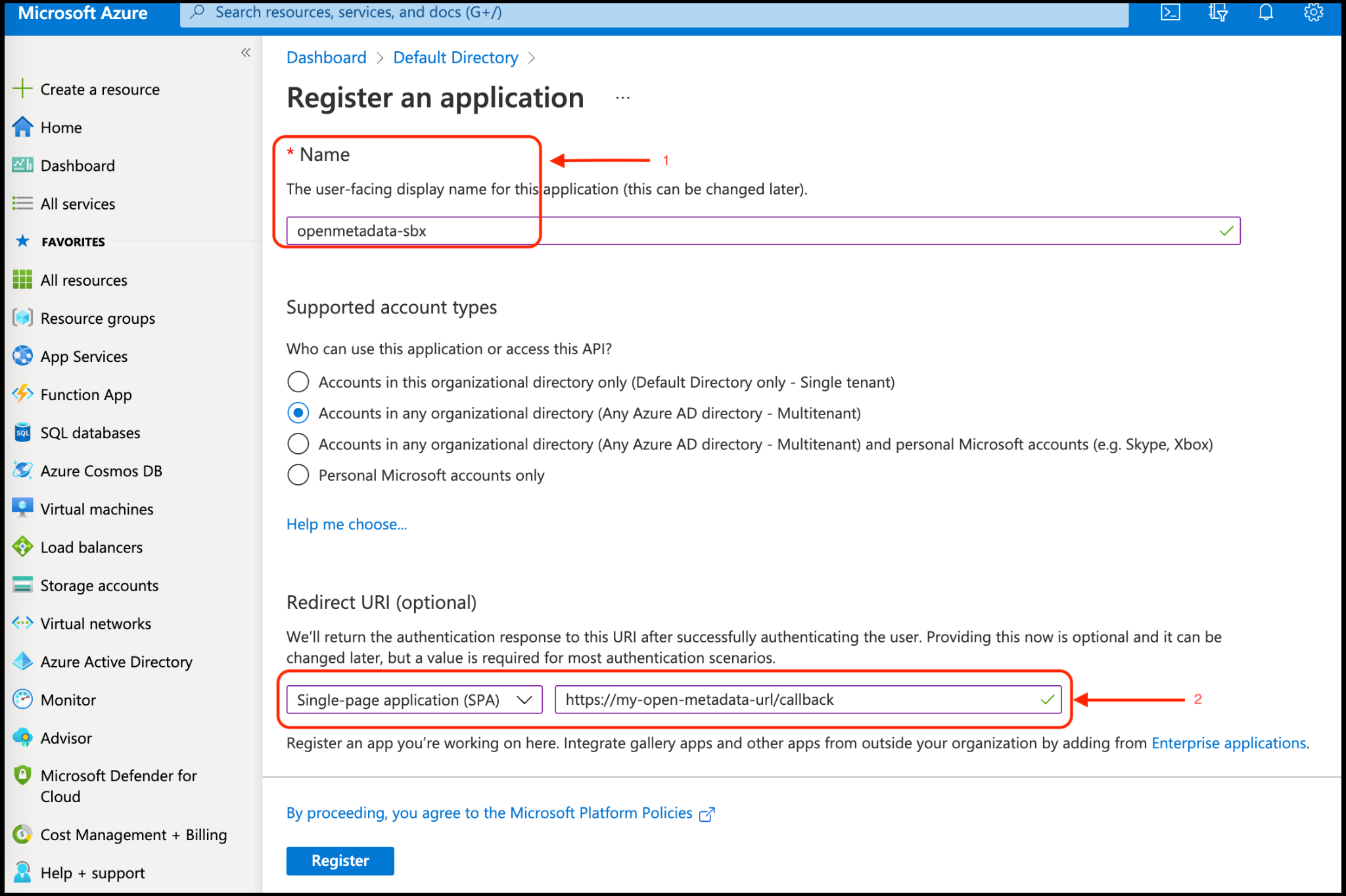
* Provide an Application Name for registration.
* Provide a redirect URL as a Single Page Application (SPA).
* Click on Register.
 ### Step 2: Where to Find the Credentials
* The `Client ID` and the `Tenant ID` are displayed in the Overview section of the registered application.
### Step 2: Where to Find the Credentials
* The `Client ID` and the `Tenant ID` are displayed in the Overview section of the registered application.
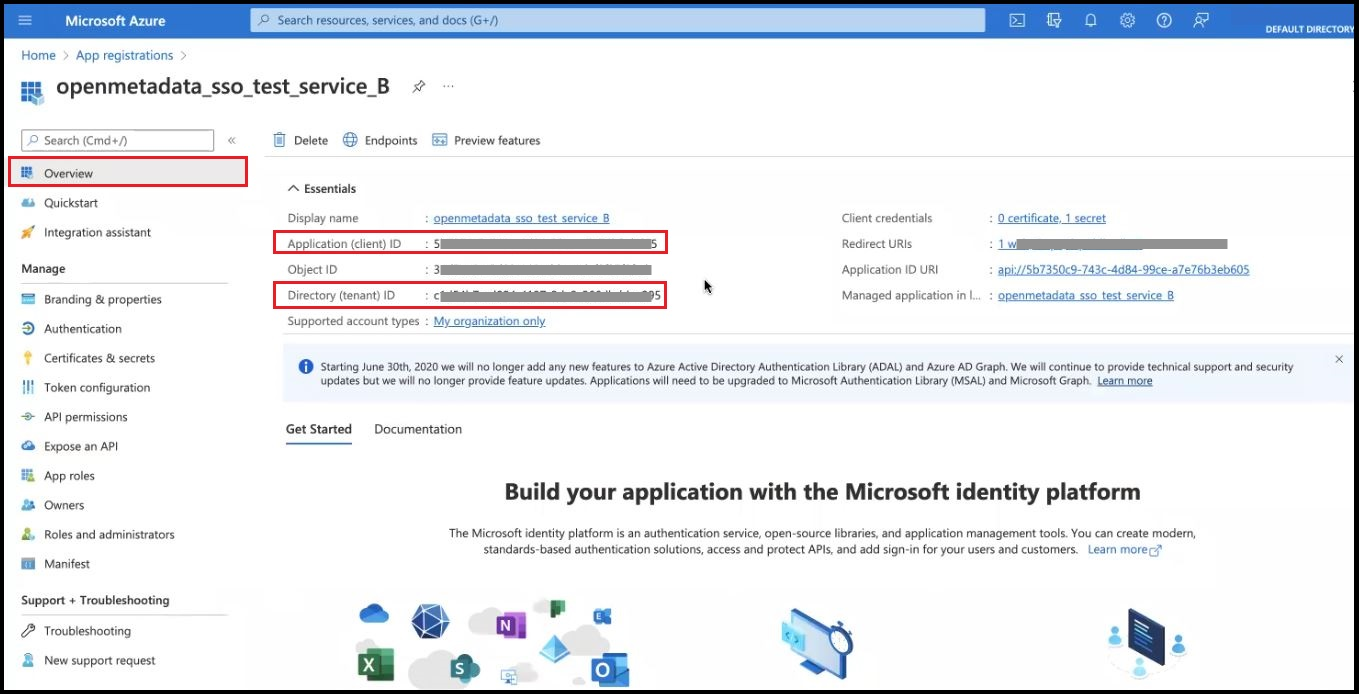 * When passing the details for `authority`, the `Tenant ID` is added to the URL as shown in the example
below. `https://login.microsoftonline.com/TenantID`
```commandline theme={null}
"authority": "https://login.microsoftonline.com/c11234b7c-b1b2-9854-0mn1-56abh3dea295"
```
## Configure Ingestion
Once your server security is set, it's time to review the ingestion configuration. Our bots support JWT tokens
to authenticate to the server when sending requests.
Find more information on [**Enabling JWT Tokens**](/deployment/security/enable-jwt-tokens) and [**JWT Troubleshooting**](/deployment/security/jwt-troubleshooting) to ensure seamless authentication.
After the applying these steps, Now you can update the configuration of your deployment:
Configure Azure SSO for Docker deployment.
Configure Azure SSO for Kubernetes deployment.
Configure Azure SSO for Bare Metal deployment.
Go to Azure Configuration
* When passing the details for `authority`, the `Tenant ID` is added to the URL as shown in the example
below. `https://login.microsoftonline.com/TenantID`
```commandline theme={null}
"authority": "https://login.microsoftonline.com/c11234b7c-b1b2-9854-0mn1-56abh3dea295"
```
## Configure Ingestion
Once your server security is set, it's time to review the ingestion configuration. Our bots support JWT tokens
to authenticate to the server when sending requests.
Find more information on [**Enabling JWT Tokens**](/deployment/security/enable-jwt-tokens) and [**JWT Troubleshooting**](/deployment/security/jwt-troubleshooting) to ensure seamless authentication.
After the applying these steps, Now you can update the configuration of your deployment:
Configure Azure SSO for Docker deployment.
Configure Azure SSO for Kubernetes deployment.
Configure Azure SSO for Bare Metal deployment.
Go to Azure Configuration