> ## Documentation Index
> Fetch the complete documentation index at: https://docs.open-metadata.org/llms.txt
> Use this file to discover all available pages before exploring further.
# Domains
> Organize datasets into domains to group related data assets, assign responsibilities, and support distributed data ownership.
# Domains
A Domain groups related data assets under a single entity with defined ownership, so teams can manage and discover the data relevant to their part of the business. This guide walks through the Domains overview, creating a domain, adding sub domains and assets, and managing an existing domain.
## Add a Domain
To create a new domain, follow these steps:
### Step 1: Access Domains
1. In the left navigation bar, click **Data Marketplace**, then select **Domains**.
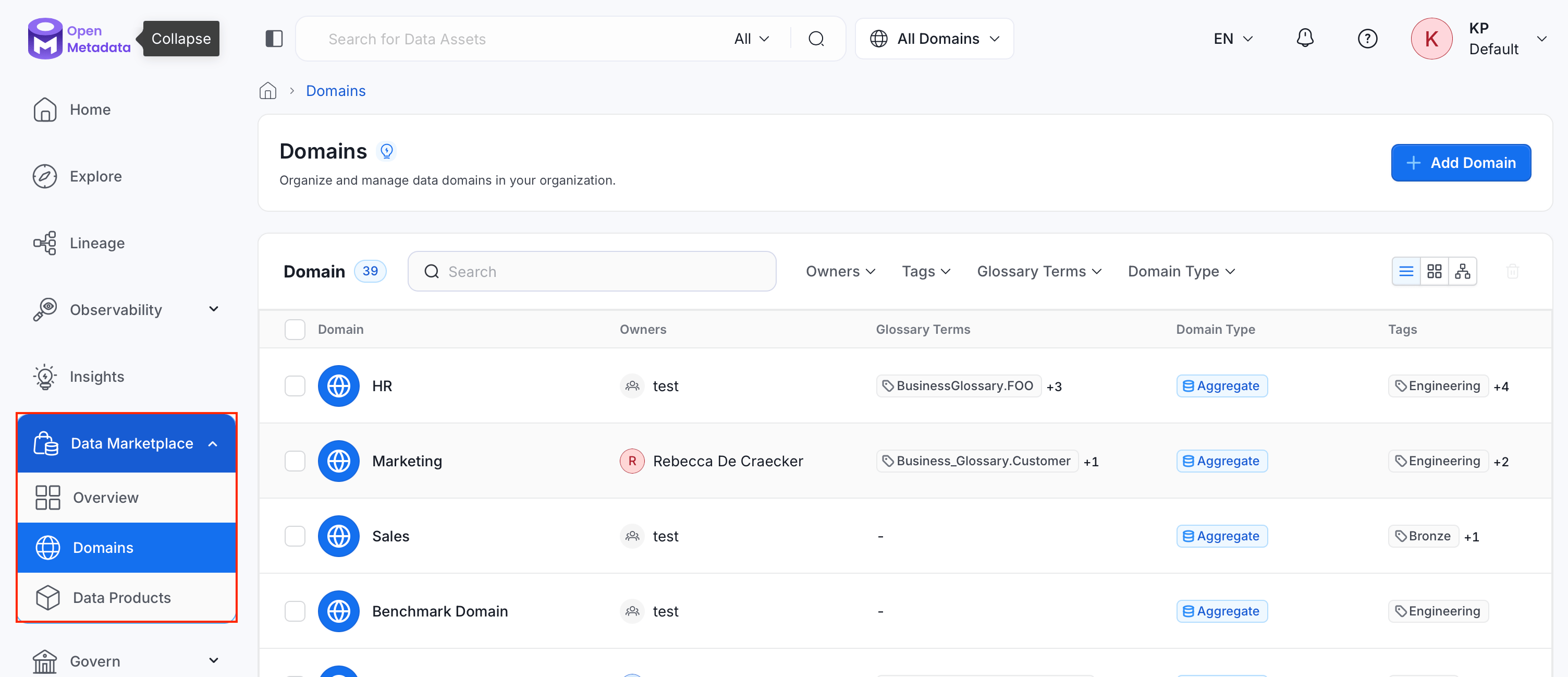 2. Click **Add Domain**.
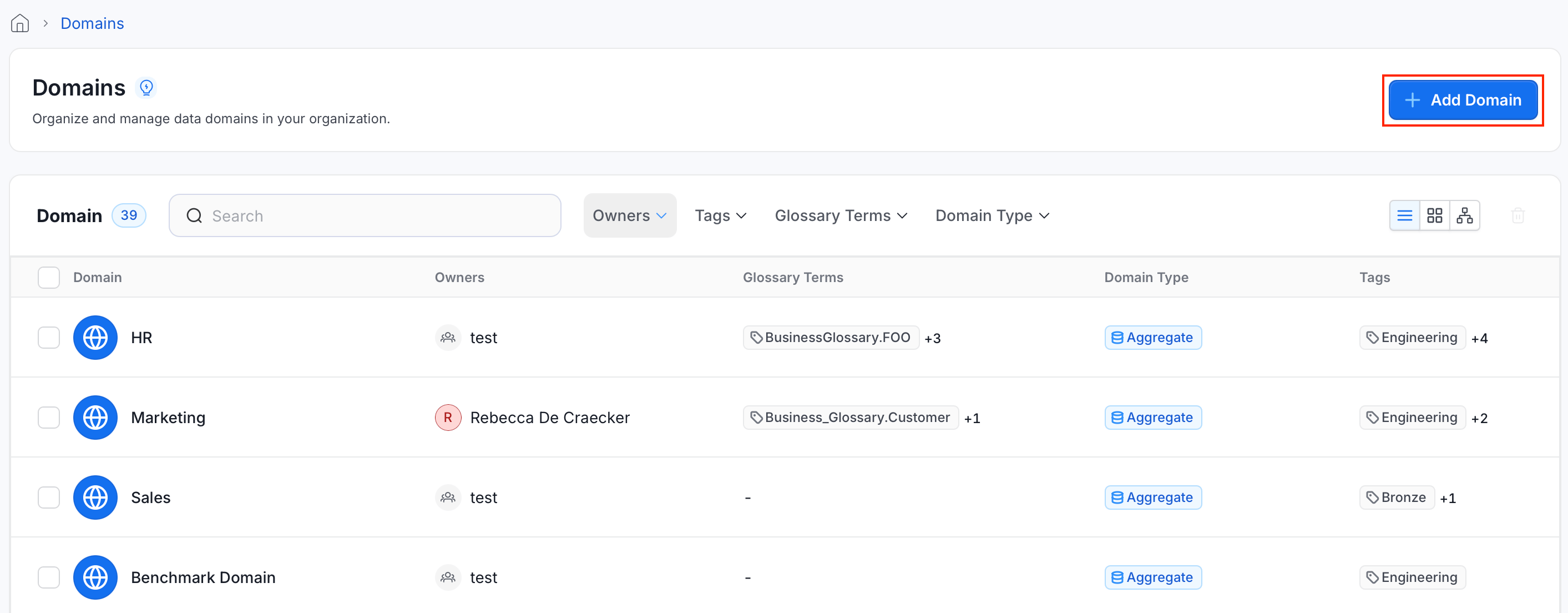 ### Step 2: Enter Domain Details
* **Icon** and **Color**: Select an icon and color to visually identify the domain in the catalog.
* **Name** (required): Enter a unique identifier for the domain.
* **Display Name**: Enter a human-readable label shown throughout the UI.
* **Description** (required): Explain the domain's purpose, the data it contains, and any context other users need.
### Step 2: Enter Domain Details
* **Icon** and **Color**: Select an icon and color to visually identify the domain in the catalog.
* **Name** (required): Enter a unique identifier for the domain.
* **Display Name**: Enter a human-readable label shown throughout the UI.
* **Description** (required): Explain the domain's purpose, the data it contains, and any context other users need.
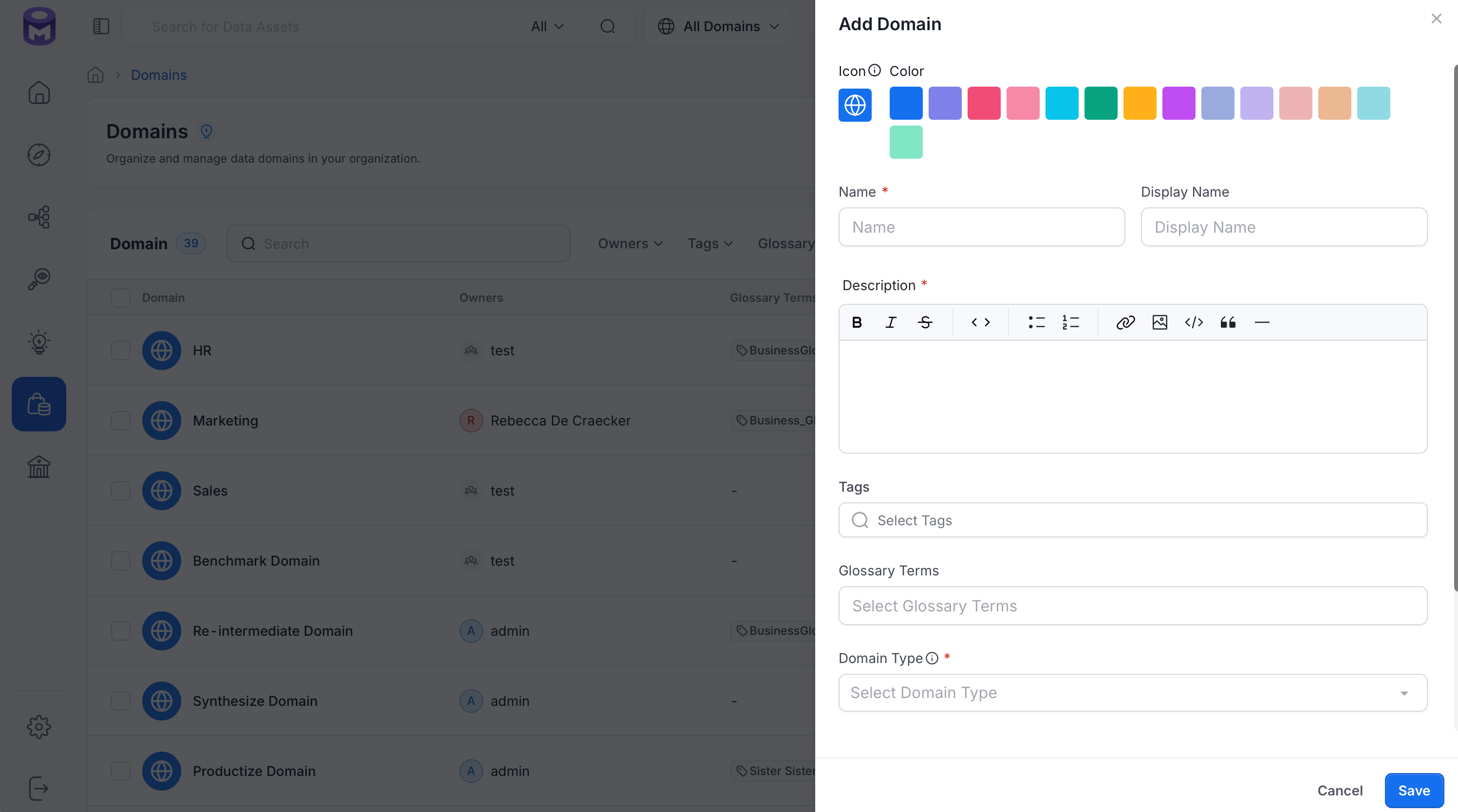 ### Step 3: Add Tags and Glossary Terms
* **Tags**: Select classification tags to categorize the domain.
* **Glossary Terms**: Link the domain to relevant glossary terms.
### Step 4: Select the Domain Type
OpenMetadata provides three types of domains:
| Domain Type | Description |
| -------------------- | --------------------------------------------------------------------------------------------------------------------------------------------- |
| **Source-aligned** | Domains closer to online services and transactional databases, including events and transactional data. |
| **Aggregate** | Domains that collect and curate data from multiple source-aligned domains to provide aggregated data and data products, such as Customer 360. |
| **Consumer-aligned** | User-facing domains where the end product combines data from various domains for business users or data citizens to use for decision-making. |
**Domain Type** (required): Choose the type that best fits the purpose and structure of your domain.
### Step 5: Save the Domain
Click **Save**. The domain appears in the Domains list.
## Add Sub Domains
Sub domains let you break a domain down into smaller, more specific domains that still roll up to the parent.
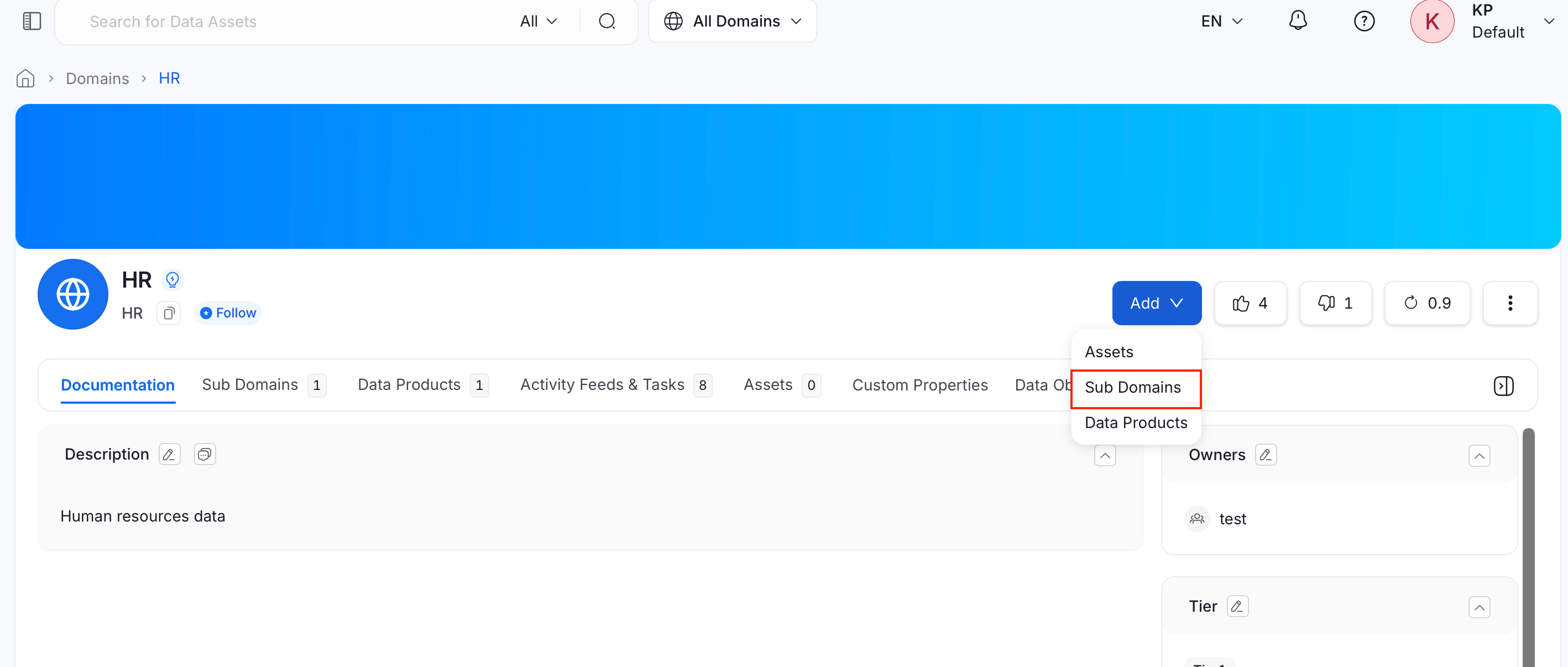
1. From the Domains list, open the parent domain's detail page.
2. Click **Add**, then select **Sub Domains**.
### Step 3: Add Tags and Glossary Terms
* **Tags**: Select classification tags to categorize the domain.
* **Glossary Terms**: Link the domain to relevant glossary terms.
### Step 4: Select the Domain Type
OpenMetadata provides three types of domains:
| Domain Type | Description |
| -------------------- | --------------------------------------------------------------------------------------------------------------------------------------------- |
| **Source-aligned** | Domains closer to online services and transactional databases, including events and transactional data. |
| **Aggregate** | Domains that collect and curate data from multiple source-aligned domains to provide aggregated data and data products, such as Customer 360. |
| **Consumer-aligned** | User-facing domains where the end product combines data from various domains for business users or data citizens to use for decision-making. |
**Domain Type** (required): Choose the type that best fits the purpose and structure of your domain.
### Step 5: Save the Domain
Click **Save**. The domain appears in the Domains list.
## Add Sub Domains
Sub domains let you break a domain down into smaller, more specific domains that still roll up to the parent.
1. From the Domains list, open the parent domain's detail page.
2. Click **Add**, then select **Sub Domains**.
 3. Fill in the same details described in [Add a Domain](#add-a-domain) steps 2 to 4.
4. Click **Save**. The sub domain appears in the parent domain's **Sub Domains** tab.
## Add Assets to the Domain
1. From the Domains list, open the domain's detail page.
2. Click **Add**, then select **Assets**.
3. Fill in the same details described in [Add a Domain](#add-a-domain) steps 2 to 4.
4. Click **Save**. The sub domain appears in the parent domain's **Sub Domains** tab.
## Add Assets to the Domain
1. From the Domains list, open the domain's detail page.
2. Click **Add**, then select **Assets**.
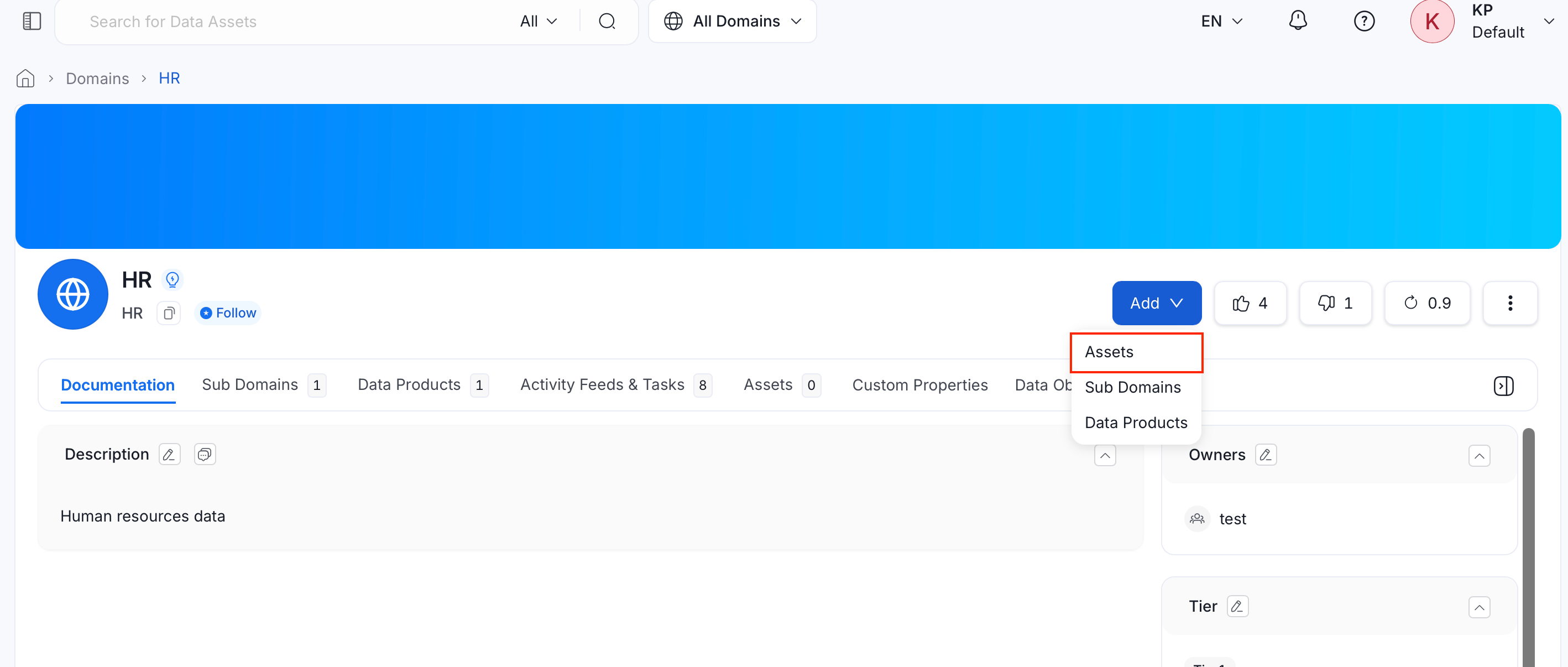 3. Search for assets, or use the filters (entity type, owner, tag, tier, service, service type) to narrow the results.
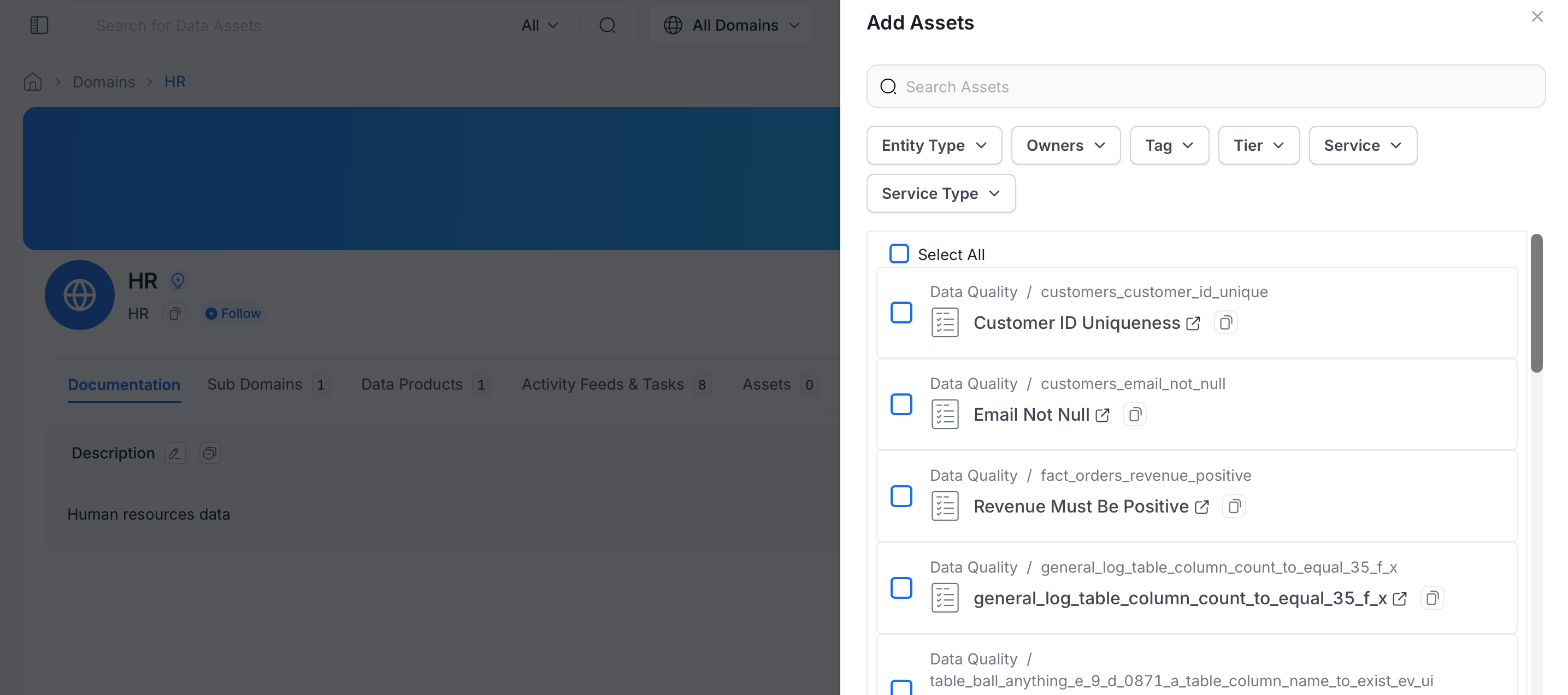 4. Select the assets to include, then click **Save**.
## View Domains
A domain's detail page organizes its information into tabs:
* **Documentation**: The default tab. View and edit the domain's description, and manage its Owners, Experts, Domain Type, Tags, and Tier from the side panel.
* **Sub Domains**: Lists the domains nested under this one. Add a sub domain directly from this tab.
* **Data Products**: Lists the data products that belong to this domain. Add a data product directly from this tab.
* **Activity Feeds & Tasks**: Shows conversations, tasks, and activity history related to the domain.
* **Assets**: Lists the data assets assigned to this domain.
* **Custom Properties**: Shows any administrator-configured custom property fields for the domain.
## Manage a Domain
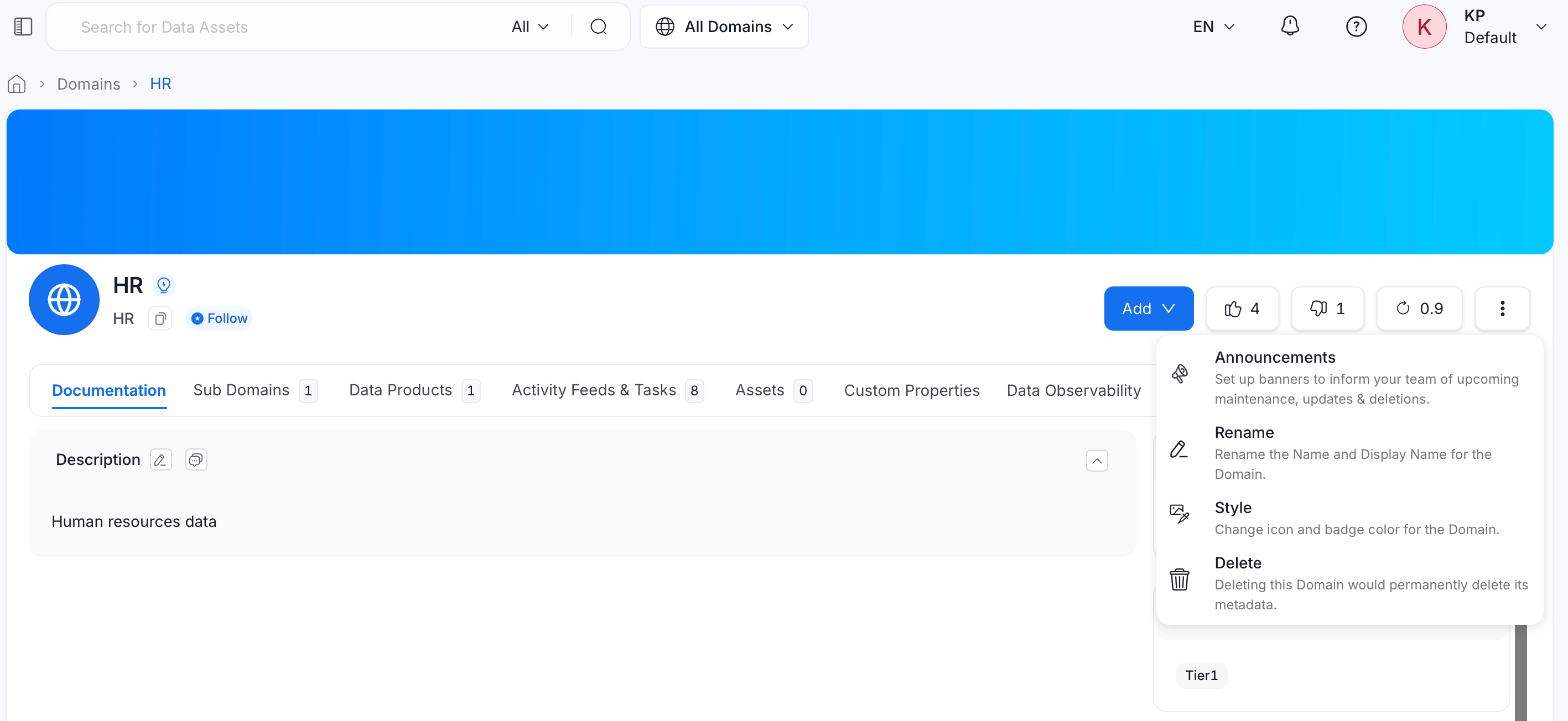
To rename, restyle, delete, or set up announcements for a domain, click the **⋮** menu next to **Add**:
* **Announcements**: Set up banners to inform your team of upcoming maintenance, updates, or deletions.
* **Rename**: Rename the domain's Name and Display Name.
* **Style**: Change the domain's icon and badge color.
* **Delete**: Permanently delete the domain and its metadata.
4. Select the assets to include, then click **Save**.
## View Domains
A domain's detail page organizes its information into tabs:
* **Documentation**: The default tab. View and edit the domain's description, and manage its Owners, Experts, Domain Type, Tags, and Tier from the side panel.
* **Sub Domains**: Lists the domains nested under this one. Add a sub domain directly from this tab.
* **Data Products**: Lists the data products that belong to this domain. Add a data product directly from this tab.
* **Activity Feeds & Tasks**: Shows conversations, tasks, and activity history related to the domain.
* **Assets**: Lists the data assets assigned to this domain.
* **Custom Properties**: Shows any administrator-configured custom property fields for the domain.
## Manage a Domain
To rename, restyle, delete, or set up announcements for a domain, click the **⋮** menu next to **Add**:
* **Announcements**: Set up banners to inform your team of upcoming maintenance, updates, or deletions.
* **Rename**: Rename the domain's Name and Display Name.
* **Style**: Change the domain's icon and badge color.
* **Delete**: Permanently delete the domain and its metadata.
 ## Filter Data Assets by Domain on the Explore Page
Use the Explore page to filter and view data assets assigned to different domains. This helps you locate and access data assets within specific domains.
Learn about the Data Products.
## Filter Data Assets by Domain on the Explore Page
Use the Explore page to filter and view data assets assigned to different domains. This helps you locate and access data assets within specific domains.
Learn about the Data Products.