{icon &&
 }
}
{name}
{stage}Feature List
{totalAvailableFeatures.map(feature =>
✓ {feature}
)}
{unavailableFeatures.map(feature =>
✕ {feature}
)}
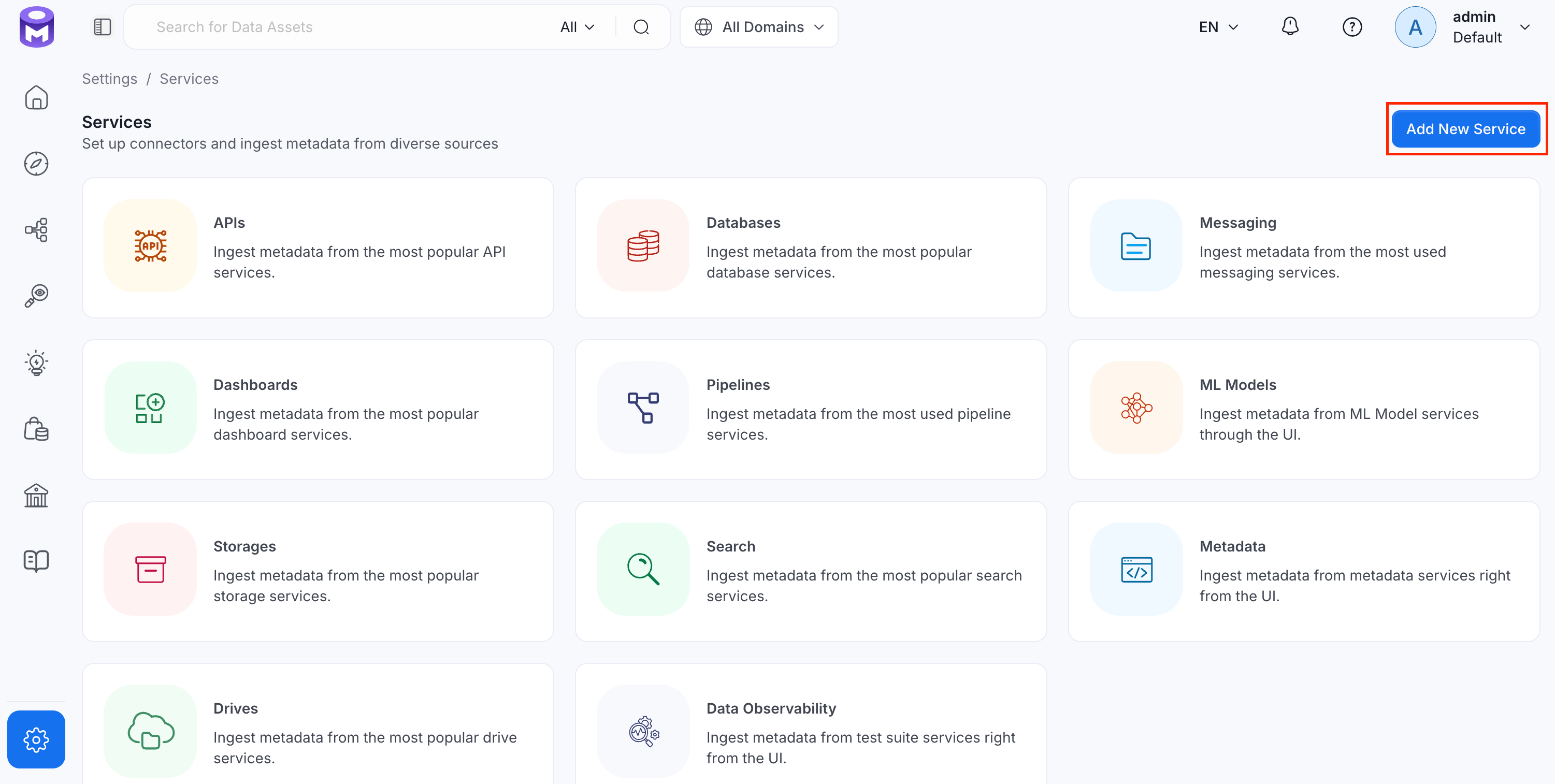
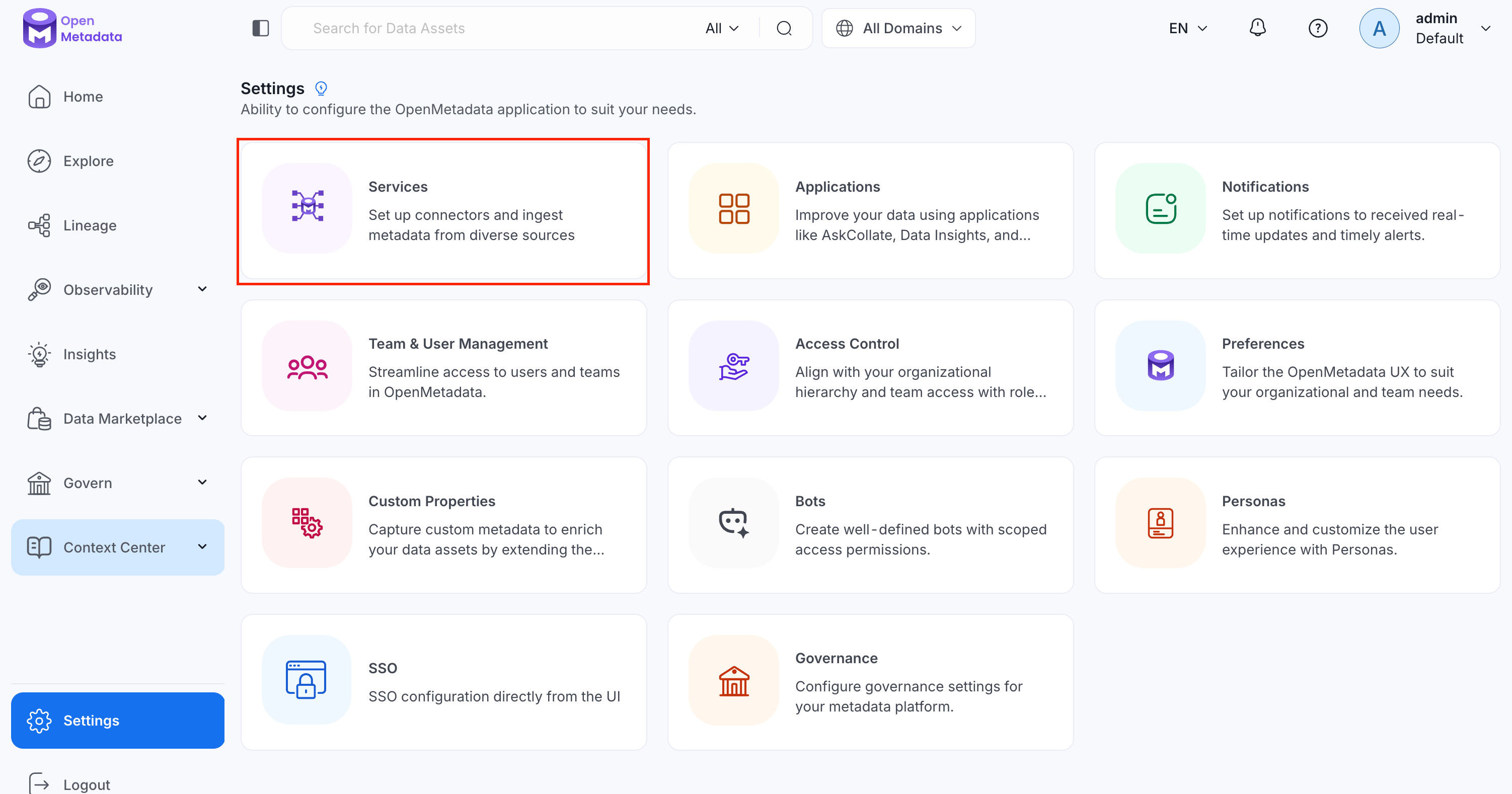 2. Click **Add New Service**.
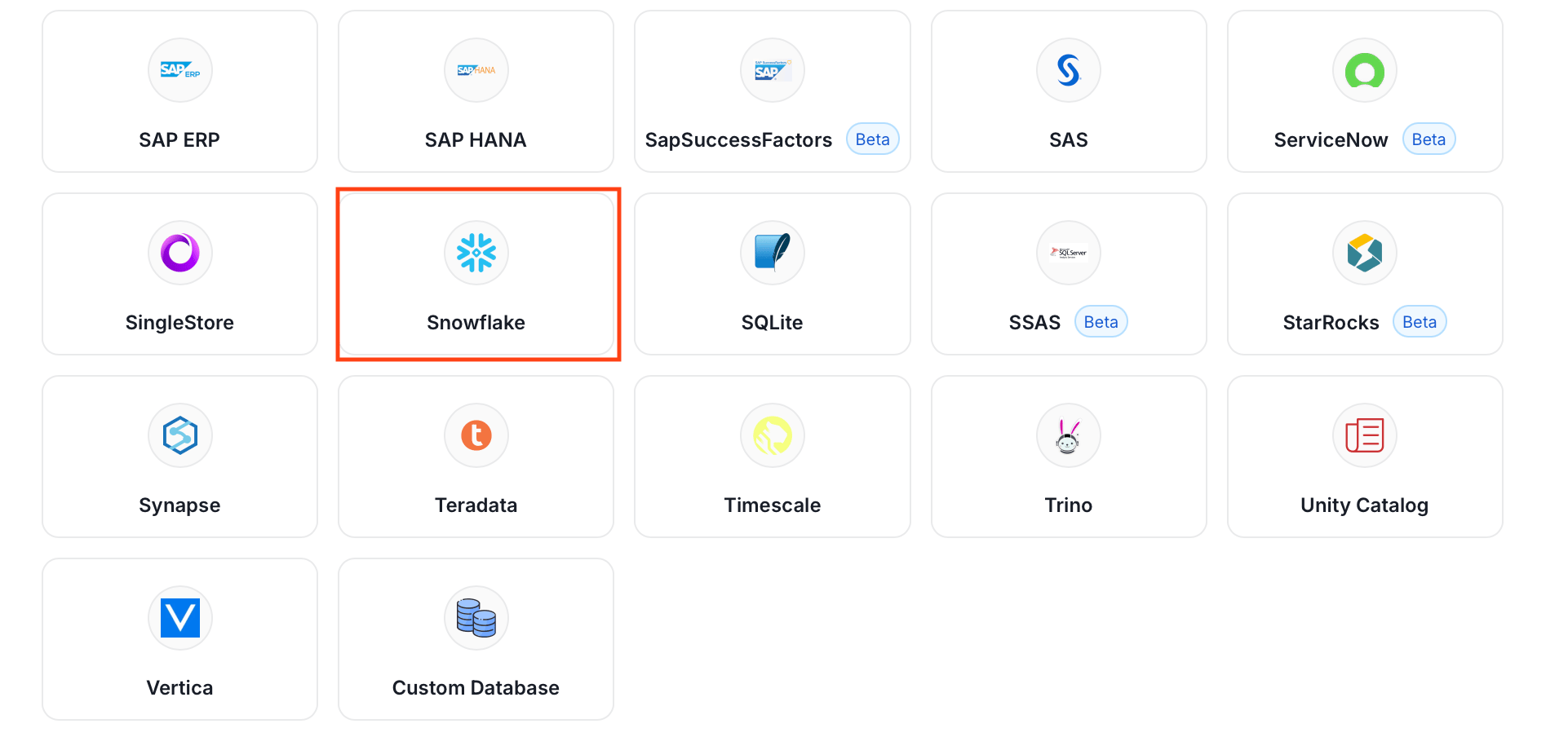
 ### Step 2: Select a Service and Connector
From the service type dropdown, select **Database Services**, then click the **Snowflake** connector tile.
### Step 2: Select a Service and Connector
From the service type dropdown, select **Database Services**, then click the **Snowflake** connector tile.
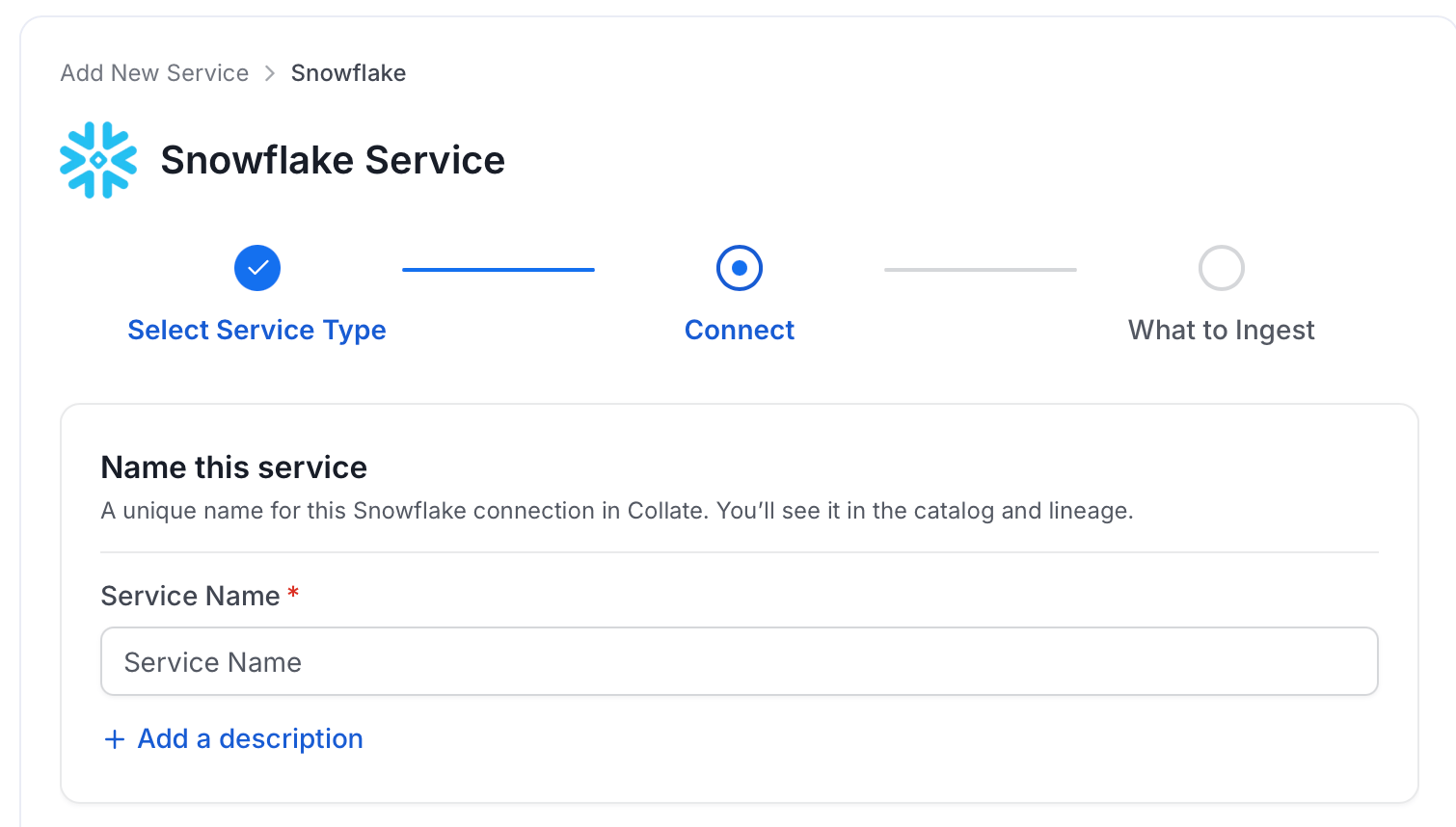
 ### Step 3: Add Service Name and Description
* Enter a unique, descriptive **Service Name**. OpenMetadata identifies services by their service name. Enter a name that distinguishes this deployment from other Snowflake services you are ingesting metadata from.
* Optional: Enter a **Description** for the service.
### Step 3: Add Service Name and Description
* Enter a unique, descriptive **Service Name**. OpenMetadata identifies services by their service name. Enter a name that distinguishes this deployment from other Snowflake services you are ingesting metadata from.
* Optional: Enter a **Description** for the service.
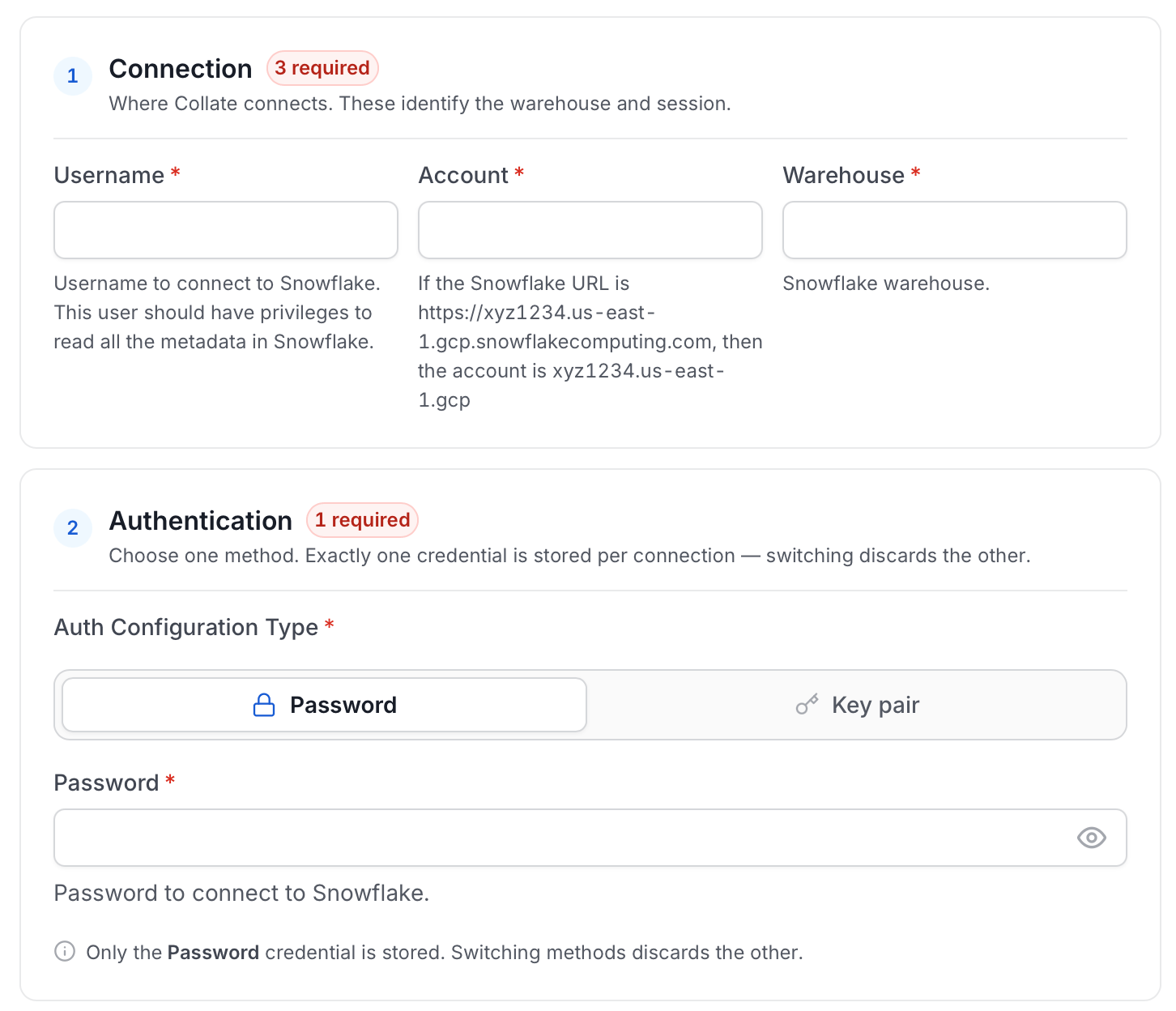 * **Username**: Specify the User to connect to Snowflake. It should have enough privileges to read all the metadata.
* **Password**: Password to connect to Snowflake.
* **Account**: Snowflake account identifier uniquely identifies a Snowflake account within your organization, as well as throughout the global network of Snowflake-supported cloud platforms and cloud regions. If the Snowflake URL is `https://xyz1234.us-east-1.gcp.snowflakecomputing.com`, then the account is `xyz1234.us-east-1.gcp`.
* **Role (Optional)**: You can specify the role of user that you would like to ingest with, if no role is specified the default roles assigned to user will be selected.
* **Database (Optional)**: The database of the data source is an optional parameter, if you would like to restrict the metadata reading to a single database. If left blank, OpenMetadata ingestion attempts to scan all the databases.
* **Warehouse**: Snowflake warehouse is required for executing queries to fetch the metadata. Enter the name of warehouse against which you would like to execute these queries.
* **Query Tag (Optional)**: Session query tag used to monitor usage on Snowflake. To use a query tag, the Snowflake user should have enough privileges to alter the session.
* **Account Usage Schema Name**: Full name of account usage schema, used in case your user does not have direct access to `SNOWFLAKE.ACCOUNT_USAGE` schema. In such case you can replicate tables `QUERY_HISTORY`, `TAG_REFERENCES`, `PROCEDURES`, `FUNCTIONS`, `ACCESS_HISTORY` to a custom schema, let's say `CUSTOM_DB.CUSTOM_SCHEMA`, and provide the same name in this field.
When using this field, make sure you have all these tables available within your custom schema `QUERY_HISTORY`, `TAG_REFERENCES`, `PROCEDURES`, `FUNCTIONS`, `ACCESS_HISTORY`.
* **Private Key (Optional)**: If you have configured the key pair authentication for the given user you will have to pass the private key associated with the user in this field. For more information about key-pair authentication, see [Key-pair authentication and key-pair rotation](https://docs.snowflake.com/en/user-guide/key-pair-auth).
Ensure your private key is formatted correctly before passing it. The key must be a single line with all line breaks replaced by `\n`.
For example, if you have the following multi-line key (raw format):
```
-----BEGIN ENCRYPTED PRIVATE KEY-----
MII..
MBQ...
CgU..
8Lt..
...
h+4=
-----END ENCRYPTED PRIVATE KEY-----
```
Replace it with the following single-line key (required format):
```
-----BEGIN ENCRYPTED PRIVATE KEY-----\nMII..\nMBQ...\nCgU..\n8Lt..\n...\nh+4=\n-----END ENCRYPTED PRIVATE KEY-----\n
```
Replace every newline character in your key with a literal `\n`, including after the final line.
* **Snowflake Passphrase Key (Optional)**: If you have configured the encrypted key pair authentication for the given user you will have to pass the passphrase associated with the private key in this field. You can check out [this](https://docs.snowflake.com/en/user-guide/key-pair-auth) doc to get more details about key-pair authentication.
* **Include Transient Tables**: Optional configuration for ingestion of `TRANSIENT` and `TEMPORARY` tables. Enabled by default, so these tables are ingested alongside permanent ones. Disable it to skip them.
* **Include Streams**: Optional configuration for ingestion of streams. By default, it will skip the streams.
* **Include Stages**: Optional configuration for ingestion of Snowflake stages (internal and external). By default, stages are not ingested.
* **Client Session Keep Alive**: Optional Configuration to keep the session active in case the ingestion job runs for longer duration.
* **Cost of Credit (Optional)**: Cost of a Snowflake credit for your account, used to estimate warehouse and query costs. Defaults to `3.3`.
* **Snowflake Source Host (Optional)**: Snowflake account host used to build direct links back to Snowflake, for example from lineage or query details. Defaults to `app.snowflake.com`.
**Advanced Config** *(driver-level options; most connections don't need these)*
* **Use Access History for Lineage**: Uses Snowflake's `ACCOUNT_USAGE.ACCESS_HISTORY` view as the source of query lineage. `ACCESS_HISTORY` provides Snowflake-computed table- and column-level lineage, including for queries OpenMetadata cannot parse. Enabled by default. If the configured role cannot read `ACCESS_HISTORY`, ingestion automatically falls back to the legacy query-log parser.
* **Access History Chunk Size (Days)**: Number of days of `ACCESS_HISTORY` scanned per query when "Use Access History for Lineage" is enabled. The lineage time window is split into chunks of this size to keep each query bounded and avoid timeouts on busy accounts. Defaults to `2`.
#### Test Connection
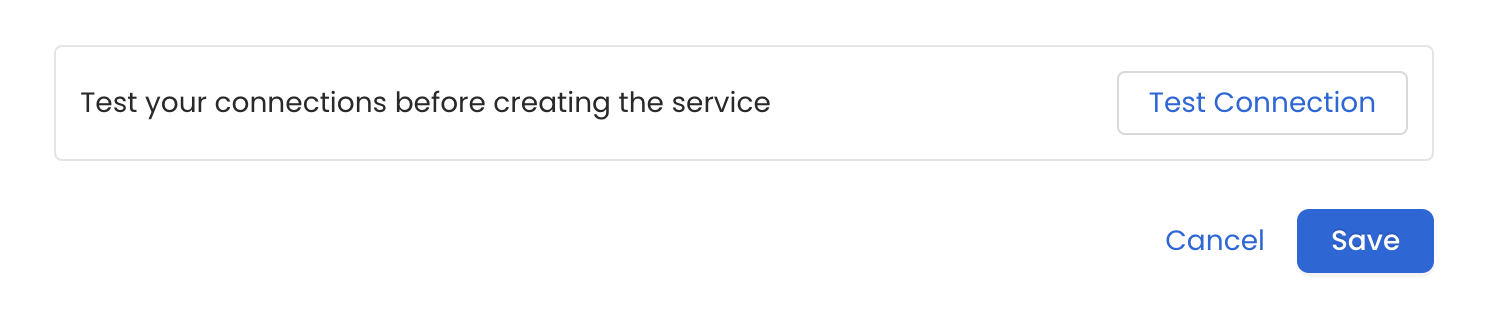
Once the credentials have been added, click on **Test Connection** and **Save** the changes.
* **Username**: Specify the User to connect to Snowflake. It should have enough privileges to read all the metadata.
* **Password**: Password to connect to Snowflake.
* **Account**: Snowflake account identifier uniquely identifies a Snowflake account within your organization, as well as throughout the global network of Snowflake-supported cloud platforms and cloud regions. If the Snowflake URL is `https://xyz1234.us-east-1.gcp.snowflakecomputing.com`, then the account is `xyz1234.us-east-1.gcp`.
* **Role (Optional)**: You can specify the role of user that you would like to ingest with, if no role is specified the default roles assigned to user will be selected.
* **Database (Optional)**: The database of the data source is an optional parameter, if you would like to restrict the metadata reading to a single database. If left blank, OpenMetadata ingestion attempts to scan all the databases.
* **Warehouse**: Snowflake warehouse is required for executing queries to fetch the metadata. Enter the name of warehouse against which you would like to execute these queries.
* **Query Tag (Optional)**: Session query tag used to monitor usage on Snowflake. To use a query tag, the Snowflake user should have enough privileges to alter the session.
* **Account Usage Schema Name**: Full name of account usage schema, used in case your user does not have direct access to `SNOWFLAKE.ACCOUNT_USAGE` schema. In such case you can replicate tables `QUERY_HISTORY`, `TAG_REFERENCES`, `PROCEDURES`, `FUNCTIONS`, `ACCESS_HISTORY` to a custom schema, let's say `CUSTOM_DB.CUSTOM_SCHEMA`, and provide the same name in this field.
When using this field, make sure you have all these tables available within your custom schema `QUERY_HISTORY`, `TAG_REFERENCES`, `PROCEDURES`, `FUNCTIONS`, `ACCESS_HISTORY`.
* **Private Key (Optional)**: If you have configured the key pair authentication for the given user you will have to pass the private key associated with the user in this field. For more information about key-pair authentication, see [Key-pair authentication and key-pair rotation](https://docs.snowflake.com/en/user-guide/key-pair-auth).
Ensure your private key is formatted correctly before passing it. The key must be a single line with all line breaks replaced by `\n`.
For example, if you have the following multi-line key (raw format):
```
-----BEGIN ENCRYPTED PRIVATE KEY-----
MII..
MBQ...
CgU..
8Lt..
...
h+4=
-----END ENCRYPTED PRIVATE KEY-----
```
Replace it with the following single-line key (required format):
```
-----BEGIN ENCRYPTED PRIVATE KEY-----\nMII..\nMBQ...\nCgU..\n8Lt..\n...\nh+4=\n-----END ENCRYPTED PRIVATE KEY-----\n
```
Replace every newline character in your key with a literal `\n`, including after the final line.
* **Snowflake Passphrase Key (Optional)**: If you have configured the encrypted key pair authentication for the given user you will have to pass the passphrase associated with the private key in this field. You can check out [this](https://docs.snowflake.com/en/user-guide/key-pair-auth) doc to get more details about key-pair authentication.
* **Include Transient Tables**: Optional configuration for ingestion of `TRANSIENT` and `TEMPORARY` tables. Enabled by default, so these tables are ingested alongside permanent ones. Disable it to skip them.
* **Include Streams**: Optional configuration for ingestion of streams. By default, it will skip the streams.
* **Include Stages**: Optional configuration for ingestion of Snowflake stages (internal and external). By default, stages are not ingested.
* **Client Session Keep Alive**: Optional Configuration to keep the session active in case the ingestion job runs for longer duration.
* **Cost of Credit (Optional)**: Cost of a Snowflake credit for your account, used to estimate warehouse and query costs. Defaults to `3.3`.
* **Snowflake Source Host (Optional)**: Snowflake account host used to build direct links back to Snowflake, for example from lineage or query details. Defaults to `app.snowflake.com`.
**Advanced Config** *(driver-level options; most connections don't need these)*
* **Use Access History for Lineage**: Uses Snowflake's `ACCOUNT_USAGE.ACCESS_HISTORY` view as the source of query lineage. `ACCESS_HISTORY` provides Snowflake-computed table- and column-level lineage, including for queries OpenMetadata cannot parse. Enabled by default. If the configured role cannot read `ACCESS_HISTORY`, ingestion automatically falls back to the legacy query-log parser.
* **Access History Chunk Size (Days)**: Number of days of `ACCESS_HISTORY` scanned per query when "Use Access History for Lineage" is enabled. The lineage time window is split into chunks of this size to keep each query bounded and avoid timeouts on busy accounts. Defaults to `2`.
#### Test Connection
Once the credentials have been added, click on **Test Connection** and **Save** the changes.
 ### Step 5: Configure Ingestion Options
In the **What to Ingest** step, use filter patterns to control which assets OpenMetadata ingests from your database service. Filter patterns use regular expressions applied to asset names.
#### How Filter Patterns Work
* **Include**: Add one or more comma-separated regular expressions. OpenMetadata ingests only assets whose names match at least one expression. Leave blank to include all assets.
* **Exclude**: Add one or more comma-separated regular expressions. OpenMetadata skips any asset whose name matches an expression. Leave blank to exclude nothing.
Rules match asset names using one of five expressions:
* **contains**: matches any name containing the value. For example, `sales` matches `my_sales_data` and `sales_2024`.
* **starts with**: matches names beginning with the value. For example, `prod_` matches `prod_db` and `prod_schema`.
* **ends with**: matches names ending with the value. For example, `_raw` matches `events_raw` and `logs_raw`.
* **is exactly**: matches the exact name only. For example, `analytics` matches only `analytics`.
* **matches regex**: matches names using a regular expression. For example, `^prod_.*_v\d+$` matches `prod_events_v1`.
When both Include and Exclude are set, Exclude takes priority.
### Step 5: Configure Ingestion Options
In the **What to Ingest** step, use filter patterns to control which assets OpenMetadata ingests from your database service. Filter patterns use regular expressions applied to asset names.
#### How Filter Patterns Work
* **Include**: Add one or more comma-separated regular expressions. OpenMetadata ingests only assets whose names match at least one expression. Leave blank to include all assets.
* **Exclude**: Add one or more comma-separated regular expressions. OpenMetadata skips any asset whose name matches an expression. Leave blank to exclude nothing.
Rules match asset names using one of five expressions:
* **contains**: matches any name containing the value. For example, `sales` matches `my_sales_data` and `sales_2024`.
* **starts with**: matches names beginning with the value. For example, `prod_` matches `prod_db` and `prod_schema`.
* **ends with**: matches names ending with the value. For example, `_raw` matches `events_raw` and `logs_raw`.
* **is exactly**: matches the exact name only. For example, `analytics` matches only `analytics`.
* **matches regex**: matches names using a regular expression. For example, `^prod_.*_v\d+$` matches `prod_events_v1`.
When both Include and Exclude are set, Exclude takes priority.
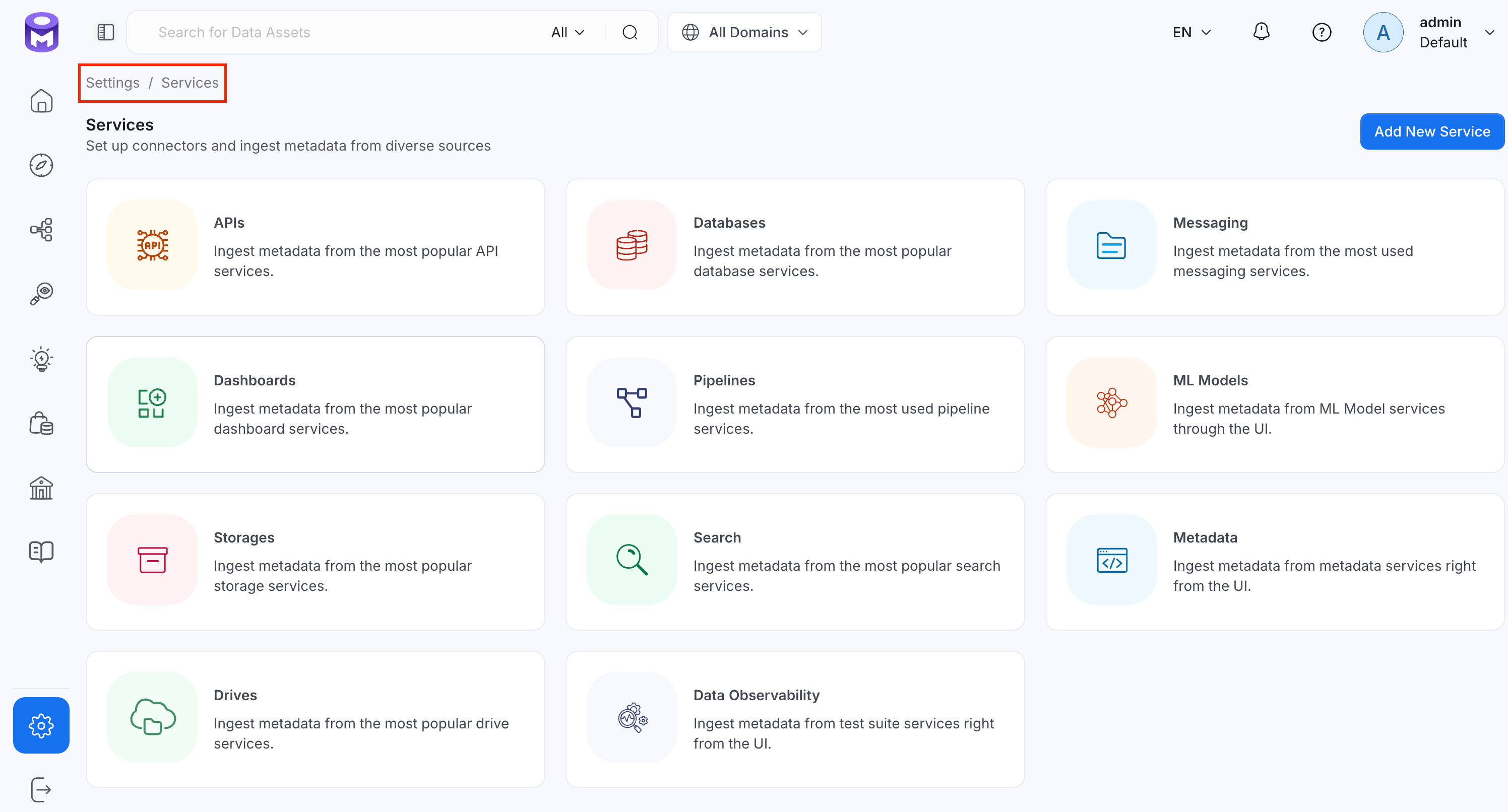 2. Click the service you have added.
3. Select the **Agents** tab and click **Add Agent** > **Metadata**.
2. Click the service you have added.
3. Select the **Agents** tab and click **Add Agent** > **Metadata**.
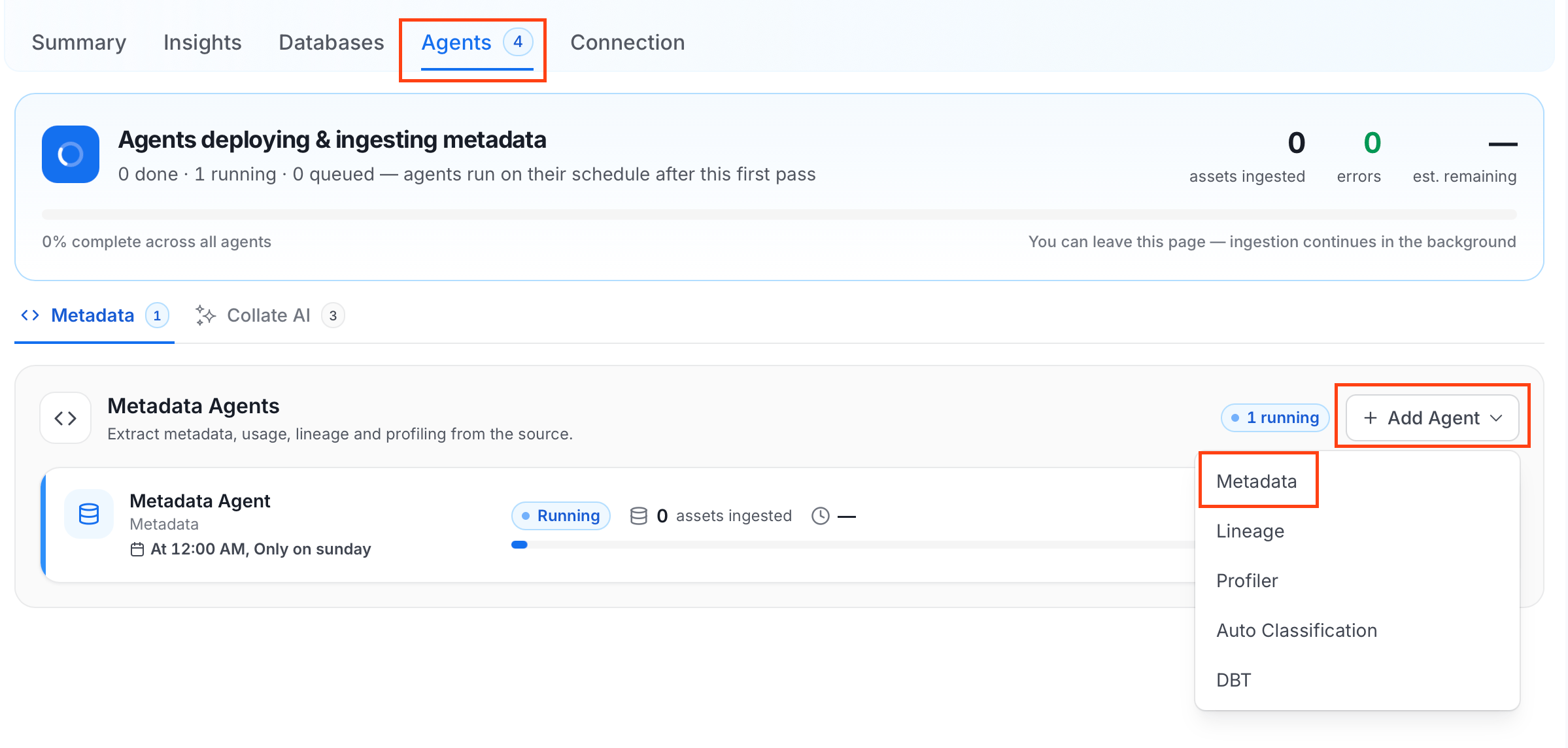 For some services, the dropdown is not available and clicking **Add Agent** takes you directly to the agent configuration page.
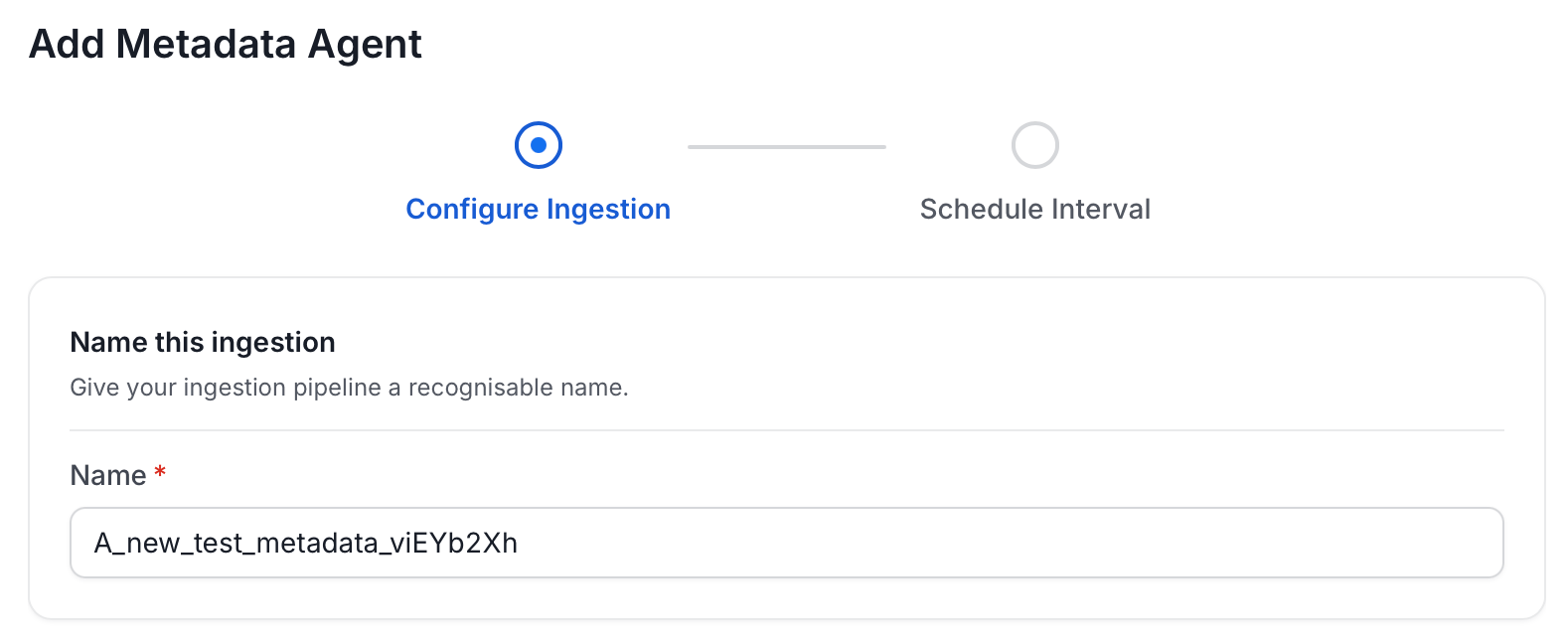
4. On the **Configure Ingestion** page, do the following and click **Next**.
* **Name this Ingestion**: Enter a unique recognizable name for this ingestion pipeline.
For some services, the dropdown is not available and clicking **Add Agent** takes you directly to the agent configuration page.
4. On the **Configure Ingestion** page, do the following and click **Next**.
* **Name this Ingestion**: Enter a unique recognizable name for this ingestion pipeline.
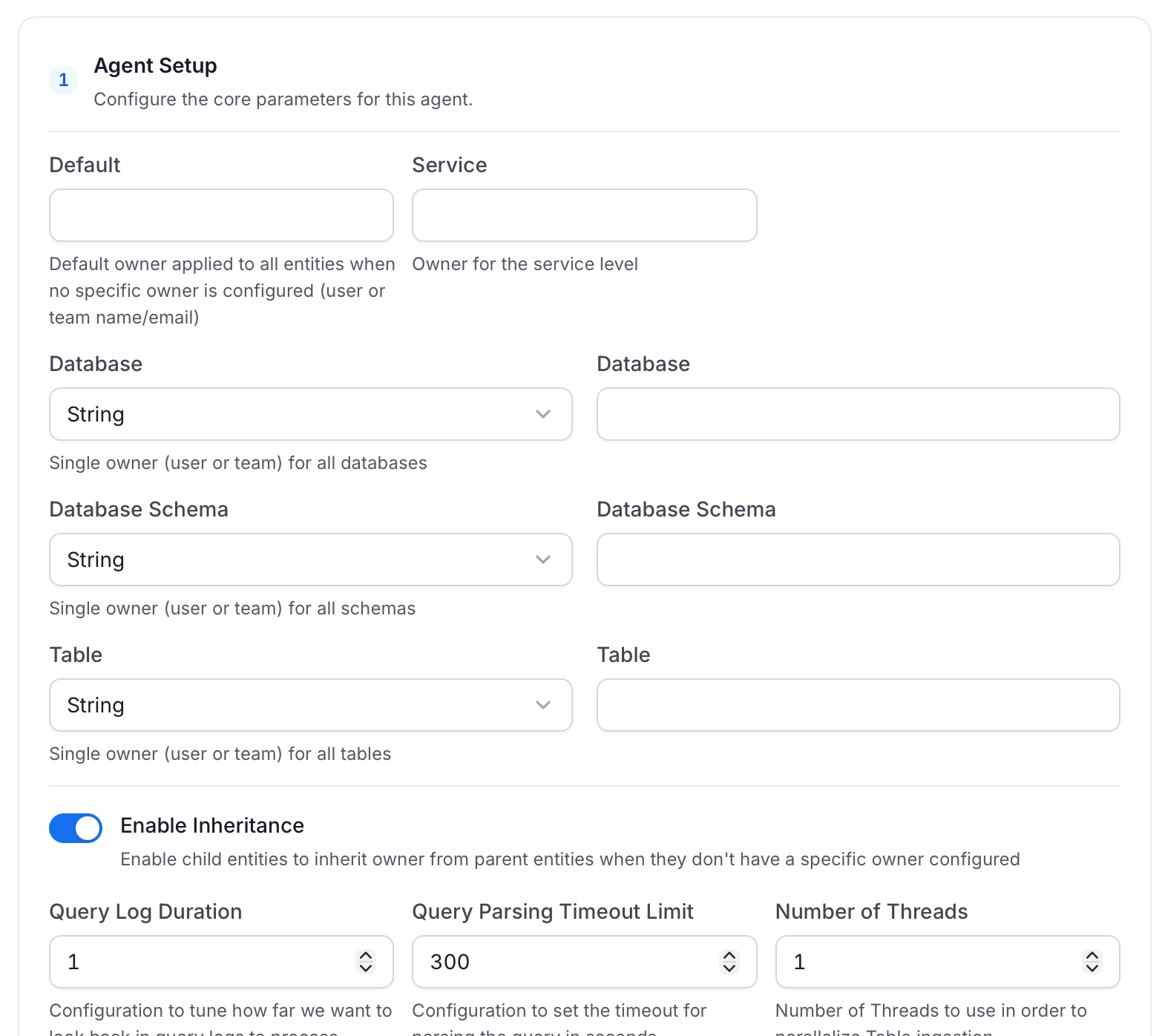
 * **Agent Setup**: Configure core parameters for metadata extraction. The following fields are available:
| Field | Default | Description |
| ------------------------------------- | ------- | ------------------------------------------------------------------------------------------------------------------------ |
| Default Owner | — | Owner applied to all entities when no specific level owner is configured. Accepts a user or team name/email. |
| Service Owner | — | Owner assigned to the service entity. |
| Database Owner | — | Owner assigned to all ingested databases. Accepts a single owner or a per-database name mapping. |
| Database Schema Owner | — | Owner assigned to all ingested schemas. Accepts a single owner or a per-schema name mapping. |
| Table Owner | — | Owner assigned to all ingested tables. Accepts a single owner or a per-table name mapping. |
| Enable Inheritance | On | When on, child entities inherit the owner from their parent when they have no owner configured. |
| Query Log Duration | 1 | Number of days to look back in query logs when processing stored procedure results. |
| Query Parsing Timeout Limit | 300 | Timeout in seconds for parsing a single query. |
| Number of Threads | 1 | Number of threads to use for parallel table ingestion. |
| Incremental Extraction | Off | When enabled, subsequent runs only extract entities changed since the last successful run. |
| Successful Pipeline Run Lookback Days | 7 | Number of days to search back for a prior successful run to use as a baseline for incremental extraction. |
| Safety Margin Days | 1 | Additional days added to the baseline timestamp as a buffer for incremental extraction. |
| JSON Schema Sample Size | 10 | Number of rows sampled to infer JSON column schema. Only applies when Extract JSON Schema is enabled in Advanced Config. |
* **Agent Setup**: Configure core parameters for metadata extraction. The following fields are available:
| Field | Default | Description |
| ------------------------------------- | ------- | ------------------------------------------------------------------------------------------------------------------------ |
| Default Owner | — | Owner applied to all entities when no specific level owner is configured. Accepts a user or team name/email. |
| Service Owner | — | Owner assigned to the service entity. |
| Database Owner | — | Owner assigned to all ingested databases. Accepts a single owner or a per-database name mapping. |
| Database Schema Owner | — | Owner assigned to all ingested schemas. Accepts a single owner or a per-schema name mapping. |
| Table Owner | — | Owner assigned to all ingested tables. Accepts a single owner or a per-table name mapping. |
| Enable Inheritance | On | When on, child entities inherit the owner from their parent when they have no owner configured. |
| Query Log Duration | 1 | Number of days to look back in query logs when processing stored procedure results. |
| Query Parsing Timeout Limit | 300 | Timeout in seconds for parsing a single query. |
| Number of Threads | 1 | Number of threads to use for parallel table ingestion. |
| Incremental Extraction | Off | When enabled, subsequent runs only extract entities changed since the last successful run. |
| Successful Pipeline Run Lookback Days | 7 | Number of days to search back for a prior successful run to use as a baseline for incremental extraction. |
| Safety Margin Days | 1 | Additional days added to the baseline timestamp as a buffer for incremental extraction. |
| JSON Schema Sample Size | 10 | Number of rows sampled to infer JSON column schema. Only applies when Extract JSON Schema is enabled in Advanced Config. |
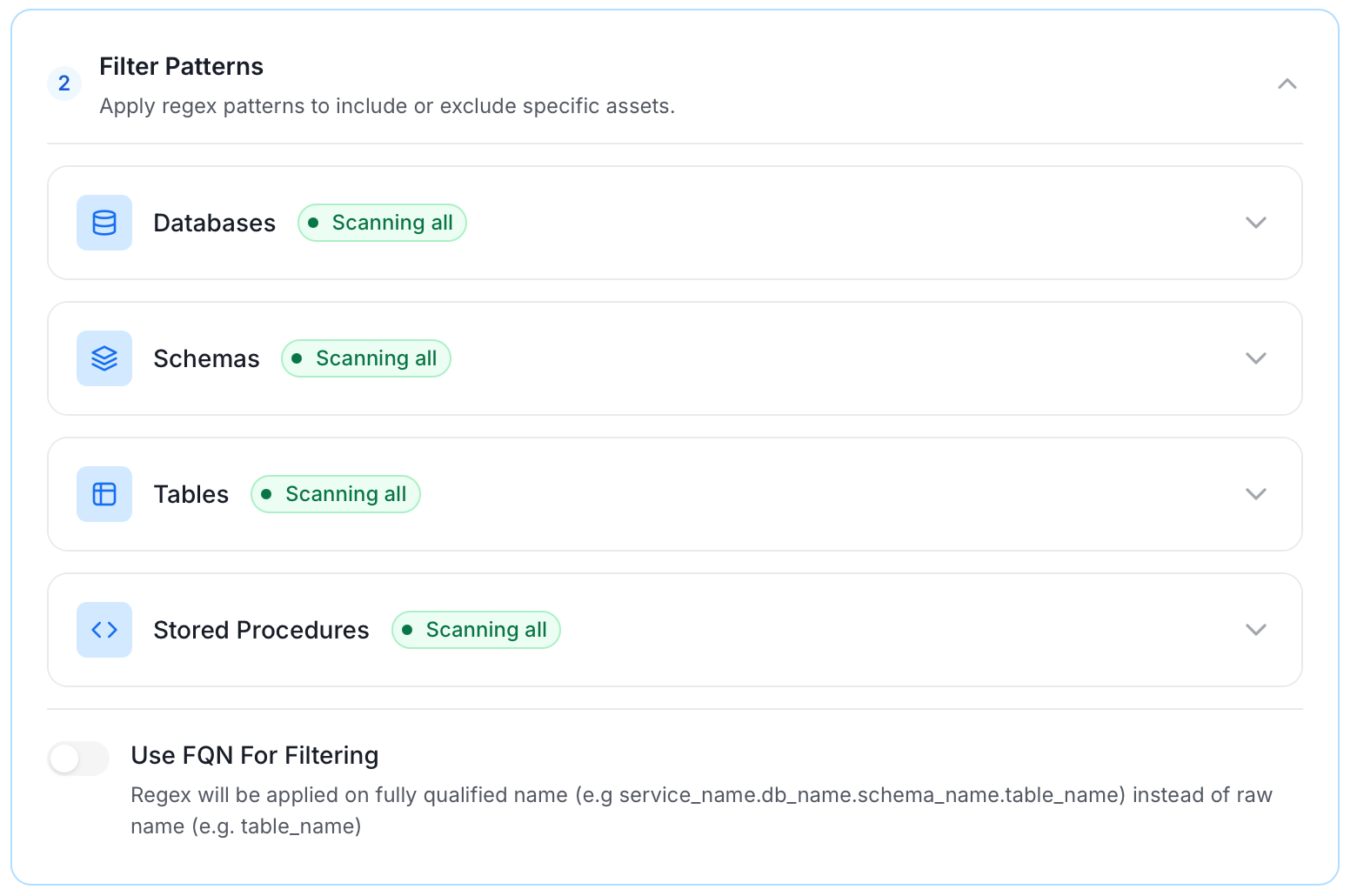
 * **Filter Patterns**: Apply include or exclude rules to scope which databases, schemas, tables, and stored procedures this agent ingests. For more information about various filter options, see **Step 6: Configure Ingestion Options**.
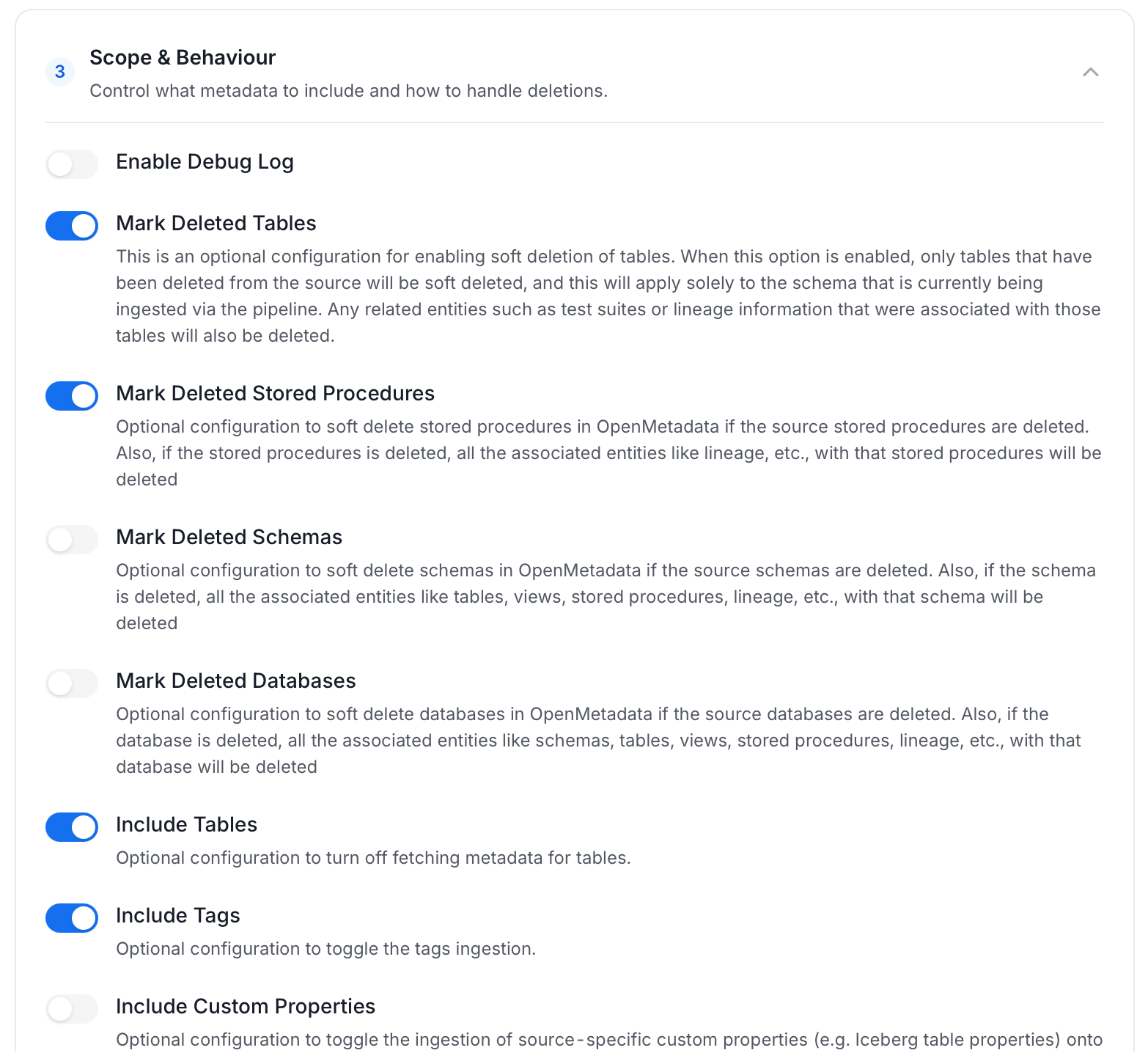
 * **Scope & Behaviour**: Control how the agent handles metadata during ingestion. Toggle each option on or off based on your needs:
| Toggle | Default | Description |
| ------------------------------ | ------- | -------------------------------------------------------------------------------------------------------------------------------------------------------------------------------- |
| Include Tables | On | Ingest table metadata from the source. Turn off to skip tables entirely. |
| Include Tags | On | Ingest tags from the source. |
| Include Stored Procedures | On | Ingest stored procedure metadata. |
| Include DDL Statements | Off | Ingest DDL statements alongside table metadata. |
| Include Owners | Off | Assign owners to ingested entities when the source owner's email matches a user in OpenMetadata. Does not overwrite an existing owner. |
| Include Custom Properties | Off | Ingest connector-specific custom properties onto entities. |
| Mark Deleted Tables | On | Soft-delete tables in OpenMetadata when they are removed from the source. Applies only within the currently ingested schema. |
| Mark Deleted Stored Procedures | On | Soft-delete stored procedures in OpenMetadata when they are removed from the source. |
| Mark Deleted Schemas | Off | Soft-delete schemas and all their child assets when removed from the source. |
| Mark Deleted Databases | Off | Soft-delete databases and all their child assets when removed from the source. |
| Override Metadata | Off | When on, source values overwrite existing descriptions, tags, owners, and display names in OpenMetadata. When off, OpenMetadata only updates fields that have no existing value. |
| Enable Debug Log | Off | Sets the ingestion log level to DEBUG. Useful for troubleshooting. |
* **Scope & Behaviour**: Control how the agent handles metadata during ingestion. Toggle each option on or off based on your needs:
| Toggle | Default | Description |
| ------------------------------ | ------- | -------------------------------------------------------------------------------------------------------------------------------------------------------------------------------- |
| Include Tables | On | Ingest table metadata from the source. Turn off to skip tables entirely. |
| Include Tags | On | Ingest tags from the source. |
| Include Stored Procedures | On | Ingest stored procedure metadata. |
| Include DDL Statements | Off | Ingest DDL statements alongside table metadata. |
| Include Owners | Off | Assign owners to ingested entities when the source owner's email matches a user in OpenMetadata. Does not overwrite an existing owner. |
| Include Custom Properties | Off | Ingest connector-specific custom properties onto entities. |
| Mark Deleted Tables | On | Soft-delete tables in OpenMetadata when they are removed from the source. Applies only within the currently ingested schema. |
| Mark Deleted Stored Procedures | On | Soft-delete stored procedures in OpenMetadata when they are removed from the source. |
| Mark Deleted Schemas | Off | Soft-delete schemas and all their child assets when removed from the source. |
| Mark Deleted Databases | Off | Soft-delete databases and all their child assets when removed from the source. |
| Override Metadata | Off | When on, source values overwrite existing descriptions, tags, owners, and display names in OpenMetadata. When off, OpenMetadata only updates fields that have no existing value. |
| Enable Debug Log | Off | Sets the ingestion log level to DEBUG. Useful for troubleshooting. |
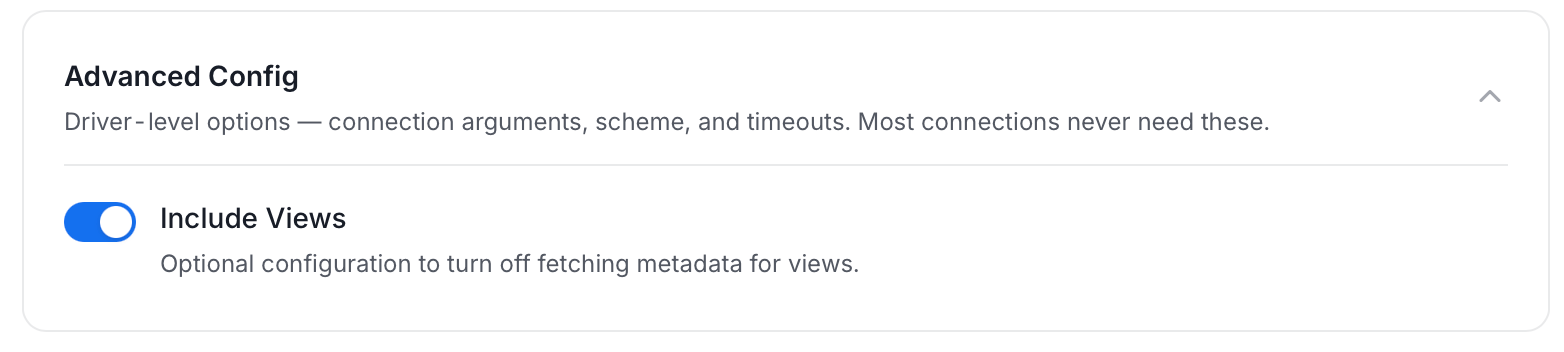
 * **Advanced Config**: Optional connector-specific settings such as Include Views and Extract JSON Schema.
 5. On the **Schedule Interval** page, set when the agent runs:
* **Schedule**: Choose a preset interval (Hourly, Daily, Weekly, Monthly) or enter a custom cron expression.
* **On-Demand**: No automatic schedule; trigger the agent manually when needed.
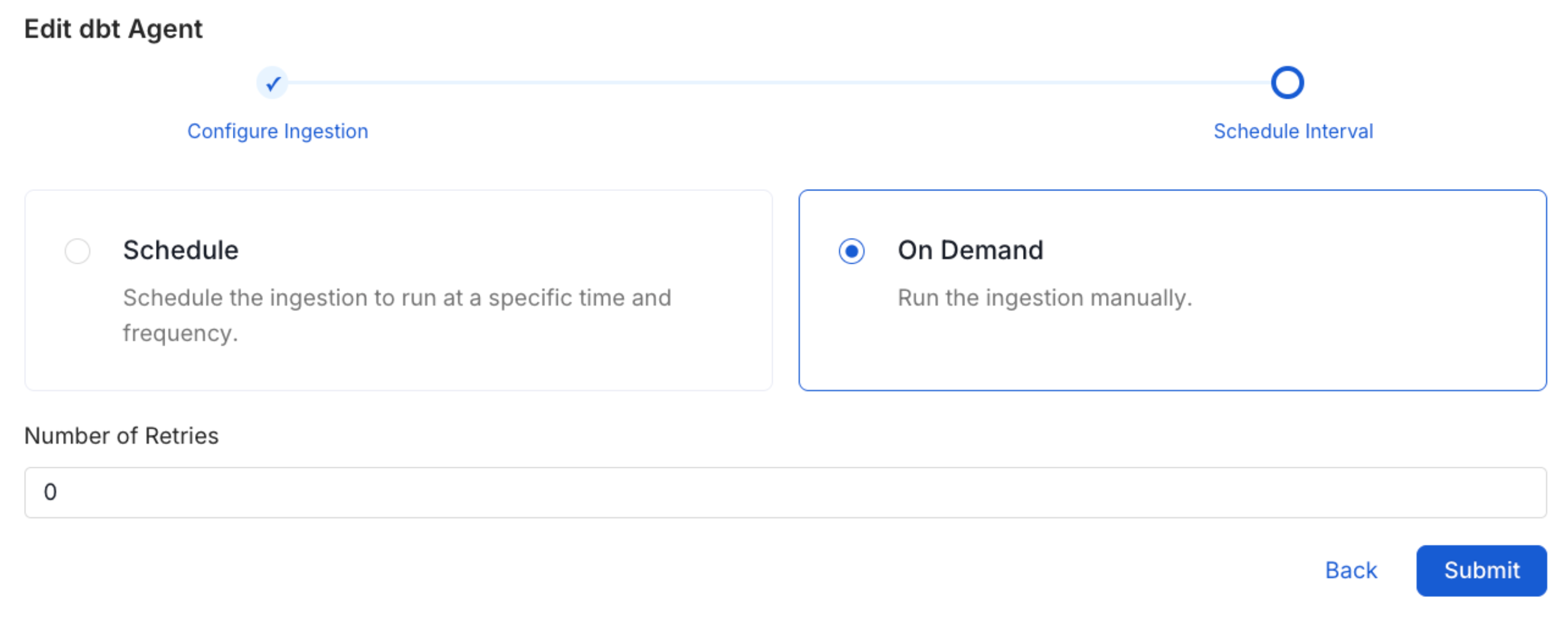
5. On the **Schedule Interval** page, set when the agent runs:
* **Schedule**: Choose a preset interval (Hourly, Daily, Weekly, Monthly) or enter a custom cron expression.
* **On-Demand**: No automatic schedule; trigger the agent manually when needed.
 6. Click **Add** to deploy the agent.
## Incomplete Column Level for Views
For views with a tag or policy, you may see incorrect lineage, this can be because user may not have enough access to fetch those policies or tags. You need to grant the following privileges in order to fix it.
Check out the [Snowflake docs](https://docs.snowflake.com/en/sql-reference/functions/get_ddl#usage-notes) for further details.
```
GRANT APPLY MASKING POLICY TO ROLE
6. Click **Add** to deploy the agent.
## Incomplete Column Level for Views
For views with a tag or policy, you may see incorrect lineage, this can be because user may not have enough access to fetch those policies or tags. You need to grant the following privileges in order to fix it.
Check out the [Snowflake docs](https://docs.snowflake.com/en/sql-reference/functions/get_ddl#usage-notes) for further details.
```
GRANT APPLY MASKING POLICY TO ROLE