> ## Documentation Index
> Fetch the complete documentation index at: https://docs.open-metadata.org/llms.txt
> Use this file to discover all available pages before exploring further.
# Context Center
> A shared home for Articles, Memories, and Documents. MCP search currently covers shared knowledge pills extracted from uploaded files.
# Context Center
## Overview
Context Center is a shared knowledge base for company context: **Articles**, **Memories**, and **Documents**. Open **Context Center** from the left sidebar to browse, create, and manage this content.
MCP company-context search currently retrieves only shared knowledge pills that OpenMetadata extracts from uploaded files. It does not search Articles or manually created or remembered Memories.
 ## Purpose
Without Context Center, an AI assistant connected via MCP can only answer questions using what's in your data catalog: table schemas, column descriptions, lineage, and so on. But a lot of what teams actually need to know lives outside the catalog: a written data governance policy, a runbook for handling a recurring incident, an internal definition of a business metric, or a preference one person has for how they like answers formatted.
Context Center gives that knowledge a home. After OpenMetadata extracts an uploaded file into shared knowledge pills, the [`search_company_context`](/v2.0.x/how-to-guides/mcp/reference#search_company_context) and [`get_company_context`](/v2.0.x/how-to-guides/mcp/reference#get_company_context) MCP tools can use those pills alongside catalog metadata. Articles and Memories support people and application workflows, but those tools do not currently return them.
## How to Use
Context Center holds three kinds of content, each suited to a different kind of knowledge:
* **[Articles](/v2.0.x/how-to-guides/context-center/articles)**: Long-form pages your team writes and maintains, such as policies, playbooks, and internal documentation.
* **[Memories](/v2.0.x/how-to-guides/context-center/memories)**: Short, atomic facts, such as preferences, runbook steps, and FAQs, created either by an AI assistant during a conversation or manually by a user.
* **[Documents](/v2.0.x/how-to-guides/context-center/documents)**: Files organized into folders. MCP search can retrieve shared knowledge pills OpenMetadata extracts from uploaded files.
## When to Use
* Writing or maintaining a policy, standard, or how-to guide that people should be able to find and reference: use an **Article**.
* Capturing a quick fact, preference, or answer to a recurring question that doesn't need a full page: create a **Memory**.
* Making an existing file, such as a PDF report, a spreadsheet, or a compliance audit, available to MCP search when OpenMetadata extracts shared knowledge pills from it: upload it as a **Document**.
## Dashboard
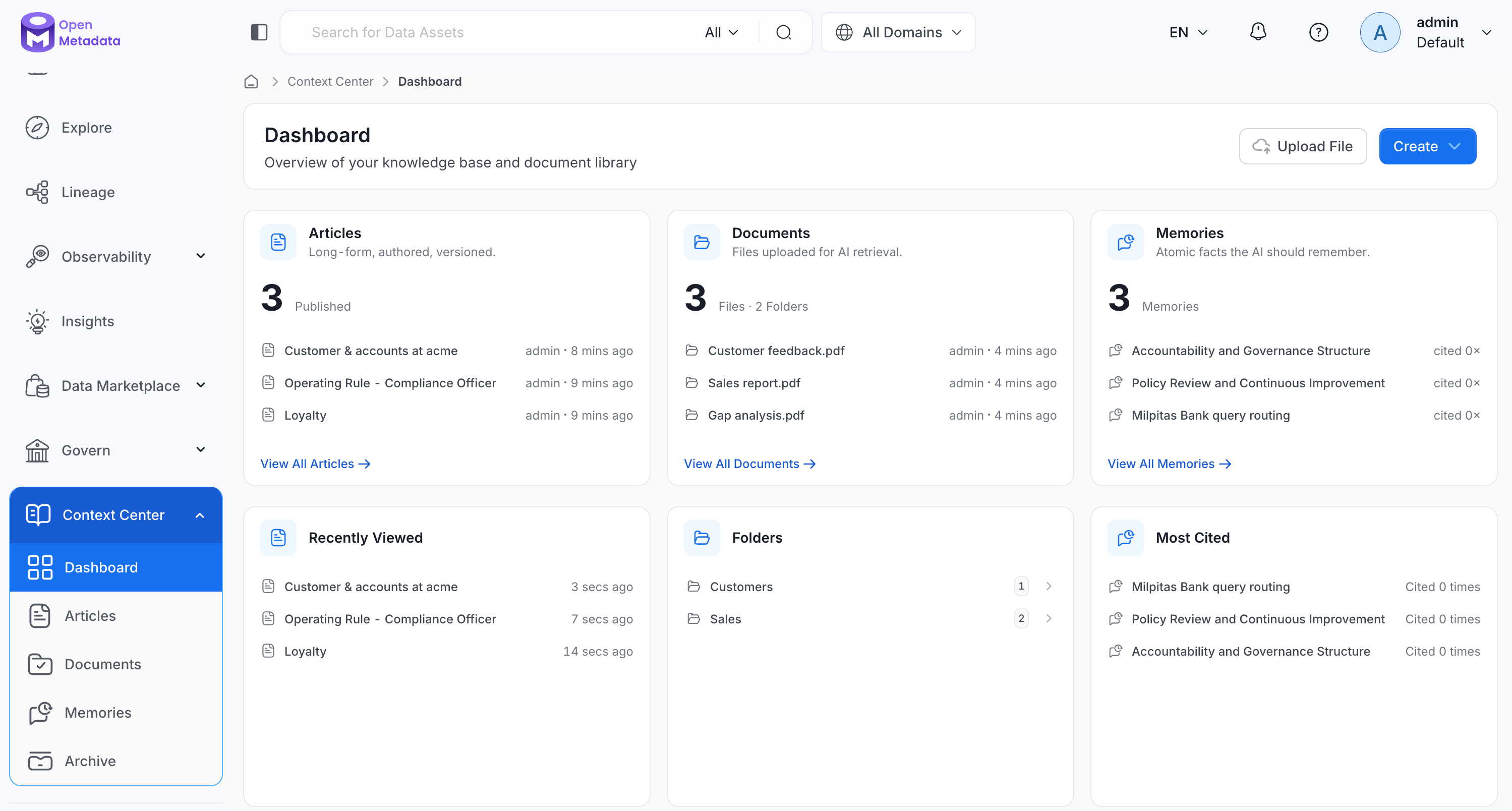
Opening **Context Center** takes you to its **Dashboard**, an at-a-glance summary of everything in your knowledge base.
## Purpose
Without Context Center, an AI assistant connected via MCP can only answer questions using what's in your data catalog: table schemas, column descriptions, lineage, and so on. But a lot of what teams actually need to know lives outside the catalog: a written data governance policy, a runbook for handling a recurring incident, an internal definition of a business metric, or a preference one person has for how they like answers formatted.
Context Center gives that knowledge a home. After OpenMetadata extracts an uploaded file into shared knowledge pills, the [`search_company_context`](/v2.0.x/how-to-guides/mcp/reference#search_company_context) and [`get_company_context`](/v2.0.x/how-to-guides/mcp/reference#get_company_context) MCP tools can use those pills alongside catalog metadata. Articles and Memories support people and application workflows, but those tools do not currently return them.
## How to Use
Context Center holds three kinds of content, each suited to a different kind of knowledge:
* **[Articles](/v2.0.x/how-to-guides/context-center/articles)**: Long-form pages your team writes and maintains, such as policies, playbooks, and internal documentation.
* **[Memories](/v2.0.x/how-to-guides/context-center/memories)**: Short, atomic facts, such as preferences, runbook steps, and FAQs, created either by an AI assistant during a conversation or manually by a user.
* **[Documents](/v2.0.x/how-to-guides/context-center/documents)**: Files organized into folders. MCP search can retrieve shared knowledge pills OpenMetadata extracts from uploaded files.
## When to Use
* Writing or maintaining a policy, standard, or how-to guide that people should be able to find and reference: use an **Article**.
* Capturing a quick fact, preference, or answer to a recurring question that doesn't need a full page: create a **Memory**.
* Making an existing file, such as a PDF report, a spreadsheet, or a compliance audit, available to MCP search when OpenMetadata extracts shared knowledge pills from it: upload it as a **Document**.
## Dashboard
Opening **Context Center** takes you to its **Dashboard**, an at-a-glance summary of everything in your knowledge base.
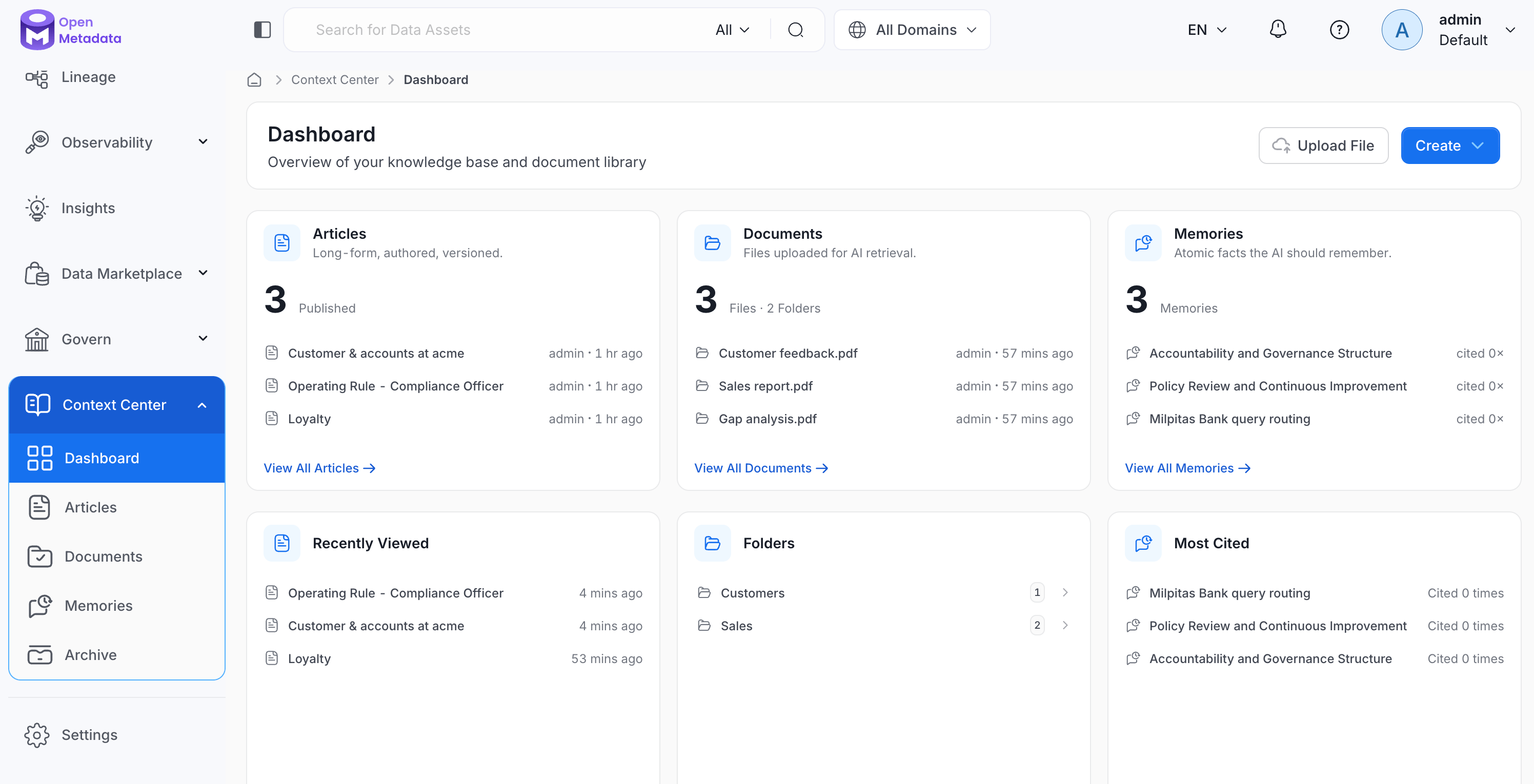 The Dashboard itself is a grid of six cards:
* **Articles**, **Documents**, and **Memories**: One card per content type, each showing a short description of what it holds, a total count (for example, `3 Published` or `3 Files · 2 Folders`), and its three most recent items with author and last-edited time. Click **View All** on any card to open that section's full list.
* **Recently Viewed**: The items you opened most recently across all content types, newest first.
* **Folders**: The folders you've created to organize Documents, each showing how many files it contains.
* **Most Cited**: Your Memories ranked by citation count, shown as `Cited N times`.
Use **Upload File** or **Create** in the top-right corner to add a Document or start a new Article or Memory from anywhere on the Dashboard.
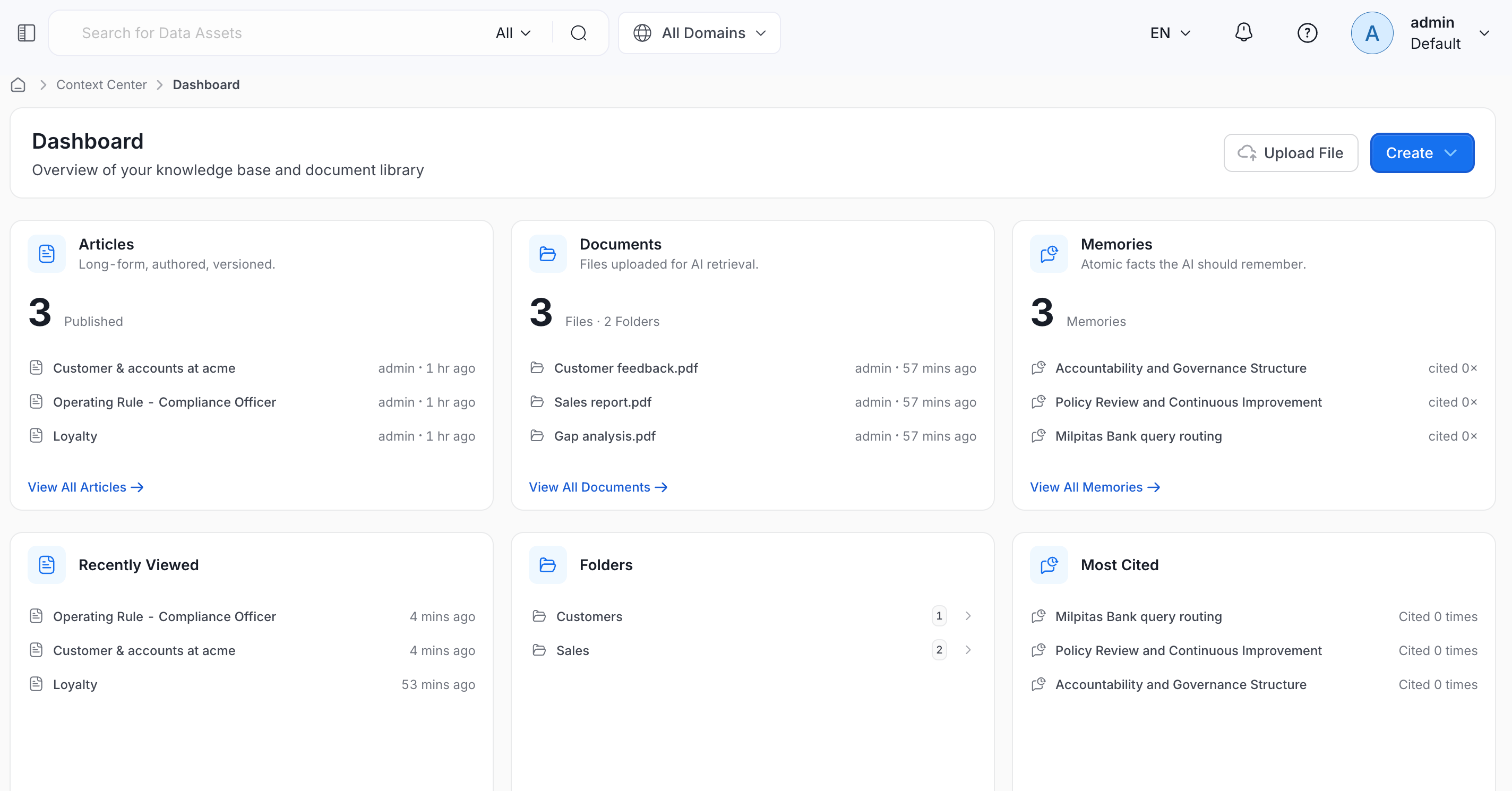
The Dashboard itself is a grid of six cards:
* **Articles**, **Documents**, and **Memories**: One card per content type, each showing a short description of what it holds, a total count (for example, `3 Published` or `3 Files · 2 Folders`), and its three most recent items with author and last-edited time. Click **View All** on any card to open that section's full list.
* **Recently Viewed**: The items you opened most recently across all content types, newest first.
* **Folders**: The folders you've created to organize Documents, each showing how many files it contains.
* **Most Cited**: Your Memories ranked by citation count, shown as `Cited N times`.
Use **Upload File** or **Create** in the top-right corner to add a Document or start a new Article or Memory from anywhere on the Dashboard.
 ## Access Control (RBAC)
Documents and Memories are governed resources in OpenMetadata's role-based access control system: Documents are covered by the **File** resource (in the **Files and documents** category), and Memories by the **Context Memory** resource (in the **Misc** category). Selecting either resource in a policy rule controls who can view, create, edit, or delete that content type platform-wide, separately from any per-item sharing, such as a Memory's own Visibility setting.
See [Roles and Policies](/v2.0.x/how-to-guides/admin-guide/roles-policies) to create rules and attach policies to roles, and [Resource Scope and Operations Reference](/v2.0.x/how-to-guides/admin-guide/roles-policies/resource-scope) for the full list of operations available on each resource.
## Access Control (RBAC)
Documents and Memories are governed resources in OpenMetadata's role-based access control system: Documents are covered by the **File** resource (in the **Files and documents** category), and Memories by the **Context Memory** resource (in the **Misc** category). Selecting either resource in a policy rule controls who can view, create, edit, or delete that content type platform-wide, separately from any per-item sharing, such as a Memory's own Visibility setting.
See [Roles and Policies](/v2.0.x/how-to-guides/admin-guide/roles-policies) to create rules and attach policies to roles, and [Resource Scope and Operations Reference](/v2.0.x/how-to-guides/admin-guide/roles-policies/resource-scope) for the full list of operations available on each resource.