> ## Documentation Index
> Fetch the complete documentation index at: https://docs.open-metadata.org/llms.txt
> Use this file to discover all available pages before exploring further.
# Getting Started with Data Quality as Code
> Install the OpenMetadata Python SDK and configure authentication
# Getting Started with Data Quality as Code
This guide will help you install the OpenMetadata Python SDK and configure authentication to start running data quality tests programmatically.
## Prerequisites
Before you begin, ensure you have:
* Python 3.10 or higher installed
* pip package manager
* Access to an OpenMetadata instance (version 1.11.0 or later)
* A JWT token for authentication (see [Authentication](#authentication) below)
## Installation
Install the `openmetadata-ingestion` package with the necessary extras for your use case:
### Basic Installation
```bash theme={null}
pip install "openmetadata-ingestion>=1.11.0.0"
```
### Installation with Database Connectors
Install additional dependencies based on the databases you'll be testing:
```bash theme={null}
# For PostgreSQL
pip install "openmetadata-ingestion[postgres]>=1.11.0.0"
# For MySQL
pip install "openmetadata-ingestion[mysql]>=1.11.0.0"
# For BigQuery
pip install "openmetadata-ingestion[bigquery]>=1.11.0.0"
# For multiple databases
pip install "openmetadata-ingestion[postgres,mysql,bigquery]>=1.11.0.0"
```
### Installation with DataFrame Support
If you plan to use DataFrame validation features:
```bash theme={null}
pip install "openmetadata-ingestion[pandas]>=1.11.0.0"
```
### Installation with Multiple Features
Combine multiple extras as needed:
```bash theme={null}
# For DataFrame validation with Postgres support
pip install "openmetadata-ingestion[pandas,postgres]>=1.11.0.0"
# For comprehensive ETL support
pip install "openmetadata-ingestion[pandas,postgres,pyarrow]>=1.11.0.0"
```
## Authentication
Data Quality as Code requires authentication with your OpenMetadata instance. The SDK supports JWT token authentication.
### Getting a JWT Token
You can obtain a JWT token in two ways:
**Note**: The **Bots** tile under **Settings** is only visible to users with Admin privileges. If you don't see it, ask your organization's OpenMetadata Admin to generate a bot token for you or grant you Admin access.
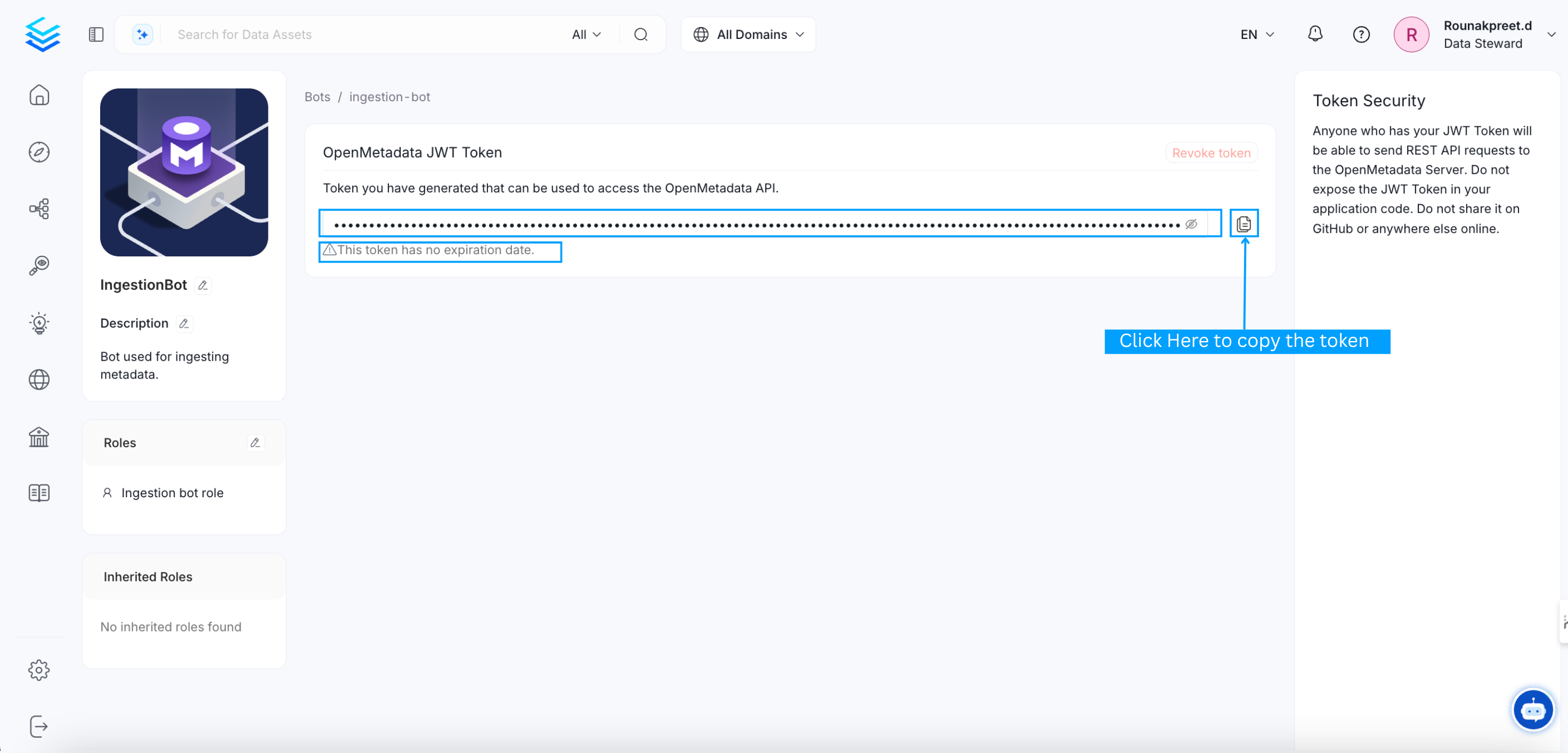
#### Option 1: Using an Existing Bot Token
OpenMetadata provides pre-configured bots like the `ingestion-bot`:
1. Log in to your OpenMetadata instance
2. Navigate to **Settings > Bots**
3. Find the **ingestion-bot** (or create a new bot)
4. Copy the JWT token
 #### Option 2: Creating a Custom Bot
For production use, create a dedicated bot with specific permissions:
1. Go to **Settings > Bots**
2. Click **Add Bot**
3. Provide a name and description
4. Assign appropriate roles (typically `DefaultBotPolicy` and `Ingestion Bot Policy`)
5. Copy the generated JWT token
### Configuring the SDK
Once you have a JWT token, configure the SDK in your Python code:
```python theme={null}
from metadata.sdk import configure
configure(
host="http://localhost:8585/api", # Your OpenMetadata API URL
jwt_token="your-jwt-token-here"
)
```
#### Using Environment Variables
For better security, let `configure` pick them up from environment variables:
```python theme={null}
from metadata.sdk import configure
configure()
```
Set the environment variable before running your script:
```bash theme={null}
export OPENMETADATA_HOST="http://localhost:8585/api"
export OPENMETADATA_JWT_TOKEN="your-jwt-token-here"
python your_script.py
```
#### Configuration Parameters
The `configure()` function accepts the following parameters:
| Parameter | Type | Required | Description | Environment Variable |
| ----------- | ----- | -------- | -------------------------------------------------------- | ------------------------ |
| `host` | `str` | No | OpenMetadata API URL (e.g., `http://localhost:8585/api`) | `OPENMETADATA_HOST` |
| `jwt_token` | `str` | No | JWT authentication token | `OPENMETADATA_JWT_TOKEN` |
## Verify Installation
Create a simple test to verify your setup:
```python theme={null}
from metadata.sdk import configure
from metadata.sdk.data_quality import TestRunner
# Configure SDK
configure(
host="http://localhost:8585/api",
jwt_token="your-jwt-token-here"
)
# Test connection by creating a runner
try:
runner = TestRunner.for_table("your_service.database.schema.table")
print("✓ SDK configured successfully!")
except Exception as e:
print(f"✗ Configuration failed: {e}")
```
Replace `"your_service.database.schema.table"` with the fully qualified name of an actual table in your OpenMetadata instance.
## Your First Data Quality Test
Now that you're set up, let's run your first data quality test:
```python theme={null}
from metadata.sdk import configure
from metadata.sdk.data_quality import TestRunner, TableRowCountToBeBetween
# Configure SDK
configure(
host="http://localhost:8585/api",
jwt_token="your-jwt-token-here"
)
# Create a test runner for a specific table
runner = TestRunner.for_table("MySQL.ecommerce.public.customers")
# Add a test to verify row count is within expected range
runner.add_test(
TableRowCountToBeBetween(min_count=1000, max_count=100000)
)
# Run the tests
results = runner.run()
# Print results
for result in results:
test_case = result.testCase
test_result = result.testCaseResult
print(f"Test: {test_case.name.root}")
print(f"Status: {test_result.testCaseStatus}")
print(f"Result: {test_result.result}")
```
## Common Installation Issues
### Connection Timeout
If you experience connection timeouts, verify:
1. OpenMetadata instance is running and accessible
2. API URL is correct (should end with `/api`)
3. Network connectivity between your script and OpenMetadata
4. Firewall rules allow the connection
### Import Errors
If you encounter import errors:
```python theme={null}
ModuleNotFoundError: No module named 'metadata'
```
Verify the package is installed correctly:
```bash theme={null}
pip list | grep openmetadata
```
If not listed, reinstall:
```bash theme={null}
pip install --upgrade "openmetadata-ingestion>=1.11.0.0"
```
## Next Steps
Now that you have the SDK installed and configured:
* Learn how to [run table-level tests](/v2.0.x/how-to-guides/data-quality-observability/quality/data-quality-as-code/test-runner) using the TestRunner API
* Explore [DataFrame validation](/v2.0.x/how-to-guides/data-quality-observability/quality/data-quality-as-code/dataframe-validation) for ETL pipelines
* Review the [complete test definitions reference](/v2.0.x/how-to-guides/data-quality-observability/quality/data-quality-as-code/test-definitions)
## Additional Resources
* [OpenMetadata Python SDK Documentation](https://docs.open-metadata.org/latest/sdk/python)
* [Data Quality Overview](/v2.0.x/how-to-guides/data-quality-observability/quality)
* [Authentication & Authorization](https://docs.open-metadata.org/latest/deployment/security)
* [Examples and Tutorials](https://github.com/open-metadata/OpenMetadata/tree/main/examples/python-sdk/data-quality/README.md)
#### Option 2: Creating a Custom Bot
For production use, create a dedicated bot with specific permissions:
1. Go to **Settings > Bots**
2. Click **Add Bot**
3. Provide a name and description
4. Assign appropriate roles (typically `DefaultBotPolicy` and `Ingestion Bot Policy`)
5. Copy the generated JWT token
### Configuring the SDK
Once you have a JWT token, configure the SDK in your Python code:
```python theme={null}
from metadata.sdk import configure
configure(
host="http://localhost:8585/api", # Your OpenMetadata API URL
jwt_token="your-jwt-token-here"
)
```
#### Using Environment Variables
For better security, let `configure` pick them up from environment variables:
```python theme={null}
from metadata.sdk import configure
configure()
```
Set the environment variable before running your script:
```bash theme={null}
export OPENMETADATA_HOST="http://localhost:8585/api"
export OPENMETADATA_JWT_TOKEN="your-jwt-token-here"
python your_script.py
```
#### Configuration Parameters
The `configure()` function accepts the following parameters:
| Parameter | Type | Required | Description | Environment Variable |
| ----------- | ----- | -------- | -------------------------------------------------------- | ------------------------ |
| `host` | `str` | No | OpenMetadata API URL (e.g., `http://localhost:8585/api`) | `OPENMETADATA_HOST` |
| `jwt_token` | `str` | No | JWT authentication token | `OPENMETADATA_JWT_TOKEN` |
## Verify Installation
Create a simple test to verify your setup:
```python theme={null}
from metadata.sdk import configure
from metadata.sdk.data_quality import TestRunner
# Configure SDK
configure(
host="http://localhost:8585/api",
jwt_token="your-jwt-token-here"
)
# Test connection by creating a runner
try:
runner = TestRunner.for_table("your_service.database.schema.table")
print("✓ SDK configured successfully!")
except Exception as e:
print(f"✗ Configuration failed: {e}")
```
Replace `"your_service.database.schema.table"` with the fully qualified name of an actual table in your OpenMetadata instance.
## Your First Data Quality Test
Now that you're set up, let's run your first data quality test:
```python theme={null}
from metadata.sdk import configure
from metadata.sdk.data_quality import TestRunner, TableRowCountToBeBetween
# Configure SDK
configure(
host="http://localhost:8585/api",
jwt_token="your-jwt-token-here"
)
# Create a test runner for a specific table
runner = TestRunner.for_table("MySQL.ecommerce.public.customers")
# Add a test to verify row count is within expected range
runner.add_test(
TableRowCountToBeBetween(min_count=1000, max_count=100000)
)
# Run the tests
results = runner.run()
# Print results
for result in results:
test_case = result.testCase
test_result = result.testCaseResult
print(f"Test: {test_case.name.root}")
print(f"Status: {test_result.testCaseStatus}")
print(f"Result: {test_result.result}")
```
## Common Installation Issues
### Connection Timeout
If you experience connection timeouts, verify:
1. OpenMetadata instance is running and accessible
2. API URL is correct (should end with `/api`)
3. Network connectivity between your script and OpenMetadata
4. Firewall rules allow the connection
### Import Errors
If you encounter import errors:
```python theme={null}
ModuleNotFoundError: No module named 'metadata'
```
Verify the package is installed correctly:
```bash theme={null}
pip list | grep openmetadata
```
If not listed, reinstall:
```bash theme={null}
pip install --upgrade "openmetadata-ingestion>=1.11.0.0"
```
## Next Steps
Now that you have the SDK installed and configured:
* Learn how to [run table-level tests](/v2.0.x/how-to-guides/data-quality-observability/quality/data-quality-as-code/test-runner) using the TestRunner API
* Explore [DataFrame validation](/v2.0.x/how-to-guides/data-quality-observability/quality/data-quality-as-code/dataframe-validation) for ETL pipelines
* Review the [complete test definitions reference](/v2.0.x/how-to-guides/data-quality-observability/quality/data-quality-as-code/test-definitions)
## Additional Resources
* [OpenMetadata Python SDK Documentation](https://docs.open-metadata.org/latest/sdk/python)
* [Data Quality Overview](/v2.0.x/how-to-guides/data-quality-observability/quality)
* [Authentication & Authorization](https://docs.open-metadata.org/latest/deployment/security)
* [Examples and Tutorials](https://github.com/open-metadata/OpenMetadata/tree/main/examples/python-sdk/data-quality/README.md)