> ## Documentation Index
> Fetch the complete documentation index at: https://docs.open-metadata.org/llms.txt
> Use this file to discover all available pages before exploring further.
# Documents and Archive
> Upload and organize files. MCP search can retrieve shared knowledge pills extracted from uploaded files.
# Documents and Archive
Documents let you upload files, such as reports, spreadsheets, and compliance audits, without rewriting them as an Article. When OpenMetadata extracts a file into shared knowledge pills, MCP search can retrieve the extracted content. The assistant searches the extracted pills, not the Document record itself. Organize files into folders to keep related documents together.
## Upload a Document
1. From the left navigation bar, navigate to **Context Center** > **Documents**.
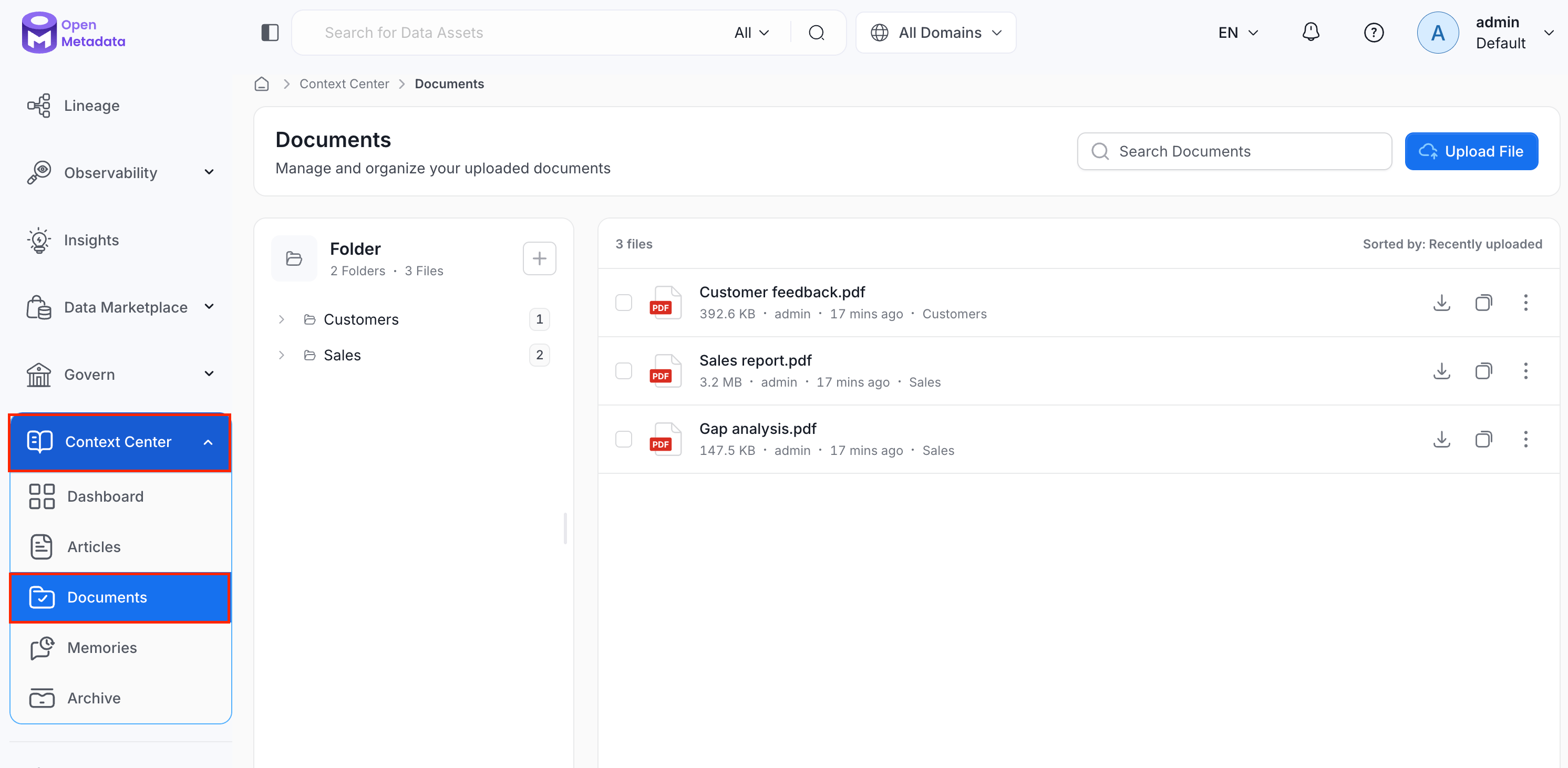 2. Click **Upload File**.
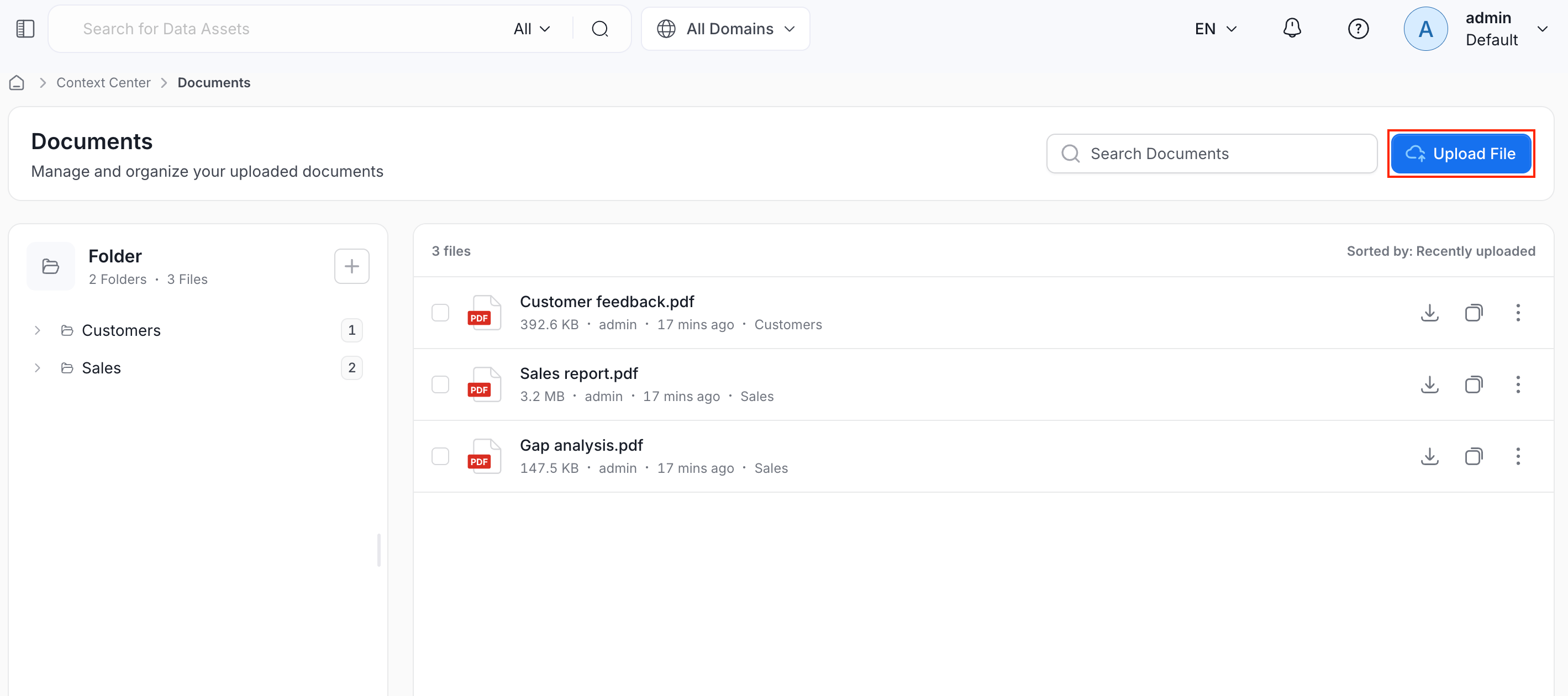 3. Browse to the files on your computer and upload them.
4. Optionally, organize the file into a folder:
* Click the **+** icon next to **Folder** to create a new folder.
* Files you don't move into a folder stay listed at the top level.
## View and Manage Documents
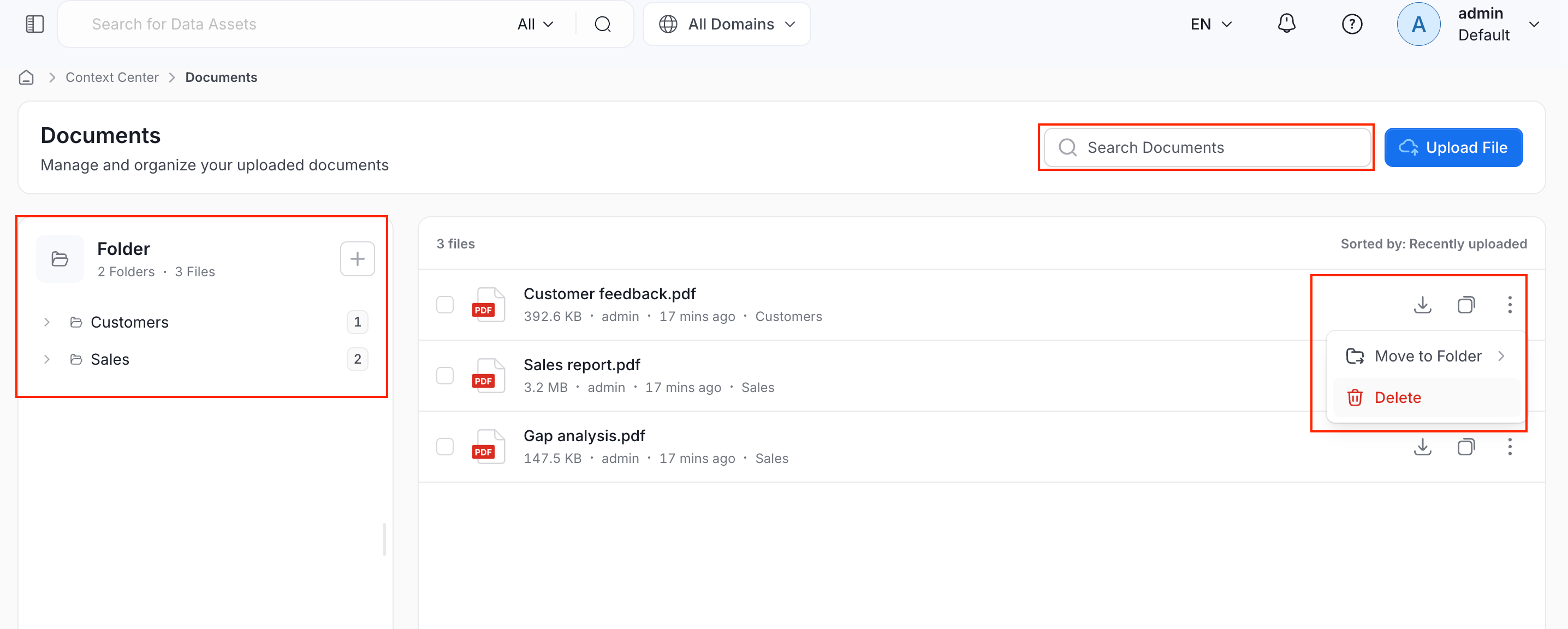
The **Documents** page shows:
* **Search bar**: Search documents by file name.
* **Folder panel**: Lists your folders on the left, each showing how many files it contains.
* To create a new folder, click the
3. Browse to the files on your computer and upload them.
4. Optionally, organize the file into a folder:
* Click the **+** icon next to **Folder** to create a new folder.
* Files you don't move into a folder stay listed at the top level.
## View and Manage Documents
The **Documents** page shows:
* **Search bar**: Search documents by file name.
* **Folder panel**: Lists your folders on the left, each showing how many files it contains.
* To create a new folder, click the  icon next to **Folder**.
* Click a folder to see only the files inside it.
* **File list**: Shows the total number of files, sorted by **Recently uploaded** by default.
* **Files Actions**:
* **Download**: Save a copy of the file to your local system.
* **Copy link**: Copy the document URL.
* **Three-dot (**⋮**) menu**:
* **Move to Folder**: Move the file into a different folder.
* **Delete**: Remove the file from Documents. This doesn't erase it immediately. See [Archive](#archive).
icon next to **Folder**.
* Click a folder to see only the files inside it.
* **File list**: Shows the total number of files, sorted by **Recently uploaded** by default.
* **Files Actions**:
* **Download**: Save a copy of the file to your local system.
* **Copy link**: Copy the document URL.
* **Three-dot (**⋮**) menu**:
* **Move to Folder**: Move the file into a different folder.
* **Delete**: Remove the file from Documents. This doesn't erase it immediately. See [Archive](#archive).
 ## Archive
Deleting a document moves it to **Context Center** > **Archive** instead of erasing it right away. From Archive, you can:
* To restore the document, click the **Restore** icon next to the document.
* To remove the document permanently, click the **Delete** icon next to the document.
## Archive
Deleting a document moves it to **Context Center** > **Archive** instead of erasing it right away. From Archive, you can:
* To restore the document, click the **Restore** icon next to the document.
* To remove the document permanently, click the **Delete** icon next to the document.
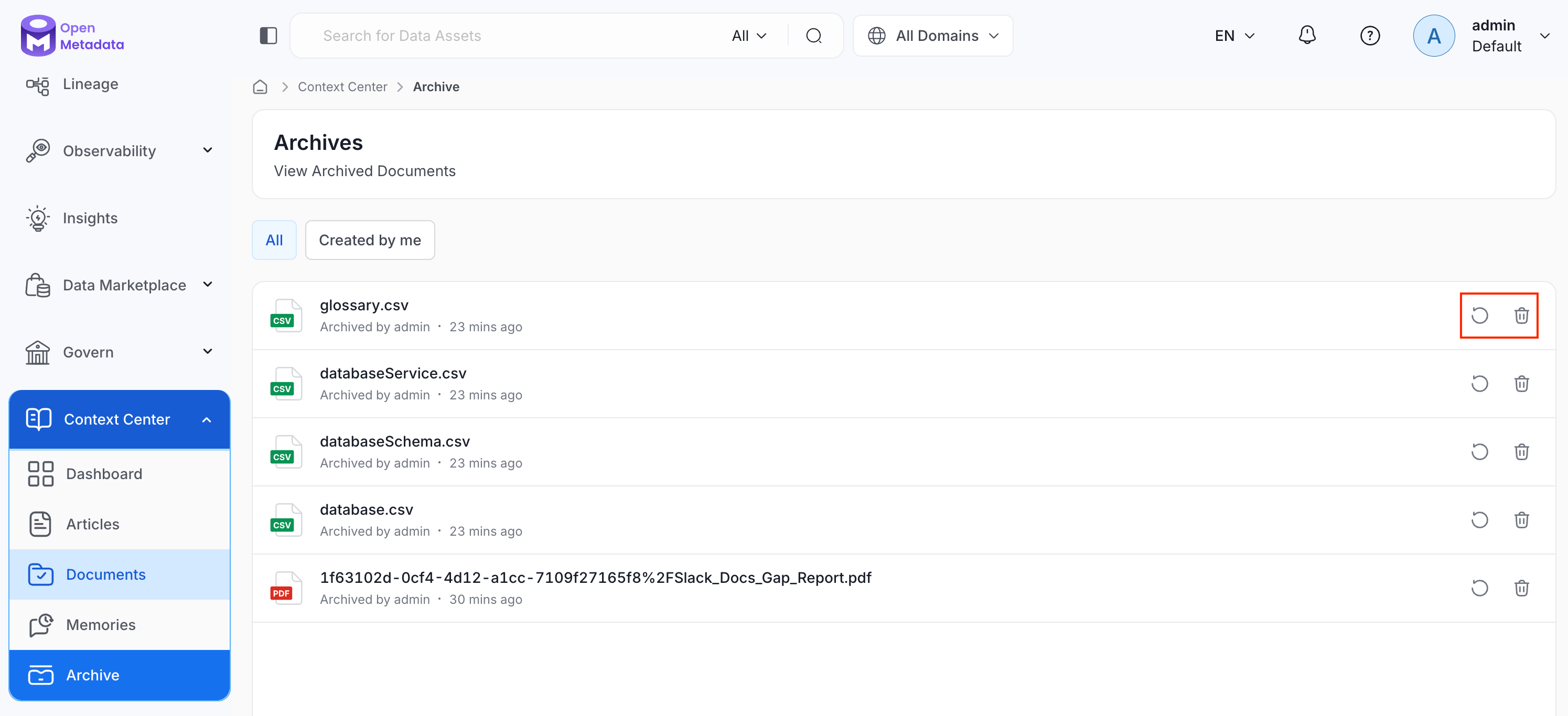 Archive currently holds only deleted Documents. Deleted Articles and Memories aren't tracked here.