Docker Deployment
This guide will help you set up the OpenMetadata Application using Docker Deployment.
Before starting with the deployment make sure you follow all the below Prerequisites.
Docker Deployment Architecture
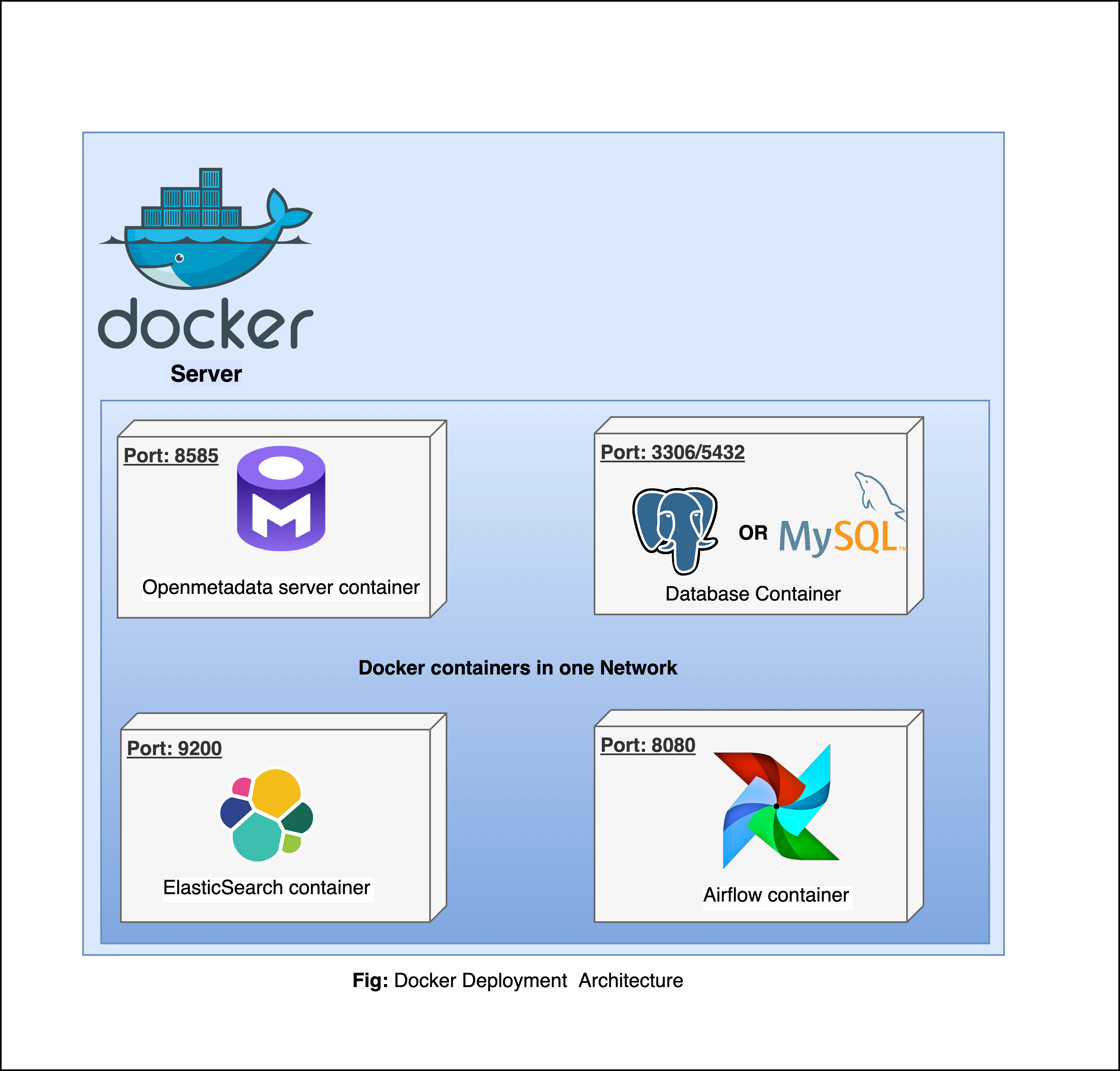
Prerequisites
For Production Deployment using Docker, we recommend bringing your own Databases and ElasticSearch Engine and not rely on quickstart packages.
OpenMetadata requires connectors to be scheduled to periodically fetch the metadata, or you can use the OpenMetadata APIs to push the metadata as well
- OpenMetadata Ingestion Framework is flexible to run on any orchestrator. However, we built an ability to deploy and manage connectors as pipelines from the UI. This requires the Airflow container we ship.
- If your team prefers to run on any other orchestrator such as prefect, dagster or even GitHub workflows. Please refer to our recent webinar on How Ingestion Framework works
Docker (version 20.10.0 or higher)
Docker is an open-source platform for developing, shipping, and running applications. It enables you to separate your applications from your infrastructure, so you can deliver software quickly using OS-level virtualization. It helps deliver software in packages called Containers.
To check what version of Docker you have, please use the following command.
If you need to install Docker, please visit Get Docker.
Docker Compose (version v2.2.3 or greater)
The Docker compose package enables you to define and run multi-container Docker applications. The compose command integrates compose functions into the Docker platform, making them available from the Docker command-line interface ( CLI). The Python packages you will install in the procedure below use compose to deploy OpenMetadata.
- MacOS X: Docker on MacOS X ships with compose already available in the Docker CLI.
- Linux: To install compose on Linux systems, please visit the Docker CLI command documentation and follow the
instructions.
To verify that the docker compose command is installed and accessible on your system, run the following command.
Upon running this command you should see output similar to the following.
Docker Compose version v2.2.3
Install Docker Compose Version 2 on Linux
Follow the instructions here to install docker compose version 2
-
Run the following command to download the current stable release of Docker Compose
DOCKER_CONFIG=${DOCKER_CONFIG:-$HOME/.docker}

mkdir -p $DOCKER_CONFIG/cli-plugins
curl -SL https://github.com/docker/compose/releases/download/v2.2.3/docker-compose-linux-x86_64 -o
$DOCKER_CONFIG/cli-plugins/docker-compose
~/.docker/cli-plugins with /usr/local/lib/docker/cli-plugins.
-
Apply executable permissions to the binary
chmod +x $DOCKER_CONFIG/cli-plugins/docker-compose
-
Test your installation
docker compose version
> Docker Compose version v2.2.3
Create a new directory for OpenMetadata and navigate into that directory.
mkdir openmetadata-docker && cd openmetadata-docker
2. Download Docker Compose Files from GitHub Releases
Download the Docker Compose files from the Latest GitHub Releases.
The Docker compose file name will be docker-compose-openmetadata.yml.
This docker compose file contains only the docker compose services for OpenMetadata Server. Bring up the dependencies as mentioned in the prerequisites section.
You can also run the below command to fetch the docker compose file directly from the terminal -
wget https://github.com/open-metadata/OpenMetadata/releases/download/1.11.13-release/docker-compose-openmetadata.yml
docker-compose file.
Identify and update the environment variables in the file to prepare openmetadata configurations.
For MySQL Configurations, update the below environment variables -
...
# Database configuration for MySQL
DB_DRIVER_CLASS="com.mysql.cj.jdbc.Driver"
DB_SCHEME="mysql"
DB_PARAMS="allowPublicKeyRetrieval=true&useSSL=true&serverTimezone=UTC"
DB_USER="<SQL_DATABASE_USERNAME>"
DB_USER_PASSWORD="<SQL_DATABASE_PASSWORD>"
DB_HOST="<SQL_DATABASE_ENDPOINT>"
DB_PORT="<SQL_DATABASE_PORT>"
OM_DATABASE="<SQL_DATABASE_NAME>"
# ElasticSearch Configurations
SEARCH_TYPE="elasticsearch"
ELASTICSEARCH_HOST="<ELASTICSEARCH_ENDPOINT>"
ELASTICSEARCH_PORT="<ELASTICSEARCH_ENDPOINT_PORT>"
ELASTICSEARCH_SCHEME="<ELASTICSEARCH_ENDPOINT_SCHEME>"
ELASTICSEARCH_USER="<ELASTICSEARCH_USERNAME>"
ELASTICSEARCH_PASSWORD="<ELASTICSEARCH_PASSWORD>"
ELASTICSEARCH_CLUSTER_ALIAS="<clusterAlias>"
# ElasticSearch Configurations
SEARCH_TYPE="opensearch"
ELASTICSEARCH_HOST="<OPENSEARCH_ENDPOINT>"
ELASTICSEARCH_PORT="<OPENSEARCH_ENDPOINT_PORT>"
ELASTICSEARCH_SCHEME="<OPENSEARCH_ENDPOINT_SCHEME>"
ELASTICSEARCH_USER="<OPENSEARCH_USERNAME>"
ELASTICSEARCH_PASSWORD="<OPENSEARCH_PASSWORD>"
ELASTICSEARCH_CLUSTER_ALIAS="<clusterAlias>"
If you want to separate indexes for production and non-production environments, you can set the clusterAlias in the configuration file.
PIPELINE_SERVICE_CLIENT_ENDPOINT="<INGESTION_ENDPOINT_URL_WITH_SCHEME>"
PIPELINE_SERVICE_CLIENT_HEALTH_CHECK_INTERVAL="300"
SERVER_HOST_API_URL="<OPENMETADATA_ENDPOINT_URL_WITH_SCHEME>/api"
PIPELINE_SERVICE_CLIENT_VERIFY_SSL="no-ssl"
PIPELINE_SERVICE_CLIENT_SSL_CERT_PATH=""
PIPELINE_SERVICE_CLIENT_CLASS_NAME="org.openmetadata.service.clients.pipeline.airflow.AirflowRESTClient"
PIPELINE_SERVICE_IP_INFO_ENABLED="false"
PIPELINE_SERVICE_CLIENT_HOST_IP=""
PIPELINE_SERVICE_CLIENT_SECRETS_MANAGER_LOADER="noop"
AIRFLOW_USERNAME="<AIRFLOW_UI_LOGIN_USERNAME>"
AIRFLOW_PASSWORD="<AIRFLOW_UI_LOGIN_PASSWORD>"
AIRFLOW_TIMEOUT="10"
AIRFLOW_TRUST_STORE_PATH=""
AIRFLOW_TRUST_STORE_PASSWORD=""
When setting up environment file if your custom password includes any special characters then make sure to follow the steps here. 4. Start the Docker Compose Services
Run the below command to deploy the OpenMetadata -
docker compose --env-file ./env-mysql up --detach
docker ps.
❯ docker ps
CONTAINER ID   IMAGE                                                  COMMAND                  CREATED          STATUS                    PORTS                                                            NAMES
470cc8149826   openmetadata/server:1.11.13                              "./openmetadata-star…"   45 seconds ago   Up 43 seconds             3306/tcp, 9200/tcp, 9300/tcp, 0.0.0.0:8585-8586->8585-8586/tcp   openmetadata_server
Next Steps
For port mapping, load balancer setup, AWS services configuration, Docker volumes, and troubleshooting, see
Docker Advanced Configuration & Troubleshooting.