Upgrade on Kubernetes
This guide will help you upgrade your OpenMetadata Kubernetes Application with automated helm hooks.
Requirements
This guide assumes that you have an OpenMetadata deployment that you installed and configured following the
Kubernetes Deployment guide.
We also assume that your helm chart release names are openmetadata and openmetadata-dependencies and namespace used is default.
Prerequisites
Everytime that you plan on upgrading OpenMetadata to a newer version, make sure to go over all these steps:
Before upgrading your OpenMetadata version we strongly recommend backing up the metadata.
The source of truth is stored in the underlying database (MySQL and Postgres supported). During each version upgrade there
is a database migration process that needs to run. It will directly attack your database and update the shape of the
data to the newest OpenMetadata release.
It is important that we backup the data because if we face any unexpected issues during the upgrade process,
you will be able to get back to the previous version without any loss.
You can learn more about how the migration process works here.During the upgrade, please note that the backup is only for safety and should not be used to restore data to a higher version. 
Expected Steps to Resolve
To resolve this issue:
- Ensure that Airflow is restarted properly after an unexpected shutdown.
- Manually update the pipeline status if necessary.
- Check Airflow logs to verify if the DAG execution was interrupted.
Update sort_buffer_size (MySQL) or work_mem (Postgres)
Before running the migrations, it is important to update these parameters to ensure there are no runtime errors.
A safe value would be setting them to 20MB.
If using MySQL
You can update it via SQL (note that it will reset after the server restarts):
SET GLOBAL sort_buffer_size = 20971520
my.ini or my.cnf files with sort_buffer_size = 20971520.
If using RDS, you will need to update your instance’s Parameter Group
to include the above change.
If using Postgres
You can update it via SQL (not that it will reset after the server restarts):
To make the configuration persistent, you’ll need to update the postgresql.conf file
with work_mem = 20MB.
If using RDS, you will need to update your instance’s Parameter Group
to include the above change.
Note that this value would depend on the size of your query_entity table. If you still see Out of Sort Memory Errors
during the migration after bumping this value, you can increase them further.
After the migration is finished, you can revert this changes.
Breaking Changes
- Ingestion Framework: All workflows have integrated the
workflow.print_status() inside the workflow.execute() call. This change was needed to better handle logger lifecycles. If you’re using the Ingestion Framework directly to manage workflows via the usual process:
workflow_config = yaml.safe_load(CONFIG)
workflow = MetadataWorkflow.create(workflow_config)
workflow.execute()
workflow.raise_from_status()
workflow.print_status()  # Not necessary anymore
workflow.stop()
print_status() call. Note that the only side effect would be temporarily getting duplicated summary logs.
- Changed field from status to entityStatus for glossaryTerm and dataContract, as we introduce it for different data assets.
- For Data Contracts, the value also changed from Active to Approved.
MySQL Configuration Required for Airflow 3.x Migration
If you are using MySQL as your Airflow metadata database and upgrading to Airflow 3.x (the new default in OpenMetadata 1.11), you must configure MySQL to allow temporary stored function creation during the migration process.
Root Cause
During the Airflow 3.x database migration on MySQL, Airflow needs to create a temporary stored function (uuid_generate_v7) to backfill UUIDs for the task_instance table. When MySQL runs with binary logging enabled (which is the default in most production setups), it blocks function creation unless log_bin_trust_function_creators is enabled or the user has SUPER privileges. Without this configuration, the migration fails with an error like:
FUNCTION airflow_db.uuid_generate_v7 does not exist
Resolution
Option 1: Delete and Recreate the Airflow Database (Strongly Recommended)
The simplest and most reliable solution is to delete the existing Airflow database and let OpenMetadata recreate it fresh during startup. The Airflow database only stores workflow execution history and metadata—it does not contain any of your OpenMetadata configurations, connections, or ingestion pipeline definitions.
This is the recommended approach because it avoids all migration complexities and ensures a clean state. Your ingestion pipelines and their configurations are stored in the OpenMetadata database, not in Airflow’s database.
# Connect to your MySQL instance and drop the Airflow database
docker exec -i openmetadata_mysql mysql -u USERNAME -pPASSWORD -e "DROP DATABASE IF EXISTS airflow_db;"
CREATE DATABASE airflow_db CHARACTER SET utf8mb4 COLLATE utf8mb4_unicode_ci;
GRANT ALL PRIVILEGES ON airflow_db.* TO 'airflow_user'@'%' WITH GRANT OPTION;
FLUSH PRIVILEGES;
# Recreate the Airflow database
docker exec -i openmetadata_mysql mysql -u USERNAME -pPASSWORD -e "CREATE DATABASE airflow_db CHARACTER SET utf8mb4 COLLATE utf8mb4_unicode_ci; GRANT ALL PRIVILEGES ON airflow_db.* TO 'airflow_user'@'%' WITH GRANT OPTION; FLUSH PRIVILEGES;"

# Restart the ingestion container to run migrations on the fresh database
docker restart openmetadata_ingestion
Replace USERNAME and PASSWORD with your MySQL root credentials, and airflow_user with your actual Airflow database user if different. For Docker Quickstart deployments, the default root credentials are root / password.
Option 2: Manual Migration Fix (If You Cannot Delete the Database)
If you have specific requirements to preserve the Airflow execution history and cannot delete the database, follow the manual steps below.
Step 1: Enable MySQL Configuration
First, enable log_bin_trust_function_creators in your MySQL instance to allow Airflow to create the necessary stored function:
For Docker deployments, add this to your docker-compose.yml file under the MySQL service:
services:
  mysql:
    command: "--log-bin-trust-function-creators=1"
SET GLOBAL log_bin_trust_function_creators = 1;
task_instance table. This approach removes all task execution history but preserves your DAGs and connections.
This will delete all historical task execution data. Only use this if you’re okay with losing task run history.
-- Clean task_instance table to avoid migration conflicts
USE airflow_db;

-- Truncate task_instance table
TRUNCATE TABLE task_instance;

-- Verify the table is empty
SELECT COUNT(*) FROM task_instance;
# Run the cleanup script on your MySQL container
docker exec -i openmetadata_mysql mysql -u USERNAME -pPASSWORD -e "USE airflow_db; TRUNCATE TABLE task_instance; SELECT COUNT(*) as remaining_rows FROM task_instance;"

# Restart the ingestion container to apply migrations
docker restart openmetadata_ingestion
task_instance table was partially modified), you need to reset the migration state before restarting. Save the following SQL script as fix_airflow_migration.sql:
-- Fix Airflow 3.x migration issue
-- This script fixes the partial migration of task_instance table

USE airflow_db;

-- Check if the migration was partially applied
-- If 'id' column exists but isn't properly configured, we need to fix it

-- First, check the current state
SHOW COLUMNS FROM task_instance LIKE 'id';

-- Drop the problematic column if it exists
SET @exist := (SELECT COUNT(*) FROM information_schema.COLUMNS
    WHERE TABLE_SCHEMA = 'airflow_db'
    AND TABLE_NAME = 'task_instance'
    AND COLUMN_NAME = 'id');

SET @sqlstmt := IF(@exist > 0,
    'ALTER TABLE task_instance DROP COLUMN id',
    'SELECT ''Column does not exist'' AS status');

PREPARE stmt FROM @sqlstmt;
EXECUTE stmt;
DEALLOCATE PREPARE stmt;

-- Reset the alembic version to before this migration
-- The migration that's failing is: d59cbbef95eb (Add UUID primary key to task_instance)
-- We need to set it back to the previous version: 05234396c6fc
UPDATE alembic_version SET version_num = '05234396c6fc' WHERE version_num = 'd59cbbef95eb';

-- Verify the changes
SELECT * FROM alembic_version;
SHOW COLUMNS FROM task_instance LIKE 'id';
# Run the fix script on your MySQL container
docker exec -i openmetadata_mysql mysql -u USERNAME -pPASSWORD < fix_airflow_migration.sql

# Restart the ingestion container
docker restart openmetadata_ingestion
Replace USERNAME and PASSWORD with your actual MySQL credentials, and ensure the database name matches your configuration (default is airflow_db).
Upgrade Process
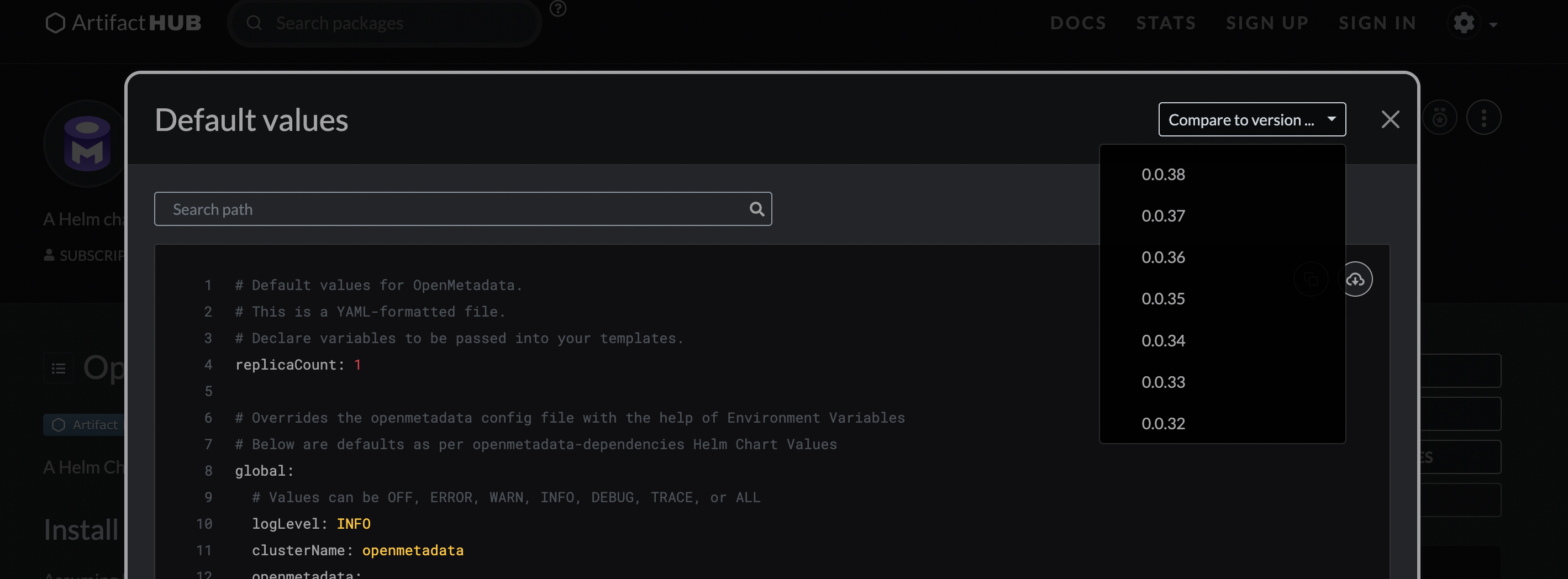
Step 1: Get an overview of what has changed in Helm Values
You can get changes from artifact hub of openmetadata helm chart release. Click on Default Values >> Compare to Version.
Step 2: Upgrade Helm Repository with a new release
Update Helm Chart Locally for OpenMetadata with the below command:
helm repo update open-metadata
Hang tight while we grab the latest from your chart repositories...
...Successfully got an update from the "open-metadata" chart repository
Update Complete. ⎈Happy Helming!⎈
helm search repo open-metadata --versions
> NAME                                   	CHART VERSION	APP VERSION	DESCRIPTION
open-metadata/openmetadata              1.3.1           1.3.1           A Helm chart for OpenMetadata on Kubernetes
open-metadata/openmetadata              1.2.8           1.2.5           A Helm chart for OpenMetadata on Kubernetes

...
open-metadata/openmetadata-dependencies 1.3.1           1.3.1           Helm Dependencies for OpenMetadata
open-metadata/openmetadata-dependencies 1.2.8           1.2.5           Helm Dependencies for OpenMetadata
...
helm upgrade openmetadata-dependencies open-metadata/openmetadata-dependencies
values.yaml.
Make sure that, when using your own values.yaml, you are not overwriting elements such as the image of the containers.
This would prevent your new deployment to use the latest containers when running the upgrade.If you are running into any issues, double-check what are the default values of the helm revision.
helm upgrade openmetadata open-metadata/openmetadata
values.yaml with the --values flag.
Note that in every version upgrade there is a migration process that updates your database to the newest version.
For kubernetes, this process will happen automatically as an upgrade hook.
You can learn more about how the migration process works here. Post-Upgrade Steps
Reindex
With UI
Go to Settings -> Applications -> Search Indexing
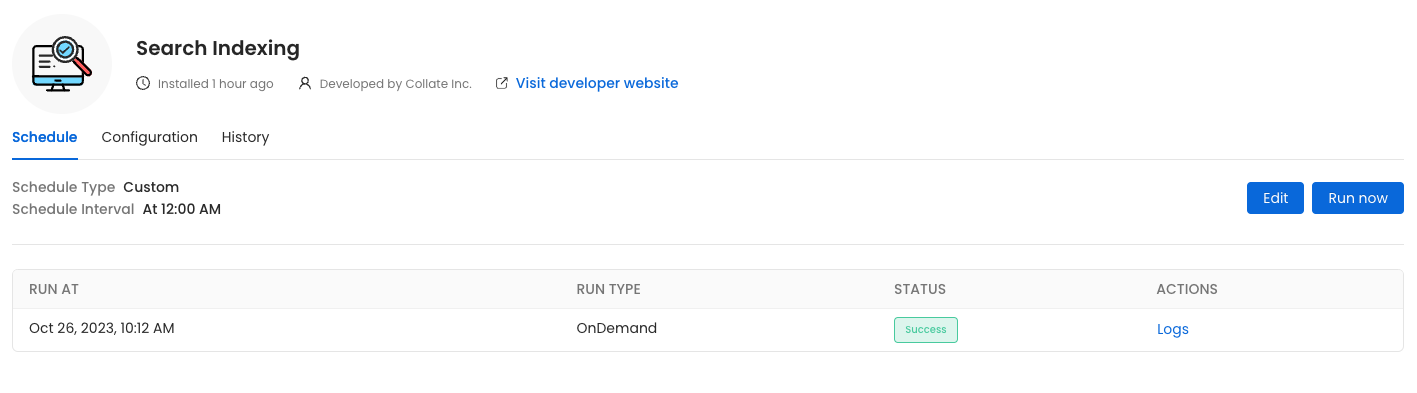 Before initiating the process by clicking
 Run Now, ensure that the Recreate Indexes option is enabled to allow rebuilding the indexes as needed.
In the configuration section, you can select the entities you want to reindex.
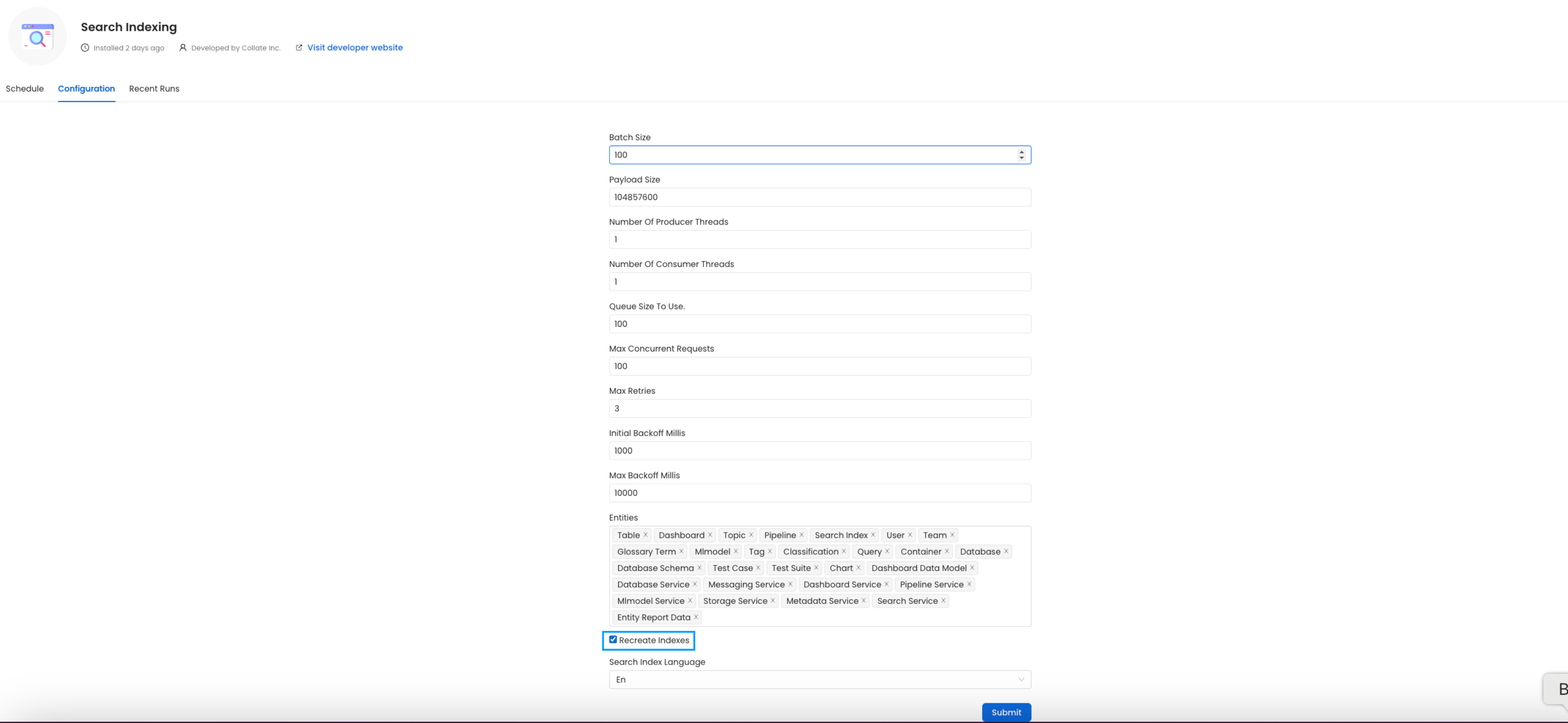 Since this is required after the upgrade, we want to reindex
 All the entities.
If you are running the ingestion workflows externally or using a custom Airflow installation, you need to make sure that the Python Client you use is aligned
with the OpenMetadata server version.
For example, if you are upgrading the server to the version x.y.z, you will need to update your client with
pip install openmetadata-ingestion[<plugin>]==x.y.z
With Kubernetes
Follow these steps to reindex using the CLI:
- List the CronJobs
Use the following command to check the available CronJobs:
Upon running this command you should see output similar to the following.
kubectl get cronjobs
NAME                    SCHEDULE      TIMEZONE   SUSPEND   ACTIVE   LAST SCHEDULE   AGE
cron-reindex            0/5 * * * *   <none>     True      0        <none>          31m
- Create a Job from a CronJob
Create a one-time job from an existing CronJob using the following command:
kubectl create job --from=cronjob/cron-deploy-pipelines <job_name>
Replace <job_name> with the actual name of the job.
kubectl create job --from=cronjob/cron-reindex cron-reindex-one
job.batch/cron-reindex-one created
- Check the Job Status
Verify the status of the created job with:
Upon running this command you should see output similar to the following.
kubectl get jobs
NAME                       STATUS     COMPLETIONS   DURATION   AGE
cron-reindex-one           Complete   1/1           20s        109s
- view logs
To view the logs use the below command.
kubectl logs job/<job_name>
Replace <job_name> with the actual job name.
plugin parameter is a list of the sources that we want to ingest. An example would look like this openmetadata-ingestion[mysql,snowflake,s3]==1.2.0.
You will find specific instructions for each connector in the Connectors section.
Moreover, if working with your own Airflow deployment - not the openmetadata-ingestion image - you will need to upgrade
as well the openmetadata-managed-apis version:
pip install openmetadata-managed-apis==x.y.z
Re Deploy Ingestion Pipelines
With UI
Go to Settings -> {Services} -> {Databases} -> Pipelines
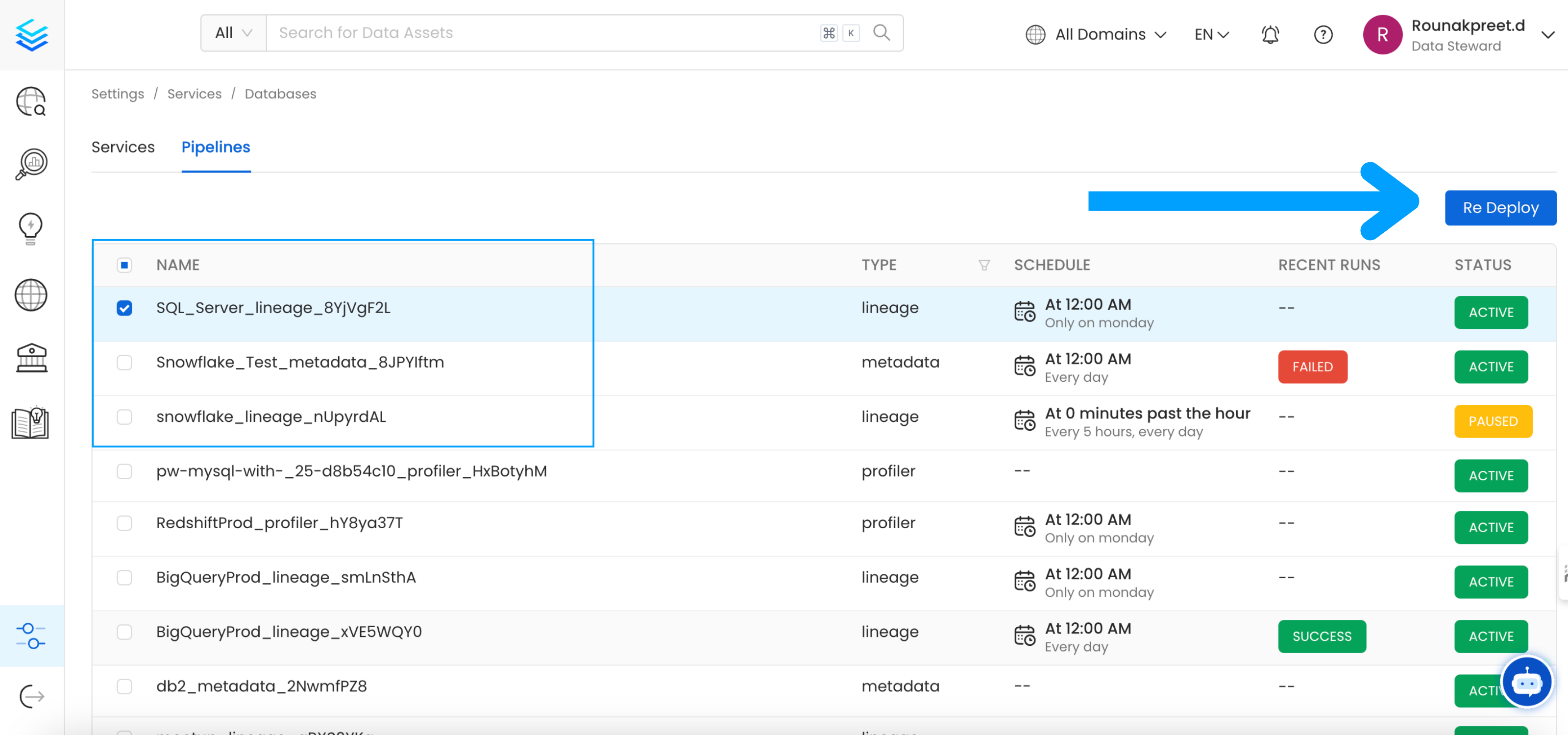 Select the pipelines you want to Re Deploy click
 Re Deploy.
With Kubernetes
Follow these steps to deploy pipelines using the CLI:
- List the CronJobs
Use the following command to check the available CronJobs:
Upon running this command you should see output similar to the following.
kubectl get cronjobs
NAME                    SCHEDULE      TIMEZONE   SUSPEND   ACTIVE   LAST SCHEDULE   AGE
cron-deploy-pipelines   0/5 * * * *   <none>     True      0        <none>          4m7s
- Create a Job from a CronJob
Create a one-time job from an existing CronJob using the following command:
kubectl create job --from=cronjob/cron-reindex <job_name>
Replace <job_name> with the actual name of the job.
kubectl create job --from=cronjob/cron-deploy-pipelines cron-deploy-pipeline-one
job.batch/cron-deploy-pipeline-one created
- Check the Job Status
Verify the status of the created job with:
Upon running this command you should see output similar to the following.
kubectl get jobs
NAME                       STATUS     COMPLETIONS   DURATION   AGE
cron-deploy-pipeline-one   Complete   1/1           13s        3m35s
- view logs
To view the logs use the below command.
kubectl logs job/<job_name>
Replace <job_name> with the actual job name.
Openmetadata-ops Script
Overview
The openmetadata-ops script is designed to manage and migrate databases and search indexes, reindex existing data into Elastic Search or OpenSearch, and redeploy service pipelines.
Usage
sh openmetadata-ops.sh [-dhV] [COMMAND]
Commands
Migrates secrets from the database to the configured Secrets Manager. Note that this command does not support migrating between external Secrets Managers.
Prints the change log of database migration.
Checks if a connection can be successfully obtained for the target database.
Deploys all the service pipelines.
Deletes any tables in the configured database and creates new tables based on the current version of OpenMetadata. This command also re-creates the search indexes.
Shows the list of migrations applied and the pending migrations waiting to be applied on the target database.
Migrates the OpenMetadata database schema and search index mappings.
Migrates secrets from the database to the configured Secrets Manager. Note that this command does not support migrating between external Secrets Managers.
Reindexes data into the search engine from the command line.
Repairs the DATABASE_CHANGE_LOG table, which is used to track all the migrations on the target database. This involves removing entries for the failed migrations and updating the checksum of migrations already applied on the target database.
Checks if all the migrations have been applied on the target database.
Examples
Display Help To display the help message:
sh openmetadata-ops.sh --help
Migrate Database Schema
To migrate the database schema and search index mappings:
sh openmetadata-ops.sh migrate
Reindex Data
To reindex data into the search engine:
sh openmetadata-ops.sh reindex
Troubleshooting
Helm Upgrade fails with additional property airflow not allowed
With Release 1.0.0, if you see your helm charts failing to deploy with the below issue -
Error: INSTALLATION FAILED: values don't meet the specifications of the schema(s) in the following chart(s):
openmetadata:
- global: Additional property airflow is not allowed
global.airflow. Airflow configs are replaced with pipelineServiceClient for Helm Charts.
The Helm Chart Values JSON Schema helps to catch the above breaking changes and this section will help you resolve and update your configurations for the same. You can read more about JSON Schema with Helm Charts here.
You will need to update the existing section of global.airflow values to match the new configurations.
⛔ Before 1.0.0 Helm Chart Release, the global.airflow section would be like -
global:
  ...
  airflow:
    enabled: true
    # endpoint url for airflow
    host: http://openmetadata-dependencies-web.default.svc.cluster.local:8080
    # possible values are "no-ssl", "ignore", "validate"
    verifySsl: "no-ssl"
    # Local path in Airflow Pod
    sslCertificatePath: "/no/path"
    auth:
      username: admin
      password:
        secretRef: airflow-secrets
        secretKey: openmetadata-airflow-password
    openmetadata:
      # this will be the api endpoint url of OpenMetadata Server
      serverHostApiUrl: "http://openmetadata.default.svc.cluster.local:8585/api"
...
global.pipelineServiceClient section will replace the above airflow section -
openmetadata:
  config:
    ...
    pipelineServiceClientConfig:
      enabled: true
      className: "org.openmetadata.service.clients.pipeline.airflow.AirflowRESTClient"
      # endpoint url for airflow
      apiEndpoint: http://openmetadata-dependencies-web.default.svc.cluster.local:8080
      # this will be the api endpoint url of OpenMetadata Server
      metadataApiEndpoint: http://openmetadata.default.svc.cluster.local:8585/api
      # possible values are "no-ssl", "ignore", "validate"
      verifySsl: "no-ssl"
      ingestionIpInfoEnabled: false
      # local path in Airflow Pod
      sslCertificatePath: "/no/path"
      auth:
        username: admin
        password:
          secretRef: airflow-secrets
          secretKey: openmetadata-airflow-password
  ...
...
MySQL Pod fails on Upgrade
This issue will only occur if you are using openmetadata-dependencies helm chart version 0.0.49 and 0.0.50 and upgrading to latest helm chart release.
Startup probe failed: mysqladmin: [Warning] Using a password on the command line interface can be insecure. mysqladmin:
connect to server at 'localhost' failed error: 'Can't connect to local MySQL server through socket '/opt/bitnami/mysql/tmp/mysql.sock' (2)'
Check that mysqld is running and that the socket: '/opt/bitnami/mysql/tmp/mysql.sock' exists!
8.0.28 to 8.0.29 for the Helm Chart Release 0.0.49 and 0.0.50. Then the registry url was updated as we found a work around to fetch previous versions of bitnami/mysql Helm Releases.
As a result of the above fixes, anyone who is on OpenMetadata Dependencies Helm Chart Version 0.0.49 and 0.0.50 is affected with the above issue when upgrading for mysql. In order to fix this issue, make sure to follow the below steps -
- Backup the Database using Metadata Backup CLI as mentioned here
- Uninstall OpenMetadata Dependencies Helm Chart (
helm uninstall openmetadata-dependencies)
- Remove the unmanaged volume for MySQL Stateful Set Kubernetes Object (
kubectl delete pvc data-mysql-0)
- Install the latest version of OpenMetadata Dependencies Helm Chart
- Restore the Database using Metadata Restore CLI as mentioned here
- Next, Proceed with upgrade for OpenMetadata Helm Chart as mentioned here
