Documents and Archive
Documents let you upload files, such as reports, spreadsheets, and compliance audits, without rewriting them as an Article. When OpenMetadata extracts question and answer notes from a file, MCP assistants can retrieve the extracted content. The assistant searches the extracted notes, not the Document record itself. MCP assistants reach Articles through thefind_context tool instead. Organize files into folders to keep related documents together.
Upload a Document
-
From the left navigation bar, navigate to Context Center > Documents.
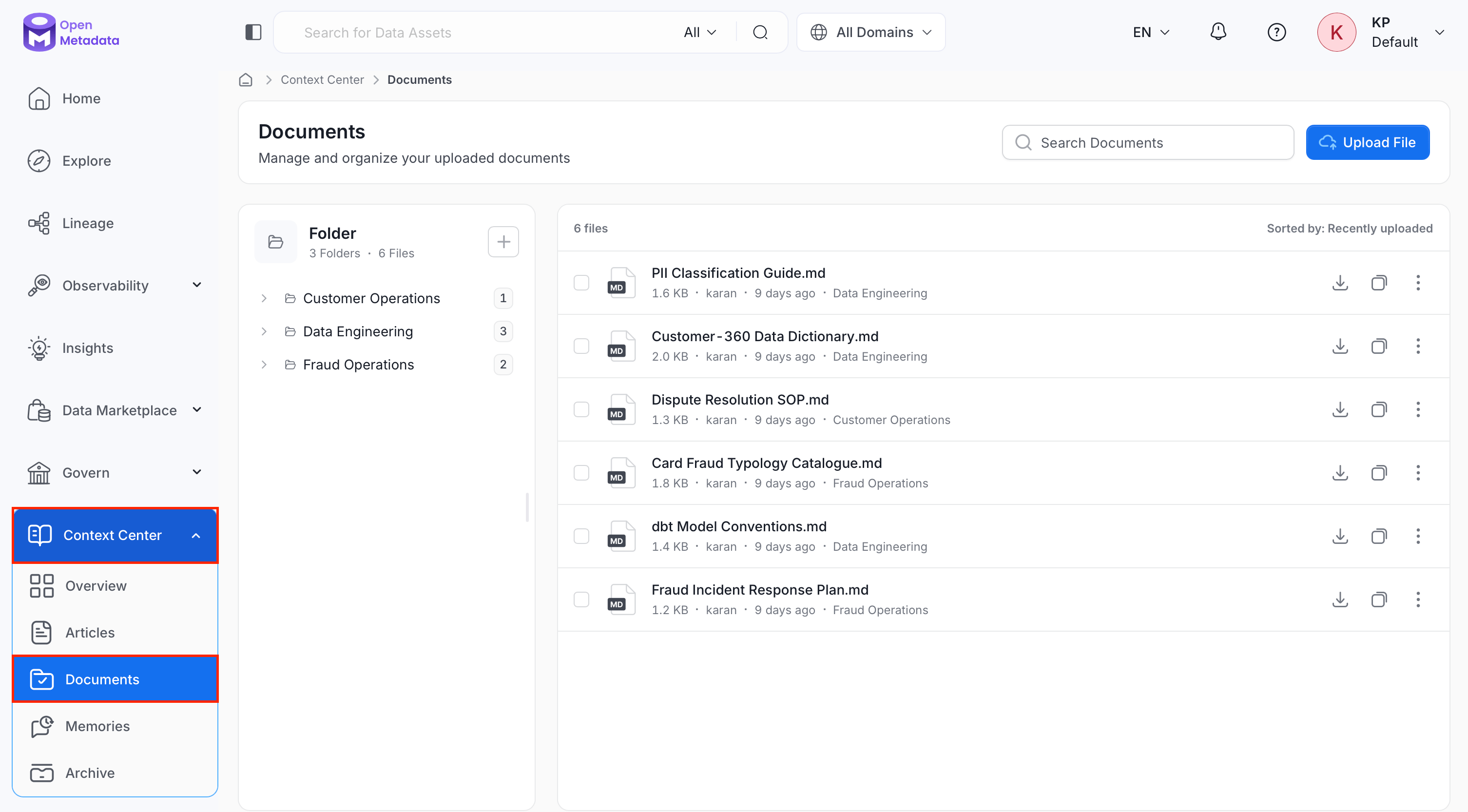
-
Click Upload File.
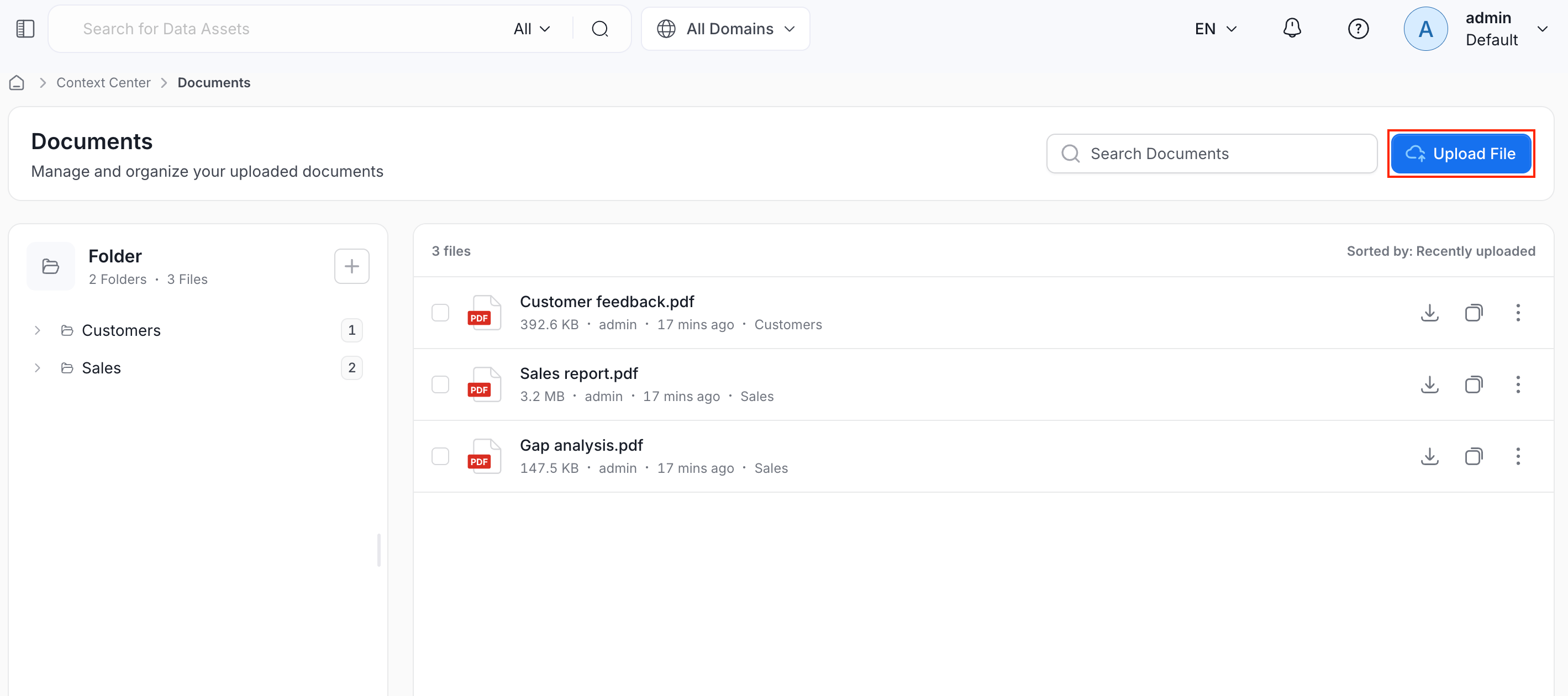
- Browse to the files on your computer and upload them.
-
Optionally, organize the file into a folder:
- Click the + icon next to Folder to create a new folder.
- Files you don’t move into a folder stay listed at the top level.
View and Manage Documents
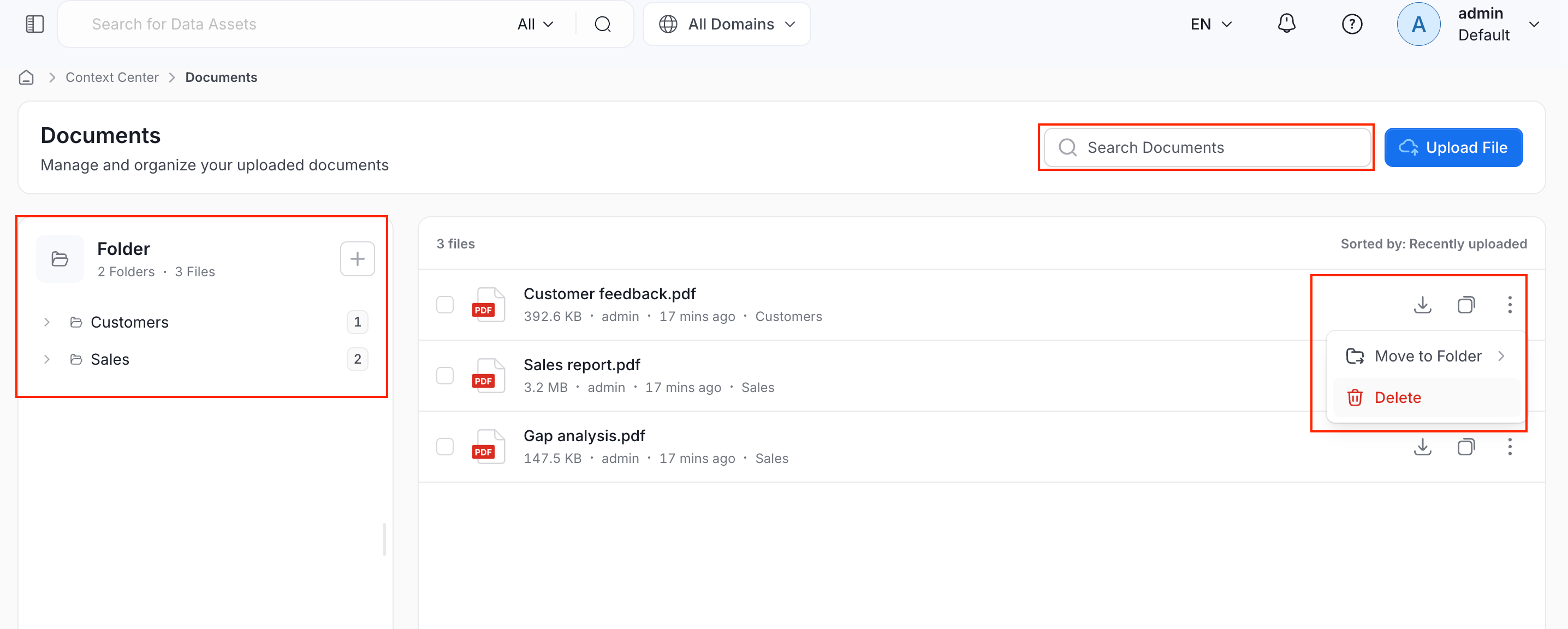
The Documents page shows:- Search bar: Search documents by file name.
- Folder panel: Lists your folders on the left, each showing how many files it contains.
- To create a new folder, click the
 icon next to Folder.
 - Click a folder to see only the files inside it.
- To create a new folder, click the
- File list: Shows the total number of files, sorted by Recently uploaded by default.
- Files Actions:
- Download: Save a copy of the file to your local system.
- Copy link: Copy the document URL.
-
Three-dot (⋮) menu:
- Move to Folder: Move the file into a different folder.
- Delete: Remove the file from Documents. This doesn’t erase it immediately. See Archive.
Archive
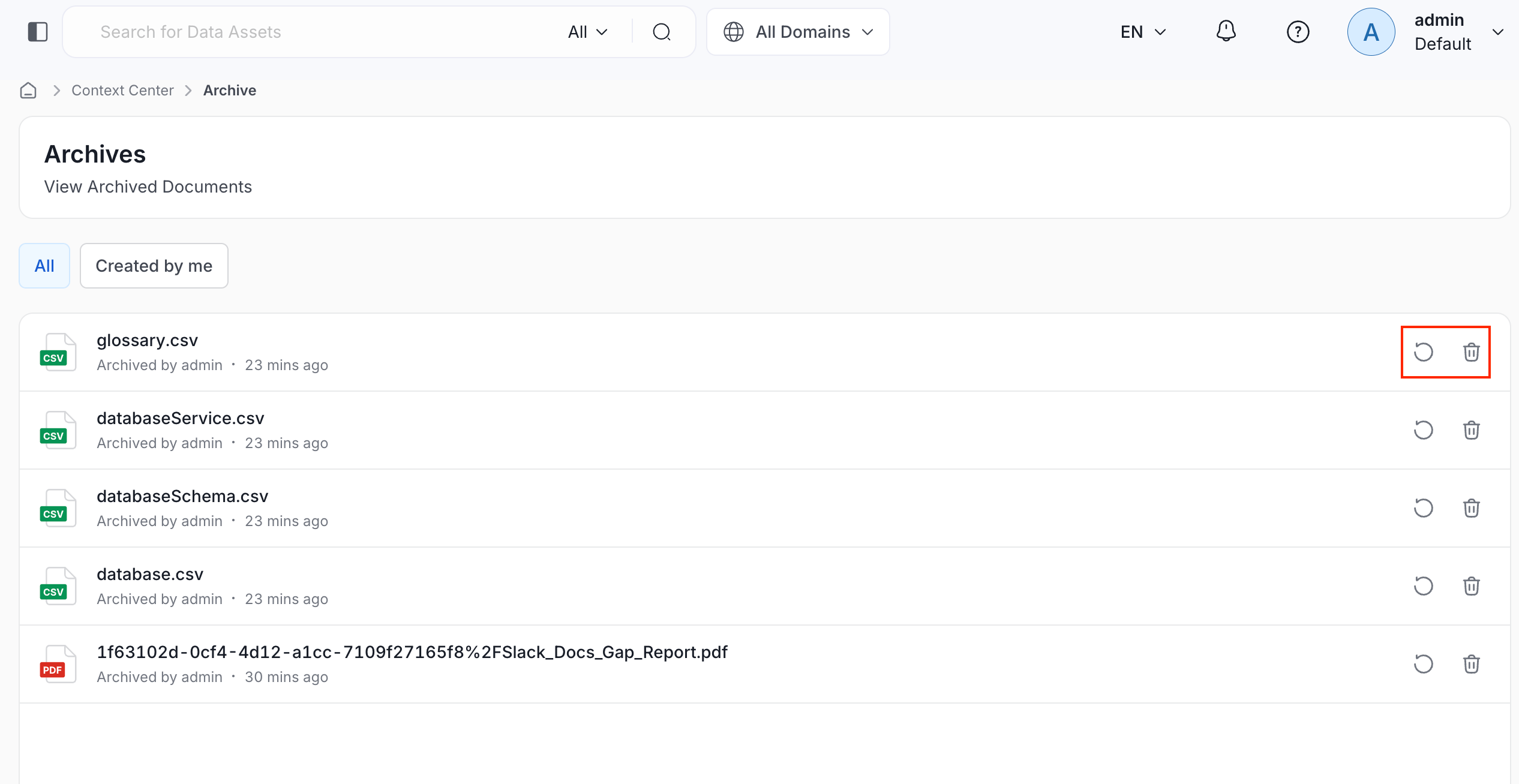
Deleting a document moves it to Context Center > Archive instead of erasing it right away. From Archive, you can:- To restore the document, click the Restore icon next to the document.
-
To remove the document permanently, click the Delete icon next to the document.