
Configure Governance Workflow Triggers and Conditions
Governance workflows can respond to changes on specific data assets and route an entity based on its metadata. OpenMetadata 2.1 adds entity-specific trigger fields, support for column custom-property changes, and Data Product count conditions. You need permission to create or edit a Workflow Definition. You also need theDeploy operation to deploy the completed workflow.
Choose Which Changes Trigger a Workflow
For an event-based start node, the Include Fields and Exclude Fields lists contain only fields that apply to the selected data asset types. The lists combine:- Common fields, such as
description,owners, andtags. - Fields for the selected entity type, such as
columnsfor a Table oroutputPortsfor a Data Product. - Custom properties defined for the selected entity type. The selector marks these entries as Custom Property.
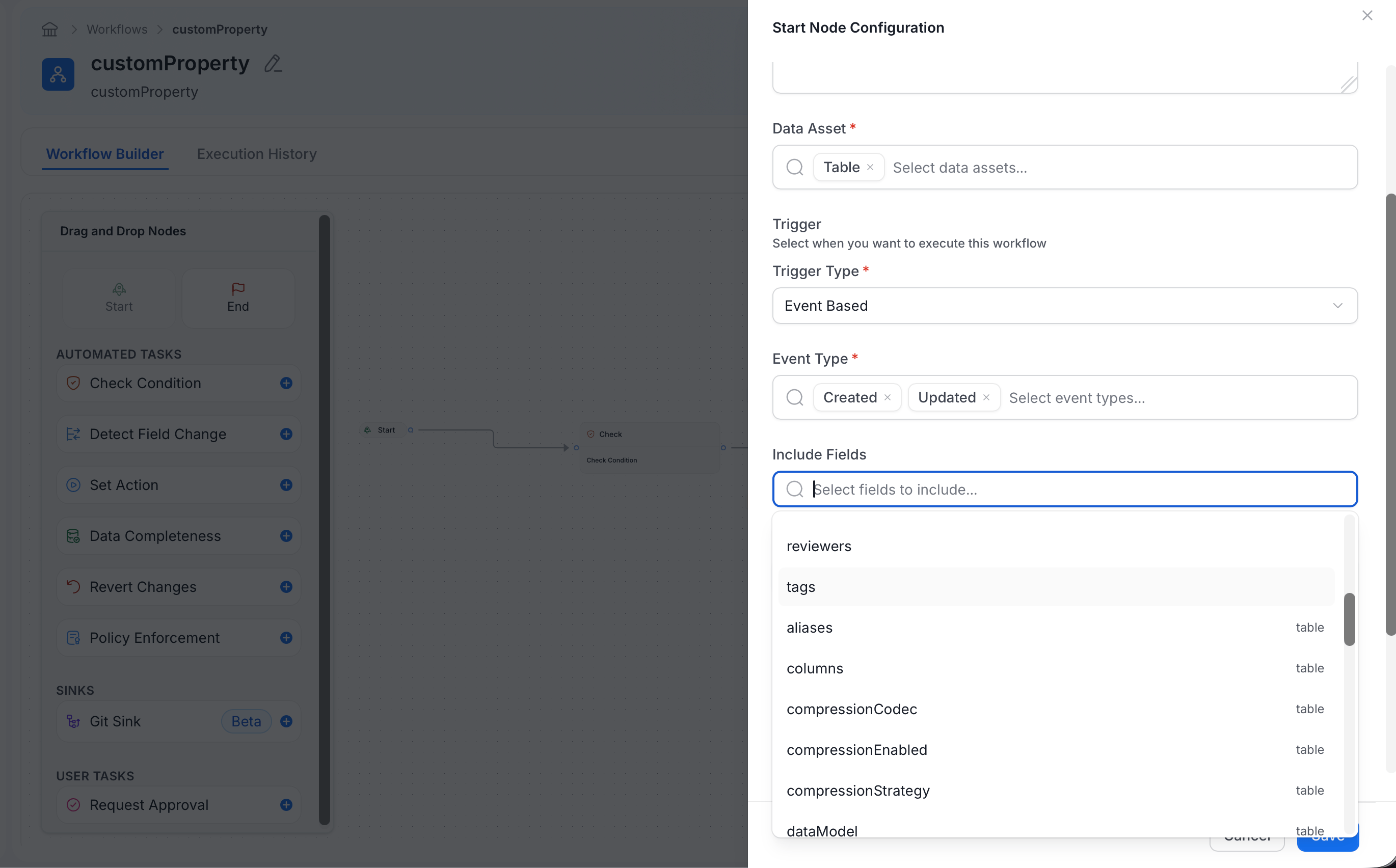
If Include Fields is empty, any supported common or entity-specific field can trigger the workflow. Use Include Fields when the workflow should respond only to a smaller set of changes.
Trigger a Workflow When a Column Custom Property Changes
Use the Tablecolumns field to respond when a custom property on any column changes.
- Go to Govern > Workflows, create or edit a workflow, and select the start node.
- Under Data Asset, select Table. Select Dashboard Data Model instead when the custom property belongs to a dashboard data model column.
- Set Trigger Type to Event Based.
- Under Include Fields, select
columns. - Complete the workflow, save it, and deploy it.
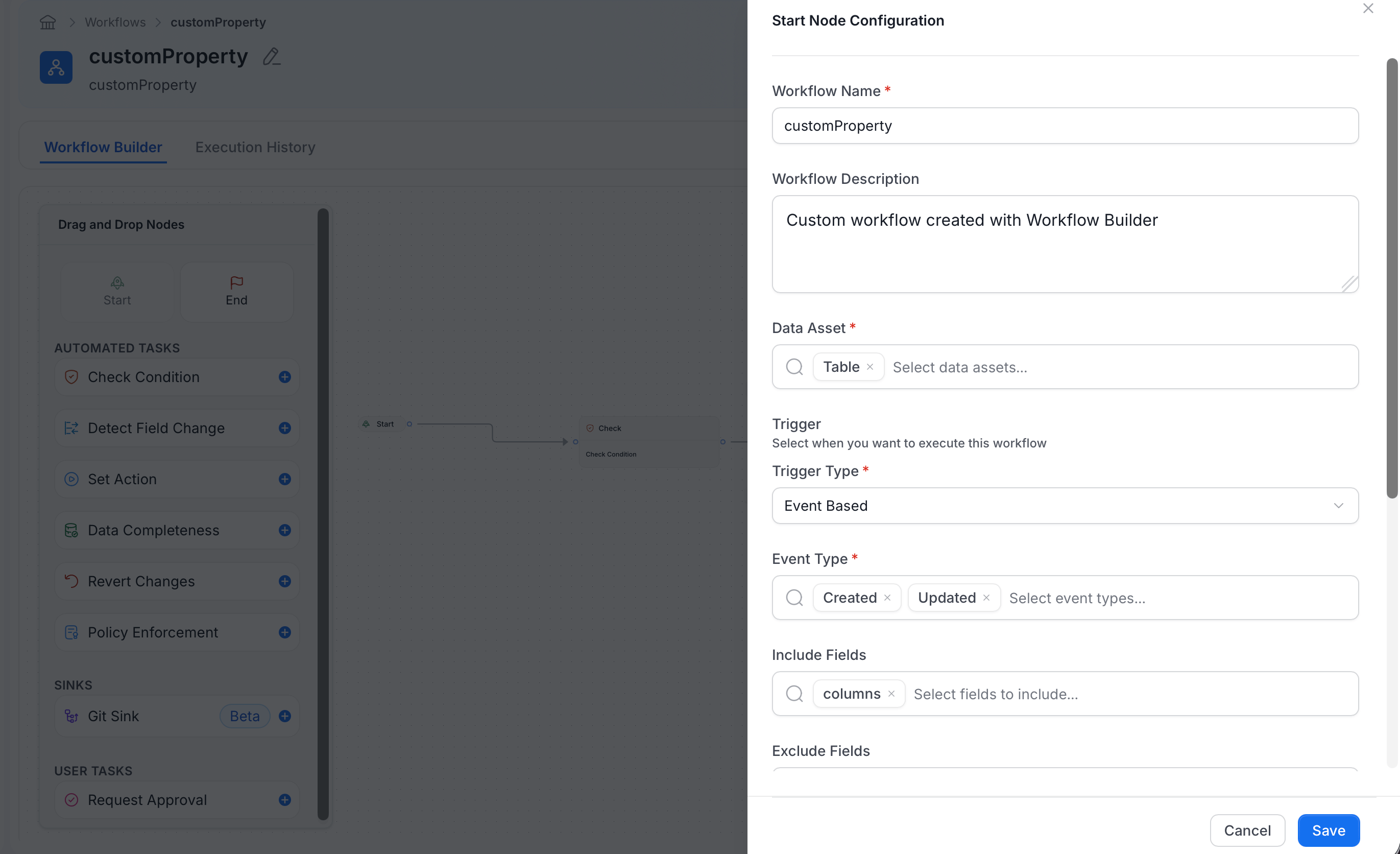
The trigger watches the
columns field as a whole. It cannot be limited to one column or one column custom property. The condition builder does not offer columns because it is an array of column objects and cannot be compared as a single value.Negative Operators on List Fields
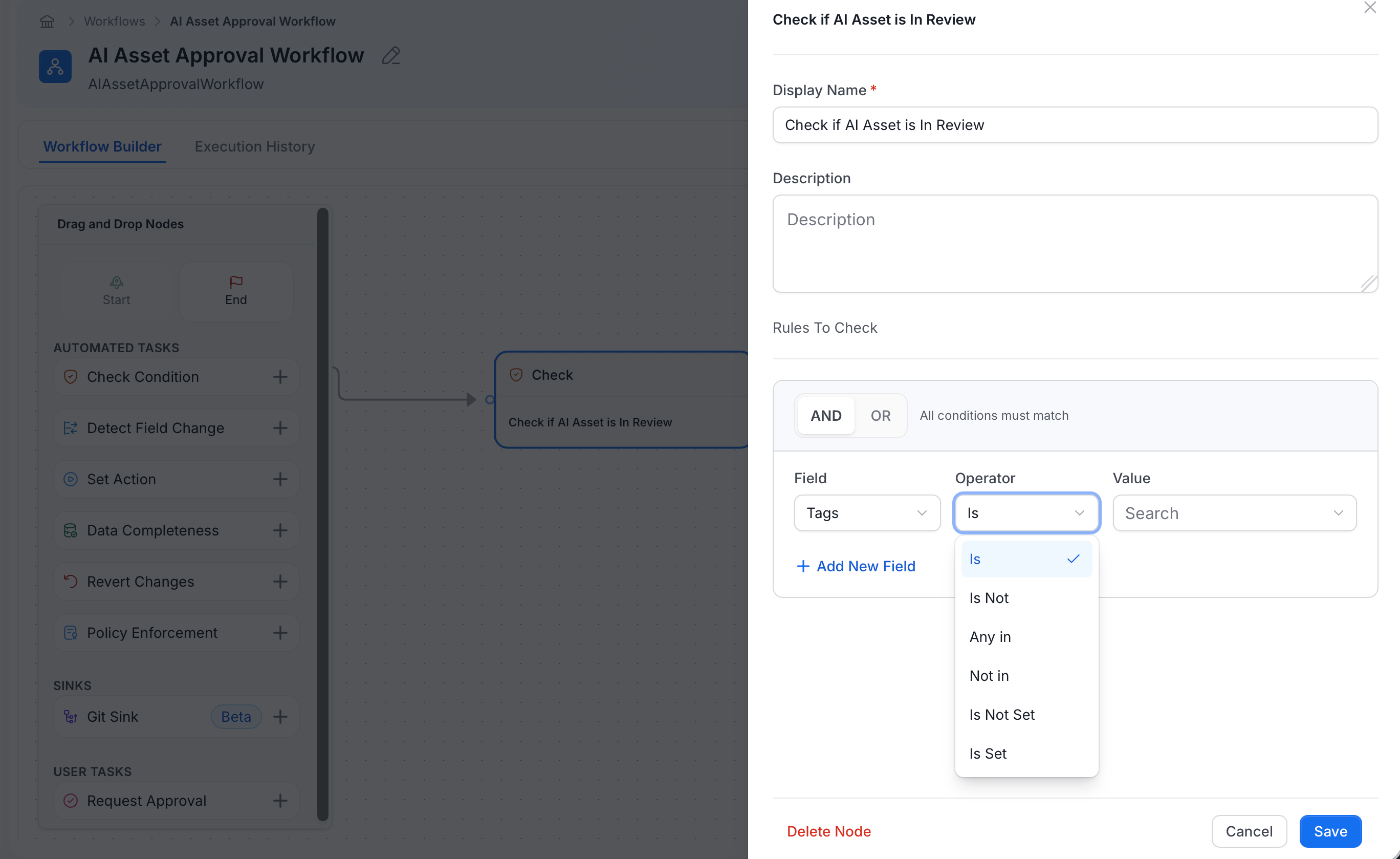
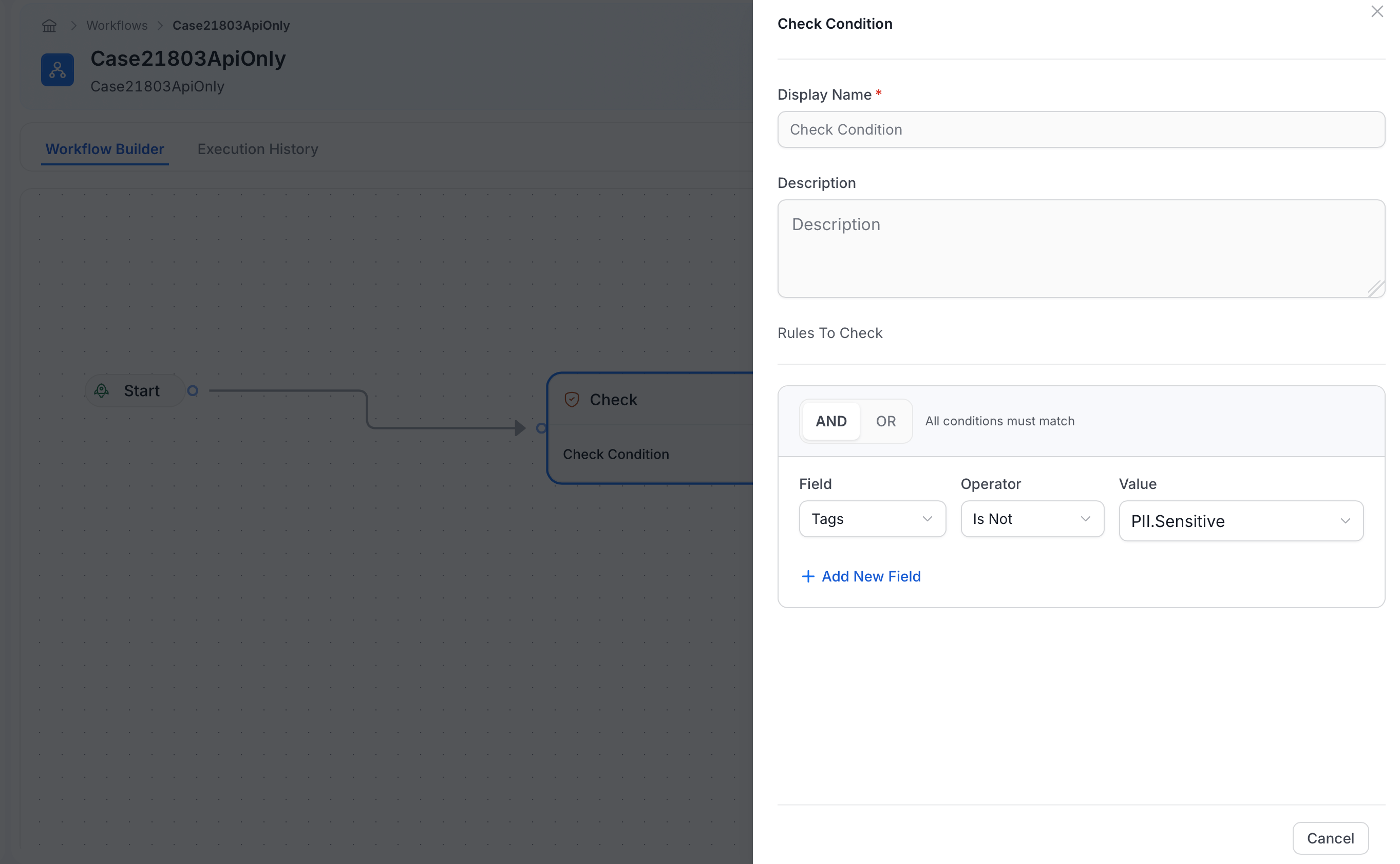
The condition builder for the Data Asset Filter and the Check Condition node treats the Is Not, Not in, and Is Not Set operators on list fields as a check on the whole list. List fields include Tags, Owners, Reviewers, Domains, and Data Products. For these fields, the Operator list also includes Is, Any in, and Is Set.- Is Not: The asset is not tagged with the selected value. An asset with no tags passes. An asset with the selected tag fails, even if it has other tags too.
- Not in: The asset has none of the selected values.
- Is Not Set: The asset has no value in the field, for example no tags.
Route Data Products by Asset or Output Port Count
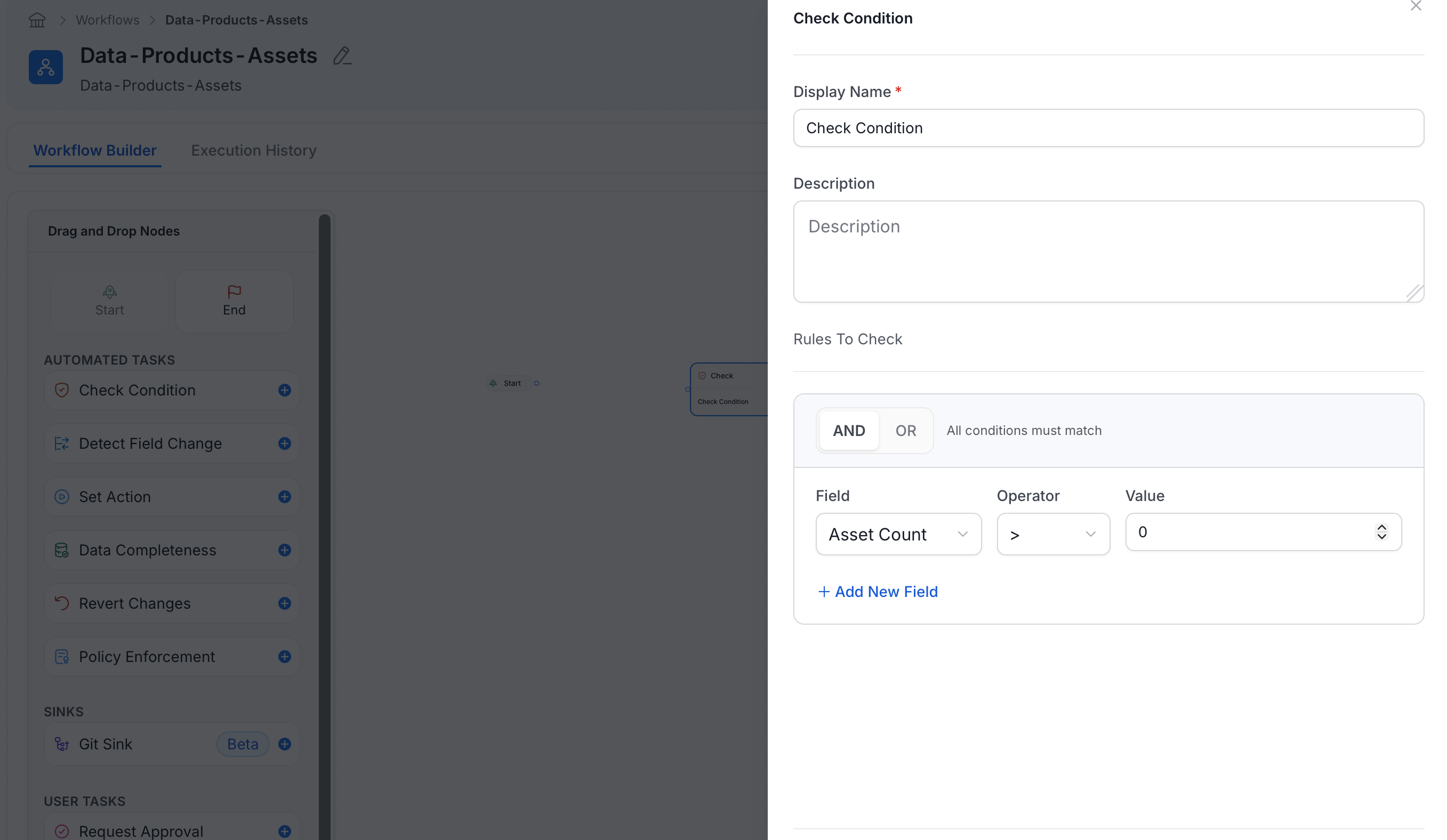
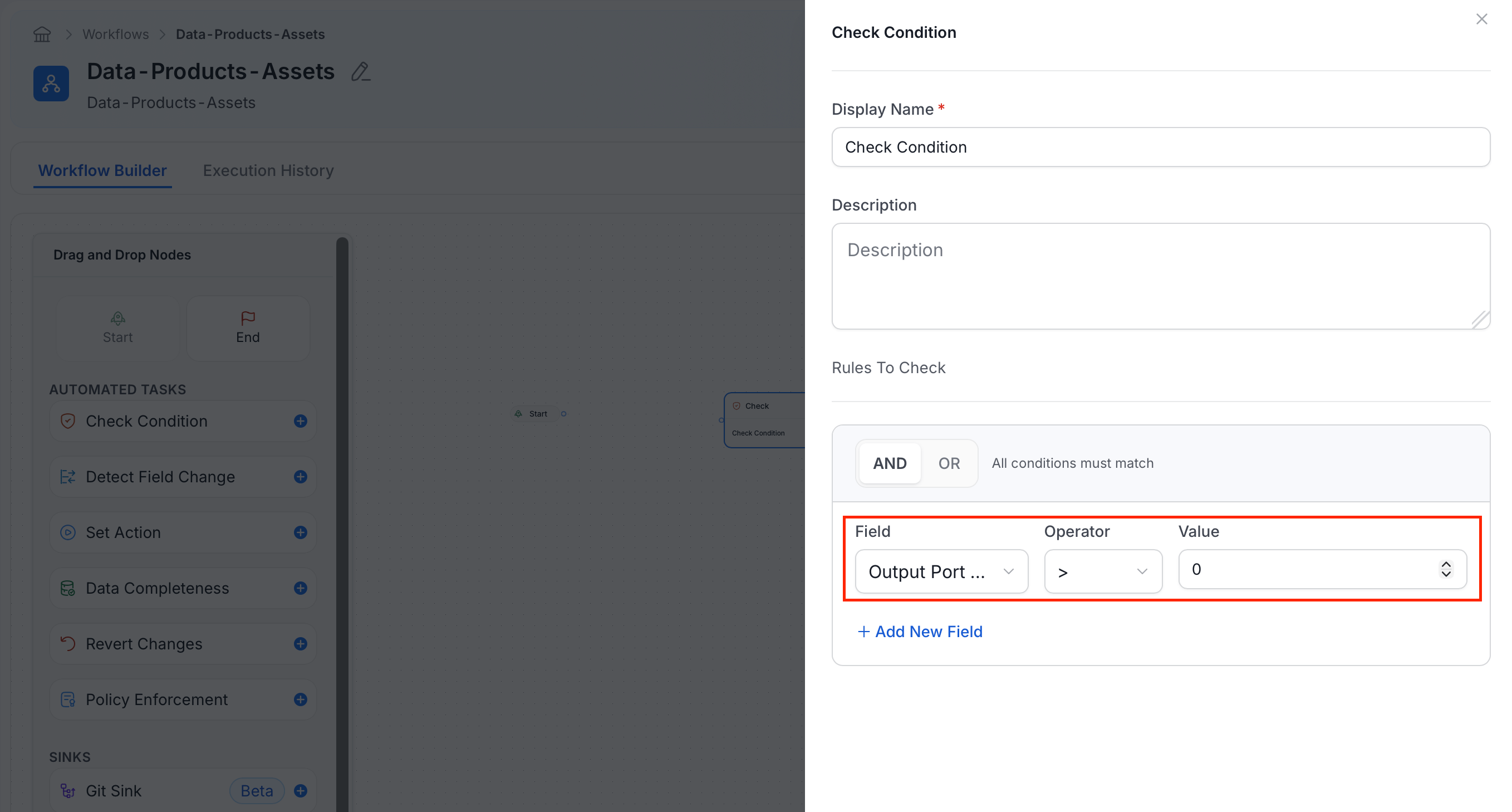
The Check Condition node provides two numeric fields when the workflow evaluates a Data Product:
For example, use
Asset Count > 0 to continue only when the Data Product contains an asset, or Output Port Count > 0 to require at least one output port.
- Configure the start node with Data Product selected under Data Asset. The count fields are not available when the start node processes Tables or another entity type.
- Add a Check Condition node. If you changed the start node after adding this node, close and reopen its configuration so the field list refreshes.
- In the condition builder’s Field list, select Asset Count or Output Port Count. Do not select Data Product. That option represents an entity relationship and provides operators such as Is and Is Not.
- Select
>and enter0to require at least one item. - Connect the true and false branches to the appropriate next steps.
- Save and deploy the workflow.
Hold Edits for Approval
An event-based start node has an Approval Mode setting with two options. Default publishes edits immediately and runs the workflow afterward. Enforce holds each edit as a change request until a reviewer approves it. In an Enforce workflow, add a User Approval task. Approving the task publishes the held edit, and rejecting it discards the edit. For the requester and reviewer experience, see Approval-Gated Changes.Approval Task Thresholds and Voting
A User Approval task can require more than one approver. The Approval Threshold is the number of approvals the task needs, and the Rejection Threshold is the number of rejections that closes it as rejected.Thresholds Are Capped at the Users Who Can Vote
OpenMetadata never lets a threshold exceed the number of users who can vote on the task. When the task is created:- Requester excluded: The person who made the change cannot approve it, so OpenMetadata removes them from the assignees. If that leaves fewer assignees than the threshold, OpenMetadata lowers the threshold to the number of remaining assignees. For example, a threshold of 2 with an owner and a reviewer who is also the requester becomes 1.
- Both thresholds: The cap applies to the Approval Threshold and the Rejection Threshold.
- Teams: If the assignees include a team, OpenMetadata does not cap the threshold, because any member of the team can vote.
- Open tasks: The cap applies when a task is created. A task that is already open keeps the threshold it started with.
When the requester is one of two eligible approvers, a two-approval rule becomes one independent approval. To require two independent approvals, name enough approvers, for example a team or a third reviewer.
Who Can Approve and What the Task Shows
- Assignees only: Only an assignee of the task, directly or through a team, can approve or reject it. A user who is not an assignee sees the message “You can’t approve or reject this task because it isn’t assigned to you”. This applies to admins too.
- Counted votes: A task with several approvers shows who has approved or rejected it, for example “Alex approved”, for the current stage of the task.
- After you vote: Once you vote, the Approve and Reject actions are hidden, and the task shows “Your vote is recorded. Waiting for the other approvers.” until the threshold is reached. Other actions, such as reassigning the task, stay available.
- Where it applies: These rules apply on the asset’s task tab, in the review panel in the inbox and the glossary, and in the activity feed card.
Naming Rules
OpenMetadata uses some names you enter to build the variables that the workflow runs on, so they accept only letters, digits, and underscores (_):
- Node name: The name of a User Approval task node, and of a node that creates and runs an ingestion pipeline.
- Expiry timer variables: The
durationVariableanddateVariableof an approval task’sexpiryTimer.
Verify the Workflow
Test the deployed workflow with a non-production entity:- Change a selected trigger field on the entity.
- Confirm that a workflow instance starts.
- For a Data Product condition, test once with an empty collection and once after adding an asset or output port.
- Confirm that each instance follows the expected true or false branch.