System & Governance Notifications
Stay informed about metadata changes, governance events, and collaboration activities across your data catalog.Open Notification Alerts
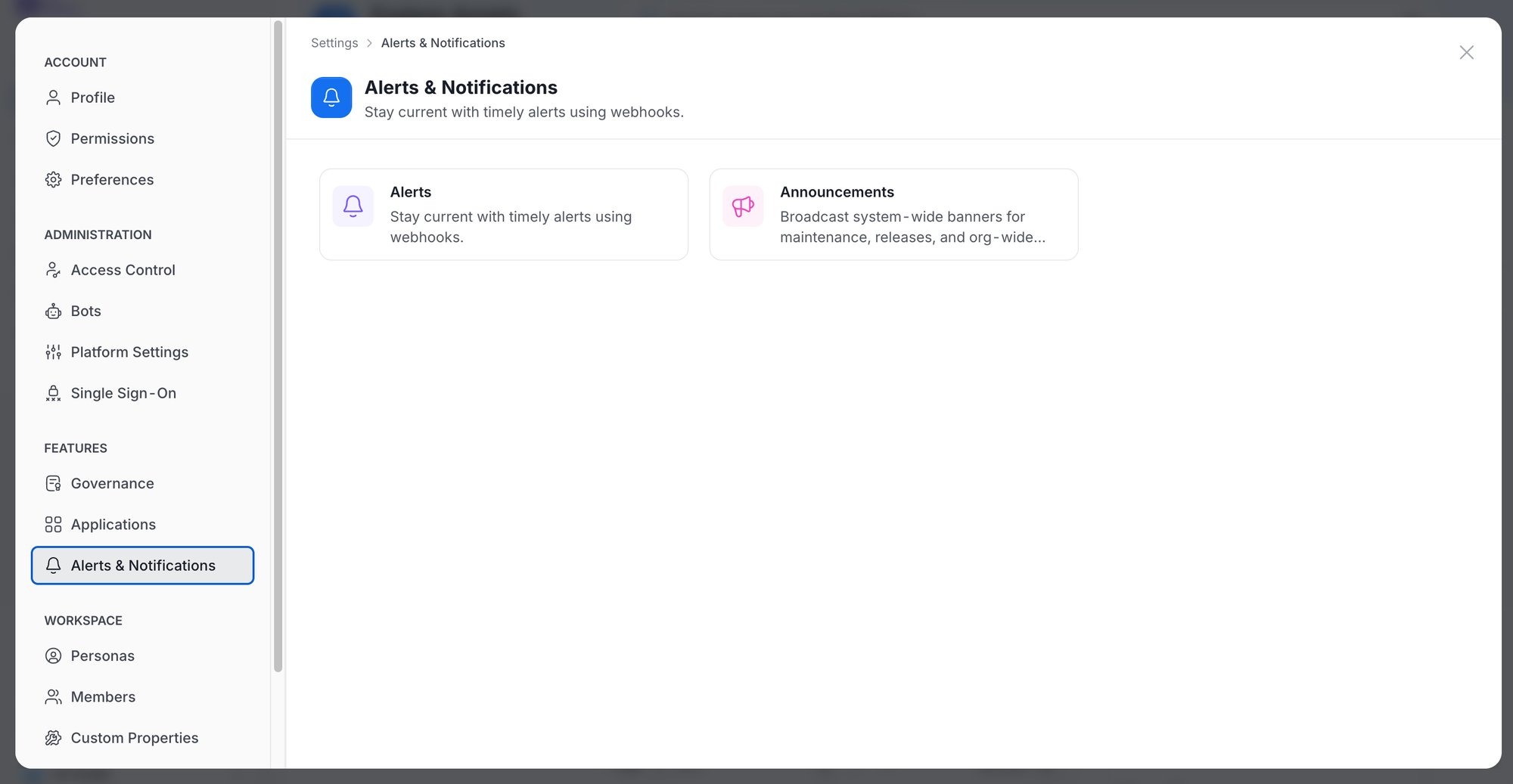
In AI mode, notification alerts are in the Alerts & Notifications section of Settings.- Click the Profile icon and go to Settings > Features > Alerts & Notifications.
- Click the Alerts card. If you are an admin, the page also has an Announcements card for system announcements.
You see Alerts & Notifications only if you can view event subscriptions. To create an alert, you also need Create permission on the
EventSubscription entity.--.
View Alert Details
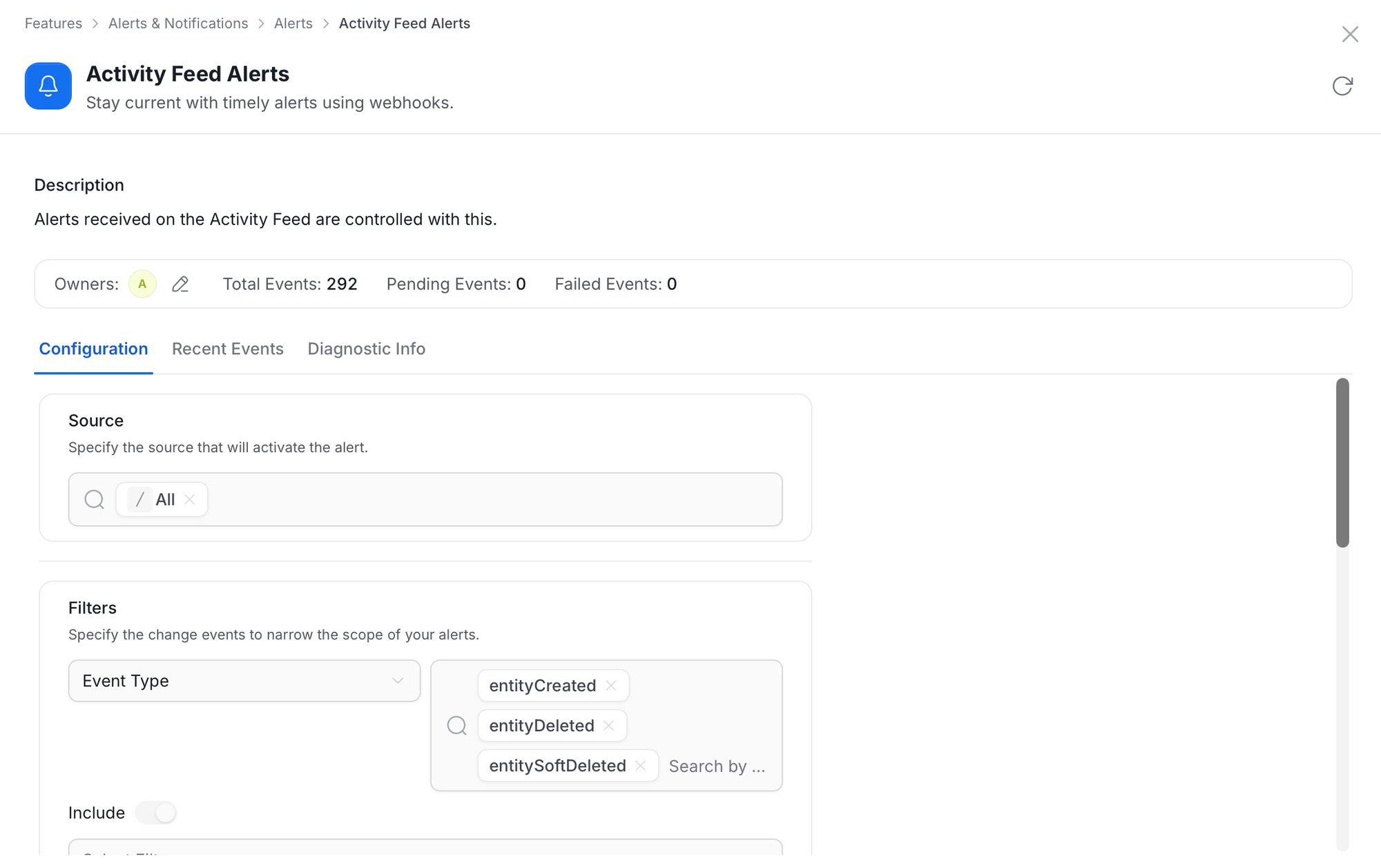
Click an alert name to open its details. The top of the details shows the alert’s description, its Owners, and the number of Total Events, Pending Events, and Failed Events. Click the refresh icon to sync the alert’s offset. If you have permission, you can also edit or delete the alert from the details. These actions are not available for system alerts. The details have the following tabs:-
Configuration: The alert’s Source, Filters, and other settings.
-
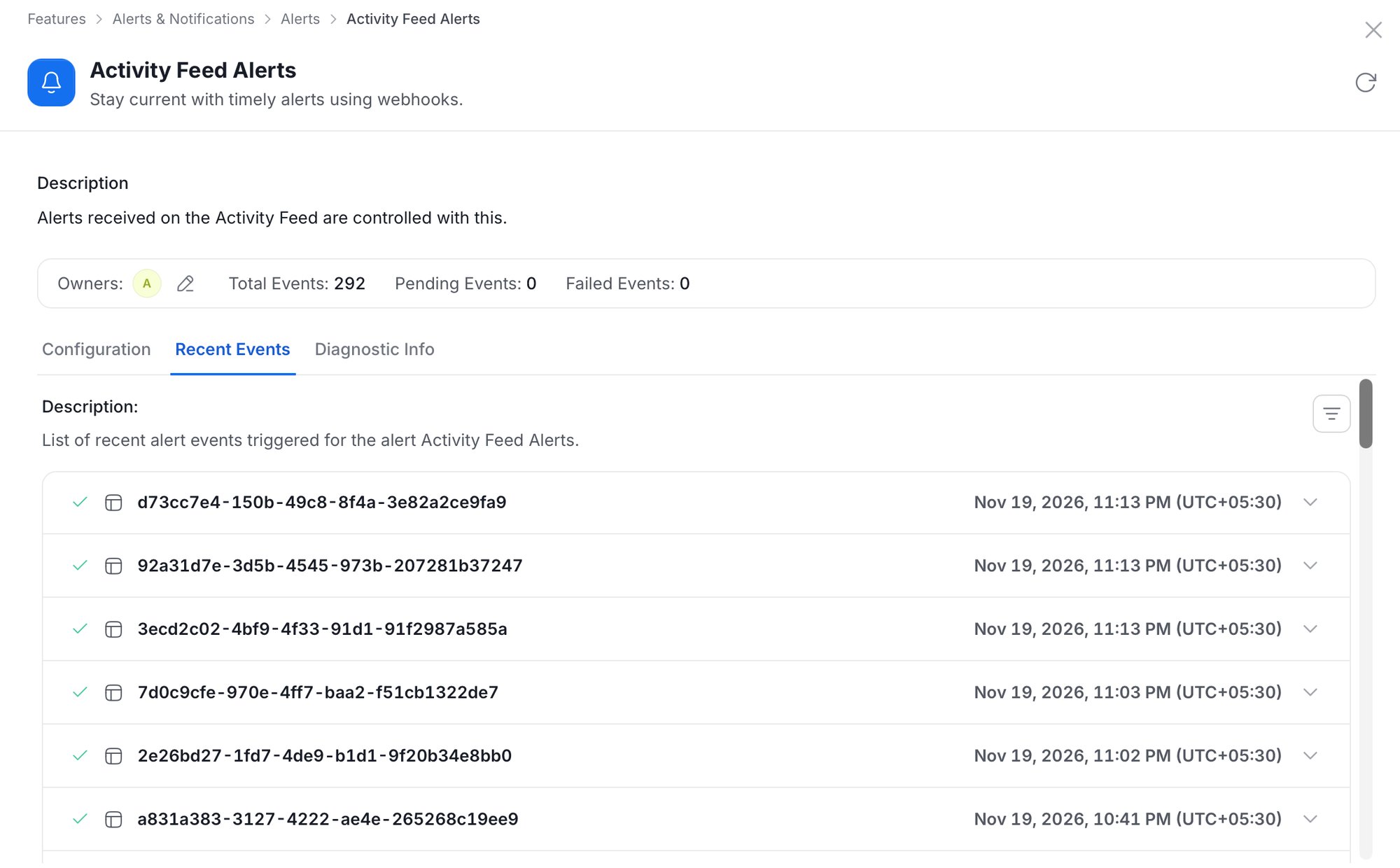
Recent Events: A list of the recent events that triggered the alert. Each row shows the delivery status, the event ID, and the time. Click the arrow at the end of a row to expand the event. Use the filter icon to show only the events with a given status.
-
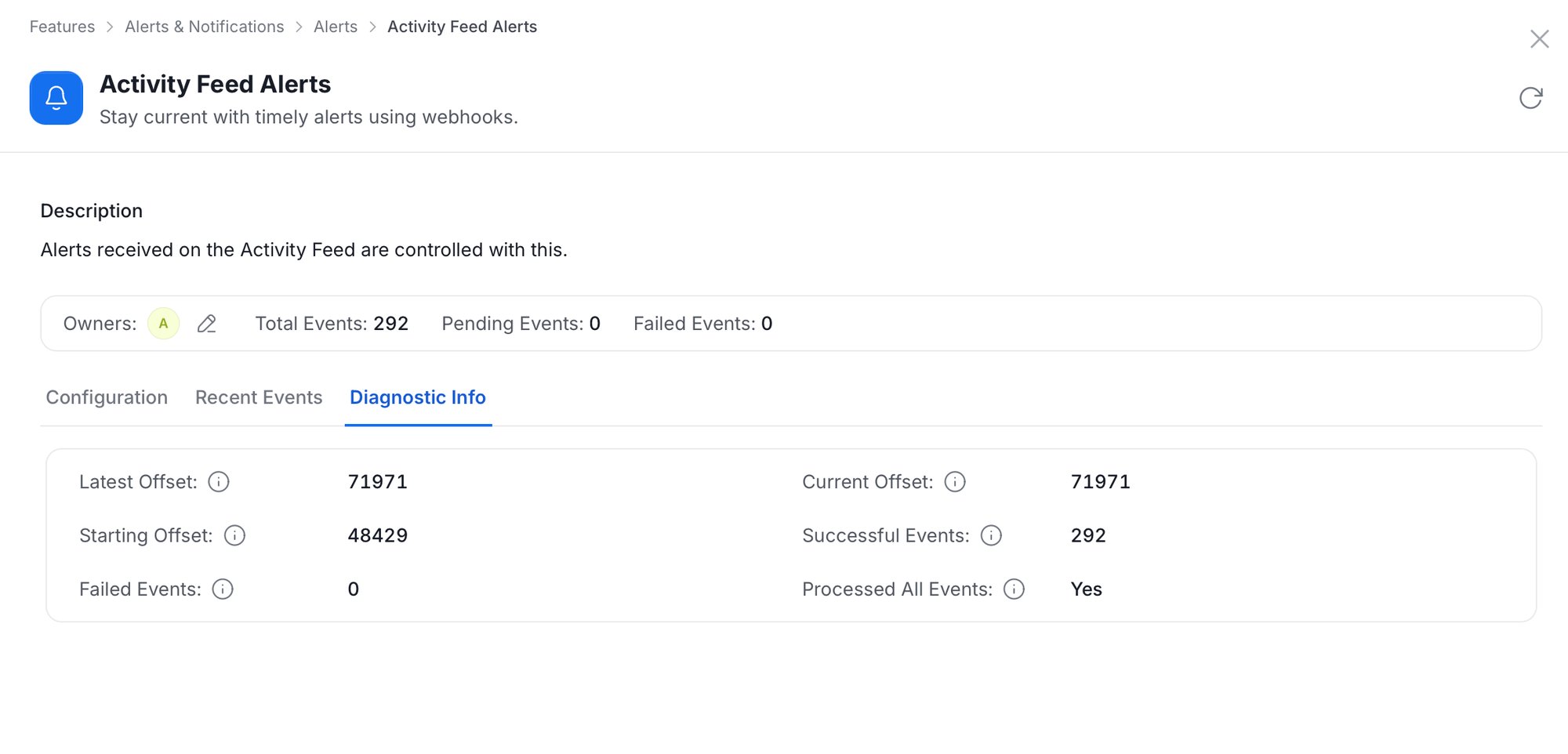
Diagnostic Info: Counters that show how far the alert has processed events: Latest Offset, Current Offset, Starting Offset, Successful Events, Failed Events, and Processed All Events. Point to the information icon next to a counter to read what it means.
Create a new Alert
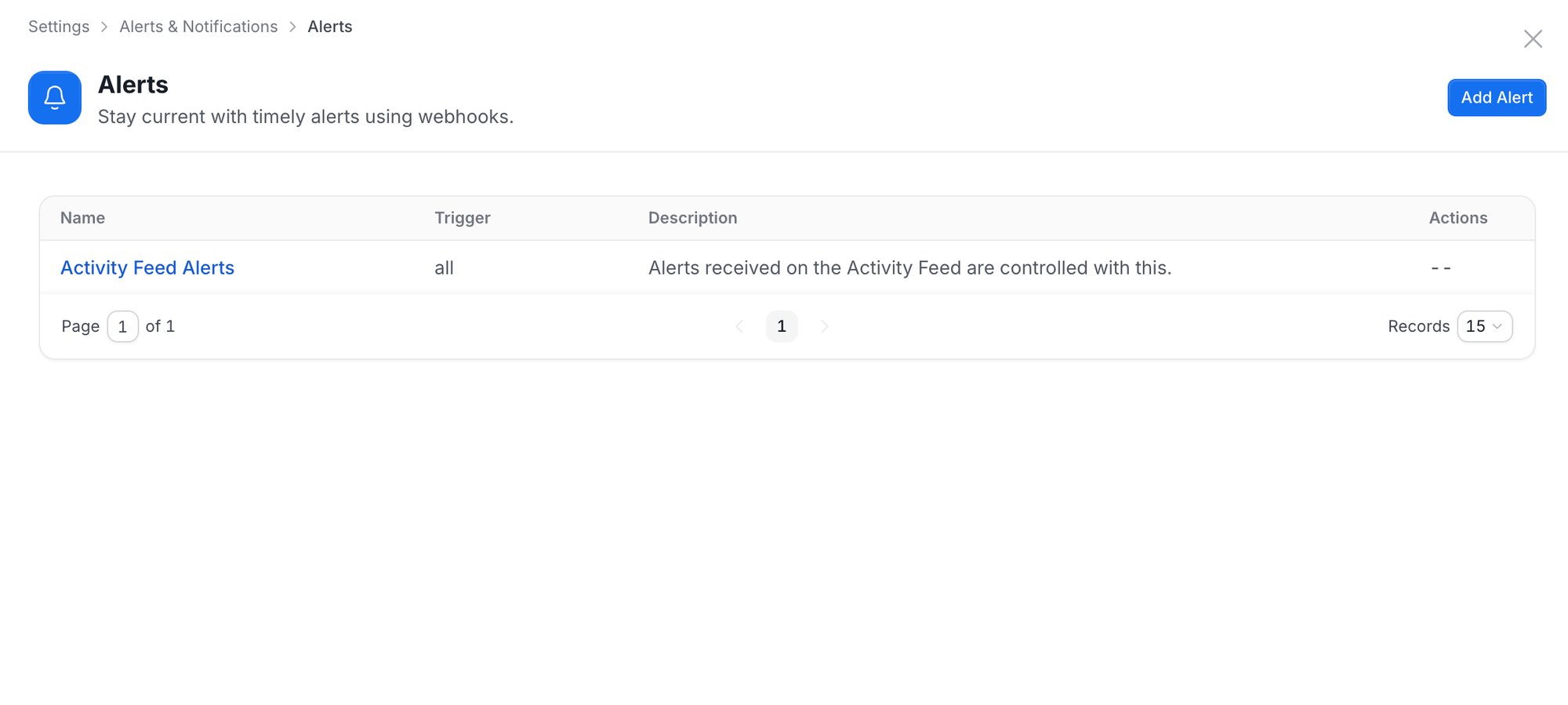
- Click the Profile icon and go to Settings > Features > Alerts & Notifications > Alerts. In Classic mode, go to Settings > Notifications > Alerts.
-
Select Add Alert.

-
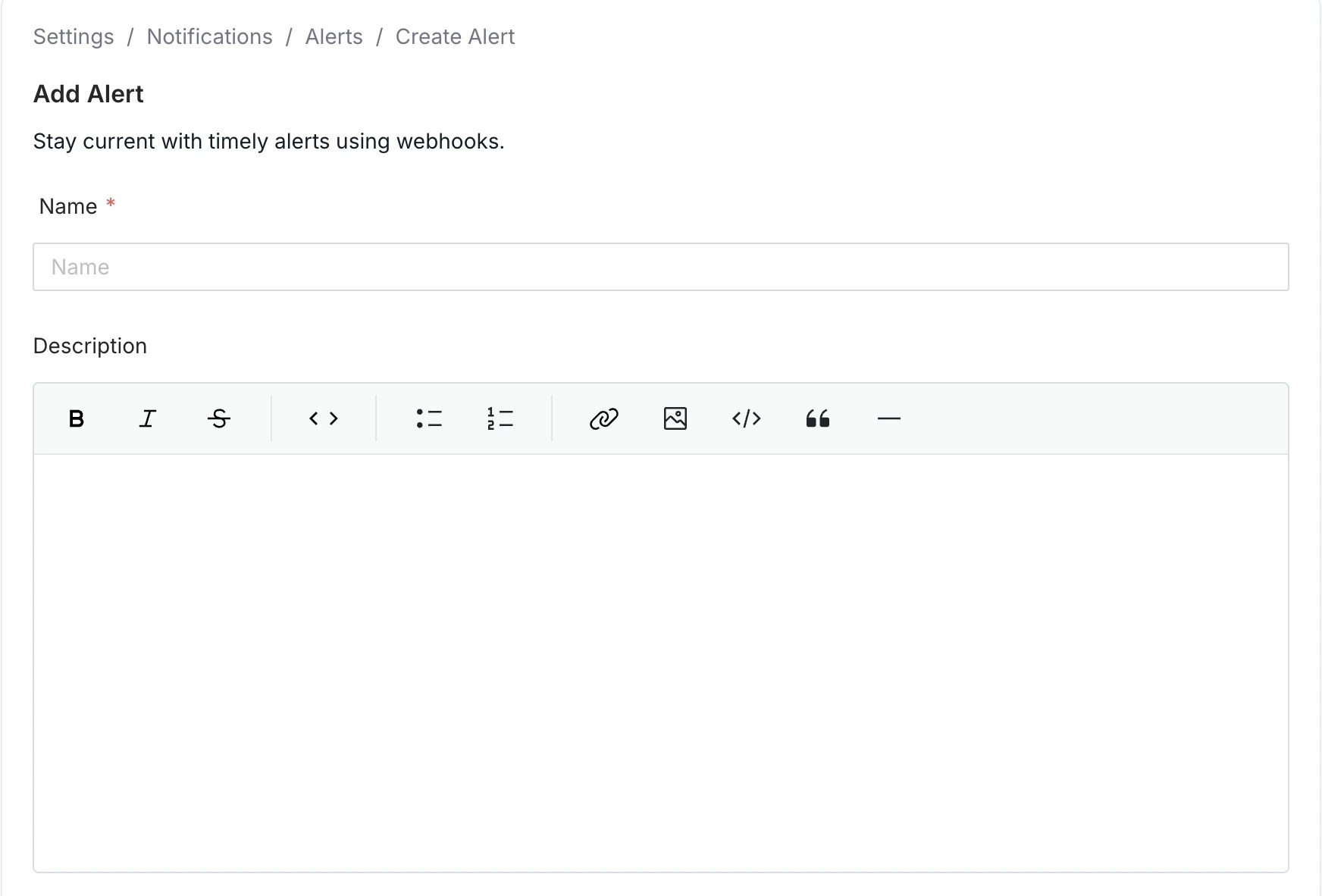
Enter a unique alert Name and Description (optional) for quick identification.
-
Select one or more sources to trigger this alert.
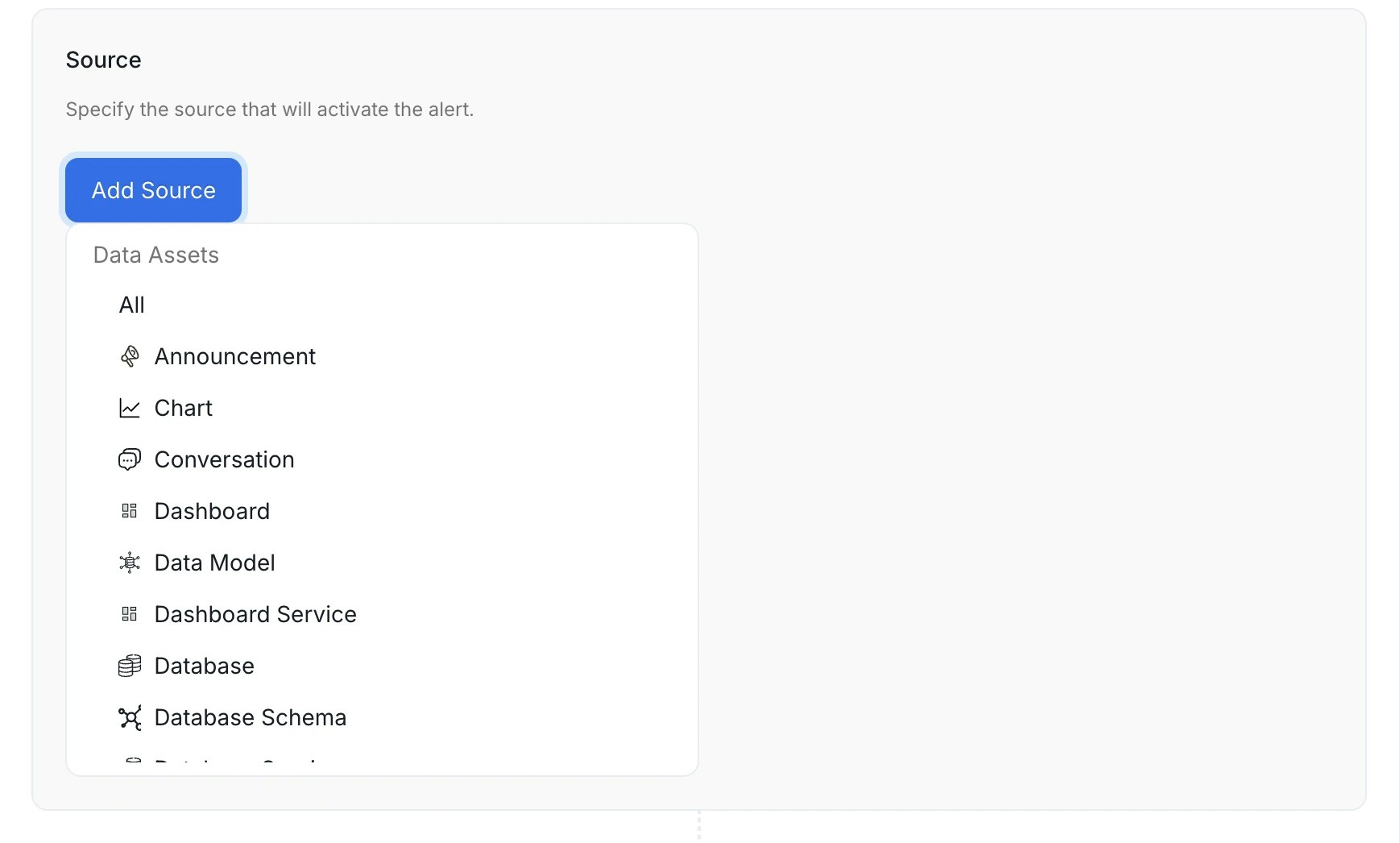 Data assetsService connectionsGovernanceCollaboration These three sources all relate to threads posted on data assets, but each covers a distinct thread type. Choosing the wrong one is a common source of misconfigured alerts.The Task source covers all of the following task types:The only filter available for Task and Conversation is Mentioned User or Team — narrow the alert to threads where a specific person or team is @-mentioned. You can’t filter tasks by task type (for example, incidents only) in the alert UI.
-
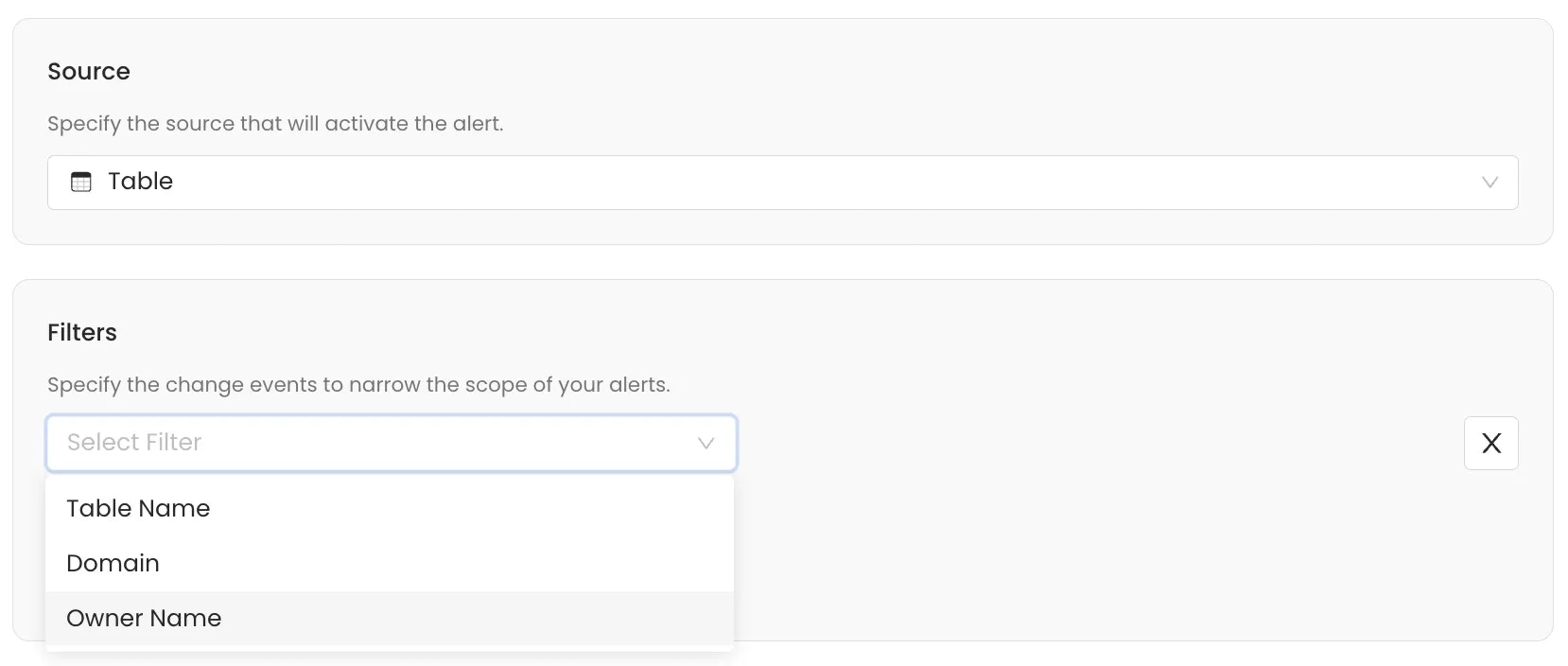
Add filters to narrow the alert scope so only specific events trigger a notification.
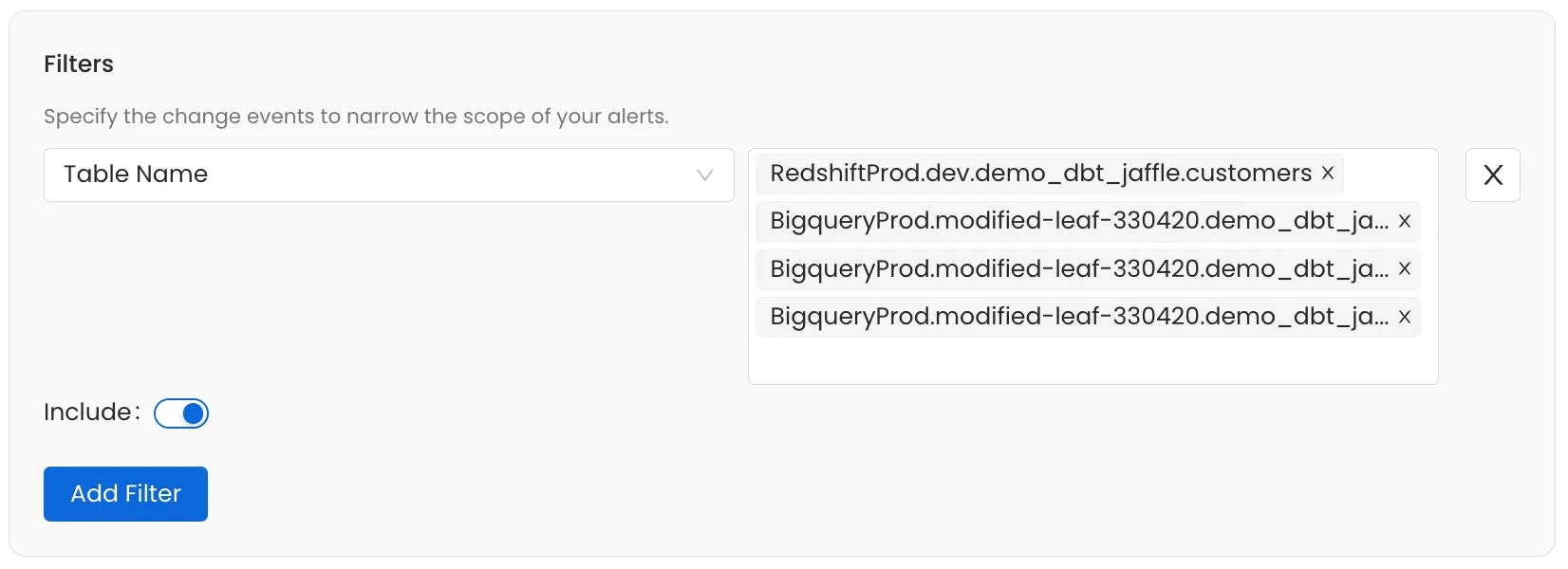
Use filters to narrow the alert to relevant changes. The available criteria depend on the sources selected. With several sources, only the filters that every chosen source supports are available. Filter events by:If you don’t set any filter, the alert applies to all events over the selected source entity type.
- Owner: Filter events based on the designated owner of the asset.
- Entity FQN: Filter by the Fully Qualified Name of the entity.
- Updater Name: Filter based on the user or service that executed the change.
- Domain: Filter events based on the Data Domain the entity belongs to.
- Filter By Updater Is Bot: Filter to include or exclude changes made by automated ingestion or system processes.
- Event Type: Filter by the specific action that occurred. For more details about the various event types, see the table below.
Use the Include toggle to define the logic for the filter condition:- Include (Toggle ON): If the event meets the filter condition, the alert is sent.
- Exclude (Toggle OFF): If the event meets the filter condition, the alert is silenced (not sent).
-
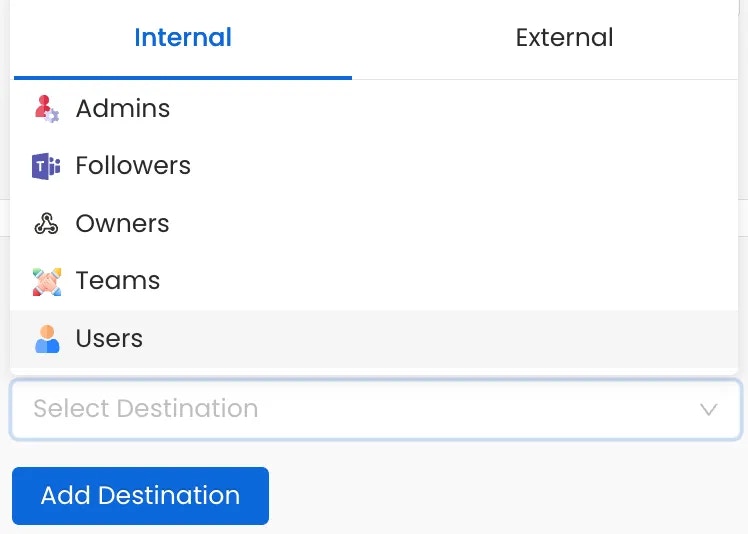
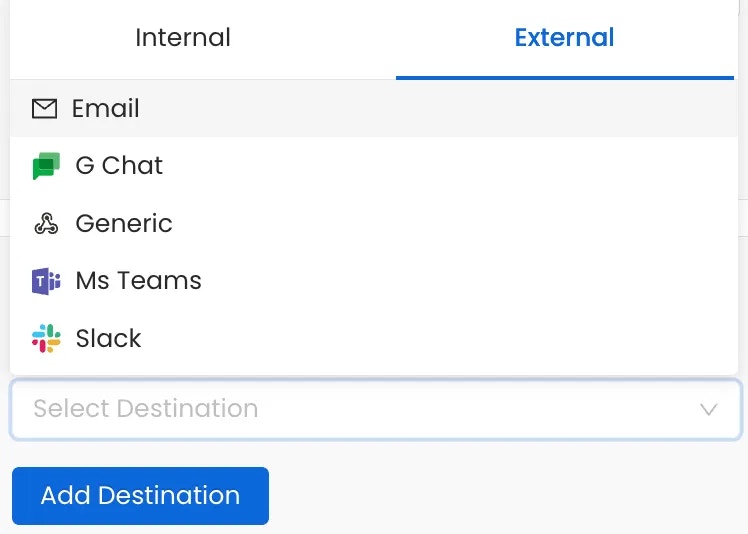
Add destinations where you want to deliver alerts — internal OpenMetadata roles or external channels like Slack and email.
Internal Destinations:
- Admins - Notify all platform administrators
- Followers - Notify users following the asset
- Owners - Alert the asset owners
- Teams or Specific Users - Target specific teams or individuals
- Chat: Slack, MS Teams, and Google Chat
- Automation: Generic Webhooks