
OAuth 2.0 Authentication for MCP Server
OpenMetadata’s MCP Server supports OAuth 2.0 authentication, allowing you to connect AI assistants like Claude, Cursor, and VS Code directly using your existing OpenMetadata login. This is the same way you sign in to the OpenMetadata UI. No need to generate, copy, or rotate Personal Access Tokens.Why OAuth 2.0?
OAuth 2.0 is recommended for interactive clients (Claude Desktop, Cursor, VS Code, and similar tools a person signs into) because it removes token management for the human user. It requires a one-time browser login and cannot complete without user interaction, so it doesn’t work for headless or unattended processes. For an automated agent or long-running unattended process, use a Bot’s JWT token instead (see Bot Token and How to Set Up Bots).
How It Works
Connecting via OAuth is simple:- Add your OpenMetadata MCP Server URL in your AI client (e.g.,
https://your-openmetadata-instance.com/mcp) - A browser window opens prompting you to sign in with your usual OpenMetadata credentials
- Approve the connection (SSO and SAML only): after you sign in, OpenMetadata shows an Authorize Access page that names the MCP client, your account, and the address you will be sent to. Click Approve to continue, or click Deny to cancel.
- You’re connected and tokens are managed automatically in the background
Approving a Client (SSO and SAML)
When you connect through an SSO provider or SAML, OpenMetadata shows an Authorize Access page after you sign in. The page reads “<client name> is requesting access to OpenMetadata as <your user name>” and shows where you will be sent next.
- Client: The name the MCP client registered with.
- User: The OpenMetadata account you signed in as.
- Redirect address: The scheme and host that receive the authorization code, for example
http://localhost:33418. - Approve: OpenMetadata issues the authorization code and returns you to the client.
- Deny: OpenMetadata returns
access_deniedto the client and issues no code.
Supported Authentication Methods
The MCP Server inherits the authentication method configured for your OpenMetadata instance. Whatever SSO provider your organization uses to sign in to OpenMetadata will also be used for MCP connections.Google SSO
Sign in with your Google Workspace account.
Azure AD SSO
Sign in with your Microsoft / Azure AD account.
Okta SSO
Sign in with your Okta account.
Auth0 SSO
Sign in with your Auth0 account.
Amazon Cognito
Sign in with Amazon Cognito.
Custom OIDC
Sign in with any OIDC-compatible provider.
SAML
Sign in with your SAML identity provider.
LDAP
Sign in with your LDAP / Active Directory credentials.
Session token expiry: If a client authenticates through this login form (or LDAP/SAML) rather than through the OAuth flow described above, the resulting session token expires after 1 hour by default, configurable by an admin under Settings > Preferences > Login Configuration. A long-running or headless agent using this login method must detect a 401 response and re-authenticate, which requires a human to sign in again. For a process that needs to run unattended for more than an hour, use a Bot’s JWT token instead, which isn’t subject to this 1-hour limit.
Changing Your Authentication Method
The MCP Server automatically uses the same authentication method configured for your OpenMetadata instance. To change how users authenticate:- Navigate to Settings in your OpenMetadata instance
- Go to the SSO configuration section
- Update the authentication provider (e.g., switch from basic auth to Google SSO)
Token Management
OAuth tokens are handled entirely by your MCP client with no manual management needed:- Access tokens expire after 10 minutes. MCP clients use refresh tokens to obtain new access tokens.
- Refresh tokens rotate each time the client uses them.
- Re-authenticate when the current refresh token expires after 30 days of inactivity or is revoked.
Request and Redirect Limits
The MCP server enforces the following limits:
Requests that exceed these limits are rejected before they reach an MCP tool.
Security
OpenMetadata’s MCP OAuth implementation follows industry-standard security practices:- Explicit approval: With SSO and SAML, OpenMetadata issues no authorization code until you click Approve on the consent page.
- PKCE (Proof Key for Code Exchange): Protects the authorization flow against interception attacks, even on desktop and CLI clients
- Encrypted refresh token storage: Refresh tokens are encrypted at rest in the OpenMetadata database. Access tokens are short-lived signed JWTs and aren’t stored by the server.
- Short-lived access tokens: Access tokens expire quickly, limiting exposure if compromised
- Automatic token refresh: Clients seamlessly refresh tokens without user interaction
- Rate limiting: Built-in protection against brute-force and abuse
- No user-managed PAT in config files: OAuth avoids placing an OpenMetadata PAT in a plain-text config file. MCP clients still manage their own OAuth credentials, including refresh tokens, according to their storage model.
Supported MCP Clients
Set up OAuth authentication with your preferred MCP client:Claude Desktop
Connect via Anthropic’s AI assistant.
Cursor
Connect via Cursor IDE.
VS Code
Connect via Visual Studio Code.
Claude Code
Connect via Claude Code CLI.
Goose
Connect via Block’s open-source AI agent.
How the Connection Works (Under the Hood)
OpenMetadata’s MCP OAuth implementation uses OAuth 2.0 Dynamic Client Registration (RFC 7591), so MCP clients connect without any manual app setup:- The MCP client fetches OpenMetadata’s OAuth discovery document at
/.well-known/oauth-authorization-serverto learn the authorization, token, and registration endpoints. - The client automatically registers itself by posting its metadata to the registration endpoint. OpenMetadata issues a
client_idin response — no admin action is required. - The client initiates an Authorization Code flow with PKCE (SHA-256), opening your browser to sign in via your configured SSO provider or basic auth.
- After you sign in through SSO or SAML, OpenMetadata asks you to approve the client on a consent page. Approve returns an authorization code to the client. Deny sends the client an
access_deniederror. With basic auth or LDAP, the login form names the client and where the code is sent. Signing in is the approval, so there is no separate page. - The client exchanges the code for an access token and a refresh token.
- All subsequent MCP tool calls include the access token. When it expires, the client uses the refresh token to get a new one silently.
Discovery Endpoints
Token Lifetimes
OAuth tokens are handled entirely by your MCP client with no manual management needed.
Refresh tokens rotate each time the client uses them. Re-authenticate when the current refresh token expires after 30 days of inactivity or is revoked. To revoke access for an MCP client, use the OAuth 2.0 Token Revocation endpoint described under Revoking Access below.
Rate Limits
The MCP OAuth endpoints are rate-limited per IP address to prevent abuse:
These limits are per-server-instance. In clustered deployments, the effective limit is multiplied by the number of instances.
Allowed Origins (CORS)
By default, the MCP Server allows CORS requests only from a small set of local development origins (http://localhost:3000, http://localhost:8585, http://localhost:9090) — it does not allow all origins. This allowlist is part of OpenMetadata’s MCP settings, stored in the database rather than the static server configuration file. Update it from Settings > Applications > MCP Server > Configuration (<YOUR-OpenMetadata-SERVER>/settings/apps/McpApplication) or via the GET/PUT /api/v1/system/mcp/config API (admin only).
Only requests whose Origin header exactly matches an entry in the allowlist receive a valid Access-Control-Allow-Origin response header — there is no wildcard or prefix matching. This is relevant for browser-based MCP clients or custom integrations that call the MCP endpoint directly from a web page.
Response Size Limit
The MCP Server limits the size of each tool response. Tools return fewer items to stay under the limit. Administrators can change it from the MCP Server application settings:- Navigate to Settings > Applications.
- Click the MCP Server application.
- In the Configuration tab, set Max Response Characters.
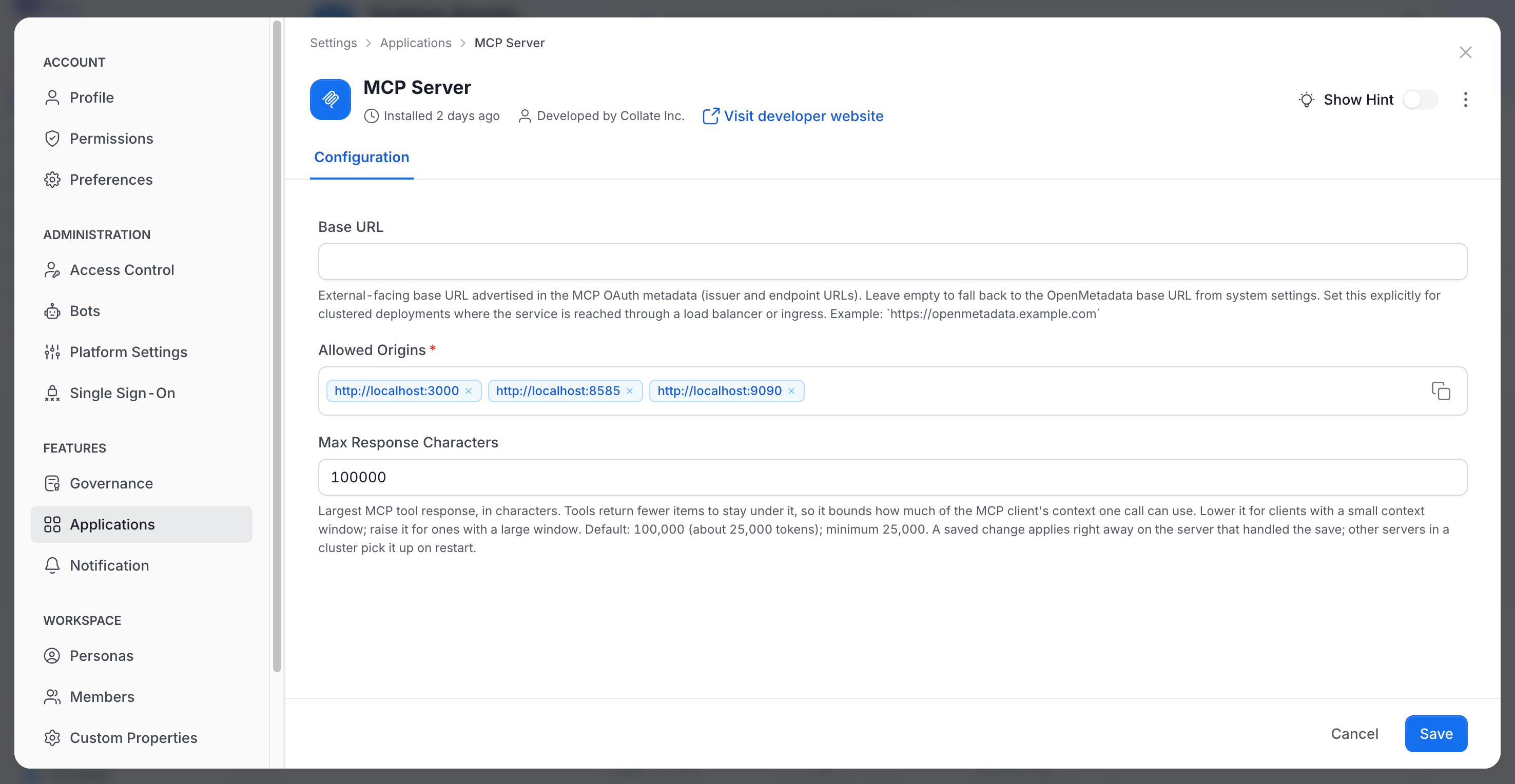
- Click Save.
100,000 characters, about 25,000 tokens, and the minimum is 25,000. Lower the value for clients with small context windows, and raise it for clients with large ones. A saved change applies immediately on the server that handled the save. Other servers pick it up after a restart.
Restricting MCP Tools
Administrators can limit which tools the MCP Server offers to MCP clients. Both options apply to every MCP client and every user, admins included. Each user’s own permissions still apply to the tools that remain available.Read-only Mode
Read-only Mode exposes only the tools that do not change metadata, such as search, lineage, and entity details. Tools that create or edit metadata, such ascreate_entity, patch_entity, create_lineage, and create_test_case, are blocked. describe_entity_type is also blocked, because it only prepares a create_entity call.
- Navigate to Settings > Applications.
- Click the MCP Server application.
- In the Configuration tab, turn on Read-only Mode.
- Click Save.
- Turning it on: Write tools are refused right away. They leave the tool list that clients see after the server restarts.
- Turning it off: Write tools become available again after a restart.
Disabling Individual Tools
Disabled Tools turns off single tools, whether they read or write metadata. Use it when you want to keep most tools available but hide a specific one. Read-only Mode still applies to the rest.- Navigate to Settings > Applications.
- Click the MCP Server application.
- In the Configuration tab, select the tools to turn off under Disabled Tools. The list shows the tools registered on your server.
- Click Save.
- Disabling a tool: Calls to it are refused right away. It leaves the tool list after the server restarts.
- Enabling it again: The change applies after a restart.
- New tools: A tool added by an upgrade is available until you disable it.
- Unknown names: A name that matches no registered tool is ignored.
GET /api/v1/system/mcp/tools (admin only), and save the disabledTools list through the PUT /api/v1/system/mcp/config API.
Revoking Access
MCP clients can revoke an access or refresh token directly using the OAuth 2.0 Token Revocation endpoint (RFC 7009), advertised asrevocation_endpoint in the OAuth discovery document. Revoking a refresh token prevents future refreshes. Already-issued access tokens are signed JWTs validated statelessly, so they can remain valid until their 10-minute expiry. There is currently no separate admin-side option to revoke an MCP client’s access. Revocation is a client-initiated action using its registered credentials.
The revocation endpoint requires the client identity that Dynamic Client Registration issued. Confidential clients use a client_id and client_secret. Public clients registered with token_endpoint_auth_method: none use their client_id without a secret.
For a confidential client, authenticate using either method:
HTTP Basic authentication (client credentials in the Authorization header):
client_id in the form body and omit client_secret:
token_type_hint is optional and can be access_token or refresh_token. A request without the required client identity returns invalid_client.