Getting Started with Claude Desktop
Configure OpenMetadata’s MCP Server to interact with Anthropic’s AI assistant platform.Prerequisites
For this guide, you will need:- nvm and npx/node version 22
- OpenMetadata v1.8.0 or later - You can upgrade your version of OpenMetadata with this guide
- Claude Desktop
- OpenMetadata MCP Application and Personal Access Token
Adding your OpenMetadata MCP Server to Claude Desktop
This how-to guide uses the free version of Claude Desktop for macOS with Sonnet 4.- Navigate to Claude Desktop’s Settings, then select Developer and Edit Config. Paste the following into
claude_desktop_config.json
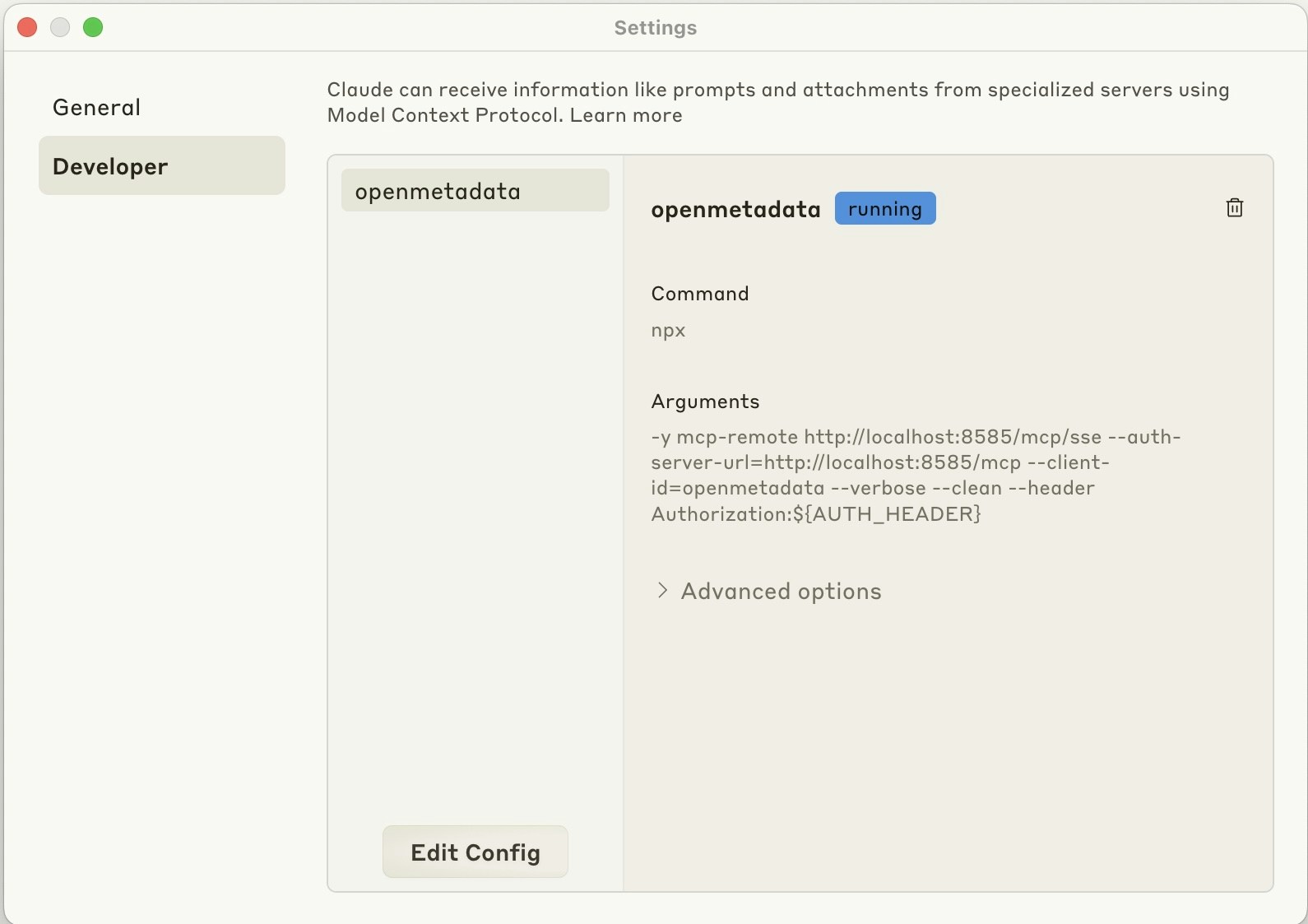
- Restart Claude Desktop. You should see your
OpenMetadataservice running
Prompt to read from OpenMetadata
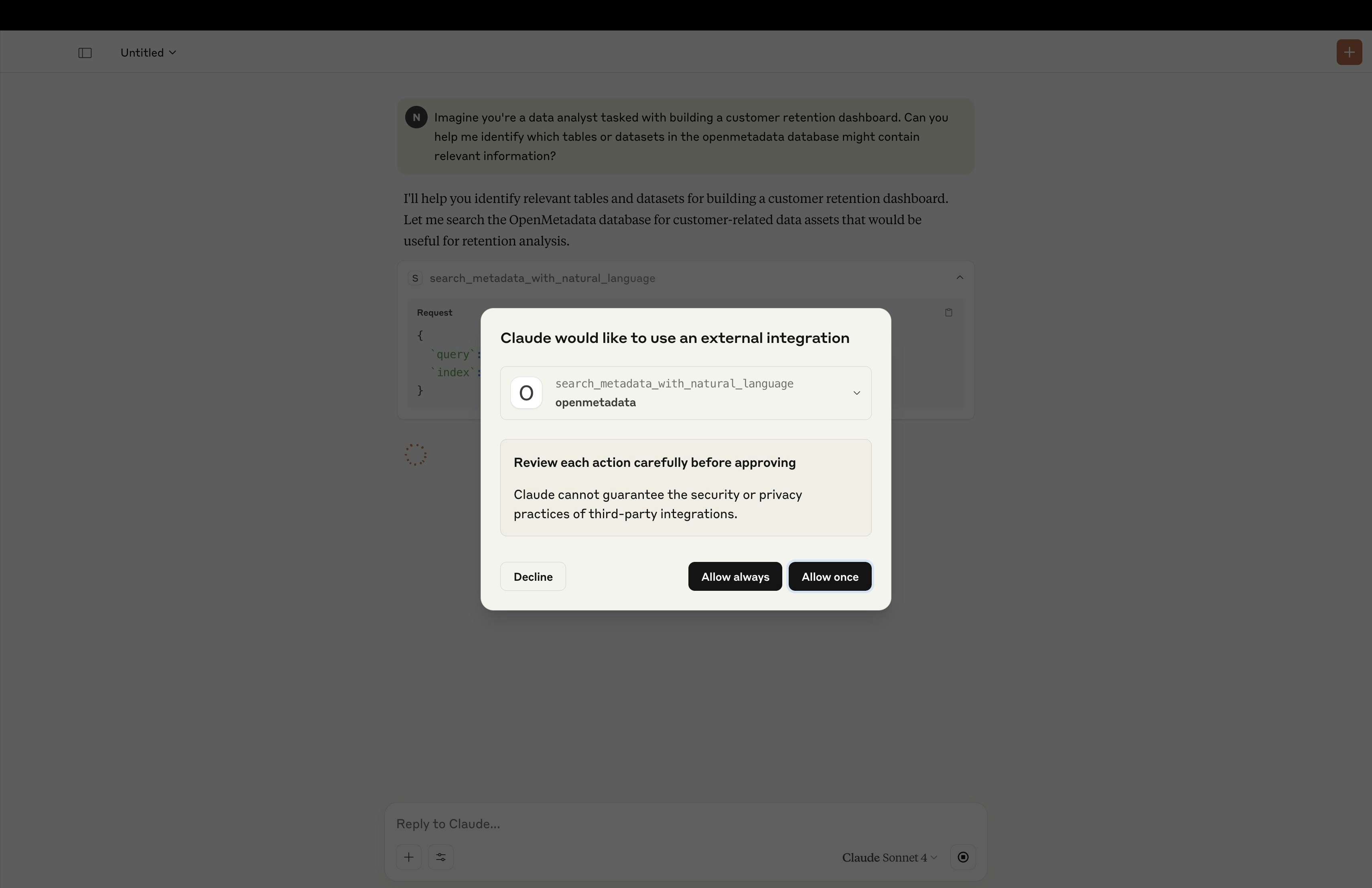
This part of the guide assumes that you have assets in OpenMetadata that Claude can read, and that some of your data assets have references to customers. You can change the prompt accordingly and/or add data sources into OpenMetadata here. Paste the following prompt into Claude to have it read from OpenMetadata:OpenMetadata, select Allow always. You may have to do this multiple times, once for each tool. Claude is now reading from OpenMetadata via its MCP Server!