Getting Started with Goose Desktop
Configure OpenMetadata’s MCP Server to interact with block’s AI agent Goose.Prerequisites
For this guide, you will need:- nvm and npx/node version 22
- OpenMetadata v1.8.0 or later- You can upgrade your version of OpenMetadata with this guide
- Goose Desktop
- OpenMetadata MCP Application and Personal Access Token
Adding your OpenMetadata MCP Server to Goose Desktop
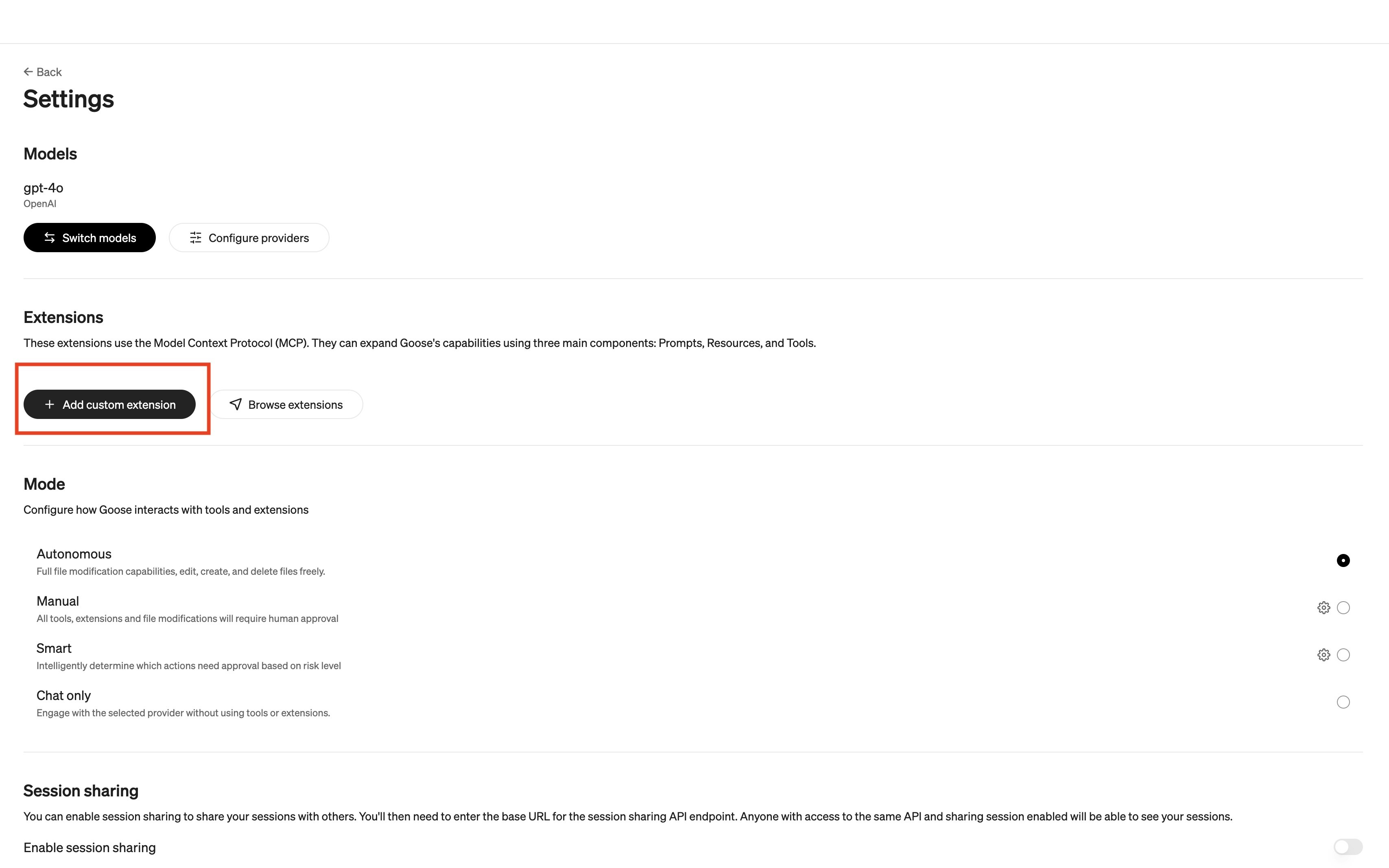
This how-to guide uses Goose Desktop for macOS. Make sure that you already have an LLM Provider configured before prompting.- Navigate to Goose Desktop’s Settings, then under Extensions, select +Add custom extension.
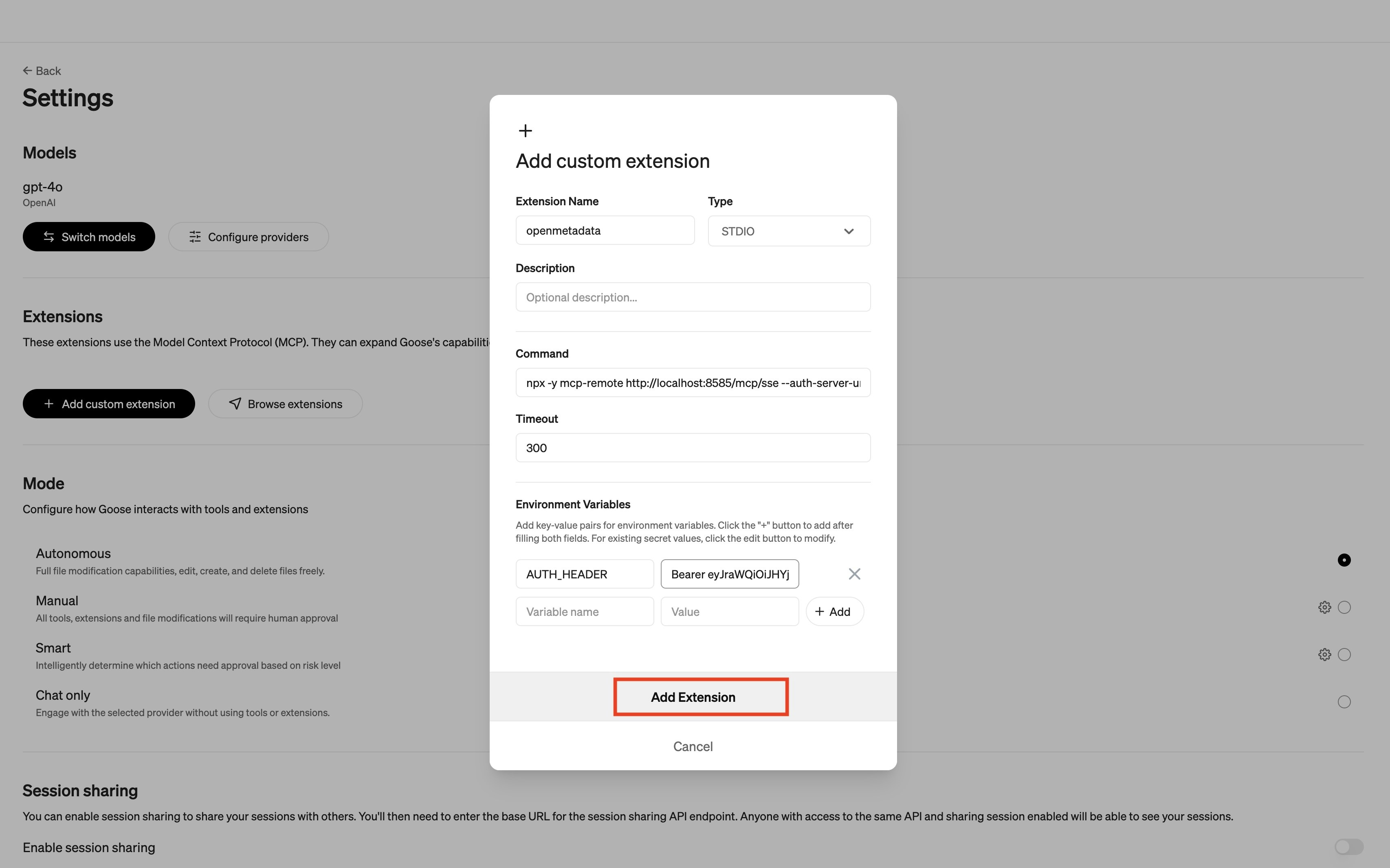
- The custom extension should have the following information:
- Extension Name
OpenMetadata - Command paste the following command:
- If you are running it locally, your command will look like this:
- If you are running it locally, your command will look like this:
- Add 1 Environment Variable
- Variable name is
AUTH_HEADER - Value is
Bearer <YOUR_OpenMetadata_PAT>
- Variable name is
- Extension Name
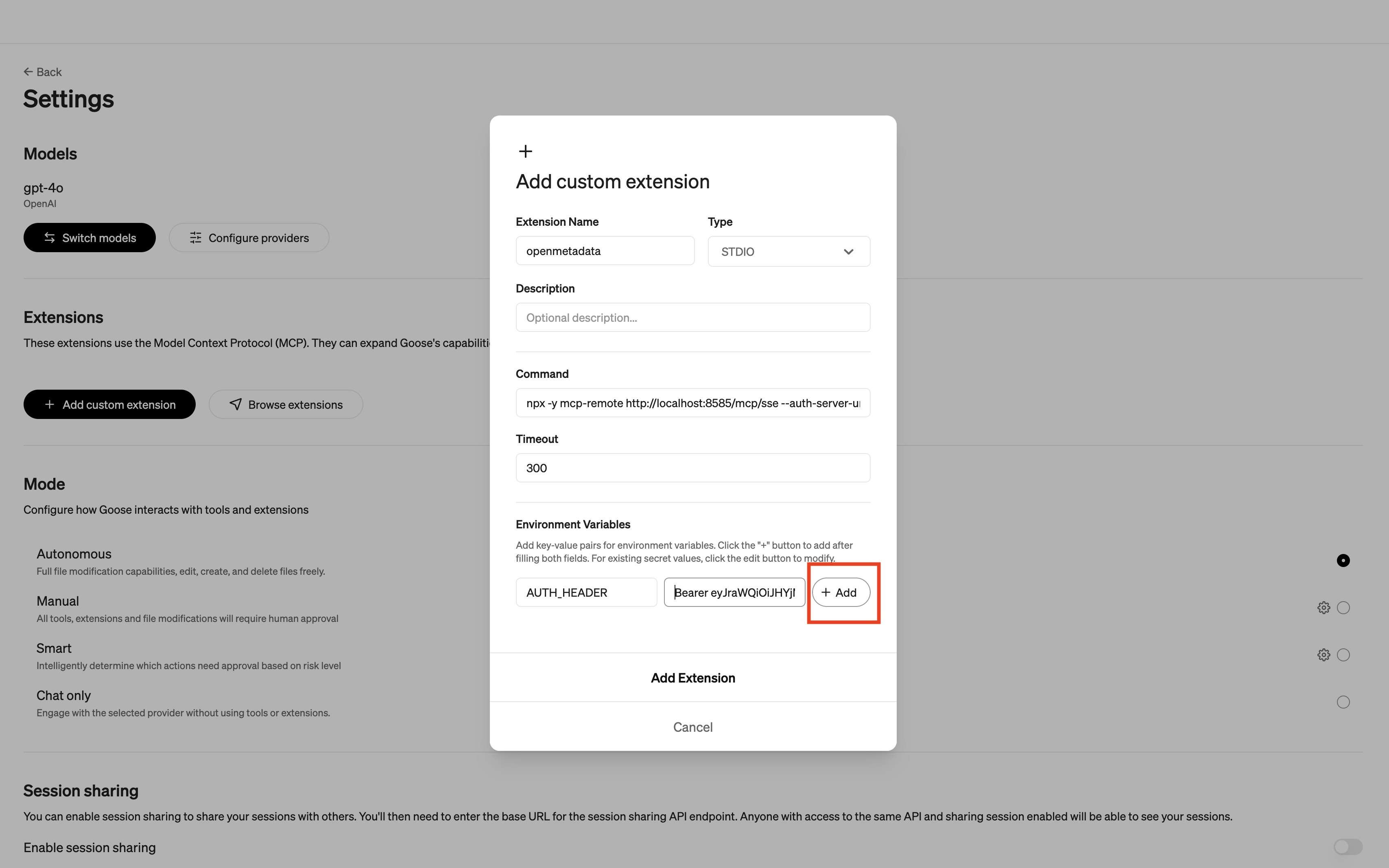
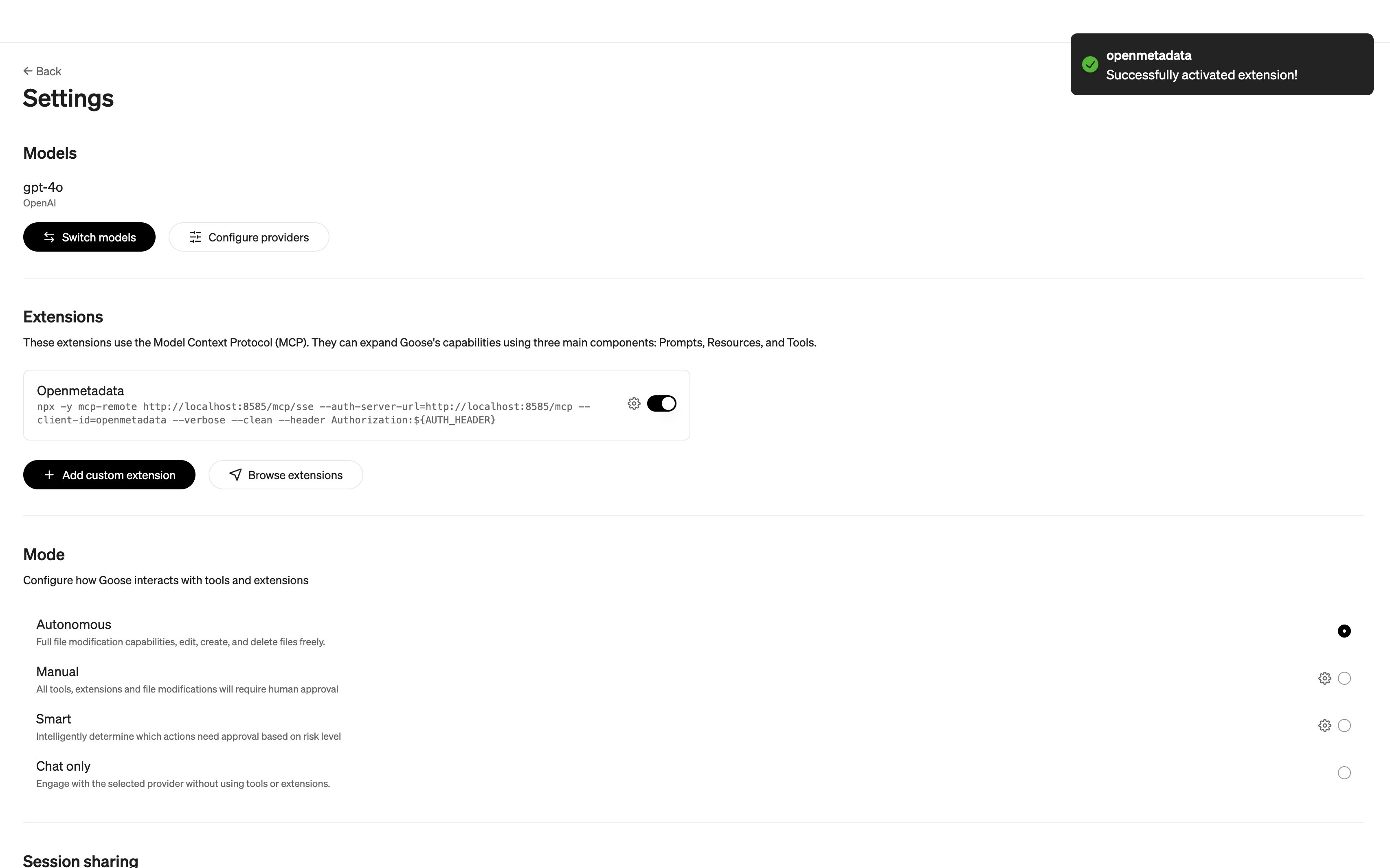
- Select Add Extension