Create Credentials for BigQuery Ingestion
This documentation provides a step-by-step guide on how to create a custom role in Google Cloud Platform (GCP) with the necessary permissions to ingest BigQuery in OpenMetadata. It covers the process of navigating to the Roles section in the GCP console, creating a role, adding permissions, and creating a service account with credentials. By following these instructions, you will be able to set up the required role and credentials to access and ingest BigQuery metadata in OpenMetadata. Let’s get started!1. Create custom role in GCP
Step 1: Navigate to Roles
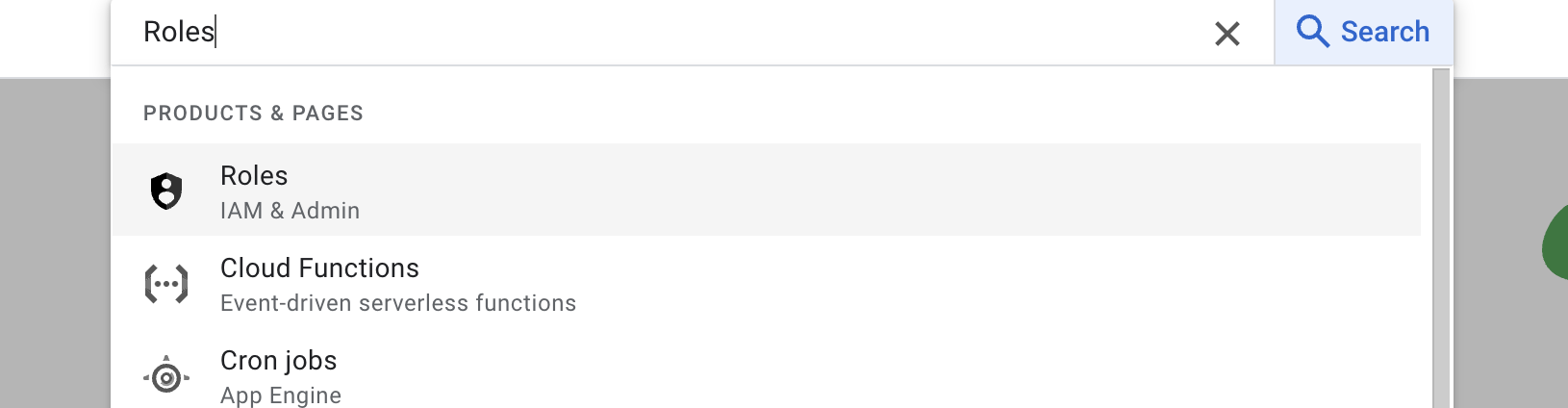
Search forRoles in your GCP console and select the first result under IAM & Roles section.
Step 2: Create Role & Add Permissions
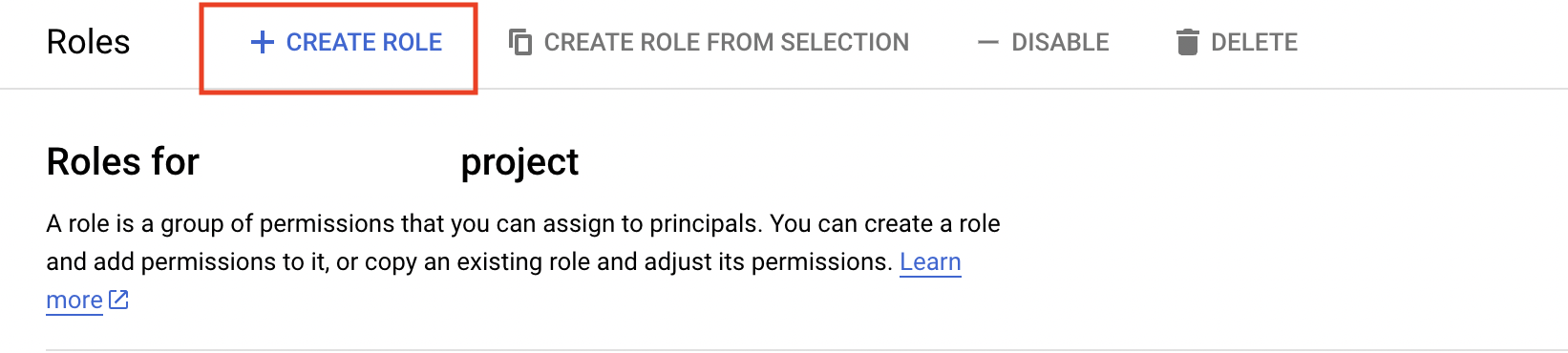
Below the search bar you should see aCreate Role button click on that & navigate to create role page.
add permissions to grant permissions to role.
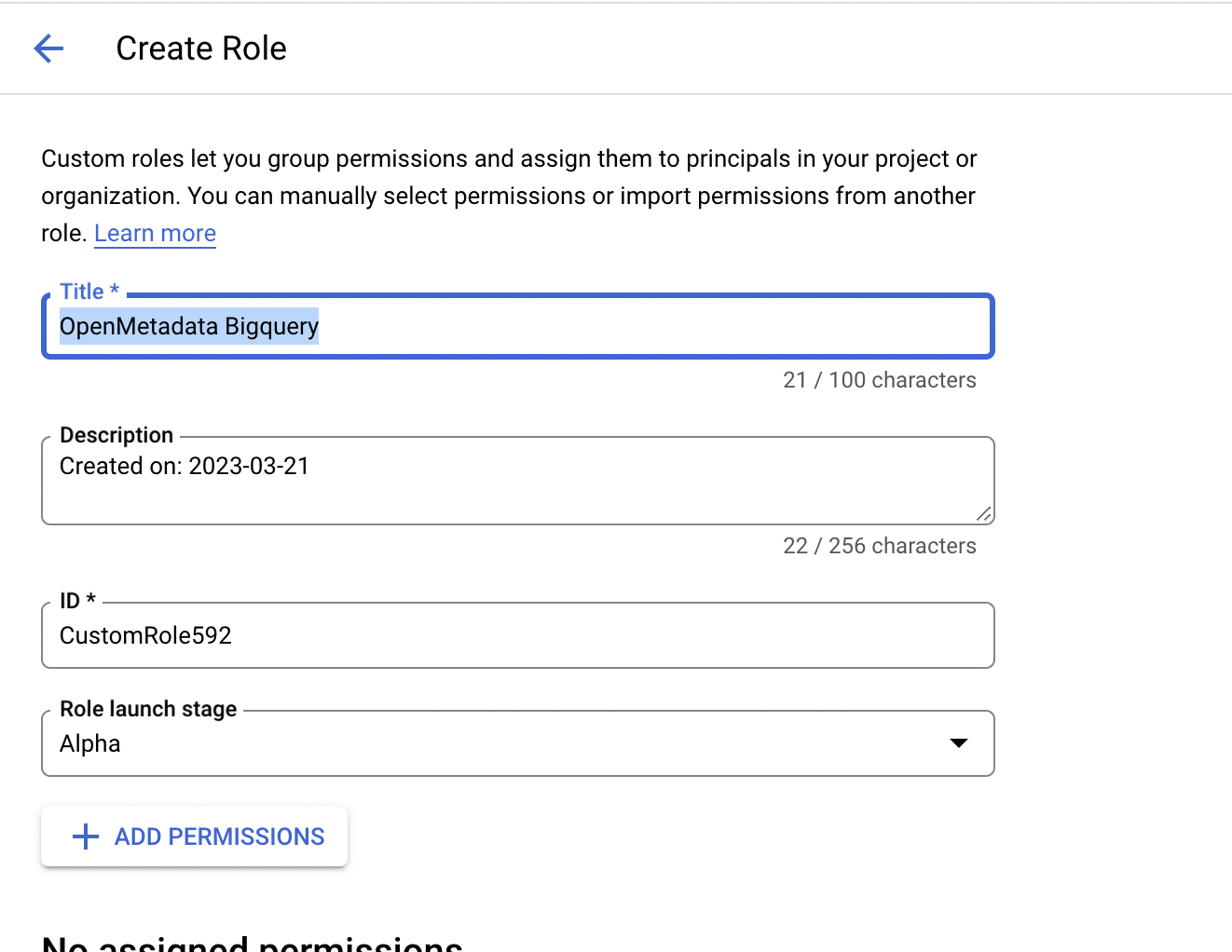
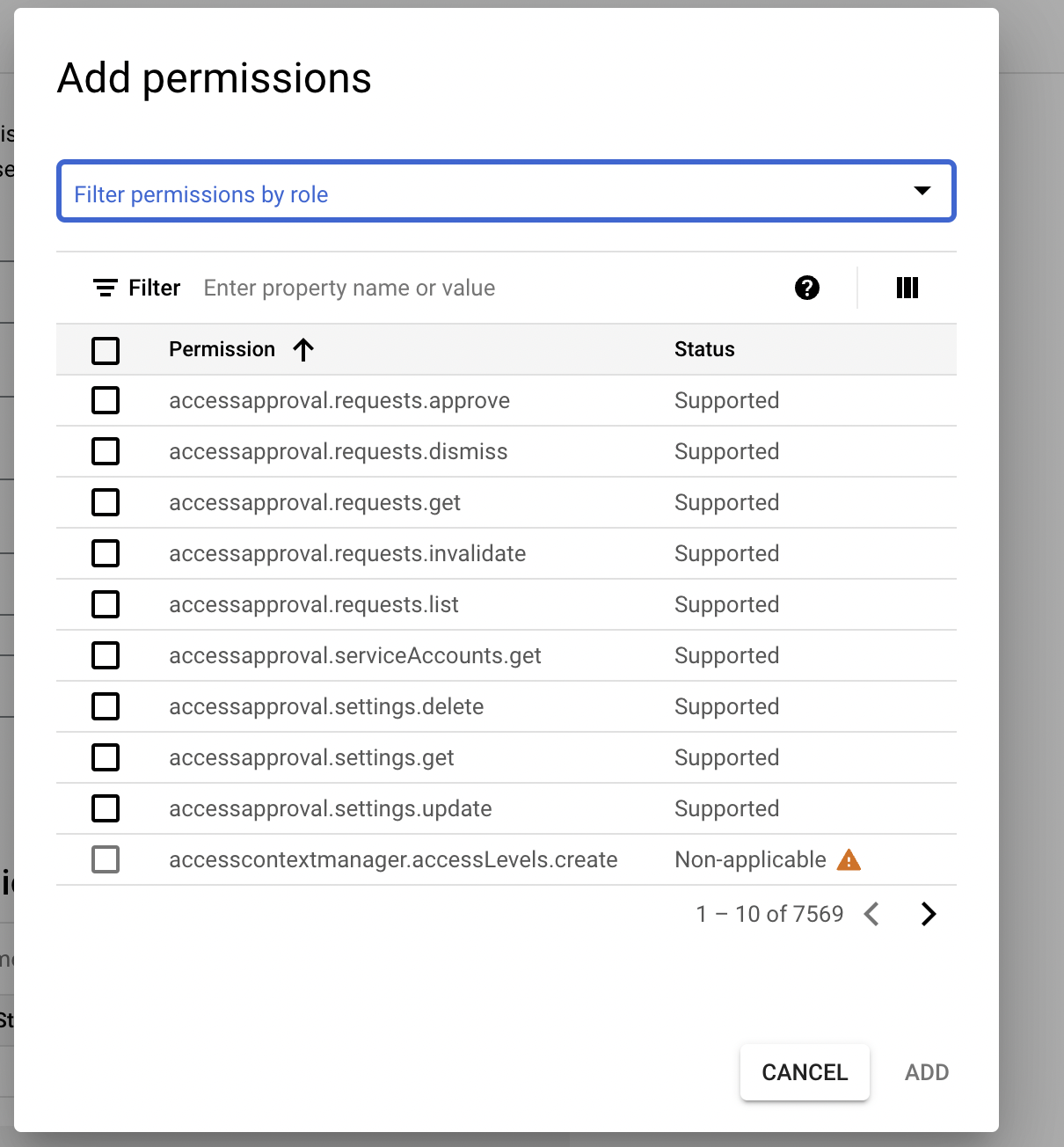
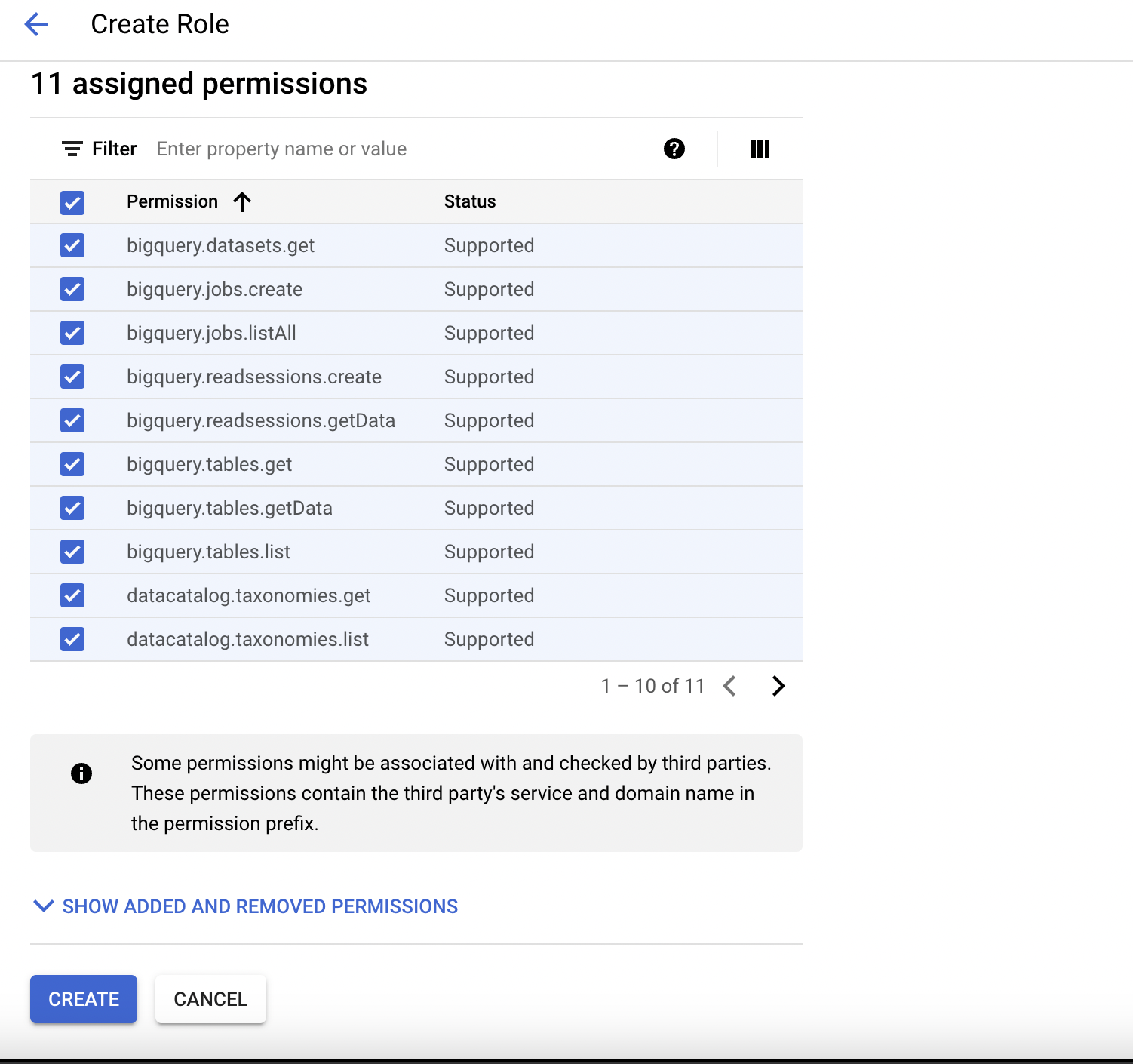
2. Create Service Account
Step 1: Navigate to Service Accounts
Login to your GCP console and navigate to service accounts page.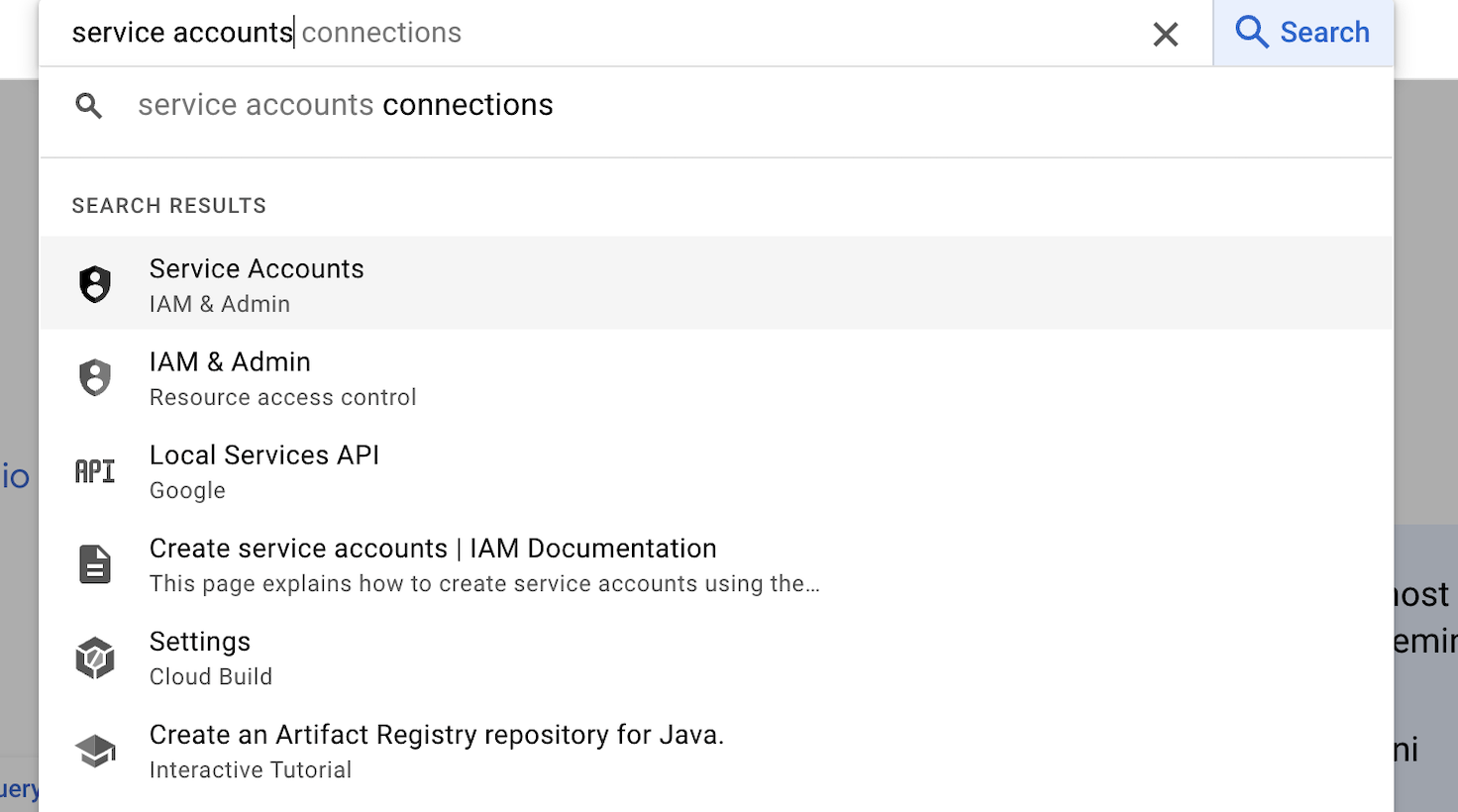
Step 2: Create Service Account & Grant Role
Once you are on service account page, click onCreate Service Account button.

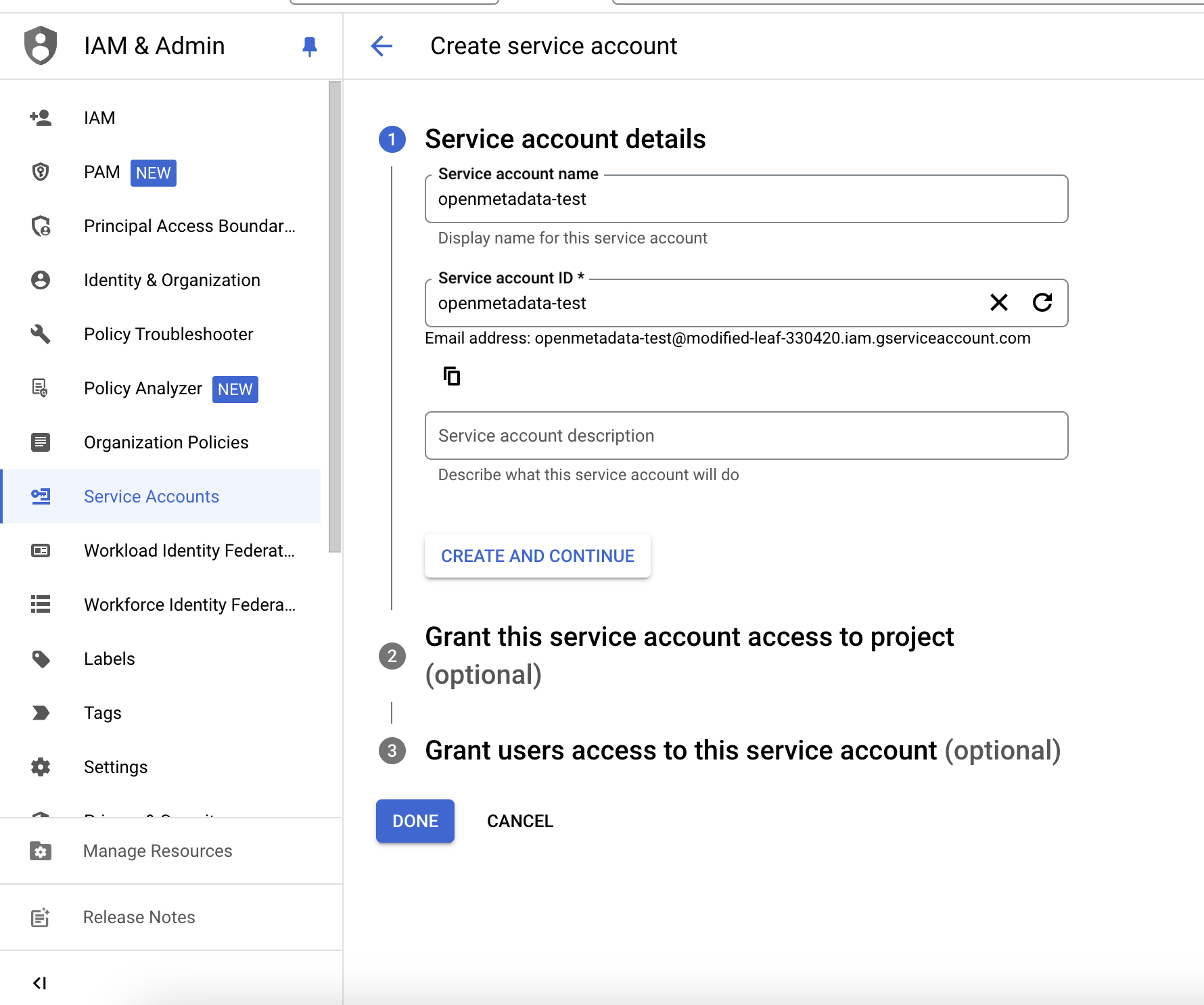
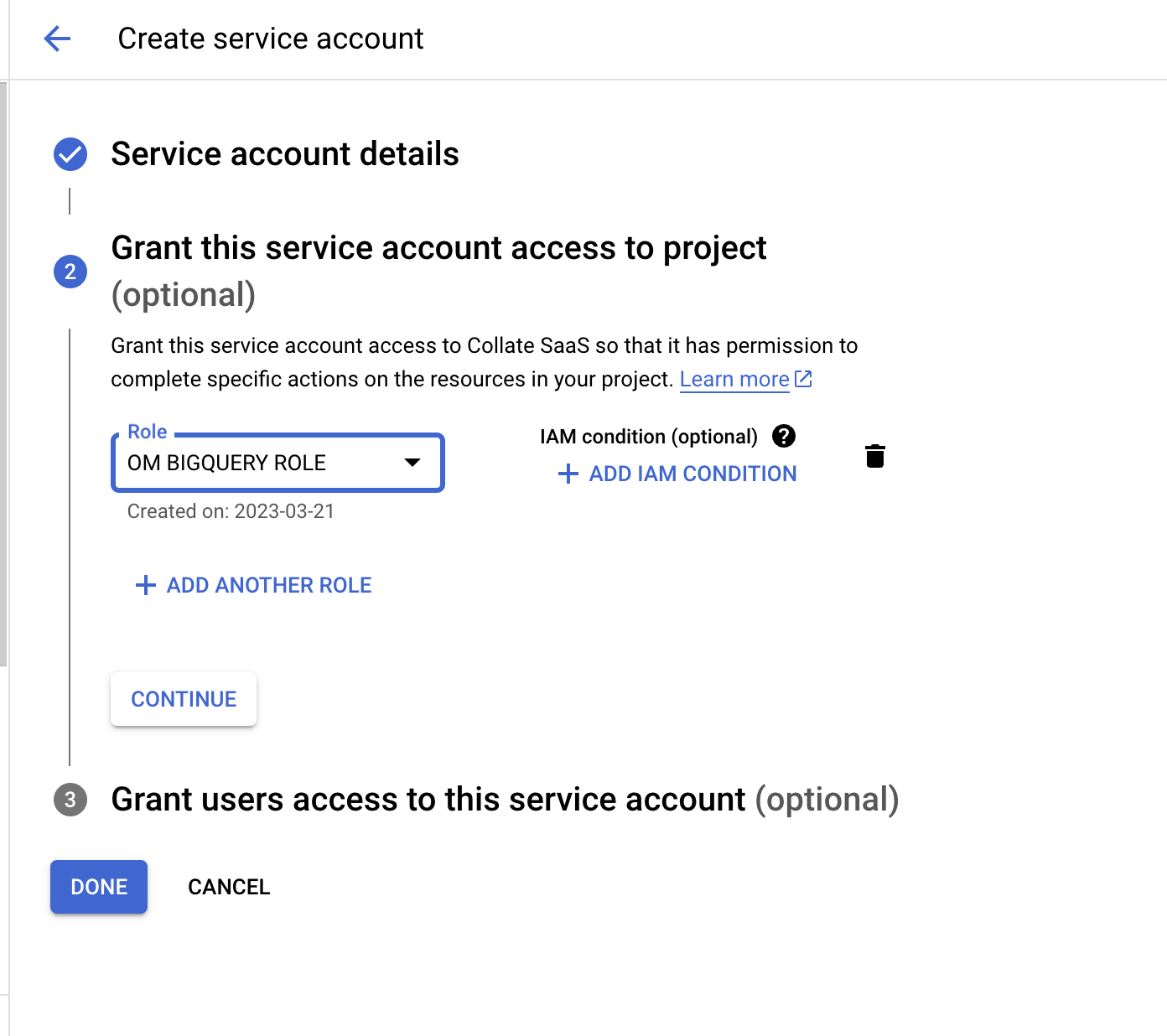
3. Create & Download Key Credentials
Step 1: Navigate to Service Accounts
On service accounts page, look for the service account that you just created, click on the three dots menu and go to manage keys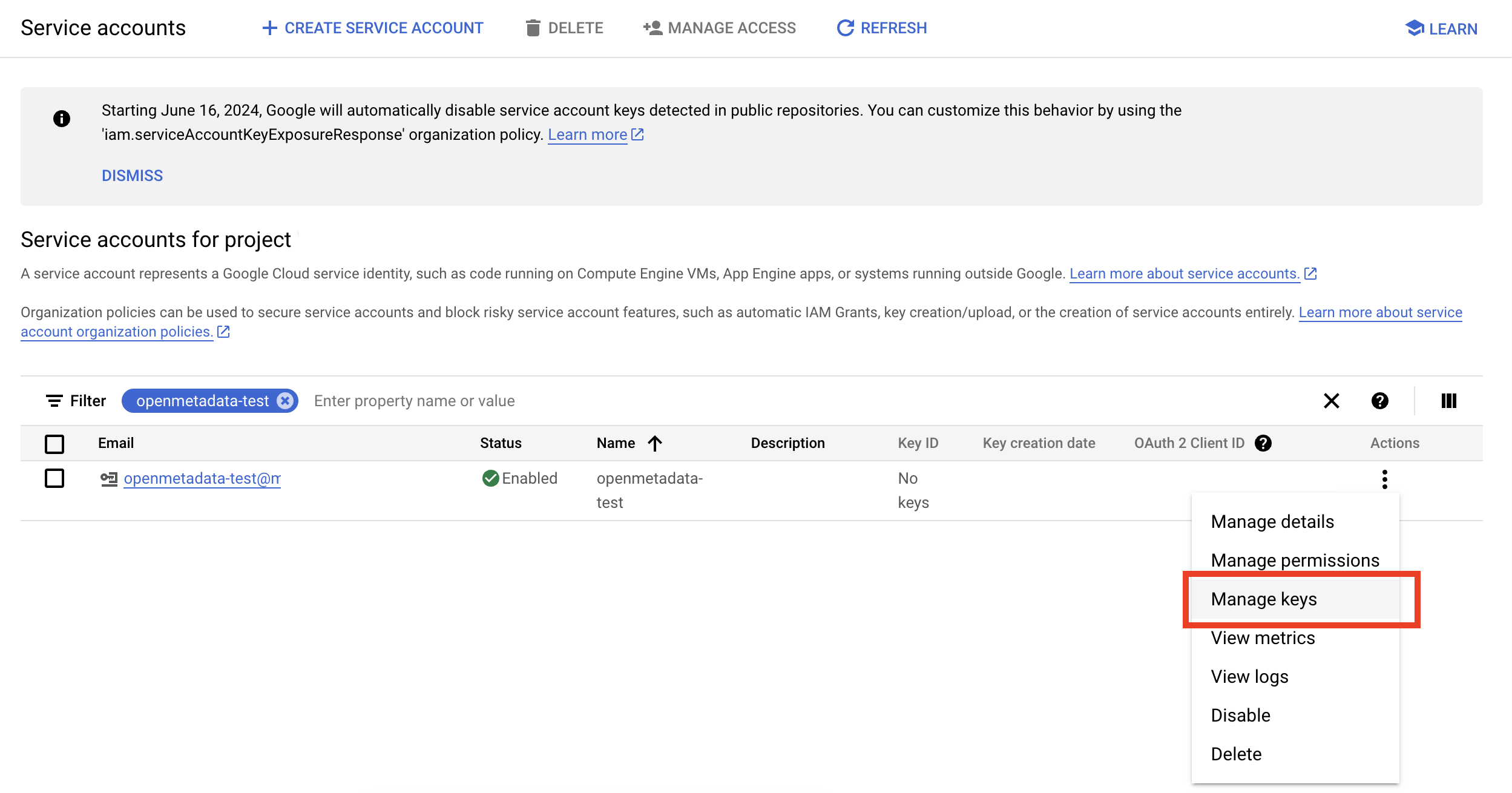
Step 2: Download Key Credentials
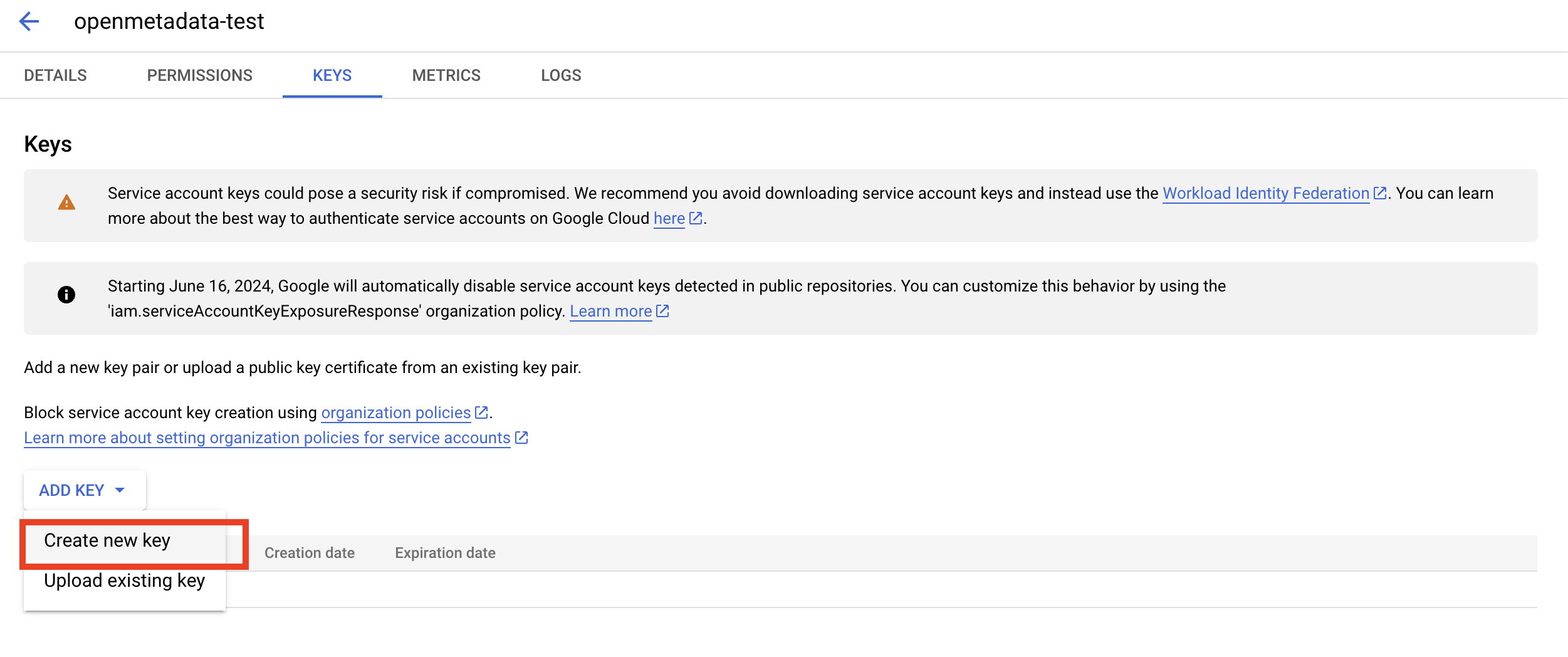
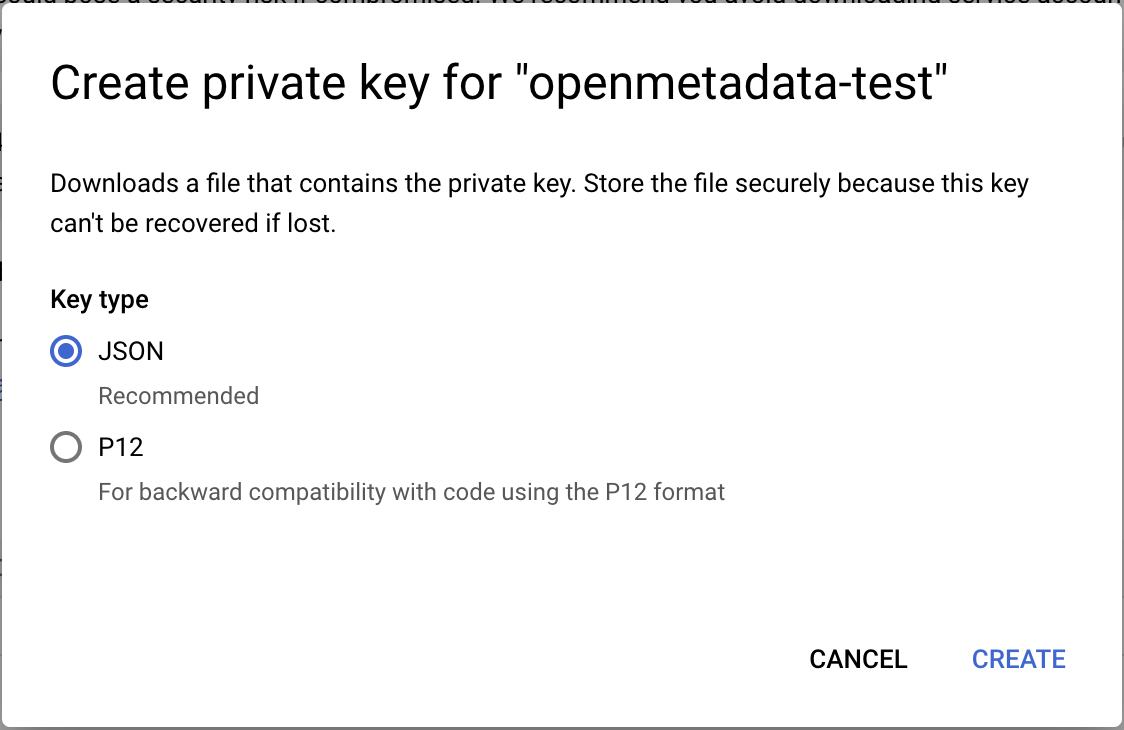
Click on Add Key > New Key > Select Json and download the key.