
Requirements
OpenMetadata reads the graph schema of one Neo4j database. It reads schema information only and never reads node or relationship data. The connecting user needs theACCESS privilege on the database and permission to execute the following procedures:
db.infodb.labelsdb.relationshipTypesdb.schema.nodeTypePropertiesdb.schema.relTypeProperties
reader role is enough.
Entity Mapping
OpenMetadata maps the Neo4j graph schema to OpenMetadata entities as follows:
A property is
NOT NULL only when every node type with that label has the property and marks it as mandatory. When a property has more than one type, or a type that OpenMetadata doesn’t recognize, OpenMetadata sets the column to the UNKNOWN data type and ingestion continues.
Data Type Mapping
OpenMetadata maps Neo4j property types to OpenMetadata data types as follows:Metadata Ingestion
To ingest metadata from Neo4j, you need to create a service connection. The service connects Neo4j with OpenMetadata. After you create the service and deploy the metadata agent, OpenMetadata starts ingesting metadata.Step 1: Add New Service
-
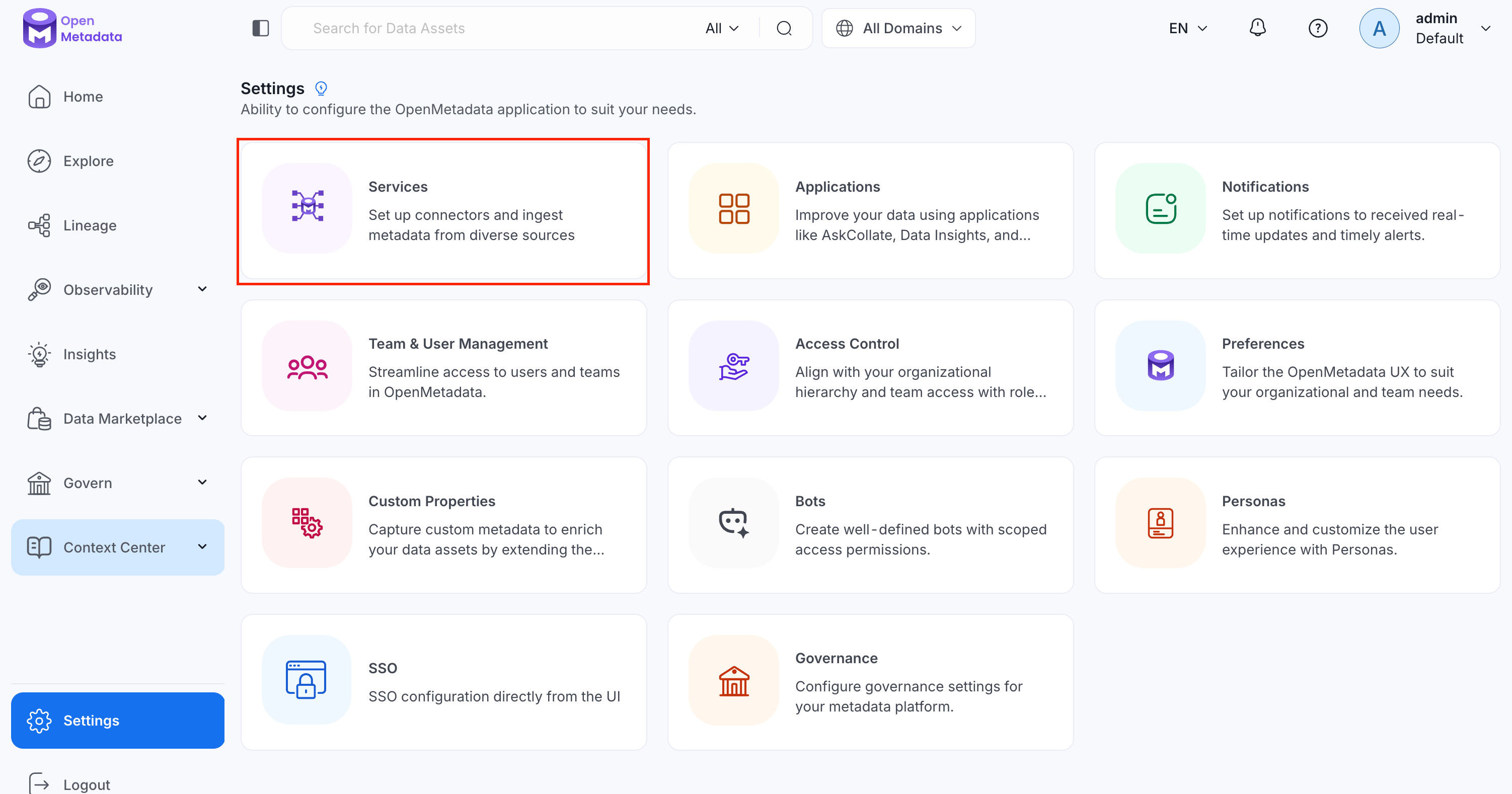
Navigate to Settings > Services.
-
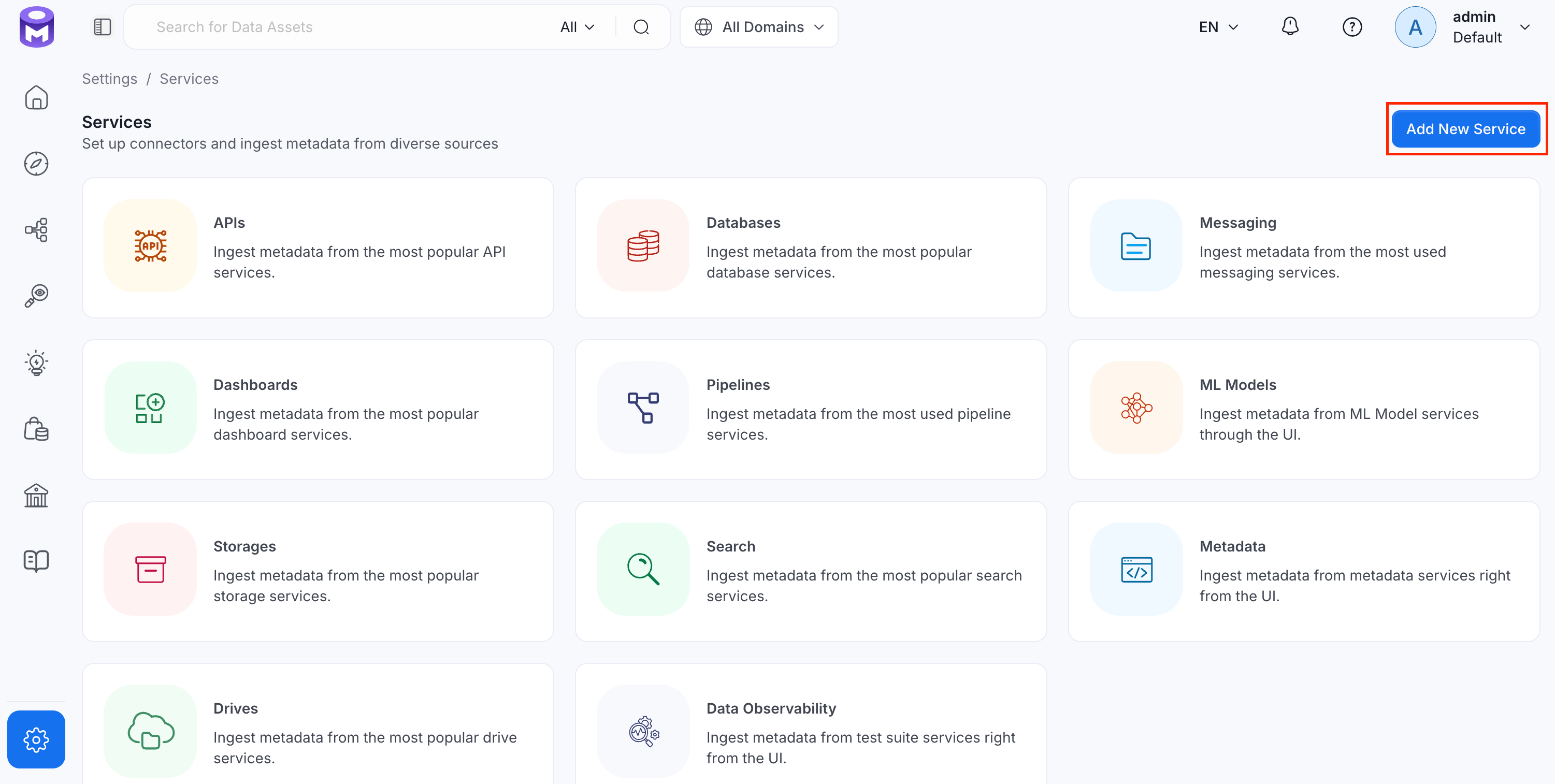
Click Add New Service.
Step 2: Select a Service and Connector
From the service type dropdown, select Database Services, then click the Neo4j connector tile.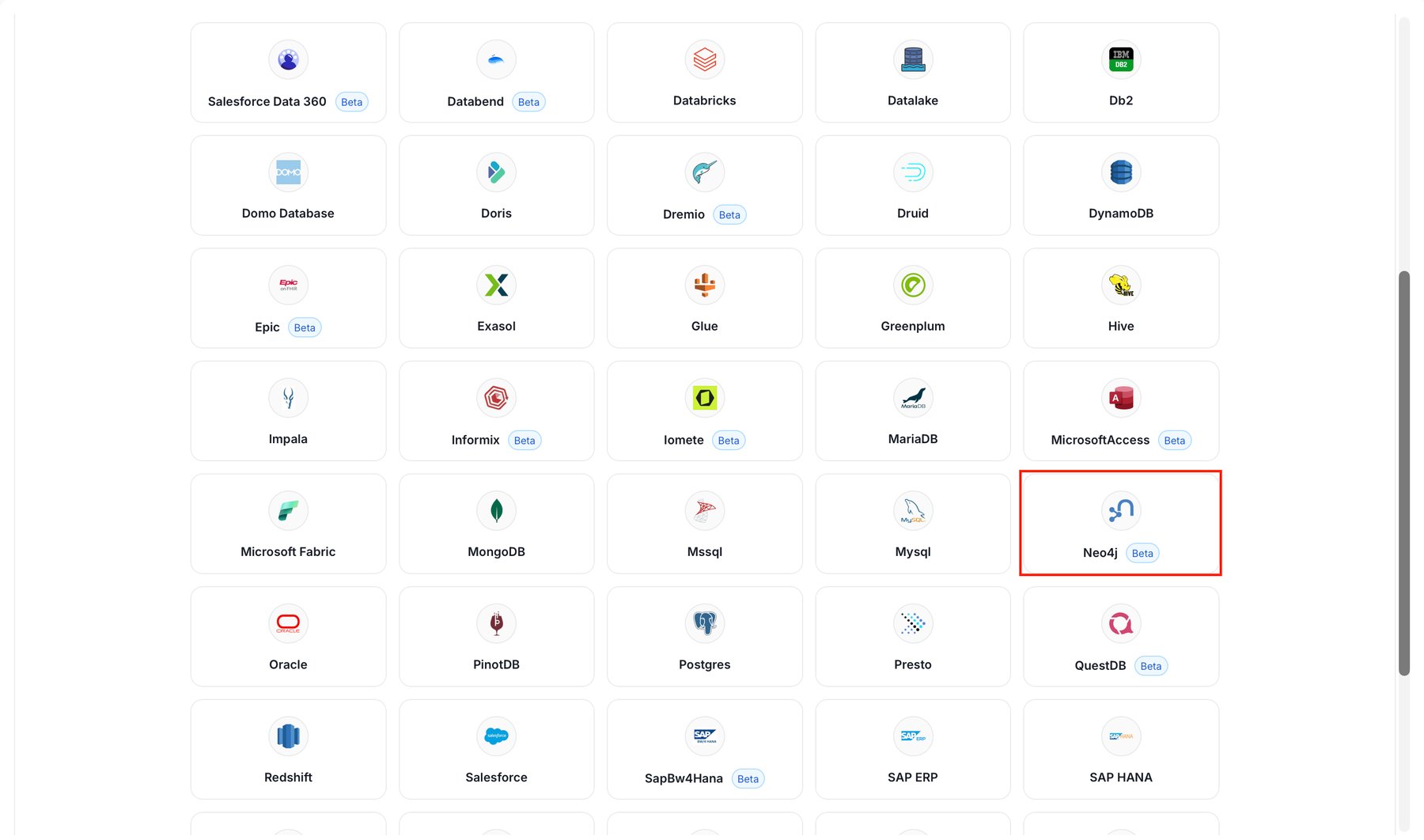
Step 3: Add Service Name and Description
- Enter a unique, descriptive Service Name. OpenMetadata identifies services by their service name. Enter a name that distinguishes this deployment from other Neo4j services you’re ingesting metadata from.
- Optional: Enter a Description for the service.
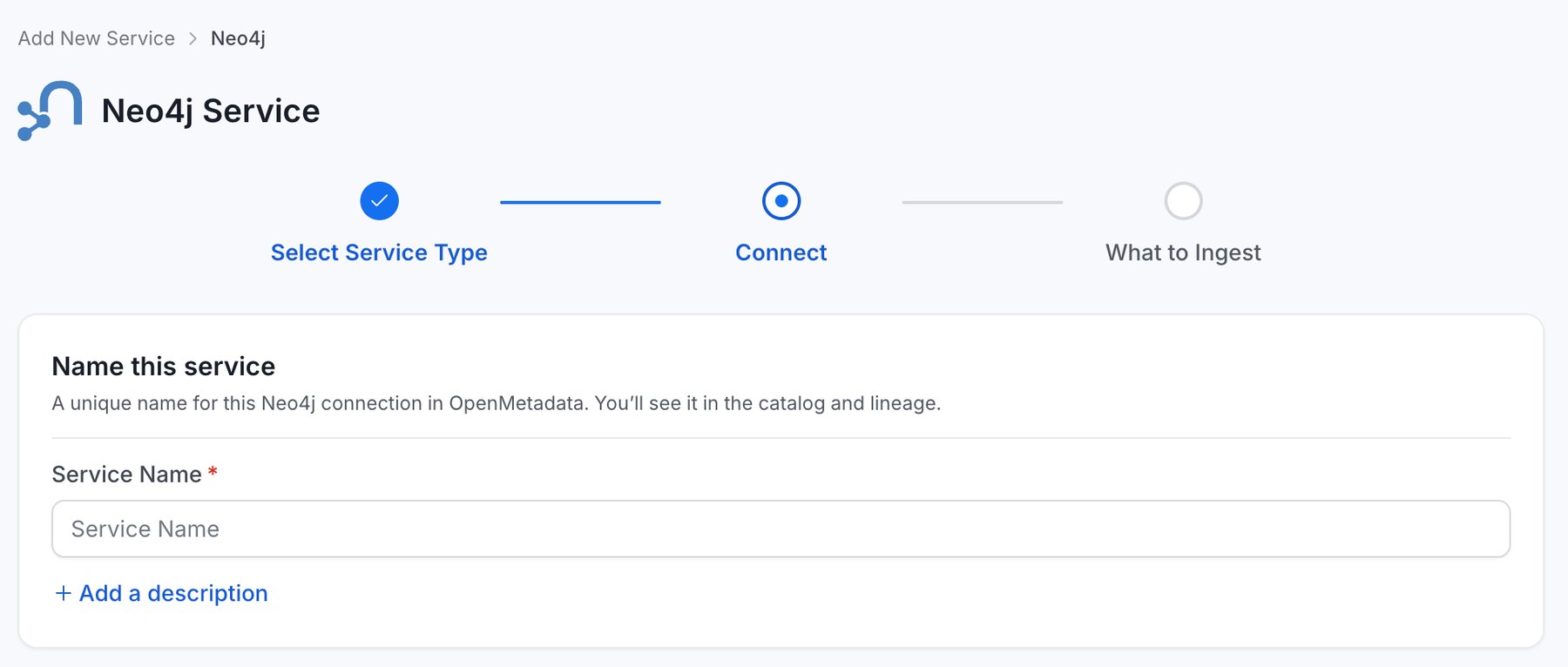
The service name can’t be changed after it’s set.
Step 4: Configure Connection Options
Specify your source credentials and verify the connection.Enter Connection Details
Enter the connection details for Neo4j. The inline help panel in the UI describes each field. The form groups the fields into Connection, Authentication, Scope & Options, and Advanced Config sections.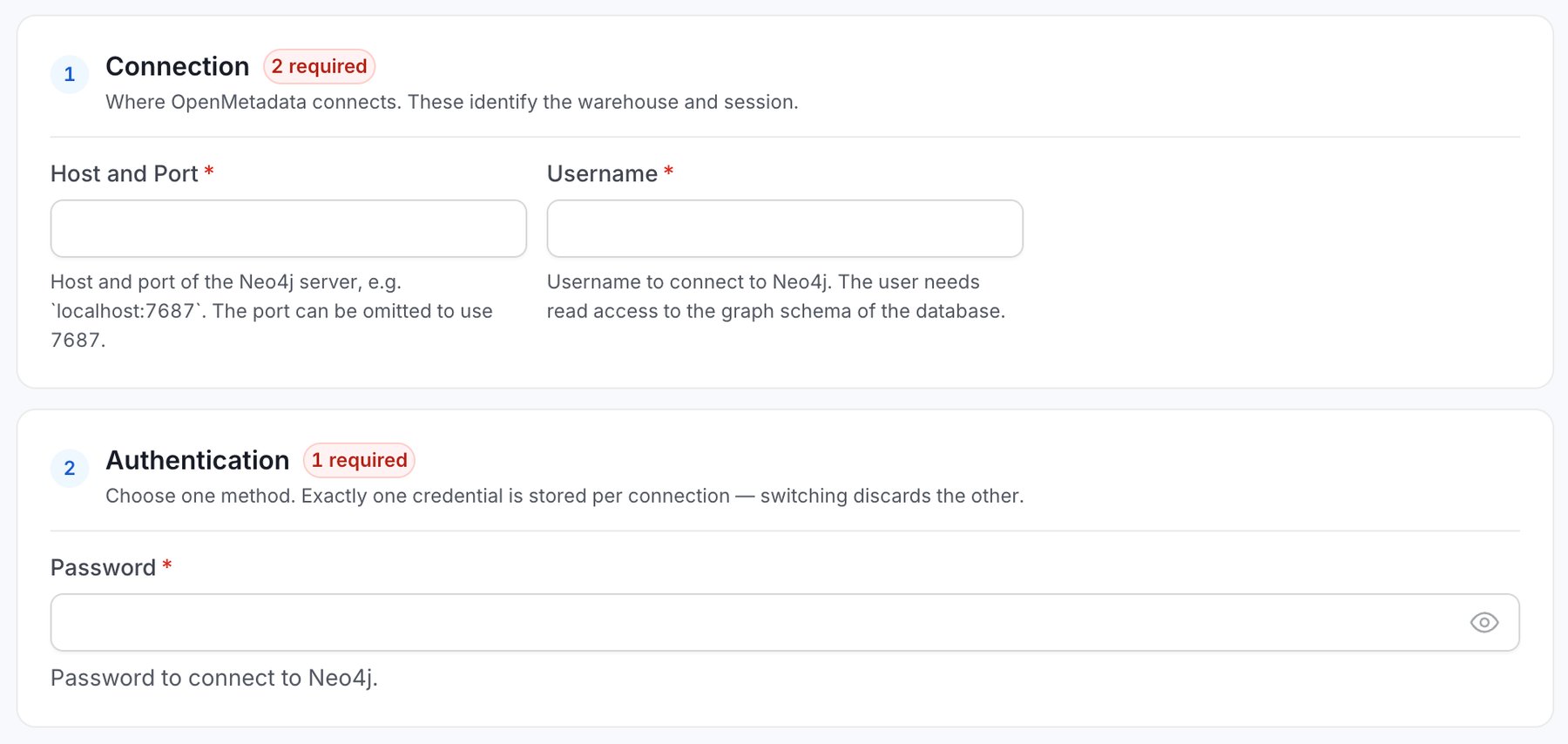
- Host and Port (required): The host and port of the Neo4j server, for example
localhost:7687. If you omit the port, OpenMetadata uses 7687. - Username (required): The username to connect to Neo4j. The user needs read access to the graph schema of the database.
- Password (required): The password to connect to Neo4j.
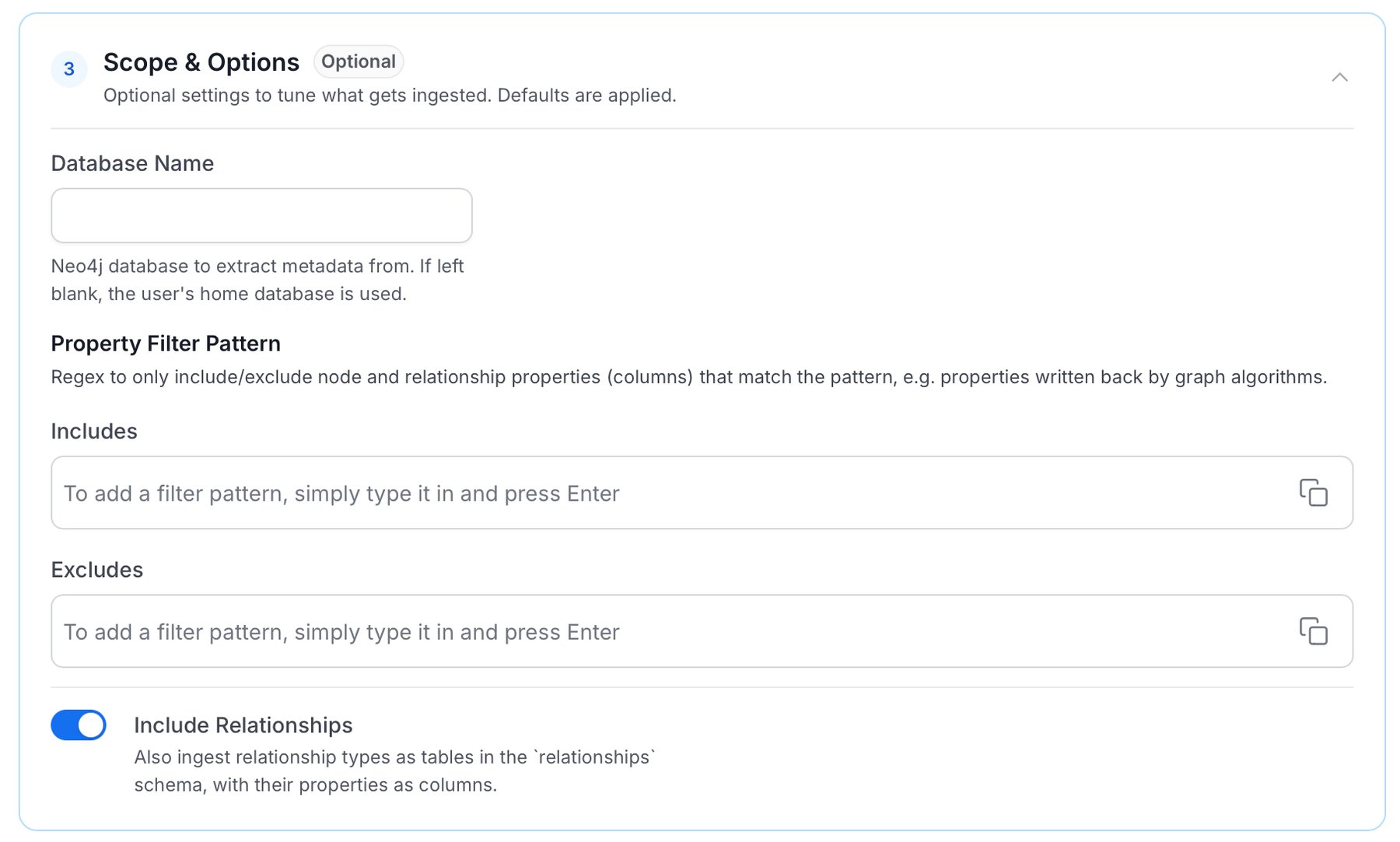
- Database Name (optional): The Neo4j database to extract metadata from. When left blank, OpenMetadata uses the home database of the user.
- Property Filter Pattern (optional): A regex that includes or excludes the node and relationship properties (columns) that match the pattern. Use it, for example, to drop properties that graph algorithms write back, such as
louvain.*. - Include Relationships: On by default. When on, OpenMetadata also ingests relationship types as tables in the
relationshipsschema, with their properties as columns.
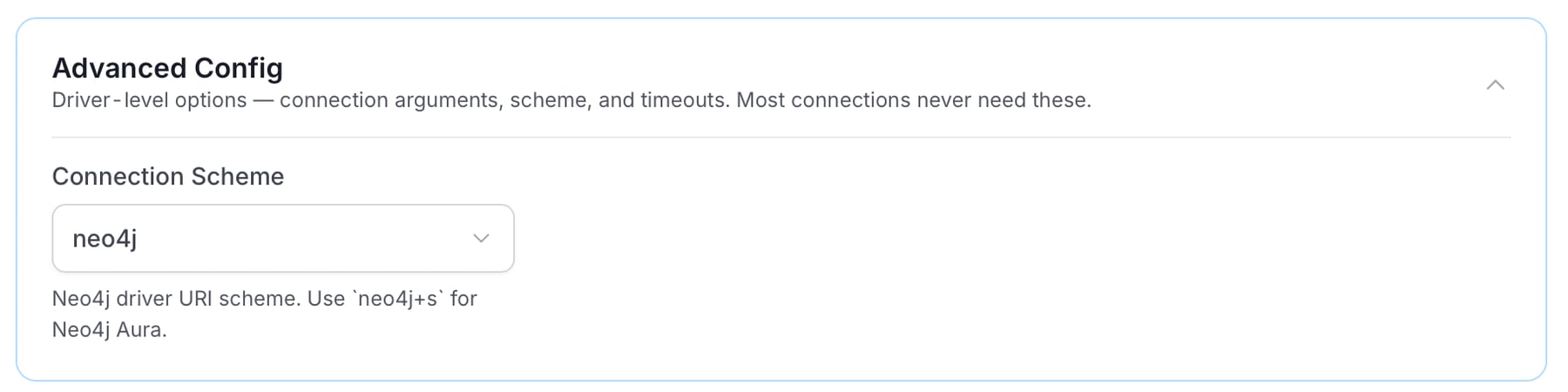
- Connection Scheme (optional): The Neo4j driver URI scheme, in Advanced Config. Defaults to
neo4j. Choose one ofneo4j,neo4j+s,neo4j+ssc,bolt,bolt+s, orbolt+ssc. Aneo4jscheme makes a routed connection to a cluster or a single server, and aboltscheme makes a direct connection to one server. A+sscheme encrypts the connection with full certificate validation. A+sscscheme encrypts the connection and accepts self-signed certificates. Useneo4j+sfor Neo4j Aura.
Test Connection
After you add the credentials, click Test Connection, then click Save. The test checks that OpenMetadata can connect to Neo4j, resolve the database, and read the node labels. It also reads the relationship types, but that step is optional.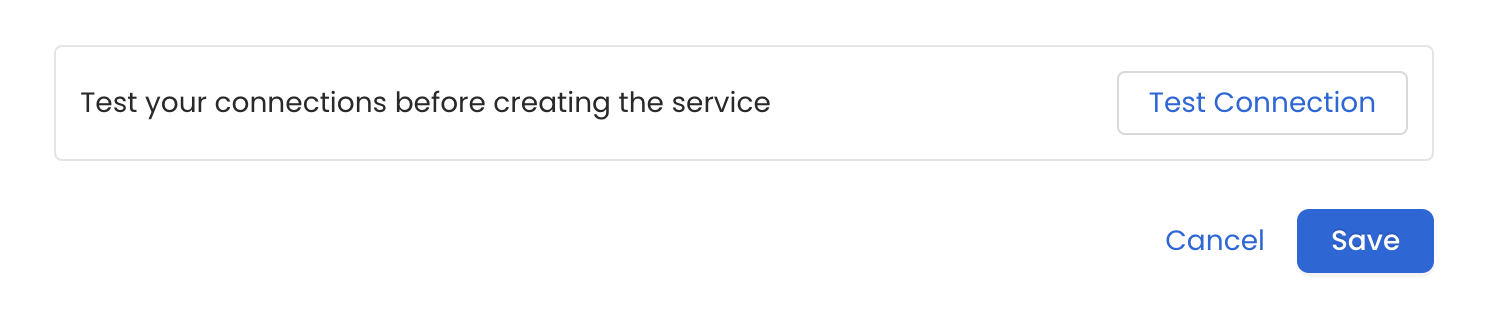
Step 5: Configure Ingestion Options
In the What to Ingest step, configure filter rules for schemas and tables. The connector reads only the database set by Database Name, so database filter rules have no effect.How Filter Rules Work
Each rule matches asset names using one of five match types:- Contains: Matches any name containing the value. For example,
salesmatchesmy_sales_dataandsales_2024. - Starts with: Matches names beginning with the value. For example,
prod_matchesprod_dbandprod_schema. - Ends with: Matches names ending with the value. For example,
_rawmatchesevents_rawandlogs_raw. - Is exactly: Matches the exact name only. For example,
analyticsmatches onlyanalytics. - Matches regex: Matches names using a regular expression. For example,
^prod_.*_v\d+$matchesprod_events_v1.
Filter Options
The Database, Schema, and Table sections control ingestion for the corresponding asset type. Each section provides the following controls:- Scan Mode: Choose one of the following scan modes:
- Scan all: Ingests every asset of that type the connector can access. This is the default.
- Only specific: Enables include rules so only assets matching at least one rule are ingested.
- Exclude system toggle: Use this toggle to automatically filter out system-reserved names defined by the connector, for example, Exclude system databases for the Databases section.
- Always exclude: Add permanent exclusion rules (shown in red). OpenMetadata never ingests assets matching these rules, regardless of include rules.
- Preview: View a real-time summary of what’s in scope based on your current rules.
- Include rules: In Only specific mode, click + Add to define a rule. Added rules appear as chips. OpenMetadata includes an asset if it matches any rule.
Step 6: Create & Deploy
Click Create & Deploy to deploy the agent and start the first metadata ingestion run. OpenMetadata saves the service configuration and immediately begins pulling metadata from the source. To monitor ingestion progress or view the service you just added, go to Settings > Services and select your service.Configure Metadata Agent and Schedule Ingestion
The Metadata Agent extracts schemas, tables, columns, and other structural metadata from your source and keeps your OpenMetadata catalog in sync. It powers discovery, lineage, and governance across your data assets. When you click Create & Deploy, OpenMetadata automatically deploys a Metadata Agent for this service and triggers the first ingestion run. View its status and run history from the Agents tab on the service detail page. To configure the additional Metadata Agent and schedule ingestion, follow these steps:-
Navigate to Settings > Services and select the service type.
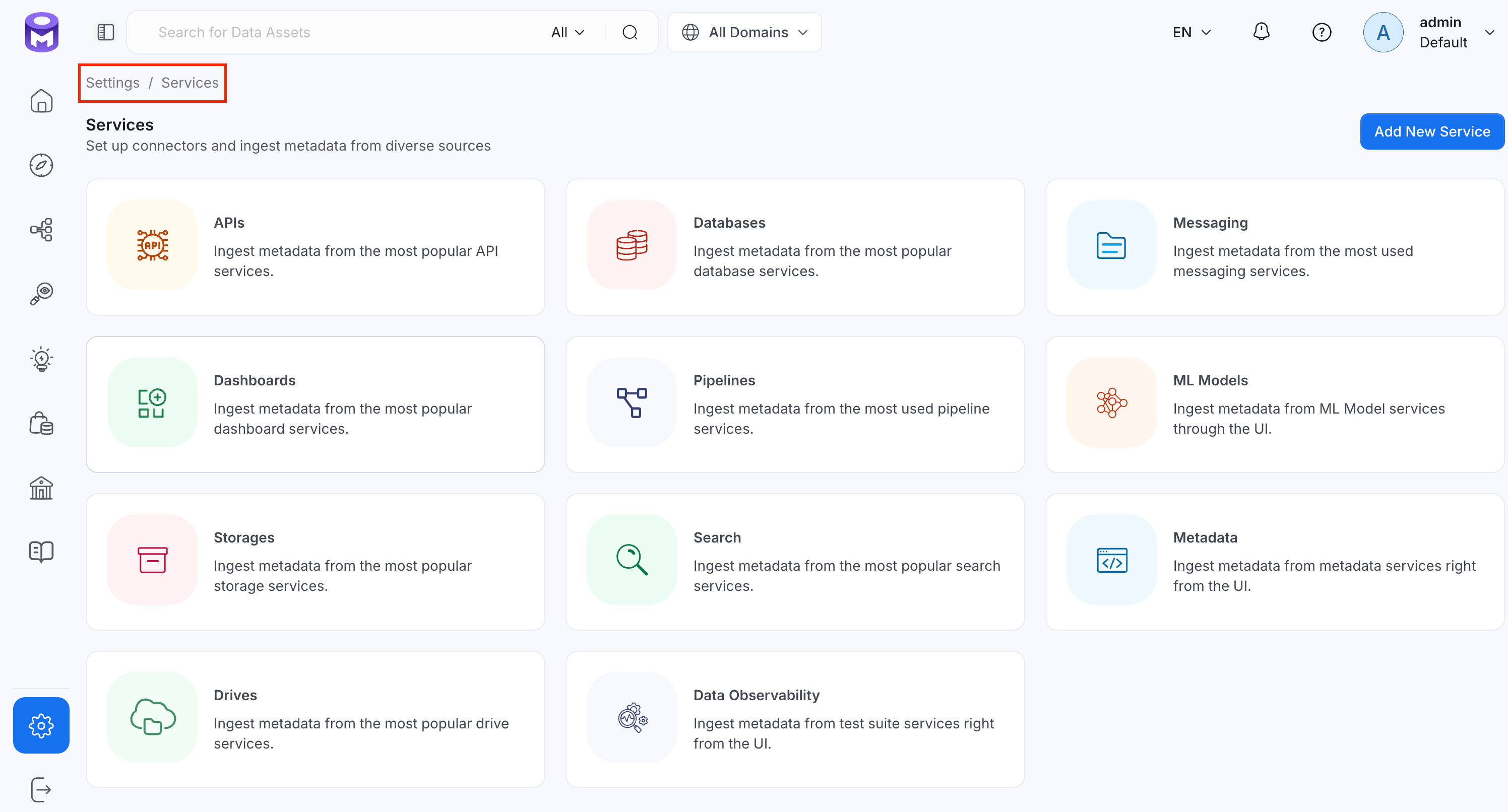
- Click the service you have added.
-
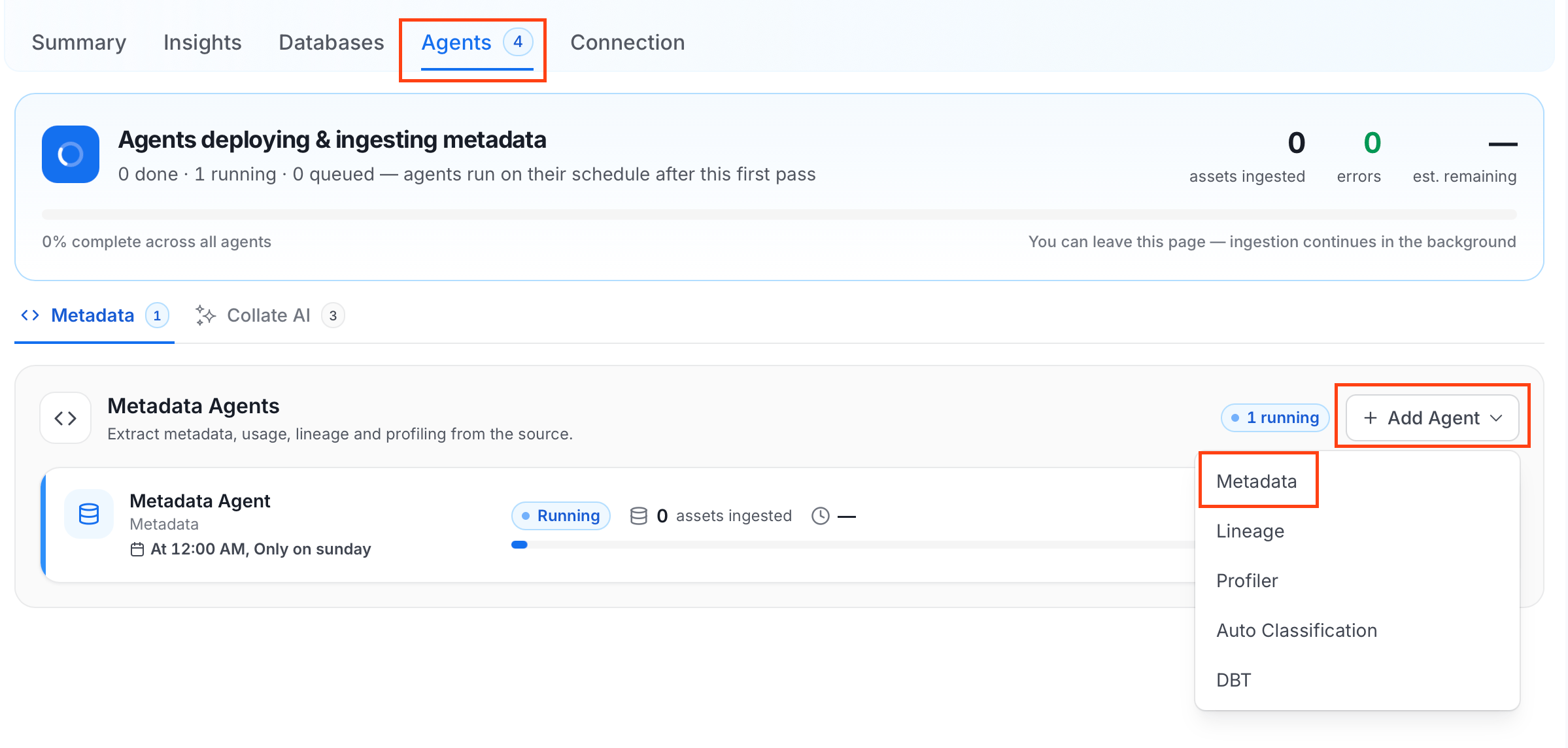
Select the Agents tab and click Add Agent > Metadata.
-
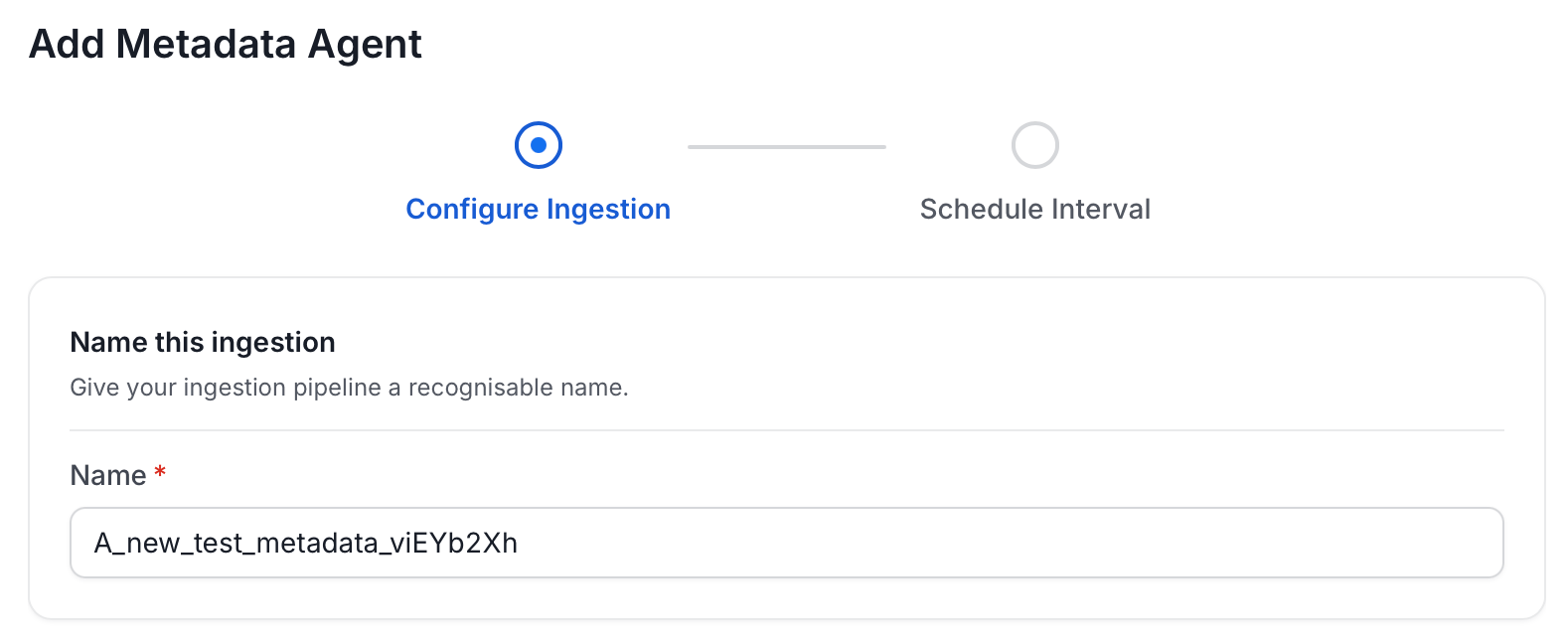
On the Configure Ingestion page, do the following and click Next.
-
Name this Ingestion: Enter a unique recognizable name for this ingestion pipeline.
-
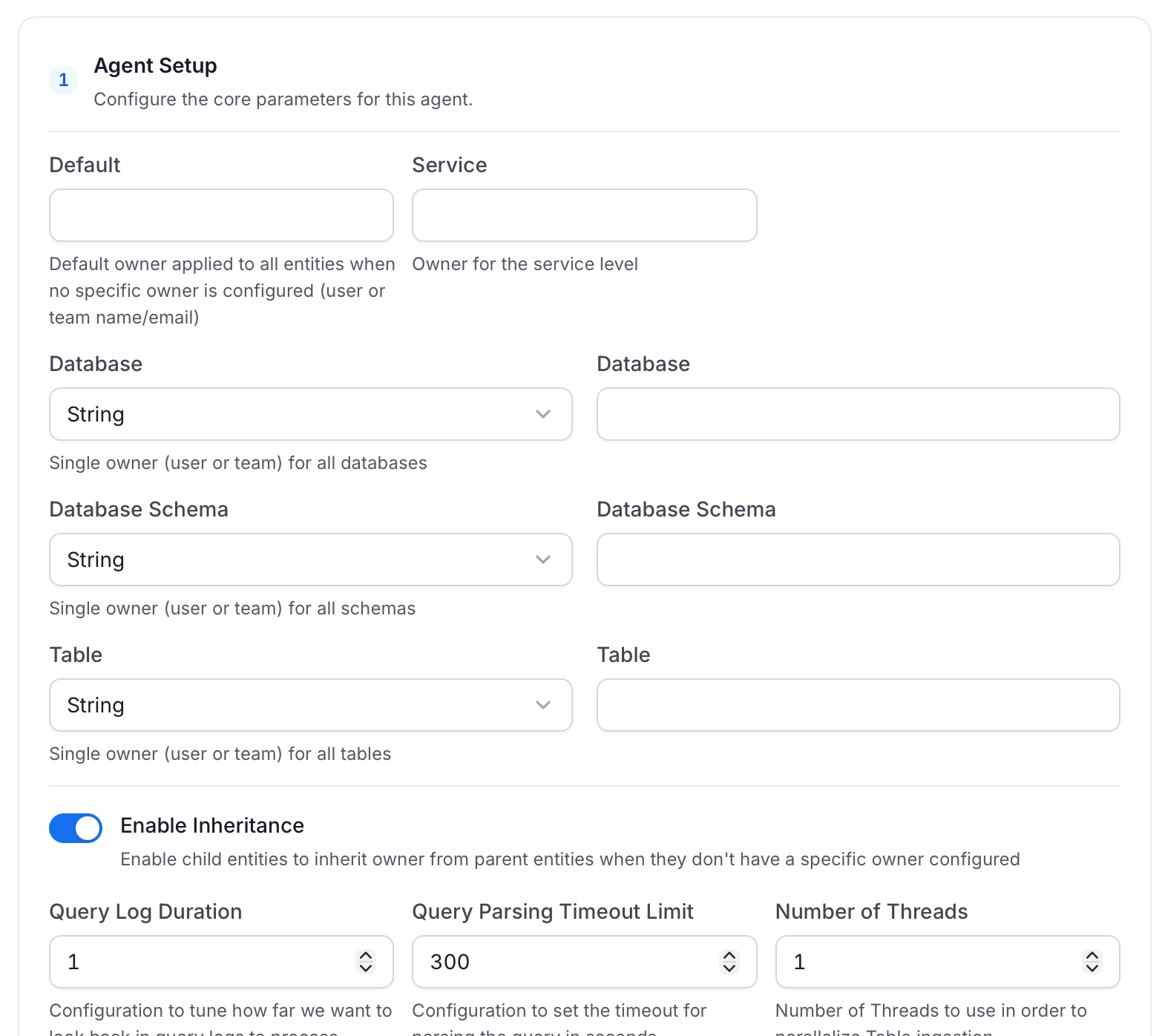
Agent Setup: Configure core parameters for metadata extraction. The following fields are available:
The limits apply to child columns OpenMetadata infers from sampled JSON values: JSON files and JSONL files in data lakes, JSON values inside CSV and TSV cells, NoSQL documents, and JSON columns when Extract JSON Schema is on. Declared schemas, such as JSON Schema, Avro, Parquet, Iceberg, and Delta metadata, are never limited. OpenMetadata logs one warning per table that names the affected columns. For more information about how the Default Owner, Service Owner, Database Owner, Database Schema Owner, Table Owner, and Enable Inheritance fields resolve an owner, see Hierarchical Owner Configuration.
-
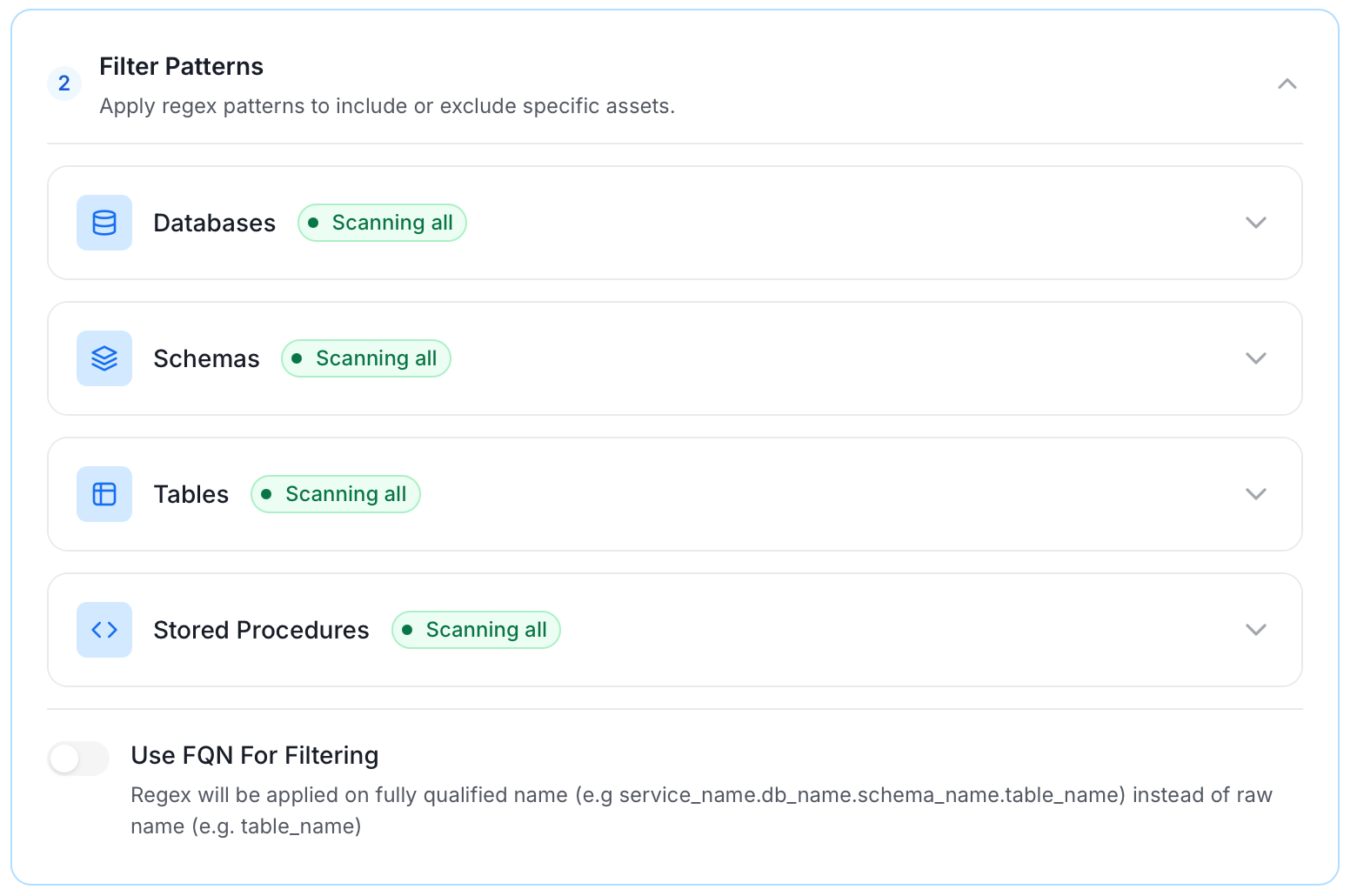
Filter Patterns: Apply include or exclude rules to scope which databases, schemas, tables, and stored procedures this agent ingests. For more information about various filter options, see Step 6: Configure Ingestion Options.
-
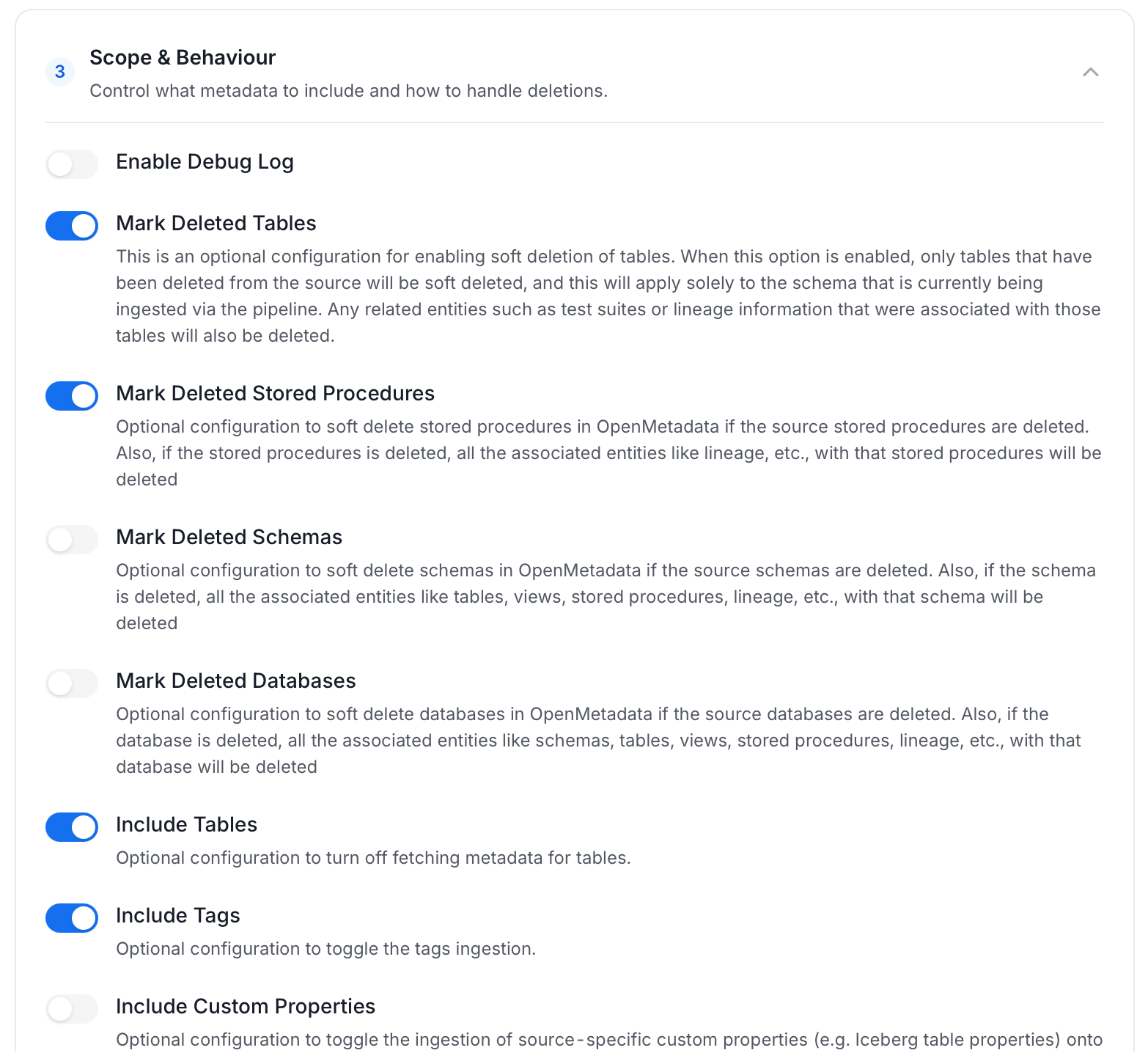
Scope & Behaviour: Control how the agent handles metadata during ingestion. Toggle each option on or off based on your needs:
Available toggles vary by connector. Stored procedure options only appear for connectors that support stored procedures.
-
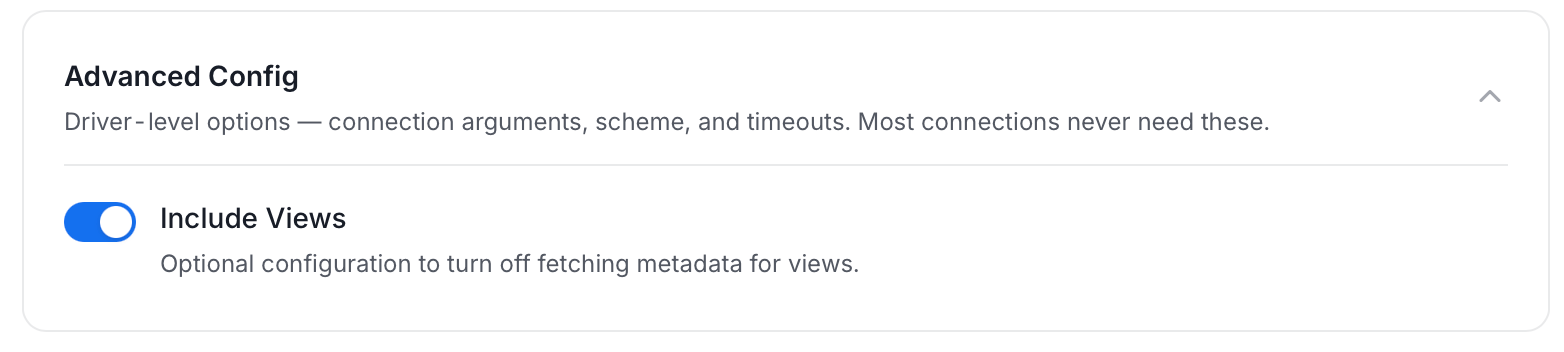
Advanced Config: Driver-level options (connection arguments, scheme, and timeouts). Most connections never need these, and they vary by connector. This section also has one ingestion-scope toggle:
-
Name this Ingestion: Enter a unique recognizable name for this ingestion pipeline.
-
On the Schedule Interval page, set when the agent runs:
- Schedule: Choose a preset interval (Hourly, Daily, Weekly, Monthly) or enter a custom cron expression.
- On-Demand: No automatic schedule; trigger the agent manually when needed.
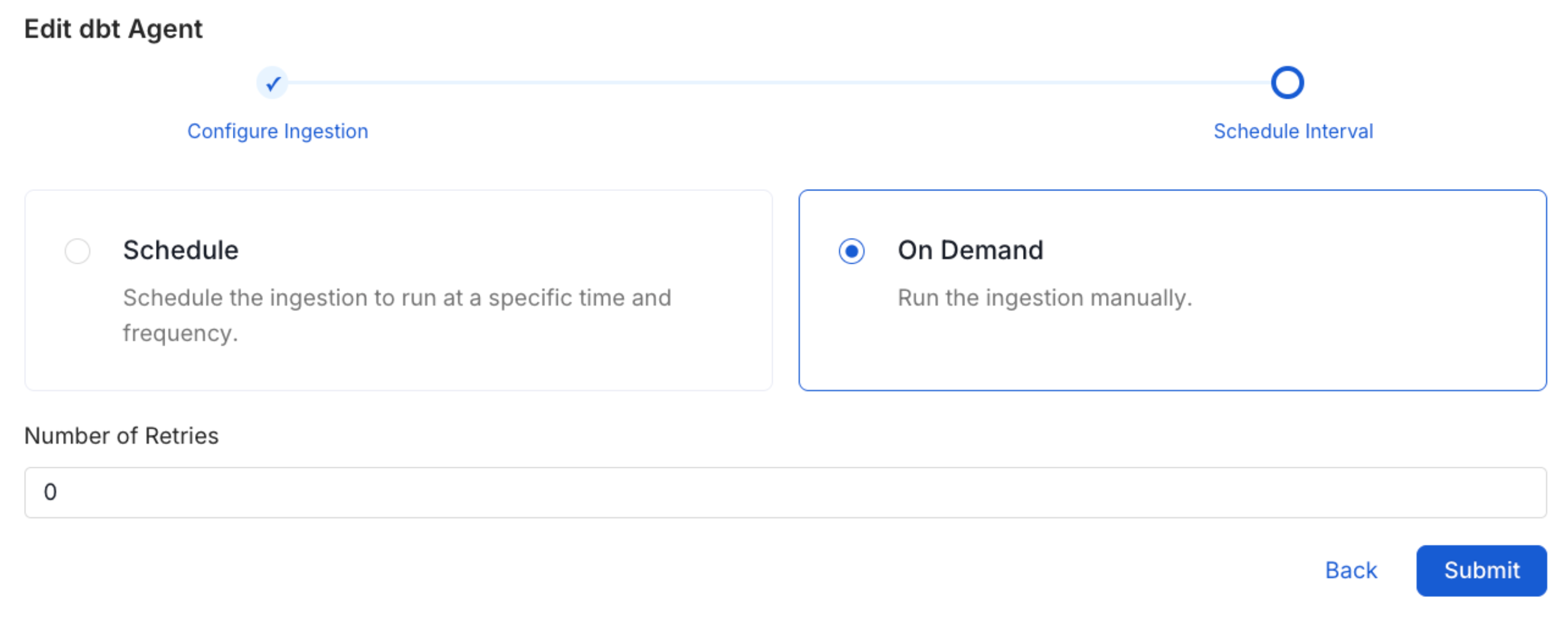
- Click Add to deploy the agent.
Related
Usage Workflow
Learn more about how to configure the Usage Workflow to ingest Query information from the UI.
Lineage Workflow
Learn more about how to configure the Lineage from the UI.
Profiler Workflow
Learn more about how to configure the Data Profiler from the UI.
Data Quality Workflow
Learn more about how to configure the Data Quality tests from the UI.
dbt Integration
Learn more about how to ingest dbt models’ definitions and their lineage.