
Requirements
Before configuring the KafkaConnect connector, make sure the following requirements are in place.KafkaConnect Versions
OpenMetadata is integrated with Kafka Connect up to version 3.6.1 and will continue to work with future Kafka Connect versions. The ingestion framework uses the kafkaconnect python client to connect to the Kafka Connect instance and perform the API calls.Metadata Ingestion
To ingest metadata from KafkaConnect, you need to create a service connection. The service connects KafkaConnect with OpenMetadata. Once you create a service, OpenMetadata automatically starts ingesting metadata.Step 1: Add New Service
-
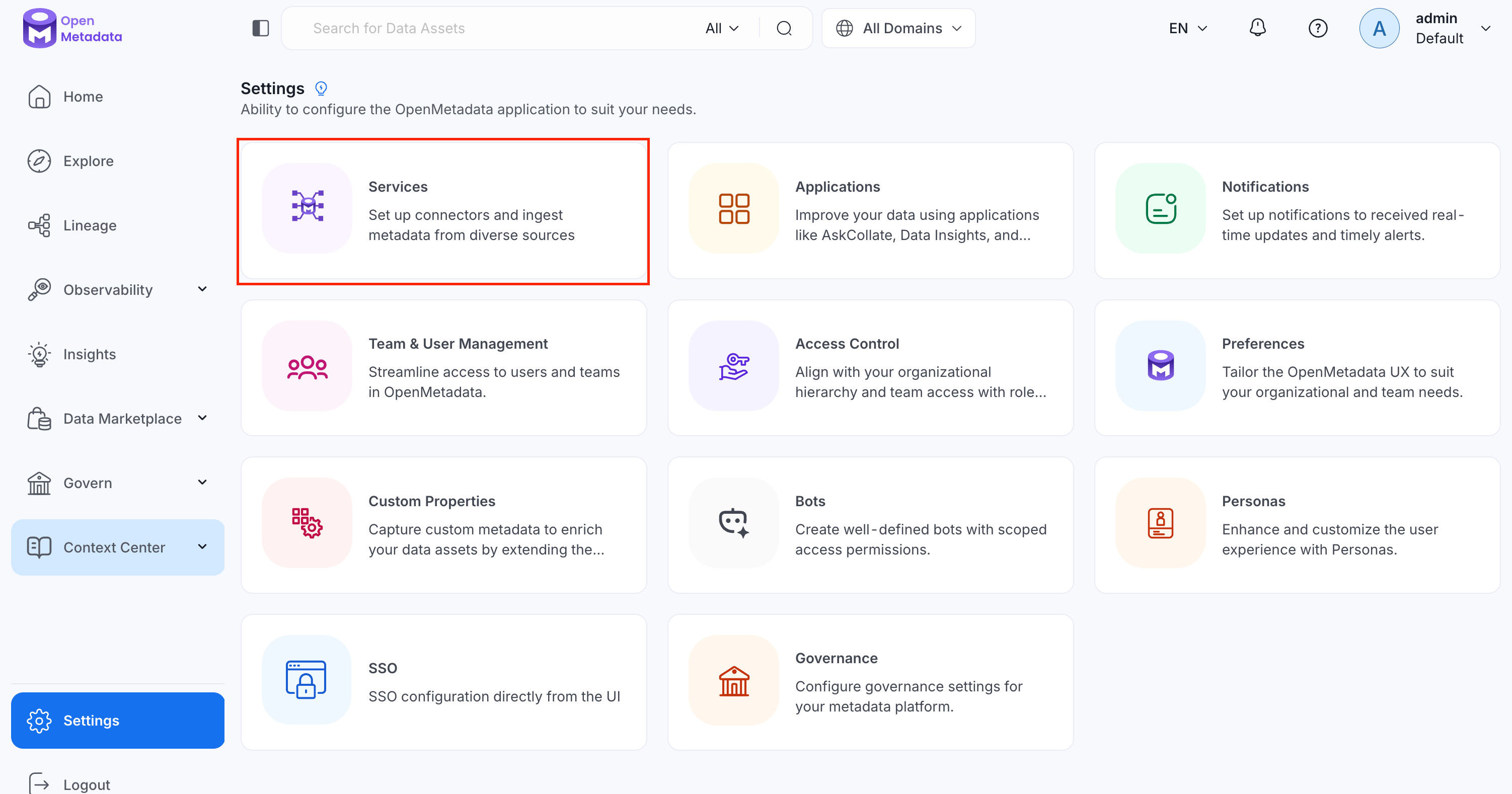
Navigate to Settings > Services.
-
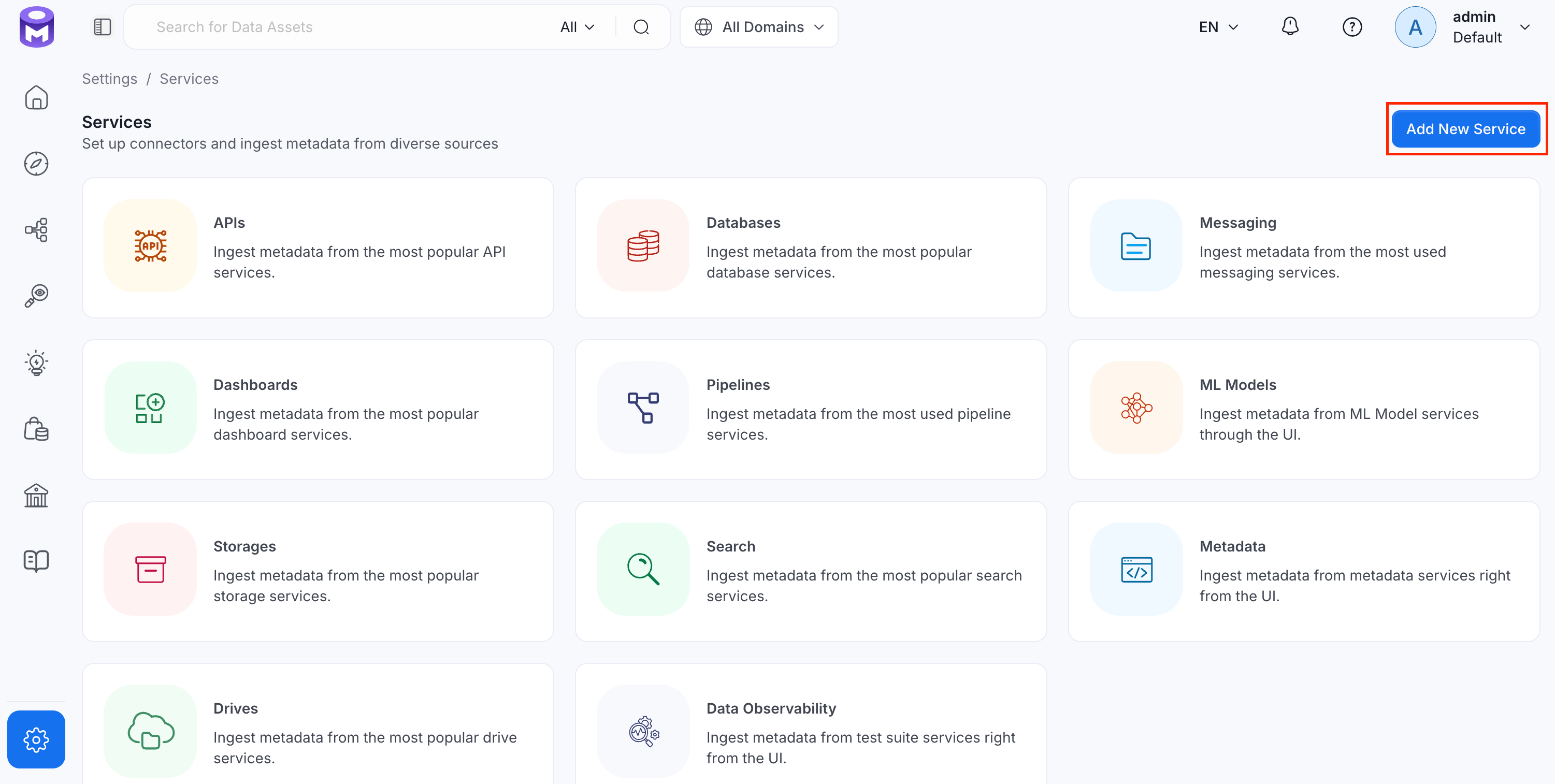
Click Add New Service.
Step 2: Select a Service and Connector
From the service type dropdown, select Pipeline Services, then click the KafkaConnect connector tile.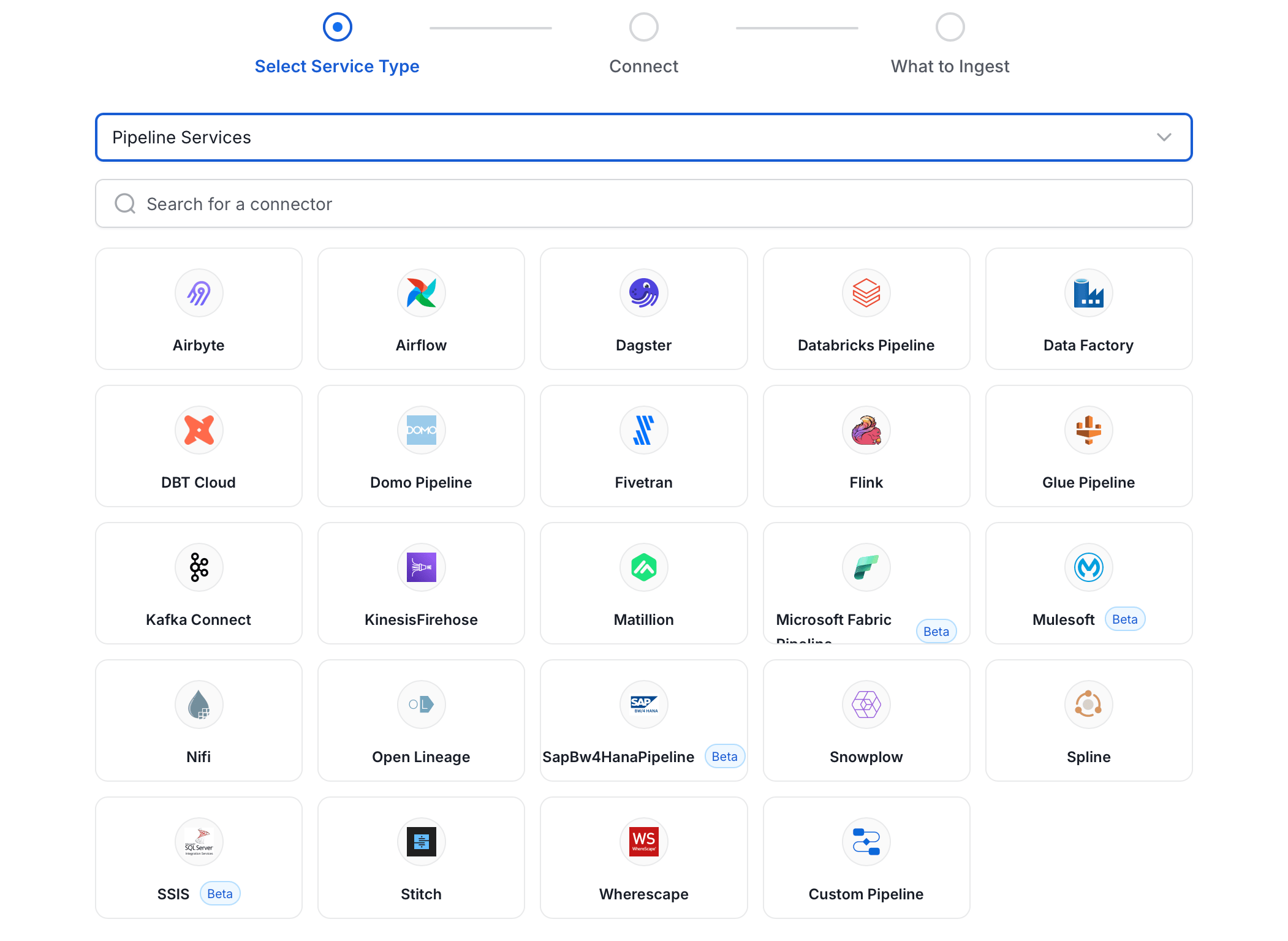
Step 3: Add Service Name and Description
- Enter a unique, descriptive Service Name. OpenMetadata identifies services by their service name. Enter a name that distinguishes this deployment from other KafkaConnect services you are ingesting metadata from.
- Optional: Enter a Description for the service.
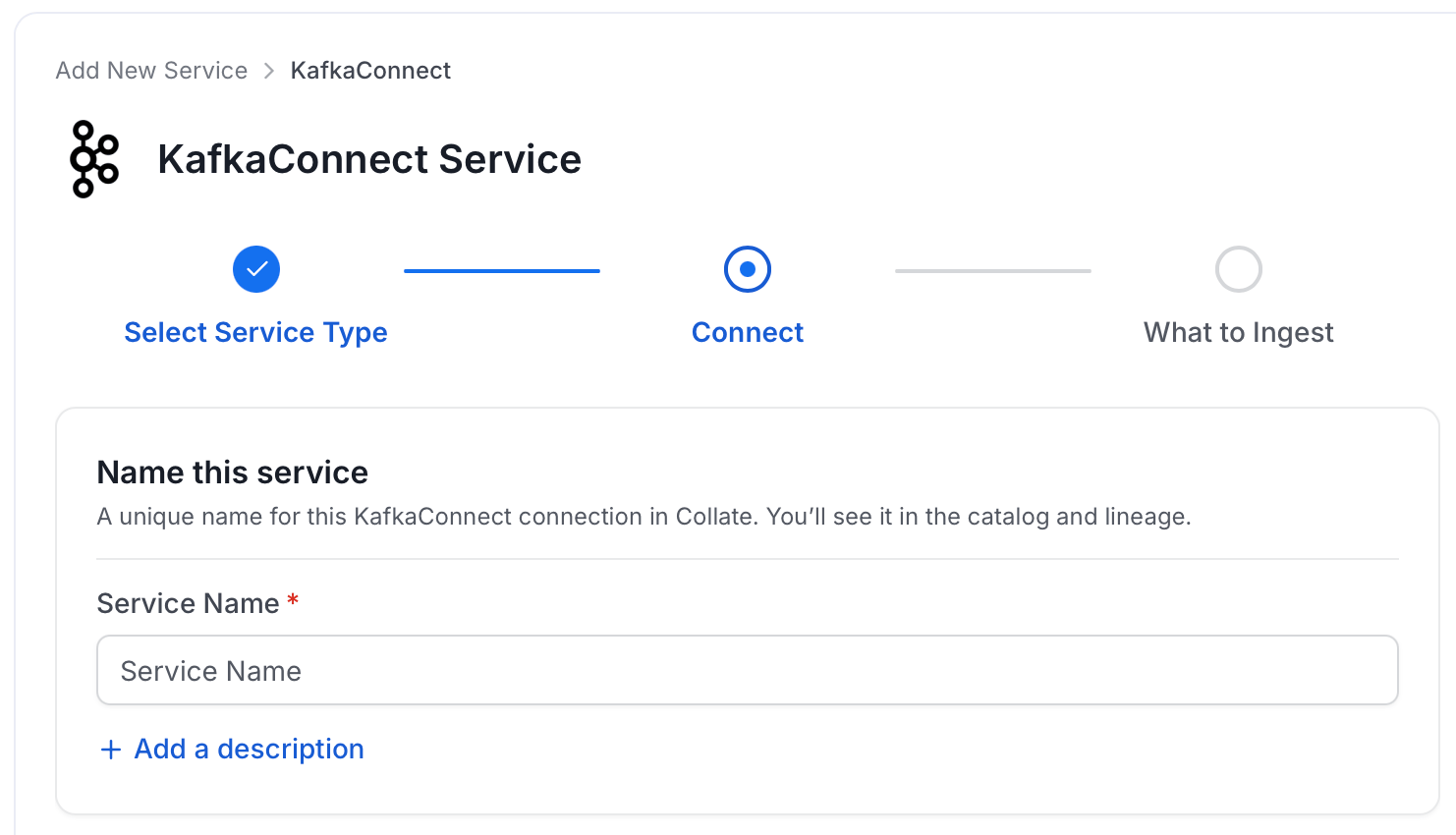
Note: The service name cannot be changed after it is set.
Step 4: Configure Connection Options
Specify your source credentials and verify the connection.Enter Connection Details
Enter the connection details for KafkaConnect. A help panel displays inline guidance for each field.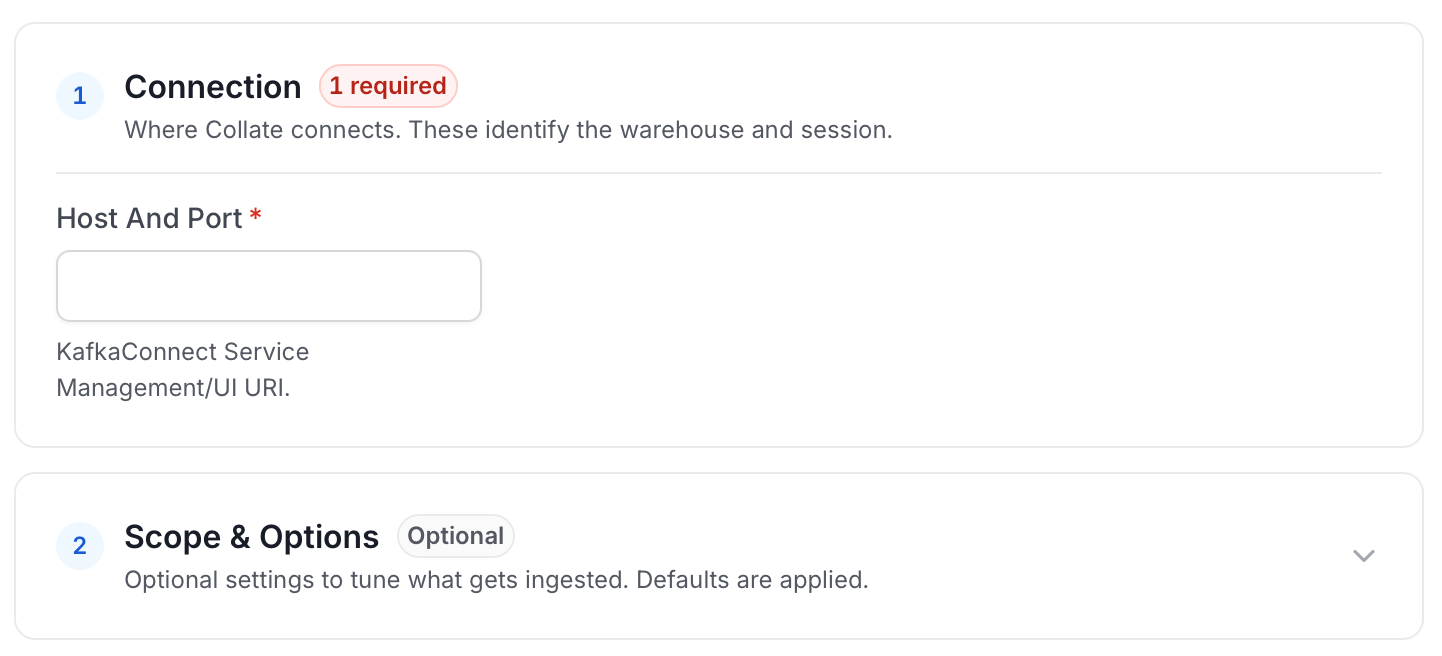
- Host and Port: The hostname or IP address of the Kafka Connect worker with the REST API enabled, for example,
https://localhost:8083orhttps://127.0.0.1:8083orhttps://<yourkafkaconnectresthostnamehere>. - Kafka Connect Config: OpenMetadata supports username/password.
- Basic Authentication
- Username: Username to connect to Kafka Connect. This user should be able to send requests to the Kafka Connect API and access the Rest API GET endpoints.
- Password: Password to connect to Kafka Connect.
- Basic Authentication
- verifySSL: Whether SSL verification should be performed when authenticating.
- Kafka Service Name: The Service Name of the ingested Kafka instance associated with this KafkaConnect instance.
Test Connection
Once the credentials have been added, click on Test Connection and Save the changes.
Step 5: Configure Ingestion Options
In the What to Ingest step, use filter patterns to control which assets OpenMetadata ingests from your KafkaConnect service. Filter patterns use regular expressions applied to pipeline names.How Filter Patterns Work
- Include: Add one or more comma-separated regular expressions. OpenMetadata ingests only assets whose names match at least one expression. Leave blank to include all assets.
- Exclude: Add one or more comma-separated regular expressions. OpenMetadata skips any asset whose name matches an expression. Leave blank to exclude nothing.
- contains: matches any name containing the value. For example,
salesmatchesmy_sales_dataandsales_2024. - starts with: matches names beginning with the value. For example,
prod_matchesprod_dbandprod_schema. - ends with: matches names ending with the value. For example,
_rawmatchesevents_rawandlogs_raw. - is exactly: matches the exact name only. For example,
analyticsmatches onlyanalytics. - matches regex: matches names using a regular expression. For example,
^prod_.*_v\d+$matchesprod_events_v1.
Filter Options
The Pipeline section includes the following filter options:- Pipeline: Controls which pipelines (connectors) OpenMetadata ingests from Kafka Connect.
- Scan Mode: Choose between the following scan modes:
- Scan all: Ingests every asset of that type the connector can access. This is the default.
- Only specific: Enables include rules so only assets matching at least one rule are ingested.
- Always exclude: Add permanent exclusion rules (shown in red). Assets matching these rules are never ingested, regardless of include rules.
- Preview: Shows a real-time summary of what will be in scope based on your current rules.
- Include rules (available only in Only specific mode): Click + Add to define a rule. Added rules appear as chips; an asset is included if it matches any rule.
Step 6: Create & Deploy
Click Create & Deploy to deploy the agent and start the first metadata ingestion run. OpenMetadata saves the service configuration and immediately begins pulling metadata from the source. To monitor ingestion progress or view the service you just added, go to Settings > Services and select your service.Configure Metadata Agent and Schedule Ingestion
The Metadata Agent extracts pipelines, tasks, and other structural metadata from your source and keeps your OpenMetadata catalog in sync. It powers discovery, lineage, and governance across your data assets. When you click Create & Deploy, OpenMetadata automatically deploys a Metadata Agent for this service and triggers the first ingestion run. View its status and run history from the Agents tab on the service detail page. To configure the additional Metadata Agent and schedule ingestion, follow these steps:-
Navigate to Settings > Services and select the service type.
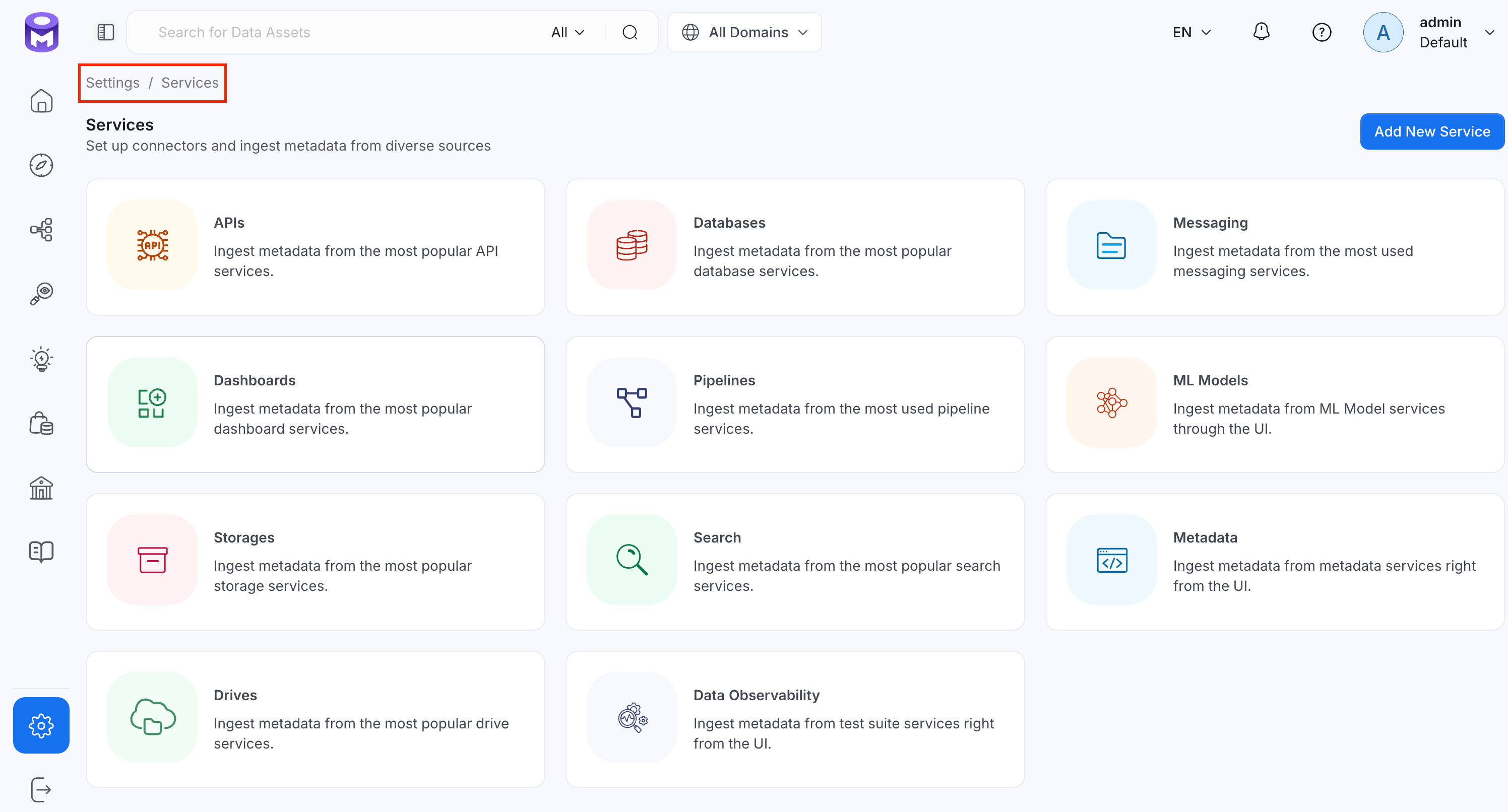
- Click the service you have added.
-
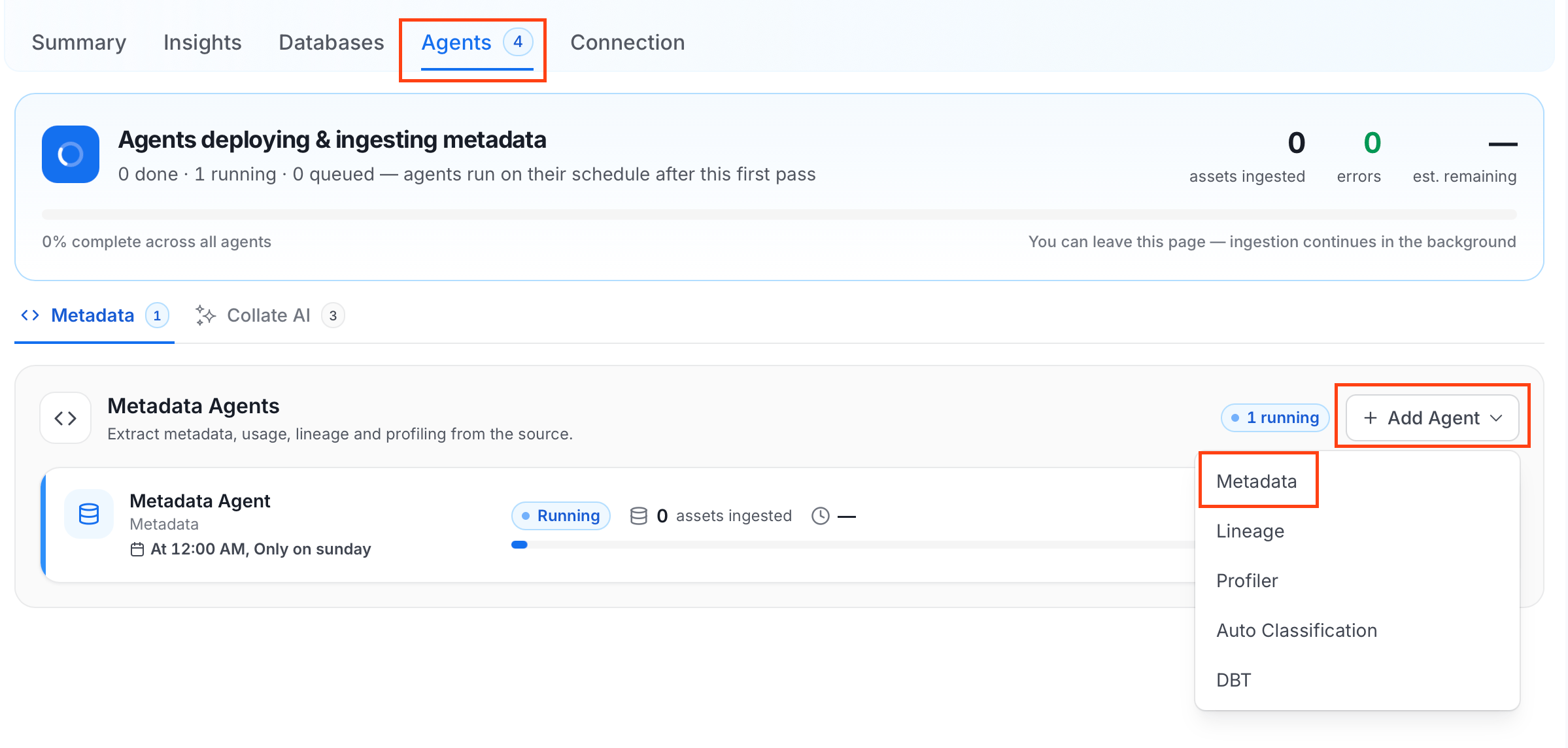
Select the Agents tab and click Add Agent > Metadata.
-
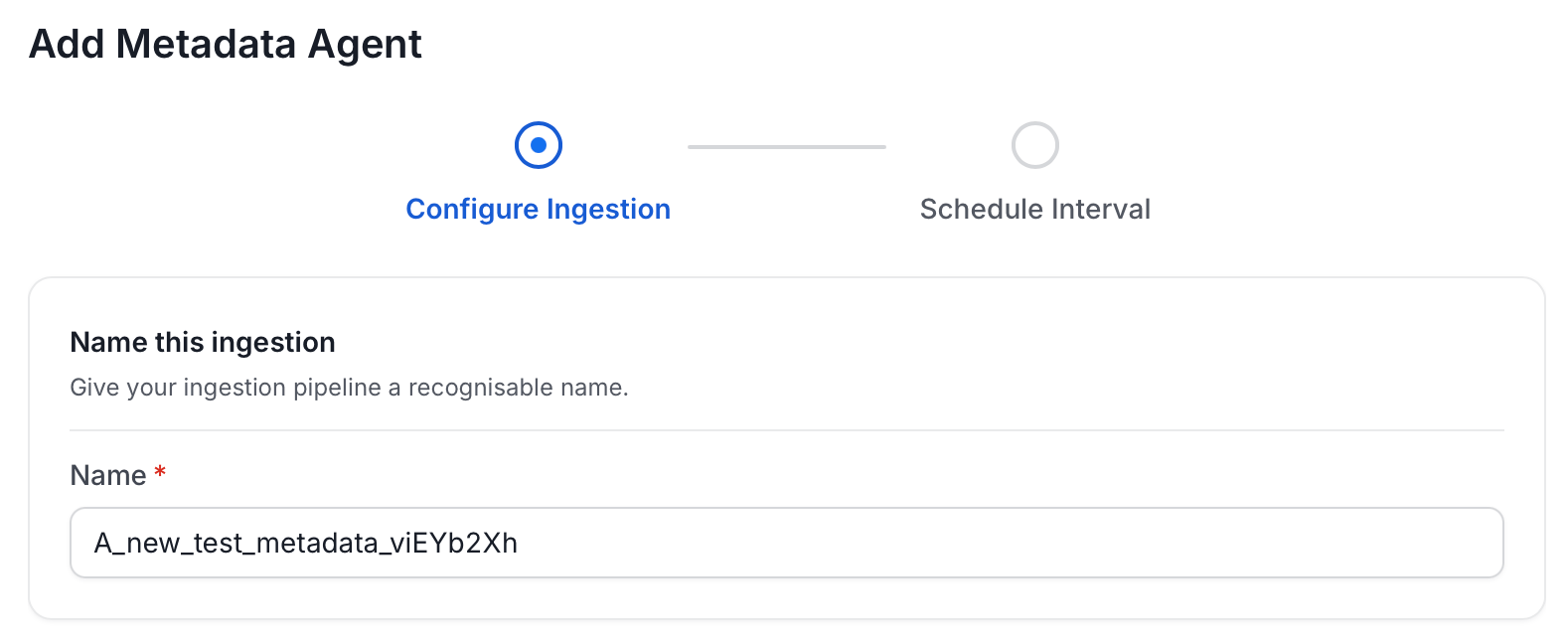
On the Configure Ingestion page, do the following and click Next.
-
Name this Ingestion: Enter a unique recognizable name for this ingestion pipeline.
-
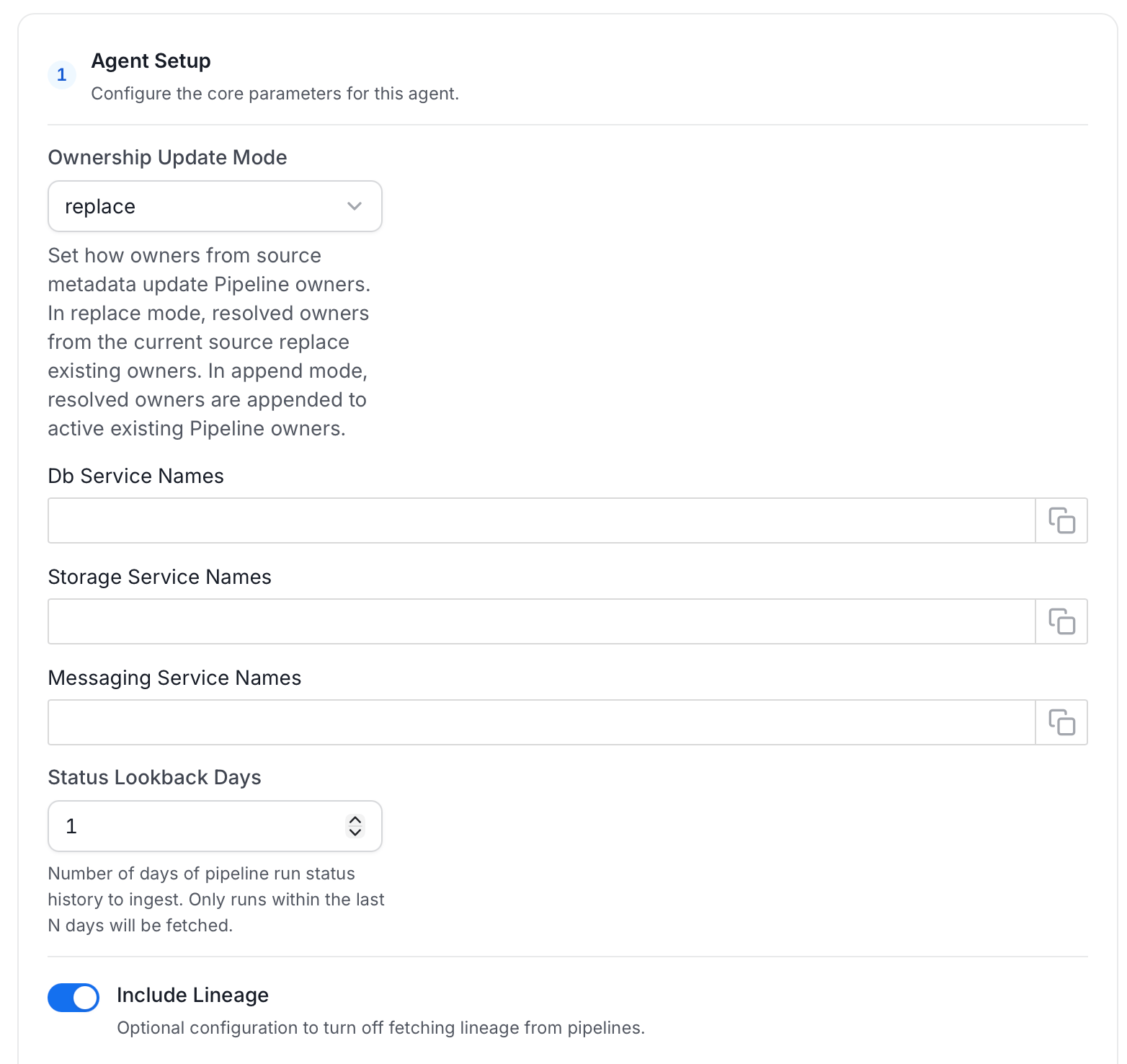
Agent Setup: Configure the core parameters for this agent. The following fields are available:
-
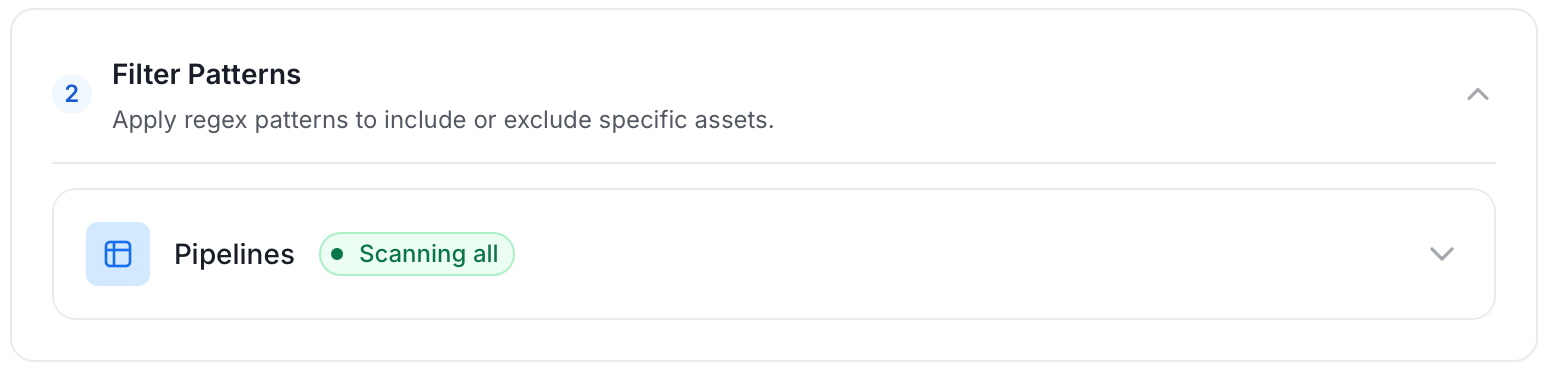
Filter Patterns: Apply include or exclude rules to scope which pipelines this agent ingests. These follow the same filter options described in Step 5: Configure Ingestion Options.
-
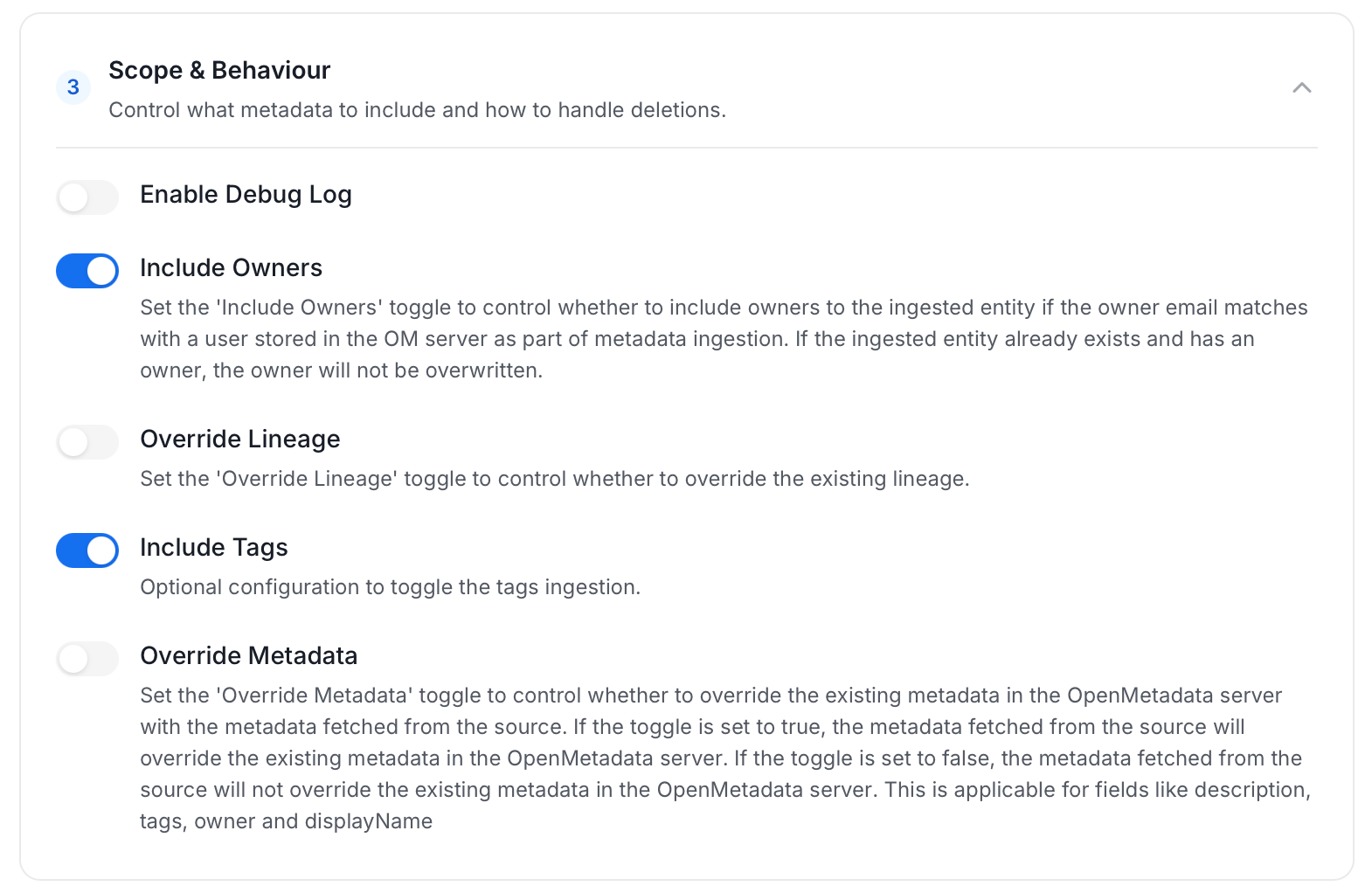
Scope & Behaviour: Control what metadata to include and how to handle deletions. Toggle each option on or off based on your needs:
-
Name this Ingestion: Enter a unique recognizable name for this ingestion pipeline.
-
On the Schedule Interval page, set when the agent runs:
- Schedule: Choose a preset interval (Hourly, Daily, Weekly, Monthly) or enter a custom cron expression.
- On-Demand: No automatic schedule; trigger the agent manually when needed.
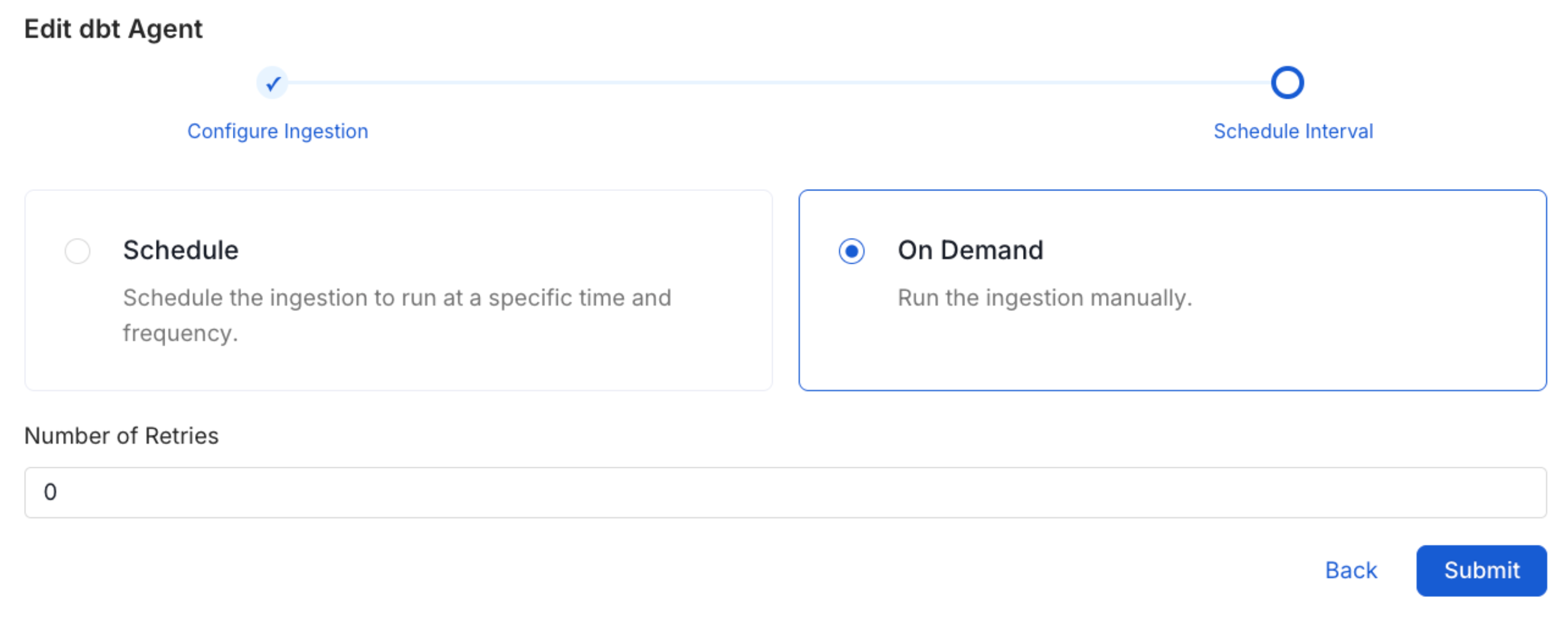
- Click Add to deploy the agent.
Debezium CDC Support
The KafkaConnect connector provides full support for Debezium CDC connectors with intelligent column extraction and accurate lineage tracking.What We Provide
When you ingest Debezium connectors, OpenMetadata automatically:- Detects CDC Envelope Structures: Identifies Debezium’s CDC format with
op,before, andafterfields. - Extracts Real Table Columns: Parses actual database columns from the CDC payload instead of CDC envelope metadata.
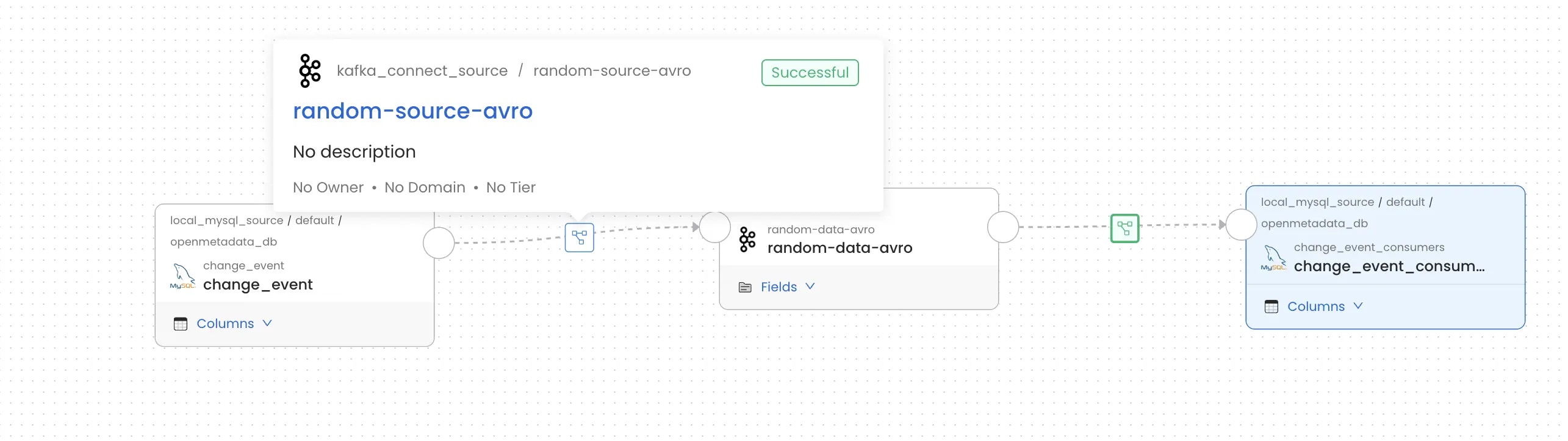
- Creates Accurate Column-Level Lineage: Maps lineage from source database tables to Kafka topics to target systems.
Recognized Configuration Parameters
OpenMetadata recognizes the following Debezium configuration parameters for intelligent CDC detection:database.server.name: Server identifier (Debezium V1).topic.prefix: Topic prefix (Debezium V2).table.include.list: Tables to capture (for example,mydb.customers,mydb.orders).
Snowflake Sink Lineage
For each Kafka topic a Snowflake sink connector consumes, OpenMetadata builds lineage to the Snowflake table that receives it. It reads the target from the connector’s own configuration and resolves it with the same naming rules the Snowflake Kafka connector applies. Lineage is supported for these connector classes:SnowflakeSink, the managed connector on Confluent Cloud.com.snowflake.kafka.connector.SnowflakeSinkConnector, the self-managed connector.com.snowflake.kafka.connector.SnowflakeStreamingSinkConnector, the self-managed connector from version 4.0.
How the Target Table Is Named
A topic listed insnowflake.topic2table.map lands in the table the map names. The map supports regular expression keys, including group substitution when snowflake.topic2table.map.regex.replacement is true. For any other topic, the table name comes from the topic name:
SnowflakeSinkandSnowflakeSinkConnector: A topic that’s a valid Snowflake identifier becomes a table of the same name in uppercase. In any other topic name, invalid characters become underscores and OpenMetadata appends a hash suffix, soweb.clicks-v2lands inWEB_CLICKS_V2_1470743940.SnowflakeStreamingSinkConnector: The table keeps the topic name exactly, including its case. Withsnowflake.compatibility.enable.autogenerated.table.name.sanitizationset totrue, the naming rules ofSnowflakeSinkandSnowflakeSinkConnectorapply instead.
snowflake.topic2table.map, and to snowflake.database.name and snowflake.schema.name, which the connector passes to Snowflake unquoted. A name in double quotes keeps its case.
How the Snowflake Service Is Matched
One Snowflake account is often ingested as several OpenMetadata services, so the connector configuration alone doesn’t say which service holds a table. OpenMetadata matches services by account:- It checks every Snowflake service whose Account matches the account in the connector’s
snowflake.url.name. The comparison ignores case, the.snowflakecomputing.comand.privatelinksuffixes, and the difference between underscores and hyphens. - If Db Service Names in the Kafka Connect Metadata Agent lists some of those services, it checks only the listed ones.
- If no service’s Account matches, it checks the Snowflake services listed in Db Service Names.
myorg-myaccount, and an account locator such as xy12345.us-east-1. Both identify the same account, but OpenMetadata can’t match one form against the other. Give each Snowflake service’s Account the form the connector’s snowflake.url.name uses. If no service’s Account matches, list the service that holds the tables in Db Service Names instead. That works only while no service matches. Once one does, only the matching services are checked.
How Columns Are Mapped
Each top-level topic field maps to the column of the same name, ignoring case. A nested record lands in a singleVARIANT column. When the connector applies a Flatten transform, each nested field maps to its flattened column instead.
Supported Connectors
Currently, the following source and sink connectors for Kafka Connect are supported for lineage tracking: For these connectors, lineage information can be obtained provided they are configured with a source or sink and the corresponding metadata ingestion is enabled. Note: All supported database connectors listed above work seamlessly with Debezium CDC connectors for enhanced column-level lineage tracking. When using Debezium, OpenMetadata automatically detects the CDC envelope structure and extracts actual table columns for accurate lineage mapping.Missing Lineage
If lineage information is not displayed for a Kafka Connect service, follow these steps to diagnose the issue.- Kafka Service Association: Make sure the Kafka service that the data is being ingested from is associated with this Kafka Connect service. Additionally, verify that the correct name is passed on in the Kafka Service Name field during configuration. This field helps establish the lineage between the Kafka service and the Kafka Connect flow.
- Source and Sink Configuration: Verify that the Kafka Connect connector associated with the service is configured with a source and/or sink database or storage system. Connectors without a defined source or sink cannot provide lineage data.
- Metadata Ingestion: Ensure that metadata for both the source and sink database/storage systems is ingested and passed to the lineage system. This typically involves configuring the relevant connectors to capture and transmit this information.
- Snowflake Service Match: For a Snowflake sink, make sure the target table is ingested in a Snowflake service whose Account matches the connector’s
snowflake.url.name. If no service’s Account matches, list the service in Db Service Names instead. For more information, see Snowflake Sink Lineage.
Related
Usage Workflow
Learn more about how to configure the Usage Workflow to ingest Query information from the UI.
Lineage Workflow
Learn more about how to configure the Lineage from the UI.
Profiler Workflow
Learn more about how to configure the Data Profiler from the UI.
Data Quality Workflow
Learn more about how to configure the Data Quality tests from the UI.
dbt Integration
Learn more about how to ingest dbt models’ definitions and their lineage.