
System Announcements
System announcements broadcast a message to everyone in OpenMetadata, such as a maintenance window, a release, or a deprecation. Unlike an asset announcement, a system announcement is not tied to a data asset.Note: Only admins can create, edit, duplicate, or delete system announcements. The Announcements card is hidden from other users, and the pages deny them access.
Open the Announcements List
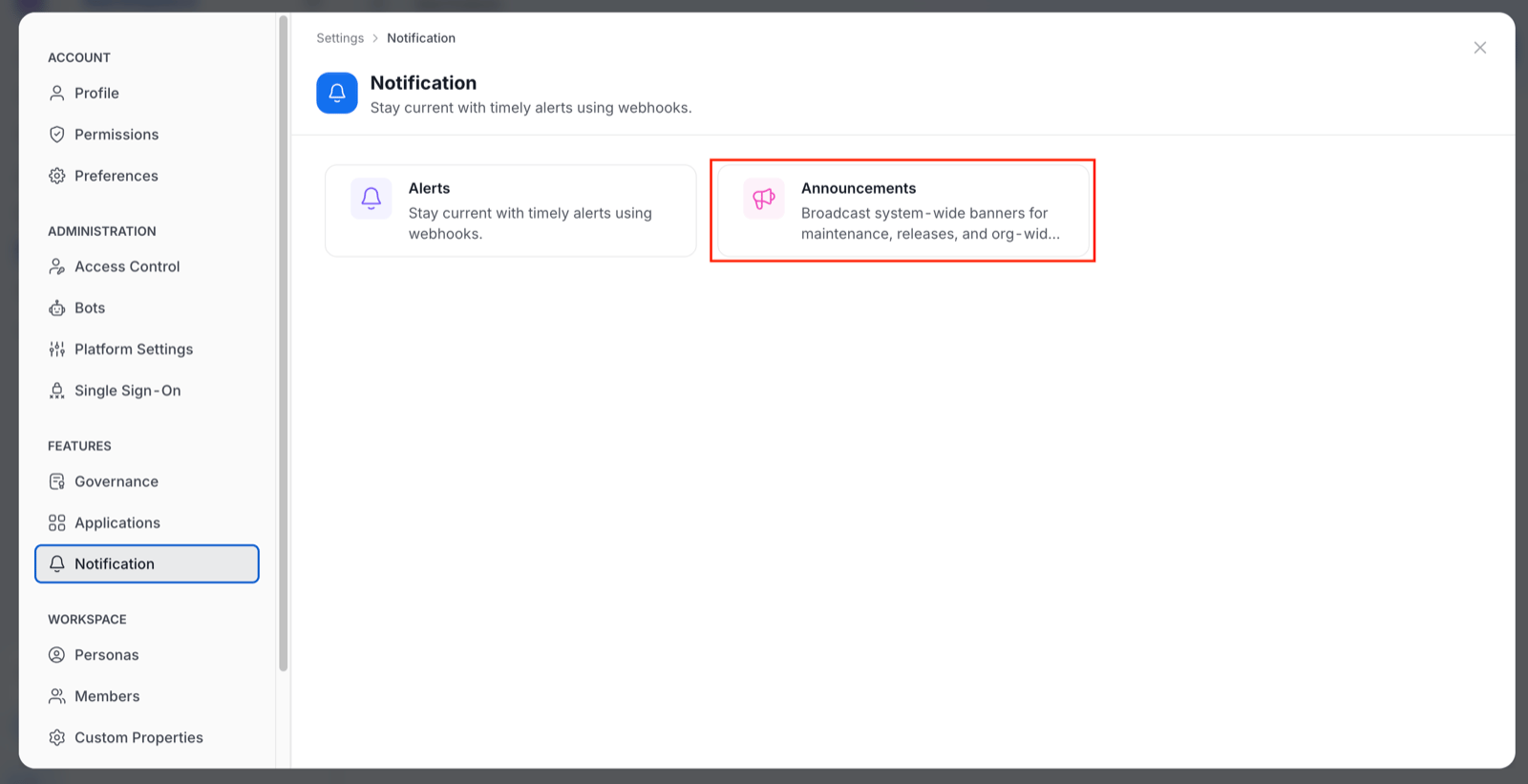
To open the list, follow these steps:- Click the Profile icon and go to Settings > Notification.
-
Click the Announcements card.
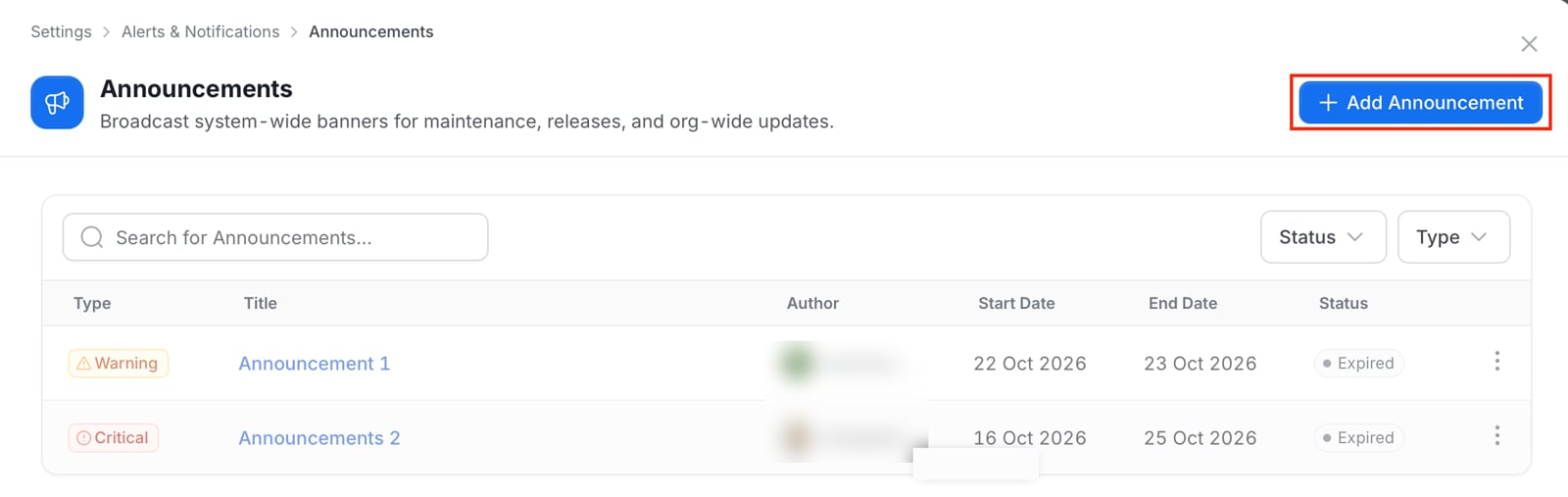
- Type: The announcement type.
- Title: The announcement title.
- Author: The user who created it.
- Start Date and End Date: The window in which the announcement is live.
- Status: Scheduled before the start date, Active between the two dates, and Expired after the end date. The status comes from the dates.
- Search: Filter by title.
- Status: Filter by Scheduled, Active, or Expired.
- Type: Filter by announcement type.
- Clear all: Appears once a filter is active and resets the filters.
Add an Announcement
To create an announcement, follow these steps:-
On the Announcements page, click Add Announcement.
-
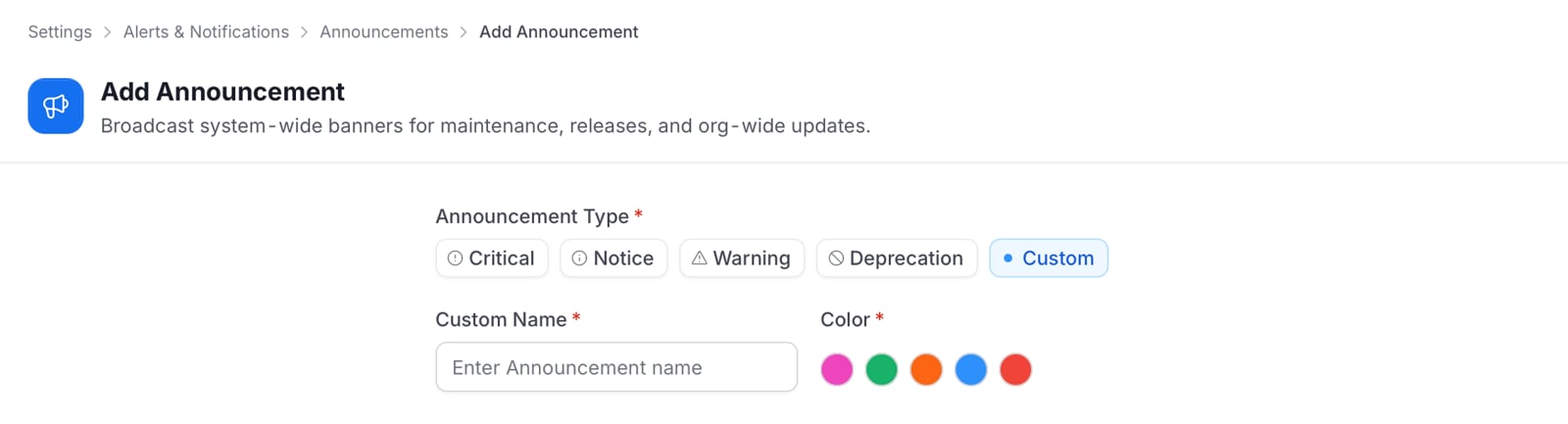
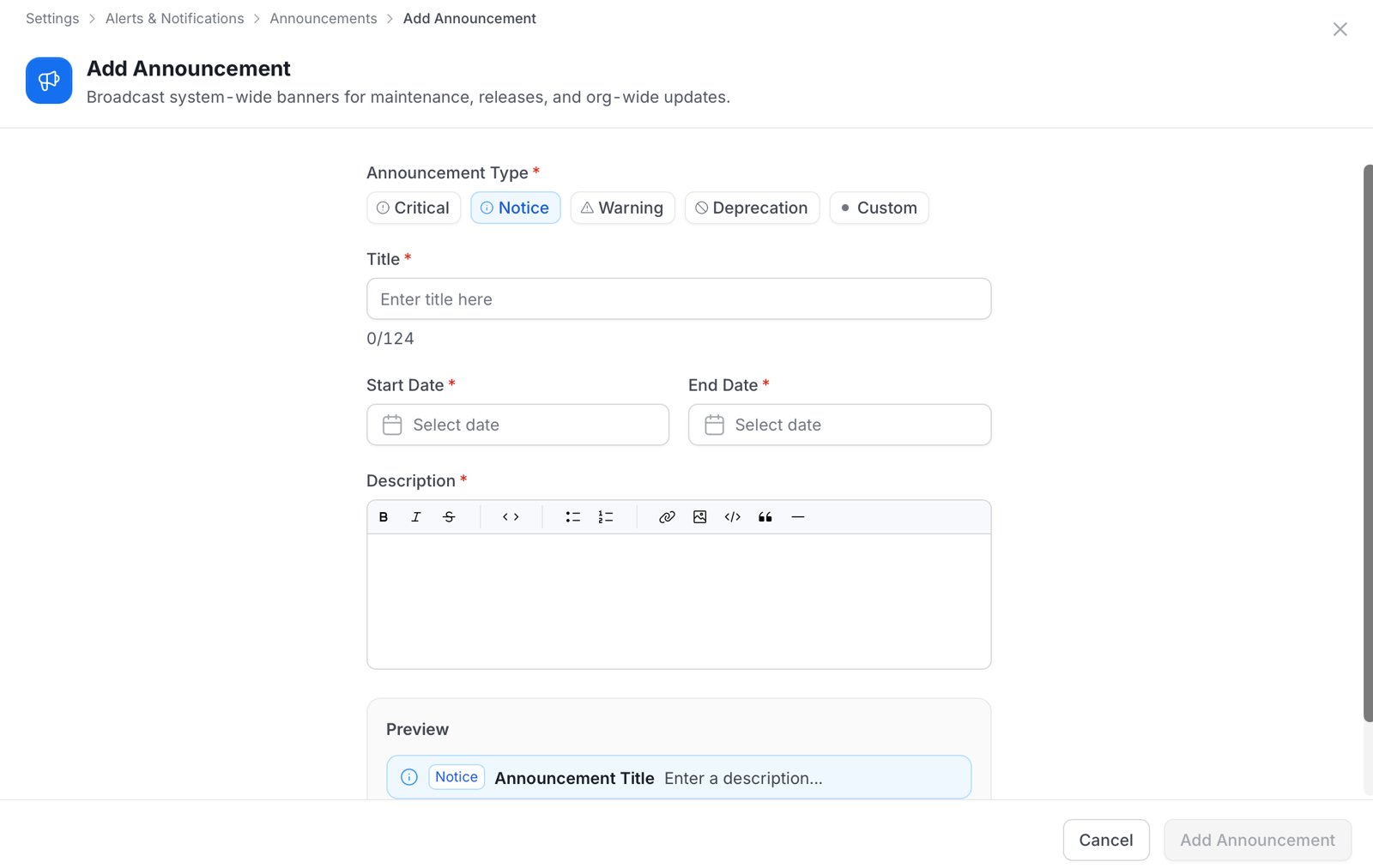
Select the Announcement Type: Critical, Notice, Warning, Deprecation, or Custom. Notice is selected by default. For Custom, enter a Custom Name (up to 64 characters) and select a Color.
- Enter the Title. It must be 5 to 124 characters, and a counter shows how many you have used.
- Set the Start Date and End Date. The end date must be after the start date.
- Enter the Description in the rich-text editor. The description is required.
- Check the Preview below the description. It shows how the banner appears to everyone in the organization.
- Click Add Announcement.
Edit, Duplicate, or Delete an Announcement
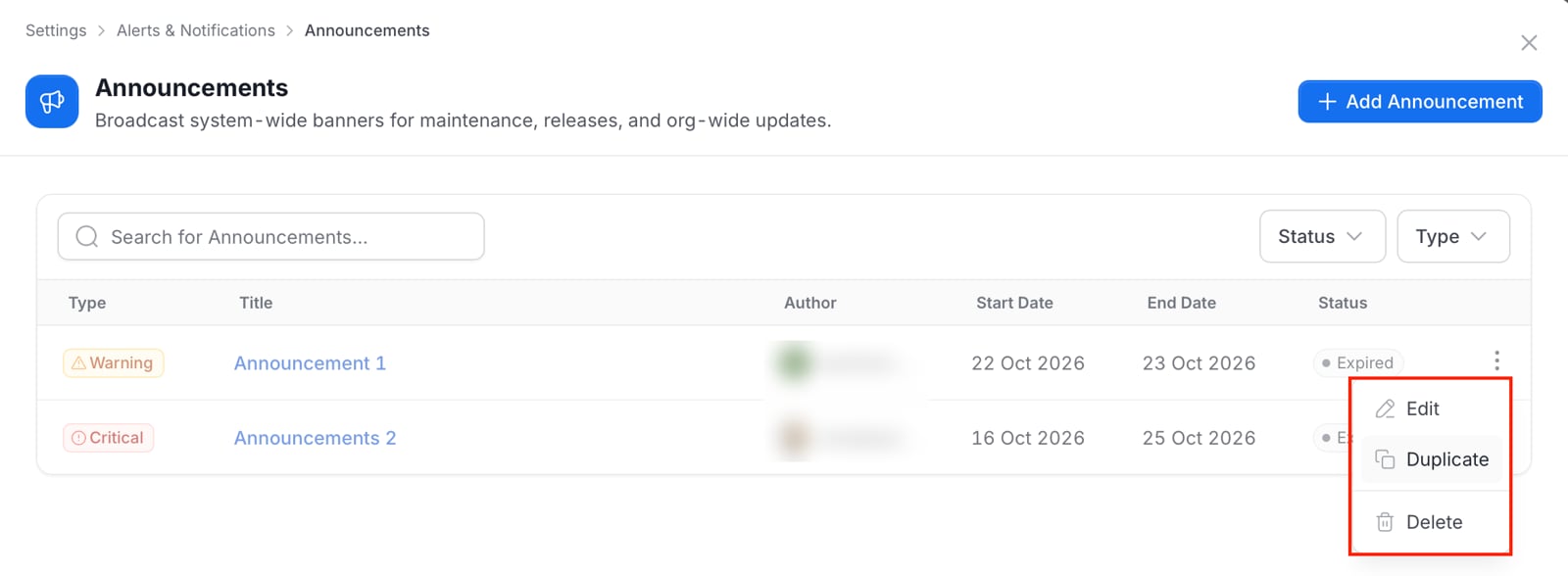
Click the ⋮ icon next to an announcement to manage it:- Edit:
- Click Edit and modify the details.
- Click Save Changes.
- Duplicate:
- Click Duplicate. A pre-filled form opens with the title followed by “(copy)”.
- Modify the details.
- Click Add Announcement. This creates a new announcement and leaves the original unchanged.
- Delete:
- Click Delete.
- Confirm the deletion when prompted.
Where You See System Announcements
You see only Critical system announcements outside Settings.- Home page: A live critical announcement appears as a banner at the top of the home page for every user. When several are live, the banner pages through them, newest first.
- Dismissing: You can dismiss a banner. The choice is remembered in your browser and does not hide the banner from anyone else.
- Other types: Notice, warning, deprecation, and custom announcements appear only in the Announcements list in Settings.
System and Asset Announcements
The following table compares the two types of announcement.
For more information, see Announcements.