
Understanding Activity Feeds
Activity feeds show the activity around the data you own and the data you follow. They are great conversation starters to collaborate with your team. In AI mode, you read your activity feed in the Inbox. In Classic mode, you read it in the Activity Feeds widget on the home page.Inbox Activity
The Inbox is available in AI mode only.
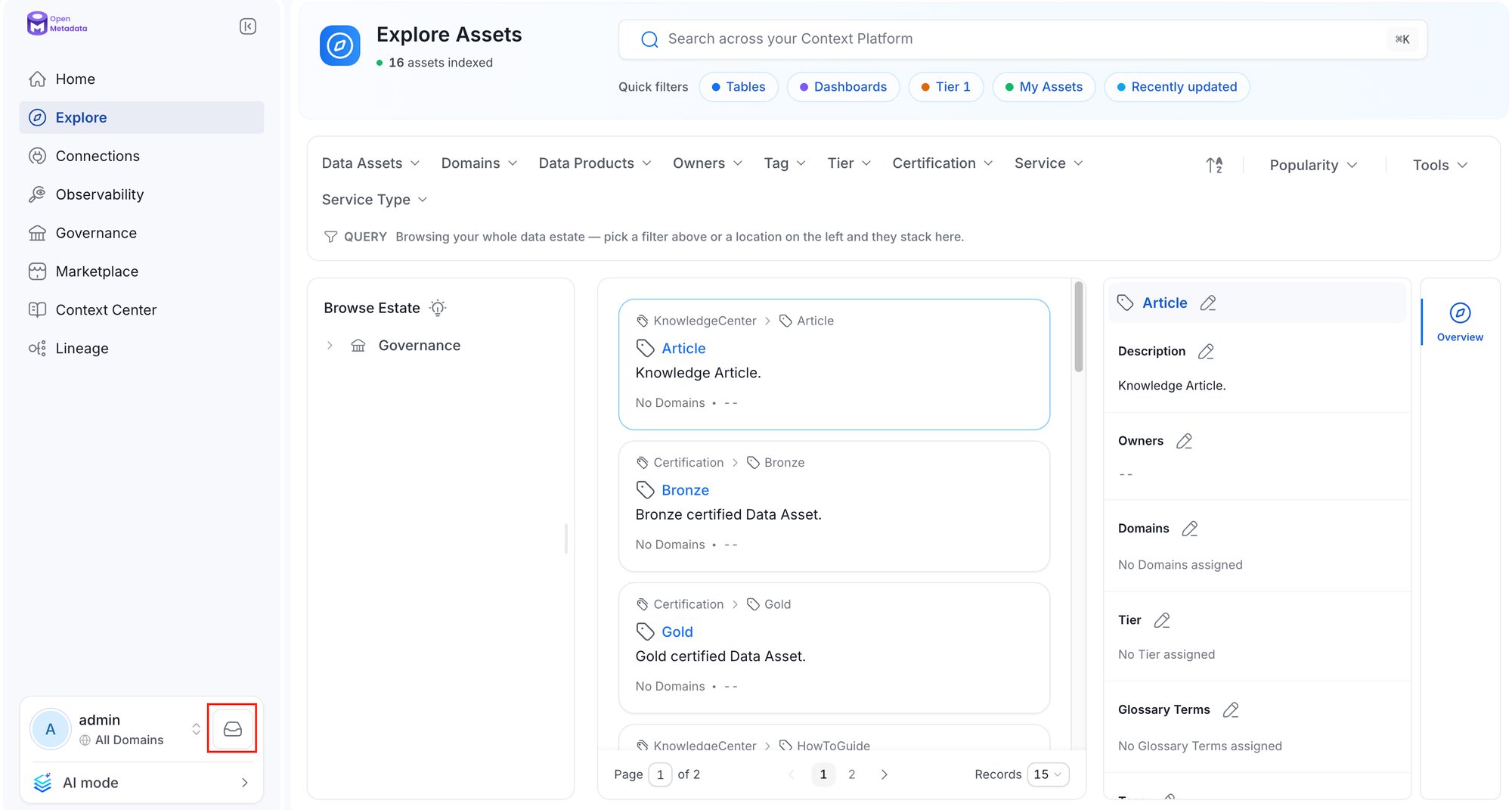
- All: All the activity you can see.
- Mentions: Activity where you or one of your teams are mentioned, including mentions in replies.
- My Assets: Activity on the data assets you own.
- Following: Activity on the data assets you follow.
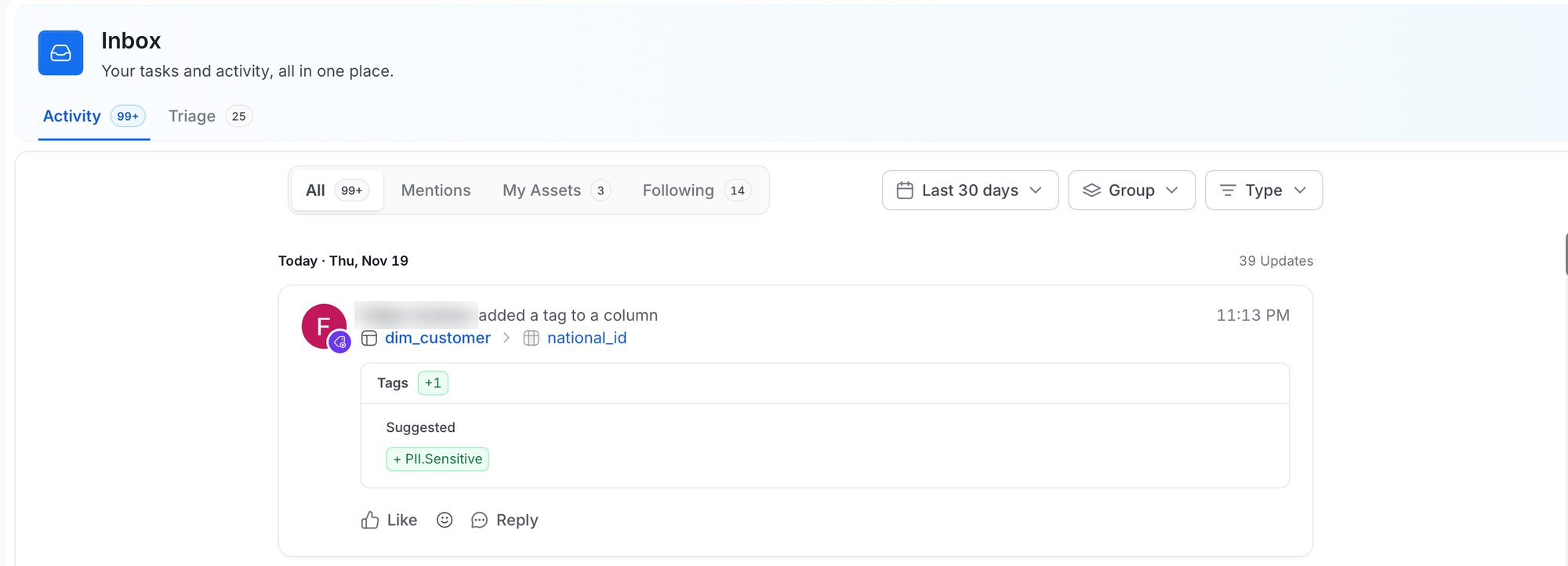
Filter and Group the Feed
Use the controls above the feed to change what it shows:- Date: Select Yesterday, Last 3 days, Last 7 days, Last 14 days, or Last 30 days. The default is Last 30 days, and the feed never goes back further than 30 days.
- Group: Select Asset or User to group the feed by data asset or by the person who made the change. Select None to group it by day, which is the default.
- Type: Select one or more of Tags, Owners, Domains, Description, and Other. Other covers everything else, such as creating or deleting an asset, and conversations.
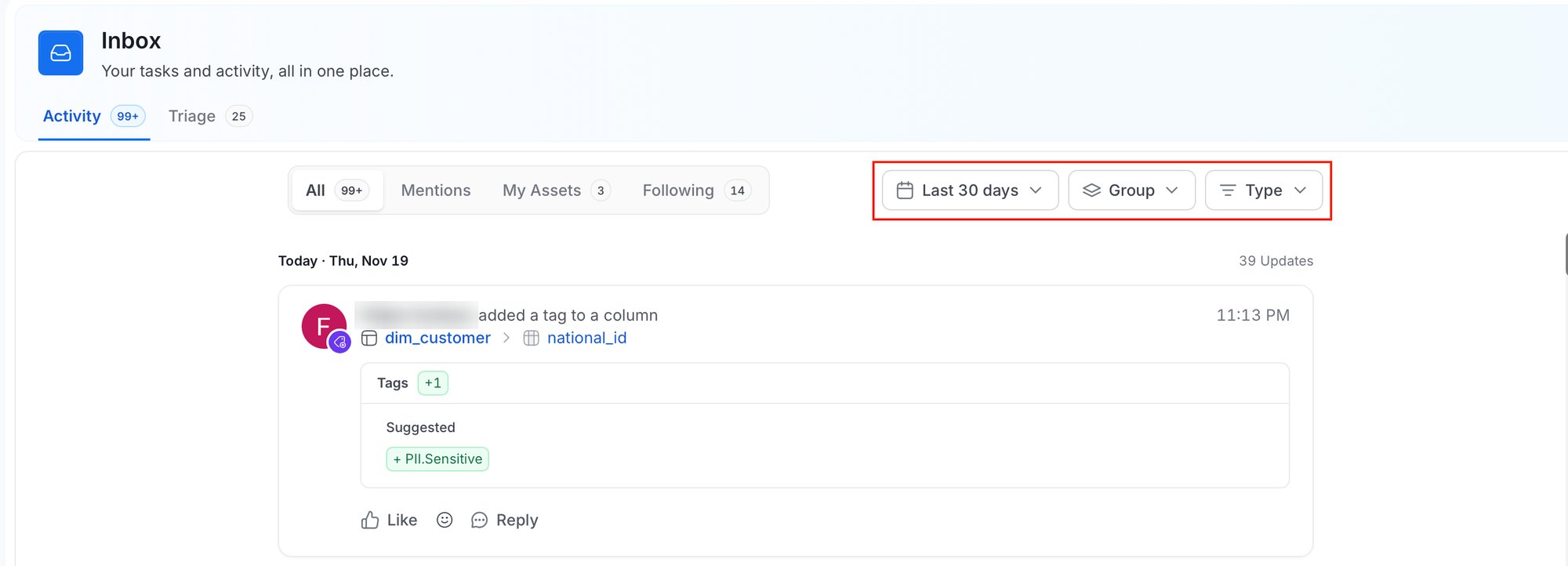
Read an Activity Card
Each card describes one event in a sentence, such as who added a tag or changed an owner. The data asset is on its own line and links to the asset page.-
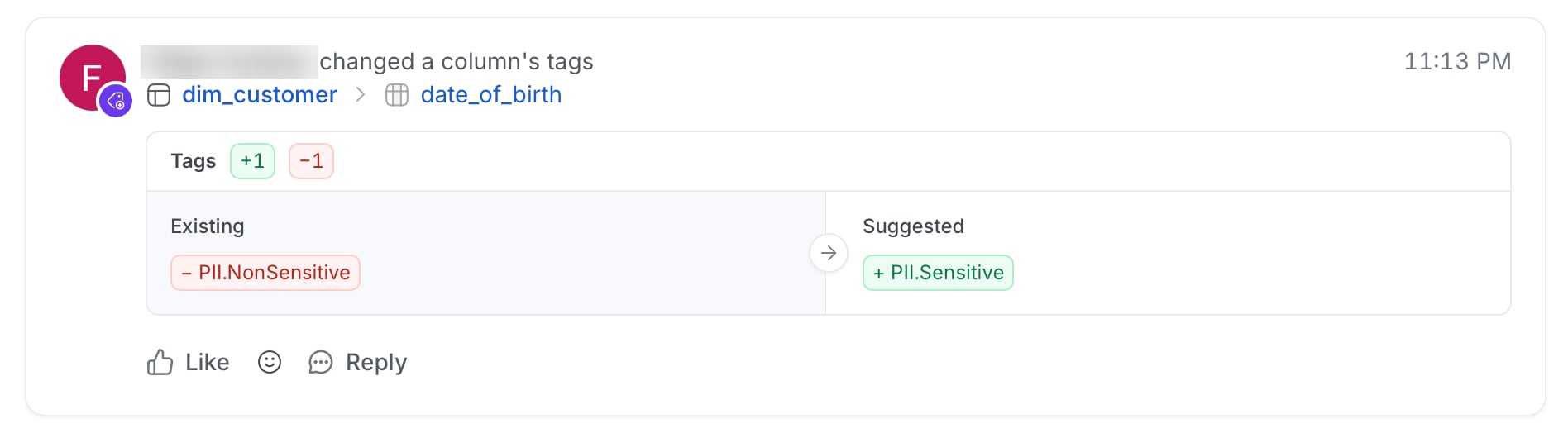
Existing and Suggested: When a tag, owner, domain, or description changes, the card shows the old value under Existing and the new value under Suggested, with the number of values added (+) and removed (−). A single edit that removes one value and adds another shows as one card.
- Mentioned you: A card shows this badge when the activity, or a reply under it, mentions you or one of your teams.
Like, React, and Reply
On each card, you can:- Click Like to like the activity.
- Add an emoji reaction.
- Click Reply, or the reply count if the card has replies, to open the replies under the card. If the card has no replies yet, the reply box opens ready to type. Click Hide replies to close them.
@ to mention a user or team, and type # to mention a data asset. The suggestions update as you type.
You can edit your own replies. You can delete a reply if you wrote it, if you are an admin, or if your role allows deleting conversations. You can also add emoji reactions to any reply.
Activity Feeds Widget in Classic Mode
In Classic mode, click the OpenMetadata icon to open the home page with the activity feeds.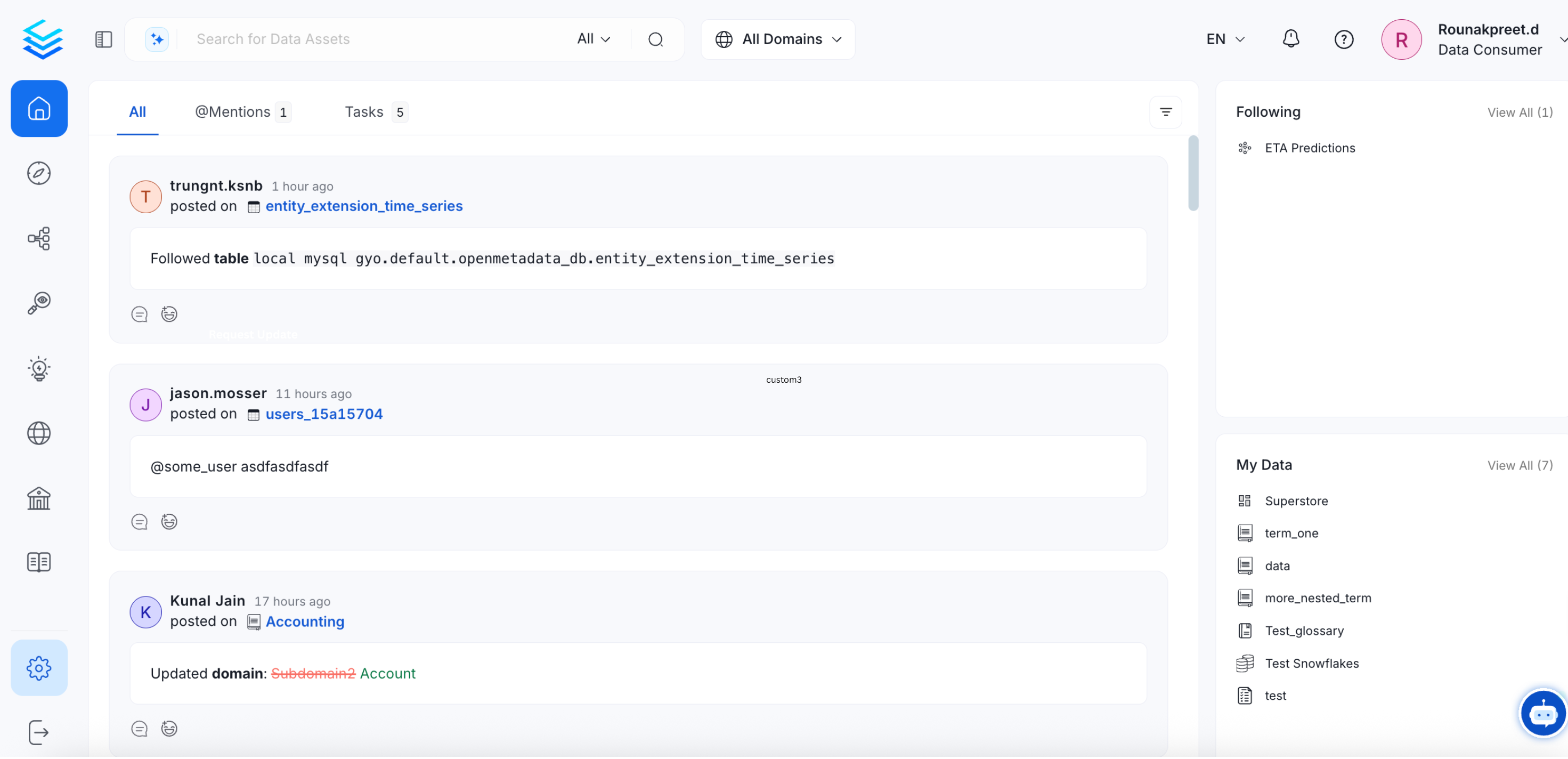
- All: All the activities related to the data assets that you own, follow, or where you are mentioned
- @Mentions: Feeds where you are mentioned
- Tasks: Tasks created by you, or assigned to you are displayed. Only the Open tasks are displayed here.
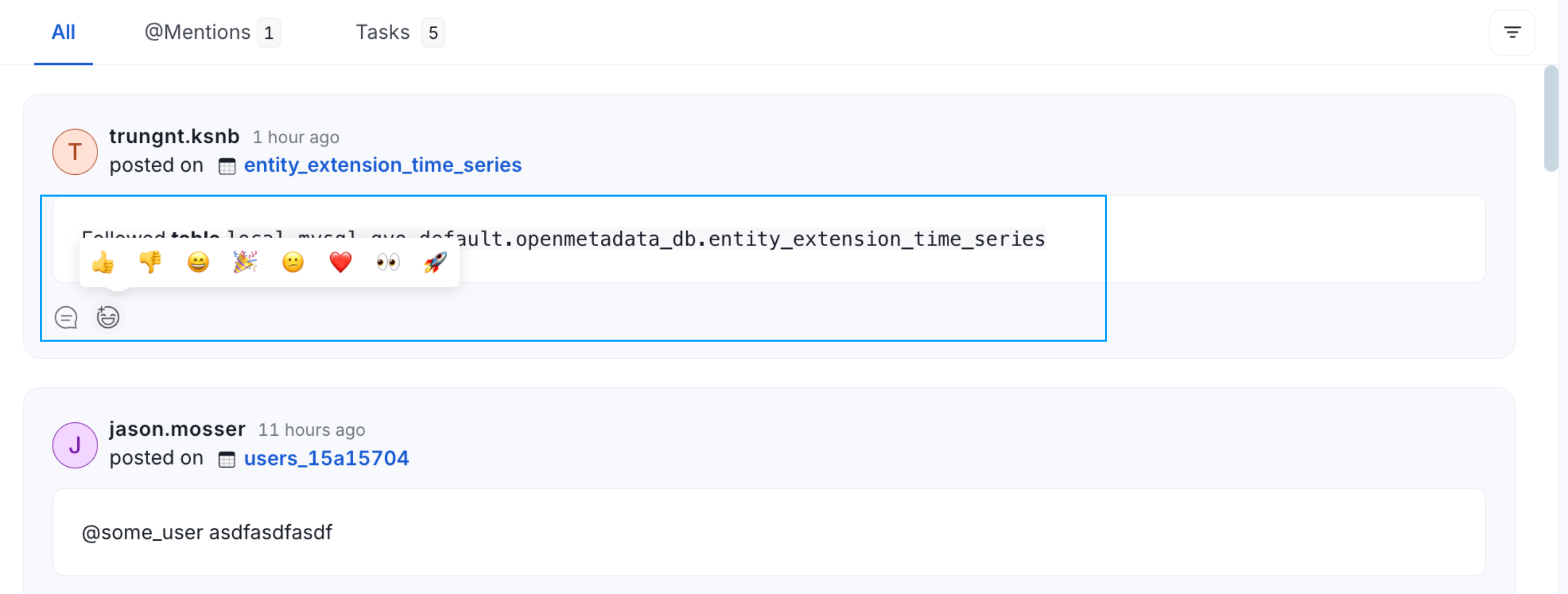
Conversation Threads
Collaborate around data assets right within OpenMetadata.