
Create Tasks
Tasks are an extension to the Conversation Threads feature where users can create tasks to request to create or update description or tags for a data asset. Tasks are assgined to the owner of the data asset by default. If there are no owners, the task can be assigned to an appropriate user or team.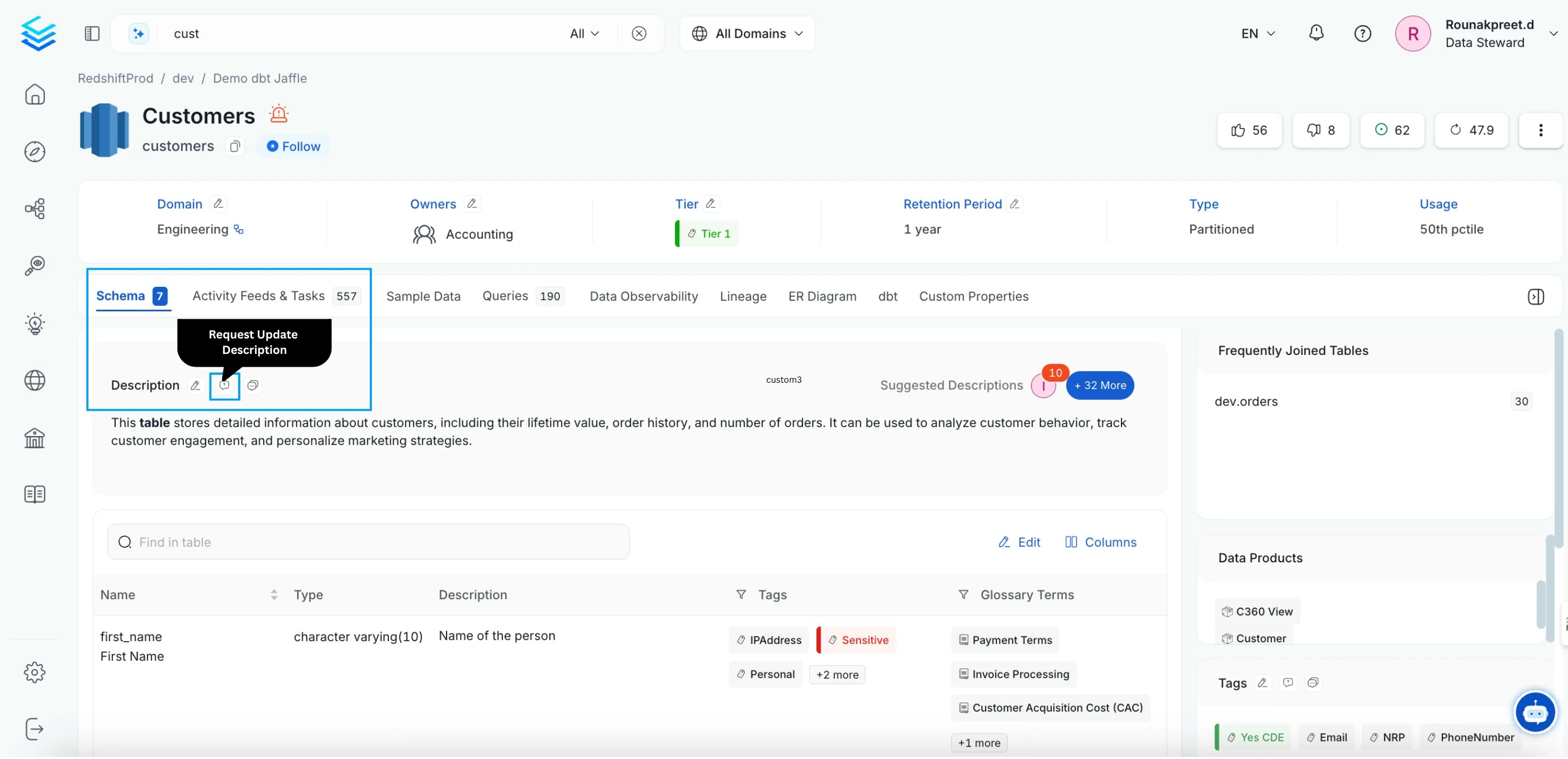
Memory Conflict Tasks
A Memory conflict task asks you to decide between two memories that contradict each other. When an application such as Collate detects that a Draft memory contradicts an Approved memory, it opens this task automatically.- You can’t create or edit a Memory conflict task, and you can’t close it by hand. It closes when the review is decided.
- The task has two outcomes, chosen with Keep this one in the Compare memories dialog. Keeping the memory in review approves it and supersedes the disputed memories. Keeping the Approved memory rejects the memory in review and leaves the disputed memory unchanged.
- The task is assigned to the owners of both memories.
Manage Tasks in the Inbox
The Inbox is available in AI mode only.
Find Tasks
Use the controls above the list to narrow it down:- All, Open, and Closed: Each tab shows the number of tasks in it. The list opens on Open.
- Search this queue: Finds tasks by title.
- Status: Narrows the list by task status. The options depend on the tab:
- Open tab: Pending approval (tasks waiting for you) and In review (tasks someone is already working on).
- Closed tab: Approved and Rejected.
- All tab: all four options.
- Type: Narrows the list to one or more task types. It offers only the types in the tasks that are loaded.
- Group: Groups the list by Type, which is the default, or by None.
- Sort: Changes the order of the list. For the steps, see Sort Tasks.
Sort Tasks
To change the order of the task list:- Open Inbox > Triage.
-
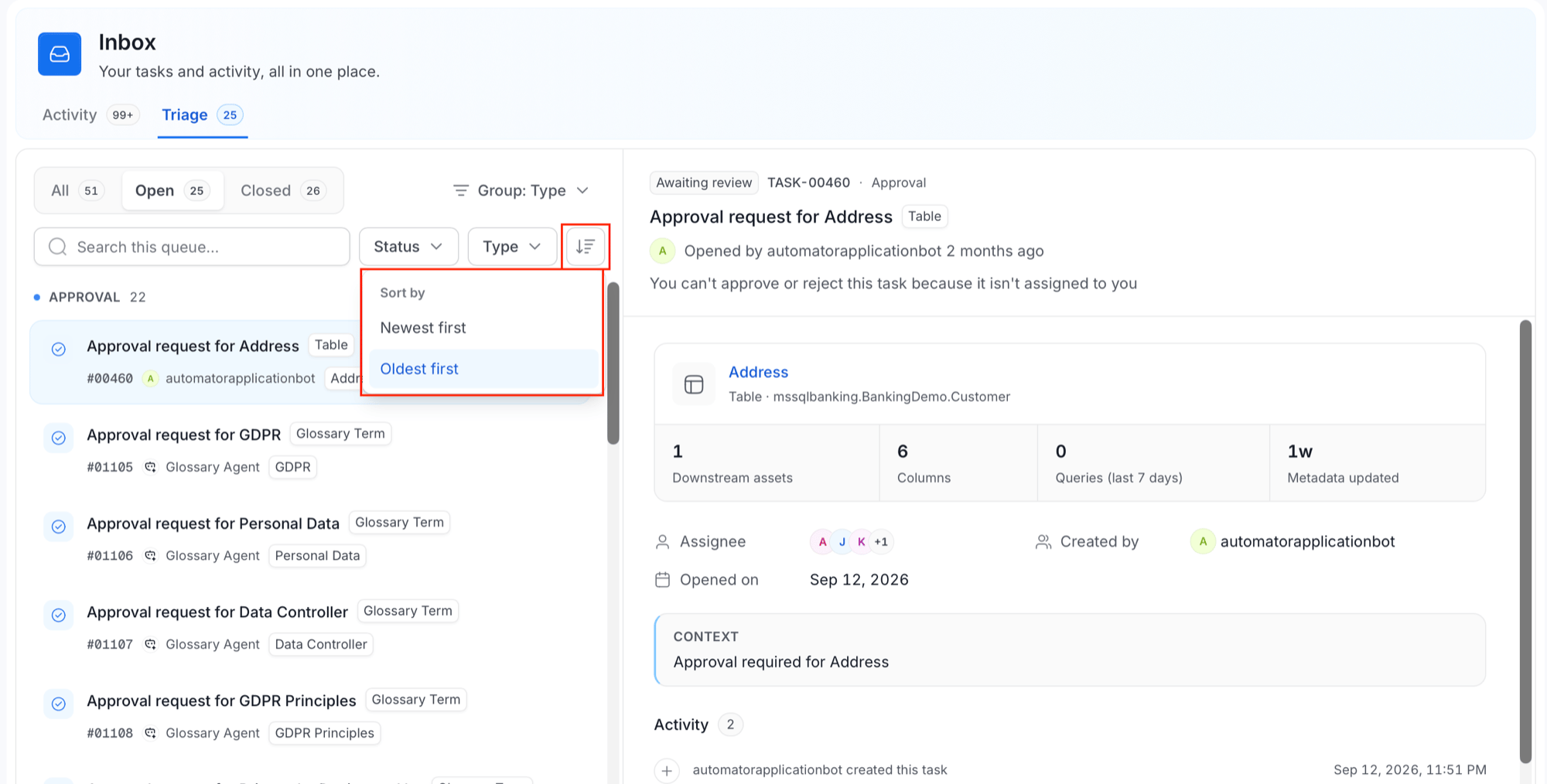
Click the Sort icon, and select one of the following options:
- Newest first: Shows the most recently created tasks first. This is the default.
- Oldest first: Shows the earliest created tasks first.
Review a Task
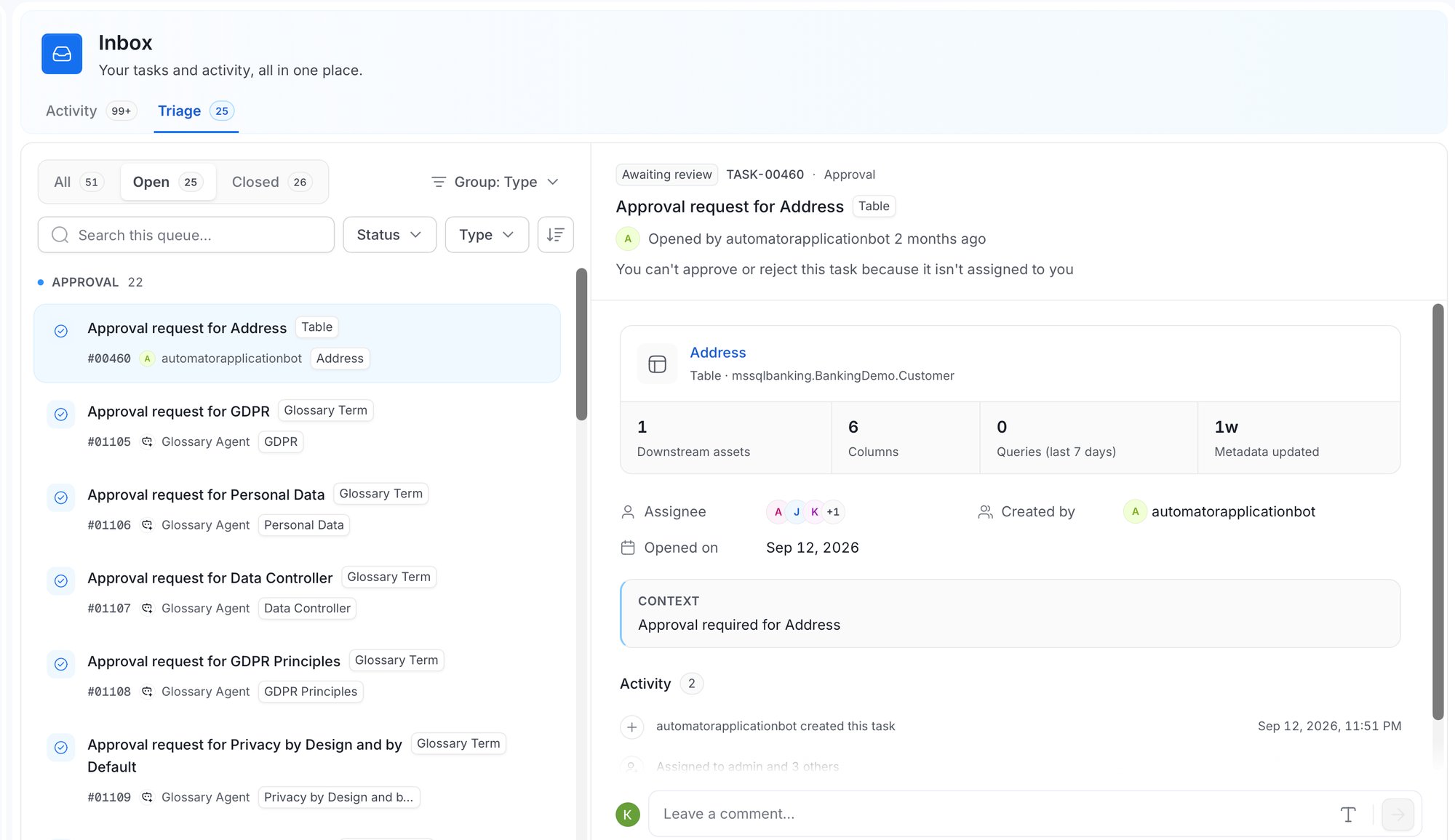
Select a task in the list to open its details panel. The details panel shows:- Status, the task ID, and the task type.
- Assignee and Created by, and the date the task was Opened on.
- The Context of the request, and a card for the data asset the task is about, with a few facts about it, such as its downstream assets, columns, and recent queries.
- An Activity timeline of what has happened on the task, and the comments on it.
How to Request for Description
Request for a description and discuss the same within OpenMetadata
How to Request for Tags
Request for tags and discuss about the same, all within OpenMetadata.