
How to Follow a Data Asset
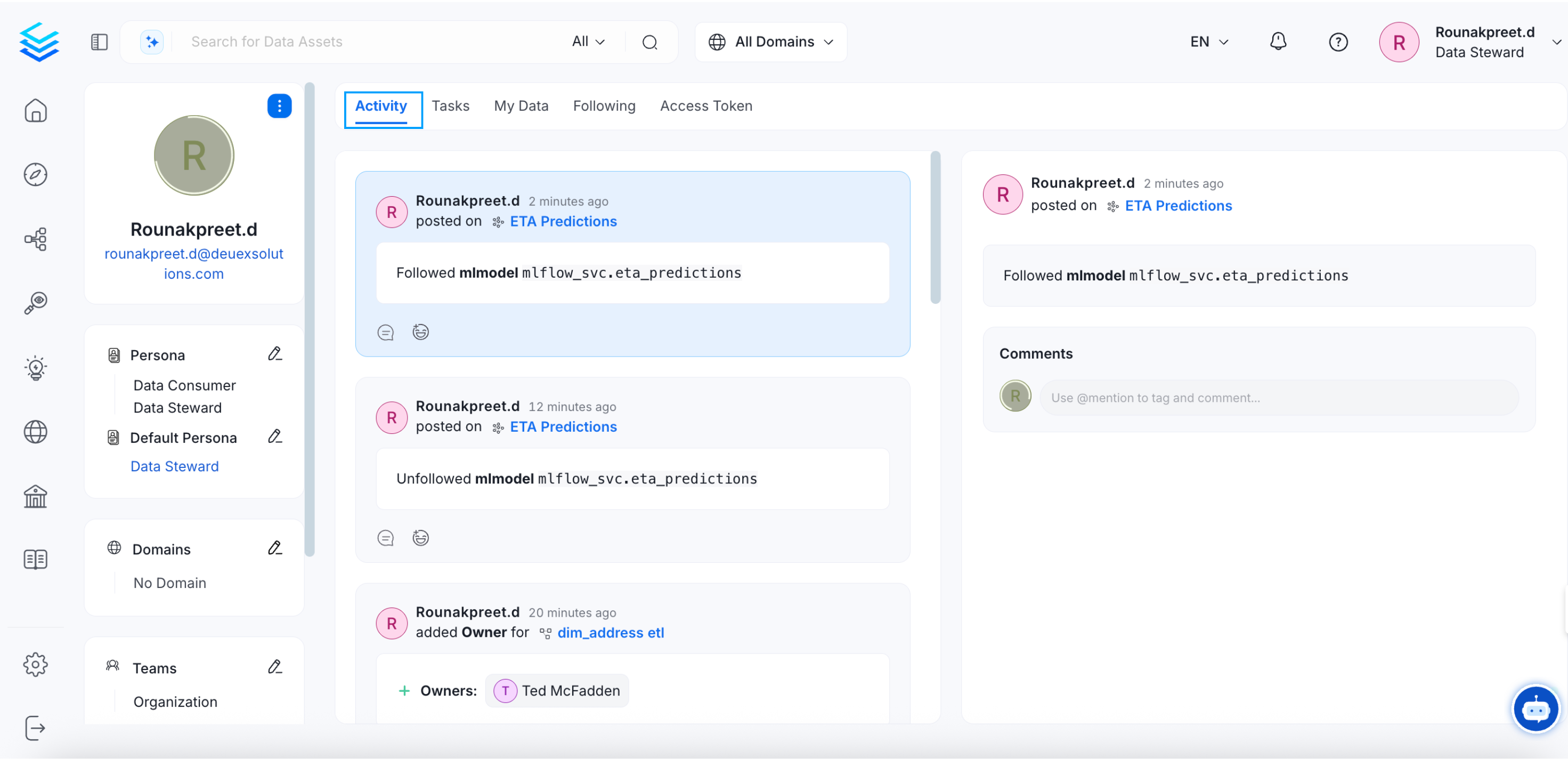
Users can get timely information about all the activities, announcements, and feeds related to a data asset by following those assets. The owners of the data assets will receive all the updates by default. The follow option can be used for the assets that you do not own.
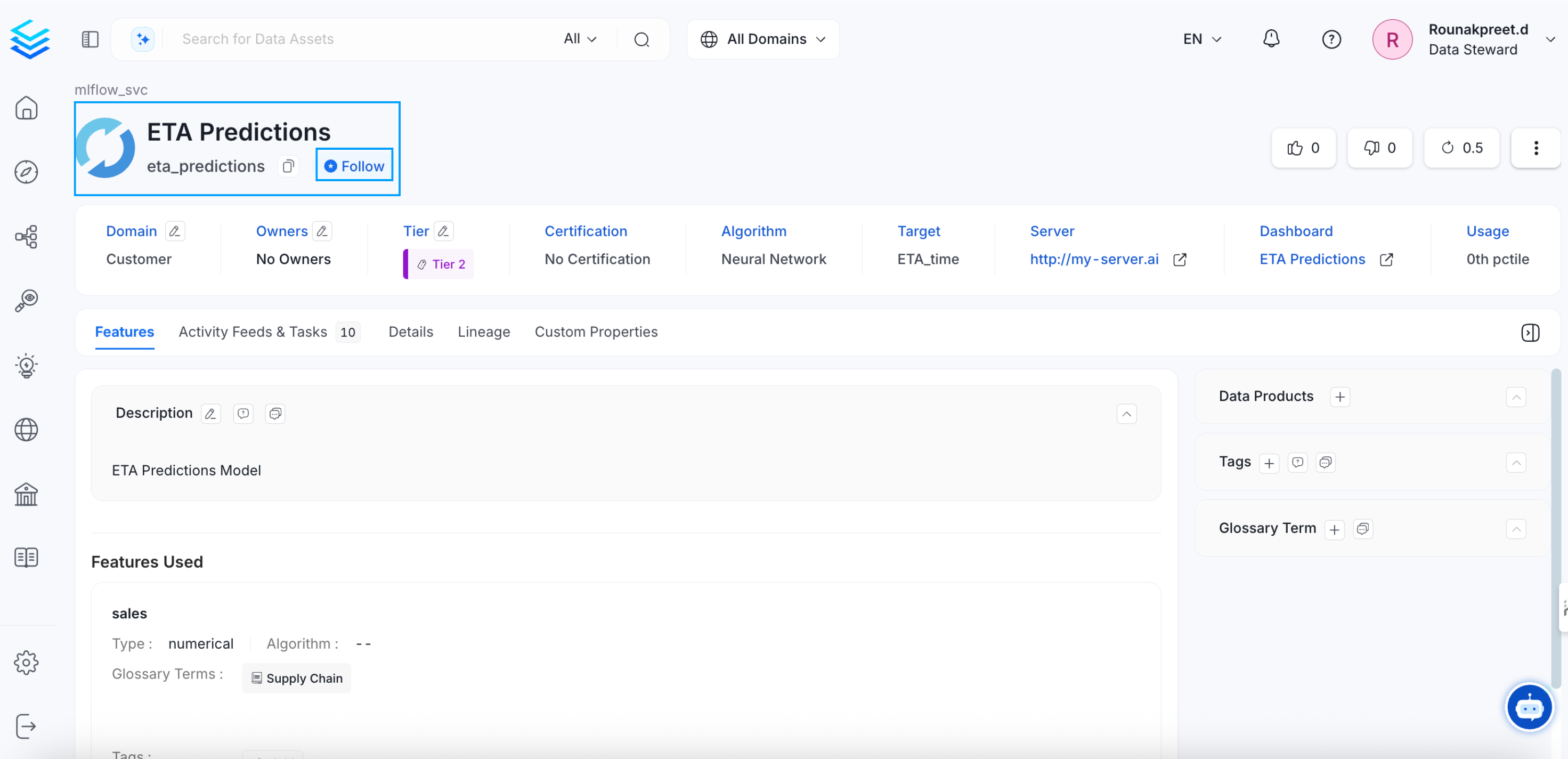
To follow a data asset,
- Navigate to the Explore page.
- Select the relevant type of data asset (Tables, Topics, Dashboards, Pipelines, ML Models, and Containers).
- Select a data asset.
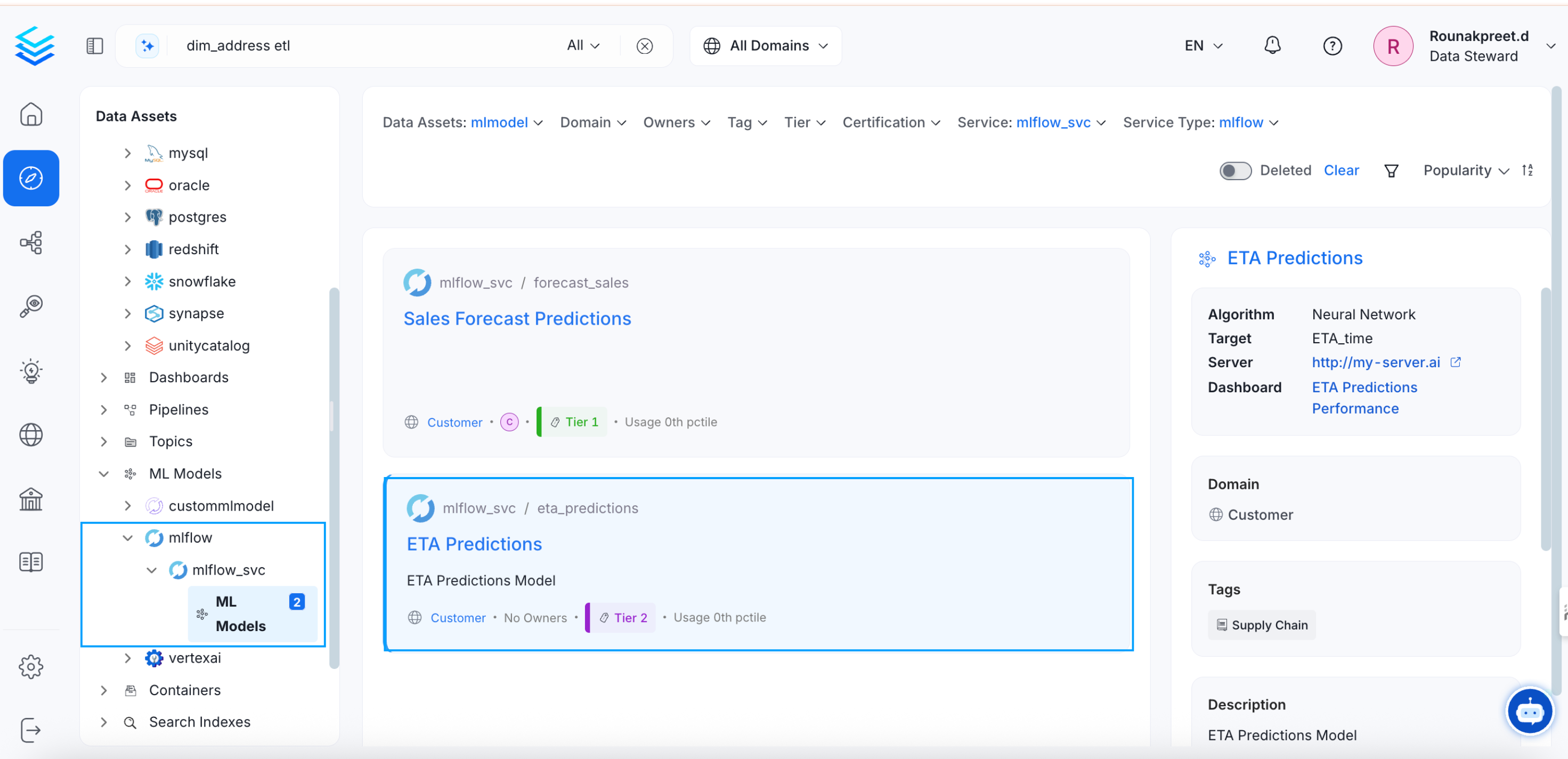
- Click the Follow button to start following it.
See the Assets You Follow
The way you see the assets you follow depends on your app mode.AI Mode
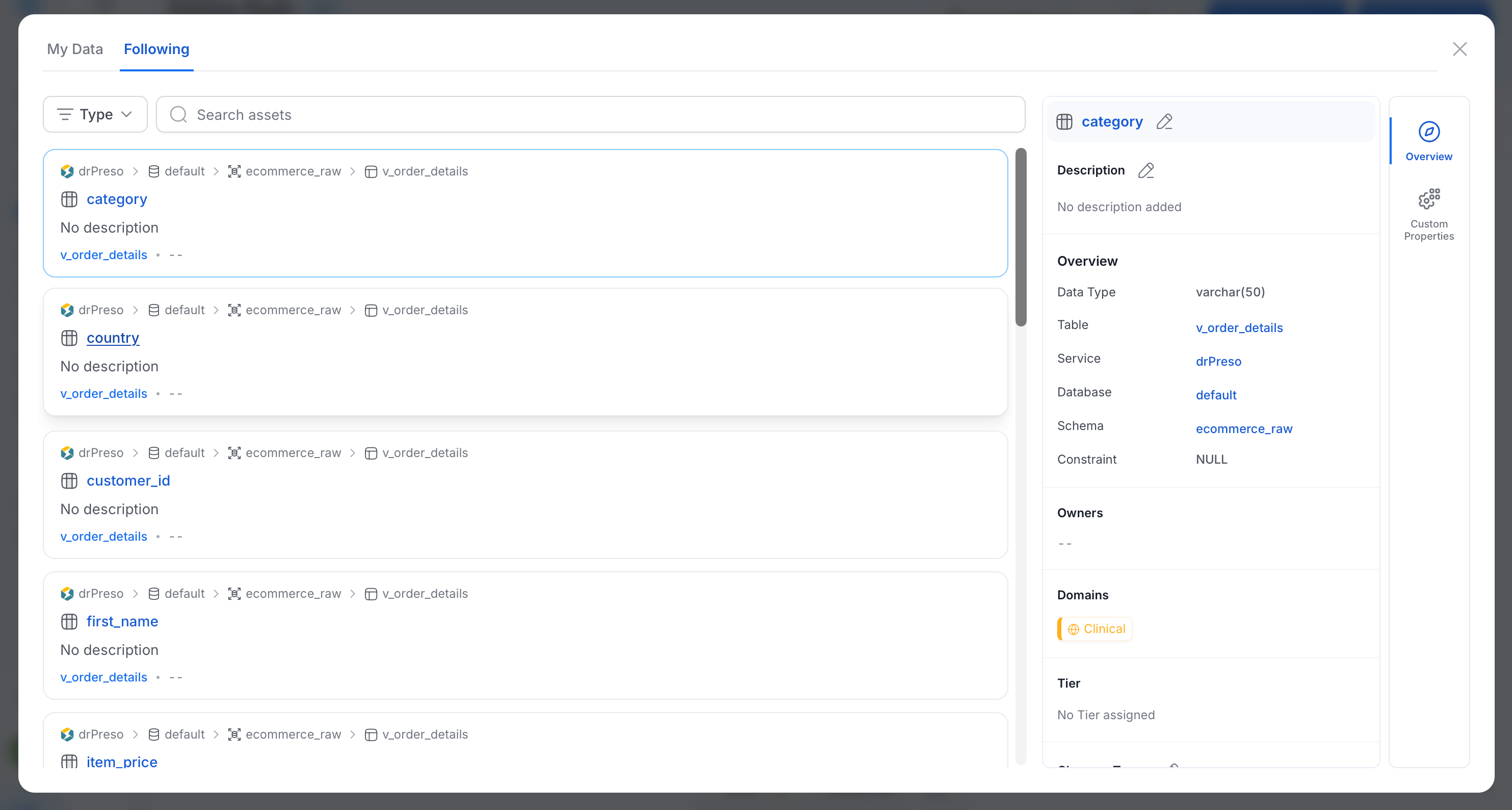
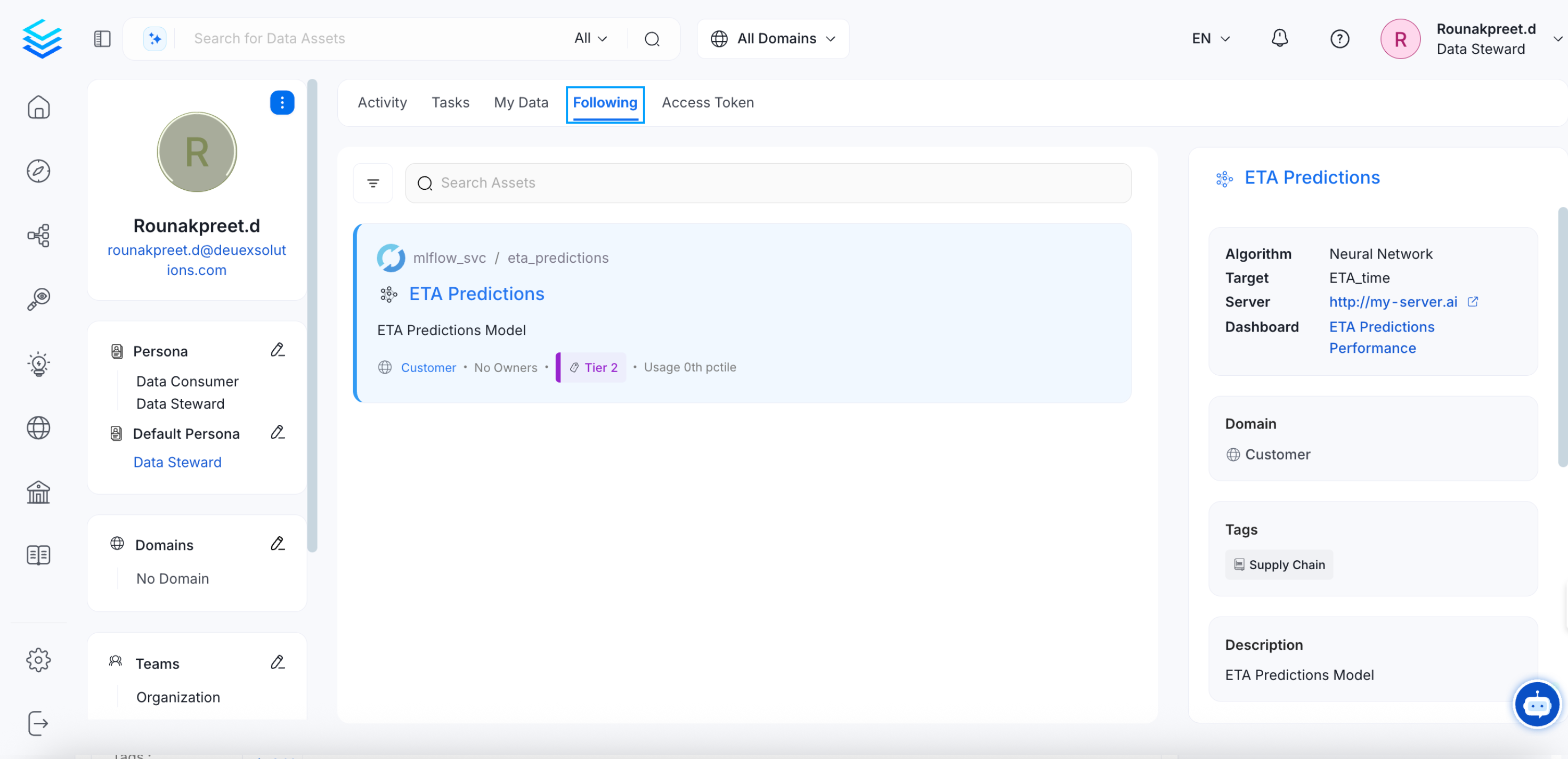
The assets you follow appear in the Following tab of the Yours and Followed card on the home page. Click View All Followed Assets to open the full list. For more information, see Yours and Followed. You can also open the full list from the profile menu:- Click the Profile icon and select My Data & Following.
- Select the Following tab.
- Use the Type filter to show one asset type, or use Search assets to find an asset by name.
- Select an asset to see its Overview and Custom Properties in the details panel.
Classic Mode
The data assets you are following are displayed in the Following section on the My Data page.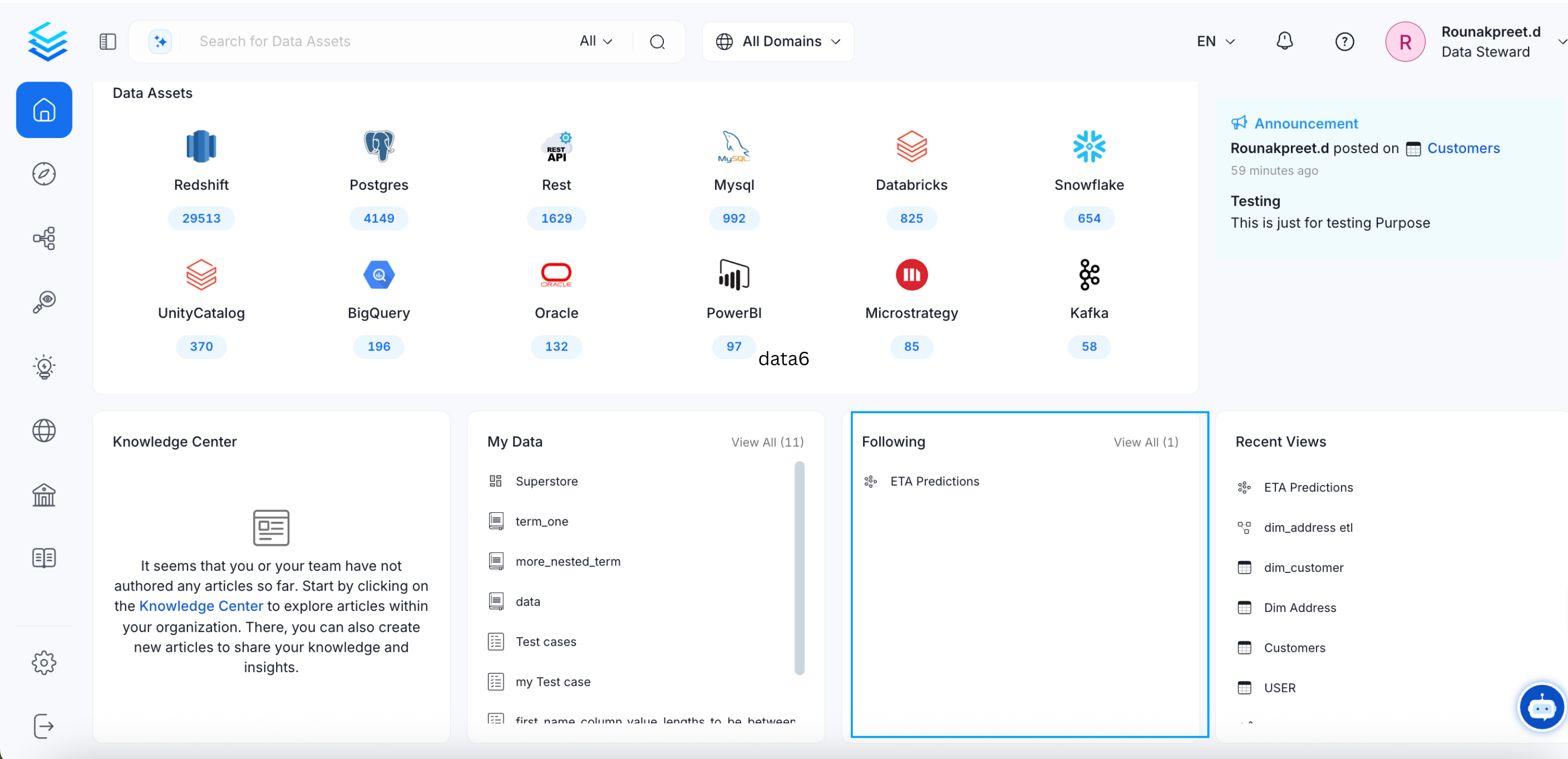
How to Add Tags
Add tags to data assets and learn about auto-PII classification.