
Create Quality Test Cases
Run data quality tests at the table, column, and dimension level across all supported database connectors. Tests range from business validations, which confirm data meets real-world expectations, to technical checks such as ensuring required columns are never null and identifier columns hold only unique values. You don’t need a YAML or JSON config file. Set up everything from the UI by choosing a test level, filling in the details, and creating the test. Before you start, make sure you have permission to create tests on the table.How to Create a Test
- Go to the table you want to test and click the Data Observability tab.
-
Click Add Test.
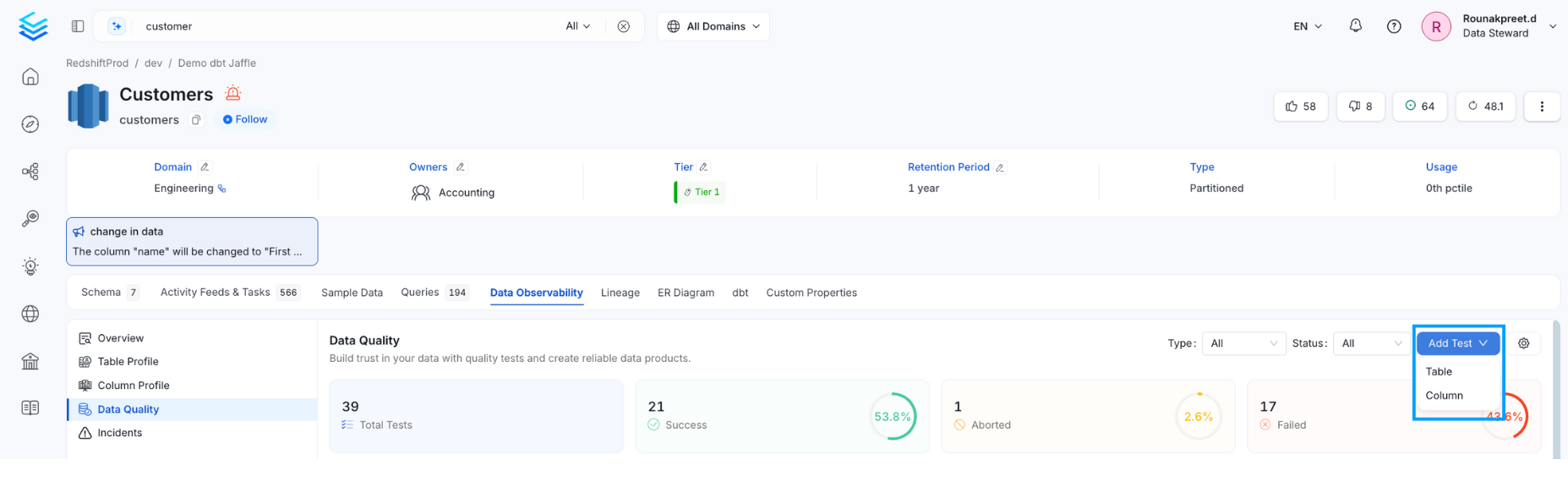
- Select a Table, Column, or Dimension level test.
- Enter the test details. See Table Level Test, Column Level Test, and Dimension Level Test for the fields of each level.
- Click Create to save the test.
Table Level Test
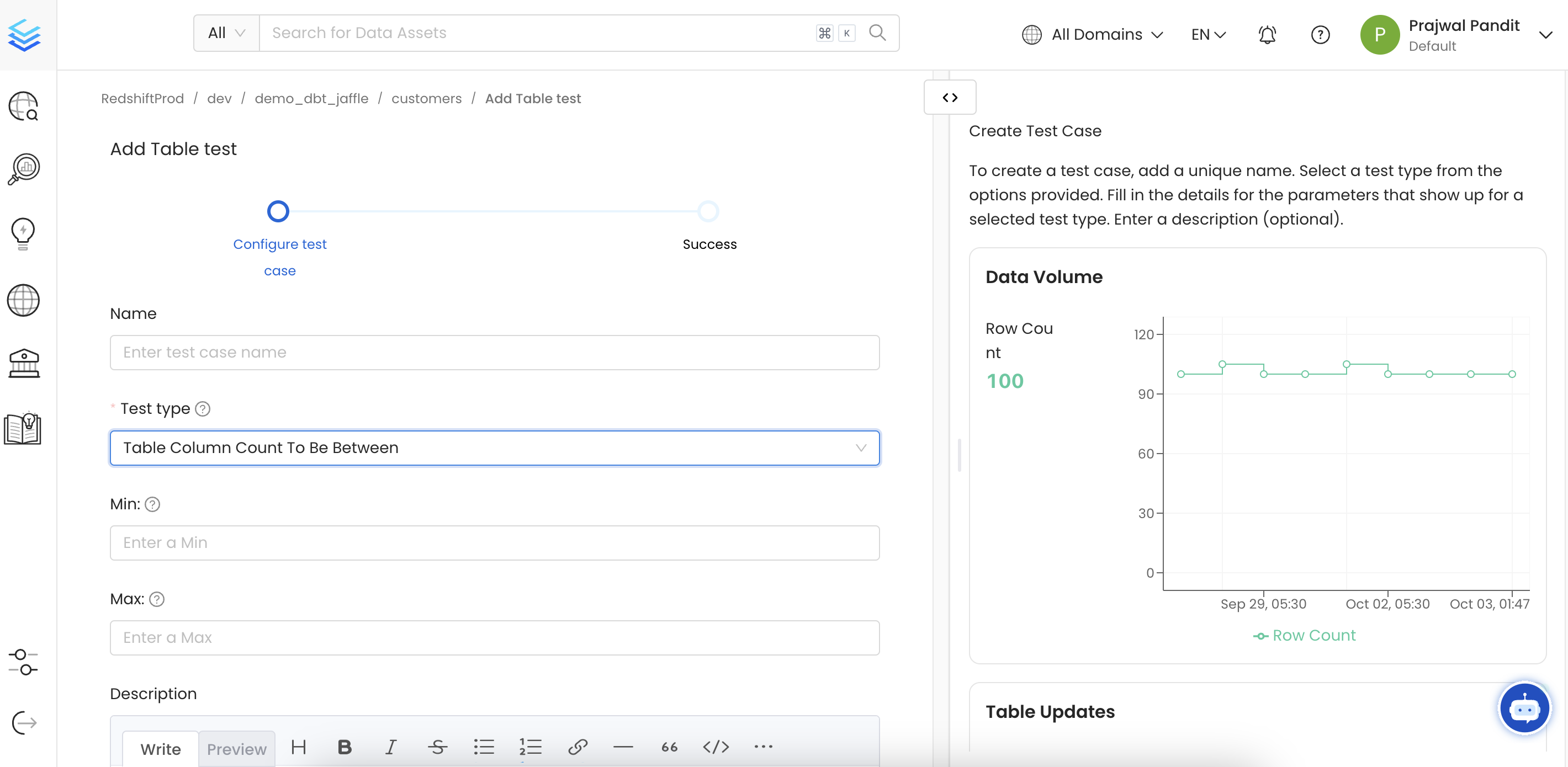
A Table Level Test validates properties of the whole table, such as row counts or column structure. It can also check insert freshness or custom SQL logic. Enter the following details:- Name: A name that describes your test case.
- Test Type: The validation to run. The fields below it depend on the test type.
- Description: What the test validates.
- Table Column Count to be Between: Define the Min. and Max.
- Table Column Count to Equal: Define a number.
- Table Column Name to Exist: Define a column name.
- Table Column Names to Match Set: Add comma-separated column names to match. Optionally, verify that the column names are in order.
- Custom SQL Query: Define a SQL expression. Select a strategy if it should apply for Rows or for Count. Define a threshold to determine if the test passes or fails.
- Table Row Count to be Between: Define the Min. and Max.
- Table Row Count to Equal: Define a number.
- Table Row Inserted Count to be Between: Define the Min. and Max. row count. This test will work for columns whose values are of the type Timestamp, Date, and Date Time field. Specify the range type in terms of Hour, Day, Month, or Year. Define the interval based on the range type selected.
- Compare 2 Tables for Differences: Compare 2 tables for differences. Checks integrity between the two tables.
Column Level Test
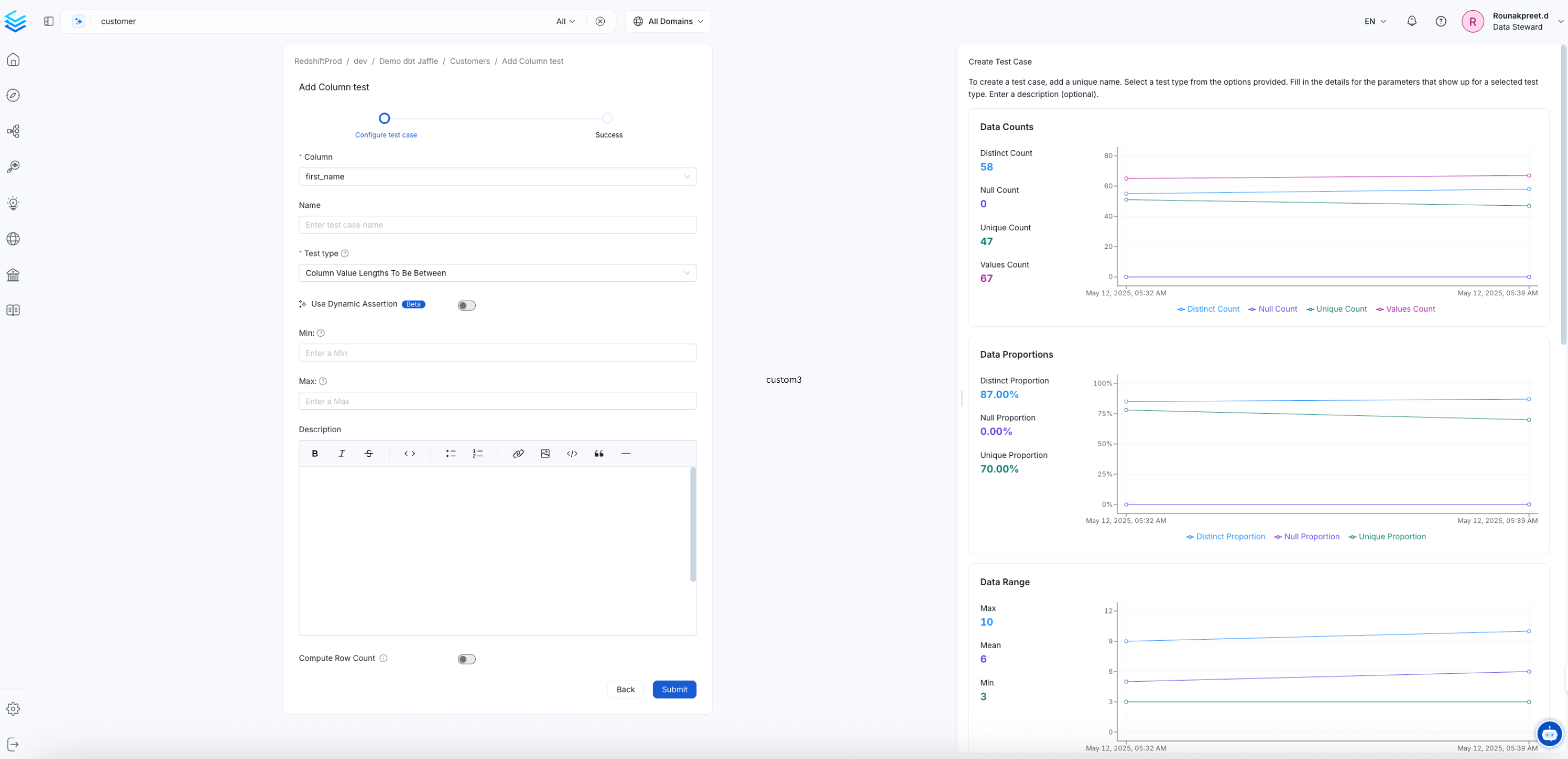
A Column Level Test validates the values of one column, such as null counts or value ranges. It can also check uniqueness and pattern matching. Enter the following details:- Column: The column to test. A summary of the column appears next to the form.
- Name: A name that describes your test case.
- Test Type: The validation to run. The fields below it depend on the test type.
- Description: What the test validates.
- Column Value Lengths to be Between: Define the Min. and Max.
- Column Value Max. to be Between: Define the Min. and Max.
- Column Value Mean to be Between: Define the Min. and Max.
- Column Value Median to be Between: Define the Min. and Max.
- Column Value Min. to be Between: Define the Min. and Max.
- Column Values Missing Count: Define the number of missing values. Optionally, match all null and empty values as missing, and configure additional missing strings, such as N/A.
- Column Values Sum to be Between: Define the Min. and Max.
- Column Value Std Dev to be Between: Define the Min. and Max.
- Column Values to be Between: Define the Min. and Max.
- Column Values to be in Set: Add an array of allowed values.
- Column Values to be Not in Set: Add an array of forbidden values.
- Column Values to be Not Null
- Column Values to be Unique
- Column Values to Match Regex Pattern: Define the regular expression that the column entries should match.
- Column Values to Not Match Regex: Define the regular expression that the column entries should not match.
- Column Values To Be At Expected Location: Define a geographic area, such as a radius around an expected location, that latitude and longitude values must fall within.
Dimension Level Test
A dimension level test is a column test whose results are split by one or more dimension columns, to show which segment of the data is failing. For concepts, setup, and examples, see Dimensional Validation.View Test Results
After you create a test, it appears in the Data Quality tab. Edit its display name and description there.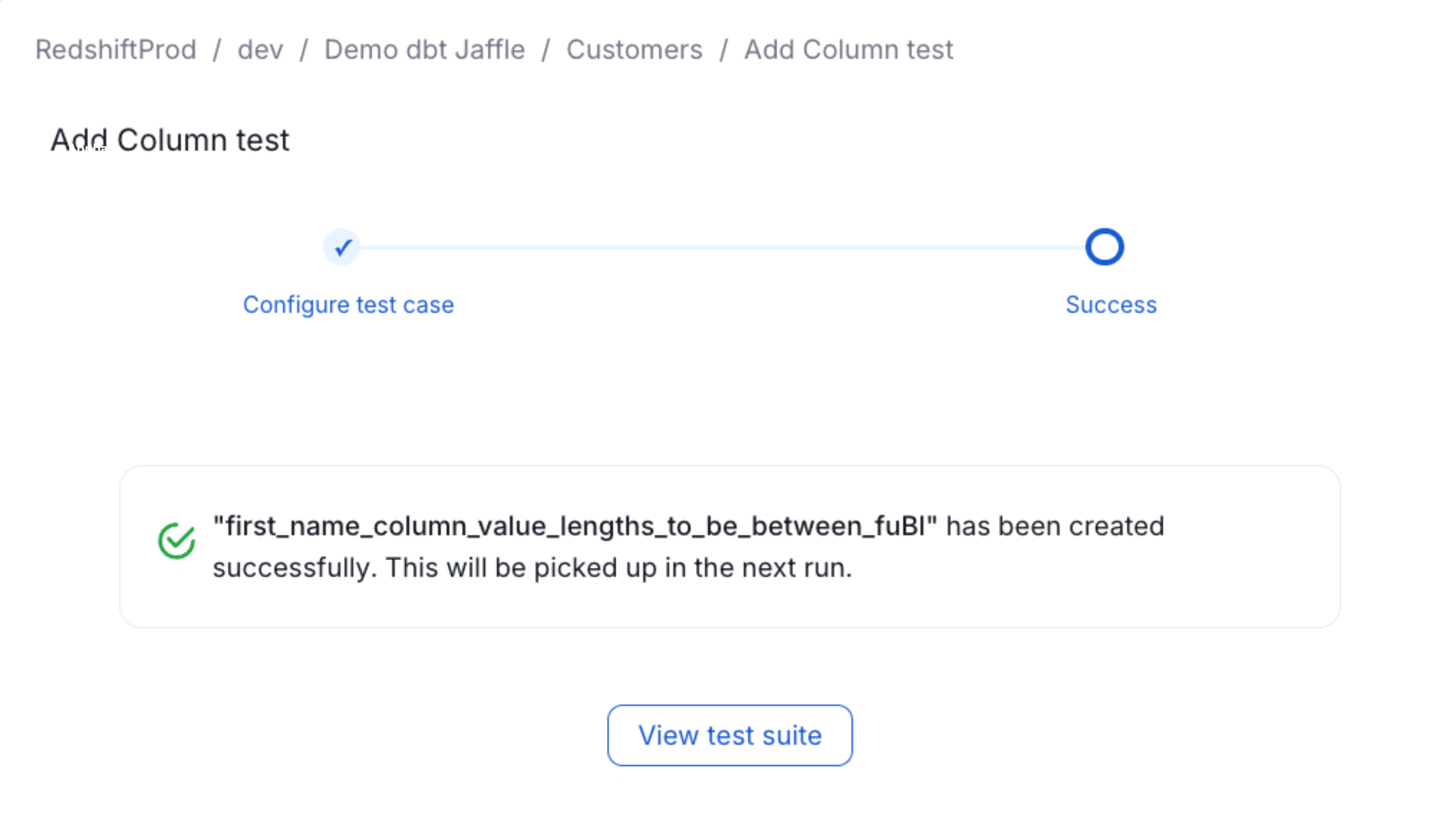
Set Up a Pipeline
Set up a pipeline to run test cases at a regular interval, or on demand.-
On the Data Quality page, select the test suite and click the Pipelines tab.
Alternatively, open the table and navigate to the Data Observability > Data Quality tab.
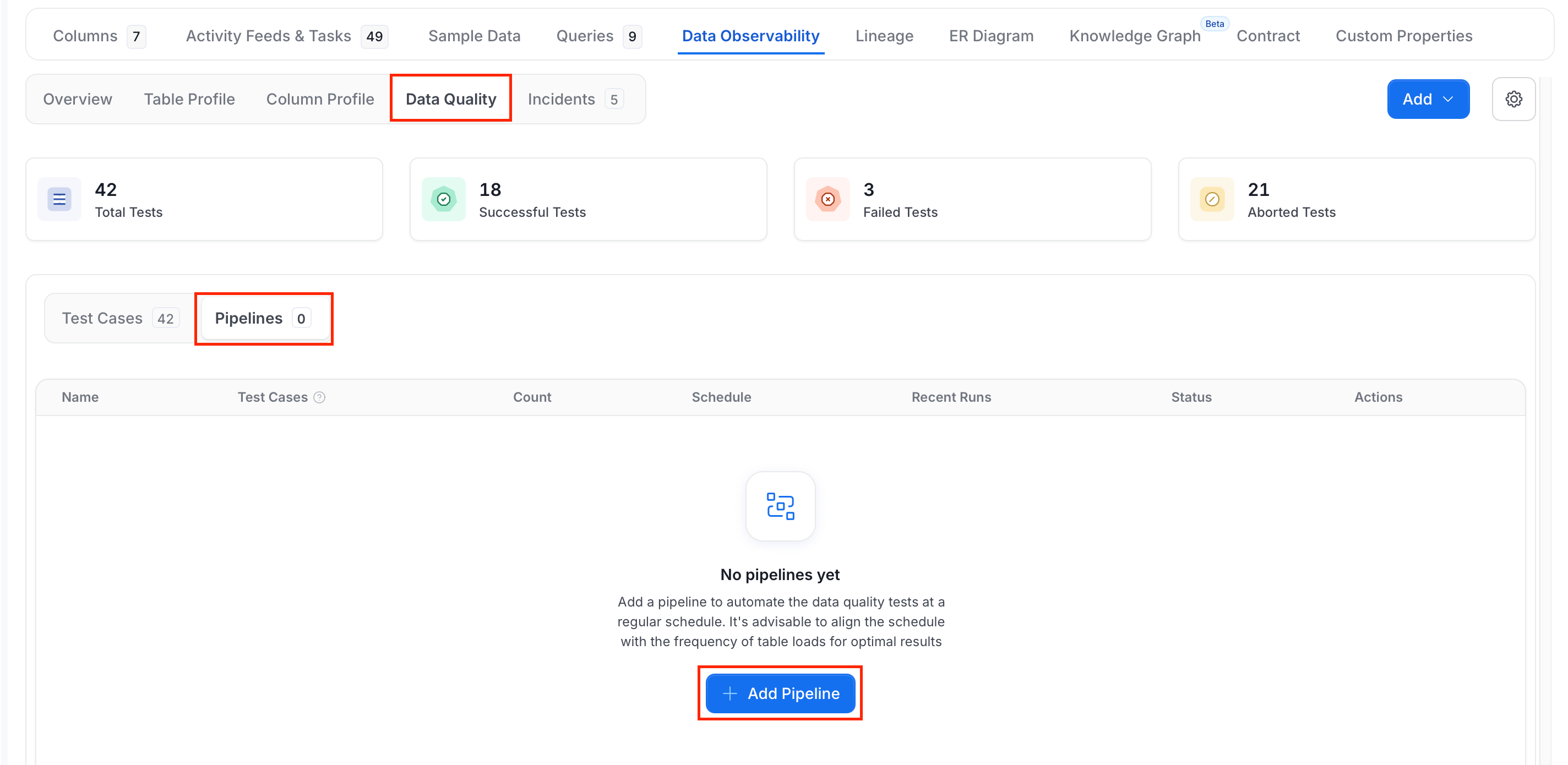
- Click Add Pipeline.
-
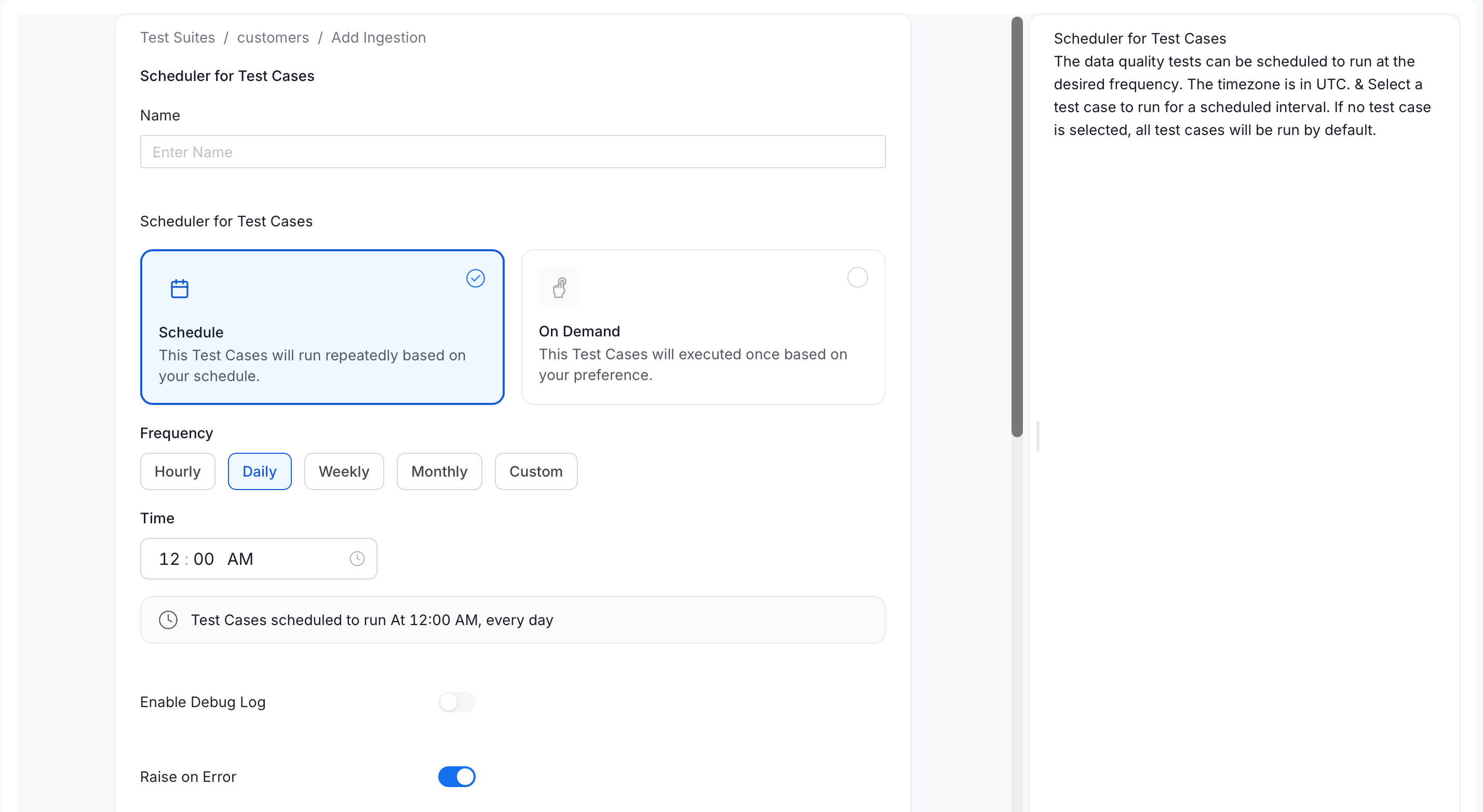
In the Add Ingestion form, do the following:
- Enter a Name for the pipeline.
-
Under Scheduler for Test Cases, choose how the pipeline runs:
- Schedule: the test cases run repeatedly on your schedule.
- On Demand: the test cases run once, when you start them.
- For Schedule, choose a Frequency: Hourly, Daily, Weekly, Monthly, or Custom.
- Set the Time. A line below it summarizes the result, for example “Test Cases scheduled to run At 12:00 AM, every day”. The time zone is UTC.
- Optional: Turn on Enable Debug Log to capture detailed logs.
-
Optional: Turn off Raise on Error, which is on by default and stops the run when an error occurs.
-
Choose the test cases to run:
- Turn on Select All Test Cases to run every test case in the suite.
- Or leave it off and select test cases in the Test case list. Use Search Test Cases and the Status, Test Type, and Column filters to find them. The list shows how many you have selected.
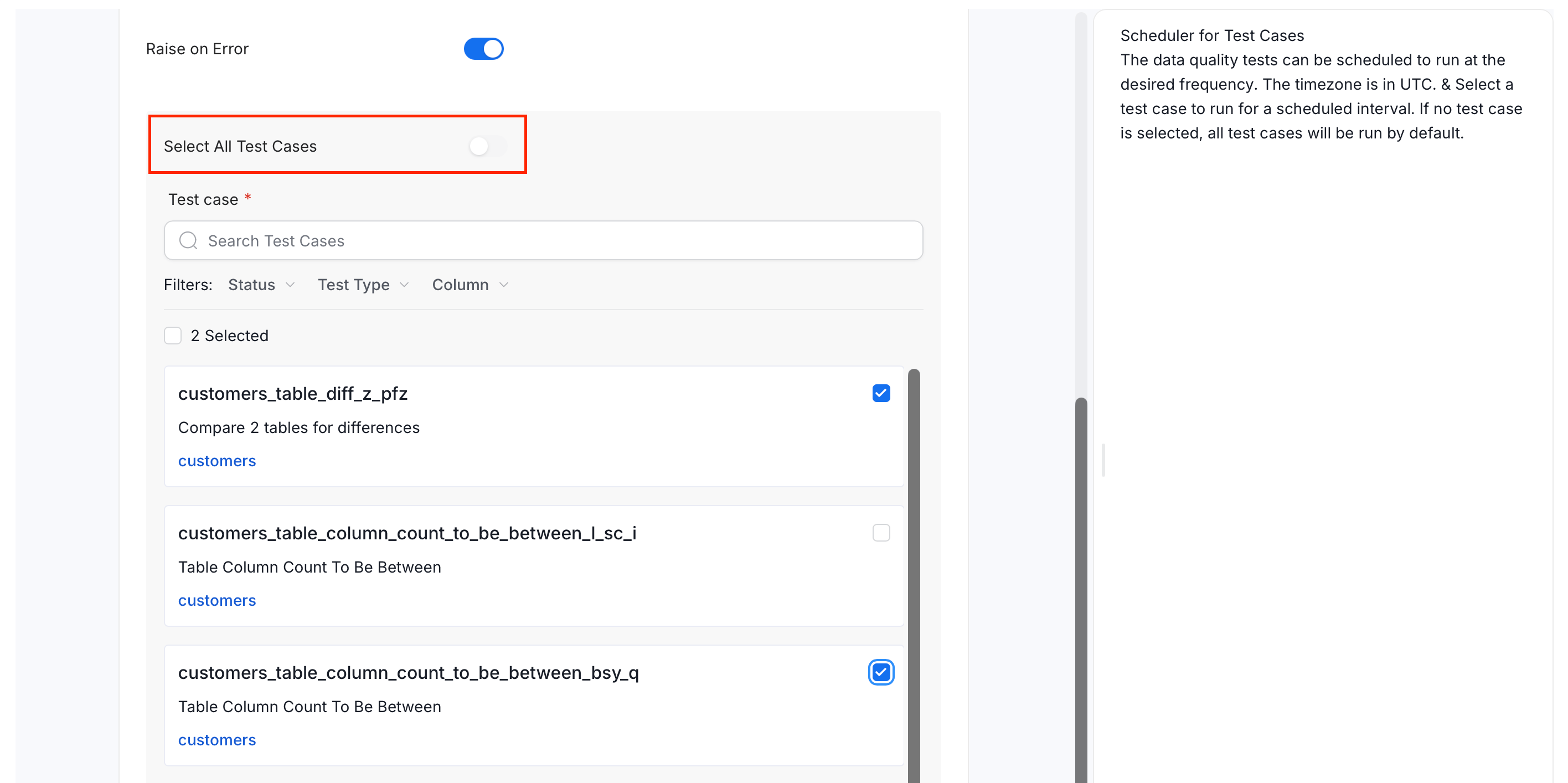
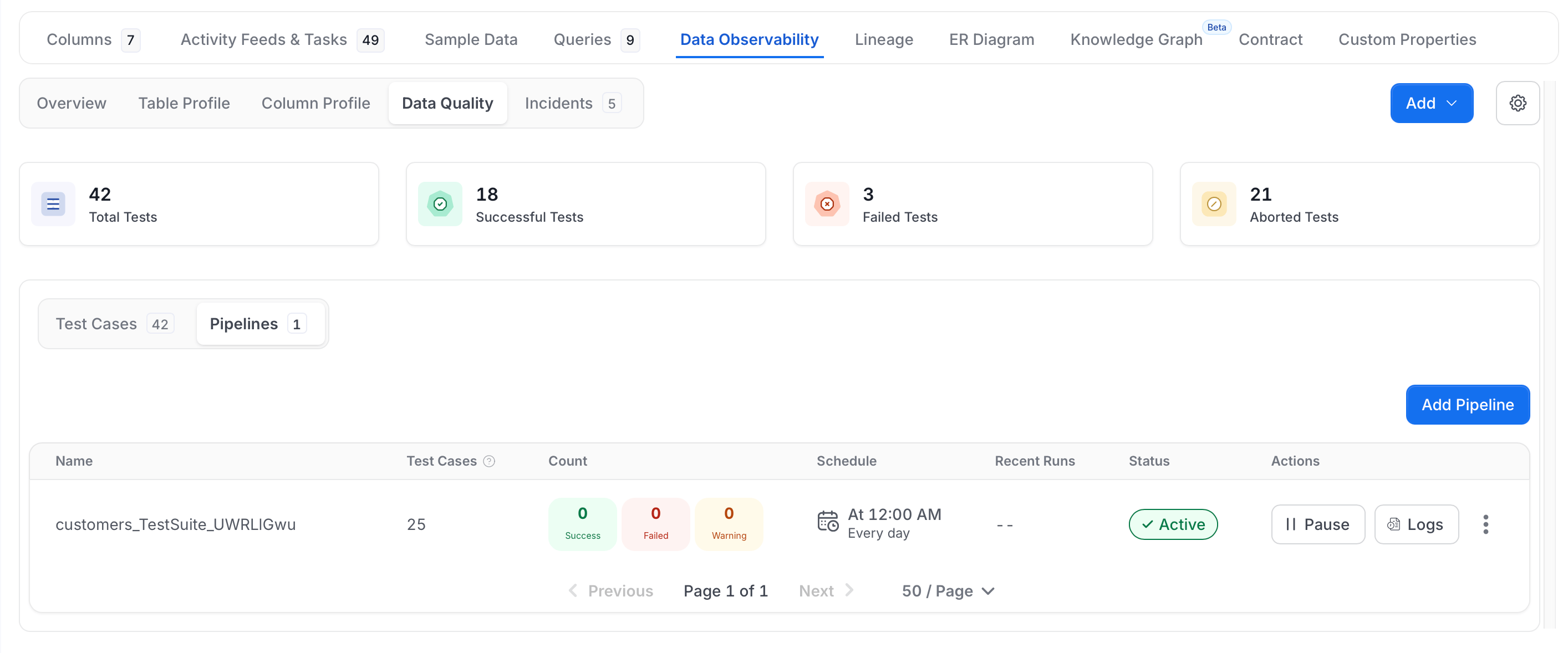
- Click Submit.
Run a Test Case On Demand
You don’t have to wait for the schedule. To run your test cases right away, run the pipeline manually:- Open the table that has the test case and go to Data Observability > Data Quality.
- Select the Pipelines tab and find the pipeline that runs your test case.
-
Click the ⋮ menu next to the pipeline and select Run.
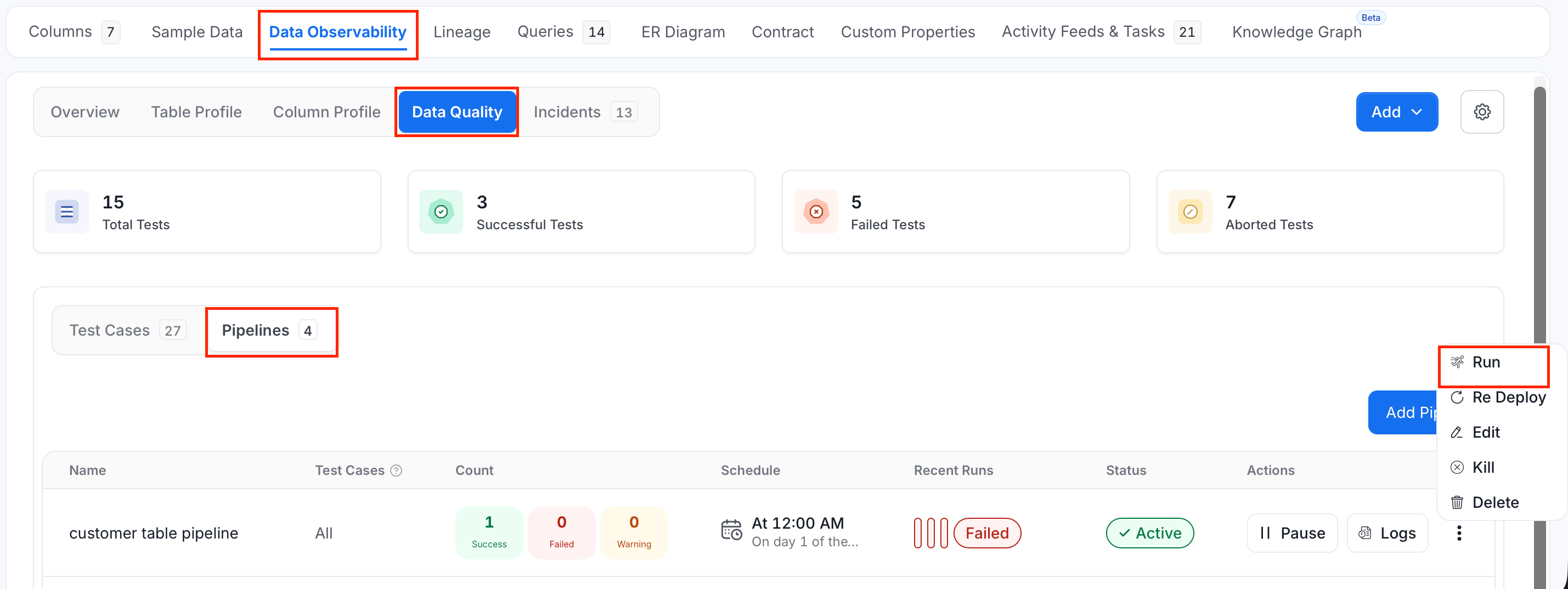
- Check the Recent Runs column for the pipeline to follow the result. The test case results update in the Data Quality tab.
Note: The Run option appears only if the pipeline is deployed and you have the
Trigger permission. For more information, see Authorization.Handle Test Failures
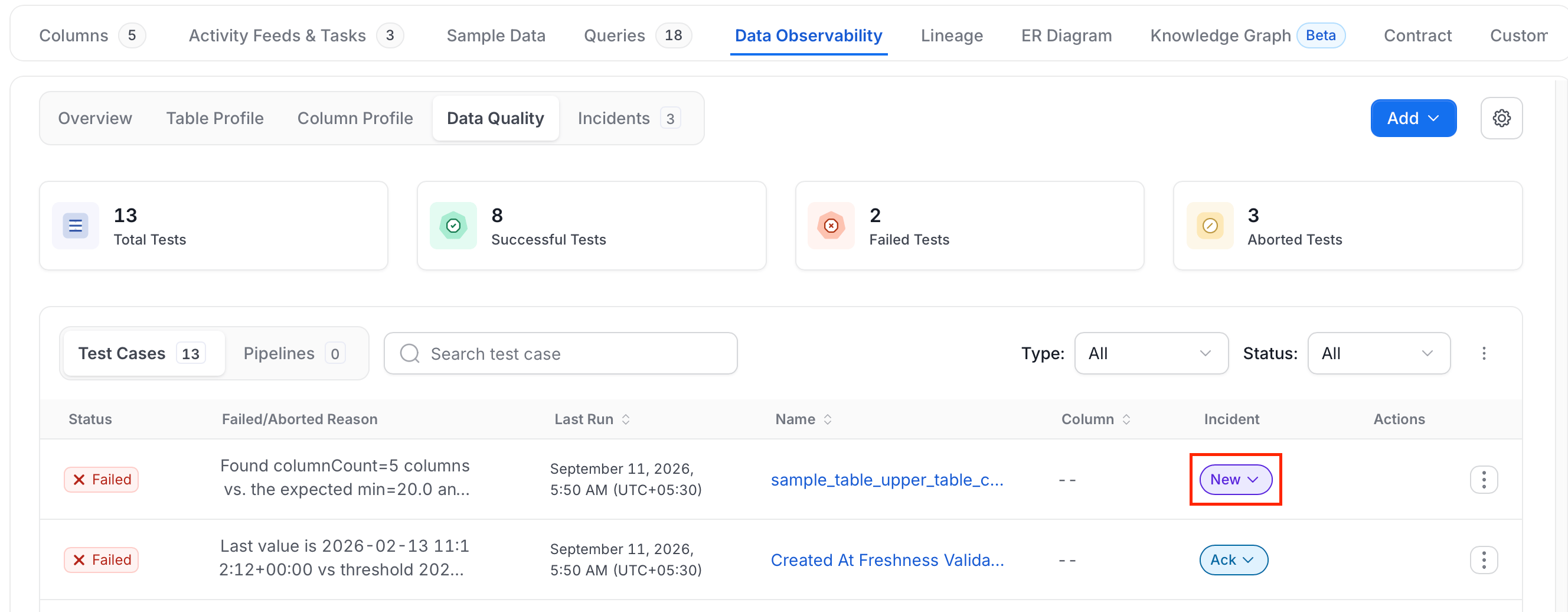
When a test fails, OpenMetadata creates an incident for it. If the test case has an owner, the incident is assigned to the owner automatically, so its status shows Assigned in the Incident column. If the test case has no owner, the status shows New.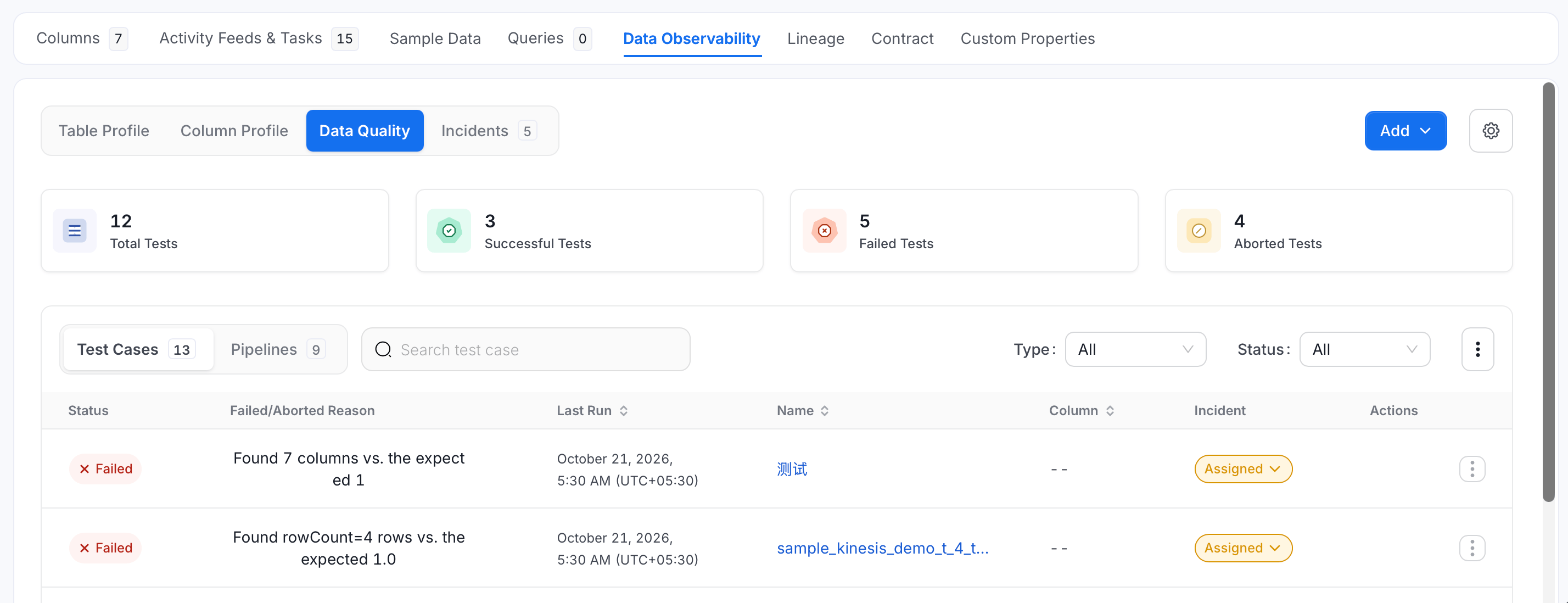
-
In the Incident column, click the status of the failed test, for example Assigned.
-
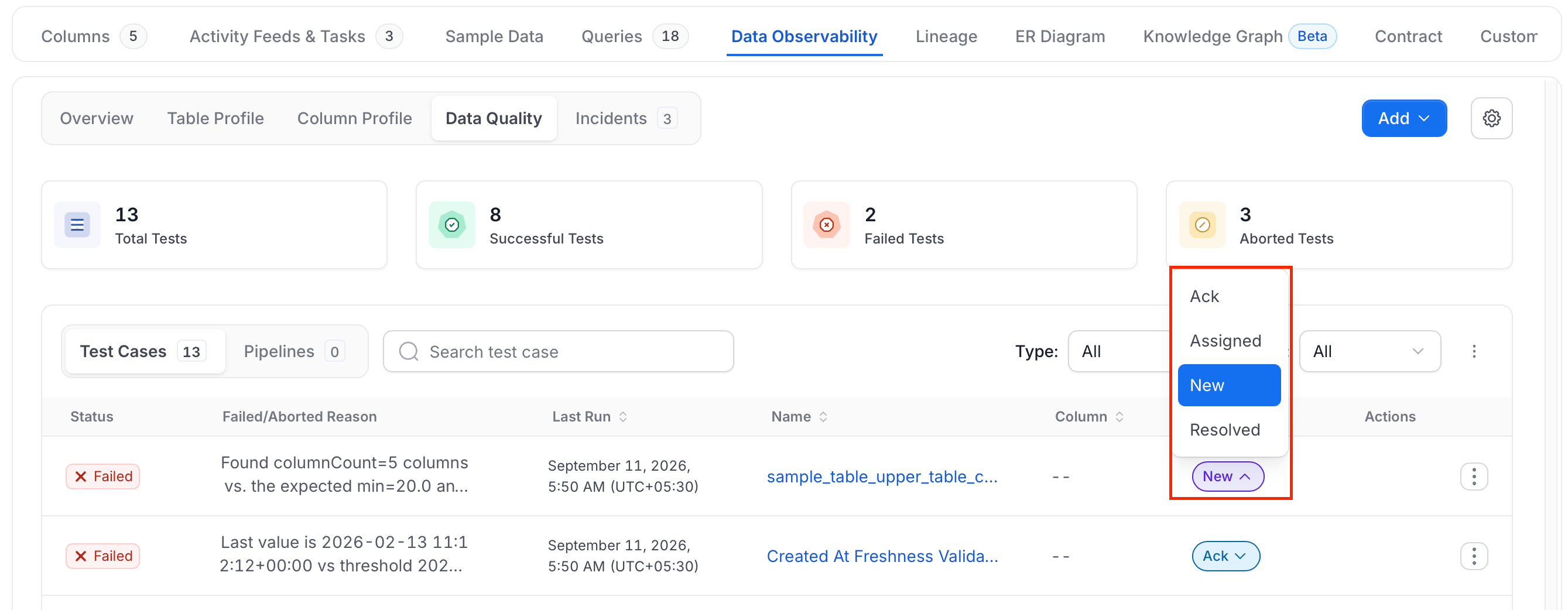
Select a status: Ack, Assigned, New, or Resolved.
- If you select Assigned, search for and select the assignee, then click the check mark to save.
-
If you select Resolved, choose a Reason and enter a Comment. Both are required. The reasons are Duplicates, False Positive, Missing Data, Other, and Out Of Bounds.
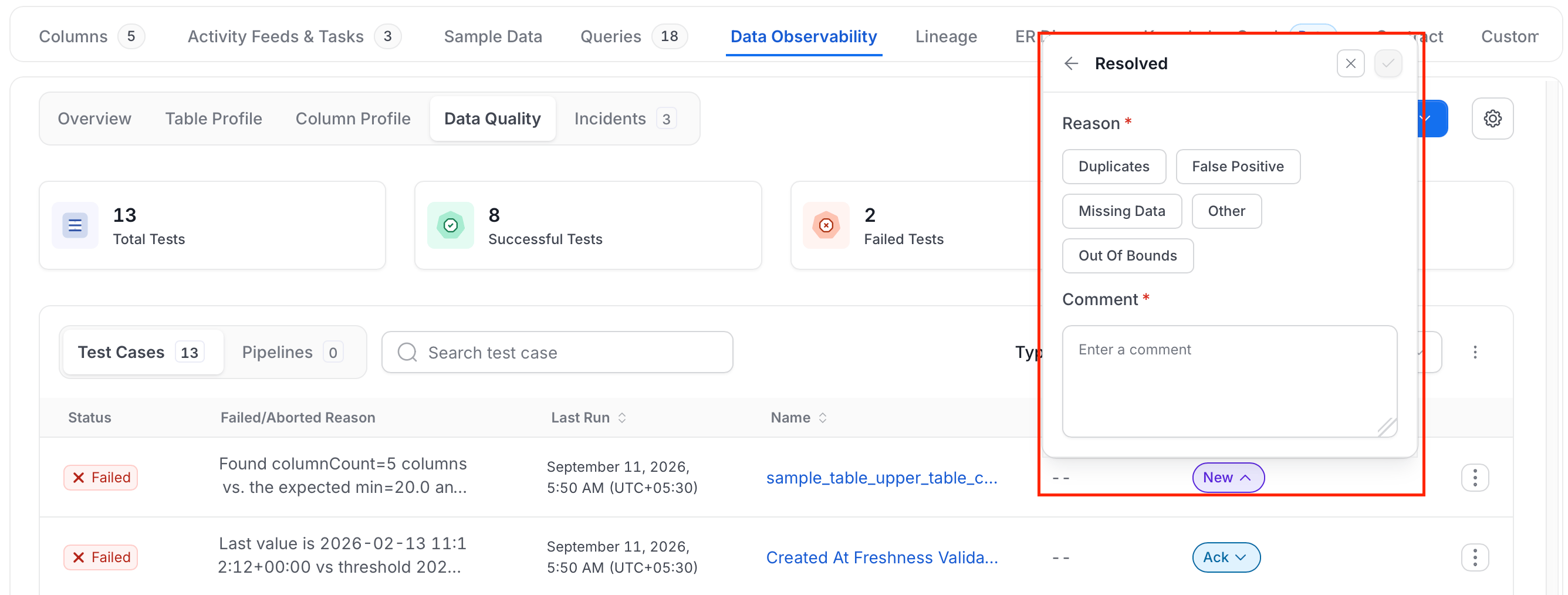
- Click the check mark to save.
Delete and Restore a Test Case
Note: Deleting a test case from a table’s own Data Observability tab is a hard delete. Soft delete and restore are only available from the platform-wide Test Cases list described below.
- Navigate to Data Observability > Data Quality, and click Test Cases.
-
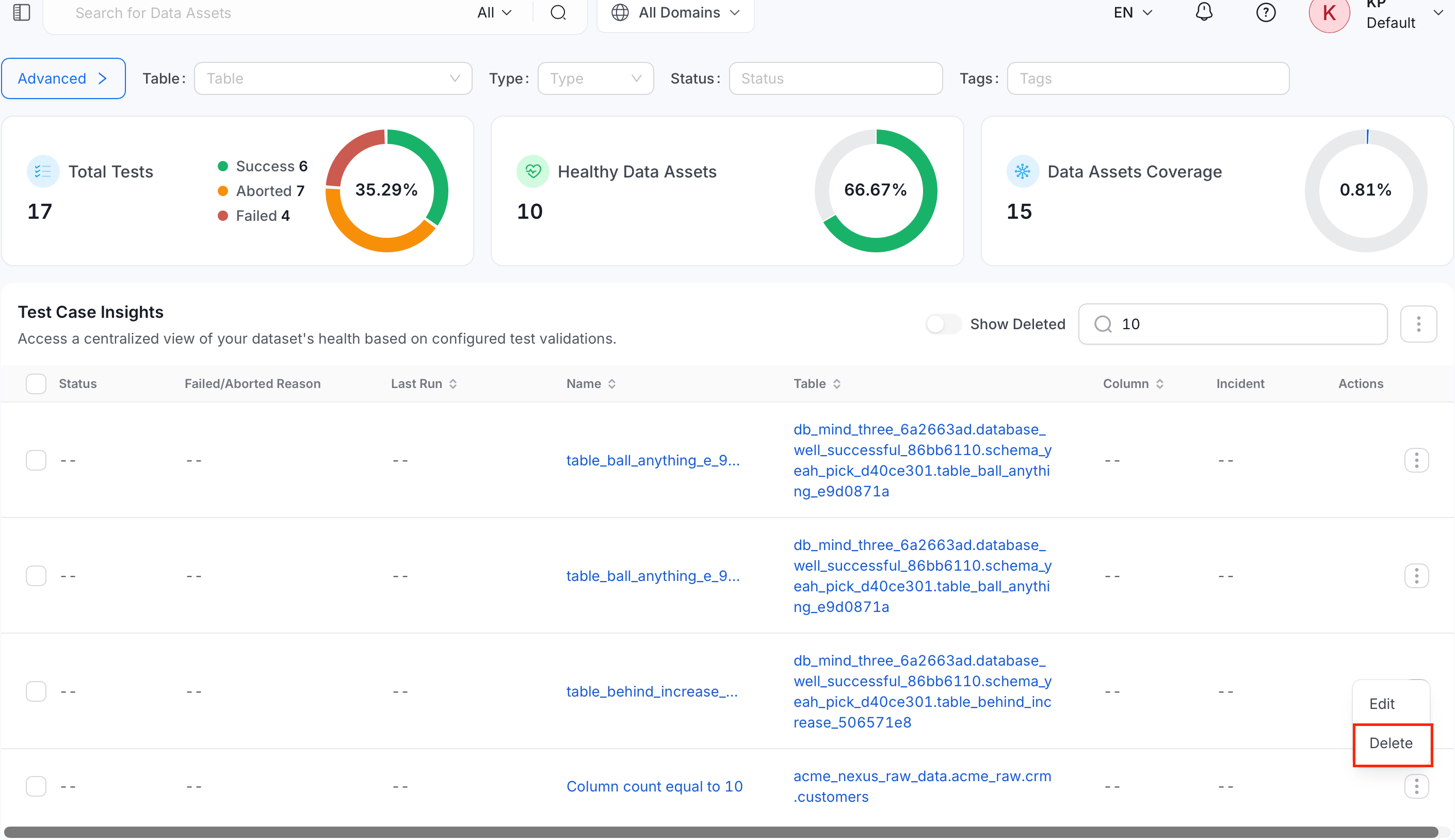
Find the test case and open its row actions menu, then select Delete.
-
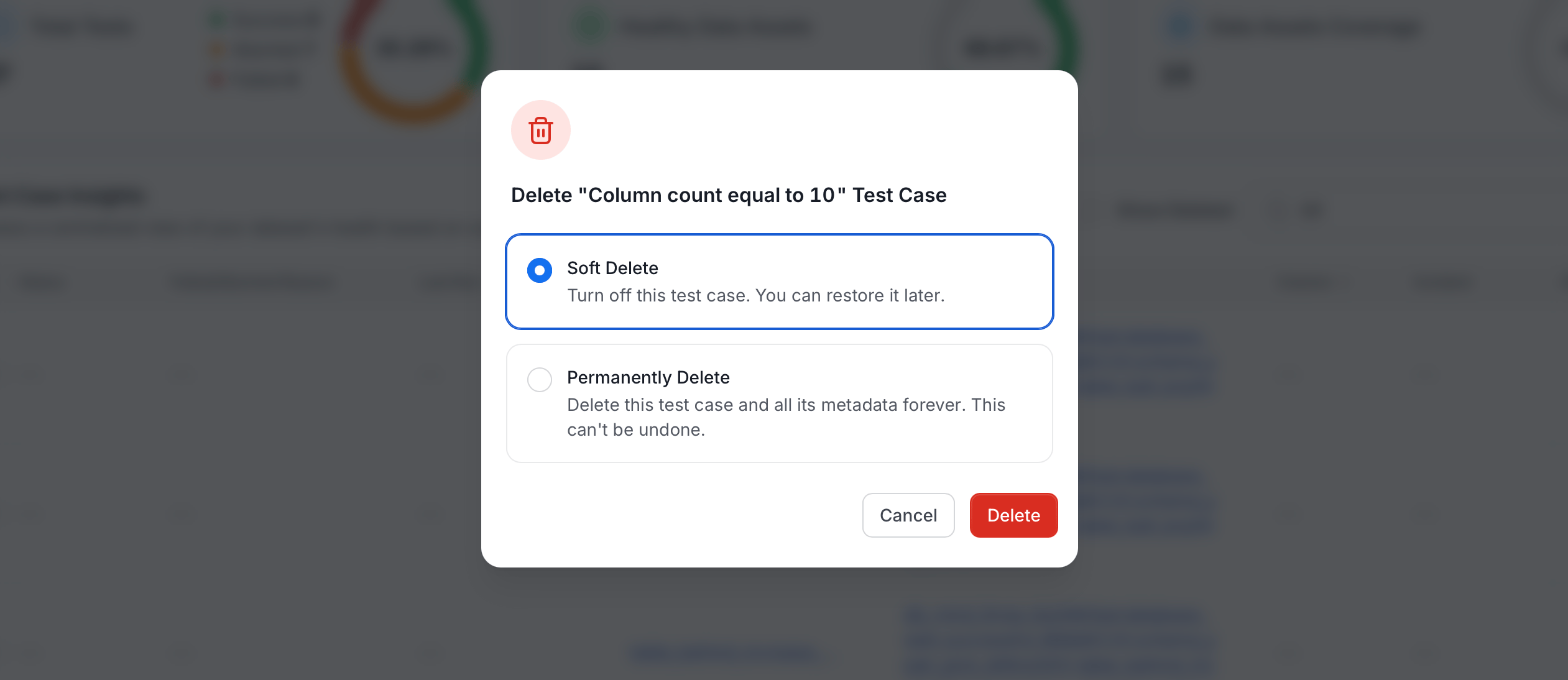
The Delete “<name>” Test Case dialog offers two options:
- Soft Delete (selected by default): Turn off this test case. Restore it later.
- Permanently Delete: Delete this test case and all its metadata forever. This can’t be undone.
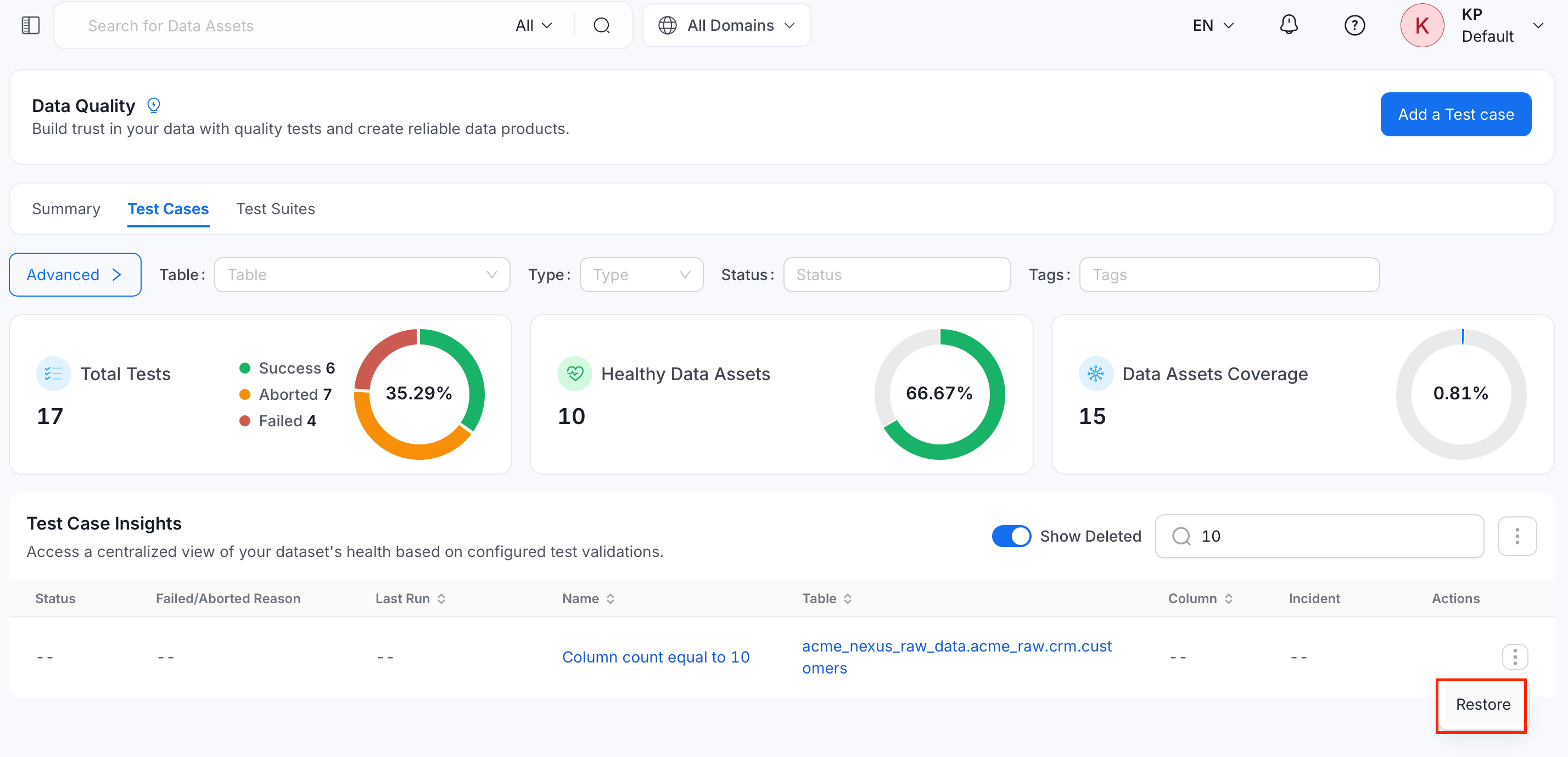
- Toggle Show Deleted on the Test Cases page to find soft-deleted test cases.
-
Open the row actions menu on a deleted test case and select Restore, then confirm. The test case becomes editable and resumes on its existing schedule with its history intact.
Note: Restoring a test case requires EditAll permission on test cases. Also restore a deleted test case from its own details page, which stays read-only until it’s restored.
How to Set Alerts for Test Case Fails
Get notified when a data quality test fails.