
Configure Governance Workflow Triggers and Conditions
Governance workflows can respond to changes on specific data assets and route an entity based on its metadata. OpenMetadata 2.1 adds entity-specific trigger fields, support for column custom-property changes, and Data Product count conditions. You need permission to create or edit a Workflow Definition. You also need theDeploy operation to deploy the completed workflow.
Choose Which Changes Trigger a Workflow
For an event-based start node, the Include Fields and Exclude Fields lists contain only fields that apply to the selected data asset types. The lists combine:- Common fields, such as
description,owners, andtags. - Fields for the selected entity type, such as
columnsfor a Table oroutputPortsfor a Data Product. - Custom properties defined for the selected entity type. The selector marks these entries as Custom Property.
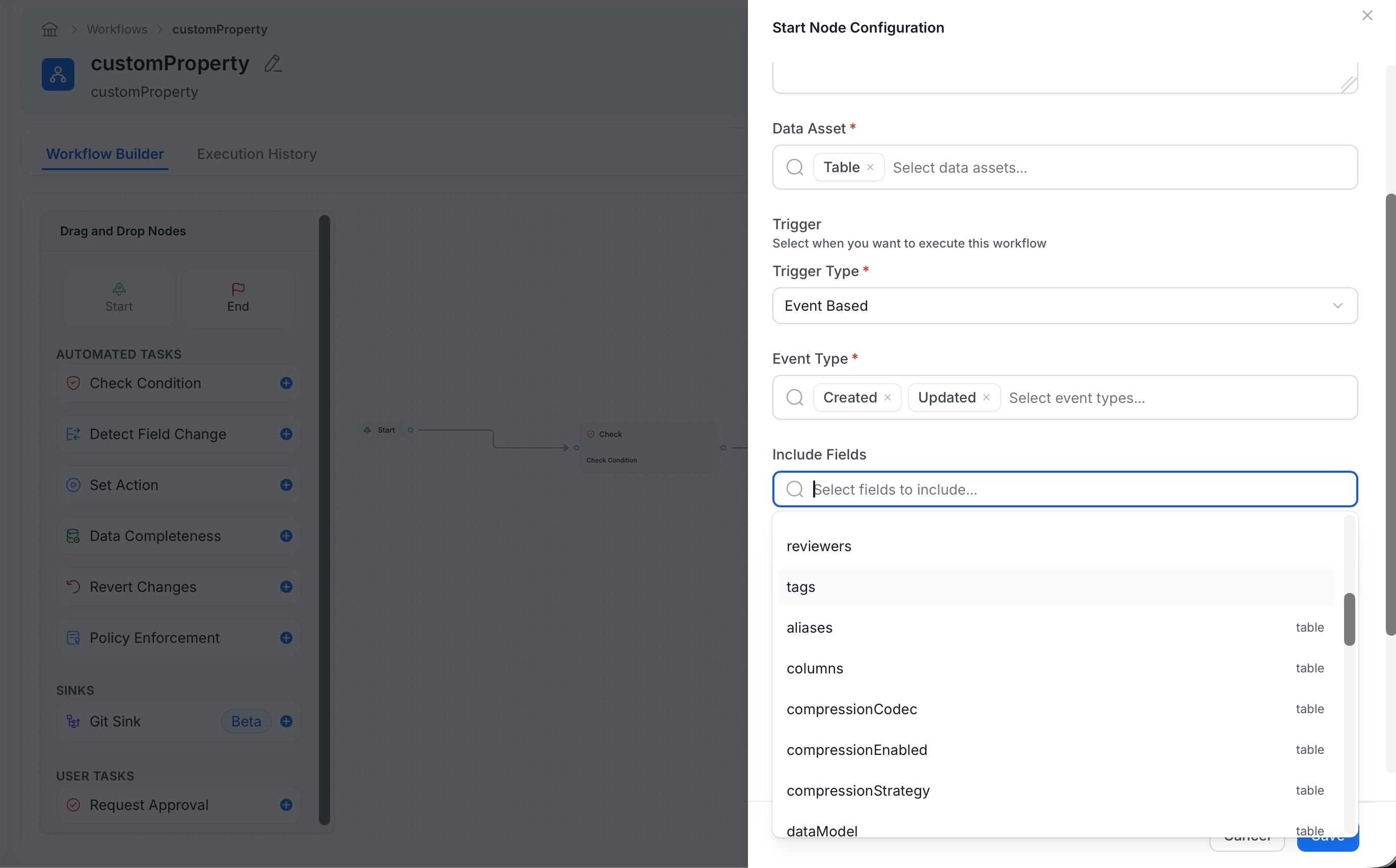
If Include Fields is empty, any supported common or entity-specific field can trigger the workflow. Use Include Fields when the workflow should respond only to a smaller set of changes.
Trigger a Workflow When a Column Custom Property Changes
Use the Tablecolumns field to respond when a custom property on any column changes.
- Go to Govern > Workflows, create or edit a workflow, and select the start node.
- Under Data Asset, select Table. Select Dashboard Data Model instead when the custom property belongs to a dashboard data model column.
- Set Trigger Type to Event Based.
- Under Include Fields, select
columns. - Complete the workflow, save it, and deploy it.
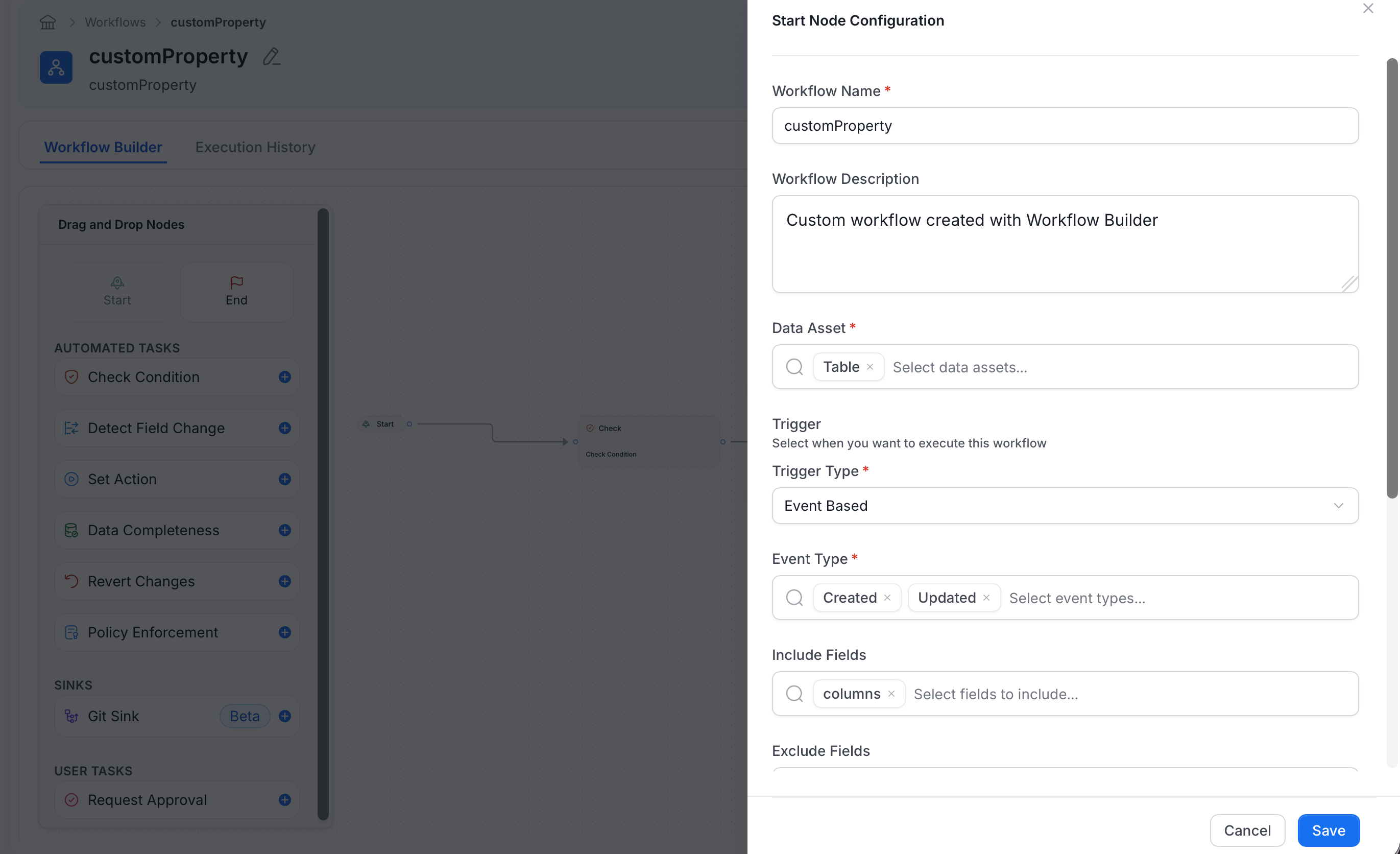
The trigger watches the
columns field as a whole. It cannot be limited to one column or one column custom property. The condition builder does not offer columns because it is an array of column objects and cannot be compared as a single value.Route Data Products by Asset or Output Port Count
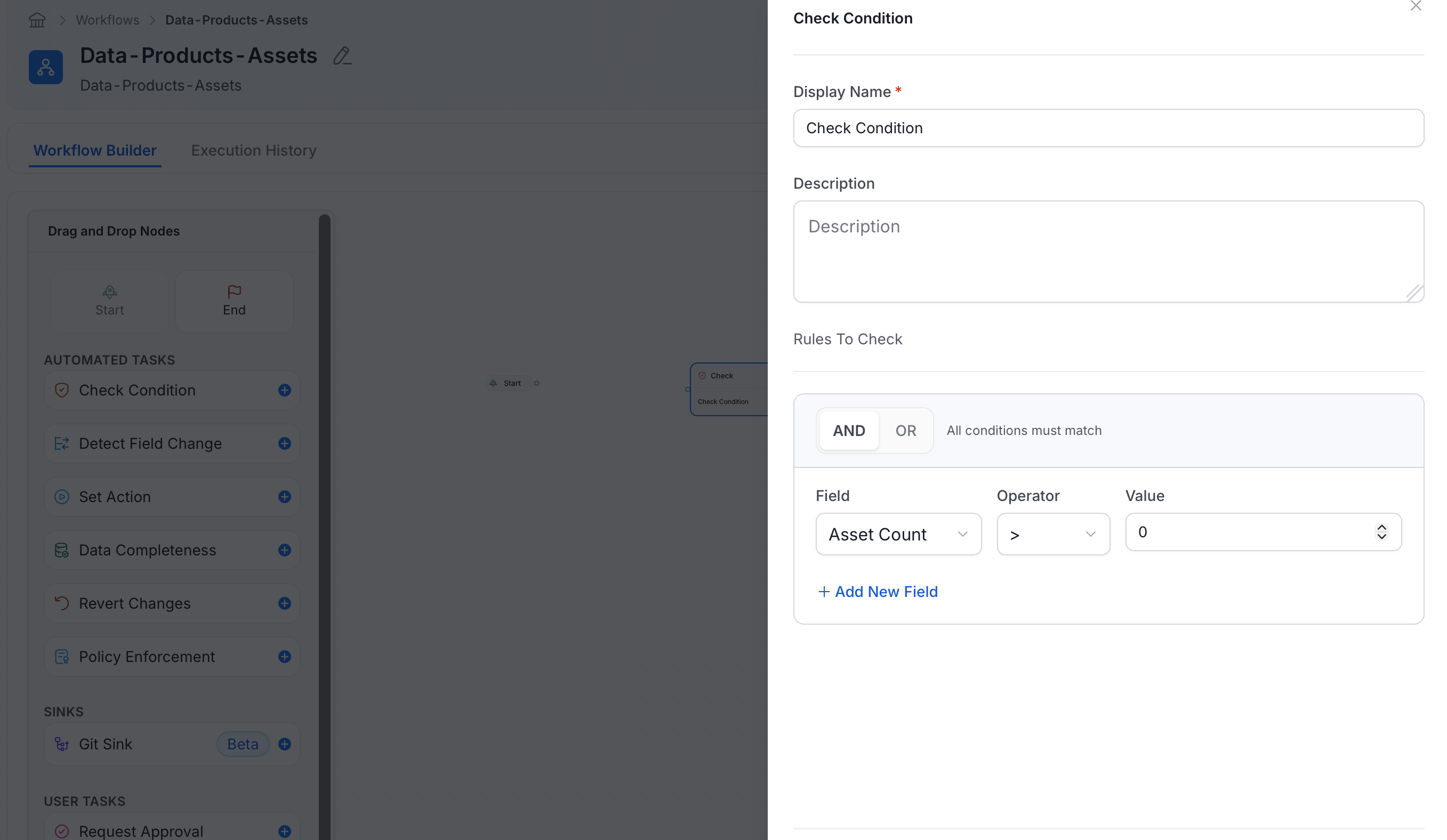
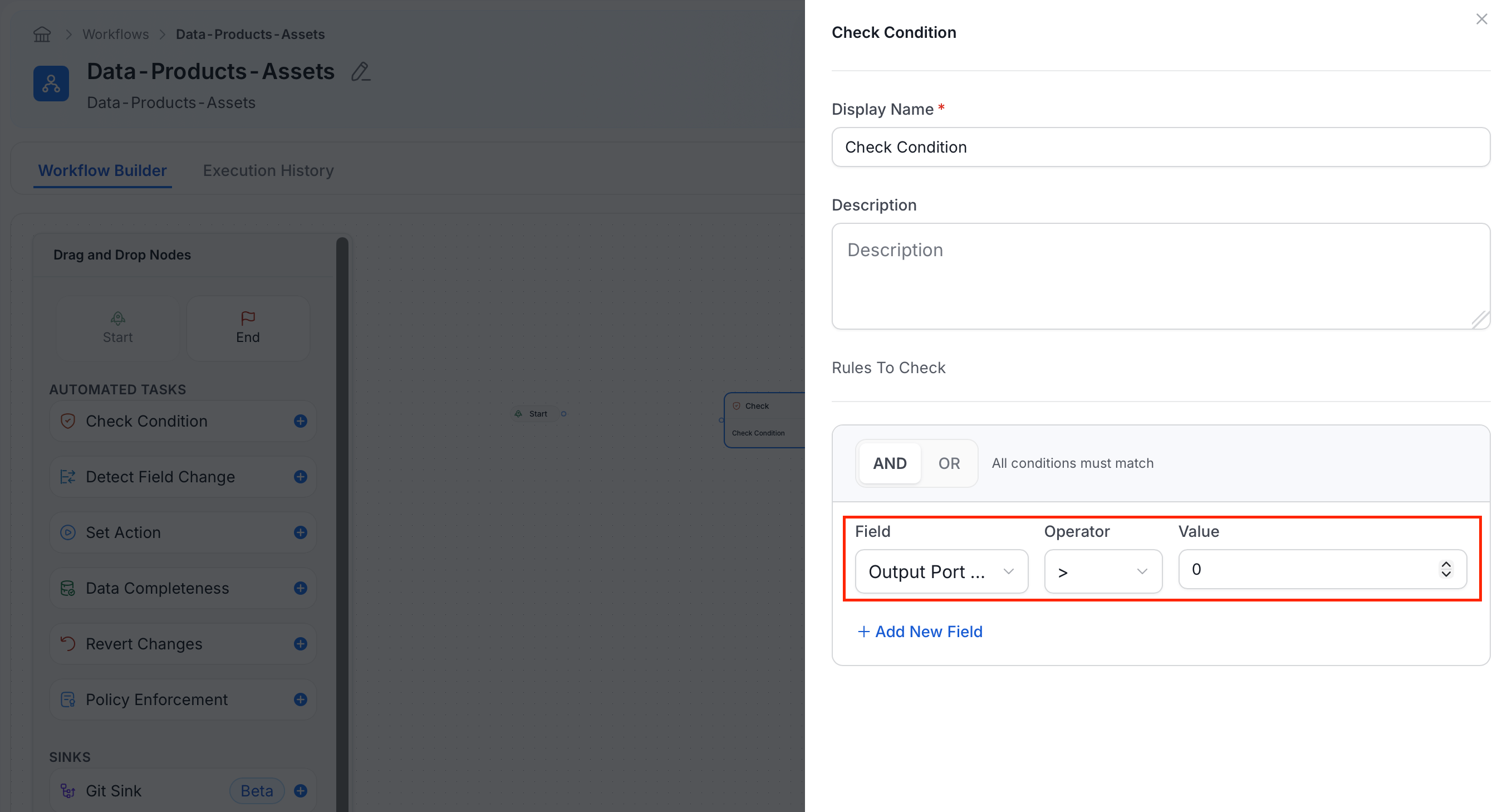
The Check Condition node provides two numeric fields when the workflow evaluates a Data Product:
For example, use
Asset Count > 0 to continue only when the Data Product contains an asset, or Output Port Count > 0 to require at least one output port.
- Configure the start node with Data Product selected under Data Asset. The count fields are not available when the start node processes Tables or another entity type.
- Add a Check Condition node. If you changed the start node after adding this node, close and reopen its configuration so the field list refreshes.
- In the condition builder’s Field list, select Asset Count or Output Port Count. Do not select Data Product. That option represents an entity relationship and provides operators such as Is and Is Not.
- Select
>and enter0to require at least one item. - Connect the true and false branches to the appropriate next steps.
- Save and deploy the workflow.
Hold Edits for Approval
An event-based start node has an Approval Mode setting with two options. Default publishes edits immediately and runs the workflow afterward. Enforce holds each edit as a change request until a reviewer approves it. In an Enforce workflow, add a User Approval task. Approving the task publishes the held edit, and rejecting it discards the edit. For the requester and reviewer experience, see Approval-Gated Changes.Verify the Workflow
Test the deployed workflow with a non-production entity:- Change a selected trigger field on the entity.
- Confirm that a workflow instance starts.
- For a Data Product condition, test once with an empty collection and once after adding an asset or output port.
- Confirm that each instance follows the expected true or false branch.