
Metrics in OpenMetadata
The Metrics entity in OpenMetadata lets you define, document, and manage key business and operational metrics. Metrics help organizations maintain consistency, traceability, and accuracy in data-driven decision-making.Overview of Metrics
Metrics document calculated values based on data assets. OpenMetadata lists them under the Governance section. You can link each metric to:- Glossary terms
- Data assets
- Other metrics
What a Metric Stores
A metric lets you document and share a business metric’s definition. It includes:- Name: The metric’s unique identifier.
- Meaning: A description of what the metric measures.
- Calculation: The formula or SQL used to calculate it.
Calculation and Scheduling
Keep the following in mind about how metrics work:- No calculation: A metric is documentation only. OpenMetadata saves what you enter but doesn’t run the formula, compute a value, or schedule a run.
- Your own tools: Calculate the value in your own database or business intelligence (BI) tool, then record its definition here so everyone can find it.
Key Properties of a Metric
Metric Lineage and Dependencies
OpenMetadata allows users to trace the source and dependencies of metrics using lineage. This ensures end-to-end traceability from raw data to metric reporting. A typical lineage might look like:Total Sales = SUM(sales.amount). You can link that column to the metric. For more information, see Metric Column Lineage.
Creating Metrics Using the UI
To create a new metric in OpenMetadata using the user interface, follow these steps:-
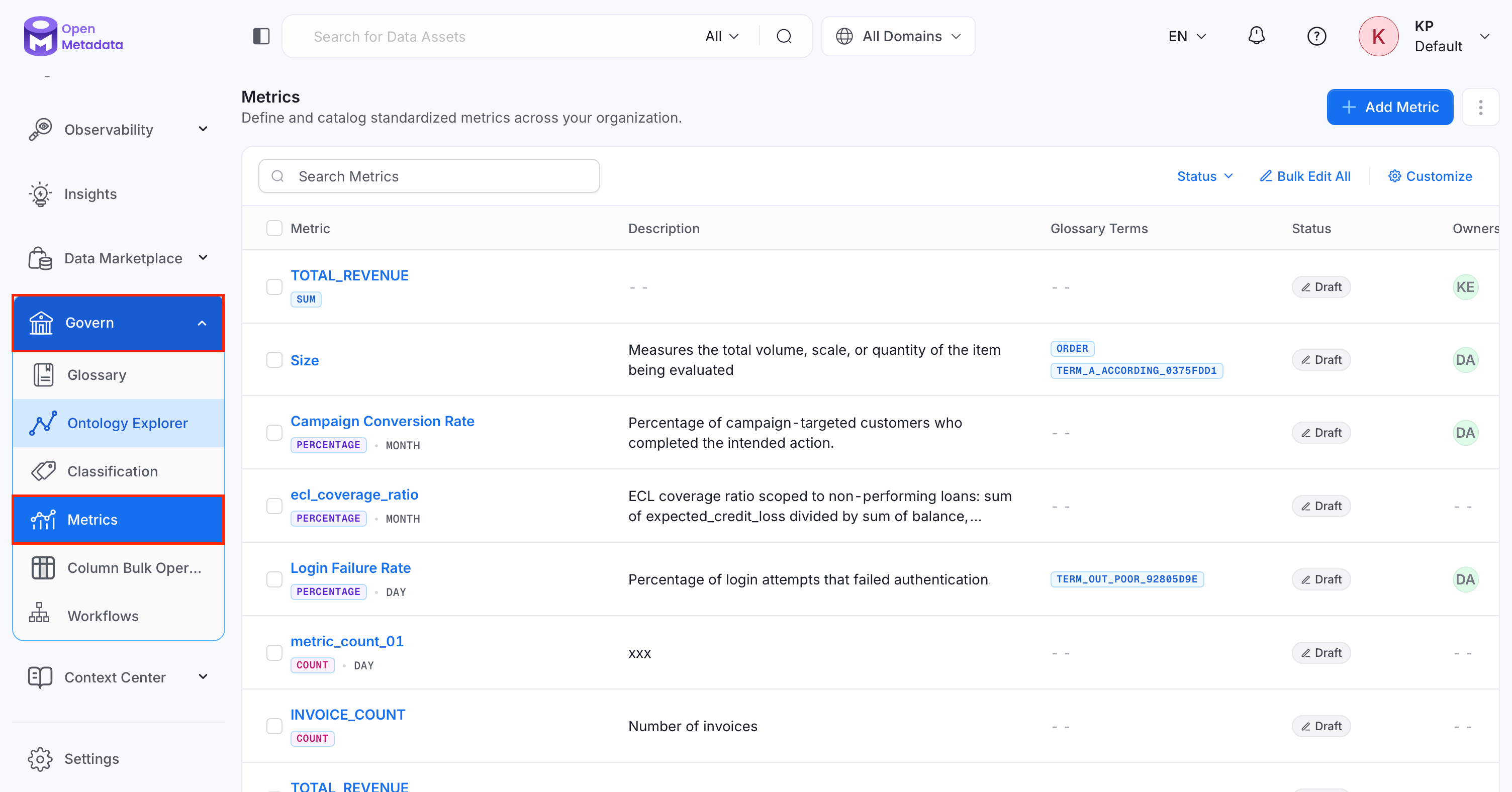
From the left navigation bar, select Govern > Metrics.
-
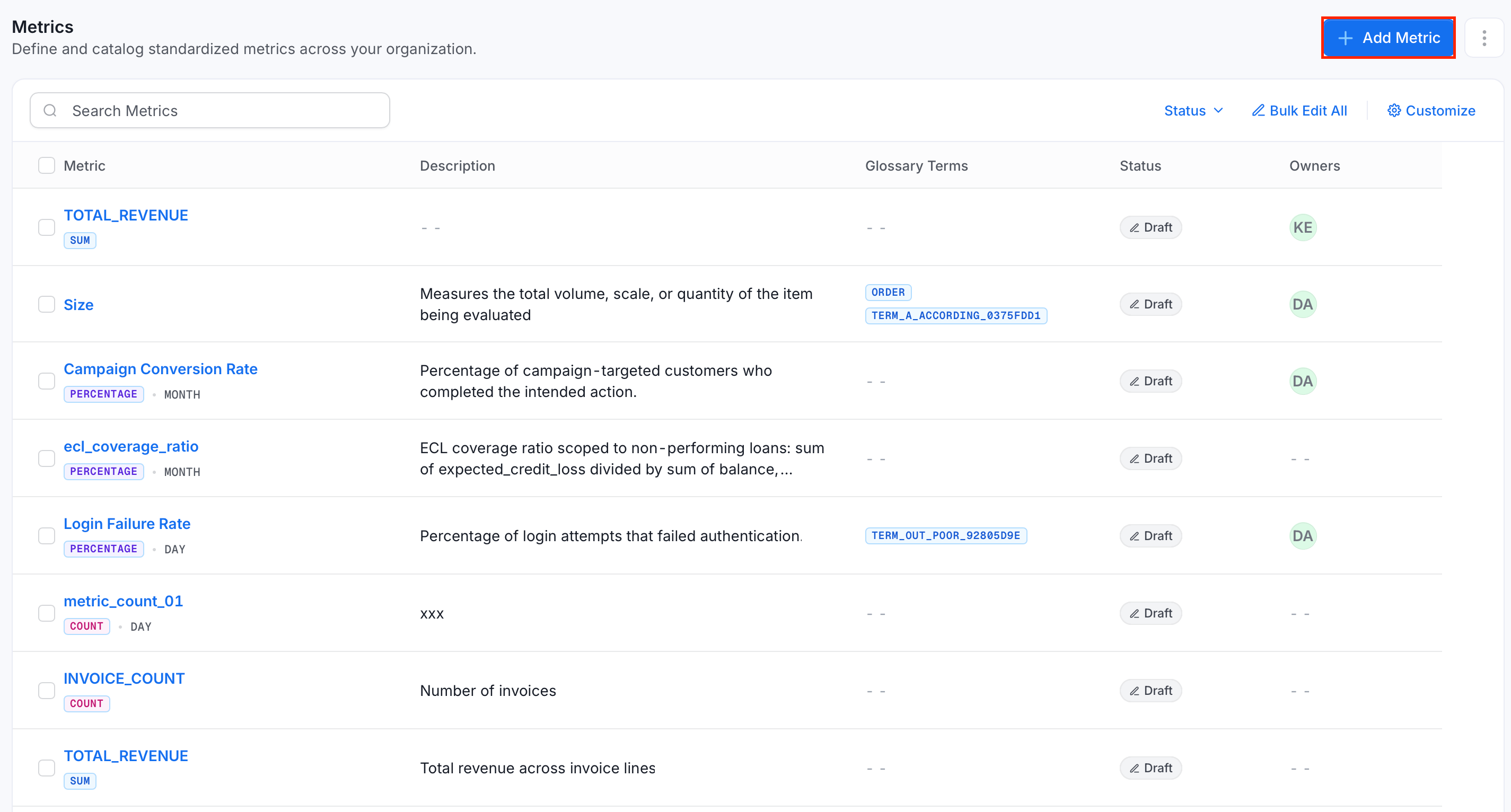
Click Add Metric.
-
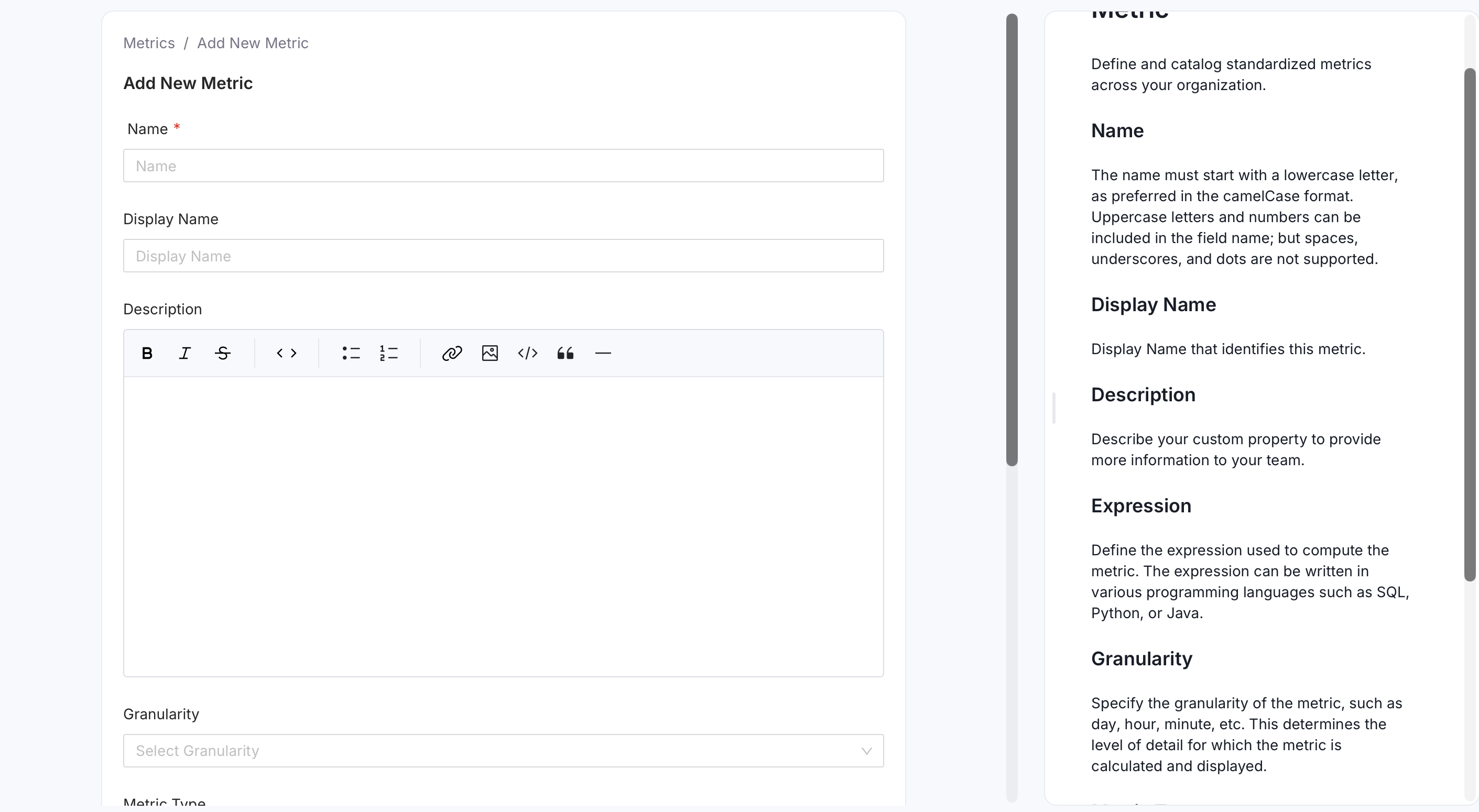
On the Add New Metric page, fill in the fields:
- Name (required): Enter a unique identifier in camelCase. Start with a lowercase letter. Spaces, underscores, and dots are not supported (for example,
customerRetentionRate). - Display Name (Optional): Enter a human-readable name (for example,
Customer Retention Rate). - Description (Optional): Describe what the metric measures and how it is used.
- Granularity (Optional): Select the time scale, such as day, week, or month.
- Metric Type (Optional): Select the type of calculation, such as count, average, or percentage.
- Measurement Unit (Optional): Select the unit of the value, such as count, percentage, or dollar.
- Language and Code: Select the language (SQL, Python, Java, or JavaScript) and enter the code that documents how the metric is calculated. Both are required.
- Name (required): Enter a unique identifier in camelCase. Start with a lowercase letter. Spaces, underscores, and dots are not supported (for example,
-
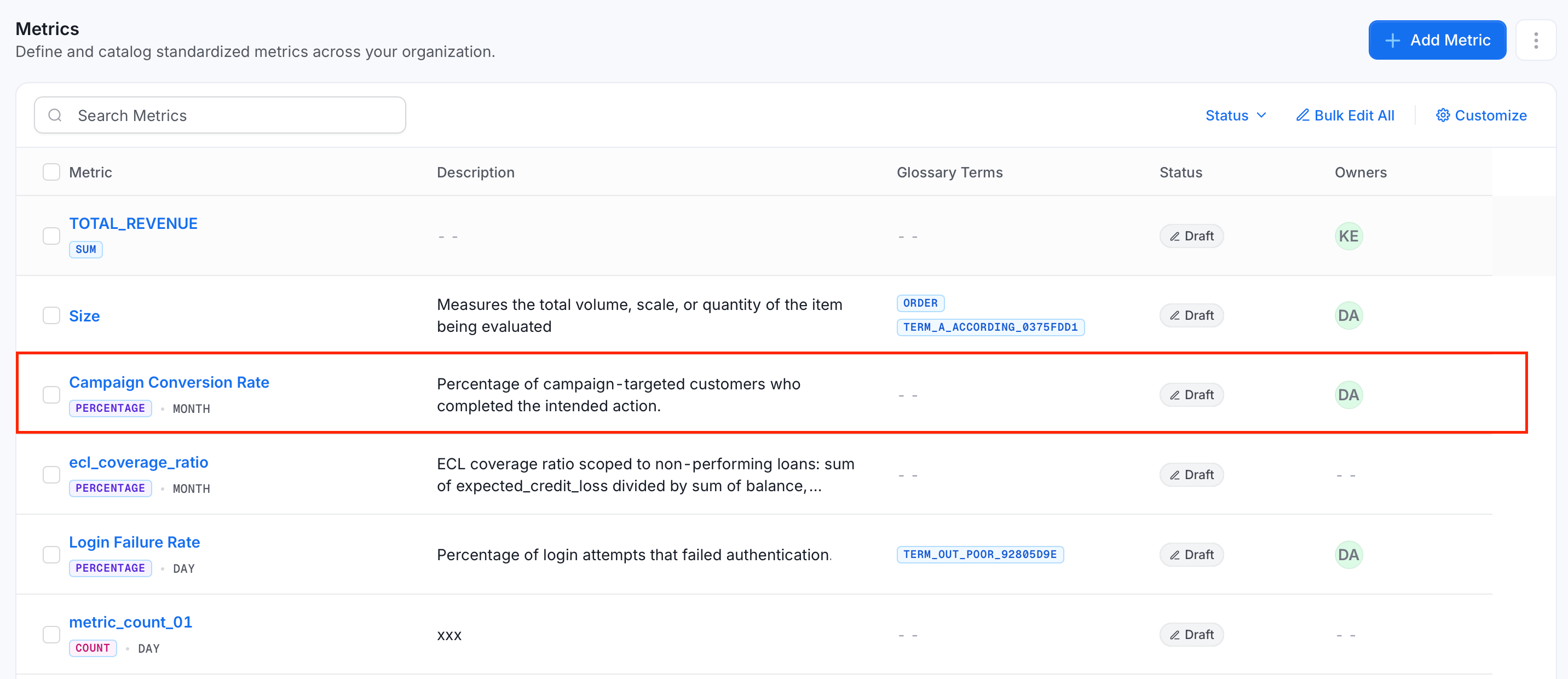
Click Create to save the metric. The new metric appears in the Metrics list.
Metric Details Page
To open the Metric Details page:- From the left navigation bar, select Govern > Metrics.
- In the Metrics list, select the name of the metric you want to open.
- Overview: Description, hierarchy, definition, and related metrics.
- Lineage: Where the metric’s data comes from and where it is used.
- Assets: The data assets linked to the metric.
- Activity Feeds & Tasks: Conversations and tasks about the metric.
- Custom Properties: Extra fields your organization added to metrics.
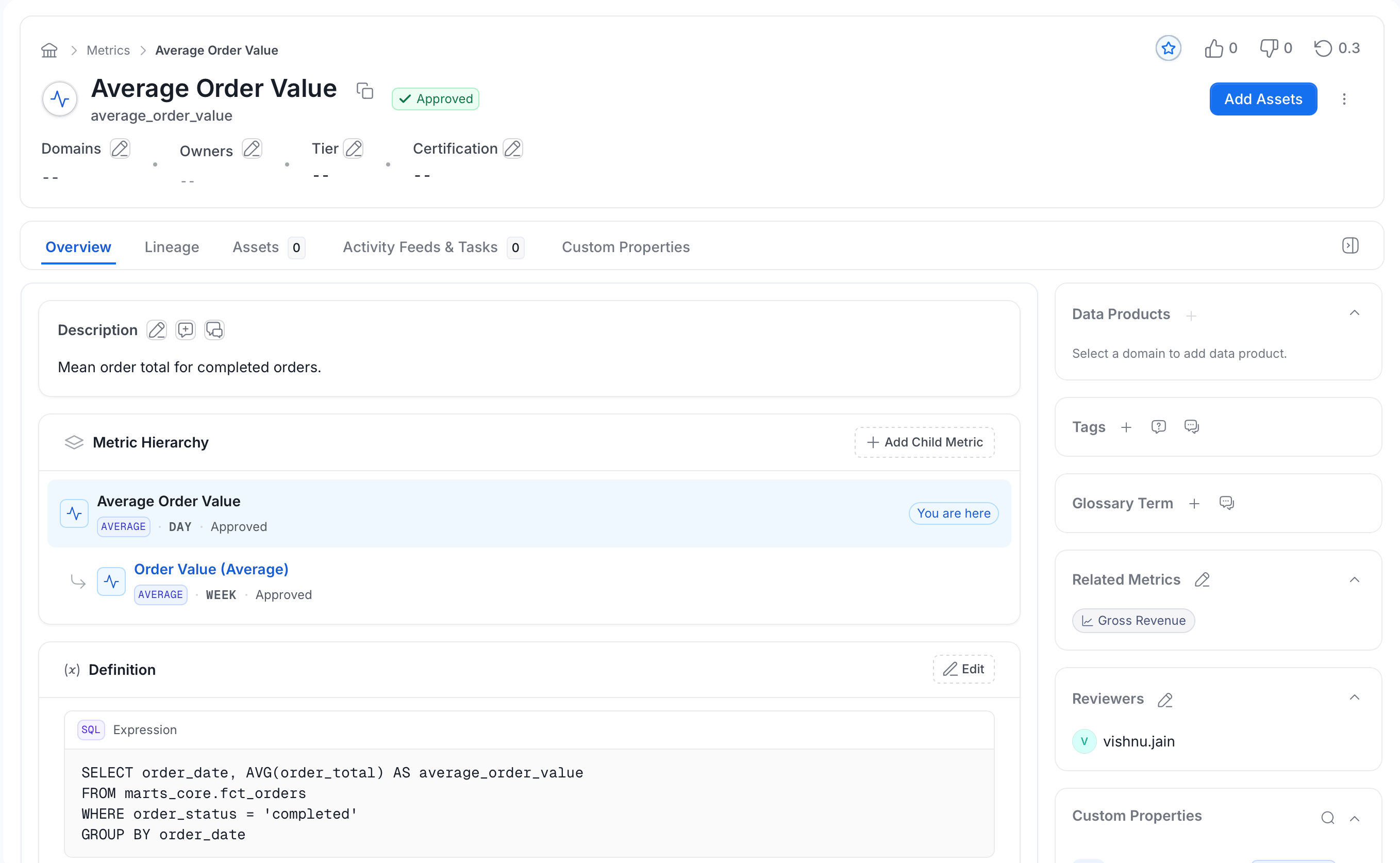
Overview Tab
The top of the page shows the metric name, its status (for example, Approved), and the Domains, Owners, Tier, and Certification fields. Select the edit icon next to a field to change it. The Overview tab has a main area and a set of side panels. Main area- Description: What the metric measures and how to use it. Select the edit icon to change it.
- Metric Hierarchy: Shows where the metric sits among other metrics. For more information, see Metric Hierarchy.
- Definition: The metric’s type, granularity, unit, and calculation code. For more information, see Metric Definition.
- Data Products: The data products the metric belongs to.
- Tags: Tags applied to the metric.
- Glossary Term: Glossary terms linked to the metric.
- Reviewers: The people assigned to review the metric.
- Related Metrics: Other metrics that relate to this one. For more information, see Related Metrics.
- Custom Properties: Extra fields your organization added to metrics.
Metric Hierarchy
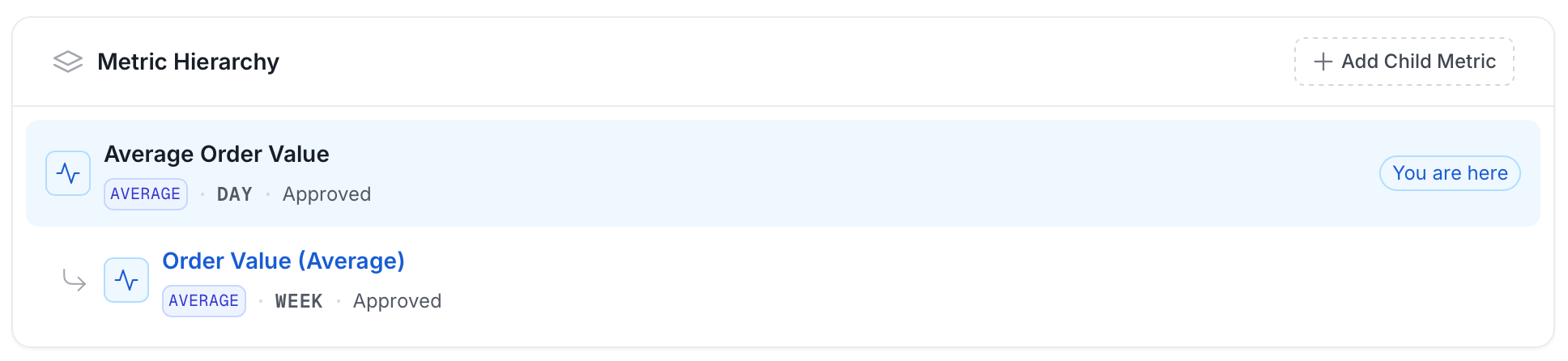
Metrics often build on each other. For example,Revenue can be the parent of Online Revenue and Store Revenue. The Metric Hierarchy card shows these relationships as a tree, so you can see how a metric fits in without leaving its page.
The tree can show:
- Metric Group: The group the metric belongs to, with the number of metrics it holds.
- Parent metrics: The metrics above the current one, shown as a path from the top.
- Peer metrics: Other metrics that share the same parent.
- Child metrics: Variants that sit under the current metric.
- You are here: A label that marks the metric you are viewing.
- Select a metric in the tree to open its page.
- Select a Metric Group to open the Metrics list with that group highlighted.
- Select Show more Metrics or Show more Variants when a list is long.
- Select Add Child Metric to create a new metric under the current one. You see this button only if you have permission to create metrics.
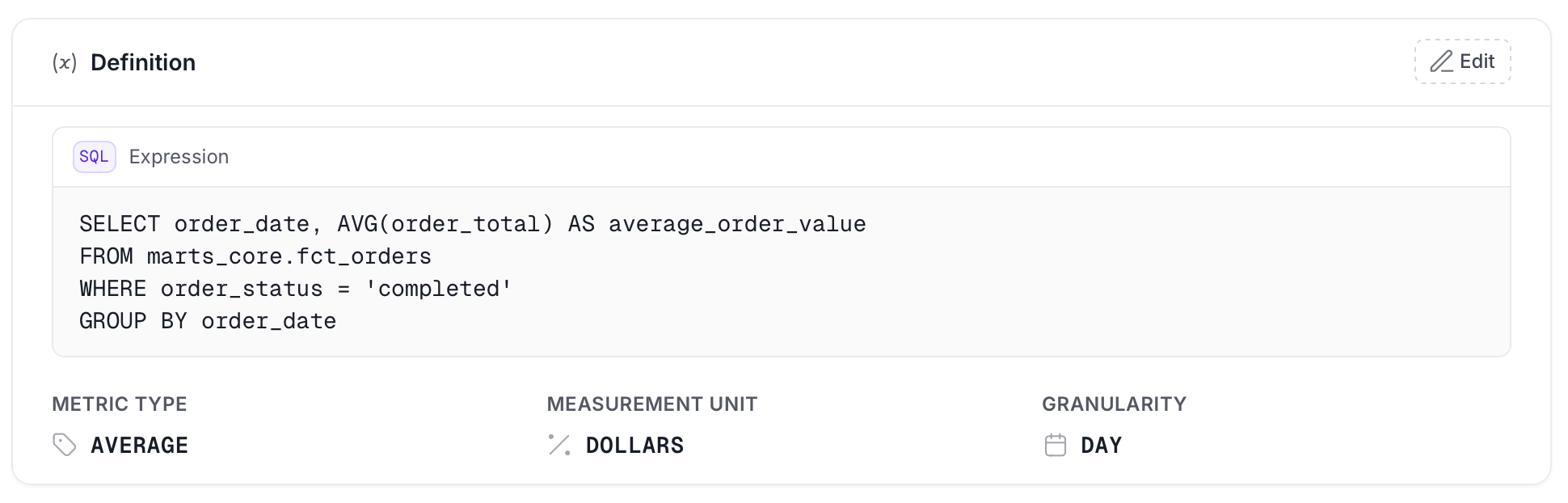
Metric Definition
The Definition card holds the details that describe how the metric is calculated. It shows the code block first, then the metric type, measurement unit, and granularity.- Metric Type: The kind of calculation, such as count, average, or percentage.
- Granularity: The time scale, such as daily, weekly, or monthly.
- Measurement Unit: The unit of the value, such as count, percentage, or dollar. Choose a listed unit or enter your own custom unit.
- Language: The language of the calculation code, such as SQL, Python, or Java.
- Code: The formula or query that documents the calculation. The card shows it in a block labeled Expression, with the language badge (for example, SQL).
Related Metrics
Use Related Metrics to point readers to metrics they should look at together, such asGross Revenue and Net Revenue.
- Select the add icon to choose related metrics from the existing metrics.
- Select the edit icon to add or remove entries.
- Use Show more when the list is long.
Link Data Assets to a Metric
The Assets tab lists the data assets that a metric uses or describes, such as tables, dashboards, and pipelines. Link assets so that anyone who finds the metric can see where it comes from and where it is used.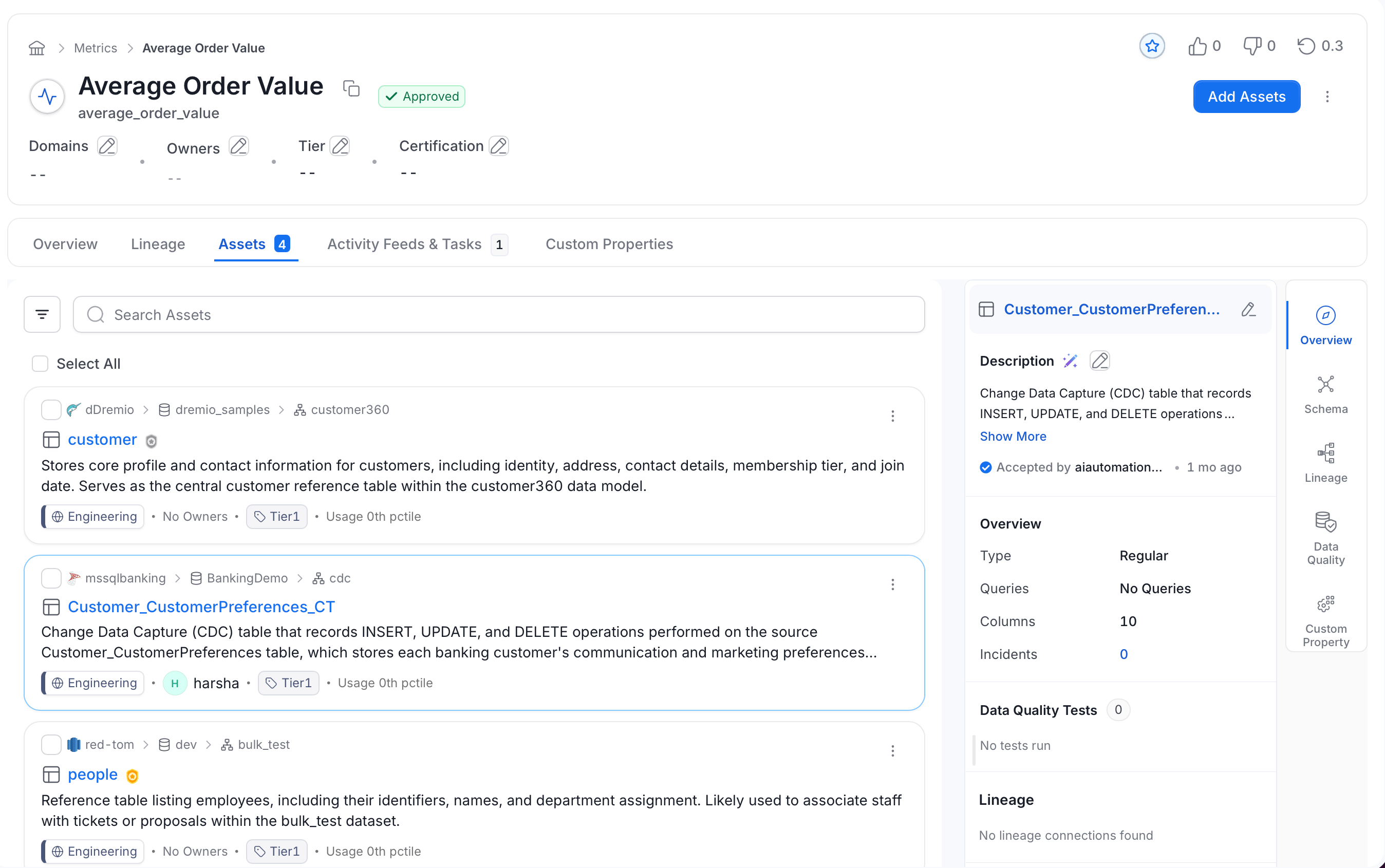
Add Assets
Add assets to a metric from the metric’s Assets tab.- Open the metric and select the Assets tab.
- Select Add Assets in the page header.
- In the dialog, search for and select the assets you want to link.
- Confirm your selection.
Browse and Preview Assets
The Assets tab lists every asset linked to the metric.- The list shows each linked asset with its type and details, in the same layout as the glossary term and domain Assets tabs.
- Select an asset to open a preview panel next to the list. The panel shows the asset’s summary without leaving the metric.
- Close the panel to return to the full list.
- If no assets are linked yet, the tab shows “No data assets are linked to this metric yet.”
Remove Assets
Unlink an asset when it no longer relates to the metric. Removing a link does not delete the asset itself. To remove one asset:- Open the metric and select the Assets tab.
- On the asset, open the three-dot menu and select Delete.
- In the confirmation dialog, select Delete.
- On the Assets tab, select the checkbox next to each asset, or select Select All.
- In the bar that shows the number of items selected, select Delete.
- Confirm the removal.
Example JSON Schema for Metric
Managing Metrics in OpenMetadata
- Versioning: Each update to a metric creates a new version, maintaining historical changes.
- Linking: Metrics can be linked to glossary terms, tables, dashboards, and pipelines for enriched context.
- Values: OpenMetadata stores the metric’s definition. Track the actual values in your own database or BI tool.
Best Practices for Metric Management
- Consistent Naming: Use camelCase for metric names to ensure consistency across systems.
- Clear Definitions: Provide comprehensive descriptions and units for accurate interpretation.
- Lineage Tracking: Always associate metrics with source tables and pipelines for traceability.
- Ownership: Assign metric owners for accountability and maintenance.