
Configure the Data Insights Report
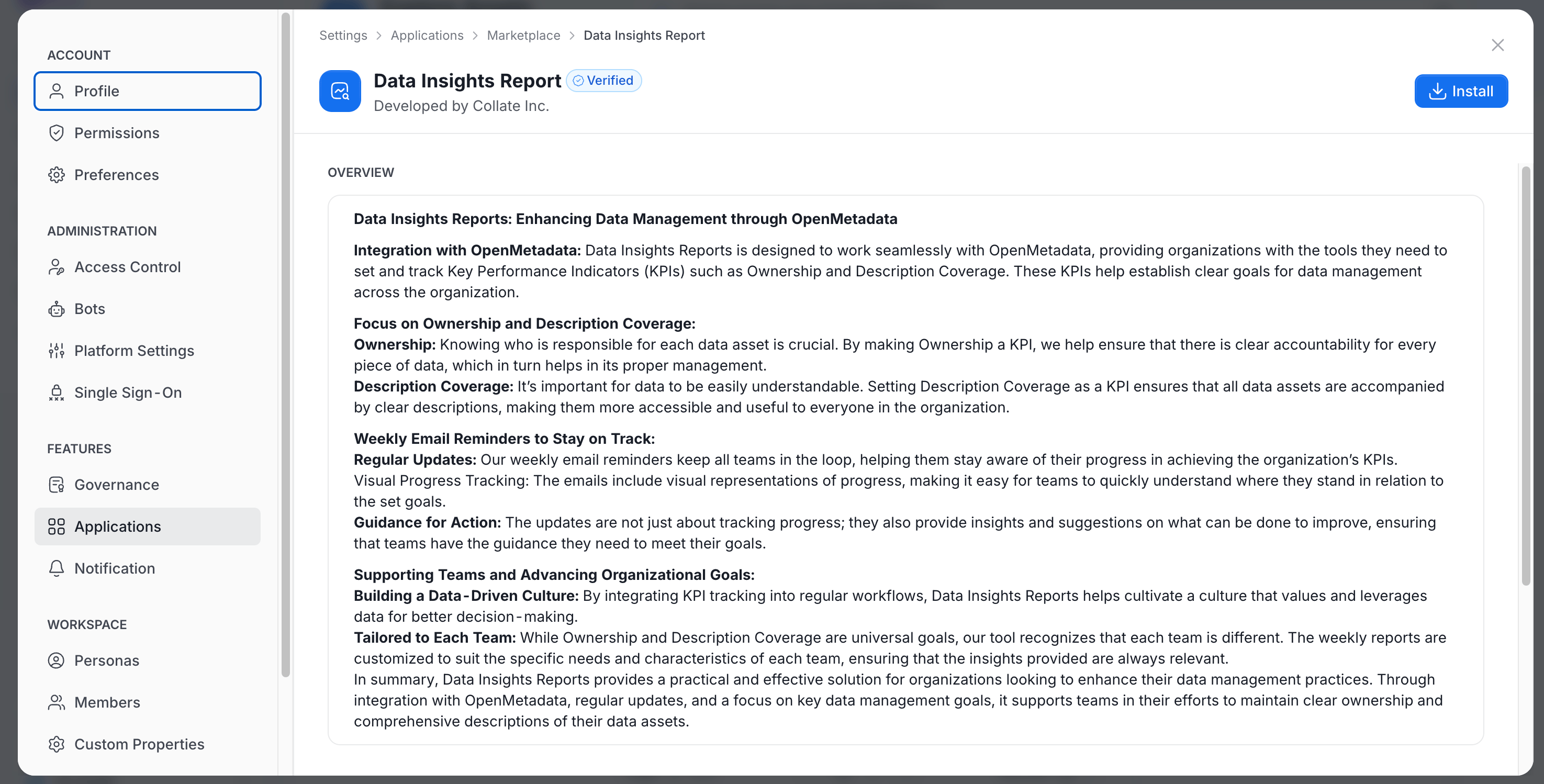
Once the data insights ingestion has been set up, you can proceed to configure the email report for Data Insights.- Navigate to Settings > Features > Applications, click Browse Apps, select the Data Insights Report application, and click Install.
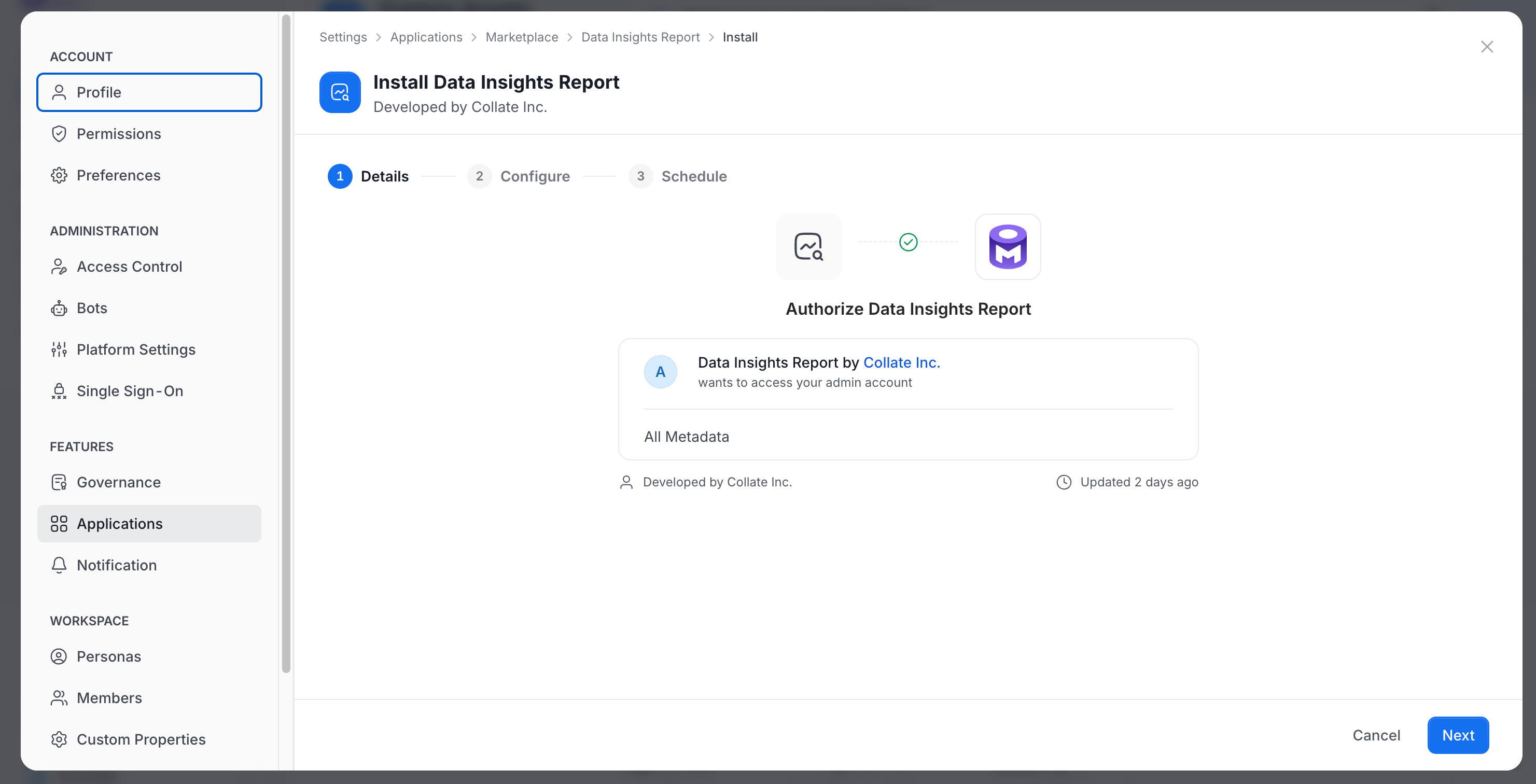
- On the Details step, review the Authorize screen and click Next.
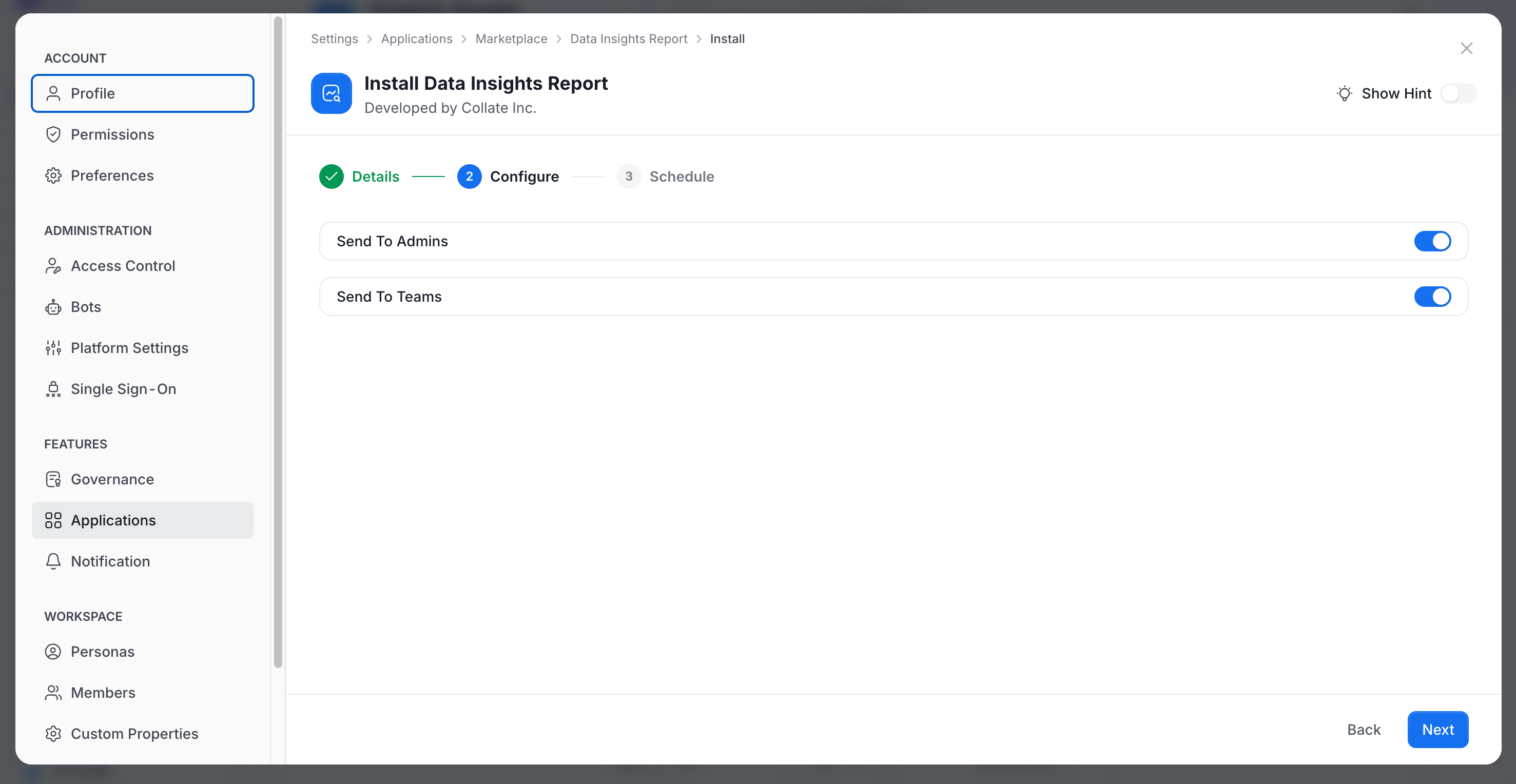
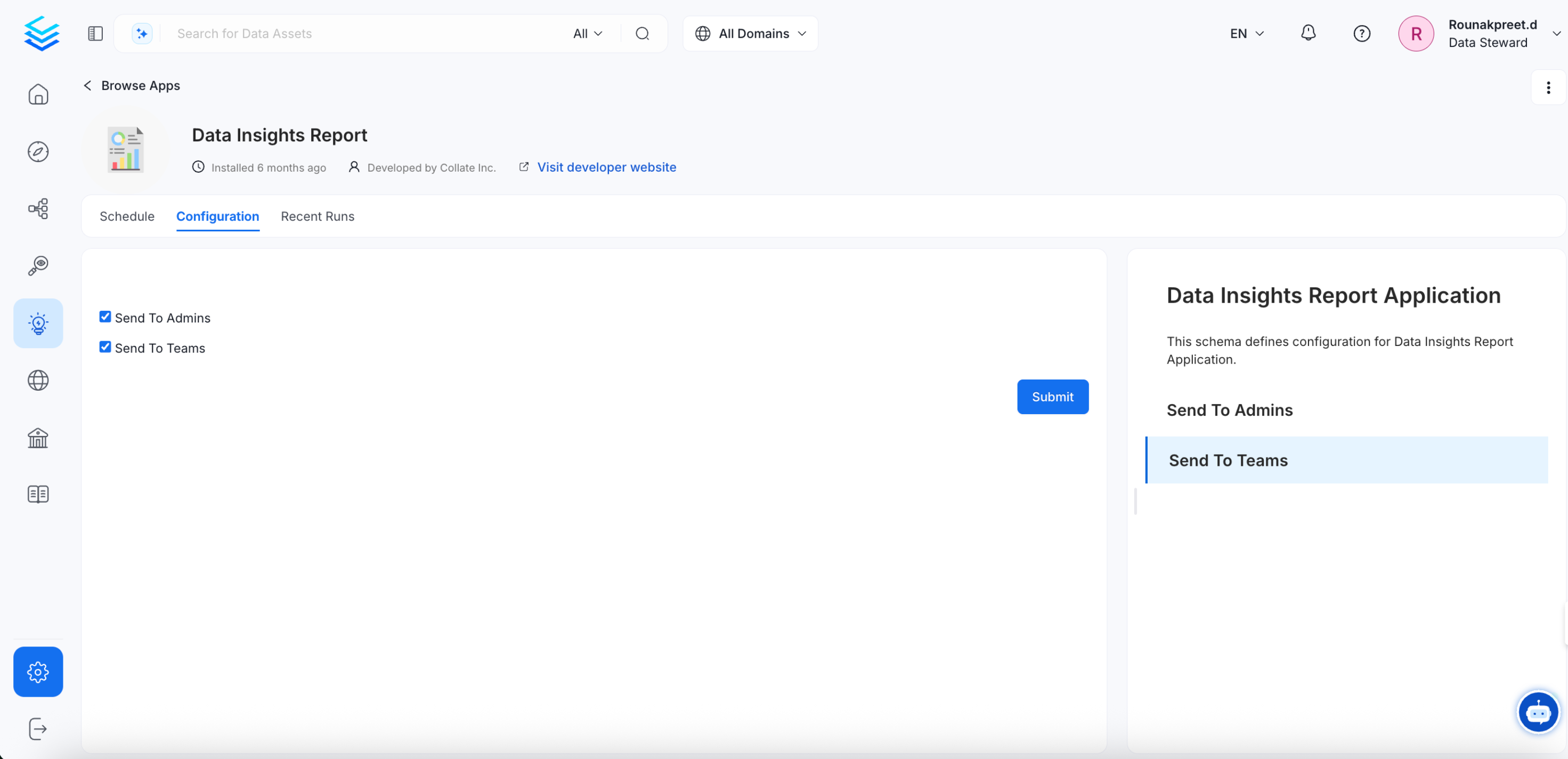
- On the Configure step, choose who receives the report. Turn Send To Admins and Send To Teams on or off, then click Next.
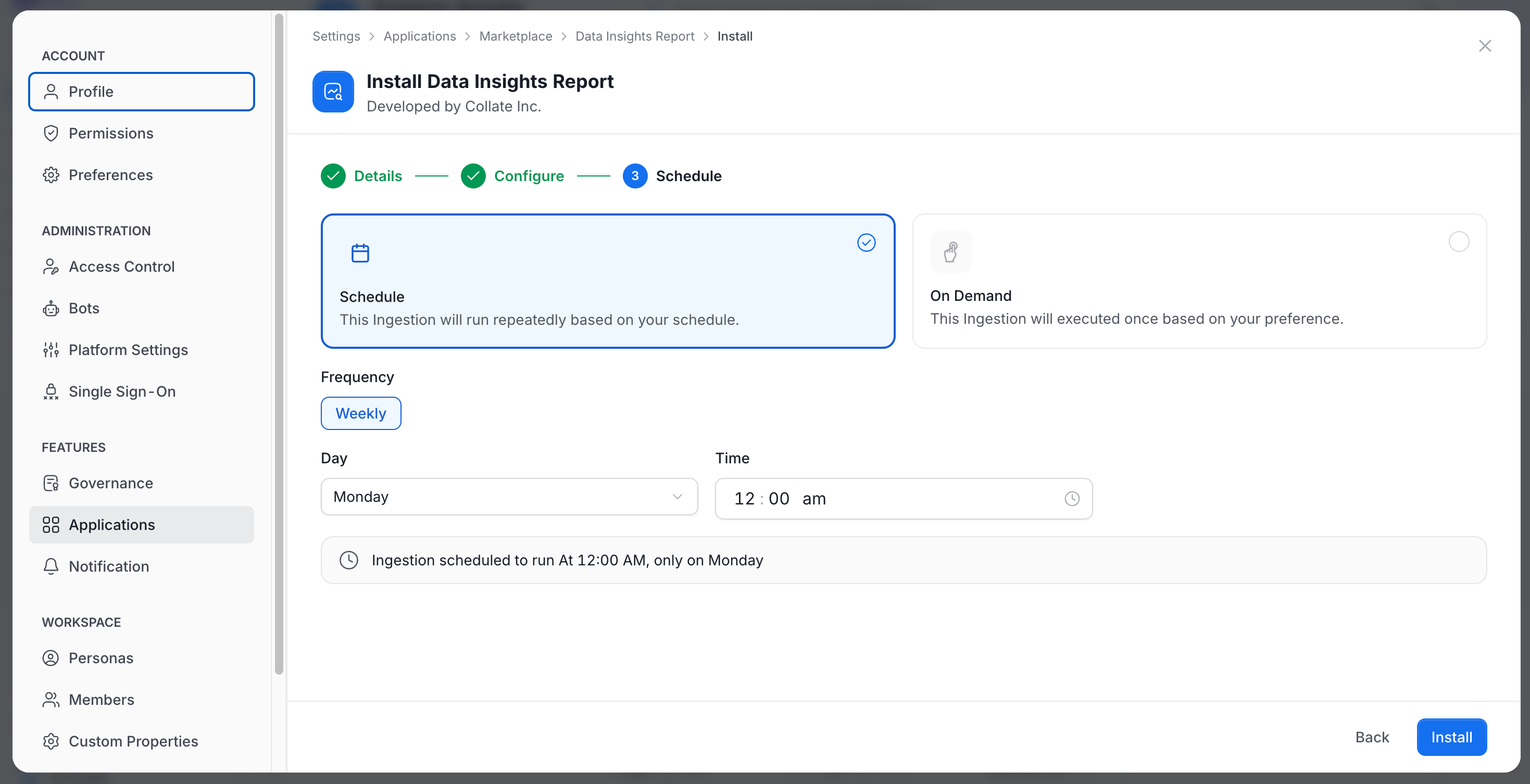
- On the Schedule step, select Schedule to send the report repeatedly or On Demand to send it once. For a schedule, set the Day and the Time. The frequency is Weekly. Click Install.
- The Data Insights Report has been configured successfully.
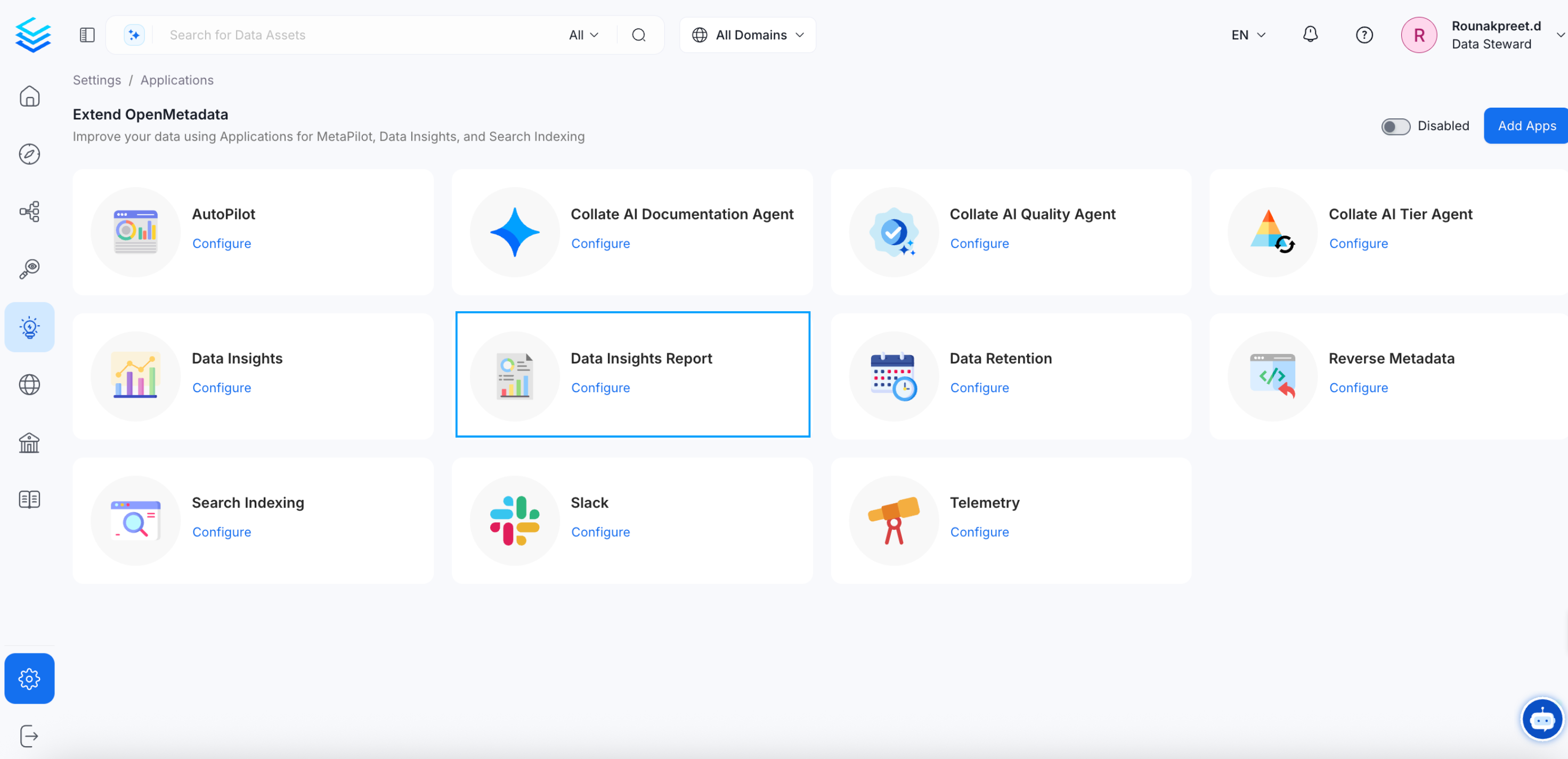
- By clicking on Configure You can change the schedule for the data insights report. You can also change who receives the report (Admins/Teams). You can also view the History on when the report was last sent.
How to Transform the Data Culture of Your Company
Improve your data culture for data-driven decision making.