
Set Up Data Insights Ingestion
Admin users can set up a data insights ingestion pipeline right from the OpenMetadata UI.- Navigate to Settings > Features > Applications. If the data insights application does not show up, click Browse Apps.
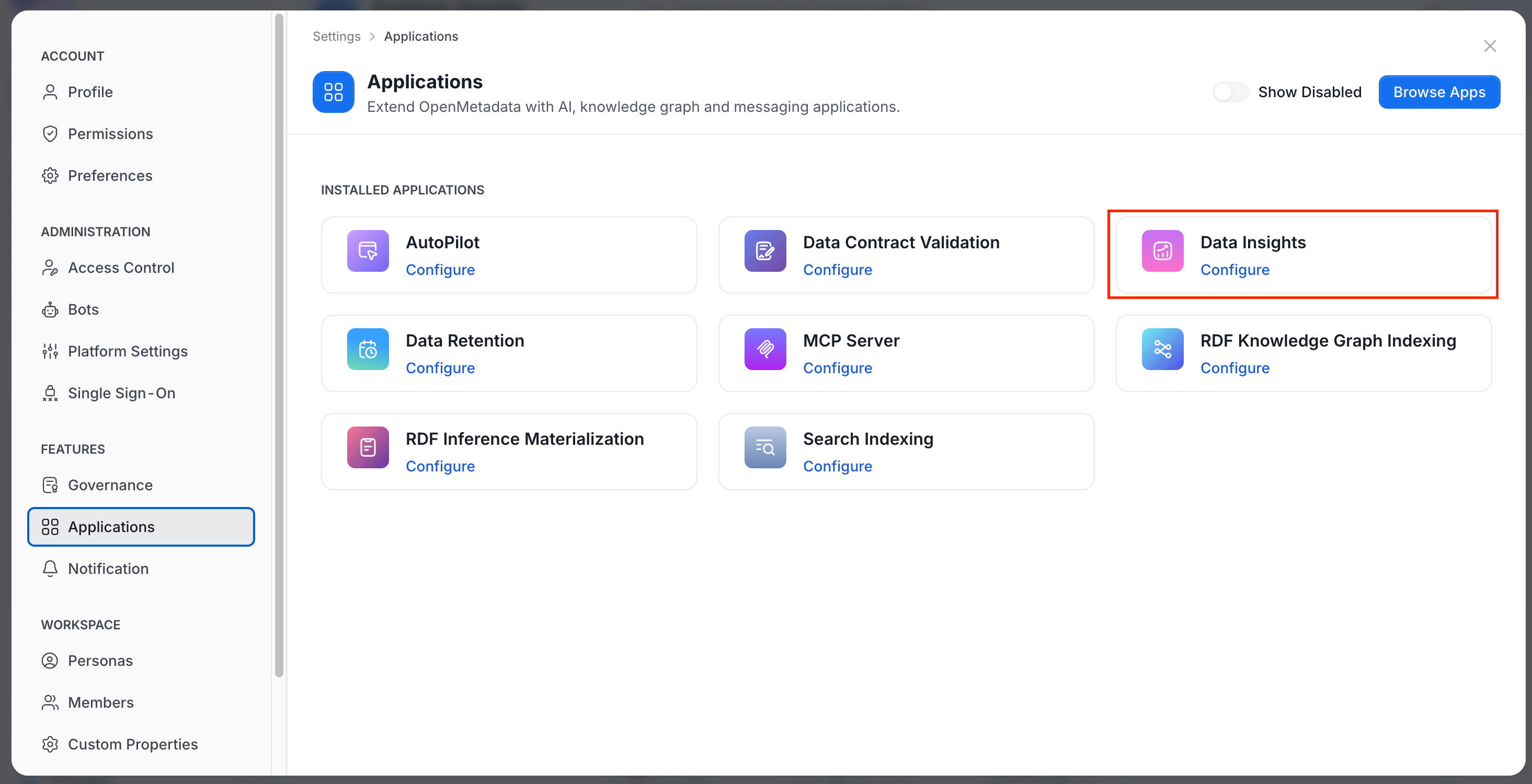
- Select the Data Insights application.
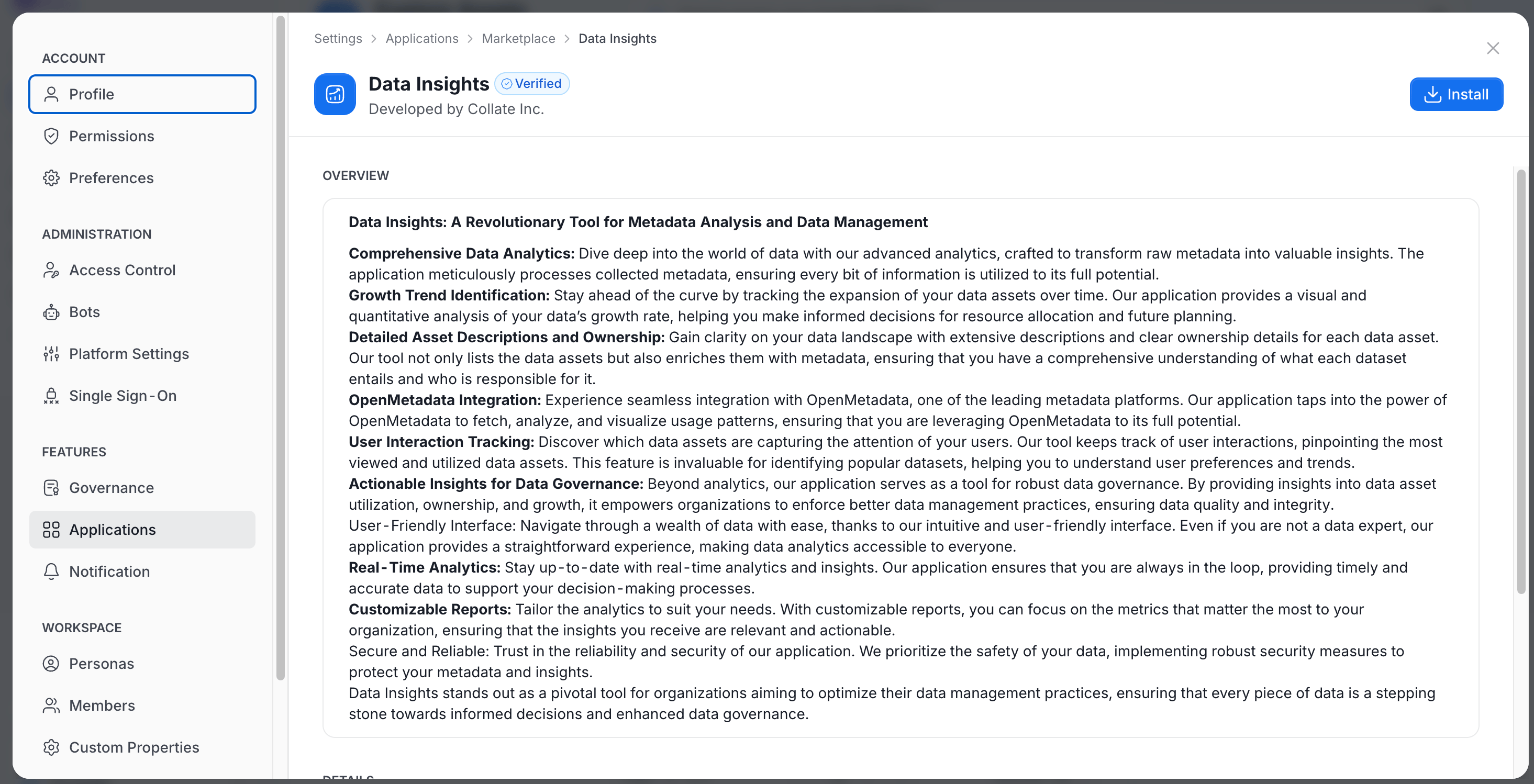
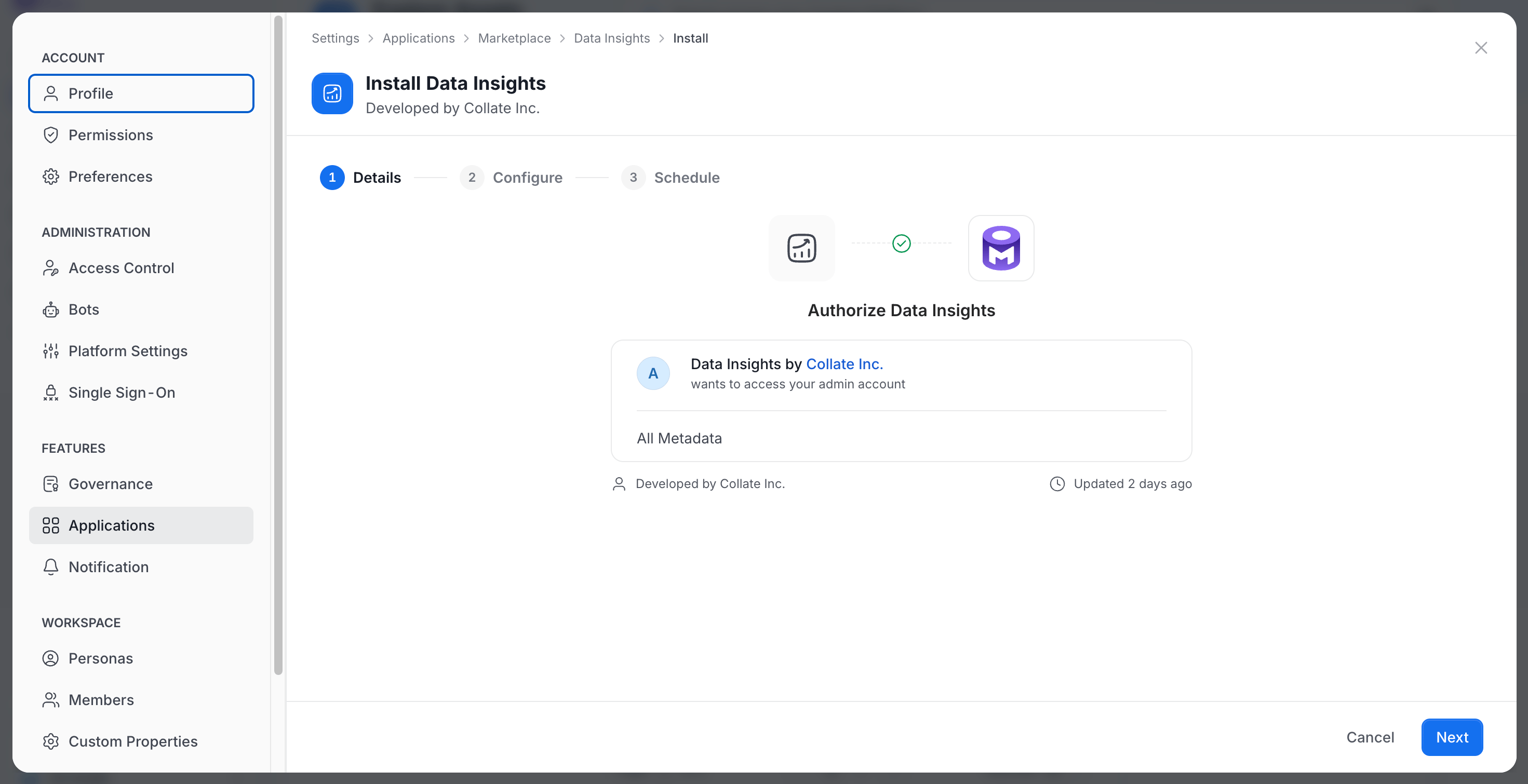
- Click Install. The wizard has three steps: Details, Configure, and Schedule. Click Next to move between them.
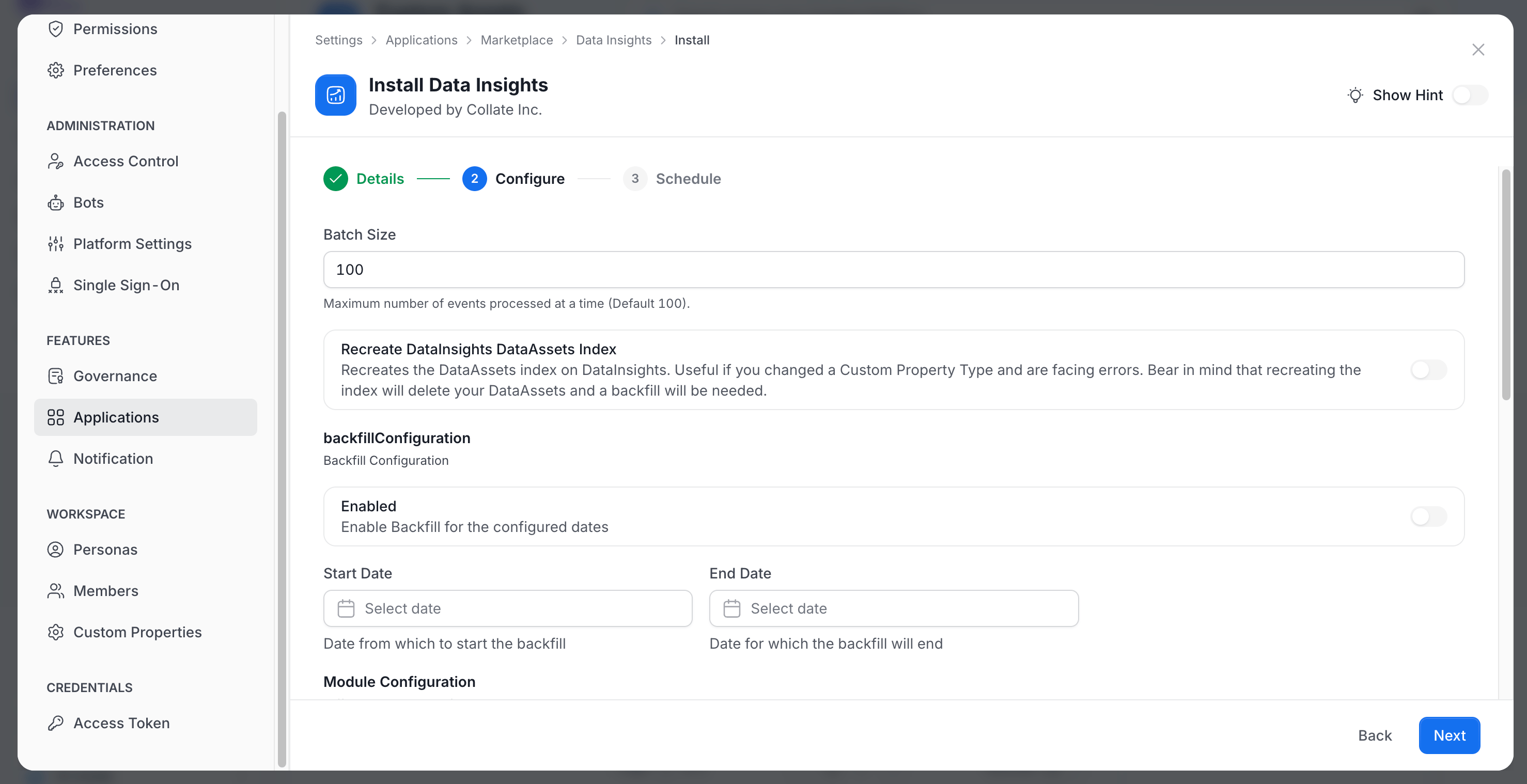
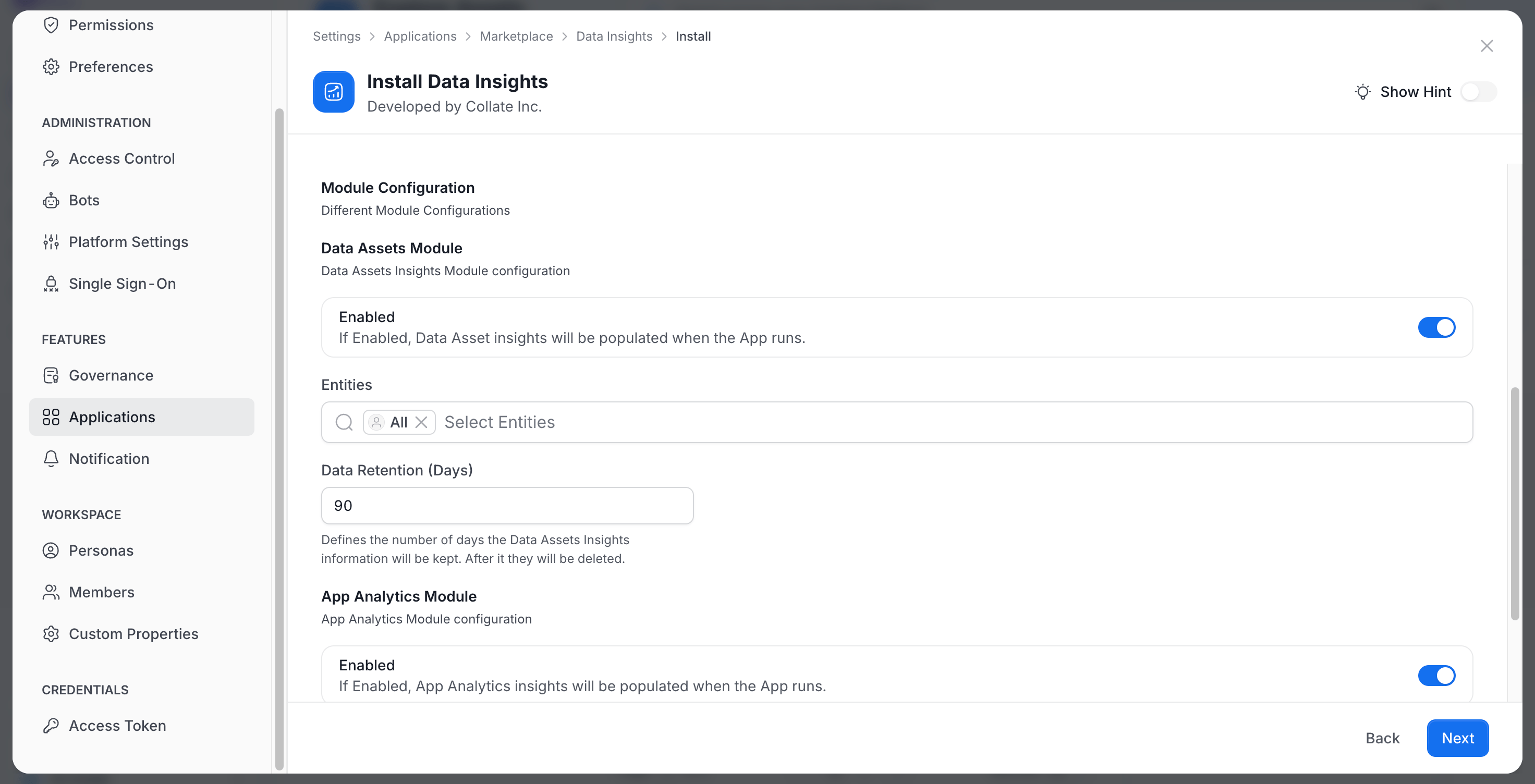
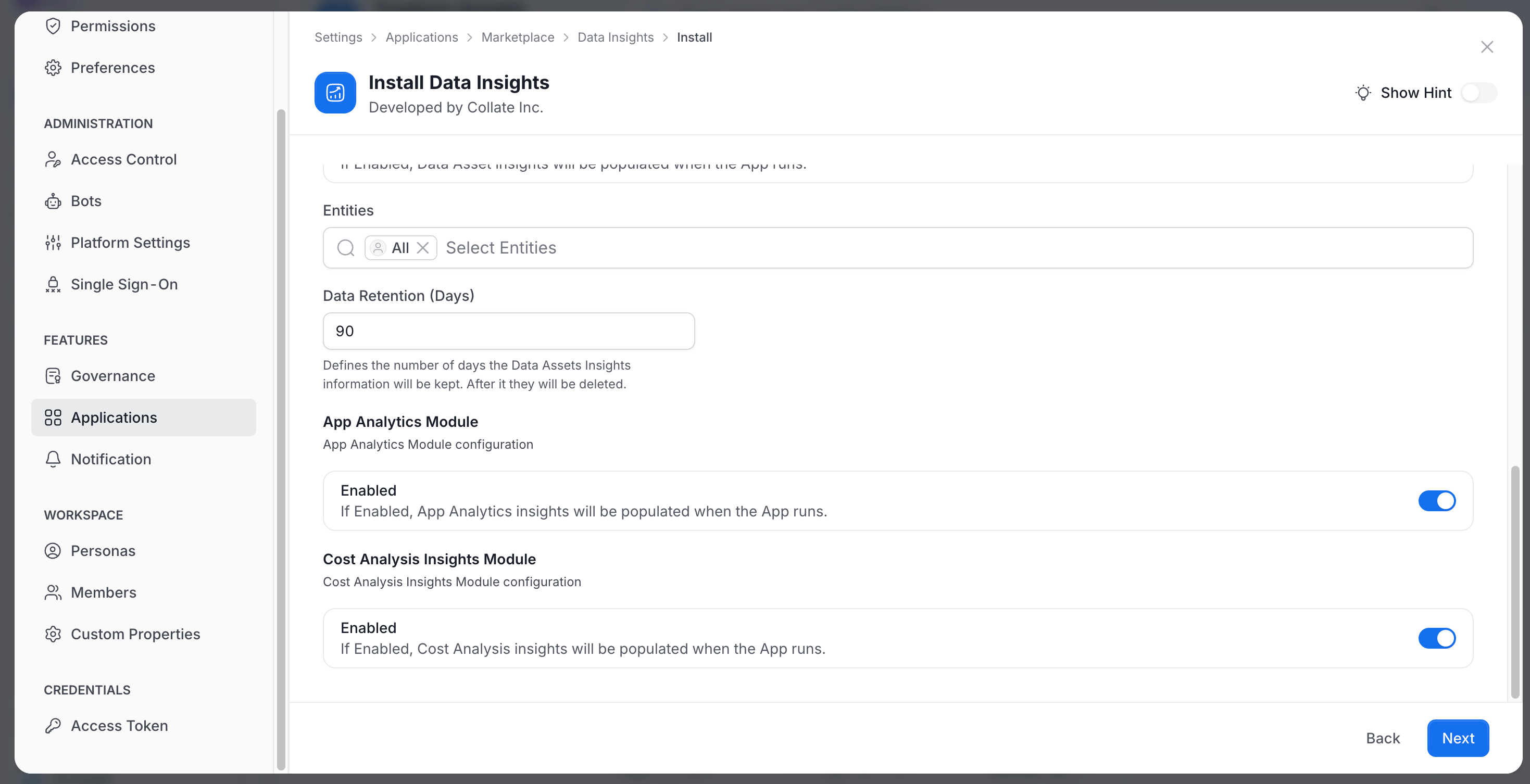
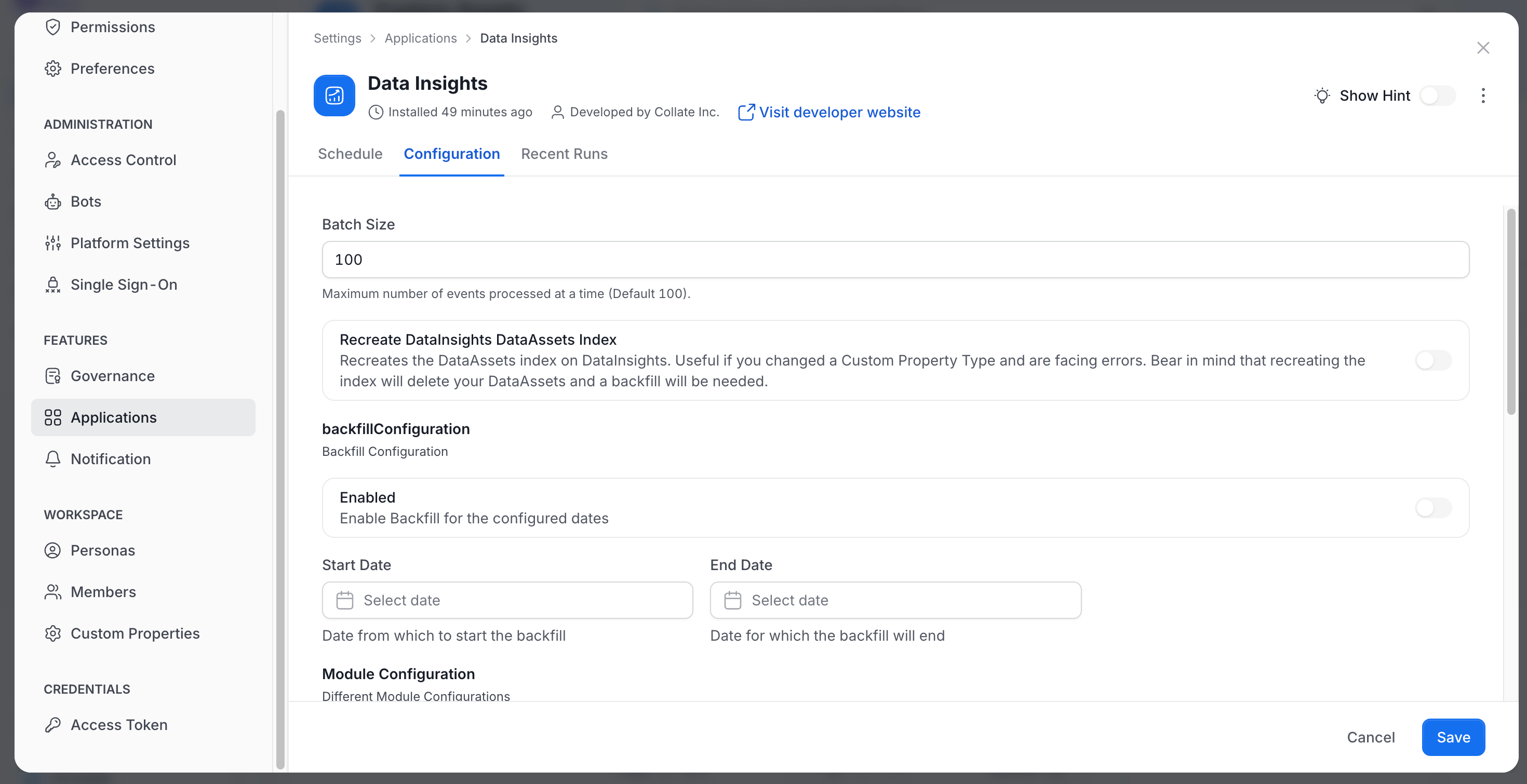
- On the Configure step, adjust the settings according to your specific requirements, then click Next. The step has the following settings:
- Batch Size: The maximum number of events processed at a time. The default is 100.
- Recreate DataInsights DataAssets Index: Turn on to recreate the DataAssets index on DataInsights. Use it if you changed a Custom Property Type and are facing errors. Recreating the index deletes your DataAssets, so you need a backfill afterward.
- backfillConfiguration: Turn on Enabled to backfill the configured dates, then set the Start Date and End Date.
- Module Configuration: Each module has an Enabled switch that controls whether its insights are populated when the application runs. The modules are Data Assets Module, App Analytics Module, and Cost Analysis Insights Module.
- Data Assets Module: Set the Entities to include and the Data Retention (Days). Insights older than the retention period are deleted.
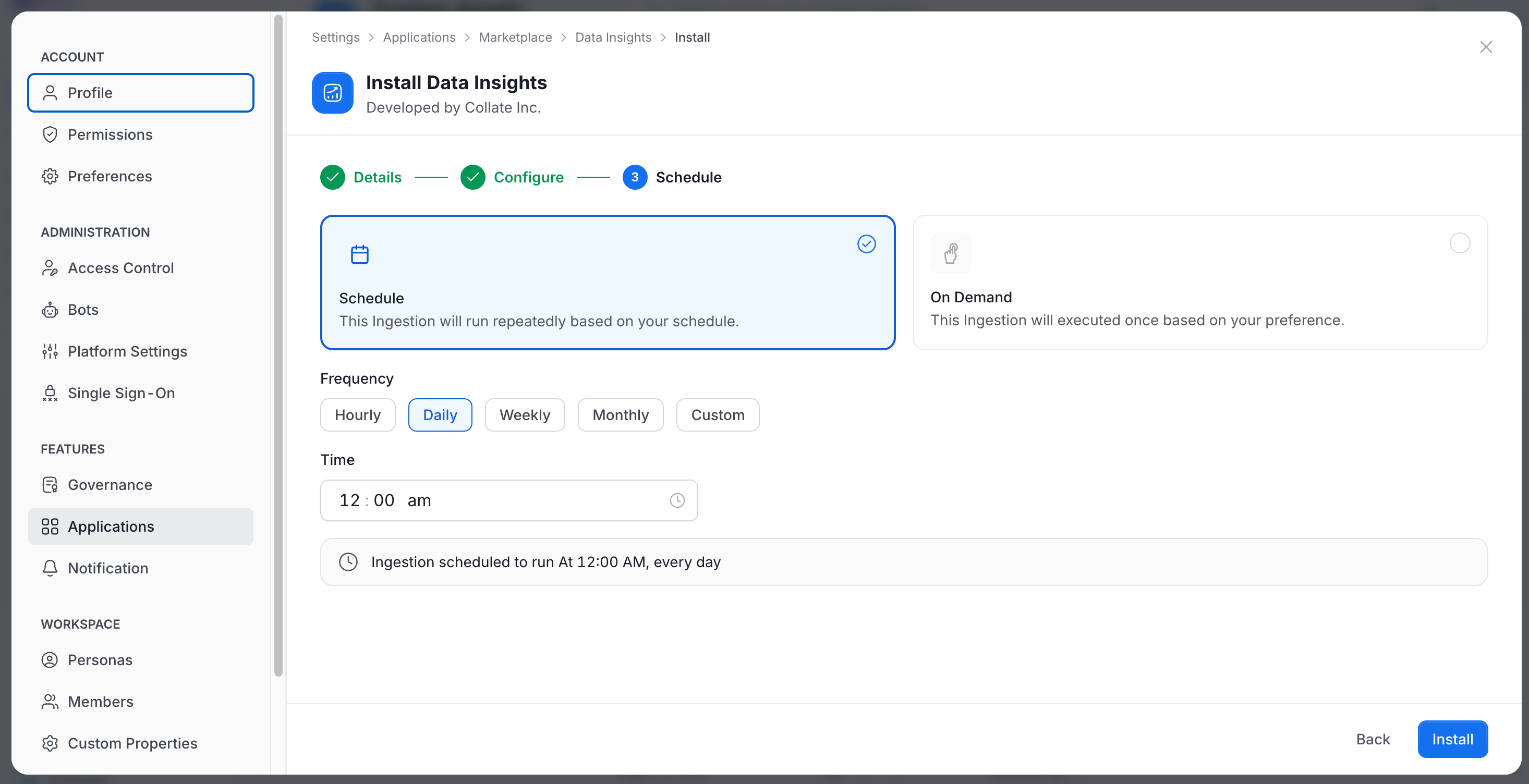
- Choose a schedule execution time for your workflow. The schedule time is displayed in UTC. Run this workflow overnight or when activity on the platform is at its lowest to ensure accurate data. It is scheduled to run daily. Click Install.
- Click on Run now to setup the ingestion pipeline.
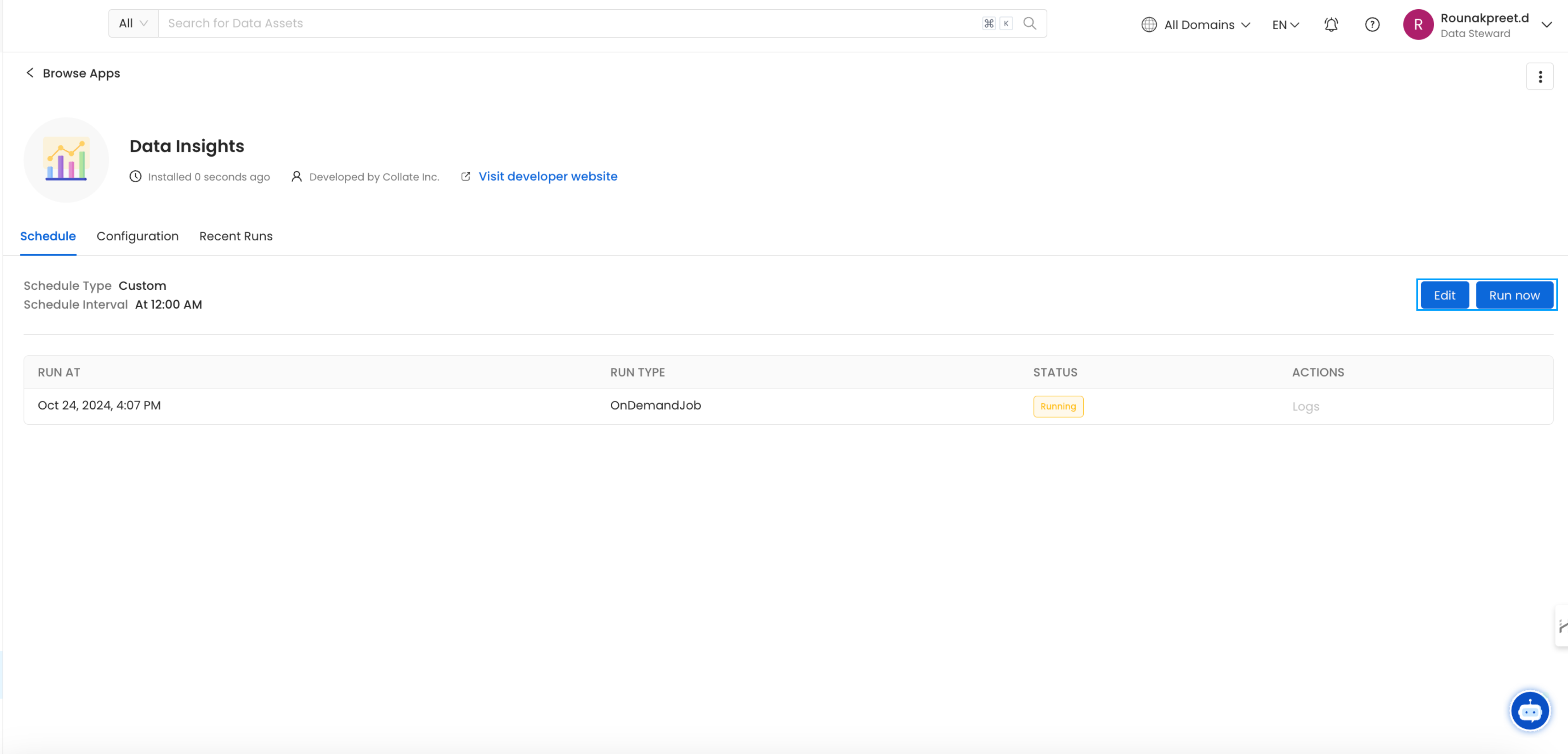
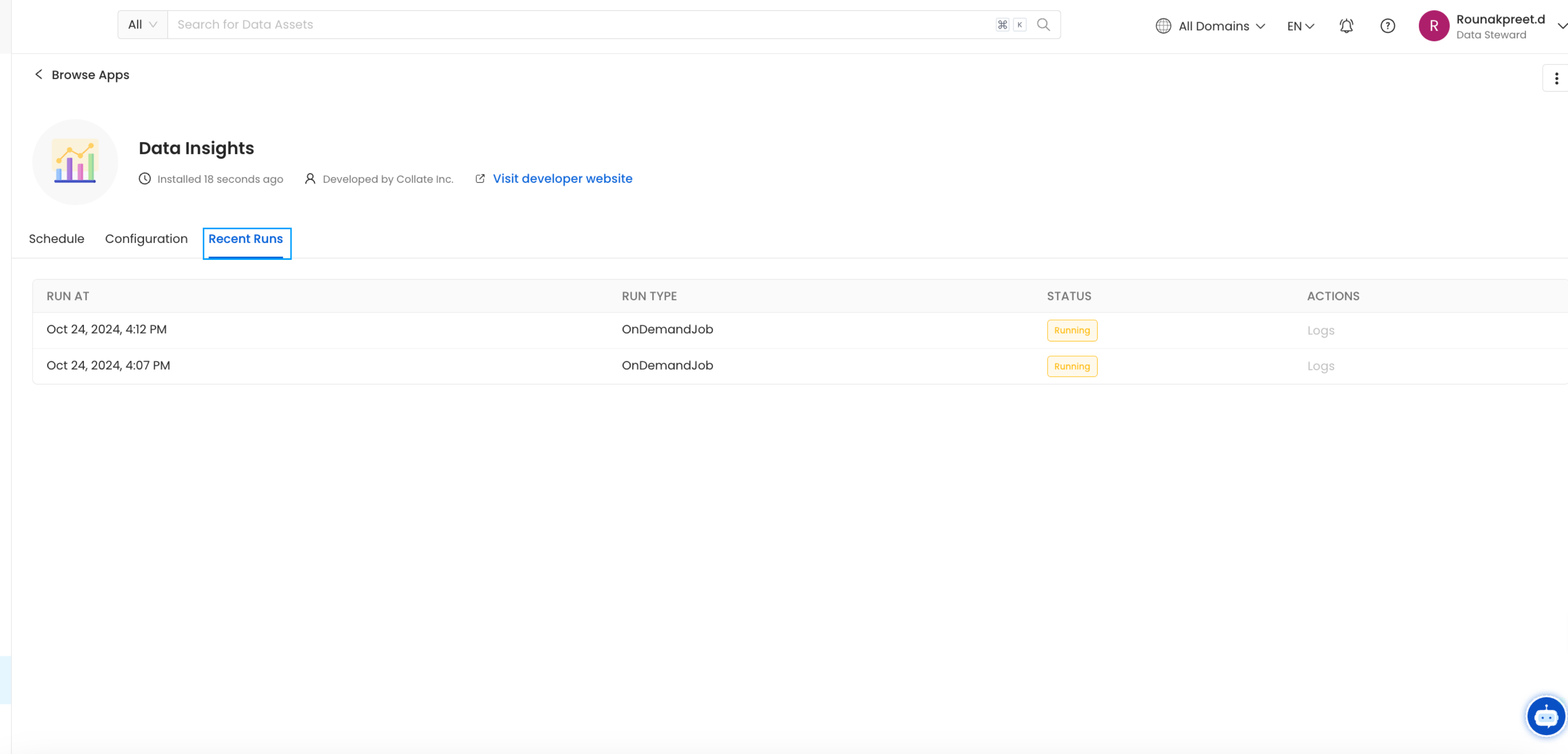
- You can also Edit the ingestion schedule. The ingestion pipeline can also be run on demand by again clicking on Run now. You can view the Recent Runs tab for details on when the ingestion was last run.
Key Performance Indicators (KPI)
Define the KPIs and set goals for documentation, and ownership.