
How Column-Level Lineage Works
Column-level lineage shows how individual columns move between tables. Use it to:- Understand how one table relates to another.
- Run impact analysis before you change a column.
- Trace where a column comes from and what depends on it.

View Column-Level Lineage
To see the column-level lineage of a table:- From the left navigation bar, select Explore, or use the search bar at the top.
- Open the table you want to inspect.
-
Select the Lineage tab.
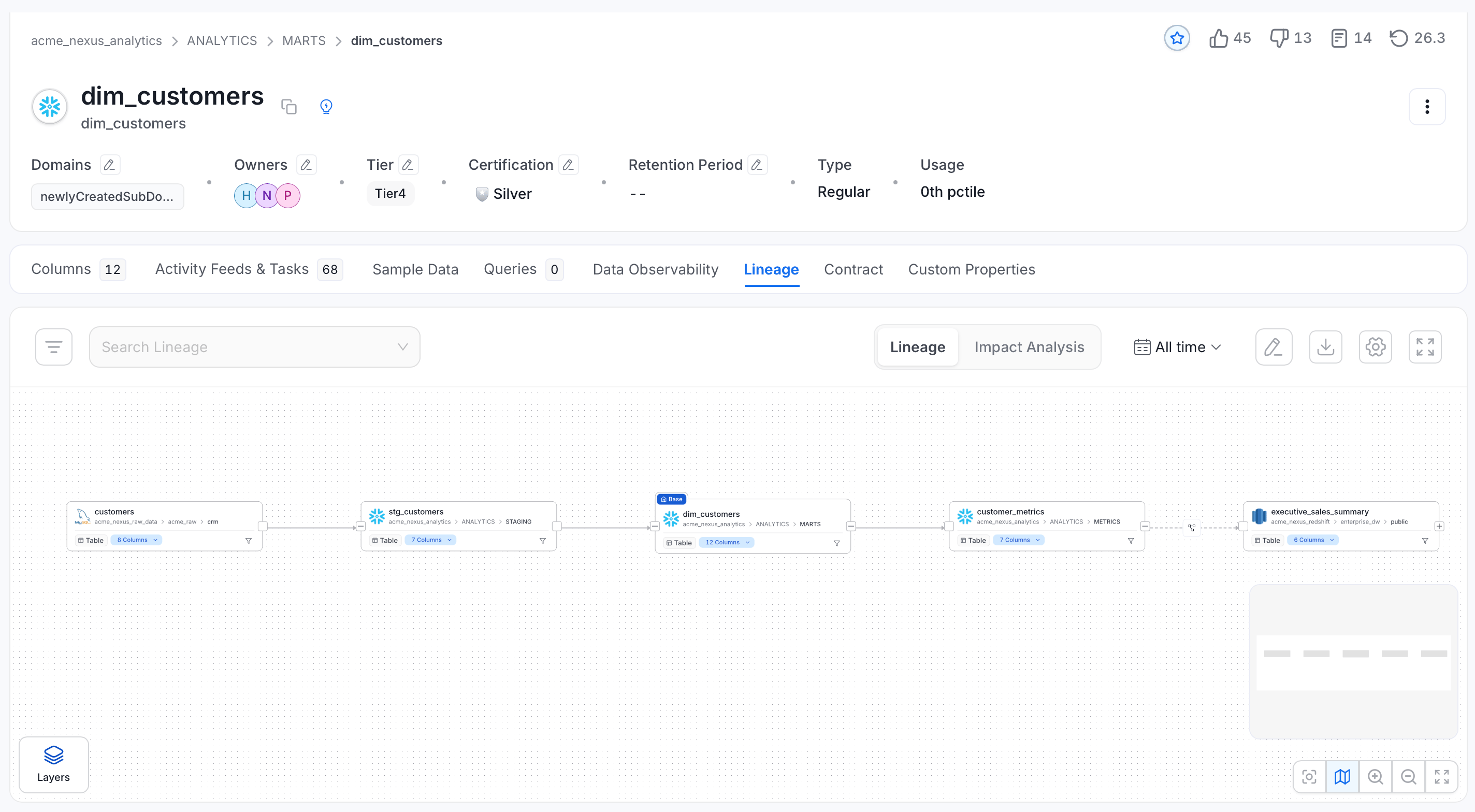
- Select the Layers button, and under Level, select Field-level Lineage. Each table in the graph now lists its columns.
- Select a column to follow it through the graph.
Generate Column-Level Lineage Automatically
Run a Lineage Agent on the database service that holds the tables:- Open the database service, then select the Agents tab.
-
Select Add Agent > Add Lineage Agent.
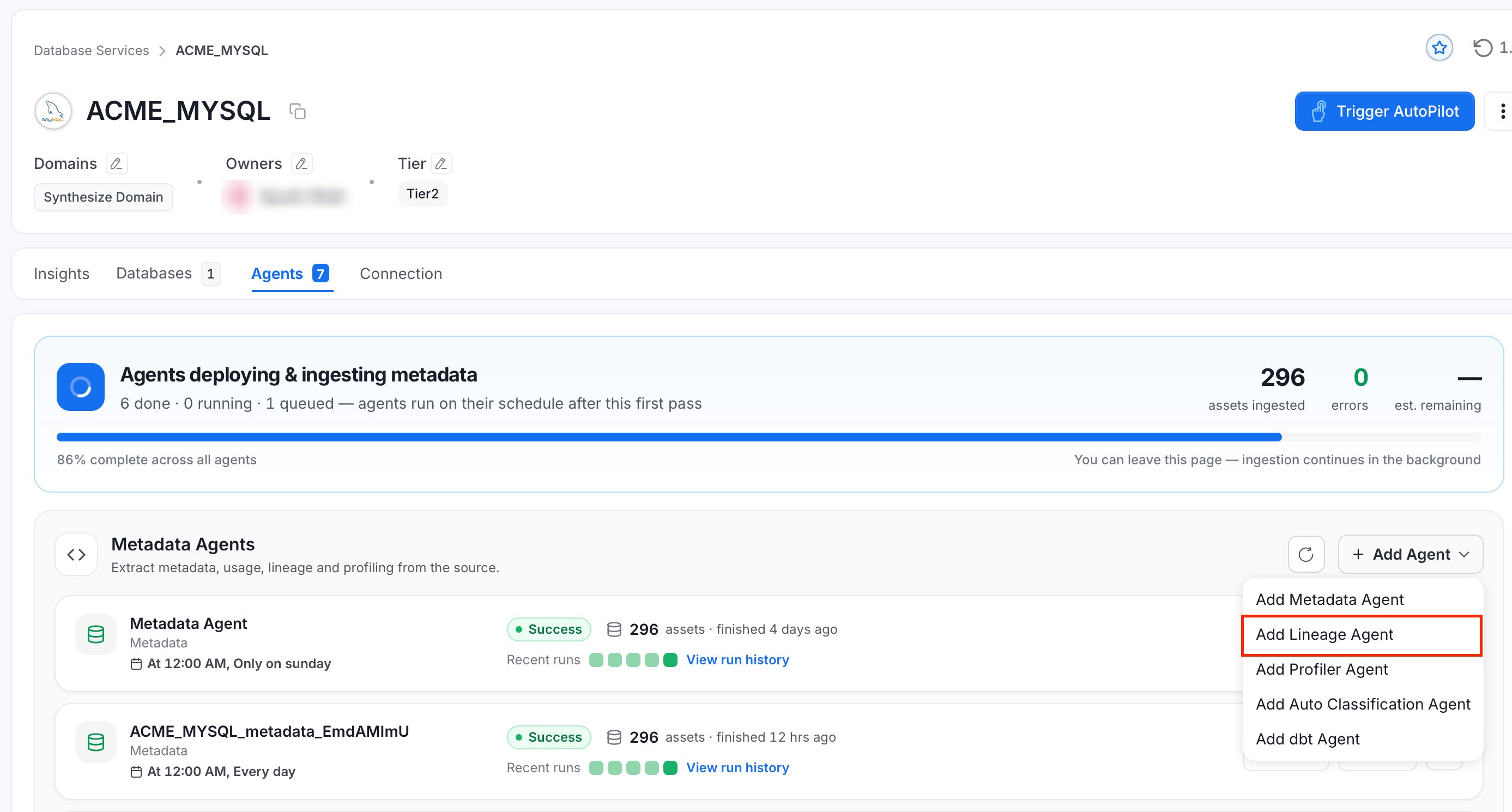
- Configure the agent, then save it.
-
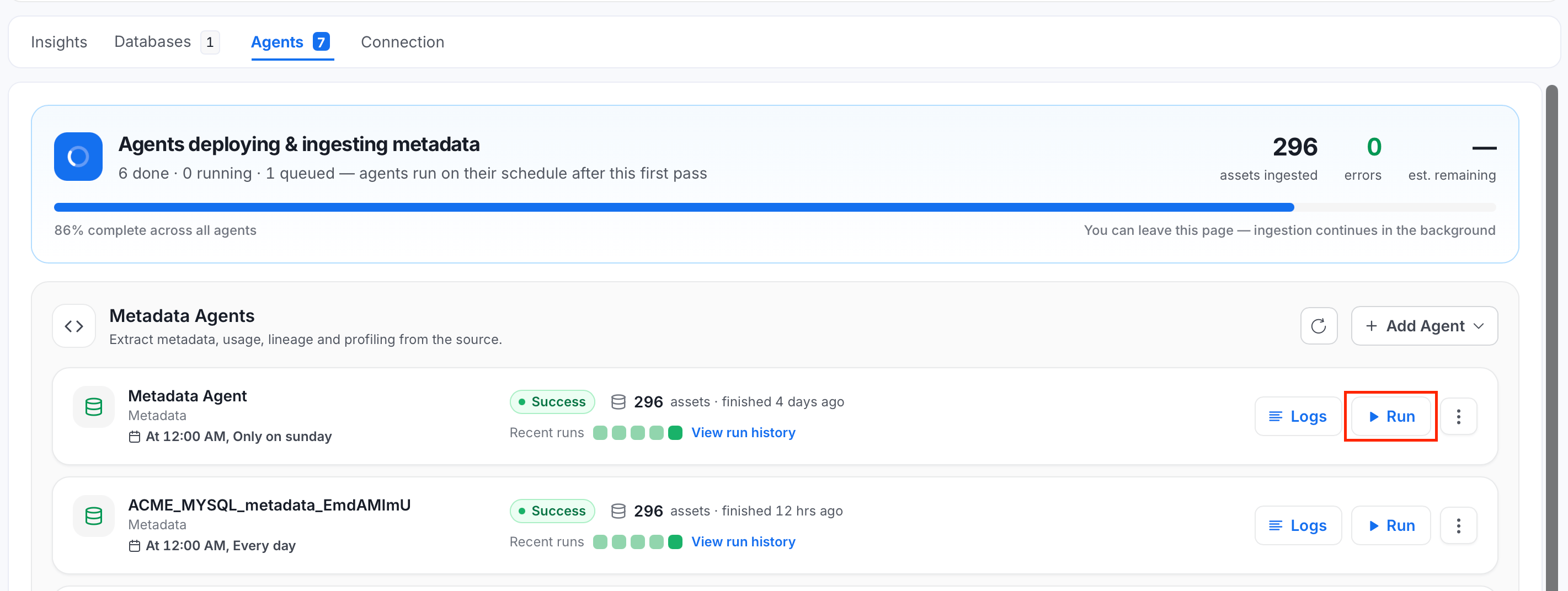
On the Agents tab, find the Lineage Agent and select Run.
Manually Edit Column Level Lineage
OpenMetadata supports manual editing of both table-level and column-level lineage. Use it to add links that are not detected automatically. To link columns by hand:- Open the table and select the Lineage tab.
-
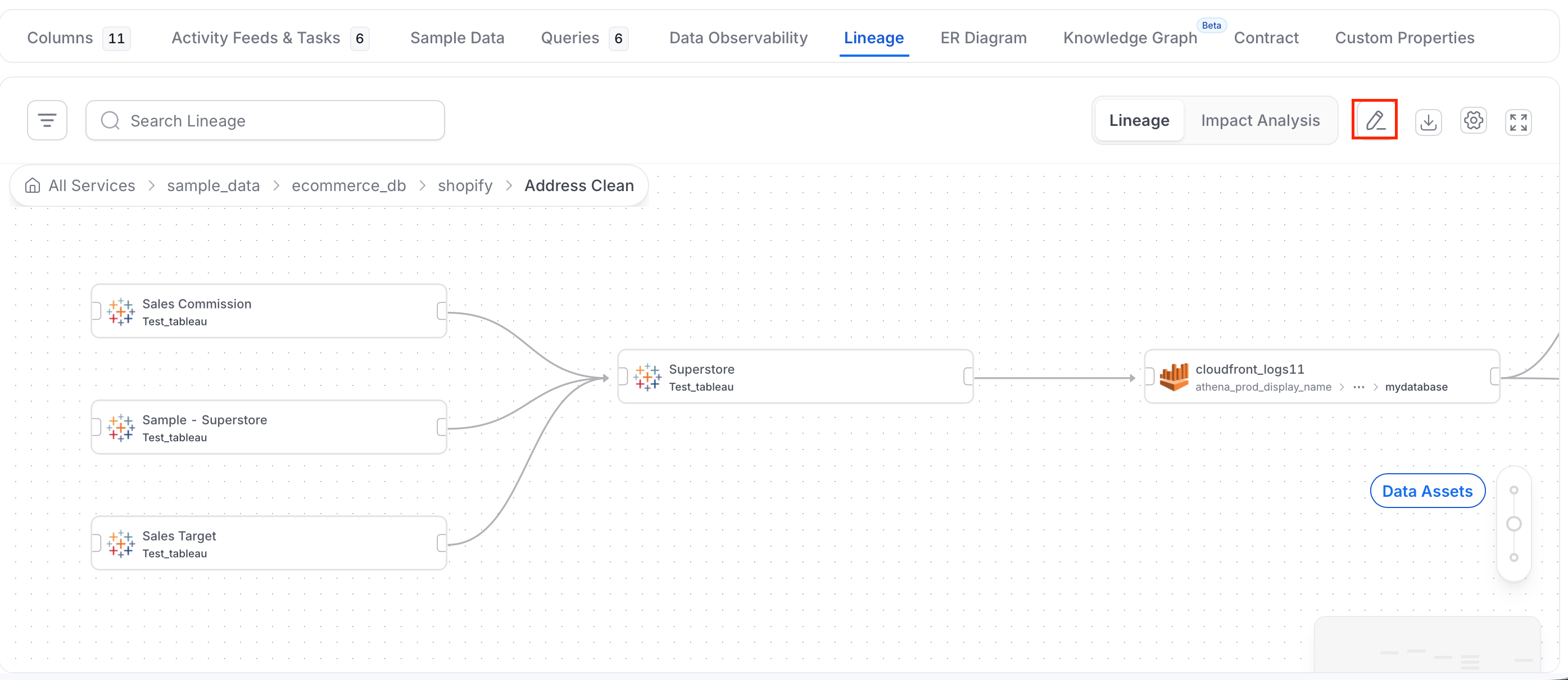
Click Edit (the pencil icon) in the lineage toolbar. The asset panel opens next to the graph.
-
If the table that holds the column you want to trace is not in the graph, add it first:
- In the asset panel, choose the asset type, such as Tables.
- Search for the table and add it to the graph.
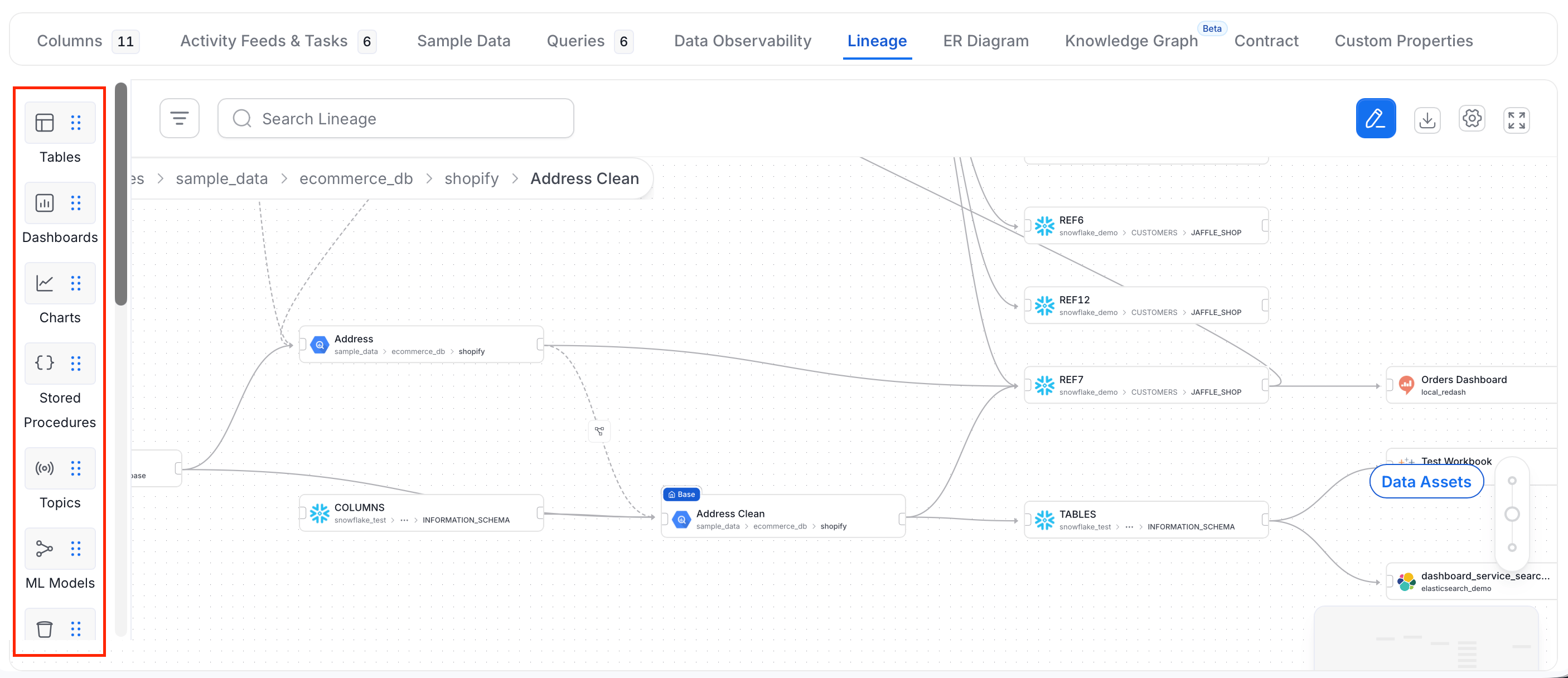
- Find the column in the source table. Each column has an anchor point on its edge.
- Drag from the anchor point of the source column to the anchor point of the column it feeds in the other table.
- Repeat for each column you want to link.
- Optional: To remove a link, select the x icon on the connecting line.
- Save your changes.
Metric Column Lineage
A metric is often calculated from a single column. Link the column to the metric so the lineage shows exactly which field feeds the metric. For example, linksales.amount to the metric Total Sales.
- Direction: Connect a column to a metric (column feeds the metric), or a metric to a column.
- Endpoint: A metric has no columns of its own. In column-level lineage, the metric appears as one connection point that carries the metric’s own name.
- Visibility: The connection point appears on a metric node at the Field-level Lineage level or in edit mode. In the default view, a metric node shows no connection point.
- Impact Analysis: The column-to-metric link also appears in the column-level Impact Analysis view, so you can see which metrics depend on a column before you change it.
Link a Column to a Metric
Before you start, make sure you can edit the metric and the table that holds the column.- Open the metric and select the Lineage tab.
- Select Edit (the pencil icon) in the lineage toolbar.
- If the table that holds the column is not in the graph, add it from the asset panel. For more information, see Manually Edit Column Level Lineage.
- Select the Layers button and, under Level, select Field-level Lineage so the table’s columns are listed.
- Drag from the anchor point beside the column to the anchor point on the metric.
- Save your changes.
You can also create these links with the API by adding a
columnsLineage entry whose toColumn is the metric’s fully qualified name.How to Manually Add or Edit Lineage
Edit the table and column level lineage manually.