
How to Manually Add or Edit Lineage
OpenMetadata’s no-code lineage editor lets you add and remove lineage directly from an asset’s Lineage tab. Link tables, topics, dashboards, ML models, containers, and pipelines, and connect individual columns to build a complete picture of how your data flows. You can edit both table-level and column-level lineage manually. This is useful for capturing relationships that ingestion doesn’t automatically detect.You need edit permission on the asset to see the editing menus.
Edit a Lineage
Build lineage by adding upstream and downstream assets from the node menu.Step 1: Open the Lineage Tab
Navigate to the data asset you want to use as the starting point.- Go to your database service and open a table.
- On the table details page, click the Lineage tab.
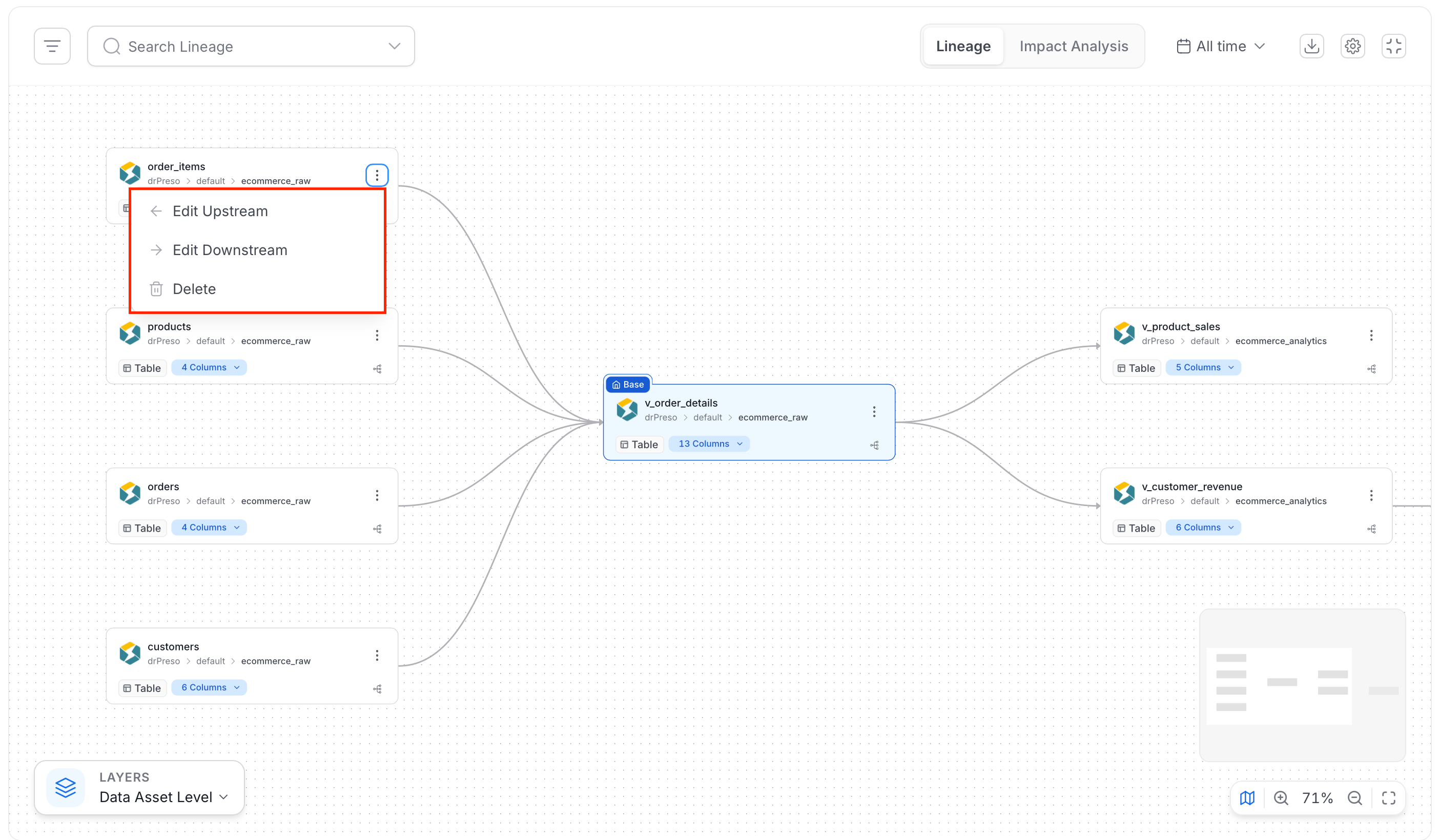
- On a node, open the Lineage options menu.
Step 2: Add an Upstream or Downstream Asset
Select the data asset you want to link as an upstream or downstream node.-
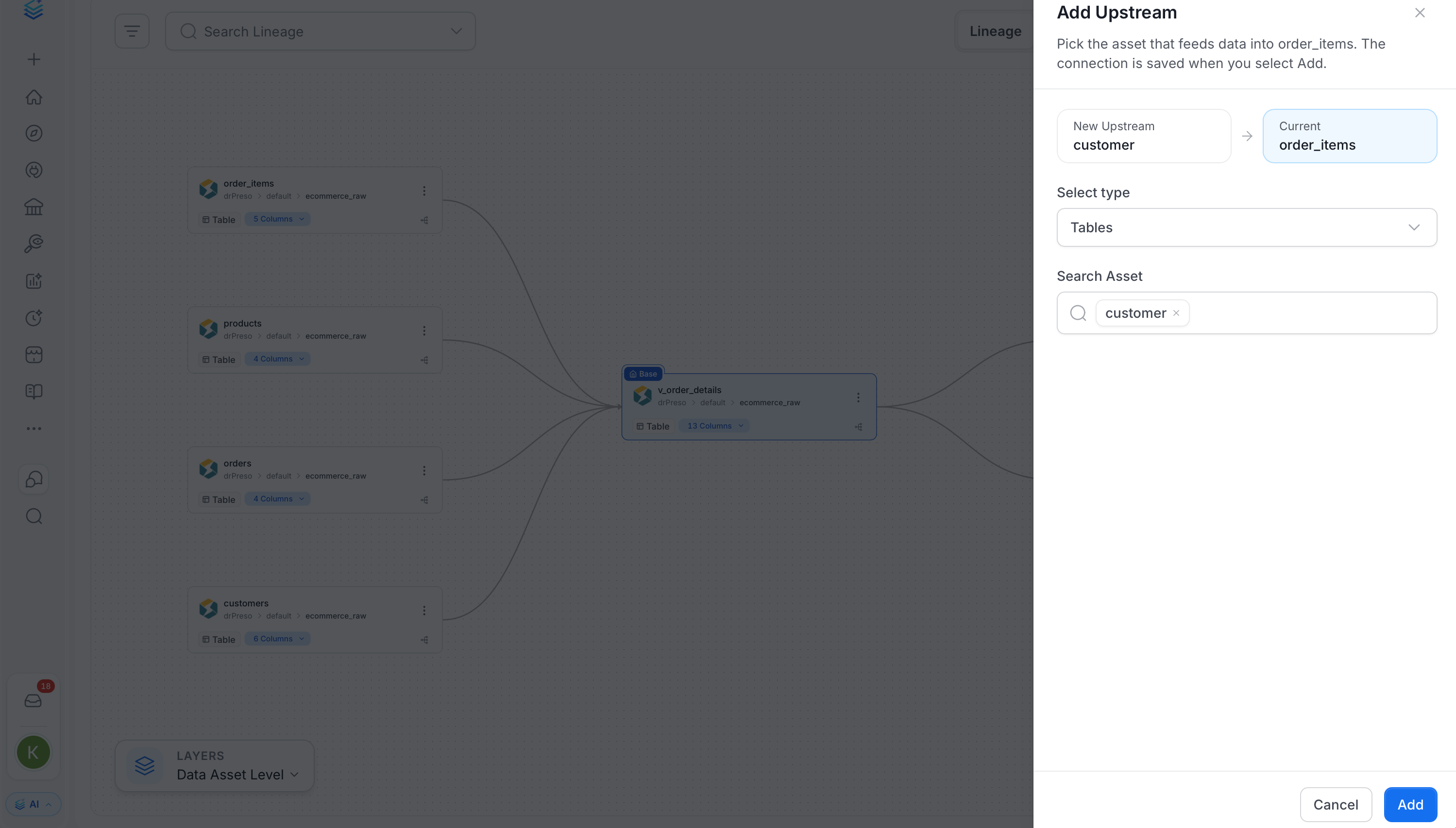
In the Lineage options menu, select Edit Upstream or Edit Downstream. A panel slides out with the current asset and the new asset to add.
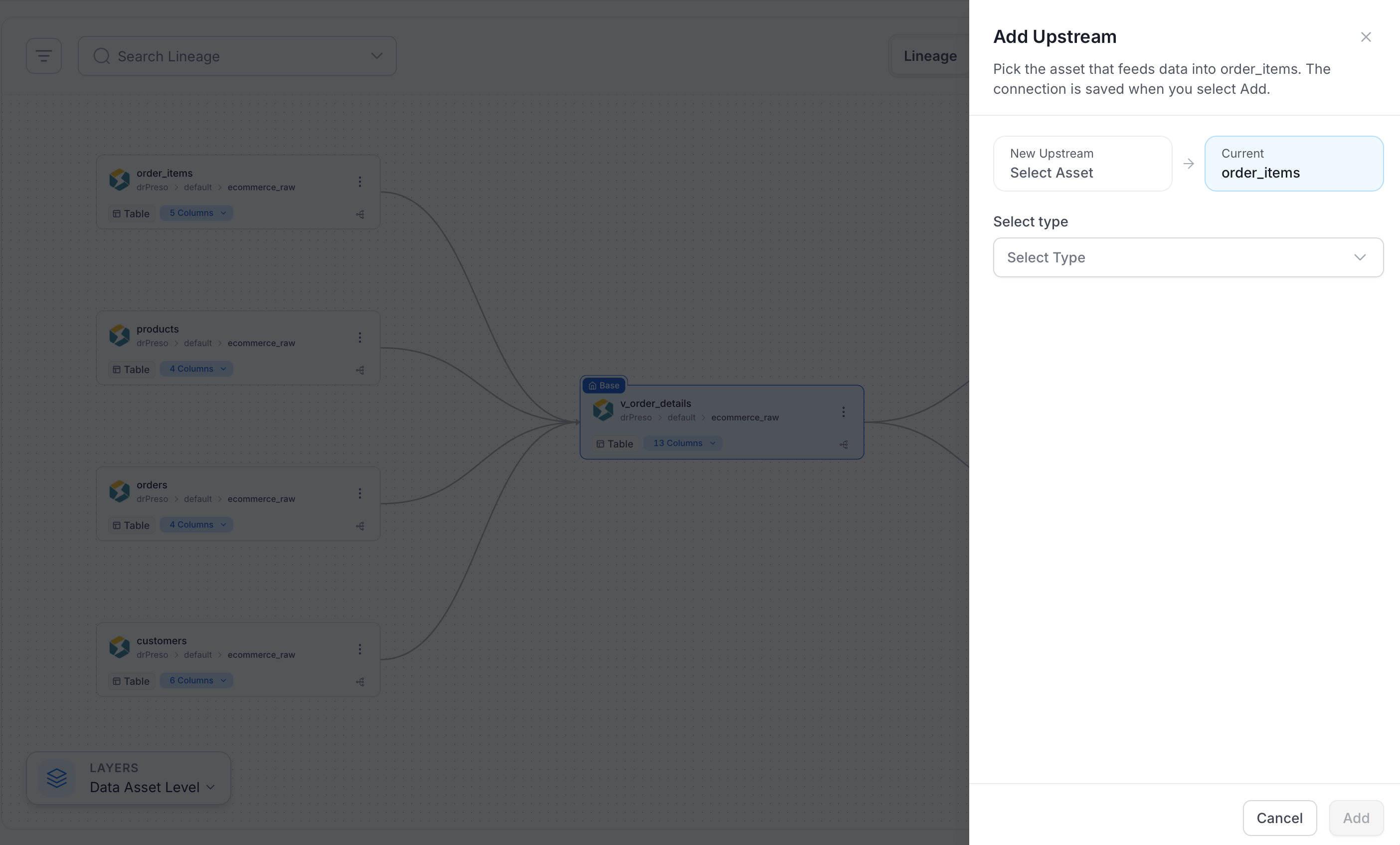
-
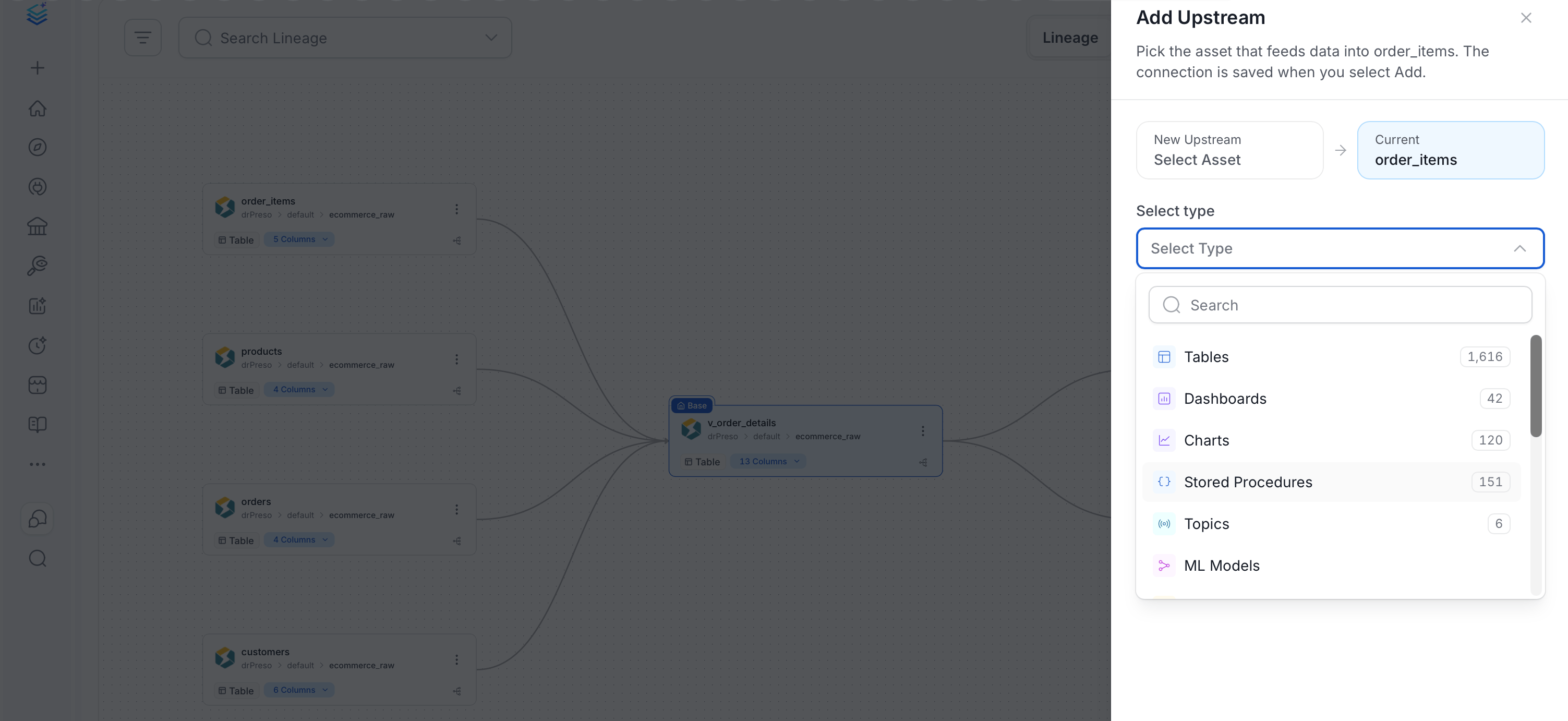
In Select type, choose the type of asset to connect, such as table, topic, dashboard, ML model, container, or pipeline. The list shows how many assets of each type exist.
-
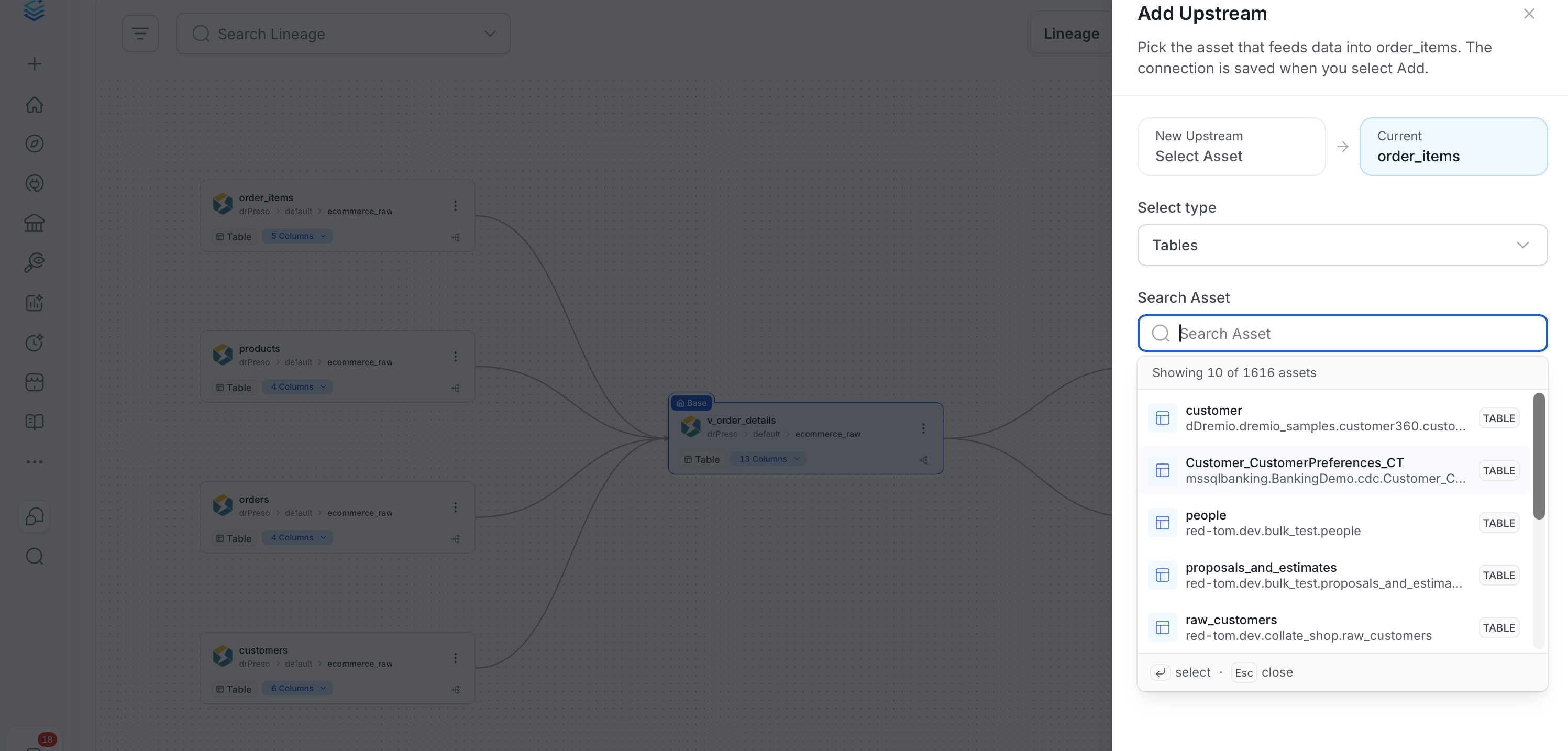
In Search Asset, search for the specific asset and select it. The list shows how many assets match, for example “Showing 10 of 1616 assets”.
-
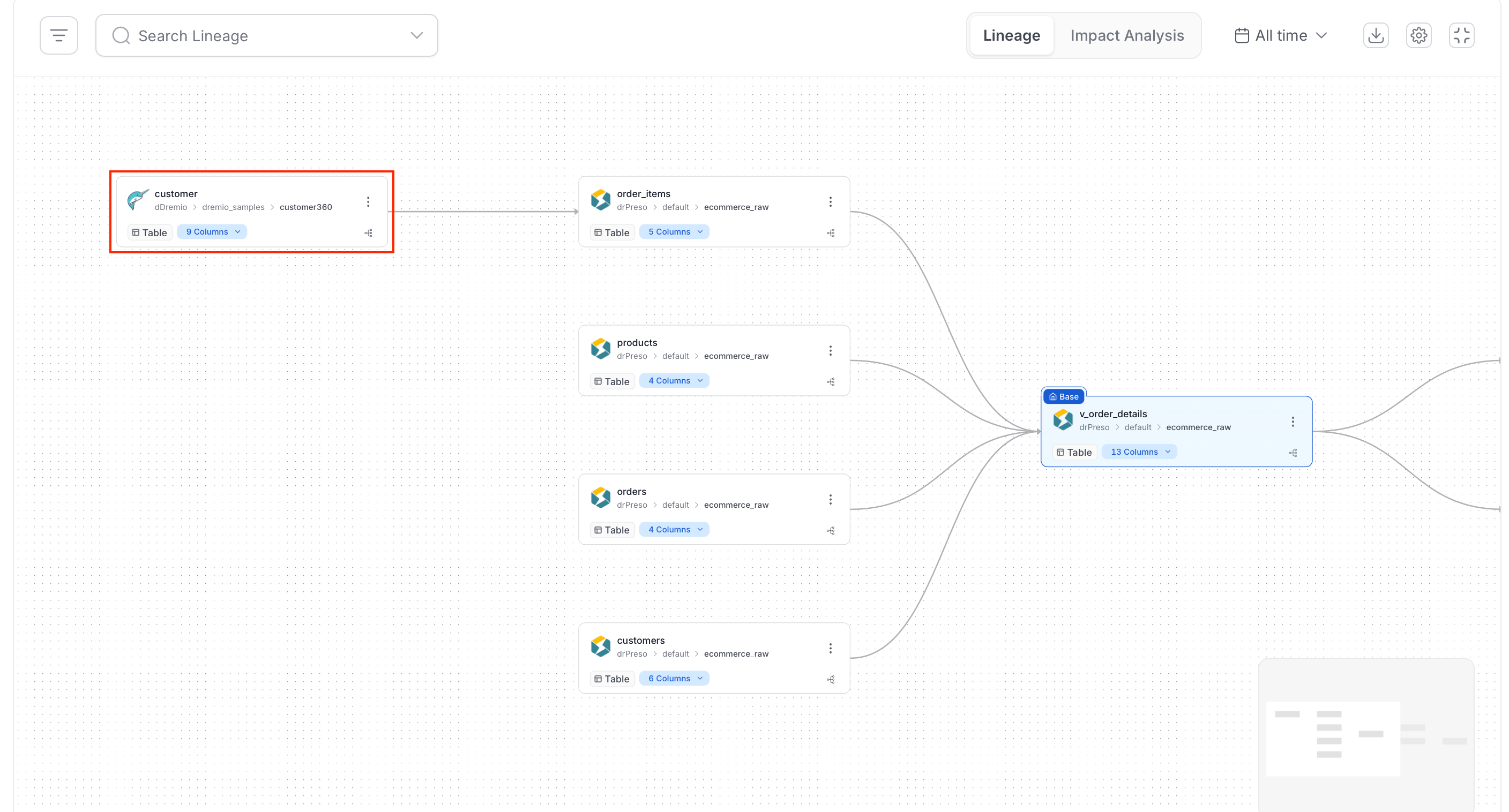
Click Add to create the lineage connection. Click Cancel to close the panel without saving. The selected asset shows as the New Upstream at the top of the panel.
Step 3: Add Column-Level Lineage
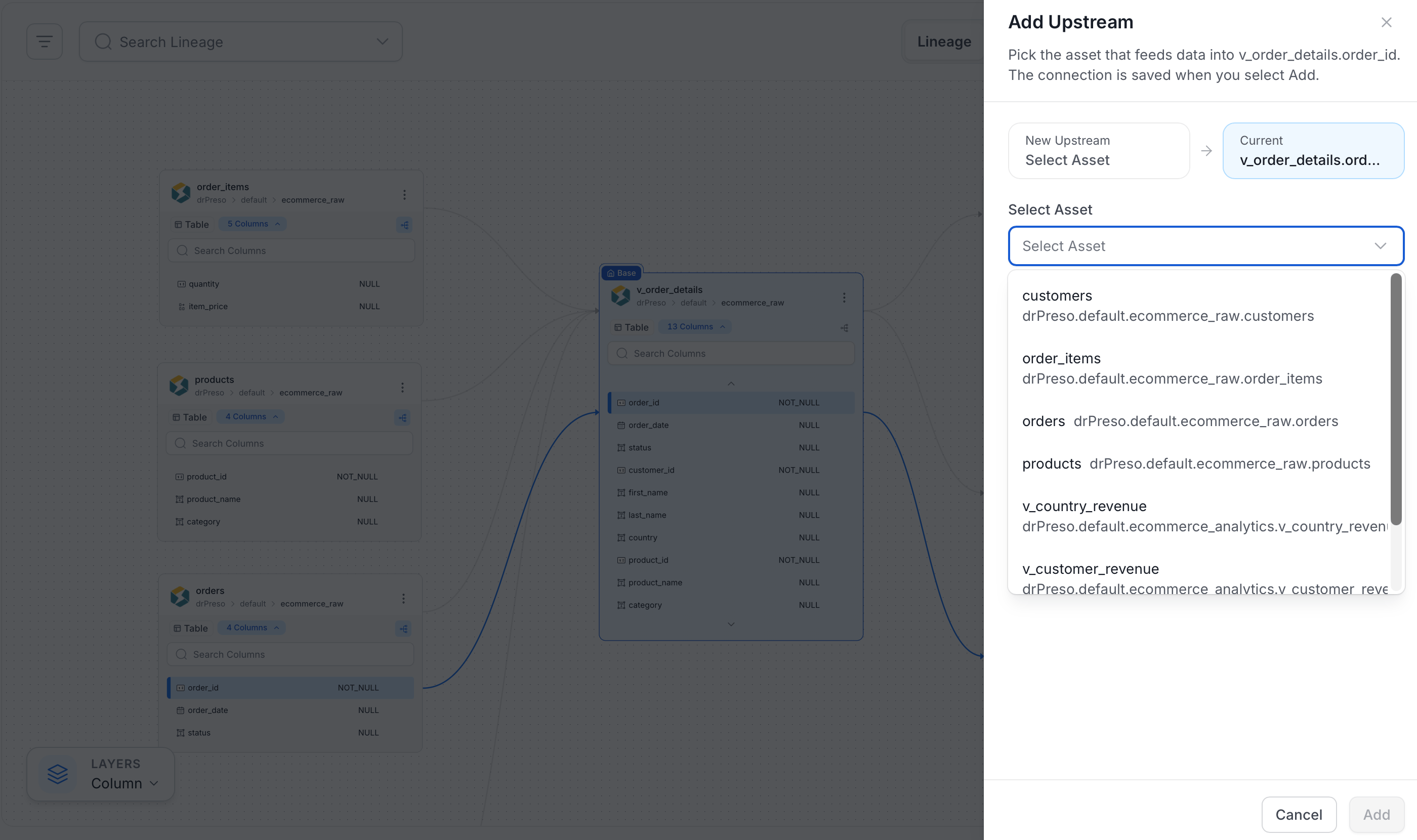
Link individual columns to trace field-level dependencies.- Show the columns on the node, either by expanding the node or by turning on the Column layer under Layers.
- On the column, open the Lineage options menu and select Edit Upstream or Edit Downstream.
- In the panel, select the asset in Select Asset, and use Select Column to pick the matching column. The asset must already be on the graph.
- Click Add.
Remove or Edit Lineage
Remove assets and connections, or change the details of an edge, from the same Lineage tab.Remove an Asset
Delete a node and the lineage edges shown with it.- On the node, open the Lineage options menu.
- Select Delete.
- Confirm the removal in the dialog.
The asset you started from has no Delete option. Temporary tables have no menu.
Edit or Remove an Edge
Open the edge details to update the pipeline or remove the connection.- Click the edge to open its details drawer.
- Open the Actions menu.
- Select Edit Pipeline to change the pipeline for the edge, or Delete to remove the edge. Confirm the deletion.